LoRA
Introduction
What is LoRA? Think of it as a lightweight fine-tuning method: instead of retraining the entire model, you can simply add a small "fast-adaptation" layer to an existing one to lock in your own style — faster and cheaper.
In this tutorial, we'll start from zero, show you how to find LoRA models you love online, and use them in Atlas Cloud. Even if you're new, you'll be up and running in no time.
Model Selection
When creating images and videos with AIGC, we usually can only control the model through prompts, making it difficult to manage fine details. If you depend on the model to "understand on its own" things like hand poses, fabric folds, or clothing elements, the results are often unsatisfactory.
At this point, you can explore open platforms to find LoRA models shared by creators. From overall art style and camera texture to specific poses, outfits, and tiny accessories. Targeted LoRAs can enhance details and give you more control — without retraining a model.
However, please remember an important rule when selecting a LoRA: it must exactly match the AIGC base model you use — same model name, same version, and same parameter size.
For example, a LoRA designed for Wan 2.2 cannot be used on Wan 2.1 or any other model. Similarly, a Wan 2.2 14B LoRA cannot be used on Wan 2.2 5B.
If these don't match, the style might shift at best. At worst, you could encounter errors. Always double-check the information on the model page before using it!
Double Check the Version and Parameters
**P.S. **On Atlas Cloud, LoRAs run from a single .safetensors file. Just import it and you're set. Avoid .PickleTensor, .zip, .GGUF, etc., because Atlas Cloud doesn't support those formats.
Watch the file size. LoRAs are usually under 2 GB (often just a few hundred MB). If your upload is significantly larger, you may select the wrong file (such as the complete base model or a zipped bundle), and the import will fail. Double-check the filename and extension before trying again!
Here is a commonly used platform: Hugging Face.
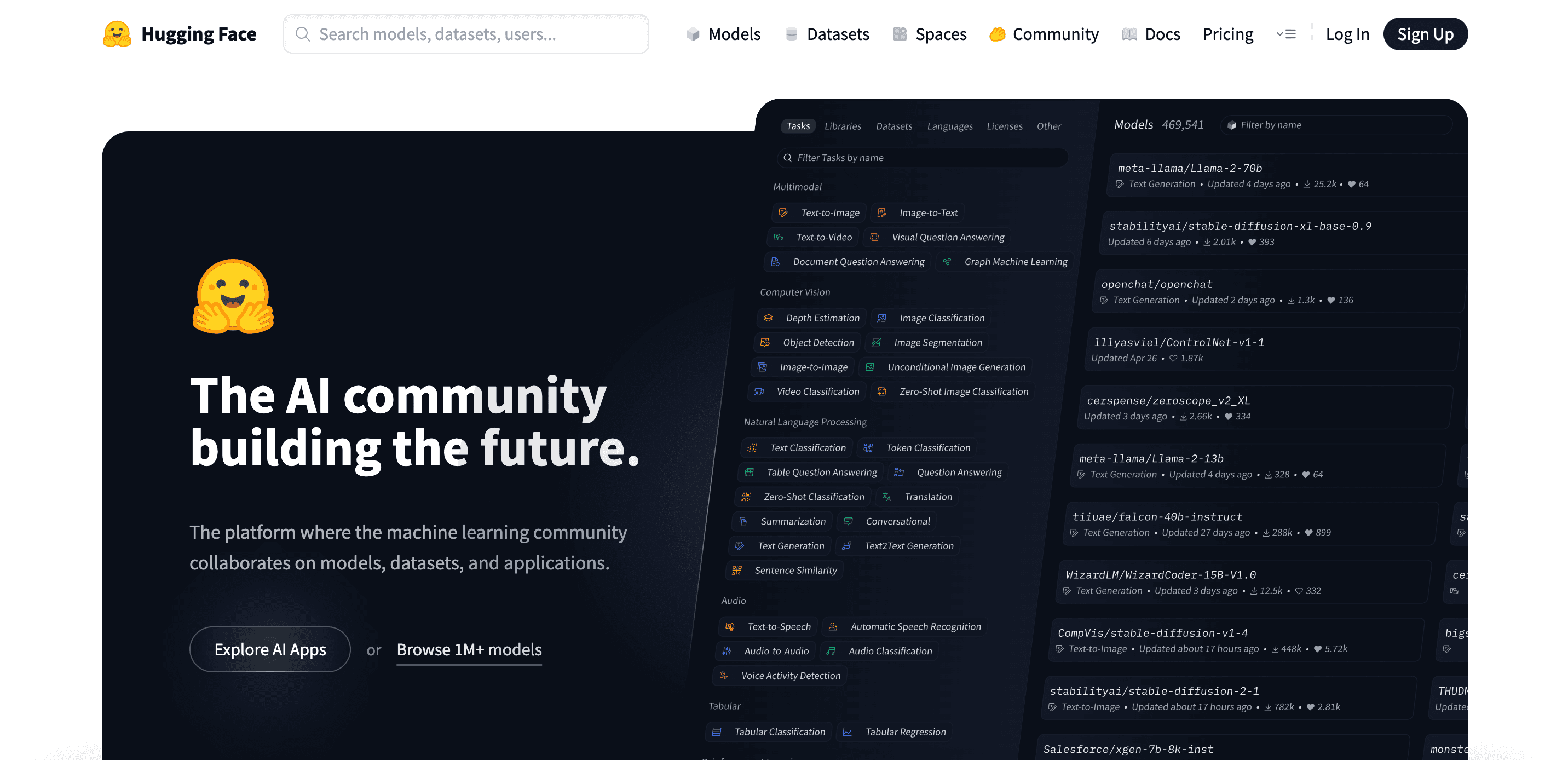
Hugging Face Platform
LoRA on Hugging Face
Hugging Face is one of the world's largest open-source model hubs, offering a vast catalog of models and datasets. You can search for LoRAs and find official weights and inference guides for popular base models.
In this part, we'll focus on LoRA — how to locate it, select it on Hugging Face, and use it on Atlas Cloud.
Begin by typing LoRA into the search bar at the top of the site to view related repositories.
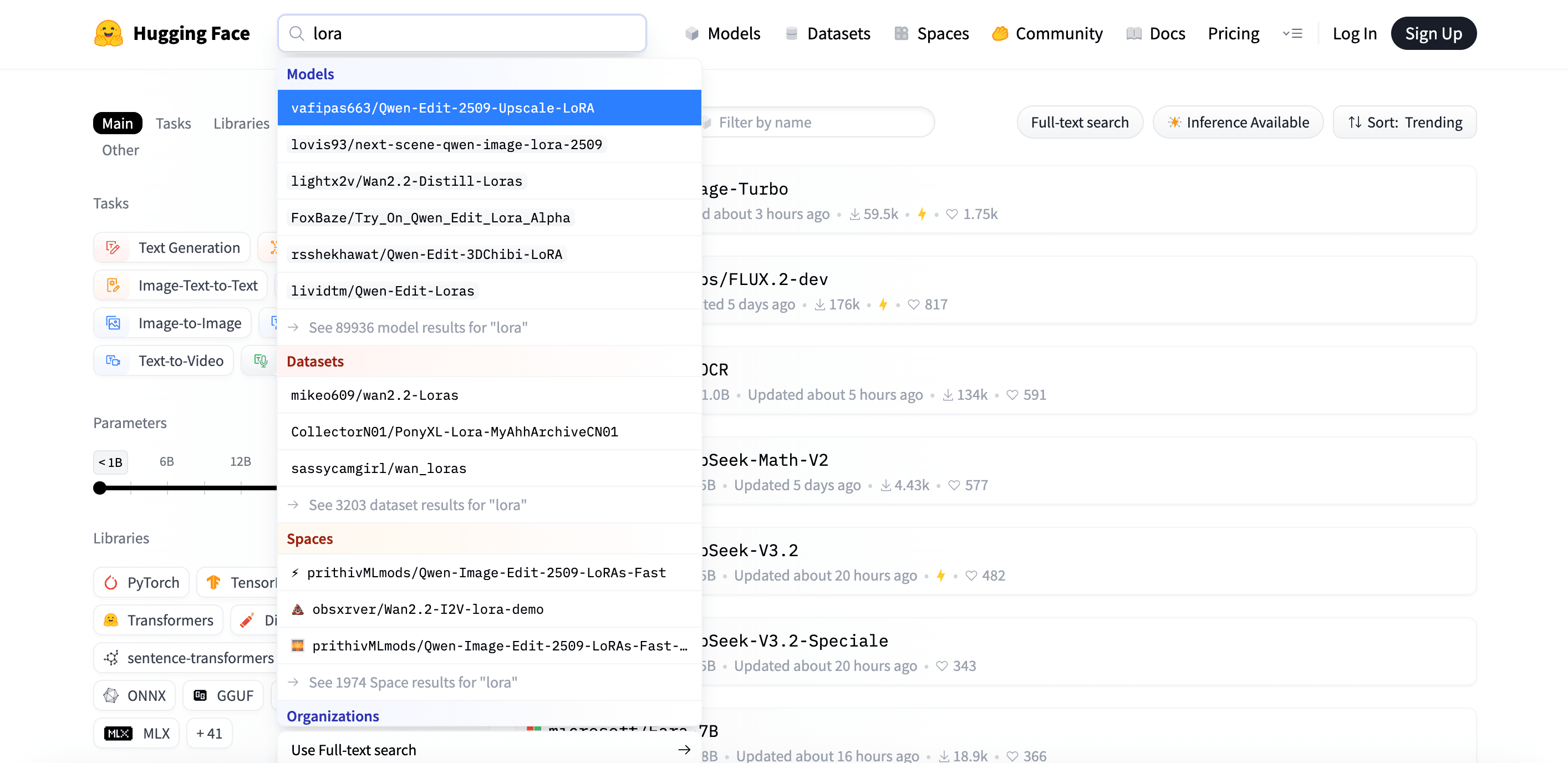
Next, click See all model results for "LoRA" to view the full LoRA results page.
For your own searches, include qualifiers like the base model name, version, and parameter size (e.g., 7B/14B). This narrows the search and shows more relevant results.
On Hugging Face, LoRA models usually specify the compatible base model and parameter size in the title or description.
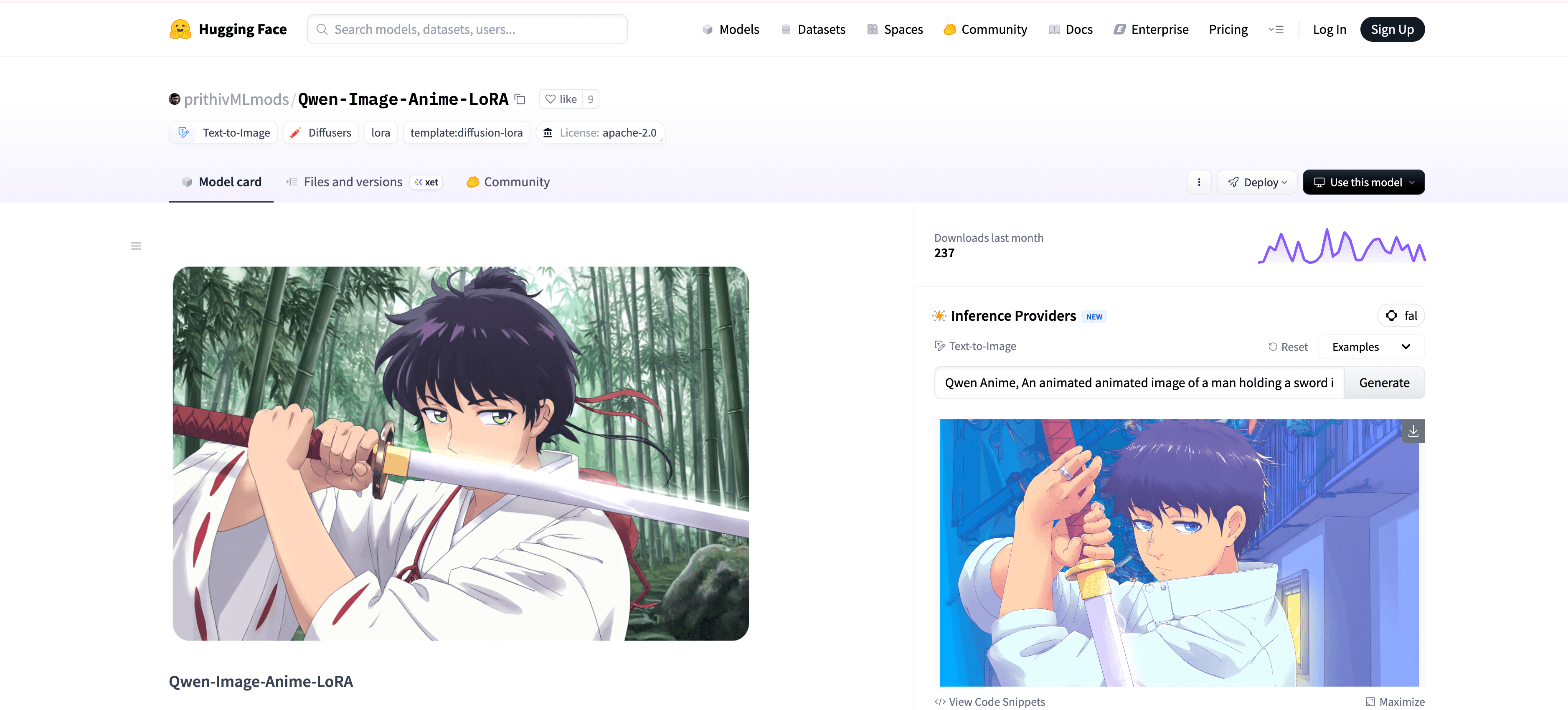
For example, prithivMLmods/Qwen-Image-Anime-LoRA is a LoRA created for Qwen-Image and used to generate Japanese anime–style images.
As shown on the page, Qwen-Image-Anime-LoRA is published by prithivMLmods and is specifically designed for the Qwen-Image base model.
Next, switch to Atlas Cloud and open the atlas-cloud/z-image/turbo-lora model. We'll use it to load and run this LoRA.
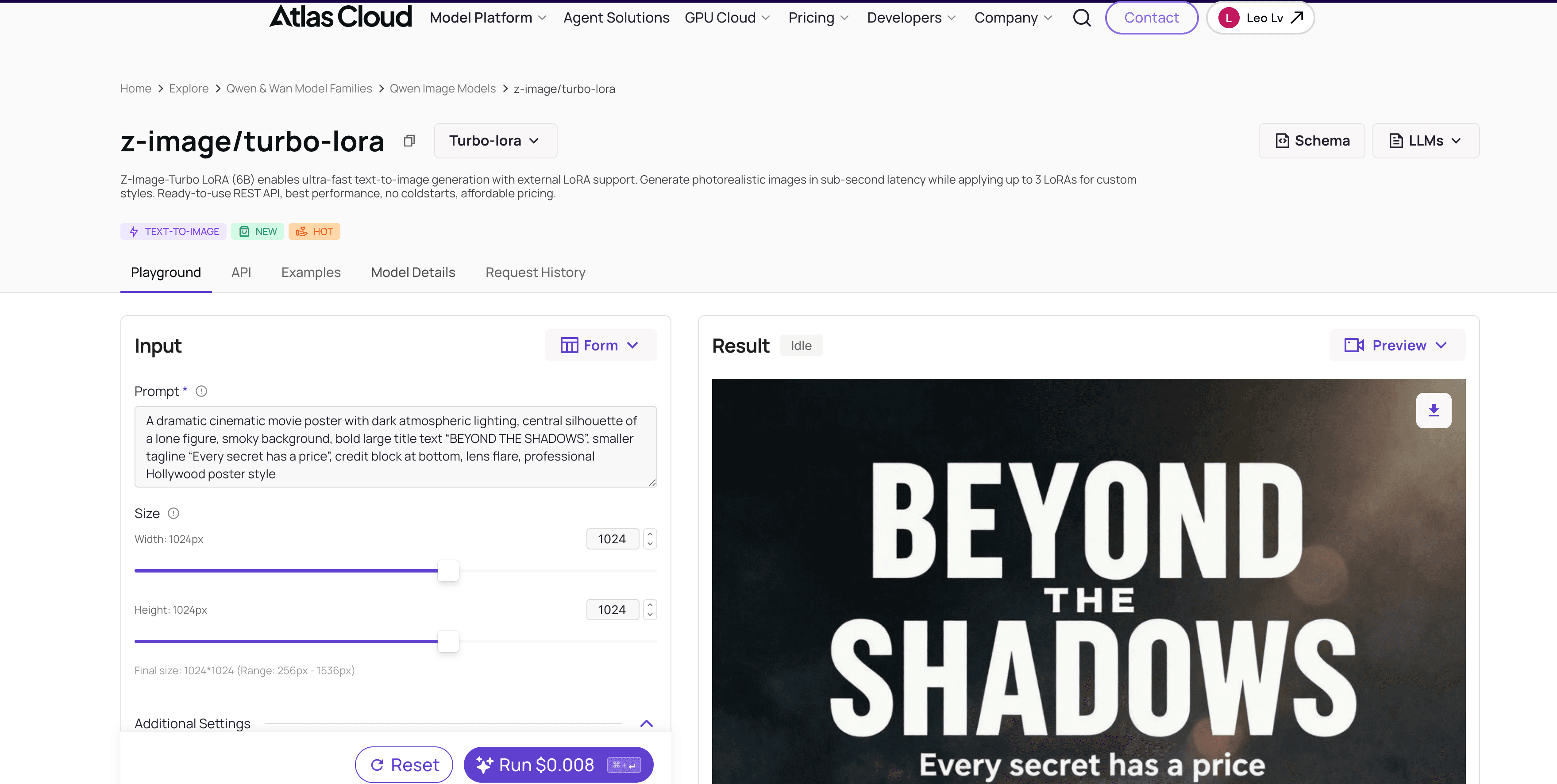
On the model's Playground page, you'll find the prompt input field to enter your prompt, along with the loras section for adding a LoRA model.
When writing your prompt, besides clearly describing the scene, style, and details you want, remember to include the LoRA's trigger word! You can usually find this information on the Hugging Face page in the Model Card.
For instance, on prithivMLmods/Qwen-Image-Anime-LoRA model page, scroll down the Model Card to find additional details, such as how to use the model and the exact trigger word required.
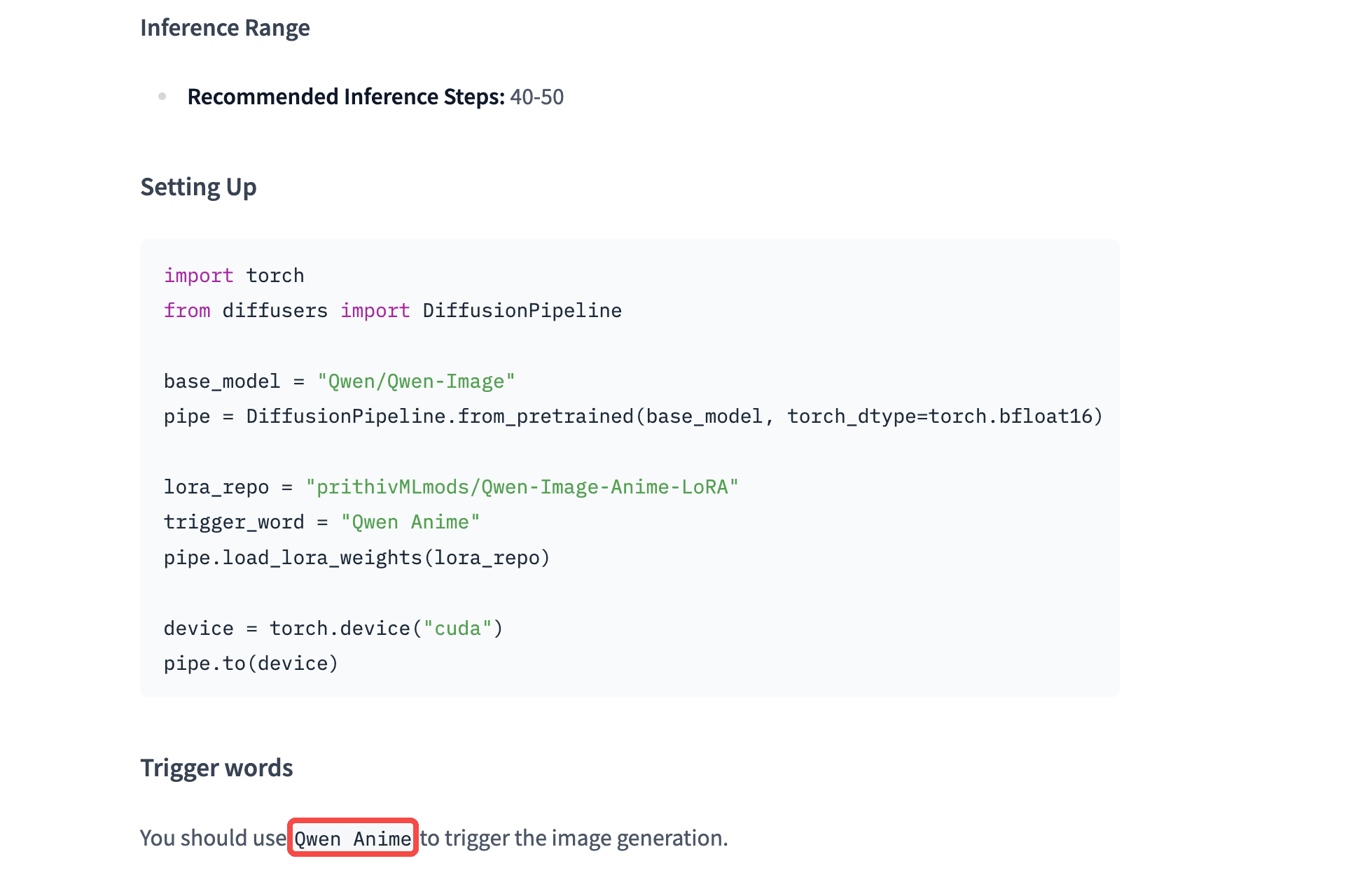
Trigger words in Model card
Afterward, we'll modify the parameters related to the LoRA model.
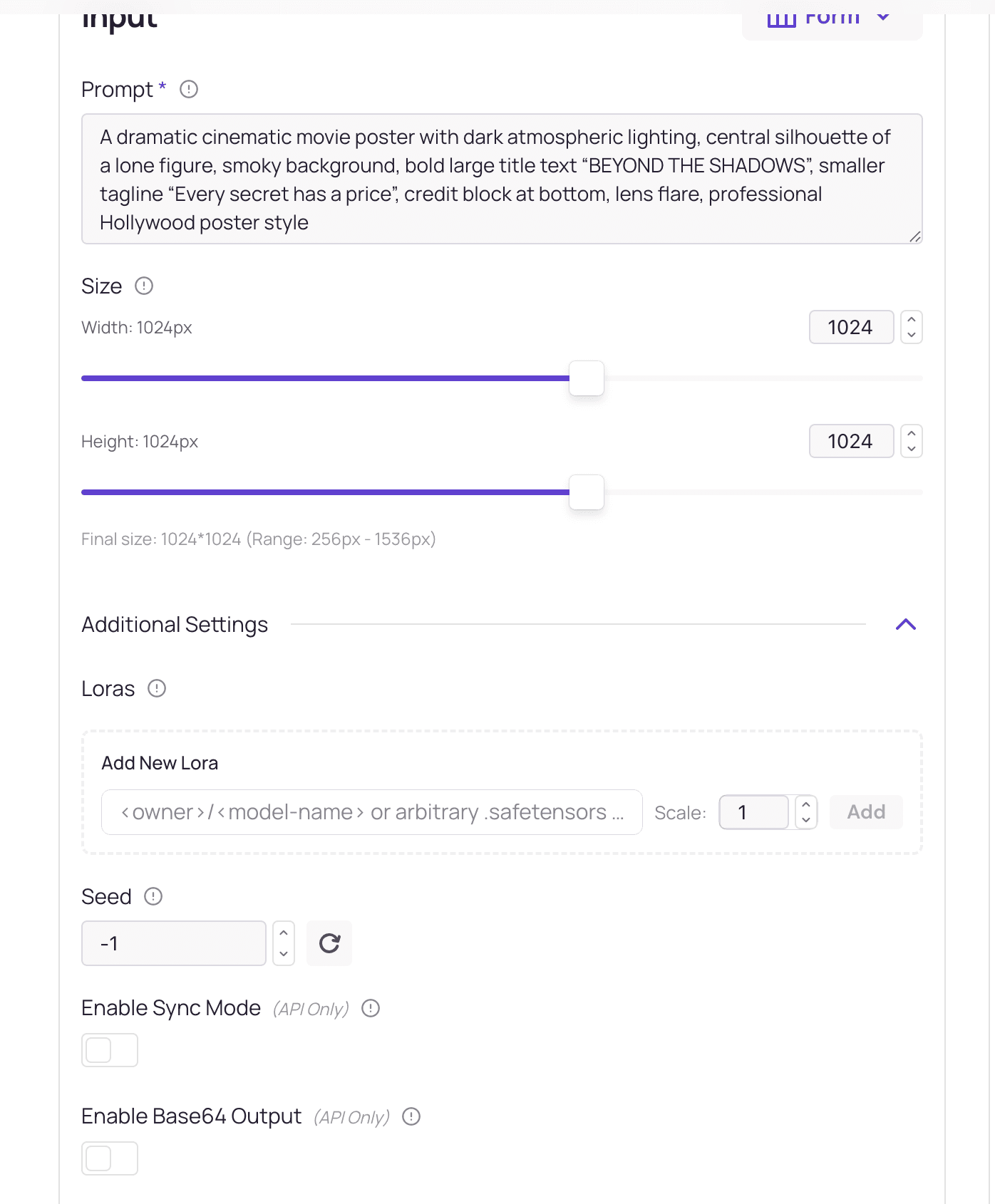
First is the path. This is the route Atlas Cloud AI uses to call the LoRA model you want.
Click + Add Item to reveal an input field. The qwen-image/text-to-image-lora pipeline allows adding up to three LoRA models.
Additionally, if the LoRA model is hosted on Hugging Face, Atlas Cloud AI provides two ways to reference it: one is <owner>/<model-name>.
Just like this example, the author's name plus the model name as shown on the model page.
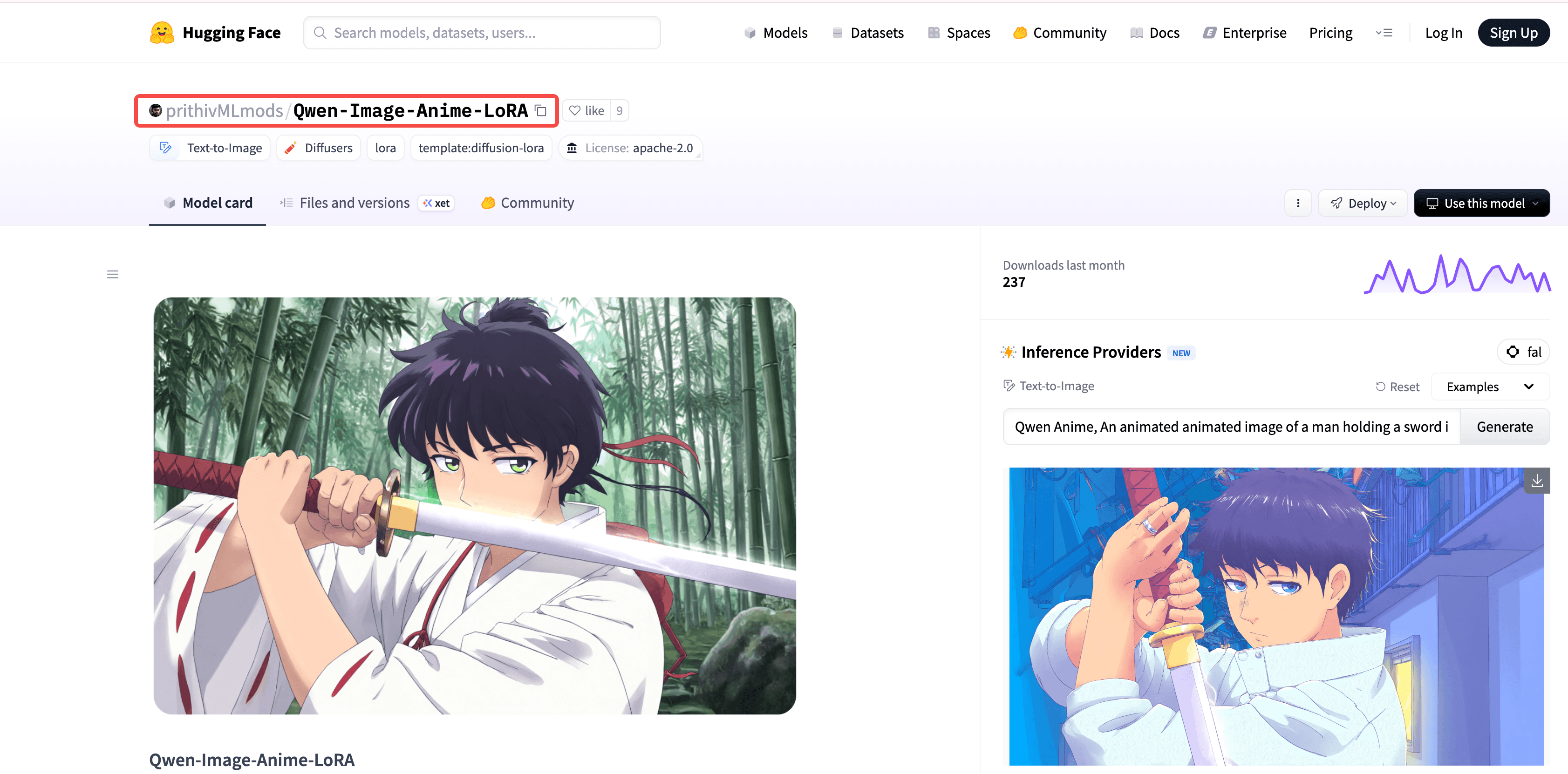
Copy this and paste in the path!
Another method is to go to the model's Files and versions, right-click the download icon, select Copy link address, and paste the copied URL into the path.
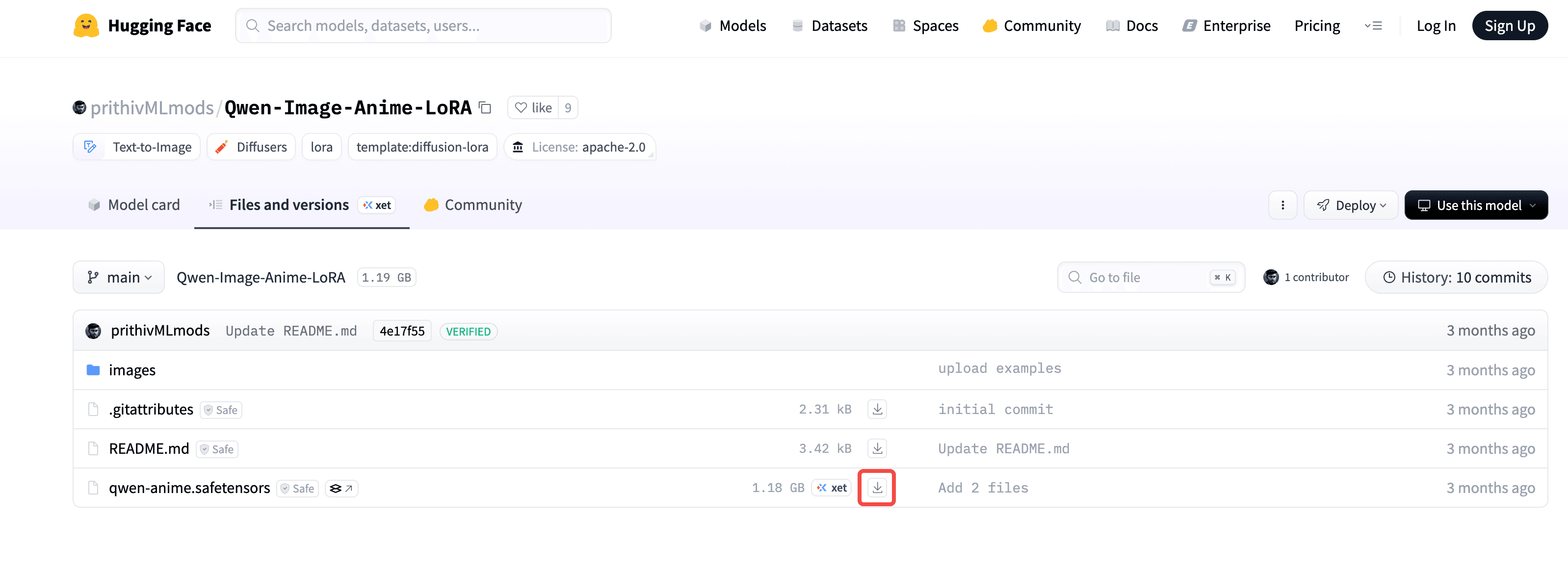
Download Button in Files and versions
Sometimes you may see high-noise LoRA and low-noise LoRA options on the model page. These are generally not commonly used, but Hugging Face usually provides detailed information about them.
Simply fill in the LoRA model with the matching name in the appropriate field as you would with a normal LoRA, and it will work well.
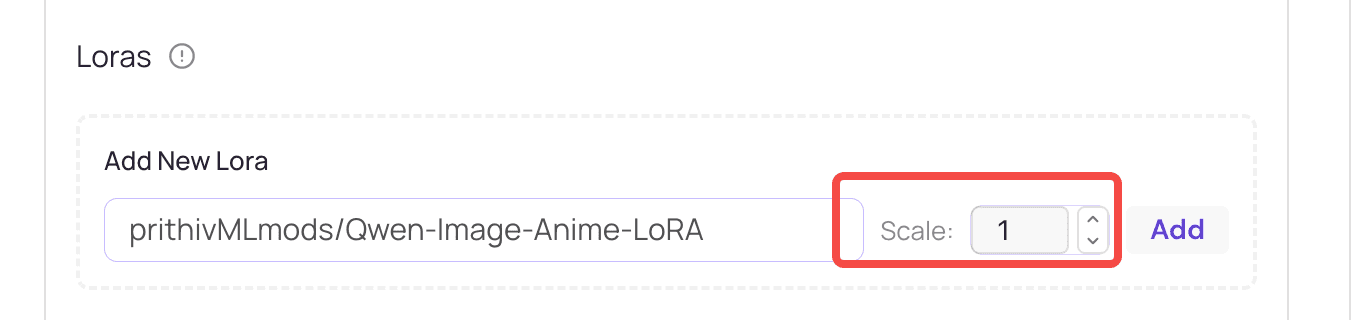
In the loras parameter settings, there is a slider called scale, which you can think of as an “influence/concentration” volume knob. It adjusts how strongly the LoRA affects the base model.
In most cases, the default value 1 will give you good results. If the result varies from your expectations, you can slightly increase the scale.
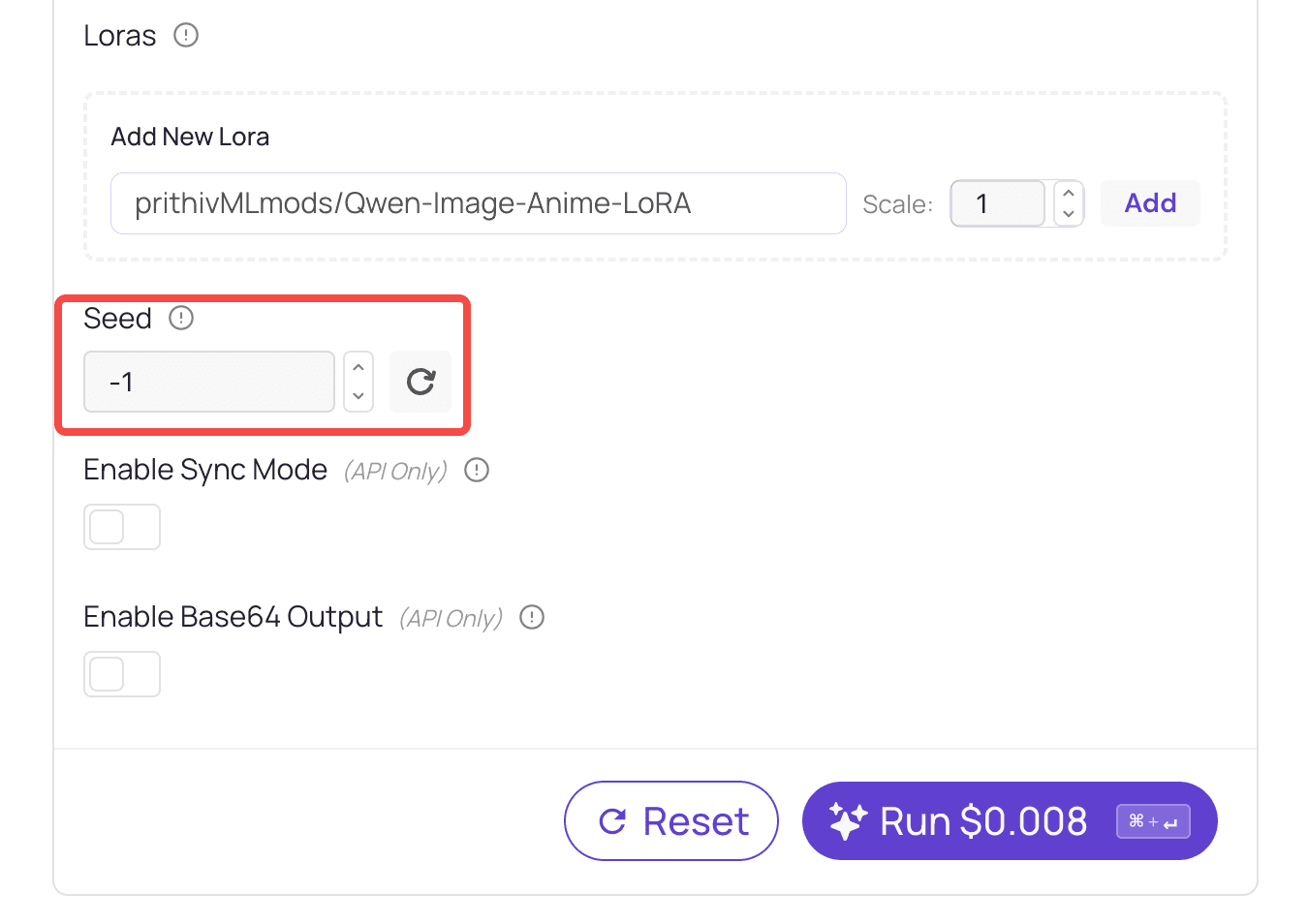
Seed is used to control randomness. Think of it as a “starting index.”
When you use the same seed and then adjust the prompt, the overall style and composition will remain mostly consistent. Only the parts you changed in the prompt will be different, making comparison and reproduction easier.
Great! You’ve completed all the prep work! Let’s begin using the LoRA model! In the prompt field, first enter the trigger word Qwen Anime for the LoRA model. Then provide the description of the result you want to generate.
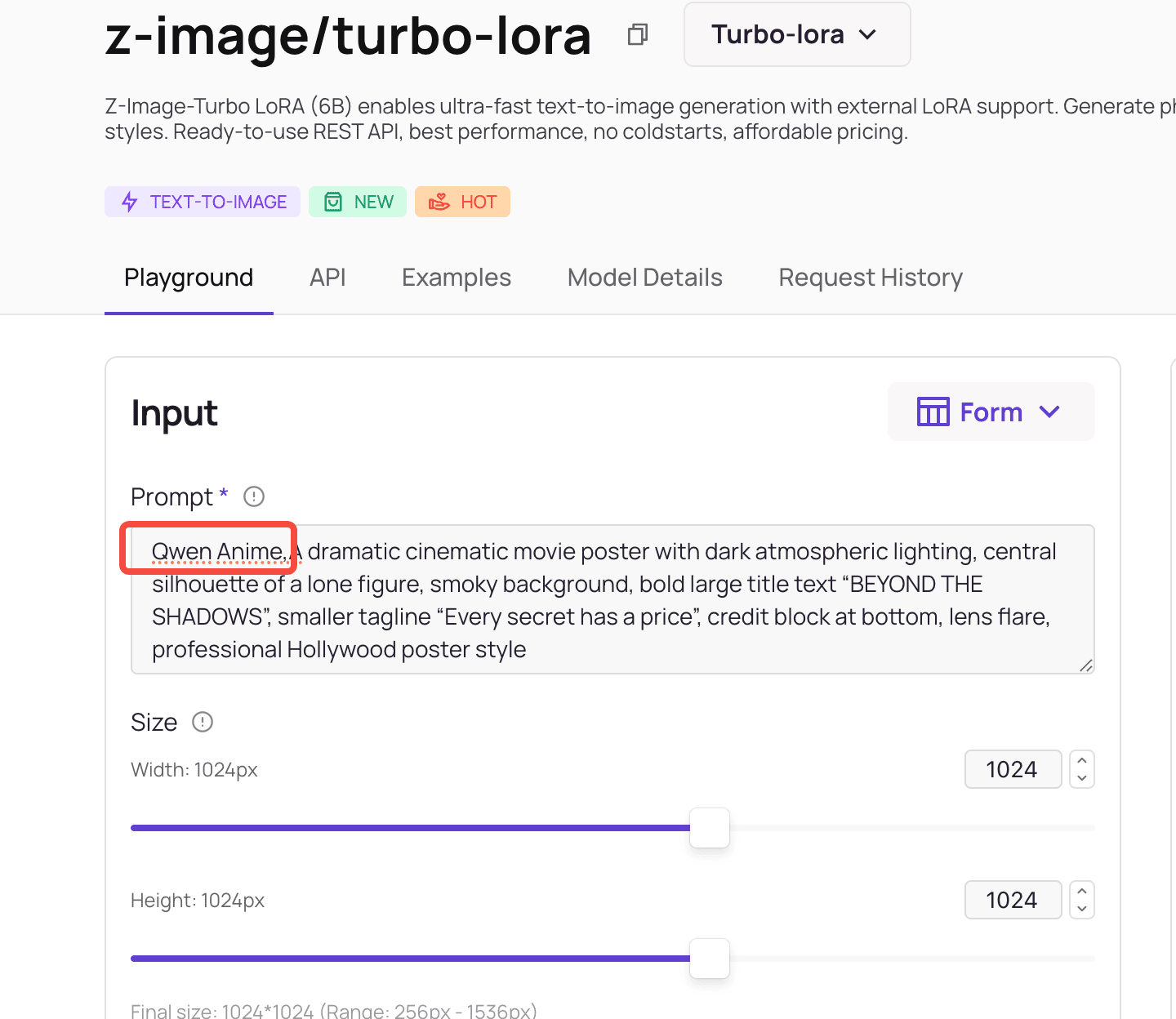
Input the trigger word
Then, in loras field, in the path, enter prithivMLmods/Qwen-Image-Anime-LoRA or its URL, and keep the scale at 1.
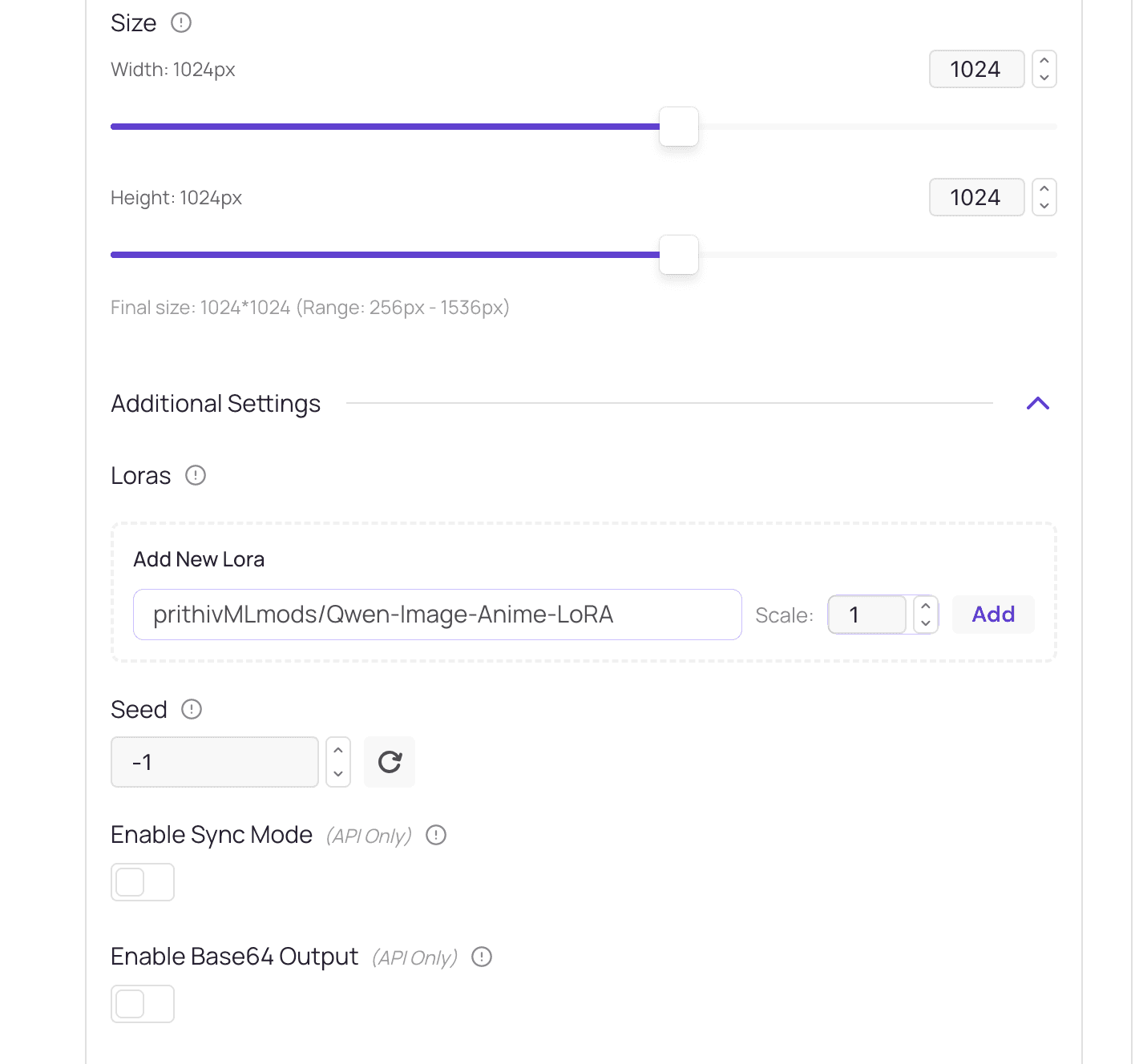
Set the path
Then set the seed so you can easily reproduce any results you want later.
Random seed number
Finally, click the Run button to generate an anime-style image!
The Result
Since we’ve already set a seed earlier, if you’re happy with the background and style details (such as clothing) but want to change the character’s gender, just edit the prompt and click Run again.
Conclusion
By this point, you have learned how to use the LoRA models you prefer on Atlas Cloud AI. But please remember, LoRA won’t make aesthetic choices for you. It only stabilizes details after you’ve set the direction. What truly makes a work unique is always your taste and imagination.
So be bold — try, learn, and keep improving. When you share your first results on Inspiration and grow with the community, you’ll see that efficiency is just the beginning. Having your style recognized is the real goal.
Wishing you smooth creation and success as you envisioned!
© 2025 Atlas Cloud AI. All rights reserved.
Last updated on