You typed a detailed paragraph into Kling AI text to video, hit generate, and got footage that looked nothing like what you imagined. Sound familiar? Most users burning through credits on Kling 3.0 make the same mistake: treating the prompt box like a screenplay instead of a structured instruction set.
Here is the fix upfront. Mastering Kling 3.0 means ditching freeform descriptions and adopting a structured 5-part multimodal prompts formula that pairs text instructions with explicit visual and audio references. Once you understand that, everything clicks.
Kling 3.0 ships with three headline upgrades that make this formula essential: 15-second continuous multi-shot generation, a native audio engine, and deep element binding. This AI video generator now responds to layered inputs, so a flat text-to-video prompt formula simply leaves capability on the table.
The Unified 5-Part Formula for High-Motion Kling AI Text to Video
Most users struggling with visual distortions in Kling AI text to video output share a common habit: writing prompts like a scene description rather than a production brief. Kling 3.0 uses a deeply integrated unified model training framework with more precise semantic response accuracy, which means it reads your prompt structurally. Vague language produces vague results.
Here is the verified building-block structure that gives the model what it needs:
| Part | Element | Example |
| 1 | Subject + Action | A woman in a red coat walks through a rain-soaked alley |
| 2 | Cinematic Camera Language | Slow tracking shot from left, slight upward tilt |
| 3 | Environment + Lighting | Night, neon reflections on wet pavement, shallow depth of field |
| 4 | Audio Instruction | Ambient rain, distant traffic, no dialogue |
| 5 | Mood & Color Grading | moody cinematic tone, muted colors, gritty teal and orange palette |
Pro Tip: Bookmark this structural framework. Separating your ideas into clean, non-flowing clauses is the single best way to maximize semantic response accuracy and reduce visual distortions before tweaking your settings below.
Next, let's put this into practice (For the video examples that follow, I will be using Kling 3.0 text-to-video on Atlas Cloud):
Actual 5-second output generated natively by Kling 3.0 Turbo using the exact text-to-video prompt formula above. Note how the model perfectly translates independent text clauses into a synchronized shot: a fluid tracking movement, photorealistic rain physics, and a rich, cinematic teal-and-orange atmosphere without causing subject distortion or texture morphing.
This maps directly to how text-to-video generation in Kling 3.0 processes layered input. The model's semantic response accuracy is strong enough to parse each part independently, so separating them into distinct clauses rather than one flowing paragraph consistently yields higher structural stability.
Optimizing Kling AI Text to Video Prompts: Limits & Negative Settings
While mastering the 5-part formula structures your narrative, nailing the technical parameters inside the generator dashboard prevents your footage from breaking down.
Character Budgets for Maximum Stability
The Kling AI text to video prompts field via the API accepts up to 2,500 characters. However, concise Kling AI text to video prompts of 60 to 100 words that focus on explicit cinematic camera language (tracking, handheld, dolly-in, arc shot) produce significantly more stable output than padded descriptions.
Leveraging Negative Prompts as Quality Filters
A separate negative prompts field, also up to 2,500 characters, lets you instruct the model on what to exclude. Use it to strip common artifacts from text-to-video generation:
- blurry faces, morphing hands, flickering textures
- low-resolution rendering, lens distortion
- duplicate subjects, unwanted scene cuts
Treat negative prompts as a quality filter, not an afterthought. Filling this field consistently reduces AI morphing artifacts, particularly in high-motion sequences.
Next, let's put this into practice:
The two clips above use the exact same cinematic text prompt in Kling 3.0 Standard to test stress-tolerance during a high-speed sprint.
- Top Video (No Negative Prompt): Pay close attention to the 2-3 second mark. The character's right arm exhibits an obvious flickering artifact and structural morphing as it swings forward, paired with significant facial distortion near the end of the clip.
- Bottom Video (With Negative Prompt Filter): By explicitly filtering out blurry faces, flickering textures, body deformation, the generator locks the arm movement and glowing suit patterns with flawless temporal consistency, even at peak velocity.
Unlocking Multi-Shot Narratives and the AI Director Workflow
Stitching together AI clips in a video editor to fake a scene progression is a workaround most creators know too well. Kling 3.0 removes that friction entirely with its native storyboard control system, which functions like having an AI director built into the generation pass.
Two Modes, One Generation
Multi-shot video generation in Kling 3.0 can be triggered through two modes: "Multi-Shot" and "Custom Multi-Shot." When "Multi-Shot" is enabled, the model automatically plans shot transitions. When it is disabled, the model defaults to generating a single-shot video.
Here is how to choose between them:
| Mode | Best For | Prompt Style |
| Multi-Shot | Fast narrative sequences where you trust the model to plan cuts | Scene description with action beats |
| Custom Multi-Shot | Precise control over each angle and cut order | Label each shot explicitly: "Shot 1... Shot 2..." |
Custom Multi-Shot
With "Custom Multi-Shot," you can precisely control the content and duration of each shot, and the model will strictly follow the prompts to generate multi-shot video that meets your expectations.
This powerful capability enables cinematic visual storytelling without an edit suite. Because the model understands cinematic languages with precision—supporting classic shot-reverse-shot dialogues and advanced techniques like cross-cutting and voice-over—you can execute complex audiovisual expressions within a single generation pass.
But this raises an essential workflow question: How long can a single sequence be to sustain this narrative depth?
Sequencing Limits & Camera Beats
Continuous 15-second generation supports a flexible duration ranging from 3 to 15 seconds, comfortably accommodating more complex action sequences and scene development. Within that window, you can sequence up to roughly 6 distinct camera beats while maintaining spatial and temporal logic, eliminating the need for external editing chains.
The result is genuine narrative flow and cinematic visual storytelling produced in one pass, not assembled across a timeline.
Next, let's put this into practice:
An optimal 8-second cinematic demonstration utilizing Kling 3.0's Custom Multi-Shot mode with strict integer-second pacing (3s + 2s + 3s). The generator flawlessly executes the multi-stage narrative pass without texture breakdown: transitioning from a detailed character study in Shot 1, to a stable reverse-angle mechanical shot in Shot 2, and concluding with a highly dynamic action sprint in Shot 3 while maintaining perfect lighting and character identity consistency.
Mastering Elements 3.0 for Flawless Character and Subject Consistency
Creators building serialized content know the pain well: a character's face shifts subtly between generations, clothing changes color by the third clip, and the visual identity of an entire project collapses. Element binding in Kling 3.0 and Kling 3.0 Omni was built specifically to close that gap.
How the All-in-One Reference System Works
Kling 3.0 Omni treats images, videos, elements, and text you upload as a unified set of prompts, comprehensively understanding any combination and accurately generating various video details. This means character consistency is maintained not through text description alone, but through layered visual locking.
Two ways to build a visual identity tracking element:
| Method | Input Required | What Gets Locked |
| Multi-Angle Image Element | 2 to 4 photos (1 main front-facing + up to 3 supplementary angles) | Physical appearance, costume design, facial geometry, and depth contours. |
| Video Character Element | 3 to 8 second video clip OR a 5 to 30 second clean voice recording | Reusable 3D character profile + original visual appearance and bound voice tone. |
Once saved, Kling 3.0 Omni introduces Omni Reference Tags. You can simply type @ in the prompt box to instantly call up your locked assets (e.g., @Character_A) without manual re-uploading, triggering the model's native lip-sync and character preservation layers automatically.
The Image-to-Video Prompt Mistake Most Creators Make
This is where many image-to-video prompt guide users lose credits unnecessarily. When you upload a reference image, the model already reads the subject's appearance in full. Repeating those details in the text box dilutes the instruction budget.
The correct approach: drop subject description entirely and use 100% of your text prompt on motion intensity and camera behavior.
| Prompt Type | What to Write | What to Skip |
| Text-to-Video | Subject + action + camera path | Nothing |
| Element & Image Reference | @Character_A + camera move + motion intensity | All physical and visual descriptions already embedded in the element. |
Element binding ensures that regardless of camera movements and scene development, key subjects remain stable and consistent throughout. Your text prompt governs the motion. The image governs the look.
Driving Video with Native Bilingual Audio and Text Lettering Capabilities
Ask any creator who has built a bilingual ad campaign with AI video tools: the final 20% of the work, fixing mismatched lip movements and re-rendering blurred text overlays in post, routinely takes longer than the initial generation. Kling 3.0's cross-task integration was built to eliminate exactly that.
How Native Audio Output Works in Multi-Character Scenes
Native audio output in Kling 3.0 supports multiple languages including Chinese, English, Japanese, Korean, and Spanish, along with authentic dialects and accents, enabling smooth multilingual transitions within a single video. There is no third-party AI voice generator dependency. The voice is rendered at the model level, producing frame-accurate lip sync natively.
The model parses character names or @tags directly in your prompt text to route specific vocal tracks to the correct face. This is how to format multi-character scenes correctly:
| Prompt Format | What the Model Does |
| Mom (softly): "I didn't expect this at all." | Routes the line to the character identified as Mom |
| @Boxer A throws a punch, @Boxer B sidesteps | Locks each action and voice to the tagged element |
| Man (Indian accent, English): "excuse me..." | Applies the specified accent to that character only |
By clearly specifying dialogue for each character in your prompt, the model automatically matches each character with their corresponding lines, resolving speech confusion in complex scenes and enabling targeted dialogue for multiple characters in the same frame.
Text Lettering Capabilities for Signs and Title Cards
Garbled background text is one of the most common artifacts in AI video. Kling 3.0's native-level text lettering capabilities can automatically identify text content in uploaded images such as signs, captions, or logos, and maintain text consistency, avoiding issues such as text displacement or blurring. For e-commerce or branded content, this means product labels and on-screen titles hold their legibility across every frame without post-production fixes.
Kling AI Pricing Tiers: Maximizing Free Credits vs. Pro Production Costs
Creators who burn through their Kling AI free credits on a single afternoon quickly discover the platform has a steep gap between exploration and production. Understanding exactly where that gap sits saves real money.
Is Kling AI Free?
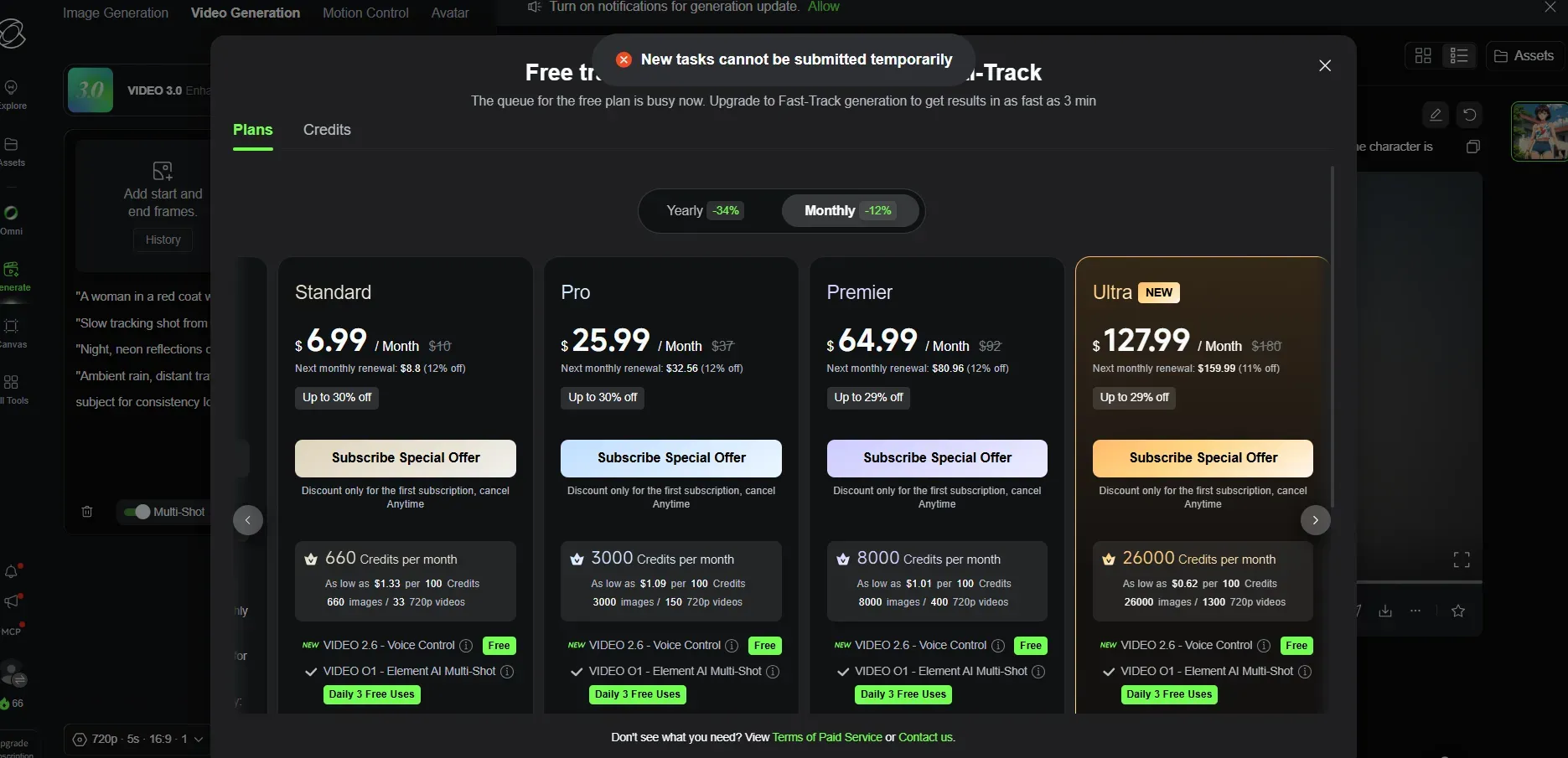
Yes, with hard limits. The Basic plan gives you 66 credits per month, and those credits do not roll over. If you do not use them, they vanish by the next month. The Basic tier does not allow commercial use, and generated content carries a watermark. Free-tier resolution is capped at 720p, making it practical only for prompt testing.
⚠️ The "Task Failed" Reality Check: In practice, relying on these free credits for active workflows is almost impossible. Due to massive demand and server capacity prioritization for paid tiers, free users frequently encounter the notorious "New tasks cannot be submitted temporarily" system block when hitting the generate button. To access production-grade HD outputs without the frustration of temporary submission blocks, you must either step into Kling's native subscription tiers or route through a stable API pipeline.
For professional creators, studios, or programmatic developers who cannot afford to be locked out by front-end queue congestion, pivoting to an enterprise infrastructure layer like Atlas Cloud becomes essential. Serving as a high-availability AI inference platform, Atlas Cloud bypasses consumer-facing bottlenecks by providing zero-queue, GPU-optimized serverless access directly to Kuaishou's complete flagship video suite.
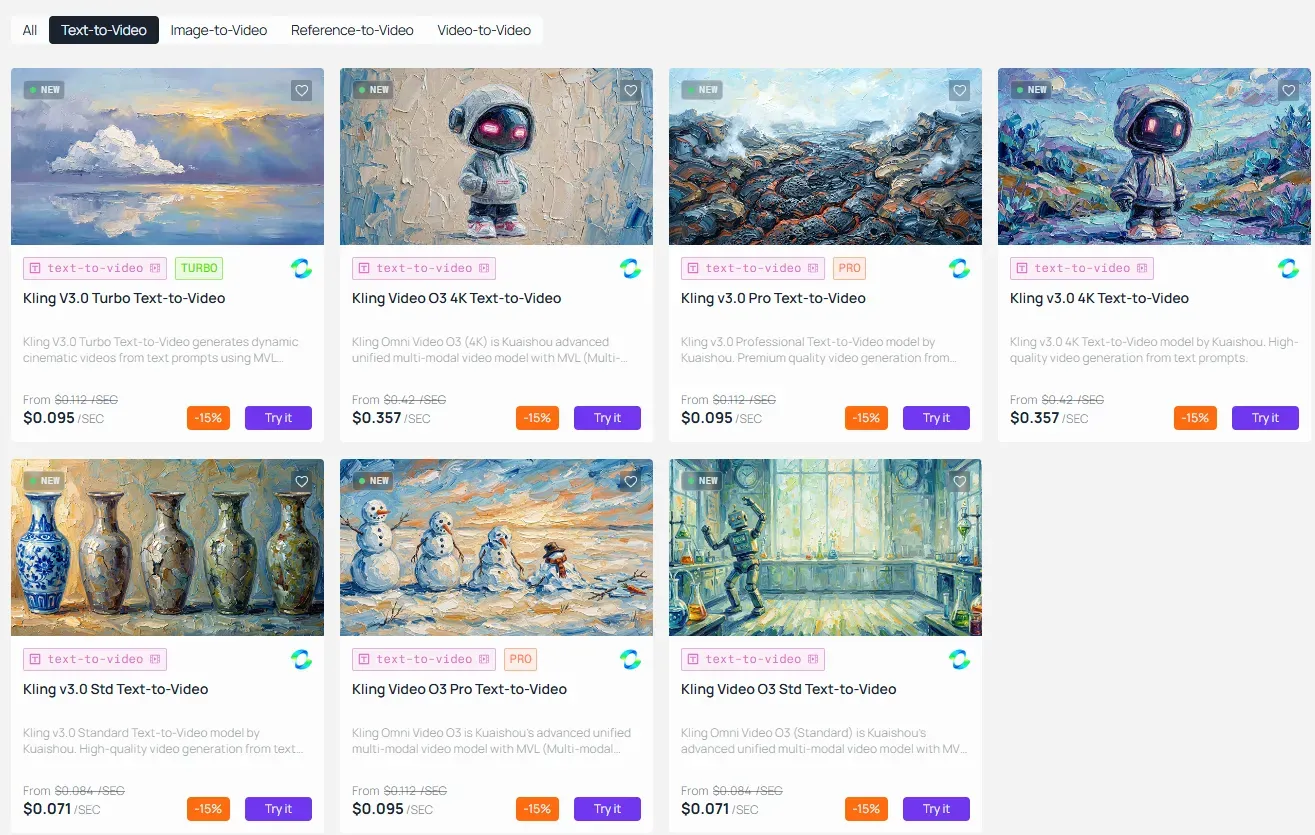
Instead of dealing with fragmented web interfaces, a single integration grants developers full programmatic control over the entire Kling V3 and Video O3 spectrum:
- Granular Model Selection: Seamlessly switch between the speed-optimized Kling V3.0 Turbo ideal for rapid prototyping and draft reviews, the production-standard Std / Pro tiers, and the ultra-high-fidelity Kling V3.0 4K models.
- Advanced Storyboarding via API: Leverage the platform's schema support for the guidances array. Instead of relying on a single text paragraph, developers can pass up to 6 distinct sequential camera angles and actions in a single asynchronous call, enabling automated multi-shot generation.
- Multi-Modal Visual Language (MVL) Control: Unlock advanced endpoint parameters including Start-to-End Frame Guidance (uploading first and last image assets for precise, controlled motion trajectories) and native Omni Video O3 integration for professional-grade subject consistency and frame-accurate bilingual audio generation.
Ultimately, platforms like Atlas Cloud abstract away the infrastructure headaches. By unifying Kling 3.0 alongside 300+ leading generative models (such as GPT, Gemini, and DeepSeek) under one API key and a transparent pay-as-you-go pricing model, it transforms Kling from an unstable consumer web application into a robust, scalable engine for mass automated video production.
Generation Cost Breakdown for Kling 3.0
The official per-second pricing from Kling's published guide directly determines your burn rate:
| Output Type | Resolution | Cost |
| 3.0 Video, No Native Audio | 720p | 6 credits/s |
| 3.0 Video, No Native Audio | 1080p | 8 credits/s |
| 3.0 Video, Native Audio | 720p | 9 credits/s |
| 3.0 Video, Native Audio | 1080p | 12 credits/s |
| Voice Tone Control (add-on) | 1080p | +2 credits/s |
Applying that math to a standard 5-second clip: a 720p no-audio video costs 30 credits, a 1080p Native Audio video costs 60 credits, and adding Voice Tone Control pushes a 5-second 1080p video to 70 credits. Generation cost is charged per second of output, not per generation request.
Paid Subscription Tiers
Kling AI offers five subscription tiers: Basic (free), Standard, Pro, Premier, and Ultra, with annual billing reducing costs by approximately 20 to 34%. Paid plans unlock watermark-free 4K resolution outputs and explicit commercial use license rights. Monthly subscription credits expire at the end of each billing cycle with no rollover, but separately purchased top-up credit packs remain valid for two years.
For API-based programmatic use, the developer platform uses separate prepaid resource packages with per-second pricing independent of consumer pricing plans.
Start Building Your Multimodal Prompt Stack Today
Kling AI text to video 3.0 shifts rapid concept visualization from single-pass guesswork to a structured, layered craft. The 5-part formula gives you a repeatable system. Use this checklist to launch your first session in this advanced creative studio:
- Lock your subject and camera move first
- Bind a visual element reference for character consistency
- Assign audio tracks via character tags
- Set negative prompts before generating
- Enable Multi-Shot only when sequencing multiple beats
Experiment freely within that structure. Professional cinematic output from a true multimodal AI video generator follows the formula, not the paragraph.