Grok image to video, powered by xAI's proprietary xAI Aurora engine, is the most competitive AI video generator released in 2026. Grok Imagine Video 1.5 reached the #1 position on the Image-to-Video Arena leaderboard with a +52 Elo point jump over its predecessor, surpassing ByteDance's Seedance 2.0, HappyHorse 1.0, and Google Veo.

The data above is from Arena.ai
Three advantages separate it from the field immediately:
- Speed: Generation completes in 5 to 30 seconds, faster than most comparable quality models.
- Native audio synchronization: Audio is generated in the same pass, removing post-production overhead entirely.
- Subject fidelity: The source image anchors the first frame, locking in identity and composition throughout the clip.
This model uses the Aurora engine, which mixes text, images, video, and audio seamlessly. Driven by the advanced grok xai video analysis capabilities 2026, the system deeply understands spatial and temporal logic. If you learn how to write the right prompts, you can turn generic clips into cinema-quality video. If you are wondering how to generate video with grok xai efficiently, this guide walks you through those exact production steps.
How to Use Grok Image to Video: The Complete Workflow and Generation Modes
The production loop is straightforward once you understand its structure. Here is the full step-by-step workflow from image input to final delivery.
Step 1: Prepare Your Source Image
Your source image input is the most important variable in the entire pipeline. Grok locks it as the unyielding first frame, so composition decisions made here carry through the entire clip.
Image preparation checklist:
- Use supported formats: JPG, JPEG, PNG, and WEBP
- Choose your target aspect ratio before uploading (16:9, 9:16, 1:1, etc.)
- Ensure the subject is clearly defined with clean edges
- Avoid heavy compression artifacts, which degrade motion coherence
Step 2: Choose Your Generation Mode
If you have used Grok on the X app or web interface, you are likely familiar with its creative mode buttons. However, as xAI pivots Grok 1.5 toward high-fidelity production, these modes have evolved:
- Normal Mode (The Current Standard): Best for professional content, brand videos, and product demos. It delivers balanced, predictable, and boardroom-ready cinematic motion. [Current Status] This is now the default mode across all platforms and the core engine behavior.
- Fun Mode (Legacy / Deprecated): Originally designed for social media memes and dynamic storytelling, prioritizing high-energy, whimsical, and exaggerated physics over realism. [Current Status]Note for creators: xAI has recently phased out or hidden this toggle in the latest UI updates to prioritize temporal stability. To achieve "Fun Mode" results now, you must explicitly inject high-motion, chaotic descriptions into your text prompt.
- Custom Mode (Developer API Focus): Best for granular creative control, allowing advanced multi-image mapping and camera trajectory overrides.
🧑💻 Developer Integration Note: If you are building with the official xAI Developer API (x.ai/api/imagine), you will not find a mode="fun" or mode="normal" parameter in the backend documentation. The API skips these simplified front-end toggles entirely, giving you raw access to the model. You achieve "Normal" or "Fun" styles natively by adjusting parameters like prompt phrasing, seed values, and frame dimensions.
Step 3: Set Resolution and Draft First
Always prototype at drafting 480p resolution before committing to a 720p render. The motion logic, timing, and prompt behavior are identical across both pipelines, so a $0.50 draft validates your creative direction before you spend $0.70 on the final output.
Step 4: Submit via API and Poll for Results
API-based generation uses an asynchronous polling request model. You submit the job, receive a task ID, and query the endpoint at intervals until the status returns as complete. This prevents timeout errors on longer generations and allows batching of multiple requests in parallel.
Enterprise Infrastructure Tip: For high-throughput production pipelines, scaling raw API requests requires a robust cloud layer. Many tech teams run these heavy workflows on Atlas Cloud to get top-tier GPU power and quick edge caching. This keeps everything moving fast and prevents painful lag when everyone hits the servers at once.
Step 5: Retrieve and Deliver
As soon as the status bar finishes, grab your final H.264 MP4 file. It is completely ready to post on YouTube, TikTok, or Instagram without making you convert a thing.
Pro Tip: The 5 to 30 second generation speed makes rapid iteration viable. Run three to five prompt variations at 480p, select the strongest motion result, then render that single version at 720p for final delivery.
Advanced Multi-Image Reference-to-Video Pipelines
Single-image generation covers most use cases. But when a project demands precise compositional control over character, environment, and props simultaneously, the reference-to-video model architecture is where Grok separates itself from the competition.
How Multi-Image Input Works
Rather than being constrained to one source frame, Grok accepts between 1 and 8 distinct reference images per request. You can pass each image as a standard web link or as a Base64 data string. This gives both coding developers and no-code builders easy options to upload files.
The system looks at every picture on its own, then mixes their visual styles together to create one smooth video clip. Think of it as assembling a scene from parts rather than animating a whole.
Practical reference assignment breakdown:
| Reference Slot | What to Pass | Engine Extracts |
| @image1 | Character portrait or face | Identity preservation, facial geometry |
| @image2 | Location or environment shot | Background depth, lighting context |
| @image3 | Prop or object close-up | Object texture, scale, placement |
| @image4 to @image8 | Secondary characters or style anchors | Character consistency across scene |
Sequential Prompt Tagging for Identity Preservation
The tagging system is the critical operational layer. Within your text prompt, reference each image explicitly using sequential tags:
"@image1 walks through @image2, carrying @image3, while @image4 observes from the background."
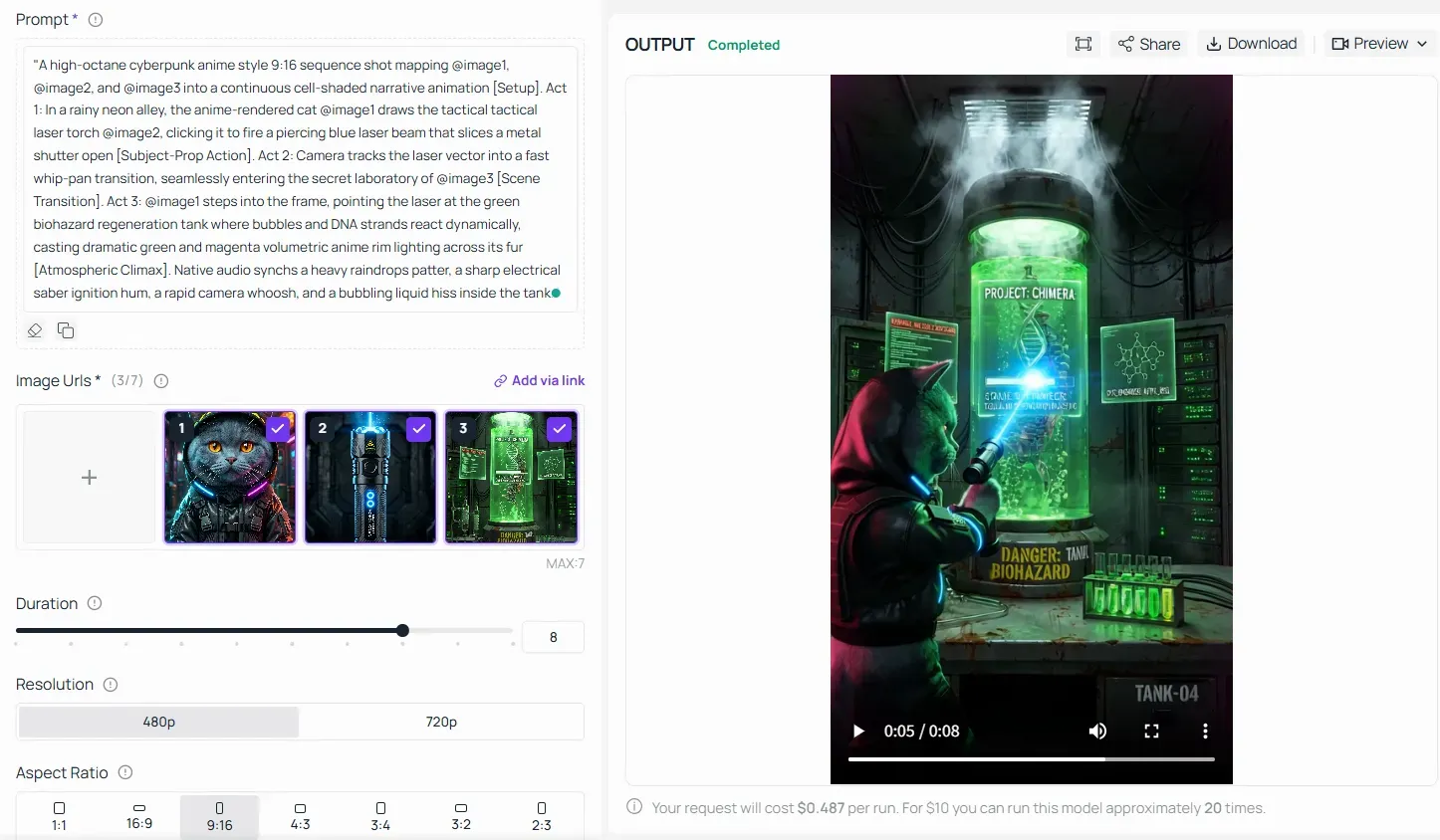
This syntax tells the Aurora engine exactly which visual element each prompt segment maps to. Without tagging, the model averages visual features across all inputs, which dilutes identity preservation and produces blended, ambiguous output.
Rules for reliable tagging:
- Always tag in the order images are submitted in the API payload
- Keep character references isolated to a single, clean portrait per slot
- Avoid overlapping visual features across slots (e.g., two images with similar backgrounds confuse depth assignment)
- Use the same tag consistently if a character appears in multiple actions within the prompt
When to Use the Multi-Image Pipeline
Multi-image input is not always the right tool. Reserve it for productions that genuinely require cross-source compositional control, such as branded character series, cinematic shorts, or product placement videos where environment, talent, and props originate from separate shoot days. For simpler animations, a single well-composed source image will always be faster and cheaper to iterate on.
Creative Prompting Frameworks for Grok Image to Video
Mastering how to generate video with grok xai is less about describing what you see and more about directing what changes. Because the Aurora engine processes text autoregressively, , meaning it reads your prompt from left to right in sequence. Events written first execute earliest in the clip. Details buried at the end may never render.
The Blueprint Formula
Every effective prompt follows this sequential prompt structure:
[Subject Core Movement] + [Camera Trajectory/Lens Action] + [Lighting Shifts/Atmospheric Transition]
Example:
"Man raises his coffee cup slowly, dolly zoom effect pushing toward his face, morning light intensifying to warm gold as steam rises."
The Golden Rules of Grok Prompting
Direct Motion, Not Description
The model already knows what is in your source image. Motion descriptions are your only job. Tell Grok what moves, how it moves, and in what direction. Describing static elements wastes token budget on the wrong instruction layer.
Never Contradict the Source Image
Your input image is law. If your subject is a seated woman, prompting "runs through a forest" produces incoherent output. Align every action directly with the existing subject posture and environment.
Skip Negative Prompts
Grok's video model largely ignores negative prompt strings. Use explicit positive behavioral instructions instead.
Lead with Camera Intent
Camera tracking shots and movement instructions placed early in the string give the engine time to establish cinematic framing before motion peaks.
| Prompt Element | Example Syntax |
| Subject movement | "slowly turns head left" |
| Camera tracking shots | "arc shot circling the subject" |
| Dolly zoom effect | "dolly push toward eyes" |
| Atmosphere shift | "fog rolls in, light dims to blue" |
Creative prompting formulas built around this structure consistently outperform longer, descriptive prompts that bury the motion intent.
Real-World Use Cases: From E-Commerce to Pre-Visualization
Grok Image to Video 1.5 is not a novelty tool. Across three industries in particular, leveraging the grok xai video analysis capabilities 2026, it eliminates production steps that previously required full crews, dedicated software, or days of rendering time.
Industry Application Matrix
| Industry | Input | Output | Key Advantage |
| E-Commerce | Product photography | Dynamic ad video with voiceover | No studio shoot required |
| Entertainment | 2D concept art | 24fps pre-viz reel with SFX | Validates vision before heavy render |
| Social Media | Single branded image | Five platform-ready hook variations | Faster iteration than any competitor |
E-Commerce Product Showcases
E-commerce product showcases are the most immediate commercial application. A single studio photograph of a product becomes a premium rotating lifestyle clip with native audio synthesis generating automated voiceovers in the same pass. Brands eliminate reshoots entirely, converting existing image libraries into commercial marketing assets ready for paid placements on Meta, TikTok, and Google.
Case Study: 9:16 High-Velocity Footwear Commercial
📸 Input Payload Configurations:
- @image1 (Product Anchor): A high-contrast static photograph of a neon-green tech sneaker with a transparent air cushion gel mid-sole and rigid branding.
- @image2 (Environment Anchor): A dark, moody space with hovering crystalline fragments and a reflective liquid-metal floor.
Pre-Visualization Concept Art
Film and game studios use Grok for pre-visualization concept art pipelines. Raw character sketches or environment illustrations animate into smooth 24fps proof-of-concept reels with synchronized sound effects attached. Directors communicate motion intent to their teams before committing budgets to heavy CGI rendering pipelines, compressing the pre-production review cycle significantly.
With the xAI Aurora engine, pre-viz supervisors can run cinematic light-stress tests and camera tracking benchmarks in a single, asynchronous API pass.
Case Study: Multi-Asset Environmental Lighting Shift
To understand how Grok 1.5 handles sudden, high-contrast atmospheric changes without losing subject fidelity, analyze this cinematic action pre-viz sequence:
📸 Input Payload Configurations:
- @image1 (Character Asset): A high-fidelity conceptual drawing of a female cybernetic soldier with purple hair and an glowing red optic implant.
- @image2 (Environment Asset): A wet, detailed sci-fi alleyway filled with hyper-dense neon signage, overlapping electrical wires, and rainy puddles.
- @image3 (Prop Asset): A rigid-body futuristic electromagnetic assault rifle with blue electrical discharge conduits.
Social Media Content Creation
Social media content creation at scale is where generation speed delivers its clearest ROI. Fast editing setups let you test five different video hooks for TikTok, Reels, or Shorts in the time other tools take to make just one video. The vertical 9:16 files come out perfectly sized right away, so you can post them directly without cropping a thing.
Case Study: 9:16 Chronological Lifestyle Vlog
The ultimate hurdle for generative AI in sequential video production is long-term causal consistency. Standard engines typically struggle when a subject performs a multi-stage physical task, e.g., wearing an apron → washing food → slicing under a knife → stir-frying. Usually, characters warp across shots, or hand-to-object physics collapse.
Analyze how Grok 1.5's Custom Mode processes a hyper-complex, 4-stage chronological pipeline in a single execution pass:
📸 Input Payload Configurations:
- @image1 (Character Asset): A high-contrast portrait of a round-faced British Shorthair cat with bright orange eyes and thick blue-gray fur texture.
- @image2 (Kitchen Asset): A cozy, sunlit cottage-core kitchen featuring light wooden countertops, white tiles, brass fixtures, and a miniature gas stove.
Troubleshooting Grok Image to Video Failures and Common Mistakes
Most Grok imagine video generation failures trace back to three root causes: a bad input image, a poorly structured prompt, or an infrastructure bottleneck. Here is how to diagnose and fix each one fast.
Quick Diagnostic Reference
| Symptom | Root Cause | Fix |
| Character warps or dissolves | Prompt contradicts source image | Align all actions with existing subject posture |
| Subject loses face detail | Blurry or low-contrast input | Use high-quality input frames only |
| Motion ignored mid-clip | Prompt too long, tail actions cut | Front-load all critical motion instructions |
| Generation stalls or queue blocks | Shared portal traffic ceiling | Switch to serverless developer API |
Identity Scrambling Fix
The most reported failure is character dissolution mid-clip. The identity scrambling fix is straightforward: audit your source image first. The Aurora engine relies on crisp pixel data in frame one to initialize its token tracking. Blurry photos, uneven lighting, or heavy JPEG compression all degrade that anchor. Beyond image quality, check that your prompt does not introduce subjects, environments, or actions that contradict what the source image shows. Contradiction collapses generation coherence immediately.
Queue Limit Restrictions
Queue limit restrictions appear most often on shared public portals during peak hours. Moving your workflow to a serverless developer API platform eliminates this entirely.
By running your generation pipelines through enterprise-grade AI infrastructure like Atlas Cloud, you can route requests through dedicated, high-performance GPU instances. This architecture eliminates shared queuing delays, removes local hardware bottlenecks, and ensures enterprise-level data privacy with a "Privacy by Design" approach for sensitive commercial video assets.
Token Rendering Constraints
Token rendering constraints are a direct consequence of the autoregressive architecture. The engine processes your prompt sequentially and stops when the clip ends, not when your text ends. Any motion instruction buried in a long prompt risks never executing. Keep prompts concise and place every critical action in the first half of your string.
Conclusion: Driving ROI with Grok Image to Video
Grok 1.5 Image to Video has shifted from a social media novelty to a enterprise-grade production tool. By mastering sequential tagging and understanding the autoregressive nature of the Aurora engine, creators and developers can bypass traditional post-production bottlenecks entirely.





