
If you are looking for a kling ai free option, the good news is that it already exists. Kling AI offers a "Free Forever" tier that gives every registered user access to the kling video generator free experience without requiring a paid subscription.
Here is what the free plan includes:
- 66 credits per month distributed automatically to your account
- Credits are valid for 1 month from the date they are issued
- Credits do not roll over to the next month if unused
- You must log in to the platform to activate and claim your monthly drop
According to Kling AI's official Credits Policy, the standard pricing benchmark is $1 USD = 66 Credits, which reflects exactly what free-tier users receive monthly at no cost.
Beyond the monthly allocation, Kling subscribers can also claim daily login credits during active promotional events, issued on the first login each day and reset at 24:00. Logging in consistently is the simplest way to maximize your kling ai free credits without spending anything.
Demystifying the Kling AI Free Tier: Credits, Elements, and Constraints
So, is Kling AI free? The short answer is yes, but with clear boundaries you need to understand before diving in.
How the Free Plan Actually Works
Kling AI's Basic (Free Forever) tier is not a trial. It is a permanent entry-level plan, but it operates differently from a standard subscription. There is no automatic monthly credit allocation that lands in your account. Instead, the free plan drops 66 credits into your account upon your first login of the month. These credits are valid strictly for that billing cycle—they do not roll over, and if you don't use them within that month, they are permanently gone.
This "use it or lose it" structure is one of the key kling ai free plan rules to internalize early.
How Many Free Credits Do You Get on Kling AI?
Kling officially provides 66 free credits per month to basic tier users. To put this into perspective, the standard pricing benchmark is $1 USD = 66 Credits, meaning Kling is essentially gifting you $1 worth of premium rendering power every month.
However, because Kling Video 3.0 requires significant computing power, those 66 credits don't stretch very far. Here is the realistic purchasing power of your monthly budget:
| Generation Type | Credit Cost | Daily Runs on Free Plan |
| 5-second video (720p) | 30 credits | ~2 clips |
| 10-second video (720p) | 60 credits | ~1 clip |
| Image generation | Varies | Several per day |
Crucial Rule: Because you only get 1-2 shots at a perfect video each month, blind experimentation will waste your budget instantly.
What Is the Element Creation Limit for Free Kling Users?
The element creation limit is one of the most overlooked restrictions on the free tier. According to Kling AI's official Element Library documentation, non-members can store up to 30 Elements, while Standard Members get 50, Pro and Premier Members get 150, and Ultra Members get 500.
Here is a full tier comparison:
| Plan | Element Cap |
| Free (Non-member) | 30 Elements |
| Standard | 50 Elements |
| Pro / Premier | 150 Elements |
| Ultra | 500 Elements |
If your membership ends or moves to a lower tier, you can still use your current Elements. However, if you go over the limit of your new plan, you cannot create new elements or edit your old ones.
For casual experimentation, 30 elements is workable. For anyone building a consistent character-driven series or brand content pipeline, it becomes a hard ceiling fast.
Step-by-Step: How to Properly Claim Your Kling Credits
Knowing the rules is one thing. Actually putting them into practice is another. Here is a clean walkthrough on how to claim Kling credits without missing your monthly allocation.
Step 1: Complete Your Kling AI Login
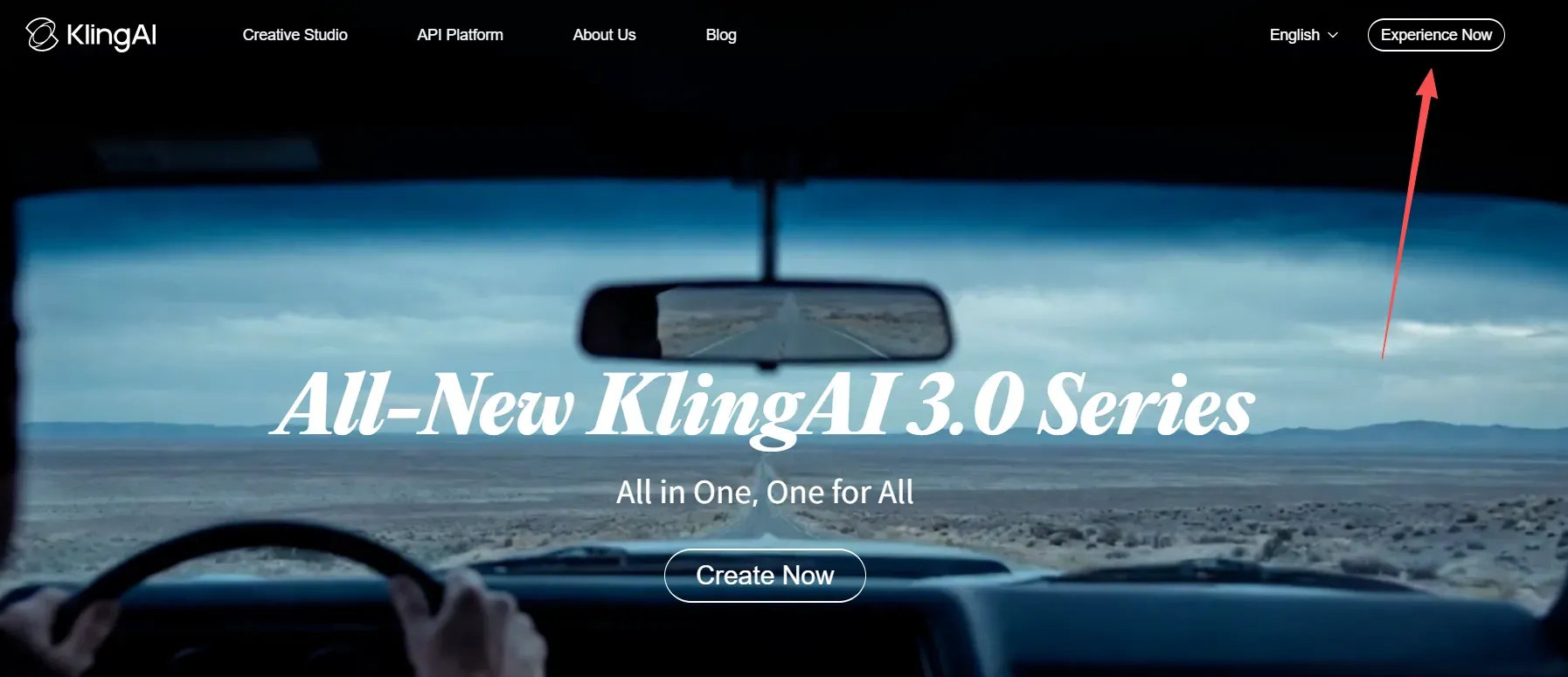
Head to kling.ai and sign in to your account. This step is non-negotiable. As stated in the official kling.ai/docs/point-policy, credits can only be obtained and used by logged-in users within the Kling AI platform. No login means no credits, regardless of your plan.
Step 2: Trigger Your Monthly Credit Drop
Once inside the platform, your monthly credits are issued upon login. According to the official Credits Policy, regular membership benefit credits are distributed monthly during the validity period of the subscription, and are valid for 1 month from the date distributed. Simply logging in activates the allocation for that month.
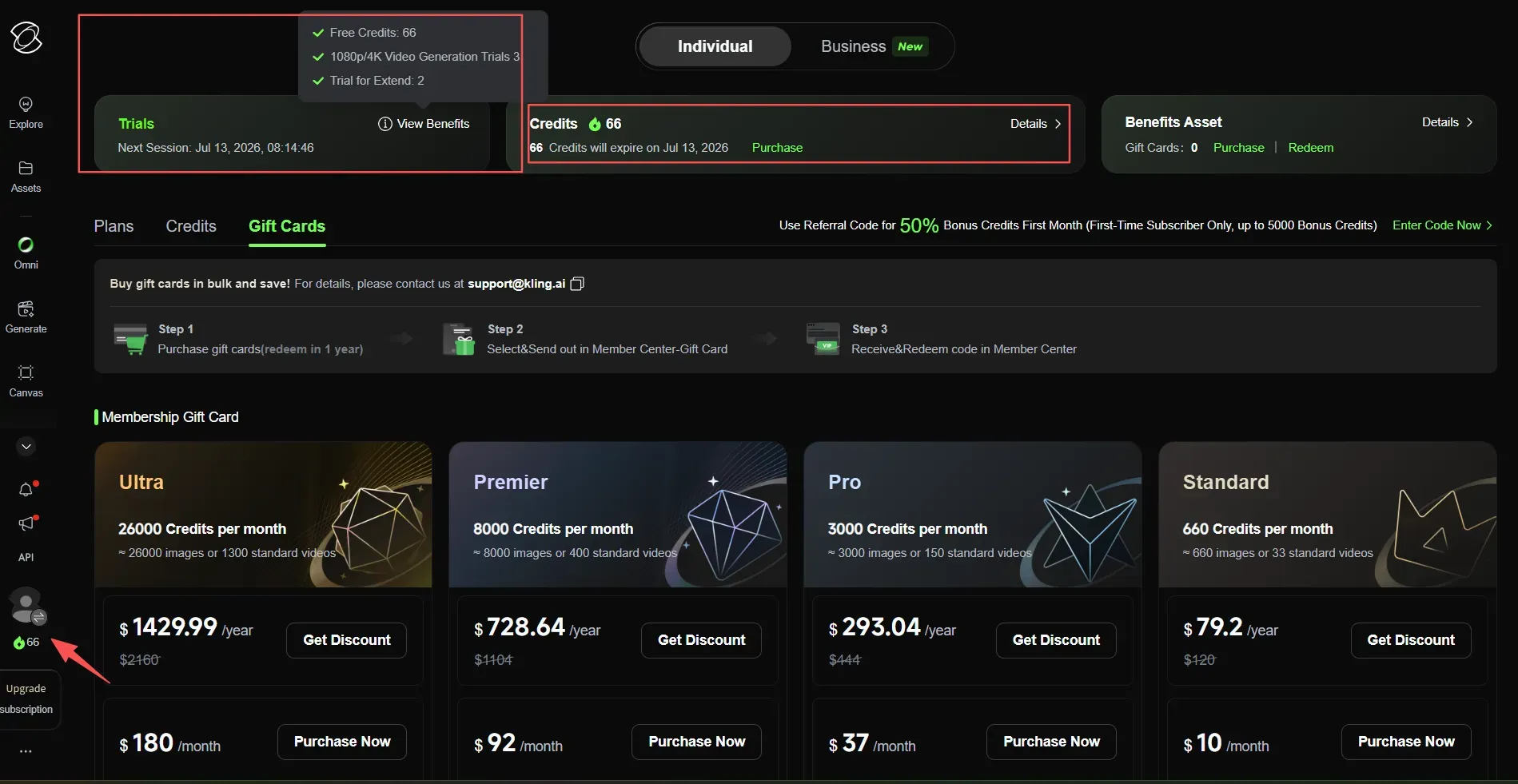
Step 3: Verify Your Balance via the Sidebar
Always confirm your credits arrived rather than assuming. You can check your credit balance on the sidebar on the left by clicking on the number indicating remaining credits.
Step 4: Know Which Features Your Credits Unlock
Credits do not unlock everything on the platform. Features such as fast-track generation, 1080p videos, watermark removal, master shot and video extension, and image upscaling are premium-only functions and remain locked regardless of your credit balance.
Here is a quick reference for what free credits can and cannot access:
| Feature | Free Credits Access |
| Text-to-video (720p) | Yes |
| Image-to-video | Yes |
| Watermark removal | No (paid only) |
| 1080p resolution | No (paid only) |
| Fast-track generation | No (paid only) |
| Video extension | No (paid only) |
Important: Credits Do Not Roll Over
Your monthly credit allocation follows a strict expiry rule. Membership subscription credits are valid for 1 month from the date of distribution. Any unused credits at the end of the month are forfeited, so plan your generations accordingly and use your full 66 credits before the expiry date.
Let’s be realistic: with a 66-credit monthly limit, you only get one or two video generations per month before your balance hits zero. This means you cannot afford a single failed attempt. One bad prompt, and your entire monthly budget is gone.
The "Zero-Waste" Strategy: Generating Cinematic Videos with Free Credits
With only 66 credits per month, every generation counts. The goal is not to generate more videos; it is to generate the right ones on the first try. Here is how.
The Image-First Workflow
The single most effective strategy to generate cinematic video free is to nail your composition as a static image before spending a single video credit on it. This is the Image-First Workflow:
- Use Kling's image generation (Kling O1 Image) to test your scene, lighting, and framing.
- Iterate on the image until the composition is exactly right.
- Only then feed that image into image to video animation using the Video 3.0 pipeline.
Since image generation costs significantly fewer credits than video generation, this approach can save the majority of your monthly video credit budget by eliminating costly failed attempts.
The Text-to-Video Prompt Formula
If you are going straight to text-to-video, structure your prompts using this text to video prompt formula to reduce retries:
| Prompt Element | Example |
| Subject | "A young woman in a white dress" |
| Environment | "standing on a misty mountain cliff at dawn" |
| Camera movement | "slow push-in, shallow depth of field" |
| Mood or lighting | "cinematic golden hour, soft backlight" |
Combining all four layers in a single prompt gives the Kling video 3.0 workflow enough context to produce a usable result on the first attempt.
How Do You Maintain Character Consistency Without Wasting Credits?
Inconsistent character appearance across shots is one of the biggest credit drains on the free tier. Kling's Element Library solves this directly.
According to Kling's official Element Library documentation, the Element Library is a powerful asset repository designed for ultra-consistent results. Simply upload multi-angle reference images, and AI will remember your characters, items, and scenes.
For character work specifically, the Kling 3.0 model supports binding up to 3 elements in start frame generation. By locking the core features of key elements, it effectively solves the pain point of subjects losing their shape when the perspective or shot changes.
Set up your character element once, bind it to every generation, and eliminate AI morphing entirely.
Case Study: Stress-Testing Kling 3.0’s High-Octane Motion & Native Lip-Sync
The strategy of designing for high-motion combat and native lip-sync paid off spectacularly. By utilizing the Kling v3.0 Pro Image-to-Video API on Atlas Cloud pipeline through the serverless API (ensuring zero-queue rendering), we generated this precise sequence on the first attempt.
Watch the final output below, focusing on how the model handles the transition from subtle facial physics to chaotic kinetic action:
Figure: The final asset. This 5-second clip successfully syncs the character's jaw movement to the roar (Sec 0-2), executes a plasma energy armor transformation (Sec 3), and triggers a hypersonic dash with severe camera shake and motion blur (Sec 4-5).
Notice how the character's facial structure remains 100% consistent with our original input image throughout the intense battle cry and the sprint. There is zero chaotic morphing of the eyes or extra limbs during the explosive transformation.
By locking the subject asset first, we eliminated the common "AI morphing" artifact, proving that 66 monthly credits, when applied via this structured Image-First workflow, can yield studio-grade cinematic assets that require zero paid retries.
Crucial Warning: Having Free Credits Doesn't Guarantee You Can Use Them
Even if you carefully follow the Image-First workflow and write the perfect 4-layer prompt, you will still hit Kling's most annoying problem: the painful server-side traffic jam.
Kling AI interface showing the error message "New tasks cannot be submitted temporarily" due to a busy free plan queue, prompting users to upgrade to Fast-Track.
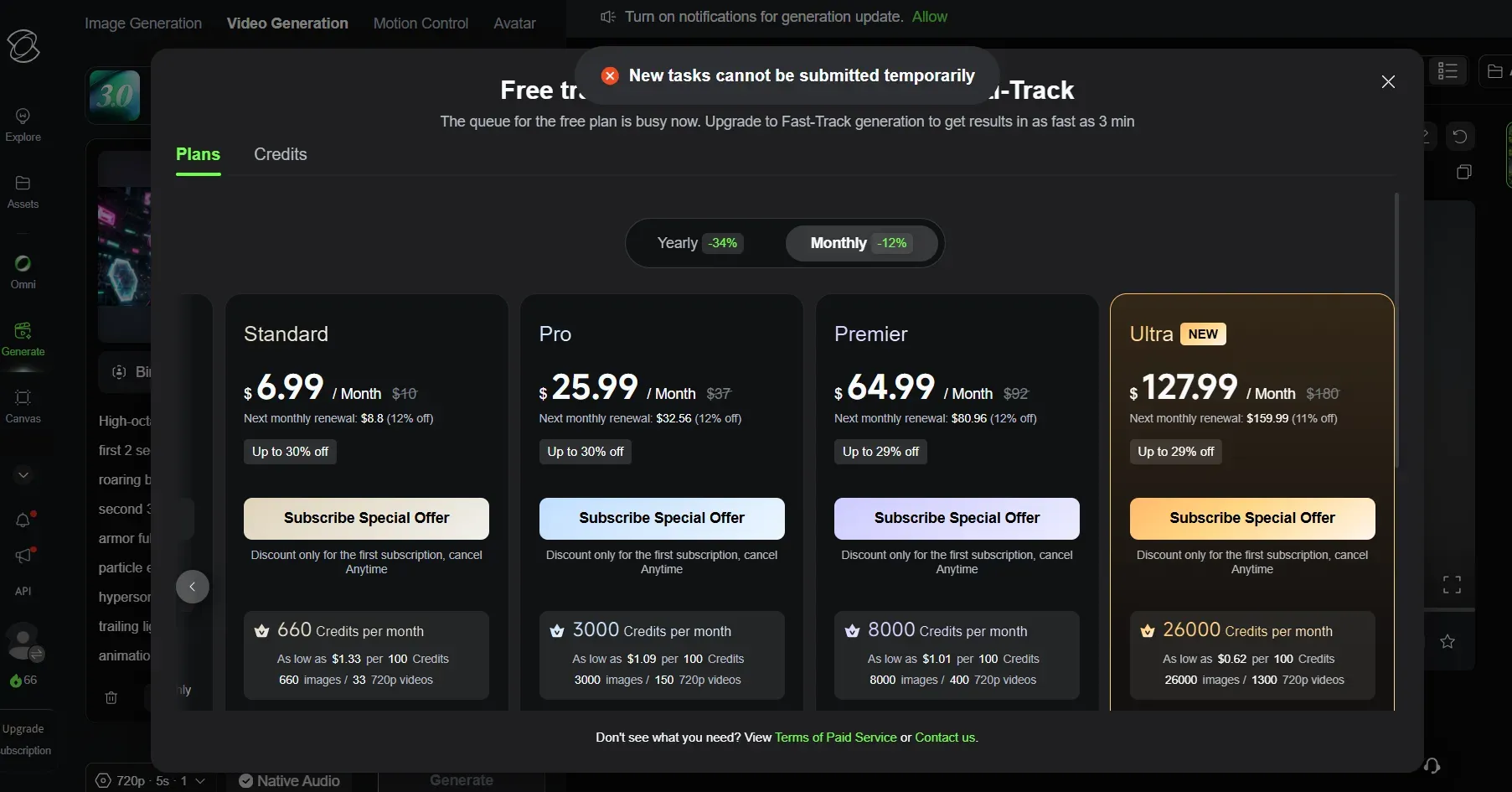
Because millions of users rely on the basic tier, Kling frequently limits free rendering during peak creative hours, displaying the notification: "New tasks cannot be submitted temporarily. The queue for the free plan is busy now." When this happens, your 66 monthly credits are effectively locked out unless you pay for Fast-Track priority.
Free vs. Paid: When Should You Move Beyond Kling AI Free Credits?
The free plan has strict limits, but it's a great place to start. It is much easier to decide when you should actually update if you are aware of the limitations.
Feature Comparison: Free vs. Paid Plans
Here is a side-by-side breakdown of what changes when you move to a paid plan. Note that kling ai pricing starts at $6.99 per month for the Standard tier:
| Feature | Free Plan (Basic) | Standard ($6.99/mo) | Pro ($25.99/mo) |
| Monthly Credits | 66 credits | 660 credits | 3,000 credits |
| Element Cap | 30 Elements (Hard Limit) | 50 Elements | 150 Elements |
| Video Resolution | Up to 720p | 1080p High-Res | 1080p High-Res |
| Watermark Removal | No (Watermarked) | Yes (Clean Export) | Yes (Clean Export) |
| Commercial License | Personal Use Only | Yes (Full Commercial) | Yes (Full Commercial) |
| Video Extension | No | Yes | Yes |
| O1 & Advanced Models | Restricted | Daily 3 Free Uses | Daily 3 Free Uses |
| Queue Priority | Standard (Long waits) | Fast-track generation | Fast-track generation |
If you run a busy content pipeline, relying only on Kling's free version will likely frustrate you. Instead, look at it as a risk-free playground to test things out before you pay for a standard plan.
The Three Upgrade Triggers
You are ready to move beyond the free tier when any of these apply:
- You need to remove the Kling AI watermark. All paid plans remove the visible watermark, with no hidden add-on required. Once you are on any paid plan, your downloads come clean.
- You need Kling Professional Mode consistently. Professional Mode access requires a paid subscription and cannot be unlocked with credits alone. The free tier limits you to just 3 trial uses.
- You need 4K resolution video generation. It is worth noting that Kling AI caps output at 1080p across all plans. Runway Pro, Veo 3, and other competitors currently offer true 4K resolution video generation if that is a hard requirement for your workflow.
The free plan suits hobbyists, experimenters, and anyone building skills before committing a budget. The moment your work needs a clean export for a client, a brand, or a monetized channel, the Standard plan at $6.99 per month is the minimum practical entry point.
The Hidden Third Option: Pay-As-You-Go via Kling API
If you find the official monthly subscription tiers too rigid or too expensive for your variable workflow, there is a powerful workaround that many professional creators use: bypassing the web interface entirely and leveraging the official Kling 3.0 infrastructure via an API aggregator.
Platforms like Atlas Cloud's Kling V3 models API allow you to run the exact same flagship models—including Kling Video 3.0 Pro and Kling O3 (Omni)—on a pure, serverless pay-as-you-go basis.
Here is why this alternative makes sense for some creators:
- No Monthly Commitments: Instead of recurring monthly fees, you pay strictly per second of generated video, starting at around $0.07/sec for standard models. If you don't generate anything this month, you pay $0.
- Unlock Pro Tools for Free: You get instant access to high-quality rendering, perfect audio-video syncing, and smart storyboards. Best of all, you skip the usual $25.99 monthly fee.
- No More Watermarks: Every video you make on Atlas Cloud is completely clean. There are no logos or watermarks, so they are ready for your business or marketing projects right away.
This is a massive money-saver for solo creators who hate monthly subscriptions, as well as developers trying to automate their video setups without breaking the bank.
Conclusion: Maximizing Your Free Creative Toolset
Kling AI free access is genuinely one of the most capable no-cost offerings among the best free AI video generator tools available today. The platform offers realistic cinematic output without requiring a credit card, which is a valuable creative resource.
Remember these rules to get the most out of it:
- 66 credits per month is your ceiling. Plan each generation carefully rather than experimenting blindly.
- 30 elements maximum applies to free accounts. Build your element library intentionally, prioritizing recurring characters or brand assets you will reuse.
- Personal and portfolio use only. Free-tier output carries a watermark and is not licensed for commercial projects.
If you stick to the Image-First Workflow, use all four prompt layers, and use the Element Library for a steady style, those 66 monthly credits can build a really great portfolio over time.
Once the free plan begins to hold you back, upgrading is both simple and cheap. Until you hit that point, just enjoy the free version for what it is: a powerful creative playground packed with professional tools.





