Staring at a 30-second AI generation where a basic pan moves so fast it triggers motion sickness is a common frustration for creators. While native long-form output is a major leap, default motion paths often destroy pacing.
Key Takeaways
Generic style prompts fail because the engine defaults to high-speed sweeps. Granular scripting solves this problem.
- Explicit Velocity Parameters: Define exact speeds instead of adjectives (e.g., "slow crawl at 0.5m/s").
- Directional Modifiers: Use explicit path language like "low tracking shot" or "gradual push-in".
- Timestamp-Based Syntax: Split prompts into temporal beats to control when a move starts and stops.
Professional vs. Amateur Prompting Quick Reference:
| Parameter Type | Standard Input (Avoid) | Professional Scripting (Use) |
| Camera Speed | Fast pan across room | Slow lateral dolly at 2 seconds per meter |
| Shot Transition | Cinematic zoom | Gradual focal push-in from wide to medium |
Mastering these explicit movement scripts turns chaotic generations into intentional, director-grade cinematic sequences.
See It in Action: The Result of Controlled Seedance 2.5 Camera Motion
Before diving into the technical mechanics, take a look at what happens when these explicit velocity parameters and multi-second controls are properly executed. The following showcase demonstrates stable, dynamic camera work—ranging from smooth tracking shots to controlled spatial pans—generated entirely through Seedance 2.5:
As seen above, overcoming the erratic default speed trap allows the AI to maintain fluid character framing and cinematic pacing. Now, let’s break down the underlying architecture and tactical parameter fixes required to achieve this level of precision.
Understanding Seedance 2.5 Camera Architecture and the "Default Speed" Trap
Ever generated a 30-second sequence only to watch the virtual lens hurl itself across the room like a runaway drone, leaving your subject behind in a dizzying blur? This sudden, erratic rush is a frequent frustration for creators testing Seedance 2.5 camera control.
Why Latent Diffusion Sparks the Default Speed Trap
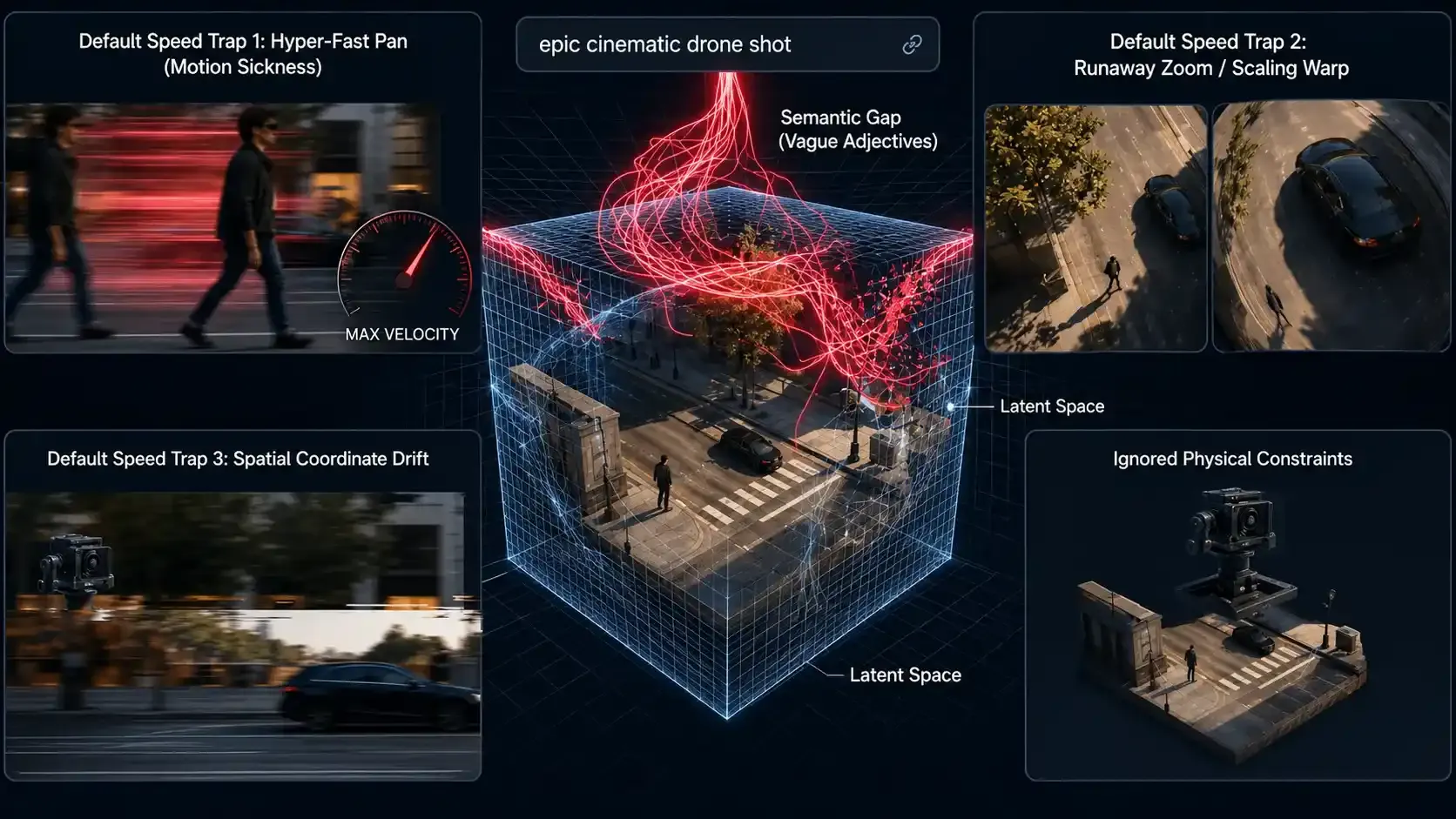
To understand why this happens, look at how the latent diffusion framework and underlying physics simulation handle spatial navigation. The model processes video frames inside a compressed latent space. When you submit standard textual cues, the system maps words to default velocity vectors. Because older text encoders lack true physical weight mapping, generic descriptors translate into hyper-fast, sweeping trajectories.
These default speed issues break cinematic pacing entirely. Traditional descriptive words fail because AI video motion logic treats abstract terms like "smooth" or "dramatic" as open invitations for maximum acceleration rather than deliberate movement. To combat this chaos in production, official creator workflows inside platforms like Dreamina emphasize shifting away from pure text reliance—utilizing structured camera angle change workflows, reference-driven drafts, and pre-keyed 3D whiteboxes to anchor spatial geometry before rendering begins.
- The Latent Drift Problem: Without strict parameter limits or structural asset guidance, extended generation windows cause spatial coordinates to drift across the timeline.
- The Semantic Gap: Adjectives do not equal velocity metrics in neural weights, requiring creators to treat prompt boxes like a script supervisor rather than a mood board.
- The Pacing Breakdown: Fast default translations ruin viewer orientation within seconds unless constrained by explicit mechanical cues and multimodal inputs.
Mastering explicit velocity tags and workflow-backed asset hierarchies bridges this gap, turning chaotic digital flights into controlled, director-grade cinematic shots.
Tactical Parameter Fixes and Execution Rules
To bypass this default speed trap, creators must transition from subjective brainstorming to rigorous parameter-driven scripting. The following tactical parameter fixes prevent velocity spikes and spatial distortion during generation:
| Failure Mode / Problem | Flawed Abstract Input (Avoid) | Precision Parameter Fix (Use) |
| Hyper-Fast Pan (Motion Sickness) | "Smooth, epic camera pan across the room" | "Lateral tracking shot at 0.5m/s, fixed focal length, 4-second linear progression" |
| Runaway Zoom / Scaling Warp | "Dramatic cinematic zoom into the subject" | "Gradual focal push-in from wide (24mm) to medium (50mm) over 10-second window" |
| Spatial Coordinate Drift | "Fast drone shot flying over the landscape" | "Low-altitude stable aerial glide, altitude locked at 3 meters, vector heading 090" |
Actionable Parameter Rules for Implementation:
- Define Numeric Velocity: Always substitute descriptive words with metric or time-based pacing indicators, e.g., meters per second or exact time allocation per meter.
- Lock Mechanical Rules: Spell out the exact camera rig moves in your prompts, like dolly, crane, locked tripod, or tracking shot, to force the physics model to obey real space rules.
- Add Time Triggers: Break long shots into clear steps so the engine knows right when to speed up, hold steady, or slow down.
Essential Prompt Syntax for Precision Camera Movements
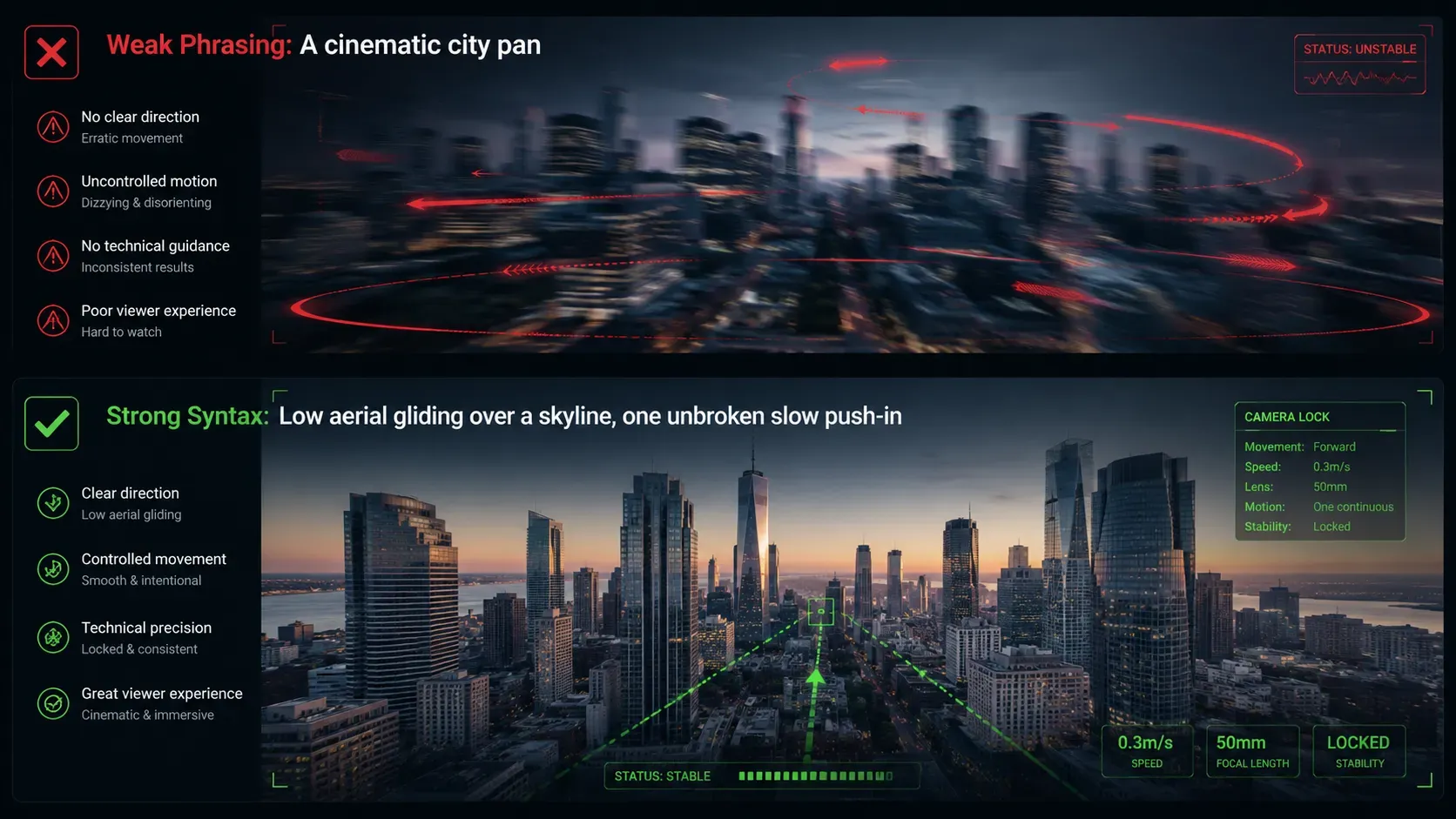
Typing "epic cinematic drone shot" into your generation box and getting a wildly erratic, spinning blur across the landscape is a frustrating ritual for modern creators. When building a proper Seedance 2.5 prompt guide, you must stop treating the prompt box like a mood board and start treating it like a script supervisor. Weak phrasing leaves too much room for neural interpretation, whereas explicit motion syntax forces the model to obey physical constraints.
Traditional scene descriptions focus entirely on what is inside the frame rather than how the virtual lens interacts with the space. To fix this, you need to transition away from empty adjectives and adopt precise camera movement prompts that dictate speed, direction, and mechanical behavior.
Consider this direct comparison of prompt performance:
| Prompt Type | Input Example | Resulting AI Behavior |
| Weak Phrasing | A cinematic city pan | The virtual camera accelerates wildly, spinning across the skyline too fast for the eye to track. |
| Strong Syntax | Low aerial gliding over a skyline, one unbroken slow push-in | The lens maintains a steady, calculated glide forward at a controlled focal length. |
Implementing the Slow Push-In Technique
The slow push-in technique is vital for building dramatic tension without triggering motion artifacts. Instead of writing generic commands, break your instructions down into mechanical components.
- Specify the Mount: Designate physical behavior like track, dolly, or crane to ground the movement.
- Control the Acceleration: Add modifiers that restrict speed, such as gradual or incremental.
- Lock the Focal Length: Prevent unwanted warping by specifying whether the zoom is static or shifting.
For further verification of how these prompt layers interact with generation windows, check the official documentation on Dreamina CapCut Seedance Angle Changes.
Expanding Multi-Dimensional Prompt Control
To truly master this architecture, creators should explore complementary prompt structures that combine environmental lighting with mechanical velocity. Competitors often overlook how time of day affects shadow tracking during rapid lateral pans. By linking your speed tags to environmental details—or scaling your multi-model pipelines through unified infrastructure providers like Atlas Cloud—you ensure stable pixel rendering across all thirty seconds.
Seedance 2.5 Multi-Scenario Prompt Templates
To move from theory to execution, use these production-tested prompt templates across different creative scenarios. Each template locks velocity, camera rig behavior, and environmental consistency to prevent the default speed trap:
Scenario 1: Cinematic Product Showcase / Macro Dolly
- Template: Close-up product tracking steady 10-second straight move, clean studio light with subtle shades, fixed 50mm lens, slow side dolly at 0.4 m/s.
- Why it works: Prevents distorted and unsteady frames during close-ups by locking the lens size, precise speed, and physical rig.
Scenario 2: Narrative Cinematic Scene / Slow Push-In
- Template: With a run time, a steady speed of 0.3 m/s, a story-driven camera push, and a smooth lens change from wide 24 mm to mid 50 mm, the subject is kept in the center.
- Why it works: Stops the fast zoom glitch by setting a gradual lens shift over a clear time frame.
Scenario 3: Open Landscape / Stable Aerial Glide
- Template: Low-altitude stable aerial glide over urban architecture, altitude locked at 3 meters, vector heading 090, slow steady drift at 0.5m/s, synchronized with morning shadow tracking.
- Why it works: Anchors spatial coordinates and altitude to prevent coordinate drift and horizon tearing during wide panning.
Leveraging Timestamp Prompts and Multi-Second Control Layouts
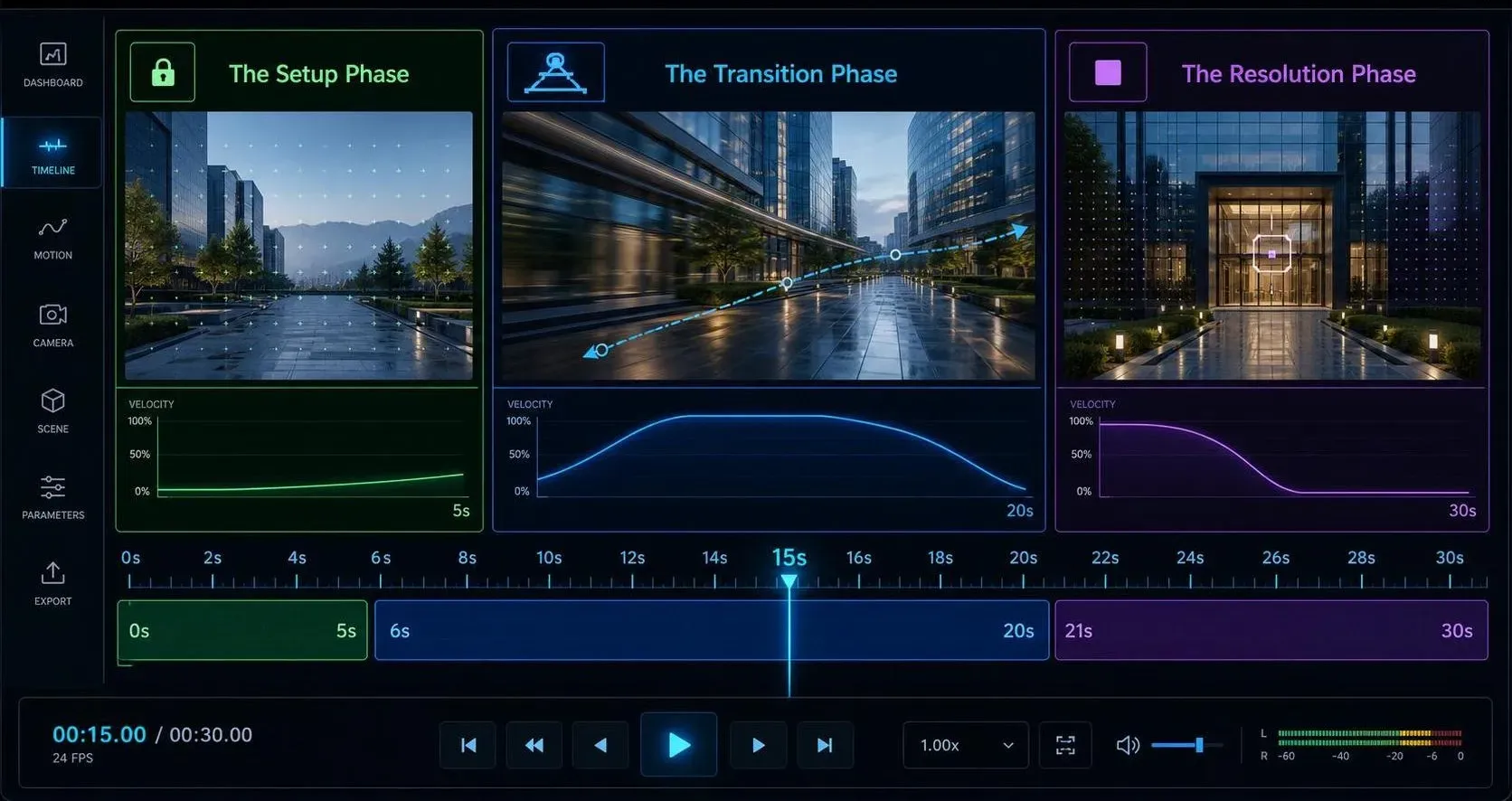
Watching an ambitious AI generation fall apart right at the fifteen-second mark because the virtual lens suddenly changes direction is a familiar headache for digital artists. When designing Seedance 2.5 single-take pacing, relying on a flat paragraph description often leads to chaotic timing shifts. To manage extended sequences cleanly, creators must implement timestamp prompts for AI video that dictate structural beats across the timeline.
Exploiting temporal splits allows you to orchestrate multi-second scene control with absolute precision. Instead of letting the model guess how long a move should take, you divide the generation window into distinct performance blocks.
- The Setup Phase (0–5 seconds): Anchor the viewer with a stable establishing frame and slow initial velocity.
- The Transition Phase (6–20 seconds): Execute controlled movements, ensuring smooth camera transitions maintain visual coherence.
- The Resolution Phase (21–30 seconds): Apply targeted deceleration to bring the camera to a complete stop without jarring cuts.
Structuring Temporal Beats
| Timeline Segment | Directorial Focus | Target Movement Parameter |
| 00:00 - 00:05 | Scene establishment | Static lock or ultra-slow drift |
| 00:06 - 00:20 | Action tracking | Calculated lateral dolly or push-in |
| 00:21 - 00:30 | Final framing | Gradual deceleration to a dead stop |
This tactical separation prevents abrupt acceleration spikes. By engineering explicit time codes into your text layout, you eliminate random drifting and secure professional continuity throughout the entire thirty-second output.
Integrating Multimodal References to Lock Spatial and Camera Consistency
Getting halfway through a complex tracking shot only to watch the background warp or completely dissolve into visual noise ruins productivity. Creators running extended generative pipelines frequently experience background drift during multi-axis pans because standard text prompts fail to anchor deep spatial geometry over time.
Solving this requires leveraging multimodal reference inputs to feed the model structural guides instead of relying solely on text strings. By supplying up to 50 assets such as 3D whiteboxes, layout style frames, or sequential storyboards directly into Seedance 2.5 assets, creators establish strict environmental boundaries. These layout files dictate the geometry of walls, floors, and horizons before rendering begins.
Implementing reference-led camera paths transforms chaotic interpolation into predictable movement. When the engine maps a virtual lens trajectory against a pre-keyed 3D whitebox sequence, spatial consistency in AI video improves drastically. The table below outlines how specific asset types control distinct camera variables:
| Reference Asset Type | Primary Spatial Function | Impact on Camera Motion |
| 3D Whiteboxes | Anchors mesh geometry and depth mapping | Prevents scaling distortion during fast forward tracking |
| Storyboards | Defines keyframe composition and actor framing | Stabilizes focal length transitions between cuts |
| Style Frames | Locks color grading and environmental lighting | Eliminates background jitter during orbital pans |
Optimizing Asset Hierarchies
To get the most out of these inputs, arrange your asset stack deliberately. Load structural geometry assets first, followed by lighting references and character placement frames last. This order ensures that spatial depth calculates prior to surface texturing.
- Map key camera waypoints using numerical timestamps alongside your visual assets.
- Keep asset resolutions uniform to prevent rendering artifacts during fast lateral pans.
- Test motion vectors with minimal text prompts before adding granular environmental descriptions.
Troubleshooting Common Cinematic Artifacts and Motion Blur
Waiting ten minutes for a high speed panning sequence only to discover severe subject distortion and frame tearing at the edges instantly drains workflow momentum. Technical friction during fast tracking shots usually stems from pushing the rendering engine past its current frame interpolation limits too early in the pipeline.
Executing a proper Seedance 2.5 troubleshooting protocol requires stepping back from immediate maximum settings. The most reliable workflow involves drafting initial movement vectors at lower resolutions to evaluate pixel tracking before committing GPU power to a final master export.
Maintaining temporal consistency across dynamic camera movements relies heavily on staging your render passes systematically. When fixing AI video motion blur, separating motion generation from upscaling prevents artifacts from locking into the final output. The structured troubleshooting table below details common failure points and their direct fixes:
| Failure Mode | Root Cause | Immediate Actionable Fix |
| Edge Frame Tearing | High velocity vector mismatch | Reduce pan speed by twenty percent and add keyframe anchors |
| Subject Warping | Overloaded prompt weight during rapid movement | Simplify descriptive tags and lock character bounding boxes |
| Resolution Degradation | Direct upscaling without low-res draft pass | Complete base motion at standard definition before high-resolution camera rendering |
Advanced Pipeline Adjustments
To catch latent defects before final delivery, review your latent space seeds frame by frame at fifty percent speed. Isolate areas where lighting changes abruptly during rotational shifts.
- Export intermediate draft passes as sequential image stacks rather than compressed video files to preserve raw frame data.
- Adjust temporal smoothing parameters upward by increments of zero point five when tracking fast foreground objects.
- Clear cache directories between high resolution renders to prevent cumulative memory leaks from degrading output sharpness.
To build deeper topical authority on generative cinematography, examine how compression codecs interact with latent diffusion outputs during high speed encodes. Most competitor guides ignore how export container bitrates influence final frame stability.
Conclusion: Taking Control of AI Cinematography
Mastering Seedance 2.5 camera control is less about finding the magic descriptive word and more about treating the generation prompt like a precise engineering script. By swapping vague words for clear motion speeds, setting clear time-codes, and using 3D guides, you cut out the mess of random video drifts.
Tech will keep changing, but the golden rule of AI video stays the same: discipline in your text means control on your screen. Start small with quick 10-second tests, lock down your mechanical rules, and turn those crazy drone shots into clean, director-style cinematic clips.