Grok AI image editing just got a serious upgrade. With Grok's "Imagine" feature, you can do more than create new images. You can also edit your own photos with simple text prompts. The process is very easy. First, upload your photo. Next, type the /imagine command. Finally, describe the exact changes you want to see. Within seconds, how to edit images with Grok becomes less of a mystery and more of a repeatable workflow.
By the end of this guide, you will have ready-to-use grok imagine edit image prompt examples covering:
| Edit Type | What You Can Do |
| Backgrounds | Swap, blur, or replace scenes |
| Objects | Add, remove, or reposition elements |
| Style | Apply artistic filters or lighting changes |
| Details | Fix colors, textures, or specific features |
No guesswork, no vague instructions. Just copy, paste, and edit.
Master Copy-and-Paste Grok Imagine Edit Image Prompt Examples
Think of this section as your personal editing library. Every prompt below is structured for immediate use, built around one rule that makes Grok AI image editing work reliably: always separate what already exists in the image from what you want to change. Grok's engine needs that context to blend edits naturally, not awkwardly.
The formula looks like this:
[Describe the original scene] + [Describe the specific change] + [Lighting/shadow/style match instruction]
Work through each scenario below, swap in your own details, and paste directly into Grok.
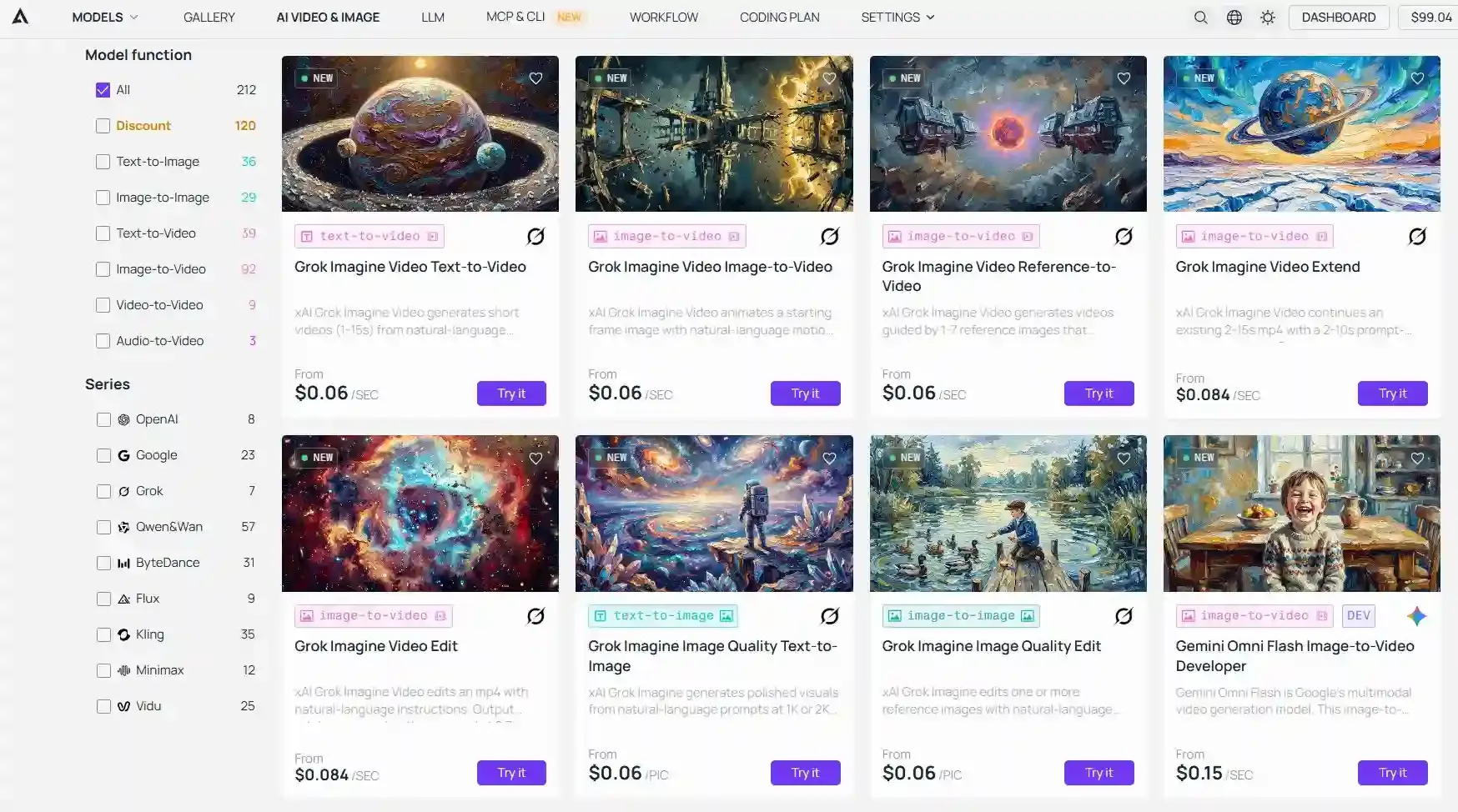
While you can use these prompts on the native X interface, they deliver the most stable and predictable results when executed through Atlas Cloud’s unified API platform, which optimizes Grok's image-to-image parameters for production-grade rendering. Next, I will demonstrate using Atlas Cloud's Grok Imagine Image Quality Edit.
Scenario 1: Object Addition and Integration
Adding objects convincingly requires spatial precision. Vague prompts like "add a mug" produce generic results. Anchored prompts with position and atmosphere cues produce seamless ones.
Prompt example:
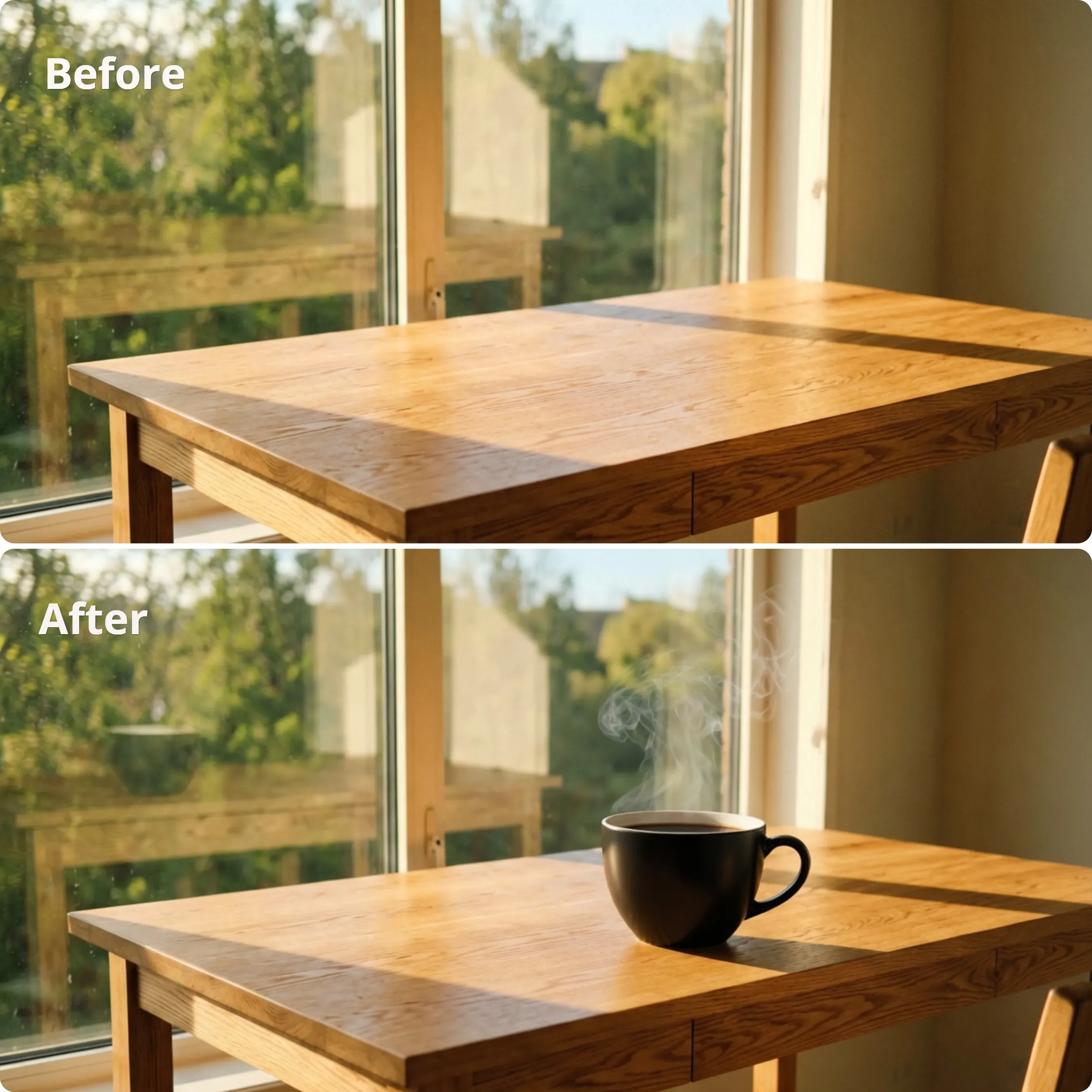
Original Image Context: A clean, empty wooden desk sitting next to a window filled with soft morning light.
The Exact Grok Prompt: Put a high-end, matte-black ceramic coffee cup on the top right side of the wooden desk. Make a thin, realistic cloud of steam rise from the hot black coffee. The cup should throw a soft, long shadow to the left. Match the exact angle and warm morning glow from the window, and let the wood grain reflect slightly on the bottom edge of the mug.
Expected Outcome: A clean, professional photo where the coffee cup fits right into the workspace. It matches the soft background blur perfectly, with no fake-looking edges.
Why This Works
Three things do the heavy lifting here: a precise position ("right side"), a texture match ("ceramic"), and a lighting instruction ("matching the soft morning sunlight"). Together, they give Grok imagine edit image prompt example logic a complete visual brief, leaving little room for misinterpretation.
Scenario 2: Background Replacement (Inpainting Context)
Background swaps are one of the most requested Grok AI image editing tasks, and they live or die by how clearly you define the boundary between subject and scene.
Prompt example:
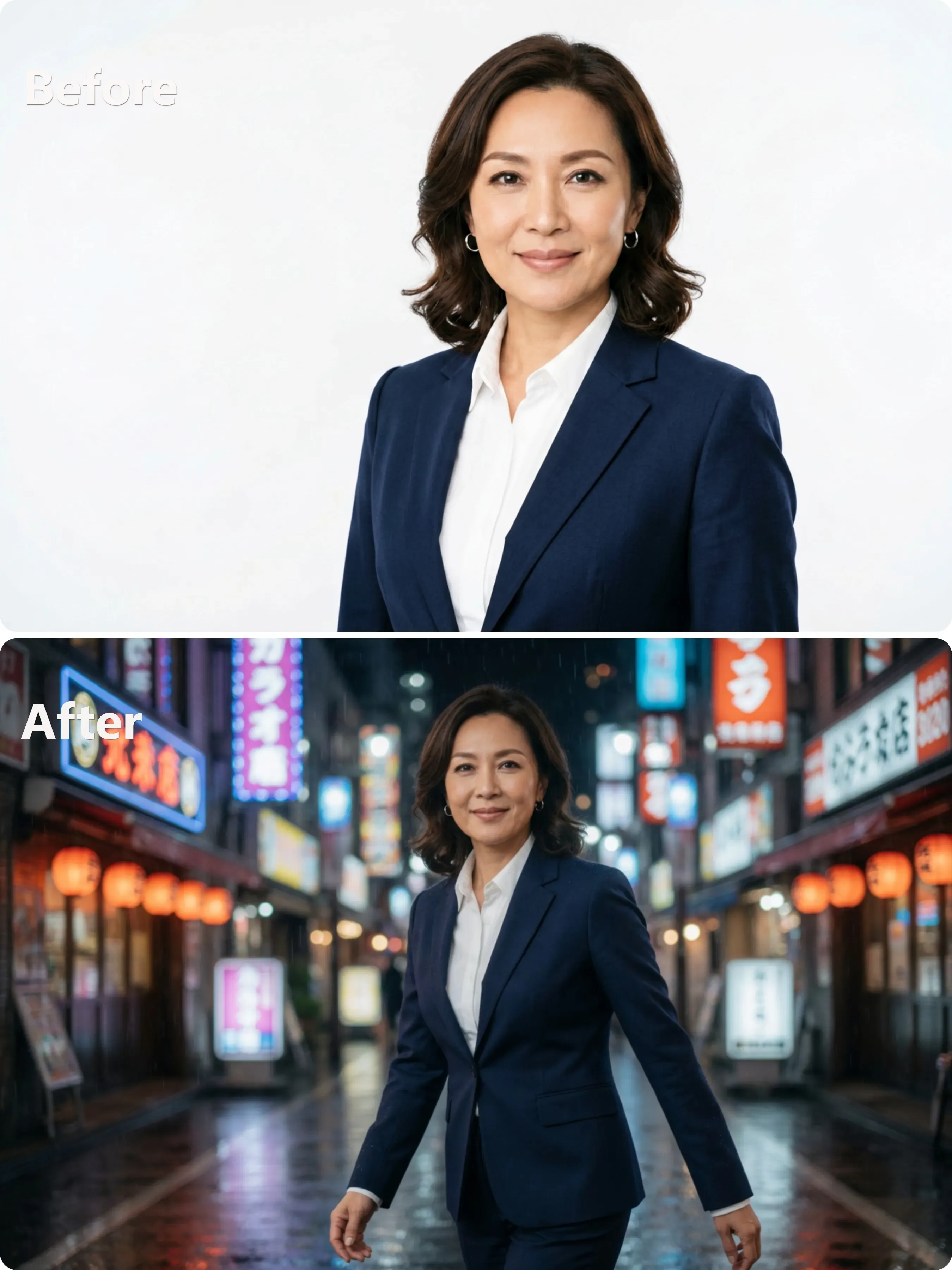
Original Image Context: A professional studio portrait of a woman in a blazer against a plain white wall
The Exact Grok Prompt: "Translate this portrait into a high-end fashion magazine cover set on a vibrant, rainy Tokyo street at night. Maintain the woman's distinct facial identity and core blazer attire, but modify her posture into a relaxed, candid walking stance. Lean her a bit into the shot with a relaxed, high-fashion look. The blurry neon lights in the background should spill a soft glow onto her shoulders. This makes the picture look like a real, on-location fashion shoot."
Expected Outcome: A clean, professional photo where the person's active movement, natural pose, and surrounding light all match up. This turns a rigid studio portrait into a real, high-quality shot fit for a top magazine feature.
Why This Works
This approach unlocks the true creative potential of Grok's advanced imaging engine on platforms like Atlas Cloud. By moving from rigid restrictions to dynamic commands like "modify her posture into a walking stance" and "effortless, high-fashion expression," the AI stops trying to mask a cutout. Instead, it fluidly blends identity, pose, and background into a singular, cohesive piece of commercial art.
Scenario 3: Style and Aesthetic Transformation
Style transfers are where Grok AI image editing gets genuinely creative. The key is referencing a specific art movement or visual era rather than a vague mood word like "cool" or "retro."
Prompt example:
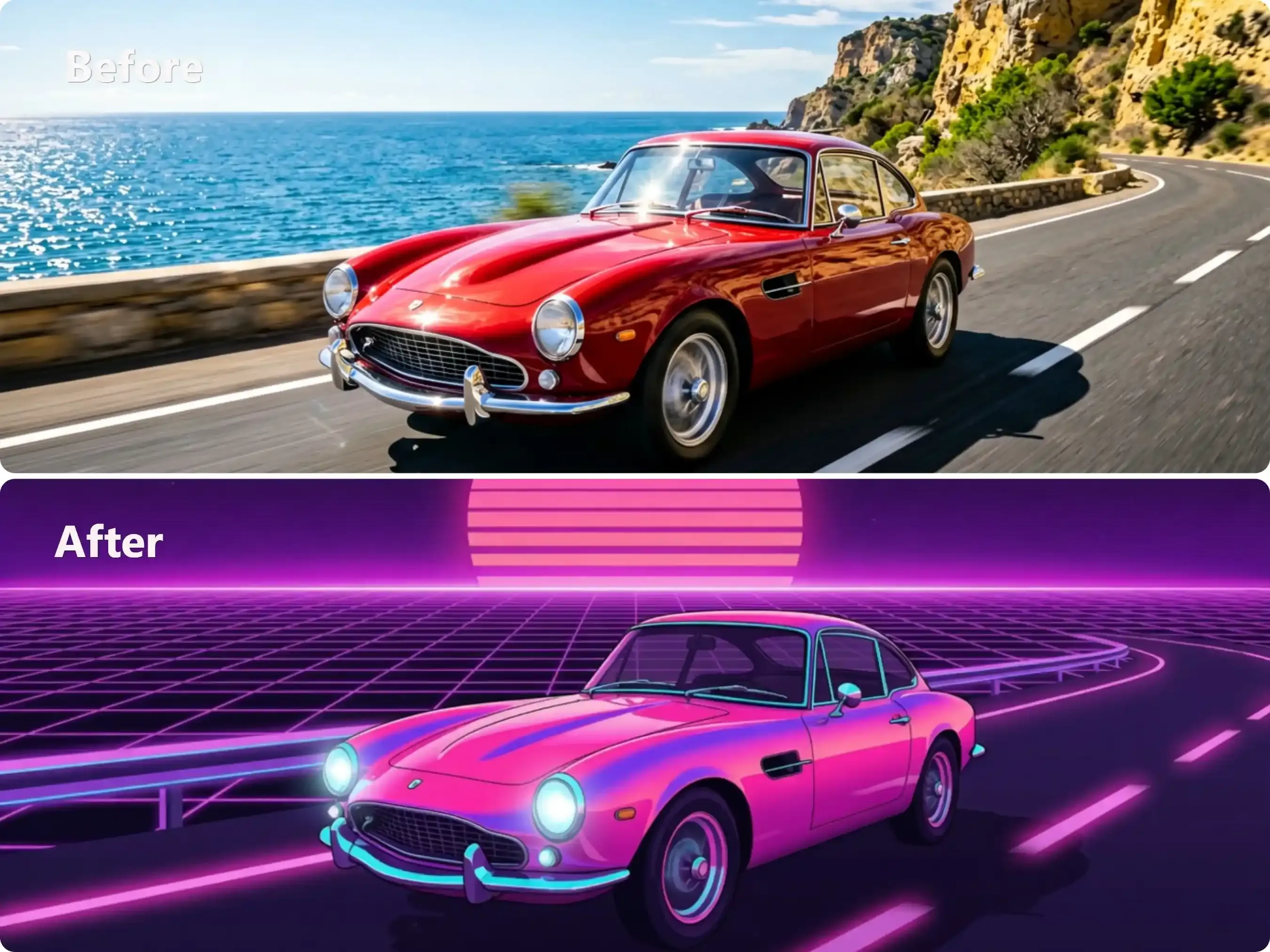
Original Image Context: A crisp digital photo showing an old-school red sports car driving down a coastal highway.
The Exact Grok Prompt: "Turn this whole picture into a 1980s retro synthwave drawing. Use bright neon pink and purple colors, sharp vector lines, and a classic sun grid background. Keep the basic shape of the car exactly as it is."
Expected Outcome: A complete style change that keeps the original layout and the car's actual shape under the brand-new retro look.
Why This Works
Naming "1980s retro synthwave" gives this grok imagine edit image prompt example a precise visual reference point. The closing anchor, "keeping the car's shape intact," prevents the style transfer from distorting the subject's proportions during the transformation.
Scenario 4: Seasonal and Environmental Swaps
Environmental changes are a full-scene operation. Unlike object additions that target one element, seasonal swaps require the Grok AI image editing engine to recolor, retexture, and replace multiple global assets simultaneously.
Prompt example:
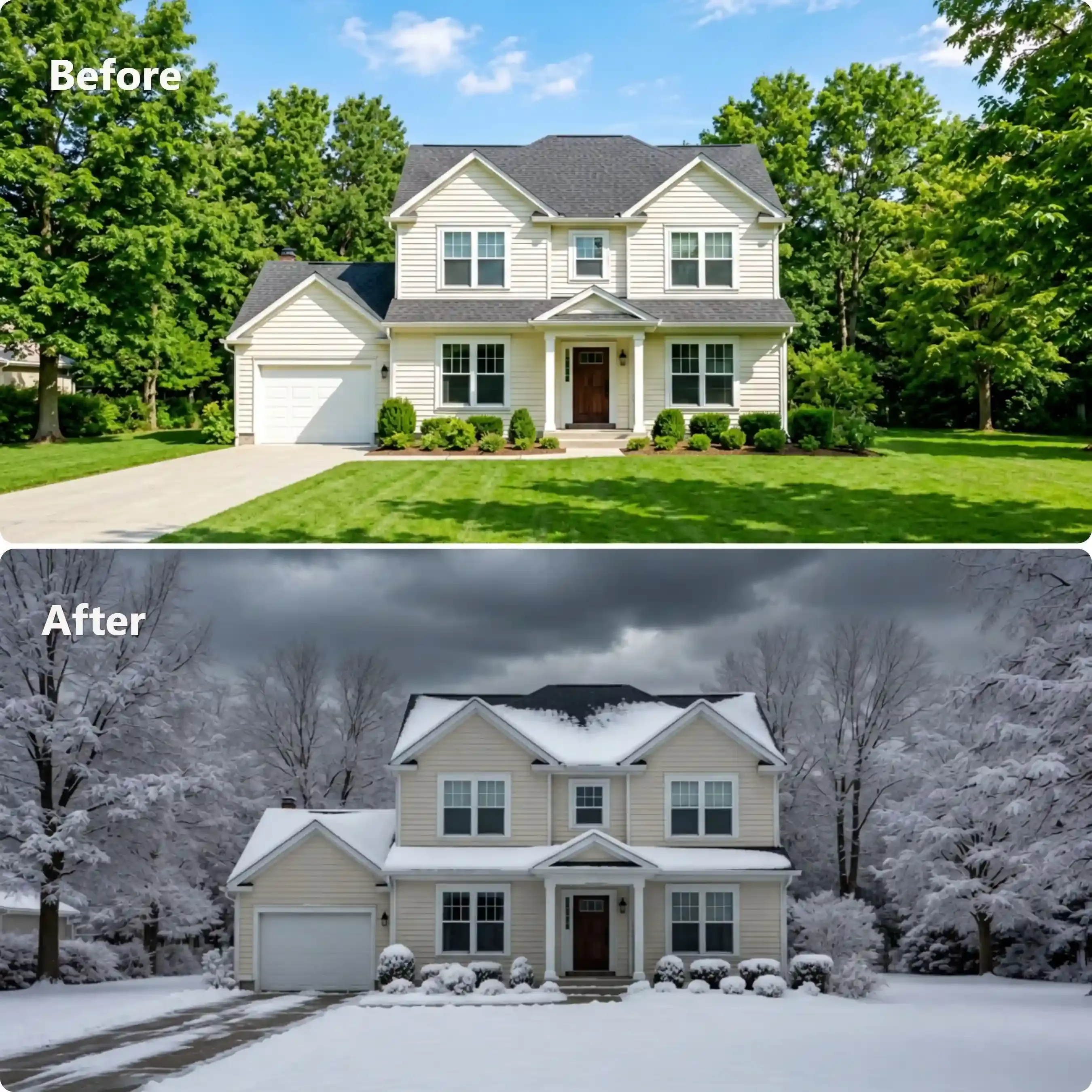
Original Image Context: A suburban two-story house with green grass and lush summer trees under a blue sky
The Exact Grok Prompt: "Modify the environment from summer to peak winter. Cover the green grass and roof with a thick layer of fresh, clean snow. Change the full green trees into bare branches dusted with white, and turn the sky into a dark, stormy winter gray."
Expected Outcome: A total change in color and scenery that shifts the season naturally. The main shape and design of the house stay exactly the same.
Why This Works
Breaking the instruction into three separate directives (grass and roof, trees, sky) gives this grok imagine edit image prompt example clear sequential targets. Grok handles each zone individually, which reduces blending errors across the scene.
Scenario 5: Portrait Character and Clothing Modification
Modifying people in photos often goes wrong because AI tends to alter facial identity when changing outfits or expressions. To prevent this, you must explicitly separate the character's facial features from the garments or expressions you want to modify.
Prompt example:
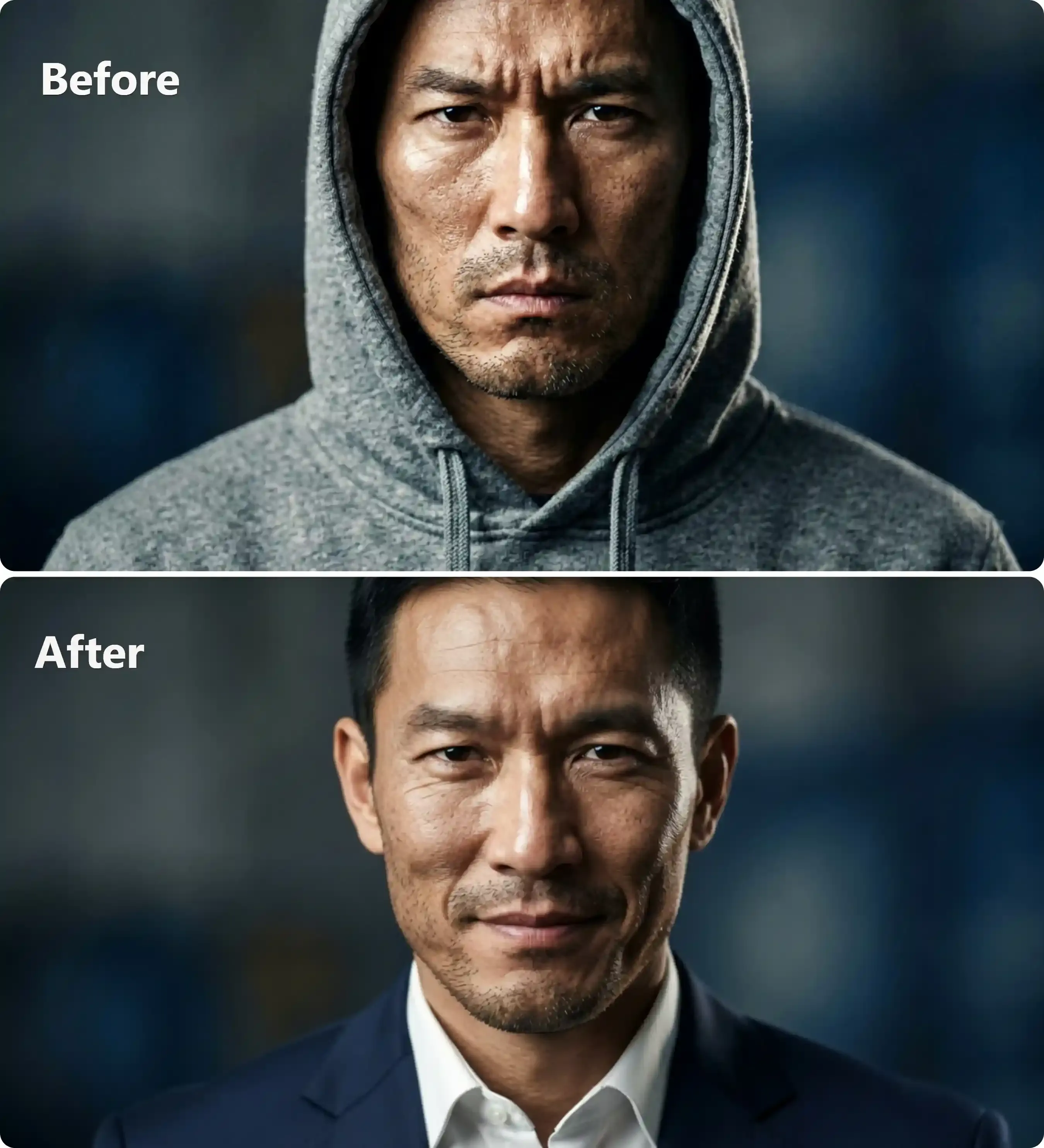
Original Image Context: A close-up shot of a serious man wearing a basic gray hoodie.
The Exact Grok Prompt: "Keep the man's face and identity exactly the same. Change his casual gray hoodie into a sharp, navy blue suit jacket. Tweak his expression just a bit to give him a faint, confident smile."
Expected Outcome: A clean outfit change that keeps the person's real look and face shape. The new smile looks natural and stays completely sharp.
Why This Works
The phrase "keep the facial features and identity exactly as they are" creates a protective boundary around the subject's face. This forces Grok to focus its rendering power strictly on the clothing fibers and the subtle muscles around the mouth.
Scenario 6: Modifying and Fixing Text Within Images
AI models regularly scramble text during background generation. Fixing typos or adding clean brand names requires you to define the exact surface where the text lives and use quotes to isolate the target wording.
Prompt example:
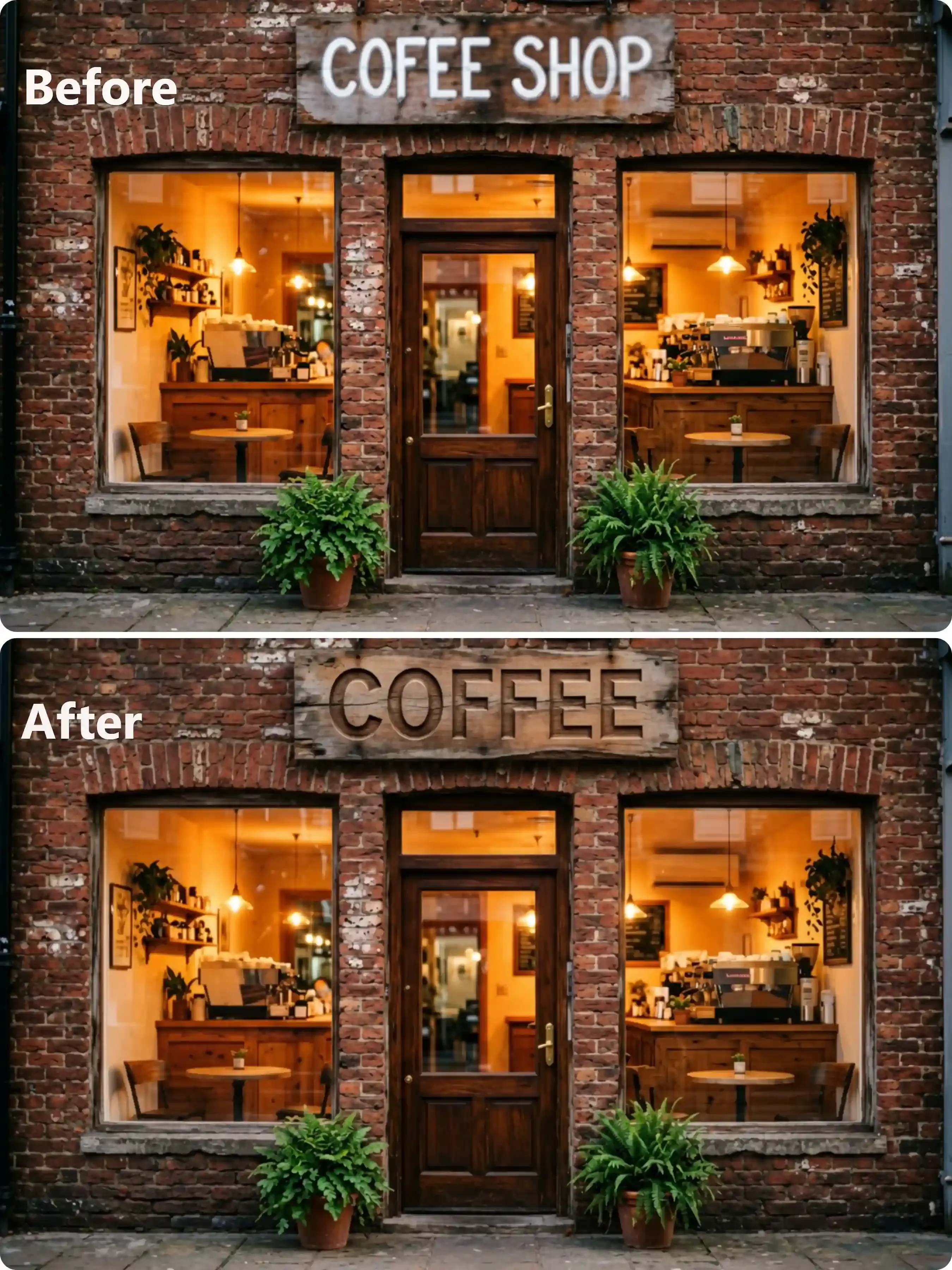
Original Image Context: A storefront of a cozy brick coffee shop with a blurry, misspelled wooden sign above the door.
The Exact Grok Prompt: "Modify the wooden sign above the door. Erase the old text completely. Put the word 'COFFEE' in its place using clean, white, bold capital letters. Make the letters look like they are carved right into the wood."
Expected Outcome: The messy text is gone. It is replaced by a sharp, correctly spelled word that fits the angle and grain of the wooden background perfectly.
Why This Works
By telling Grok to "erase the existing text completely" before adding the new words, you prevent the engine from blending the old artifacts with the new letters. Specifying the font style and the "engraved" texture ensures the text looks like a physical part of the scene rather than a flat digital overlay.
What Is the Best Prompt Format for Grok Image Editing?
The most reliable Grok image editing syntax drops all conversational filler. Phrases like "please add" or "could you change" dilute instruction clarity. Instead, use a strict Action Verb + Subject + Environmental Modifier structure.
Here is the Grok prompt template formula that produces consistent, predictable results:
| Slot | Purpose | Example |
| Action | What to do | Replace |
| Target | What to change | Background |
| New Element | What replaces it | Cyberpunk street at night |
| Style Match | How to integrate | Match original subject lighting |
This four-slot system works equally well for AI background replacement prompts, Grok object addition tutorials, and full style transfers. Every AI photo editing prompt that follows this structure gives the model a complete visual brief, cutting guesswork and improving output consistency across iterations.
Pro Tips for Getting Predictable Results with Grok AI Edits
Grok reads modification prompts differently than generation prompts. During a blind generation, it builds from nothing. During an edit, it must reconcile your instruction against an existing visual context. That gap is where most inconsistencies originate. These four pillars of advanced Grok prompt engineering close it.
Pillar 1: Descriptive Adjectives over Vague Terms
Subjective words give the model nothing concrete to work with. Swap them for physical specifications.
| Weak Prompt | Strong Prompt |
| "Make the lighting better" | "Change the lighting to high-contrast Chiaroscuro with a harsh side-key light from the left" |
| "Make it more detailed" | "Add fine surface grain and visible fabric texture to the jacket" |
| "Make it photorealistic" | "Render with sharp focus, natural film grain at ISO 400, and accurate specular highlights" |
This single habit alone eliminates the majority of AI image editing guesswork.
Pillar 2: Locking the Composition Skeleton
Before introducing any new element, anchor the original geometry first. Open with: "Maintain the exact position, geometry, and scale of [Subject]," then describe the addition. This is the most reliable Grok image composition control technique available without dedicated masking tools.
Pillar 3: Environmental Harmonization
Edited elements look "pasted in" when they ignore the source image's light. Force integration by specifying color temperature directly: "Match the warm 3200K tungsten ambient lighting of the original scene" or "align depth of field blur to match the existing background bokeh." This is the core of avoiding AI image distortion across composite edits.
Pillar 4: Managing the Iteration Loop
Avoid overhauling an entire image in one prompt. Stack edits sequentially: change the background first, confirm the result, then address lighting, then add objects. Compound modifications in a single prompt multiply the chance of conflicting instructions and AI artifacts in Grok outputs.
Pro-Tip for Scaled Workflows:
Stacking edits sequentially can be time-consuming if you are doing it manually via chat interfaces. If you are running high-volume content automation or building an AI photo product, you can automate this entire iteration loop using Atlas Cloud’s unified API. By calling the Grok Imagine endpoint through Atlas Cloud, developers can programmatically pass the four-slot prompt formula, fetch the edited output, and funnel it into the next model layer seamlessly with per-request billing and enterprise-grade infrastructure.
Does Grok Support Negative Prompting for Image Edits?
Grok has no dedicated negative prompt field or
1--no- "Without altering the subject's facial features"
- "Completely removing the park bench, leaving a clean grass surface behind"
- "Ensuring no artifacts, extra limbs, or floating edges are introduced"
This turns an interface limitation into a structural technique, giving you precise how to remove objects with Grok control through language alone.
Before writing this section, I need to flag something important about factual accuracy.Good, Nano Banana 2 is a real, verifiable tool. Now I have enough factual grounding to write accurately.
Comparing Grok's "Imagine Edit" Feature to Other AI Tools
The best AI image editor in 2026 is not a single tool. It is the right tool for the right job. Here is how X AI image generation via Grok Imagine stacks up against two notable competitors for editing-specific workflows.
Head-to-Head Comparison
| Criteria | Grok Imagine | ChatGPT Image Editing | Nano Banana 2 |
| Editing Speed | Fast | Moderate | Very Fast |
| Prompt Adherence | Strong | Strong | Strong |
| Text-in-Image Accuracy | Moderate | Good | Excellent (95%+) |
| Real-Time Data Integration | Yes (via X/Grok) | Limited | Yes (via Google Search Grounding) |
| Character Consistency | Good (multi-scene) | Moderate | Excellent (Up to 5 characters / 14 objects) |
| Platform Access | X Premium | ChatGPT subscription | Google Gemini / AI Studio & API |
| Negative Prompt Field | No (inline phrasing) | No (inline phrasing) | No (inline in chat / Yes via API) |
Grok vs ChatGPT Image Editing
Grok vs ChatGPT image editing comes down to context awareness. Grok's native integration with real-time X data means prompts can reference current visual trends and yield surprisingly grounded outputs. ChatGPT's image editing, powered by GPT-4o, edges ahead on compositional accuracy for complex multi-element scenes, but operates without live data context.
Nano Banana 2 vs Grok Imagine
Nano Banana 2 vs Grok Imagine is a speed-versus-integration trade-off. Nano Banana 2, built on Google's Gemini 3.1 Flash architecture, is engineered for lightning-fast generation with improved prompt interpretation for lighting, mood, and composition. It is the stronger choice for high-volume production workflows. Grok Imagine, by contrast, wins when creative flexibility, conversational prompting, and real-time contextual awareness matter more than raw throughput.
Which Should You Choose?
| Use Case | Best Tool |
| Fast high-volume image editing | Nano Banana 2 |
| Conversational, context-aware edits | Grok Imagine |
| Complex multi-element composition | ChatGPT Image Editing |
| Real-time trend integration | Grok Imagine |
No single tool dominates every scenario. Use this table as a decision shortcut, not a verdict.
Conclusion: Your First Edit Is One Prompt Away
Every grok imagine edit image prompt example in this guide follows the same underlying logic: give the model a clear picture of what exists, then a precise instruction for what changes. That structure is what separates a result you publish from one you discard.
You have now worked through:
None of these techniques require a design background or a paid creative suite. They require a well-structured sentence and a willingness to iterate.





