Quick Takeaways
- The Core Shift: Grok Imagine Video 1.5 replaces complex timelines and manual masking with plain-language text prompts.
- The Tech: Powered by xAI’s Aurora engine (110,000 GB200 GPUs), delivering elite temporal consistency and natively synchronized audio.
- Access & NSFW Limits: Locked behind paid tiers as of early 2026 ($30/mo SuperGrok UI / $0.06/sec API). Exploring the grok xai nsfw video generation 2026 requires an active 18+ account setting toggle and utilizing "Spicy Mode" prompt triggers to bypass standard safety filtering.
If you've ever spent hours wrestling with timeline cuts, keyframes, and masking tools just to make a simple edit, Grok xAI video editing capabilities 2026 offer a fundamentally different path. Grok Imagine Video 1.5 replaces that entire workflow with plain-language text prompts, delivering high-fidelity visuals and natively synchronized audio in a single generation pass, no post-production overhead required.
Traditional video editing software carries a steep technical barrier, and that's exactly what xAI's underlying Aurora autoregressive engine is built to remove. Trained on a massive cluster of 110,000 NVIDIA GB200 GPUs, the Aurora engine possesses the raw processing muscle required to handle complex visual tracking and pixel manipulation at unprecedented speeds. For creators exploring AI video prompt editing, this xAI video transformation platform has officially matured into a serious production tool. To harness this computing powerhouse for your creative workflow, xAI provides two distinct implementation paths: a user-friendly web interface and a robust developer API.
How to Access Grok xAI Video Editing Tools: UI vs. Developer API
Before you run your first edit, you need to know which access path is actually open to you. Free X.com users cannot use Grok's video editing features; that access was locked behind paid tiers as of early 2026.
Access Path 1: SuperGrok Web App (grok.com)
The fastest way in for non-developers is the SuperGrok interface at grok.com, available without an X account. SuperGrok costs $30/month or $300/year and includes full Grok 4 access alongside daily video renders through Grok Imagine. A lighter entry point exists too: SuperGrok Lite at $10/month offers basic video generation at 480p and 6-second clip lengths, with daily creation caps that apply throughout.
Understanding SuperGrok subscription limits is critical before you commit. A May 2026 support email from xAI confirmed that standard SuperGrok is capped at more than 20 videos per 24 hours, while Heavy users get more than 80 per 12-hour window. Critically, failed or moderated generations still count against your limit. This is particularly vital to keep in mind when testing the boundaries of grok xai nsfw video generation capabilities 2026, as aggressive safety filters might trigger automated usage penalties. The reset windows can range from 2 to 24 hours depending on the feature, as xAI applies a "fair use algorithm" that throttles heavy users during peak hours.
Access Path 2: xAI Developer API Integration
For production workflows, utilizing a developer API offers precise control. While direct access to xAI's infrastructure can involve waitlists, developers and creators widely use Atlas Cloud's Grok Imagine Video Edit API wrapper as a seamless gateway.
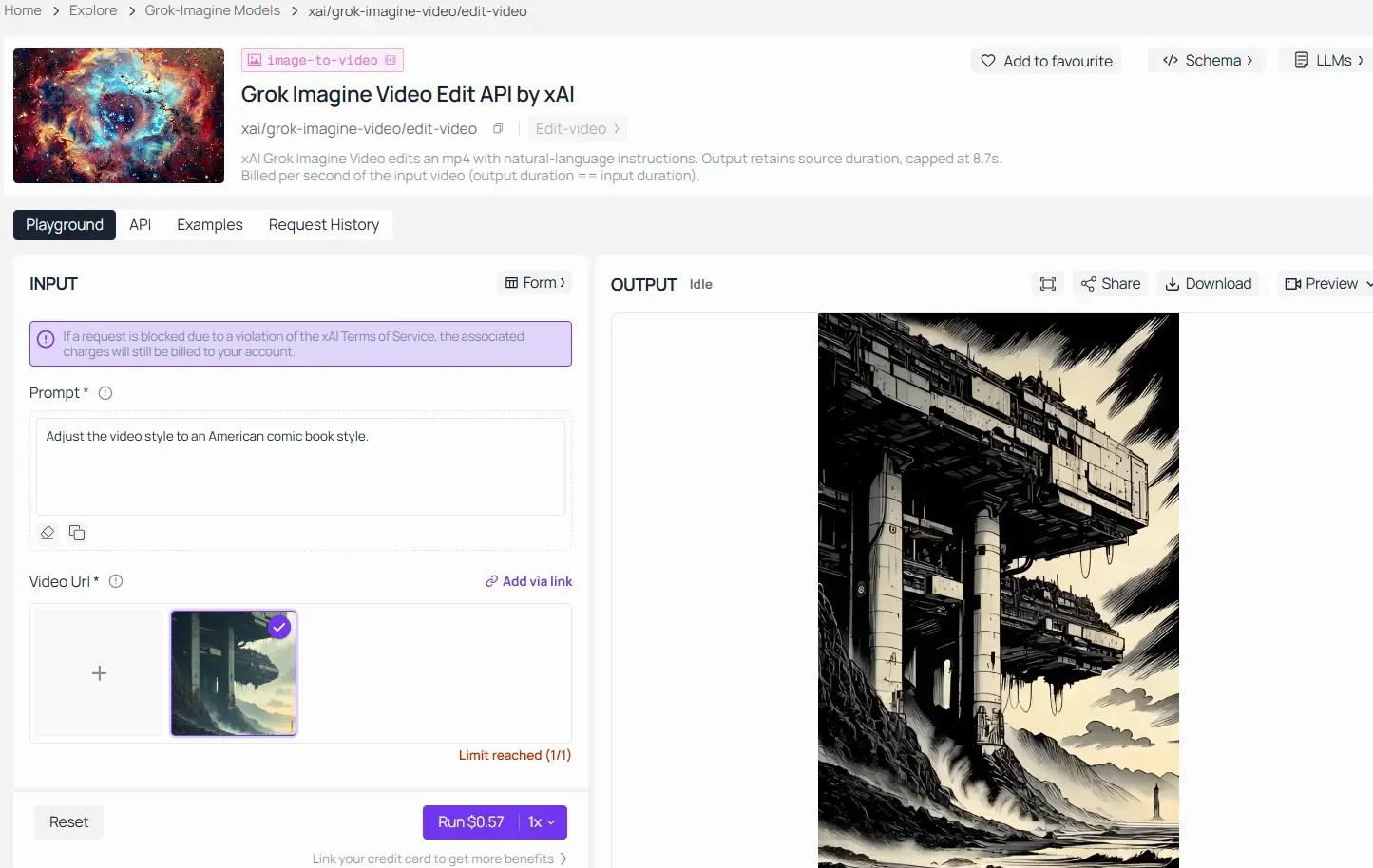
Through Atlas Cloud, the Grok Imagine Video Edit API prices rendering at a flat $0.06 per second. Crucially, the billing features a strict 8-second cap, meaning any processed video that runs longer than 8 seconds will never exceed a total cost of $0.48 per run. Video editing calls are made via the /v1/videos/edits endpoint using the grok-imagine-video-edit model identifier.
Here is a quick comparison to guide your choice:
| Feature | SuperGrok ($30/mo) | Developer API |
| Interface | Web/mobile UI | REST endpoint |
| Resolution | Up to 720p | Up to 720p |
| Grok Imagine daily caps 2026 | 20+ videos / 24 hrs | Usage-based billing |
| Best for | Casual creators | Developers, pipelines |
| Pricing model | Flat subscription | $0.05 / second |
Step-by-Step Guide: How to Use Grok Video-to-Video Editing
Executing a flawless AI video edit requires more than just a creative prompt—it demands properly conditioned source media. Because Grok’s Aurora engine processes imagery autoregressively (frame-by-frame sequentially), skipping manual timeline work means your input files must comply with strict cloud ingestion standards.
Preprocessing: What Happens Before the Edit Begins
Before Aurora touches a single frame, your source footage goes through automatic normalization. The input video must use the .mp4 extension and be encoded with H.265, H.264, or AV1 codecs, and the maximum input length accepted via the video_url parameter is 8.7 seconds. Clips longer than that need to be trimmed beforehand. There is no manual timeline work required on your end; the engine reads the full clip sequentially and locks in the original duration, aspect ratio, and resolution (capped at 720p) before applying any changes.
This is the foundation of zero-keyframe editing. You are not setting in-points, drawing masks, or building motion paths. You write what you want changed, and Aurora handles every frame automatically.
The Prompt-Based Video Editing Workflow
The core principle of a successful local video edit is specificity without overreach. When your goal is to modify a specific object within a clip, describe only what you want changed. Do not describe what should stay the same; the Aurora engine automatically treats unmentioned pixels as protected, ensuring flawless temporal consistency.
Standard Formula for Object Swapping & Recoloring:
[Action verb] + [Target element] + [Desired result]
Example: "Change the jacket color to deep forest green."
Avoid compound instructions that touch multiple unrelated elements in one prompt, e.g., trying to change the jacket and swap the background simultaneously. For branching edits, run concurrent requests from the same source video instead.
Three Real-World Use Cases with Prompt Designs
For the following practical demonstrations, I will be using the Grok Imagine Video Edit API provided by Atlas Cloud to edit the video.
Use Case 1: E-Commerce / Product Marketing
Scenario: A founder shoots a 6-second smartphone clip of a ceramic mug on a white table. They need three colorway variants for a product listing without a reshooting.
This is object swapping with natural language at its most practical. The product shape, reflections, and surface texture shift while the background and camera motion remain locked.
| Variant | Prompt |
| Matte black | "Change the mug color to matte black with a smooth ceramic finish" |
| Terracotta | "Recolor the mug to warm terracotta with a slightly rough unglazed texture" |
| Navy gloss | "Apply a glossy navy blue finish to the mug" |
Run all three concurrently from the same source file using the concurrent request pattern in the API for faster turnaround.
Budget-Saving Note: Asset Integrity & Spatial Directives
To maximize your API cost efficiency, always ensure the structural integrity of your source footage before editing. The Aurora engine relies on a 1:1 pixel mapping framework.
- If you can control the source: Group identical white prototype objects side-by-side in your initial video generation step to create a multi-object canvas.
- If you cannot modify the source footage: Do not split the video into multiple prompt calls. Instead, execute a single unified request and use highly precise spatial positioning language, e.g., left, middle, right, foreground to color-swap or restyle multiple elements simultaneously. A single 6-second multi-object prompt costs exactly the same ($0.30) as a single-object prompt, effectively cutting your production budget by 66%.
Use Case 2: Social Media Lifestyle / Creator Economy
Scenario: A creator records a 7-second clip walking through a neutral indoor hallway. They want four seasonal background variants for different campaign drops throughout the year.
This is video-to-video restyling applied to environment, not subject. The model preserves the person's face, clothing, and body motion untouched.
| Season | Prompt |
| Autumn | "Replace the background with an outdoor forest path covered in fallen autumn leaves" |
| Winter | "Change the background to a snowy park at dusk with soft warm streetlights" |
| Summer | "Swap the background to a bright sunlit beach boardwalk" |
| Spring | "Replace the background with a blooming cherry blossom alley" |
To ensure the videos are perfect, it is best to generate separate videos for each of the four seasons: Spring, Summer, Autumn, and Winter.
Pro Tip: Ambient Lighting Adaptation & Subject Masking
When executing background restyling in 2026, Grok's Aurora engine automatically locks the foreground subject's shape. However, to achieve true photo-realism, your prompt must allow for ambient light leakage.
The Challenge: A person recorded under harsh indoor fluorescent lights will look artificial if placed onto a warm "sunlit beach" or a moody "dusk park" due to mismatched lighting vectors.
The Fix: Notice how our Winter prompt explicitly mentions "soft warm streetlights"? This tells the engine to cast a subtle, amber glow onto the edges of the jacket and hair. This naturally blends the original foreground into the new AI environment without any manual color grading.
Use Case 3: Cinematic / Indie Filmmaking
Scenario: A filmmaker has an 8-second drone clip flying over a city at night. They want a full stylistic transformation for a sci-fi short without any compositing software.
This is where the Aurora engine's style transfer capability stands apart from basic object swapping with natural language. The structural geography of the shot is preserved; only the visual language changes.
| Style | Prompt |
| Anime | "Restyle the entire footage as a hand-drawn anime cinematic in the style of Ghost in the Shell, with cel-shaded buildings and neon-lit fog" |
| Cyberpunk | "Transform the cityscape into a neon cyberpunk environment with holographic advertisements and rain-slicked streets" |
Pro Tip: Anchor the Geography, Shift the Language
When transforming wide drone shots, your biggest enemy is structural drift—where giant buildings warp or change shape between frames.
The Fix: Notice how both prompts explicitly command Grok to "Maintain the exact 3D layout" or "Lock the geometric structure." By hard-coding these spatial anchors into your text directive, you tell the Aurora engine to treat the layout as static infrastructure. The AI will only swap the superficial pixels—like adding neon rain or cel-shaded paint—while keeping the city's bones completely solid.
Using the Built-In Prompt Enhancer
Grok Imagine includes a built-in prompt enhancer that automatically expands a basic instruction into a richer, more technically detailed directive before passing it to the model. For casual creators working through the SuperGrok UI, enabling this feature adds cinematic language, lighting descriptors, and motion context without requiring any filmmaking vocabulary on the user's end.
For API users, it is smarter to write exact prompts yourself instead of using the built-in enhancer. Automated code setups run much better with stable, repeatable steps. Once you send your prompt over, Aurora keeps every single frame stable across the full clip. You do not need to do any manual tracking. This smooth flow happens because the engine uses an autoregressive setup that locks in steady timing automatically.
Harnessing Reference-to-Video & Extensions for Narrative Sequencing
One-clip edits work great, but you get way more creative power by linking Grok's three smart tools together: Image-to-Video, Reference-to-Video, and Video Extension. These features blend into a fast production loop. Without hiring a massive creative team, they enable you to quickly create prototypes for social media campaigns, product drops, or short stories.
Image-to-Video vs. Reference-to-Video: Know the Difference
These two modes are often confused, but they serve different creative purposes:
| Feature | Image-to-Video | Reference-to-Video |
| Input role | Source image becomes frame one | Reference images guide visual style and content |
| First frame locked? | Yes | No |
| Max reference inputs | 1 image | Up to 7 images |
| Max duration | 10 seconds | 10 seconds |
| Best for | Animating a single still | Multi-image style transfer across new scenes |
With image-to-video tools, your initial picture always serves as the very first frame. Reference-to-Video works differently because the guide photo shapes the look of the whole clip without forcing it to be the starting frame. This distinction is what enables reference-to-video character consistency: a character's face, clothing, and overall aesthetic carry across entirely new AI cinematic camera directions you define in the prompt.
Sample Prompt for a Fashion Brand Ad (3 reference images):
Slow zoom in on a minimalist white studio. The model from <IMAGE_1> walks toward the camera wearing the jacket from <IMAGE_2> and carrying the bag from <IMAGE_3>. Soft diffused lighting. Editorial slow-motion. Camera holds on a close-up of the outfit details.
Extending Clips for Narrative Continuity
Once a strong clip exists, the grok video extension feature picks up from the final frame and continues the scene. The extension duration range is 2 to 10 seconds, and the output aspect ratio and resolution automatically match the source clip, capped at 720p.
Sample Extension Prompt (continuing the fashion ad):
The model turns and walks back toward a floor-to-ceiling window. Warm golden light fills the frame. Camera slowly pulls back to a wide establishing shot.
You can chain two or three extensions using the same original file to build a 30-second story using just text prompts. The action, lighting, and character looks will stay perfectly steady across all the different clips.
Prompt Engineering Secrets for High-Fidelity Grok Video Edits
While local edits require strict minimalism, full-scene restyling and stylistic transformations demand the exact opposite. Vague instructions leave Aurora to interpret the environment freely, which often leads to visual artifacts. To unlock cinematic precision when transforming an entire sequence, you must write like a director briefing a cinematographer.
The Master Director Formula (For Style Transfer & Extensions):
[Subject] + [Action] + [Camera movement] + [Lighting condition] + [Mood/Style]
You can guide the Aurora engine to preserve structural geography while completely reinventing the visual asset by adding particular camera and lighting constants.
Cinematic Shot Instructions Reference Table
Use specific technical language rather than generic adjectives. The table below shows the difference between vague and directive language:
| Element | Vague (avoid) | Directive (use) |
| Lighting | "nice lighting" | "diffused morning light through frosted glass" |
| Camera | "camera moves" | "slow push-in at shoulder height" |
| Environment | "outdoor scene" | "golden hour, dry grass field, heat haze" |
| Mood | "dramatic" | "low contrast, desaturated tones, shallow depth of field" |
| Audio | "background sound" | ambient environment sound prompts like "distant city traffic with soft wind" |
Rules for Reducing Failed Video Outputs
Focus on one main subject, one primary action, and one camera move per prompt. Complex instructions with multiple simultaneous changes lead to unstable motion and visual artifacts.
Additional rules that consistently improve output quality:
- Avoid fast pans and crowded multi-object scenes in a single request.
- Use 24fps language for cinematic outputs; 60fps for slow-motion clarity.
- Place the most critical instruction first; Aurora weights early prompt content more heavily.
- For ambient environment sound prompts, describe audio as a scene property, not a separate request: "cobblestone plaza, echo of distant footsteps, light rain on awnings."
A prompt that directs a scene creates a moment. For Grok Imagine, the scene-first approach produces more cinematic framing, richer lighting, and clearer intent than a tag-list approach.
Unlocking the Boundaries: Grok xAI NSFW Video Generation Capabilities 2026
While xAI embraces an "anti-censorship" ethos, accessing the grok xai nsfw video generation capabilities 2026 requires a specific two-step configuration to activate what users call "Spicy Mode."
How to Activate "Spicy Mode"
The Aurora engine will instantly reject mature prompts unless your account explicitly enables sensitive content.
-
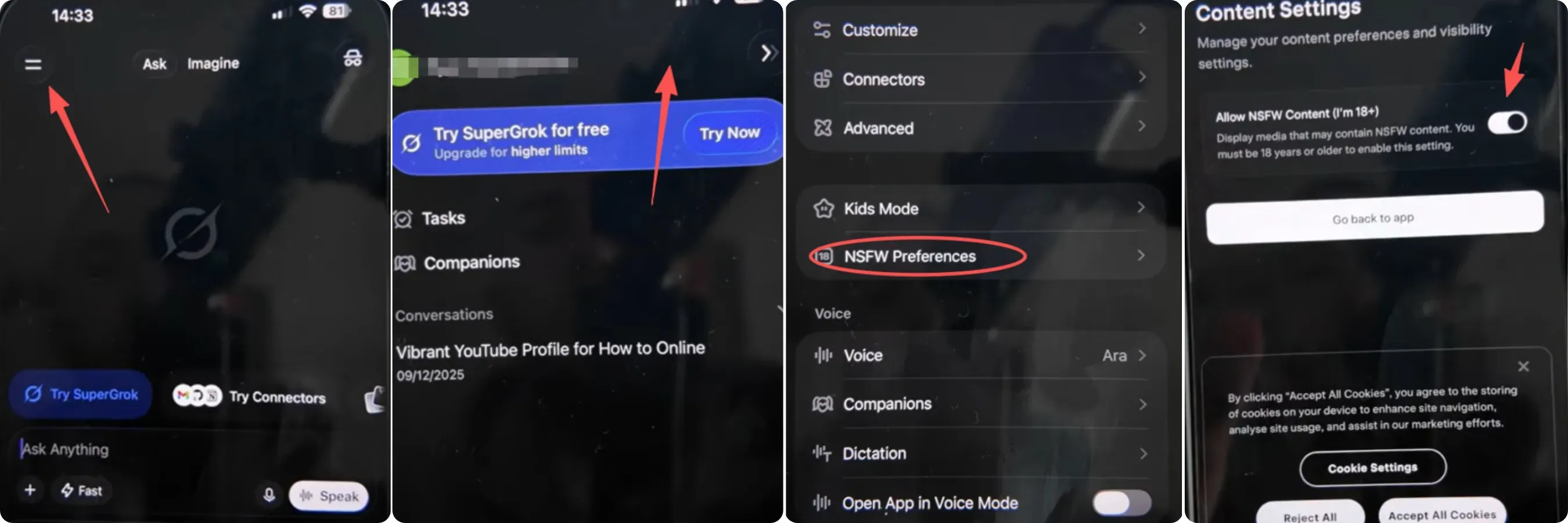
Account Setup: Navigate to Settings > Privacy and safety > Content you see and toggle on "Display media that may contain sensitive content".
-
The Prompt Trigger: Initialize your request using the prefix: "Generate a spicy video of...". The UI will prompt a 18+ confirmation box to authorize the NSFW rendering pipeline.
The Limits of 2026 Grok xAI NSFW Adult Video Generation
Even with Spicy Mode successfully activated, the grok xai nsfw video generation capabilities 2026 are not completely lawless. The framework is designed for responsible adult expression:
- Allowed: High-glamour aesthetic video transformations, lingerie and swimwear styling, intense romantic cinematic atmosphere, and heavily stylized artistic nudity or boudoir photography lighting.
- Strictly Forbidden: Realistic deepfakes of public figures, hardcore porn, and explicit content made without consent. Breaking these main rules will trigger a sudden automated block right at the output stage. It will also instantly waste your daily video generation allowance.
Prompt De-sensitization Technique
To avoid automated filter misfires, replace raw anatomical words with high-fashion and cinematic descriptors.
- Avoid (High Risk): "A naked woman dancing in an explicit, vulgar pose."
- Use (Safe & High-Fidelity): "A female model in minimalist silk apparel, fluid contemporary dance movements, dramatic low-key rim lighting, sculpted shadows, high-end fashion editorial aesthetic."
By relying on professional stylistic tags (sculpted shadows, silhouette styling, minimalist apparel), you pull the engine into rendering mature, high-fidelity visual elements without tripping safety gates.
Pro Tip: Video editing has strict 720p resolution ceilings. For a complete look at how xAI handles static adult graphics, check out our companion guide on the Grok xAI NSFW image generation policy.
Troubleshooting Grok xAI Video Edits & Common Limitations
Understanding where the pipeline can break down saves both time and quota. Here are the four most common friction points creators and developers encounter in 2026.
Grok Video Generation Throttling During Peak Hours
xAI's infrastructure runs on finite compute, and demand spikes cause real slowdowns. Video rendering remains highly volatile and is frequently scaled back or downgraded to 480p during peak traffic hours to protect core platform functionality. The practical workaround is to schedule high-volume generation jobs during off-peak hours, or use the API's async polling pattern so your pipeline does not block on slow responses.
Temporary Video Output URLs: Download Immediately
This catches developers off guard more than any other issue. Videos are returned as temporary URLs; you must access the xAI-hosted URL directly when you need it, or download and process the file promptly if you need to keep a copy. For batch workflows specifically, image and video URLs in batch results expire after just one hour. Build an automatic download step into your pipeline immediately after the polling loop confirms a "done" status.
xAI Content Moderation Review: How It Works
Grok's moderation does not only scan the prompt text. Grok Imagine evaluates the likely output, not just the prompt text, and stops generation before rendering if risk is detected. This comprehensive automated review is the primary bottleneck when experimenting with complex grok xai nsfw video generation capabilities 2026. The harder operational problem is the quota impact: moderated or failed generations still count toward your daily cap, and once a video limit is hit, output quality can drop from 720p to 480p.
720p HD Resolution Constraints: Know the Hard Ceiling
For video editing, the output retains the duration and aspect ratio of the input and matches its resolution, capped at 720p. There is no current path to 1080p output through standard API calls. Plan your source footage and export targets around this ceiling to avoid quality mismatches downstream.
| Issue | Root Cause | Fix |
| Slow generation | Server load / throttling | Schedule off-peak; use async polling |
| Lost output file | Temporary URL expiry | Auto-download on "done" status |
| Moderated block | Output-level safety scan | Rephrase prompt; avoid real-person references |
| Resolution drop | Quota cap hit | Spread jobs across reset windows |
Conclusion: The Future of Frictionless Video Production
The grok xAI video editing capabilities 2026 represent a genuine inflection point for visual storytelling. The future of AI video editing is not about replacing creative vision. It is about removing every technical barrier that stood between an idea and its execution. Whether you are a solo creator, a product marketer, or an indie filmmaker, the workflow is now the same: describe what you want changed, submit, download, and ship.
Frictionless content creation at this level was theoretical two years ago. In 2026, it is a paid subscription and one well-structured prompt away. Start with a video-to-video edit on a clip you already own. The result will make the next step obvious.





