
The chat is gone. You scroll the sidebar twice, type half the title into search, and start to wonder whether you deleted it. Usually you didn't: one click on Archive, with no confirmation step, moves a chat into a list three menus deep. This guide shows where ChatGPT archived chats live on the web and in the app, how to unarchive one, what archiving changes, and what Delete all chats does to the archive. Every step was checked against OpenAI's help center on October 23, 2026.
Key Takeaways
- ChatGPT archived chats sit under Settings, Data controls, Archived chats;theyare hidden from the sidebar, not deleted.
- Unarchive puts a chat back in the sidebar, and the search box finds archived chats by keyword in the meantime.
- OpenAI's help page givesDeleteall chats no exception for archived chats, and users report it removes them too.
- A chat that is missing may be in a project, a locked folder or another workspace, or it was a temporary chat.
- To continue an old thread outside ChatGPT, paste it into GPT-6 Luna from Atlas Cloud's OpenAI models.
Where Are Archived Chats in ChatGPT?
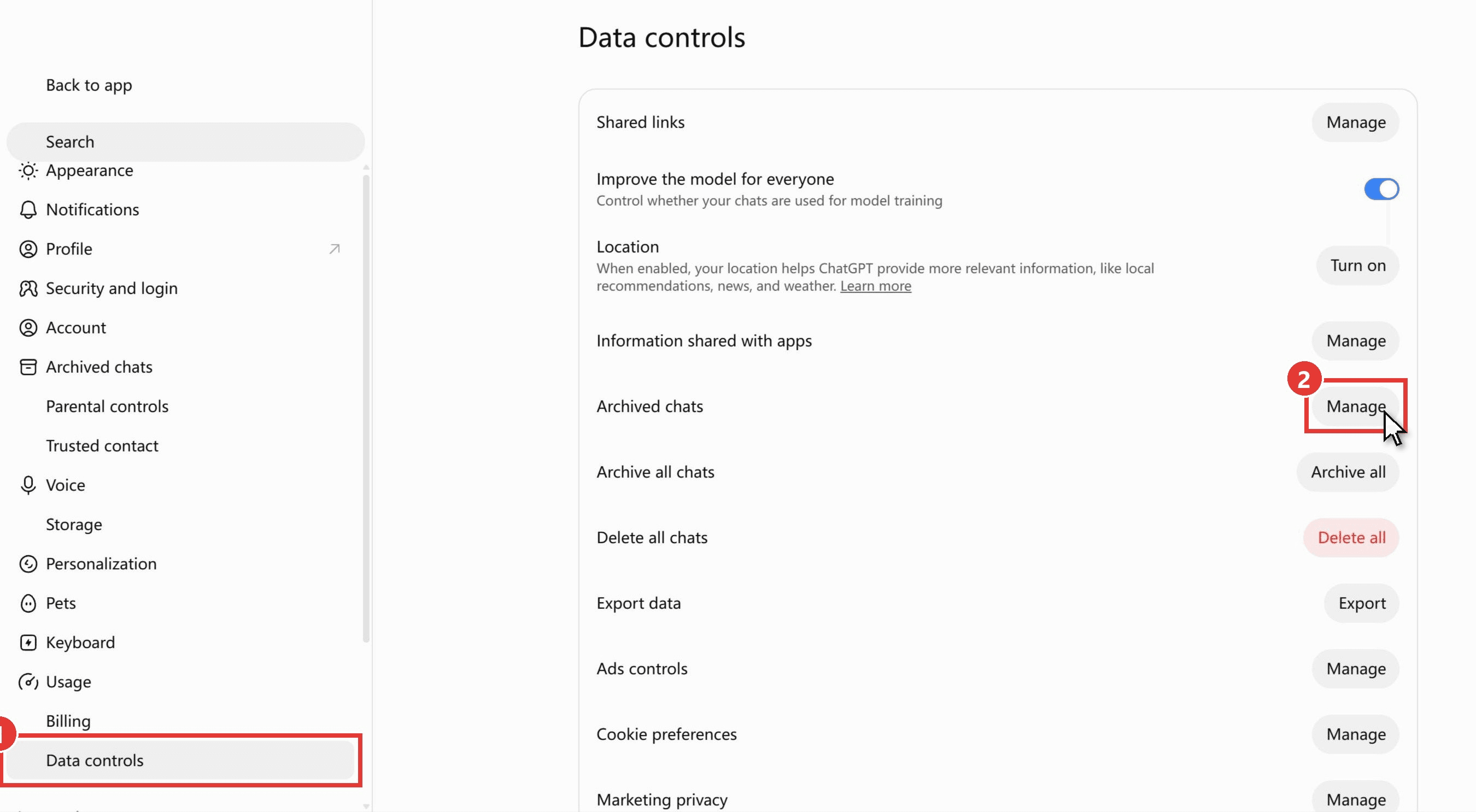
Archived chats live in Settings, under Data controls. On the web, Settings now opens as a full page: Archived chats has its own entry in the left menu, and the Data controls page repeats it as an Archived chats row with a Manage button. In the mobile apps the row reads Archived chats or View archived chats, which OpenAI's help article on deleting and archiving chats describes as "depending on your device."
Older guides that point to Settings, then General, are out of date rather than wrong. Archived copies of that same help article still showed the General tab as late as September 2025, and by December 2025 the row had moved to Data controls.
How to Find Archived Chats in ChatGPT on the Web
Click your profile icon in the bottom left corner of chatgpt.com and choose Settings, then:
- Click Data controls in the left menu. The Archived chats entry higher up in the same menu leads to the same place.
- Click Manage on the Archived chats row.
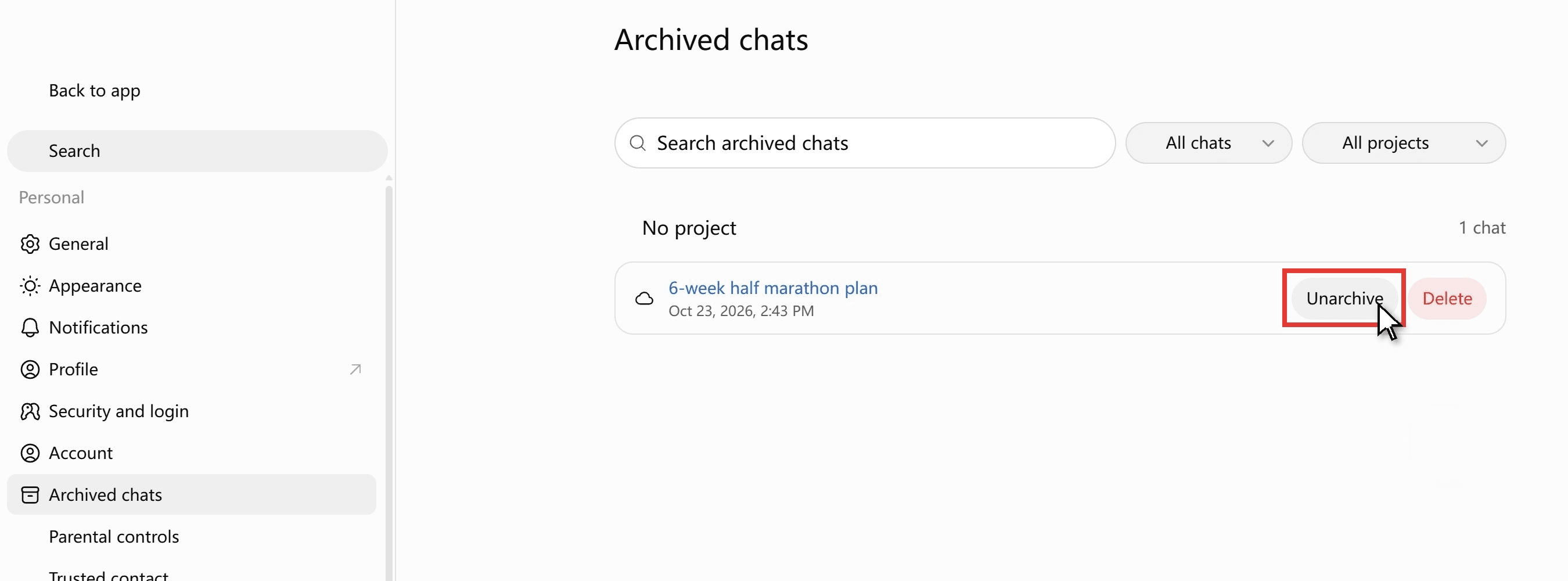
The Archived chats page lists every archived conversation with its date. Each row has an Unarchive button and a Delete button, and the page has its own search box and a project filter, so a long archive is still easy to scan.
How to See Archived Chats on the ChatGPT App
The app route has one extra tap. Open the sidebar with the menu icon, the two horizontal lines in the top left, tap your profile icon at the bottom of the sidebar, then Settings and Data controls. The archived list is the Archived chats or View archived chats row. The three routes side by side:
| Platform | Path to the list | What you can do there |
|---|---|---|
| chatgpt.com | Profile icon, Settings, Data controls, Archived chats, Manage (or the Archived chats entry in the Settings menu) | Unarchive or delete each chat, search inside the archive |
| iOS app | Menu icon (two lines), profile icon, Settings, Data controls, Archived chats or View archived chats | Unarchive or delete each chat |
| Android app | Menu icon (two lines), profile icon, Settings, Data controls, Archived chats or View archived chats | Unarchive or delete each chat |
How to Unarchive a Chat You Accidentally Archived in ChatGPT
Accidental archiving is easy because Archive sits in the same short menu as Rename, Share and Delete, and OpenAI's help page notes that "No confirmation is required." The chat leaves the sidebar the moment you tap it. Two ways back:
- Archived chats page. Settings, Data controls, Archived chats, Manage, then the Unarchive button on the chat's row. It returns to the sidebar in its original place.
- Search. Type a word from the chat into the sidebar search and open the result. You can keep working in it right away; to put it back in the sidebar for good, use Unarchive on the Archived chats page.
One side effect matters if you use scheduled tasks: "Archiving a chat used for scheduled-task results can cause the task to pause on a later run." Unarchive that chat and check the task.
Continue an Archived Chat With GPT-6 Luna on Atlas Cloud
People dig out an archived chat to pick it up again, not just to read it. Outside ChatGPT, that chat is plain text you can paste anywhere, and Atlas Cloud serves GPT-6 Luna, the model name ChatGPT assigns to its Free and Go tiers, through one chat completions endpoint. The model page describes the messages field as "A list of messages comprising the conversation so far," so the earlier turns ride along with the new question.
We tried it with the chat we had archived for this article, a six week half marathon plan for a runner whose longest run was 8 km. We pasted the plan, said week 2 had been lost to a cold, and asked GPT-6 Luna to rewrite weeks 3 and 4 and judge whether the 15 to 16 km peak run in week 5 still made sense.
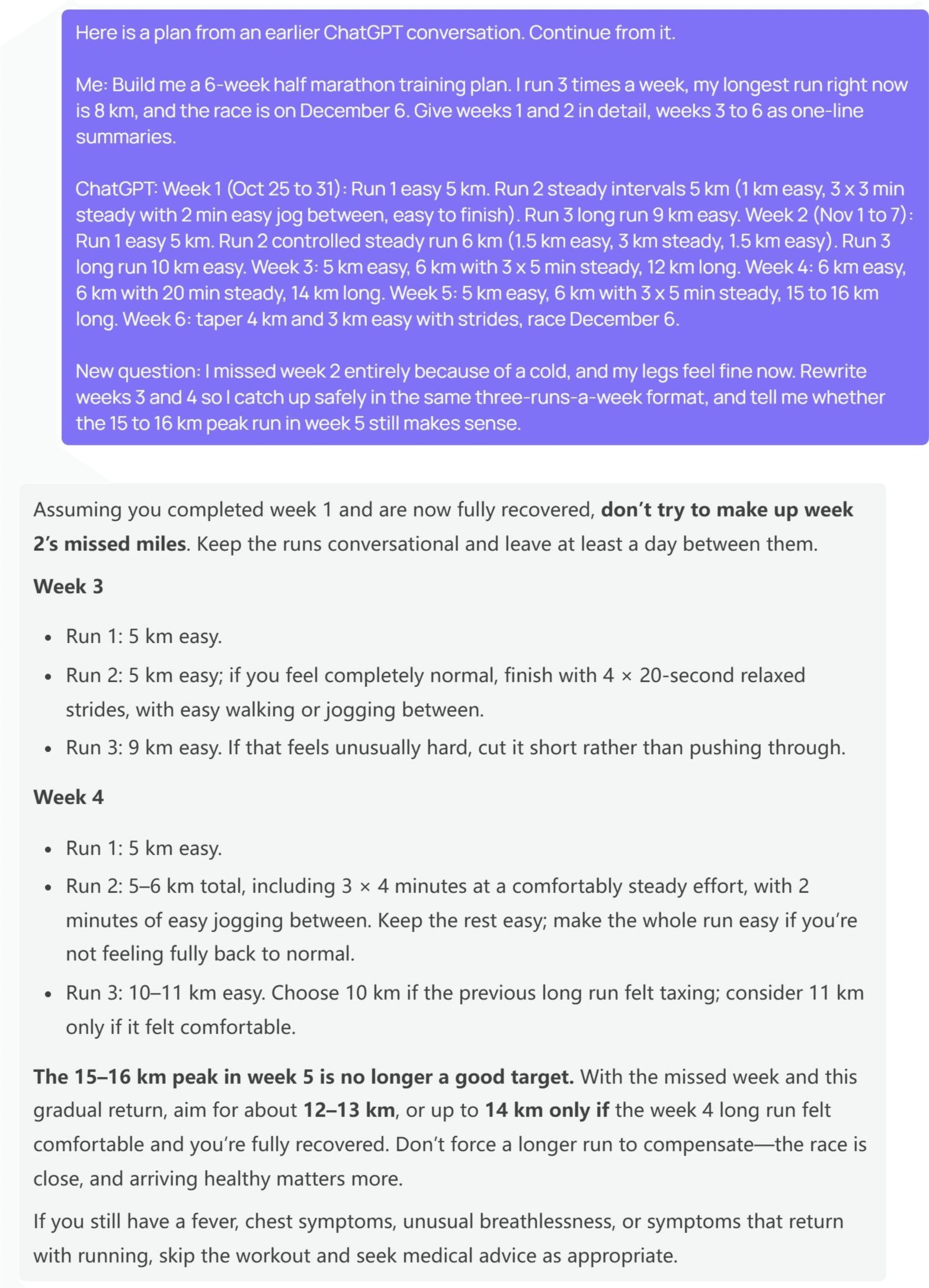
Luna did not pile the missed distance onto the next fortnight. Its opening line was a warning, "don't try to make up week 2's missed miles." Week 3 came back as two easy 5 km runs, the second with optional strides, and a 9 km long run. Week 4 kept 5 km easy, put 3 x 4 minutes of steady running inside a 5 to 6 km run, and stretched the long run to 10 or 11 km.
The 15 to 16 km peak "is no longer a good target," replaced by 12 to 13 km, with 14 km only if week 4 felt comfortable. For which ChatGPT plans run GPT-6, see that guide.
Method 1: Paste the Thread Into the GPT-6 Luna Playground
No code needed. Sign in and open the GPT-6 Luna playground, then:
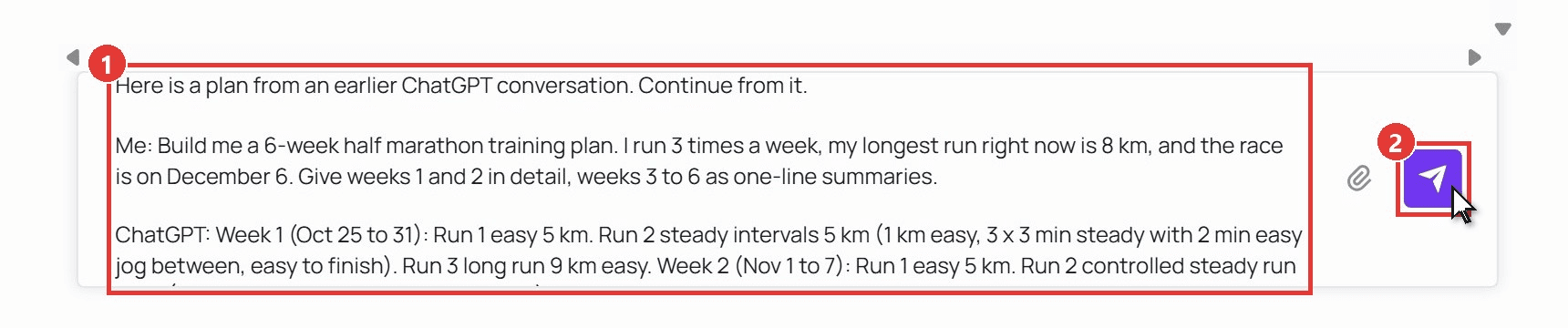
- Paste the old conversation into the message box, label the turns as Me and ChatGPT, and add the new question at the end.
- Click the send arrow. The reply streams in, and the next question goes in the same box.
Method 2: Keep the Conversation as a File With the API
If you want a copy of a conversation that no sidebar can hide, keep it as a file on your side. Three steps.
Step 1: Create an API key. Open Settings in the console, go to API Keys, and click Create API Key. Keep it on the server side.
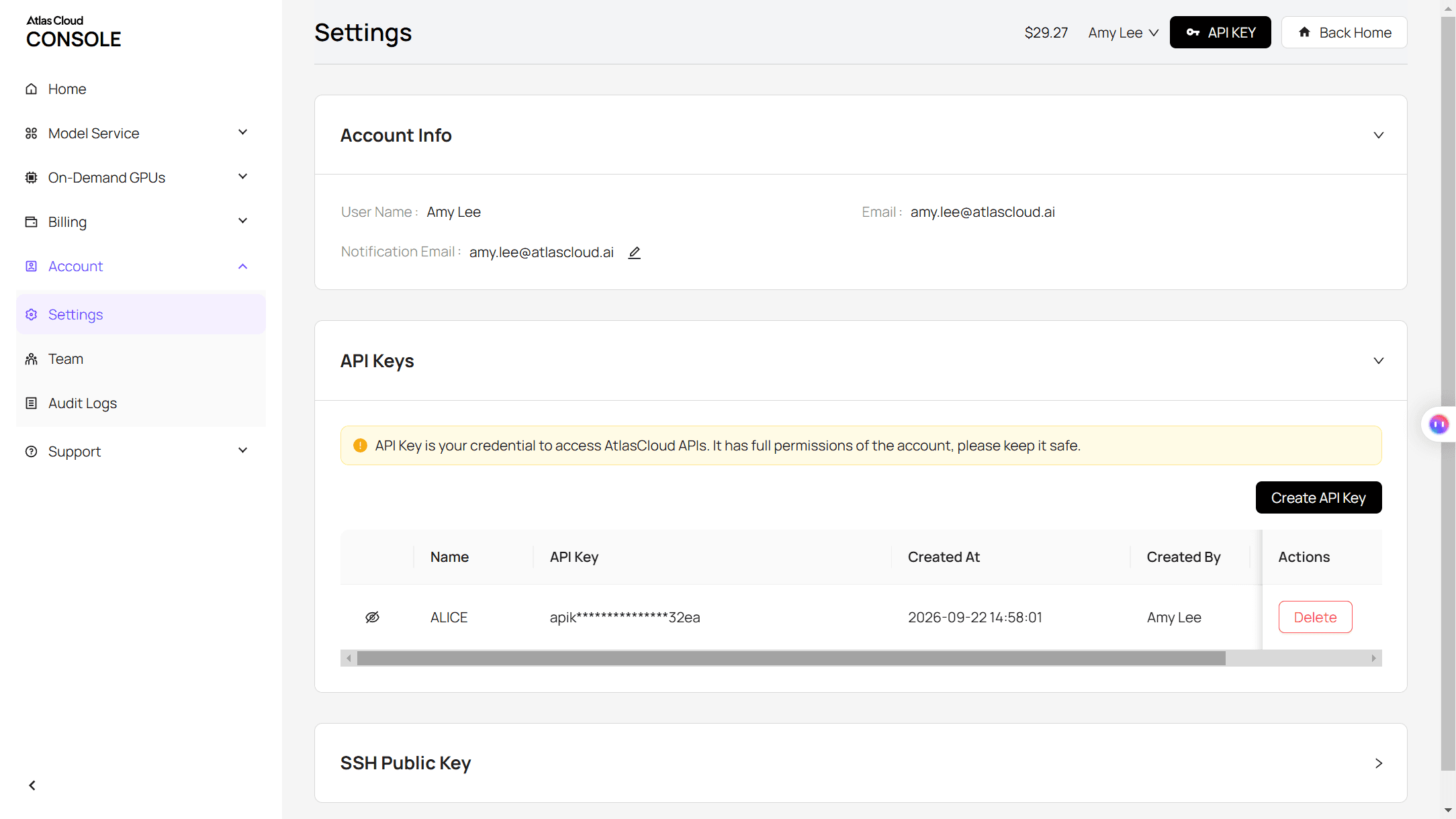
Step 2: Check the request format. The API docs cover the chat completions format, and the model page has an API tab with a ready-made example.
Step 3: Send the old turns with the new question. The earlier exchange goes into the messages array as user and assistant turns, followed by the new user message.
plaintext1curl -X POST "https://api.atlascloud.ai/v1/chat/completions" \ 2 -H "Authorization: Bearer $ATLASCLOUD_API_KEY" \ 3 -H "Content-Type: application/json" \ 4 -d '{ 5 "model": "openai/gpt-6-luna", 6 "messages": [ 7 {"role": "user", "content": "Build me a 6-week half marathon training plan. I run 3 times a week, my longest run is 8 km, and the race is on December 6."}, 8 {"role": "assistant", "content": "Week 1: Run 1 easy 5 km. Run 2 steady intervals 5 km. Run 3 long run 9 km. Week 2: ... Week 6: taper, race December 6."}, 9 {"role": "user", "content": "I missed week 2 because of a cold. Rewrite weeks 3 and 4 so I catch up safely, and tell me whether the 15 to 16 km peak run in week 5 still makes sense."} 10 ], 11 "max_tokens": 3500 12 }'
The text comes back in choices[0].message.content. Append it to the same JSON file as an assistant turn and that file is both your archive and your next request. The same endpoint and key serve the rest of the OpenAI family, so moving to GPT-6 Sol means changing only the model string. The route also helps when a thread has grown long enough to drag the ChatGPT page, covered in why ChatGPT gets slow.
What Does Archiving a Chat in ChatGPT Do?
Archiving changes where a chat is shown and nothing else. OpenAI's wording: "Archiving removes the chat from the regular sidebar but does not delete it. Archived chats remain searchable." Deleting is the opposite in every row, and a Temporary chat never enters history to begin with.
| Archived chat | Deleted chat | Temporary chat | |
|---|---|---|---|
| Shows in the sidebar | No | No | No |
| Appears in chat search | Yes | No | No |
| Still in your account | Yes, until you delete it | Removed at once | Never saved to history |
| What OpenAI keeps | Same retention as a regular chat | Scheduled for permanent deletion within 30 days | May keep a copy for up to 30 days for safety |
| Can you get it back | Yes, Unarchive | No, not even through OpenAI Support | No, it cannot be reopened |
| Model training setting | Unchanged by archiving | Not applicable | Not used for training |
One detail hides in that table: archiving does not shorten how long OpenAI keeps a chat. The help page says "Archiving a chat does not change its retention period." To take a chat out of the model's view, delete it.
Does Deleting All Chats Delete Archived Chats in ChatGPT?
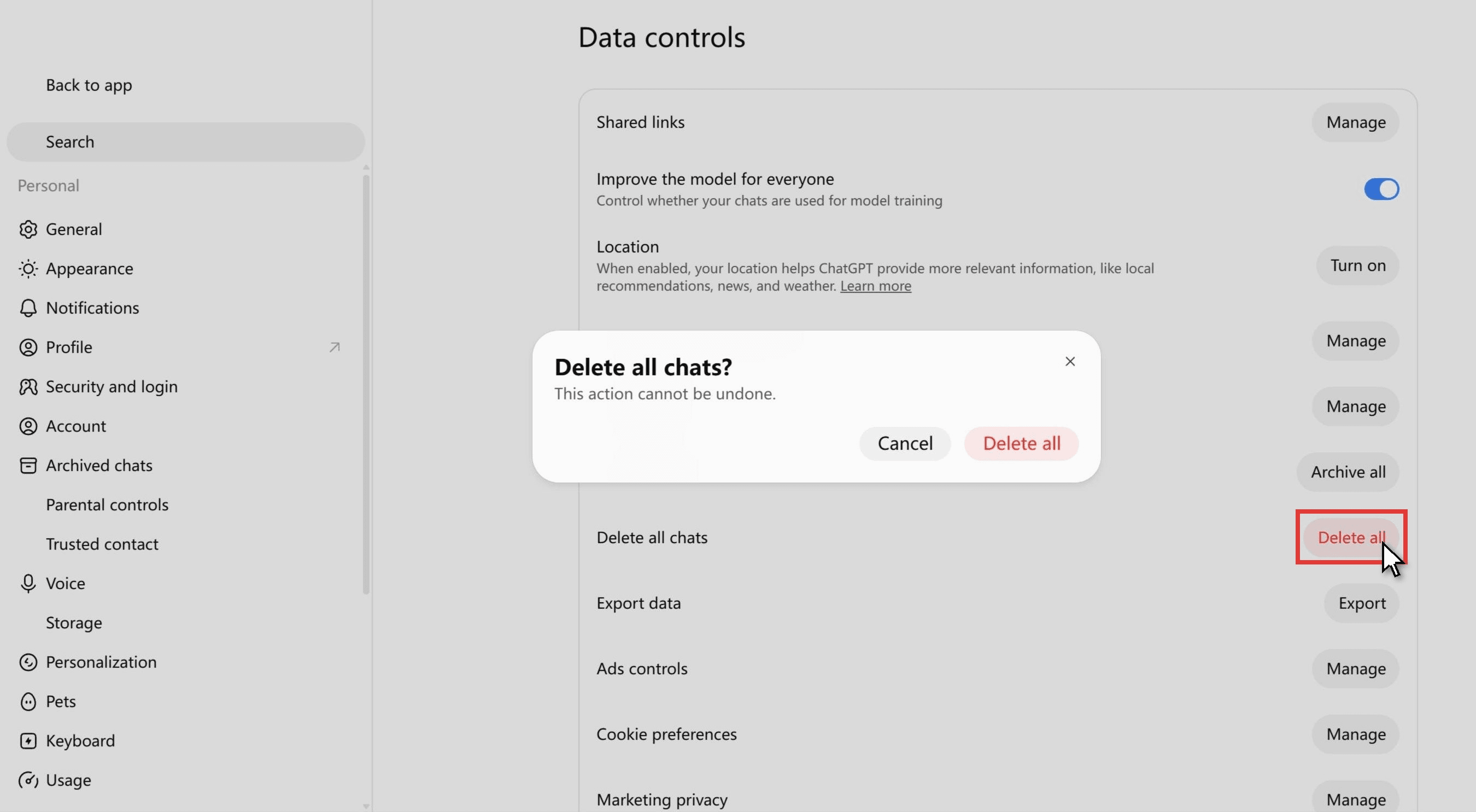
Treat the answer as yes. The confirmation box itself says only "Delete all chats? This action cannot be undone." OpenAI's help page describes Archive all chats and Delete all chats together: "These actions can affect chats in your current account or workspace, including chats in projects. The Delete all chats action cannot be undone." It carves out no exception for archived chats, and a post in the OpenAI developer community reports none: "When I use this option, it deletes all the chats, including the ones that are archived."
If the goal is a clean sidebar, use Archive all chats, which sits right above Delete all chats on the same screen. If the goal really is deletion, request a data export first, then delete. Nothing brings a chat back afterwards; OpenAI states that "Deleted chats, including chats removed with Delete all chats, cannot be restored."
ChatGPT Chat History Disappeared? Check These Before Assuming It Was Deleted
OpenAI's own troubleshooting line is the right starting point: "An older chat that is no longer visible in the sidebar has not necessarily been deleted." Before you write a chat off, check six places.
- The archive. Covered above, and the first place to look.
- A project. Chats moved into a project are listed under that project; Remove from project in the chat's more options menu returns it to the regular list.
- Locked chats. Rolling out since October 20, 2026, locked chats are hidden from regular history, pinned chats and search. They live under Projects, then Locked chats, behind a 4 digit account PIN.
- Another account or workspace. OpenAI asks you to confirm "the correct OpenAI account and workspace, including the correct email address or single sign-on (SSO) method."
- A Temporary chat. These never appear in history and cannot be reopened once you leave.
- A short mobile sidebar. Since August 2026 the Android app lists up to eight recent conversations in the sidebar. Older chats are still there; search for them.
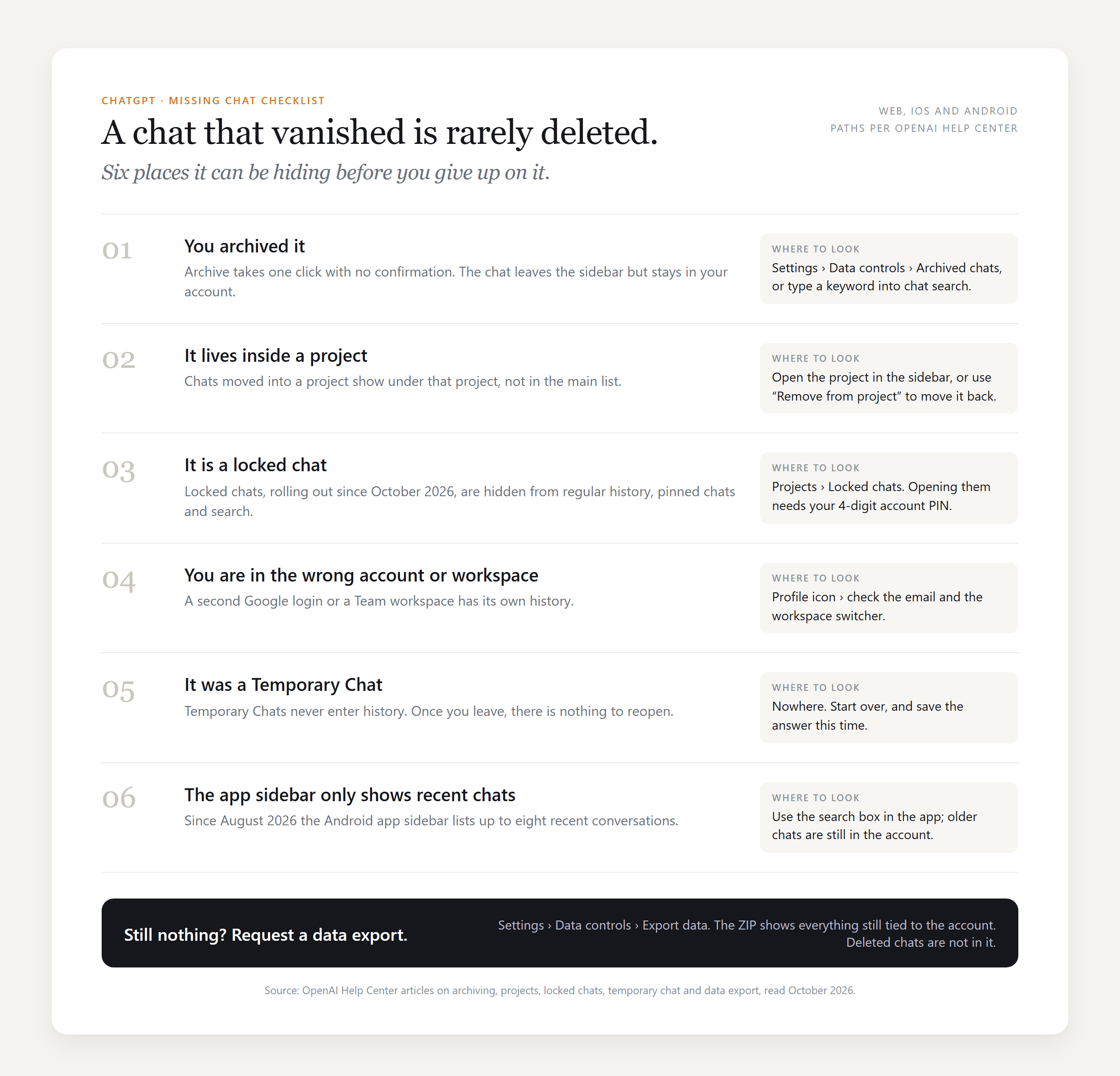
If all six come up empty, request a data export under Settings, Data controls. It arrives by email within up to 7 days, and OpenAI notes one limit: "An export cannot restore chats that have already been deleted."
FAQ
Can you search inside archived chats in ChatGPT?
Yes. The sidebar search covers regular and archived chats, so a keyword from the conversation brings it up while it is still archived, and the Archived chats page in Settings has a second search box limited to the archive. Only deleted chats are excluded.
Does ChatGPT memory still use archived chats?
OpenAI's memory FAQ treats archived chats as part of what the model can draw on: to make ChatGPT forget something, you remove it from regular and archived chats, not only from saved memories. Turning off Reference chat history schedules remembered information for deletion within 30 days, while the chats stay in your history.
How do you delete chat history in ChatGPT, and can you get it back?
Per chat, open the more options menu and choose Delete; for everything, use Delete all chats under Data controls. OpenAI schedules deleted chats for permanent removal within 30 days and says they cannot be restored. The 2025 court order that made OpenAI keep deleted consumer chats ended on September 26, 2025, according to the company's update on the New York Times case, so the 30 day rule applies again to new deletions.
Can GPT-6 Luna on Atlas Cloud see my ChatGPT archive?
No. The model only sees the text you paste into the playground or put in the messages array. To work from the full history, copy the conversation out of a ChatGPT data export and send it as the first turns of your request.
Conclusion
An archived chat is a hidden chat, not a lost one. It stays in your account, turns up in search, keeps its retention period, and comes back to the sidebar with one click on Unarchive under Settings, Data controls. The two real dangers sit elsewhere: Delete all chats, which users report takes the archive with it, and the assumption that a chat you cannot see must be gone, when it may be in a project, a locked folder or another workspace.
Once you have the thread back, keep it going in ChatGPT or paste it into GPT-6 Luna on Atlas Cloud and ask the next question there. Either way, the first stop when something seems missing is the same: check your ChatGPT archived chats before you check anything else.





