Video editors frequently abandon generative workflows for a simple reason: they waste hours trying to keep a character's face consistent across multiple scenes or manually syncing footsteps to a silent render. Google Flow solves this production bottleneck with the Veo 3.1 model update, transitioning AI from experimental generation to professional-grade production.
At a Glance: What's New in Veo 3.1
- Workspace vs. Engine: Google Flow is the visual editor UI; Veo 3.1 is the underlying generative DeepMind engine.
- Dual Rendering Modes: Draft quickly in Veo 3.1 Fast (60–90s) to lock composition, then export final 4K assets in Standard mode.
- Precise Control Modules: Native 48kHz bracketed audio syntax, 3-slot visual referencing, and native 9:16 vertical rendering eliminate external post-production.
The official Google Flow feature release introduces three concrete upgrades that most competitor platforms still lack. By integrating these features directly into the workspace, creators can scale output without exporting clips to third-party dubbing or upscaling software.
Understanding the Ecosystem: Google Flow vs. Veo 3.1
Creators often struggle when asking a model to adjust a shot, only to find that the AI alters the whole scene, changing the lighting, faces, and background. This confusion stems from conflating the underlying AI video model with the user workspace.
To build an efficient pipeline, creators must distinguish between the generative engine and the editorial interface:
- Veo 3.1 Model: The underlying artificial intelligence engine developed by Google DeepMind. It processes multimodal inputs (text descriptions, reference photos, and audio prompts) and computes pixels and sound waves. It lacks native timeline editing, clip arrangement, or layer management.
- Google Flow: The browser-based AI video editor and web canvas. It provides the visual workspace where creators manage timelines, apply keyframes, upload reference assets, tweak parameters, and trigger rendering tasks powered by the Veo 3.1 model. Within the editor, creators often balance veo 3.1 vs veo 3.1 fast flow modes—choosing the Fast variant for rapid 20-credit composition tests, or the standard model for maximum temporal fidelity.
| Feature / Aspect | Veo 3.1 Model | Google Flow Interface |
| Core Function | Generative computation (Text-to-Video, Image-to-Video, Native Audio) | Workspace management, timeline editing, parameter adjustment |
| User Interaction | API calls (via Vertex AI / Gemini API) | Visual canvas, drag-and-drop reference uploads, prompt fields |
| Control Scope | Diffusion steps, frame interpolation, noise reduction | Clip extensions, 9:16 resizers, storyboard arrangement, project saves |
| Deployment Target | Raw asset output | Export-ready video production |
By using Google Flow as a dedicated generative video workspace, creators gain granular UI controls—such as First & Last Frame keyframing—without needing to write complex raw code for the Veo 3.1 API.
Defining where prompt engineering ends and timeline compositing begins prevents wasted compute credits caused by trying to solve spatial UI tasks through pure text prompting.
Key Upgrades in Veo 3.1: Quality, Speed, and Control
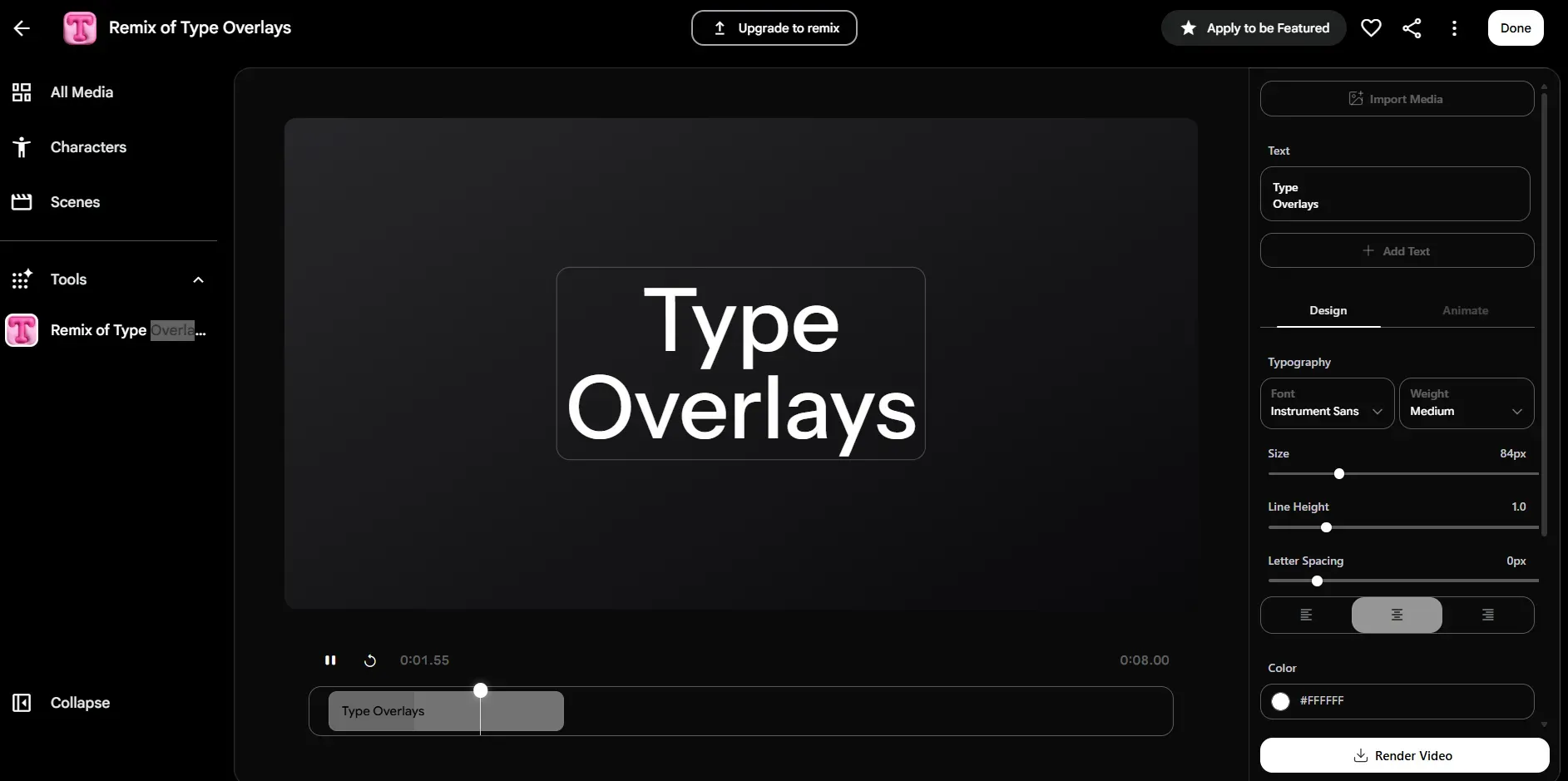
Few things are more frustrating than waiting three minutes for an AI render only to get warping hands or broken physics. Google Flow eliminates this trial-and-error tax by splitting Veo 3.1 into two distinct workflows: a fast preview mode for rapid iteration, and a high-fidelity mode for final exports.
The primary engine update centers on AI video generation speed and temporal consistency. While early generative models suffered from floating artifacts and frame-to-frame visual drift, Veo 3.1 maintains tight subject tracking across 8-second clips.
To choose the optimal model for a specific production pipeline, review the technical parameters of Veo 3.1 vs Veo 3.1 Fast:
| Feature / Metric | Veo 3.1 Standard | Veo 3.1 Fast |
| Primary Use Case | Final production deliverables, complex lighting, cinema projection | Rapid concept testing, social media drafts, storyboard iteration |
| Average Render Latency | 2.5 to 4 minutes (8-second clip) | 60 to 90 seconds (8-second clip) |
| Resolution Support | Up to 1080p native (4K upscaling in Flow UI) | Up to 1080p native |
| Temporal Consistency | Maximum (preserves fine textures, physics, volumetric fog) | High (slight smoothing on micro-textures & rapid motion) |
| API Pricing Baseline | ~$0.40-$0.6 / second (includes native audio) | ~$0.1-$0.3 / second (includes native audio) |
By deploying Veo 3.1 Fast during early prompt-testing phases, production teams reduce draft costs by over 60% before switching to Standard mode for final 4K rendering.
Google Flow Pricing & Credit Limits
Veo 3.1 is accessible through Google Flow without a paid subscription. Google offers a flexible credit-based system that allows creators to prototype and render videos for free, with scalable paid plans for heavy users.
Free Plan vs. Credit Consumption
- Daily Free Credits: Free tier accounts receive 50 Google Flow credits daily, which reset every 24 hours.
- Generation Cost: Rendering a video clip with Veo 3.1 (in Fast mode) consumes 20 credits per generation pass.
- Daily Output: With the 50 daily free credits, free users can generate up to 2 full video clips per day for testing and rapid prototyping.
Free accounts also get full access to essential tools, including Text-to-Video, Frames to Video (Bookend Control), Ingredients to Video (Multi-Image Reference), and Video Extension.
Paid Subscription Tiers
If you exhaust your daily free allowance, upgrading to a Google AI Subscription replaces the daily allocation with a monthly credit pool and unlocks higher rendering limits:
| Subscription Plan | Monthly Price | Monthly Credits | Key Features Included |
| Free Tier | $0 | 50 credits / day | Access to Veo 3.1, standard rendering tools |
| Google AI Plus | $4.99 / mo | 200 credits / mo | 1080p upscaling, higher generation limits |
| Google AI Pro | $19.99 / mo | 1,000 credits / mo | Higher access to Google Flow Agent, top-up options |
| Google AI Ultra | $99.99 / mo | 10,000 credits / mo | 4K image/video upscaling, priority Agent access |
| Google AI Ultra Max | $199.99 / mo | 25,000 credits / mo | Maximum generation caps and rendering bandwidth |
Developer Pro-Tip: To optimize your daily 50 credits, always run initial prompt tests in Veo 3.1 - Fast mode to verify camera motion and composition before committing credits to final high-resolution exports or 4K upscaling. If you run out of daily Google Flow credits or need to integrate Veo 3.1 into custom production pipelines, relying solely on a web UI can be limiting.
For developers and high-volume creators requiring API-level access, Atlas Cloud offers dedicated Veo 3.1 infrastructure. This API alternative allows for automated video generation workflows, multi-modal latent video processing, and scalable rendering without being constrained by browser-based credit caps.
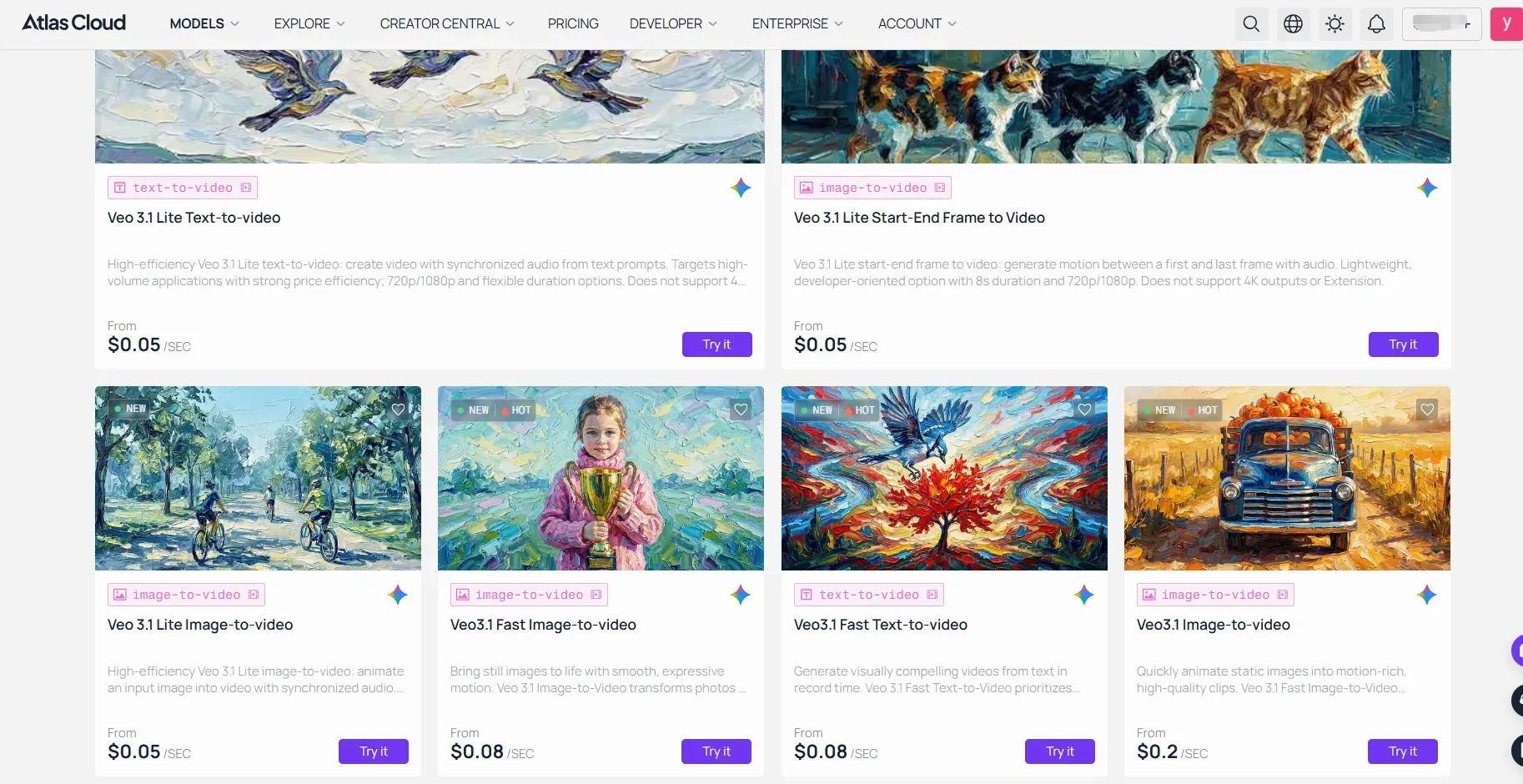
Creators should avoid running entire projects on a single model tier. A cost-effective pipeline utilizes Veo 3.1 Fast to lock down camera paths and composition, then executes the final sequence in Standard mode with Multi-Image Reference anchored.
New Creative Workflows: Multi-Image Referencing & Bookend Control
Most AI video generations fail during the transition between shots, where a character’s shirt color shifts or a facial structure morphs entirely. Relying solely on text prompts often forces the model to "hallucinate" the spatial logic between frames. Google Flow addresses this lack of control by introducing dedicated UI modules for AI multi-image reference and first and last frame control.
Mastering Bookend Control for Scene Continuity
The "Bookend" workflow allows creators to define the start and end visual states of a clip. By providing a static image for the first frame and a desired destination image for the last, the renderer calculates the interpolation path mathematically rather than randomly.
To implement this workflow in the Google Flow interface:
- Define the Start Frame: Upload your establishing shot to the "Source" slot.
- Define the End Frame: Toggle the "End Frame" feature and upload your goal composition.
- Set Motion Intensity: To control how aggressively the model moves between the two spots, use the slider.
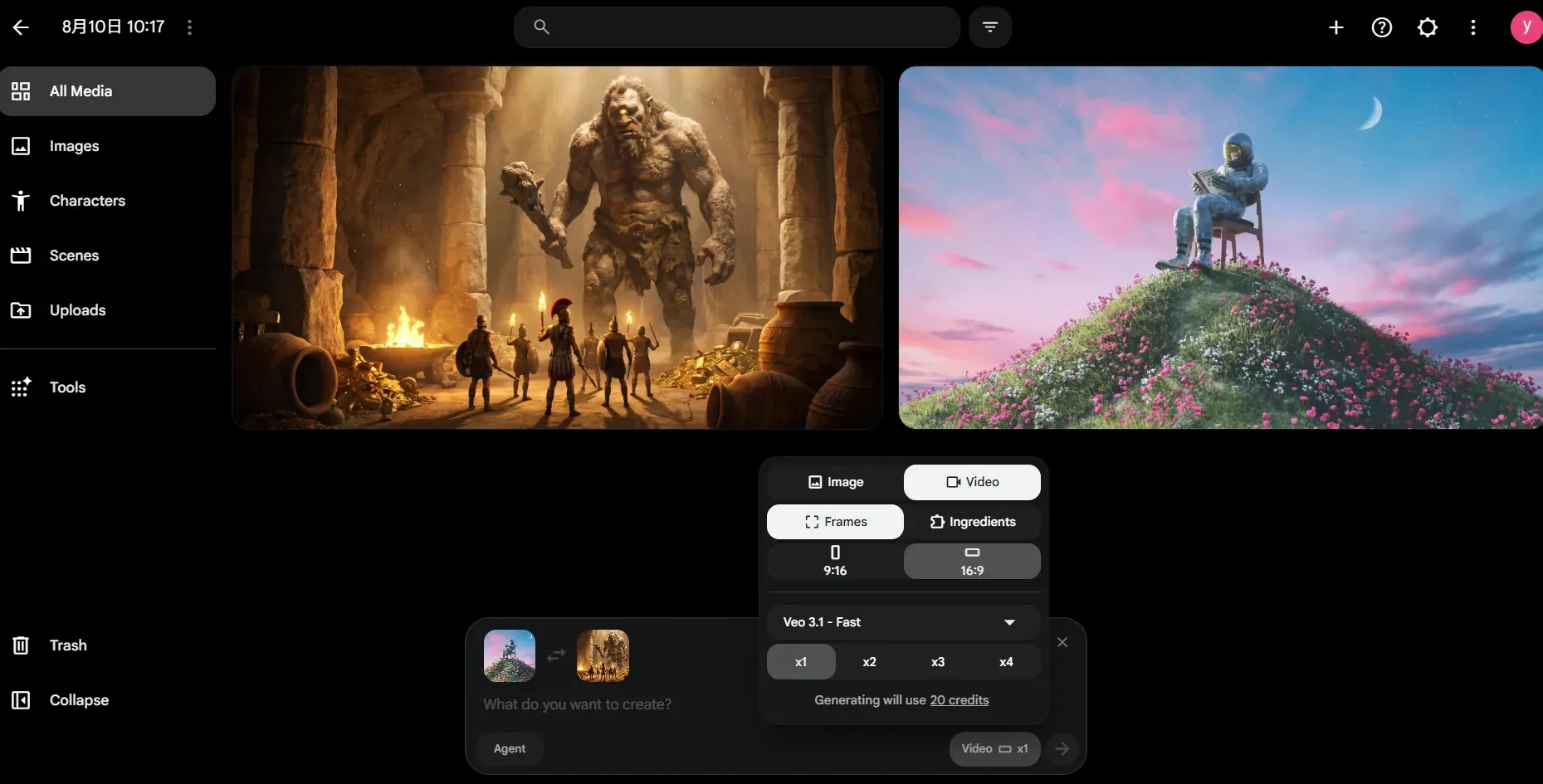
For zoom transitions or cinematic pans where the scene's actual geometry needs to be anchored, this method works quite well.
Optimizing Identity with Multi-Image References
To solve the recurring problem of character drift, Google Flow now supports up to three simultaneous reference images. This allows the model to map subject identity, environmental lighting, and style textures as distinct data inputs rather than forcing them into one prompt.
| Reference Slot | Recommended Asset Type | Primary Function |
| Slot 1 (Subject) | High-res close-up, neutral background | Locks facial features, clothing, and hair style |
| Slot 2 (Environment) | Wide-angle location shot | Establishes depth, color palette, and horizon line |
| Slot 3 (Style) | Graded reference frame | Applies specific film stock, grain, or lighting mood |
Pro-Tip: To ensure absolute character consistency, use the same "Subject" reference image across all clips in a sequence. If the model begins to deviate, reduce the "Style" influence in the settings menu; an overly strong style reference often overrides the character's specific biometric details.
Using these structural inputs changes the process from blind guessing into predictable, storyboard-driven production.
Native Audio Integration: Directing Soundscapes from Text
AI video usually leaves you stuck searching for royalty-free sound effects. Veo 3.1 bypasses external audio tools entirely by generating native 48kHz dialogue and ambient soundscapes directly within the initial text render. By offloading foley and dialogue generation to the model, you eliminate the need for third-party lip-sync tools or royalty-free stock libraries.
Using Bracketed Syntax for Precise Audio Control
To achieve professional 48kHz audio sync, you must treat the prompt box as a sound mixing console. The engine responds to explicit syntax placed in brackets, allowing you to layer dialogue, ambient noise, and impact sounds within a single generation pass.
Use this structural template for reliable native audio generation:
- Dialogue Structure:
[Character says "(Exact Quote)", (Tone Adjective), (Lip-sync timing)] - Foley/Impacts:
[Sound effect: (Action), (Volume level)] - Ambient Layers:
[Background: (Environment tone), (Density)]
Example Prompt:
"A close-up of a barista pouring espresso into a glass. [Sound effect: Hot liquid pouring, high volume]. [Character says 'Your latte is ready', friendly tone, 120ms sync delay]. [Background: Bustling cafe morning, espresso machine hiss, low volume]."

Layering Ambient Soundscape AI
Effective ambient soundscape AI requires separation. Placing environmental noise at the end of your prompt prevents the model from muddling the primary dialogue track.
| Sound Category | Recommended Descriptors | Best Placement |
| Dialogue | Gravelly, soft-spoken, urgent, breathless | Start of prompt |
| Action Foley | Footsteps, clinking glass, rustling fabric | Directly after motion verb |
| Atmospheric | Distant city traffic, wind, hum, rain | Final sentence of prompt |
Pro-Tip: Keep audio-visual text prompts concise (under 120 words). Over-describing every micro-sound alongside complex camera moves can cause audio-visual desynchronization. Focus prompt words on key impact verbs to ensure the waveform aligns with the exact frame of contact.
By mastering these syntax triggers, you reduce the time spent in external audio editors, ensuring your clips are broadcast-ready upon export from Google Flow.
Native Vertical Output: Optimizing for Social Media
We've all tried reframing a cinematic 16:9 render for Shorts or Reels, only to watch the AI cut off a character's head or ruin the lighting layout. Forcing a horizontal asset into a vertical box destroys both resolution and composition.
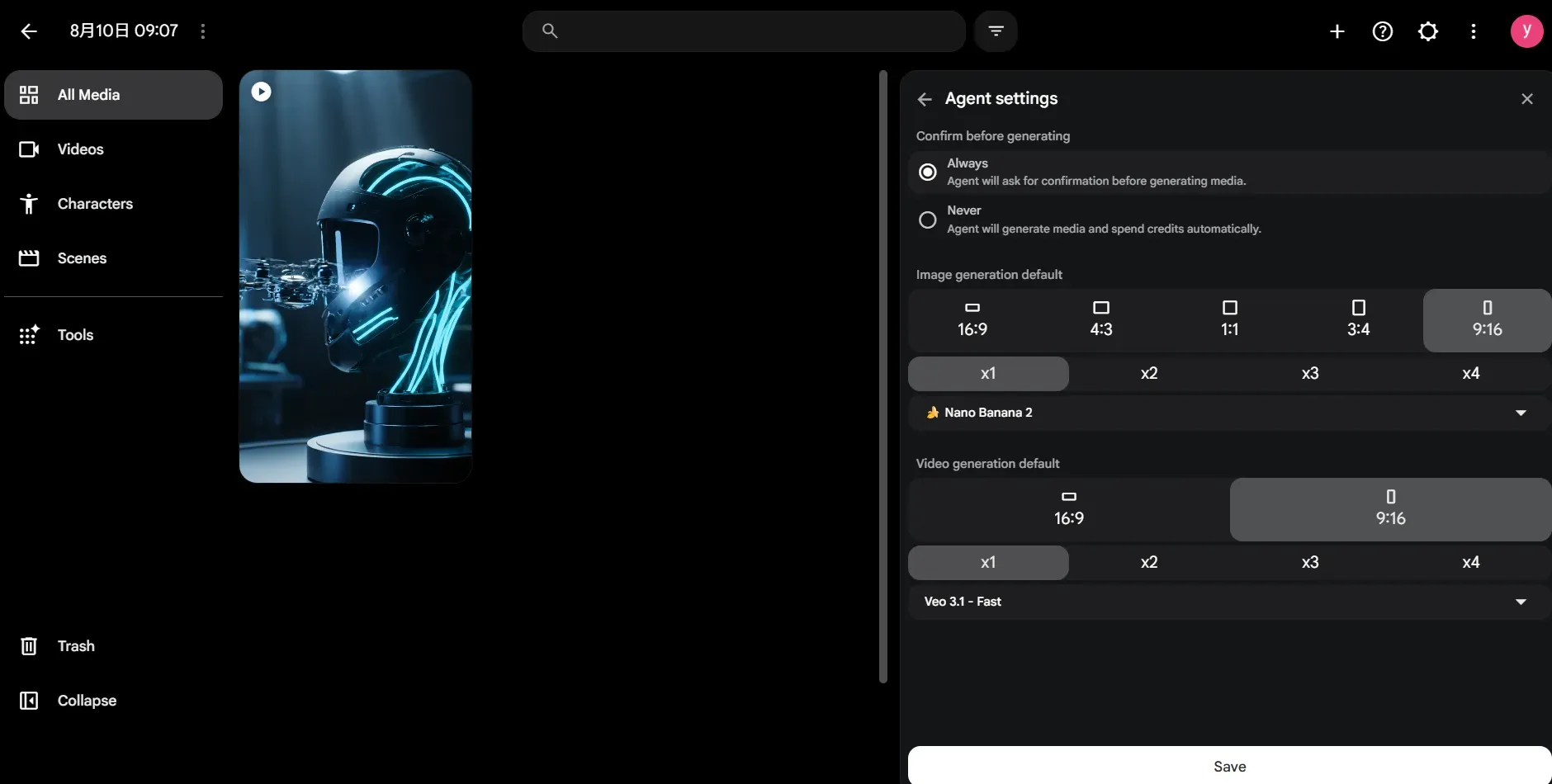
Veo 3.1 resolves this by enabling native vertical output directly within Google Flow. By generating at a 9:16 aspect ratio from the start, the diffusion model optimizes spatial layout for mobile screens from the first frame.
Why Native 9:16 Outperforms Cropped AI Assets
Generating natively provides clear technical advantages over automated "auto-reframe" tools:
| Feature | Native 9:16 Generation | Cropped 16:9 to 9:16 |
| Pixel Utilization | 100% of the active frame | ~44% of frame utilized (56% discarded) |
| Subject Framing | Centered & composed during render | High risk of head/limb clipping |
| Visual Fidelity | Native render with built-in 4K upscaling | Pixel stretch and quality loss |
| Workflow Efficiency | One-pass export | Requires post-production reframing |
Best Practices for Mobile-First Composition
Selecting the 9:16 toggle in Google Flow changes how the model perceives vertical depth and foreground elements. Adapt your prompting strategy for the vertical canvas:
- Respect the Safe Zone: Position primary subjects in the top-middle third of the frame to avoid mobile UI elements ,captions, user handles, and action buttons that cover the bottom 20%.
- Lead the Eye Vertically: Incorporate elements with height—such as staircases, tall trees, or high-rises. Pair these with camera motions like "slow upward pan" to stretch the depth of your frame.
- Specify Vertical Shots: Avoid generic wide-shot prompts that defaults the model to landscape thinking. Always specify "full-body tracking shot" or "vertical low-angle framing."
By using native vertical rendering, you remove black side bars and fill the whole phone screen. This helps keep viewers watching longer and boosts your reach in the algorithm. You can find detailed breakdowns of camera motion triggers in this Veo 3.1 prompt formatting break-down.
Practical Use Cases: When to Use Which Mode?
Blindly applying the "Standard" rendering mode to every task is a common mistake that triples production costs without improving quality. Google Flow provides a modular architecture where the model selection, reference inputs, and audio triggers serve distinct operational goals. To optimize your AI video production workflows, align your project requirements with the specific Veo 3.1 configuration that delivers the highest ROI.
Choosing the Right Configuration for Your Project
Different production goals require different balances of speed and fidelity. Use this framework to select the appropriate toolset for your next project.
| Project Type | Recommended Mode | Key UI Controls | Goal |
| Narrative / Cinematic | Veo 3.1 Standard | Multi-Image Reference (3 slots) | Maximum temporal consistency and lighting accuracy |
| Ads / Social Hooks | Veo 3.1 Fast | Bookend (First & Last Frame) | Rapid iteration and low-latency motion transitions |
| Character Dialogue | Veo 3.1 Standard | Native Audio + Lip-Sync Syntax | High-fidelity 48kHz audio-visual synchronization |
Workflow Strategies for Specific Results
- For Cinematic AI Video: Narrative storytelling demands visual stability. Use the Standard model to maintain character identity across multiple shots. By uploading three reference images—Subject, Environment, and Style—you force the model to render within a strict visual boundary, preventing the "morphing" often seen in single-prompt generations.
- For AI for Marketing: Social media clips depend on pacing. Use the Fast model to churn through dozens of visual variations in minutes. When you lock onto a composition, apply Bookend Control to stabilize the camera path, ensuring the product or hook remains centered throughout the 8-second sequence.
- For Dialogue-Driven Content: If your script requires speech, skip external dubbing tools. Use the native audio engine to handle the heavy lifting. By injecting bracketed syntax like
[Character says "(Quote)", (Tone), (Timing)]into your prompt, you bypass the common issue of desynchronized mouth movements.
Pro tips: To truly stand out, document your "Render Logs." Tracking which prompts succeed in "Fast" vs "Standard" modes allows your team to build a proprietary library of tested prompts, reducing future testing time and cutting credit expenditure by up to 50% over long-term production cycles.
FAQ
Is Veo 3.1 free to use?
Yes, Veo 3.1 is free to use on Google Flow with a daily allocation of 50 free credits that reset every 24 hours. Upgrading to paid Google AI plans ($4.99+/mo) expands your quota to monthly credit pools and unlocks 4K upscaling features.
Do my old prompts work in Veo 3.1?
Yes, legacy prompts remain fully compatible. However, to leverage the new native audio generation capabilities, you should manually append audio tokens to your existing prompt library. Adding specific foley or dialogue cues transforms static legacy prompts into full audiovisual assets.
Can Veo 3.1 generate text inside the video?
Trying to render long headlines or fine print directly inside an AI clip usually leads to blurry, warped lettering. The standard fix is simple: leave text out of your prompt entirely, export a clean video background, and layer crisp titles over it during post-production.
Can I access Veo 3.1 via API for automated workflows?
While Google Flow is designed for web-based UI creation, creators and developers looking to scale automated video production can deploy Veo 3.1 on Atlas Cloud. Atlas Cloud provides API access for image-to-video generation, temporal consistency controls, and high-throughput video rendering outside of the standard Google Flow web platform.
What is the difference in google flow vs veo api workflows?
The primary distinction when comparing google flow vs veo api lies in the delivery model and workflow control. Google Flow provides a web-based creative workspace for manual video prompting and frame manipulation. In contrast, the Veo API provides programmatic endpoints for automated video generation, making it the preferred choice for enterprise pipelines and app integration.





