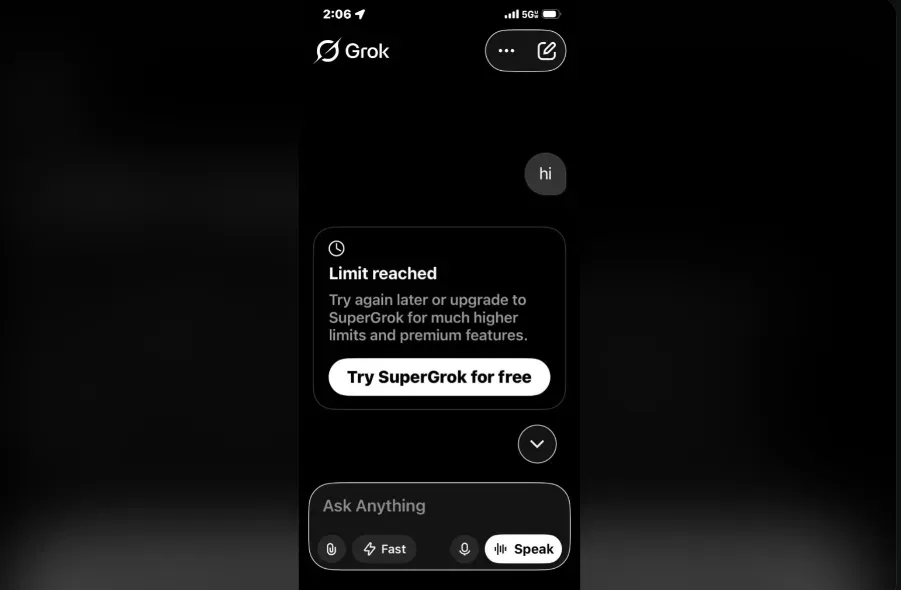
Your Grok image generation limit reset time follows a rolling 2-hour window, not a fixed daily midnight reset. Once you hit your limit, your oldest requests within that timeframe will expire first. This means your capacity returns bit by bit, rather than all at once.
Here is a quick look at how it works by tier:
| Plan / Tier | Estimated Image Quota (Per Window) | Observed Reset Mechanism |
|---|---|---|
| X Premium+ / SuperGrok | 70 – 150+ images (Highly dependent on Speed vs. Quality mode) | Dynamic Rolling Window (Typically 4 to 12 hours; up to 24 hours during peak server load) |
| X Premium (Standard) | 20 – 50+ images (Varies by region and server capacity) | Dynamic Rolling Window (Usually closer to a 12 or 24-hour cycle) |
| X Premium (Basic) | Very Limited Access (Chat generation only) | Rolling Window / Daily Cap |
⚠️Because xAI does not publish official real-time rate limit metrics and frequently run server-side A/B testing, these numbers are based on the latest aggregated user data from the Grok Reddit community. Your individual experience may shift based on real-time server bandwidth and regional constraints.
This rolling system is the root cause of most Grok rate limit confusion. Unlike simple daily quotas, your available generations shift continuously based on your recent activity.
This guide covers:
- How the rolling window actually calculates your remaining quota
- Tier-specific breakdowns of SuperGrok usage limits and X Premium image quota
- Practical strategies to pace usage and avoid unexpected lockouts
If your generations are not refreshing when expected, the rolling mechanic is almost certainly why.
What Is the Grok Image Generation Limit Reset Time?
The grok image generation limit reset time is not tied to a fixed clock. There is no midnight cutoff or daily calendar reset. Instead, xAI built Grok Imagine rate limits around a dynamic, rolling window reset that anchors to your own usage behavior.
How the Rolling Window Works
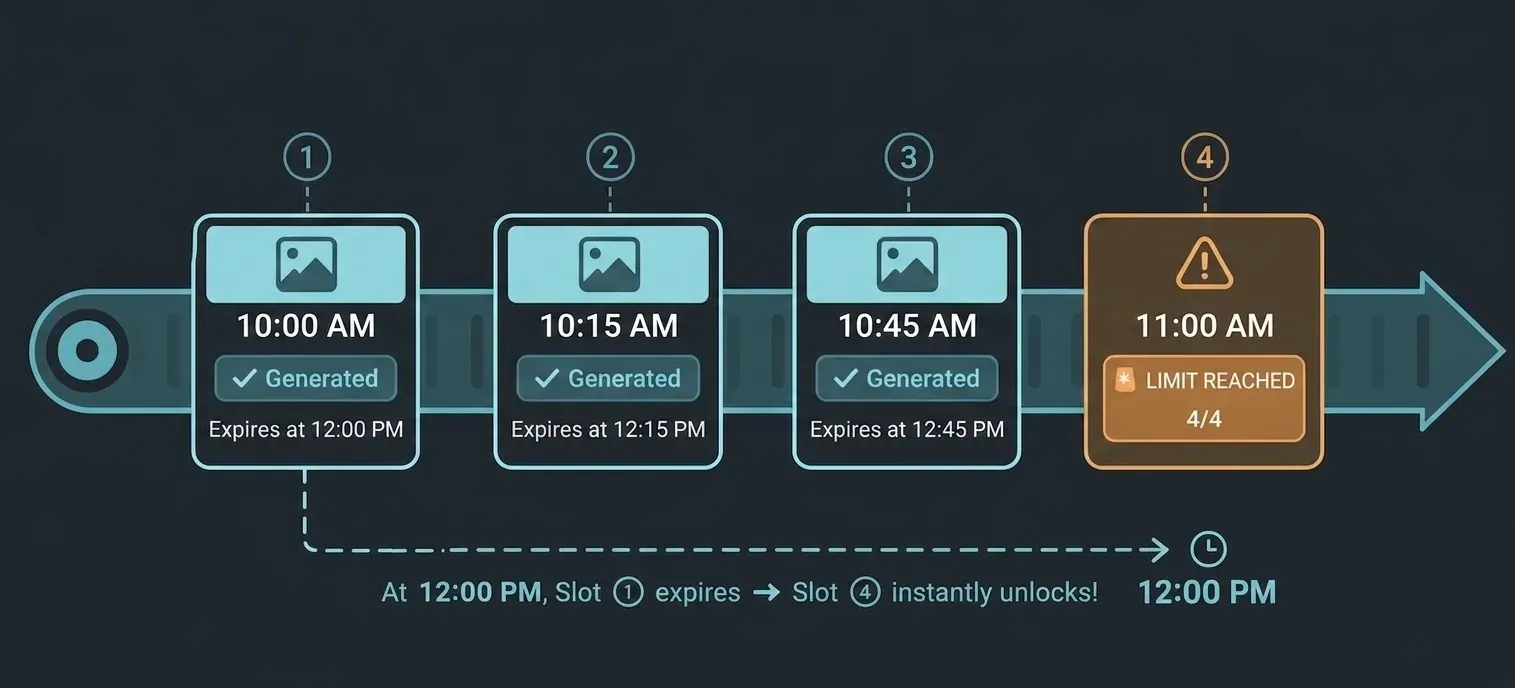
The timer starts the moment you submit your first image generation request in a session. From that point, your quota window runs forward for approximately two hours. As each request ages past that two-hour mark, the slot it occupied becomes available again.
Think of it less like a bucket that refills once a day and more like a conveyor belt: old requests fall off the back as new time passes, continuously making room.
Key Factors That Affect Your Reset Timer
Several variables can cause your reset time to feel inconsistent:
- xAI server capacity: During peak usage periods, xAI server capacity constraints can temporarily tighten available slots, making limits feel more restrictive even within the same tier.
- A/B testing: xAI actively tests different quota configurations across user segments, meaning two users on identical plans may experience slightly different limit thresholds at the same time.
- Request queuing: Failed or queued generations may still count against your window depending on server-side logging.
What This Means Practically
| Situation | Expected Behavior |
|---|---|
| Hit limit at 3:00 PM | First slots reopen around 5:00 PM |
| Server under heavy load | Reset may feel delayed by 10-20 minutes |
| A/B test active on account | Quota ceiling may differ from published limits |
Because the rolling window reset shifts with your behavior rather than the clock, checking a fixed time each day will not reliably tell you when your Grok Imagine rate limits are cleared.
How Many Images Can You Generate Before Hitting the Limit?
Image generation quotas vary significantly depending on your subscription tier and which generation method you are using. Understanding both dimensions helps you plan your workflow and avoid unexpected lockouts mid-session.
Chat Generation vs. the Dedicated Imagine Tab
There is a critical technical distinction between generating images inside a standard Grok conversational thread and utilizing the dedicated Grok Imagine layout:
- Chat Generation: Typically utilizes the baseline Flux 1 model. Requests made here route through a separate, historically tighter pipeline. Burning through your chat-based visual queries restricts your ability to generate inline images but might not completely lock you out of other creative suites.
- The Imagine Tab: Powered by xAI's flagship Aurora model family. This workspace unlocks heavy-duty creative features like canvas expansion and image-to-image style blending. It draws from your primary Premium+ or SuperGrok high-tier quota pool, adjusting dynamically based on whether you choose speed over pure fidelity.
Do Grok Image Edits and Inpainting Consume Your Quota?
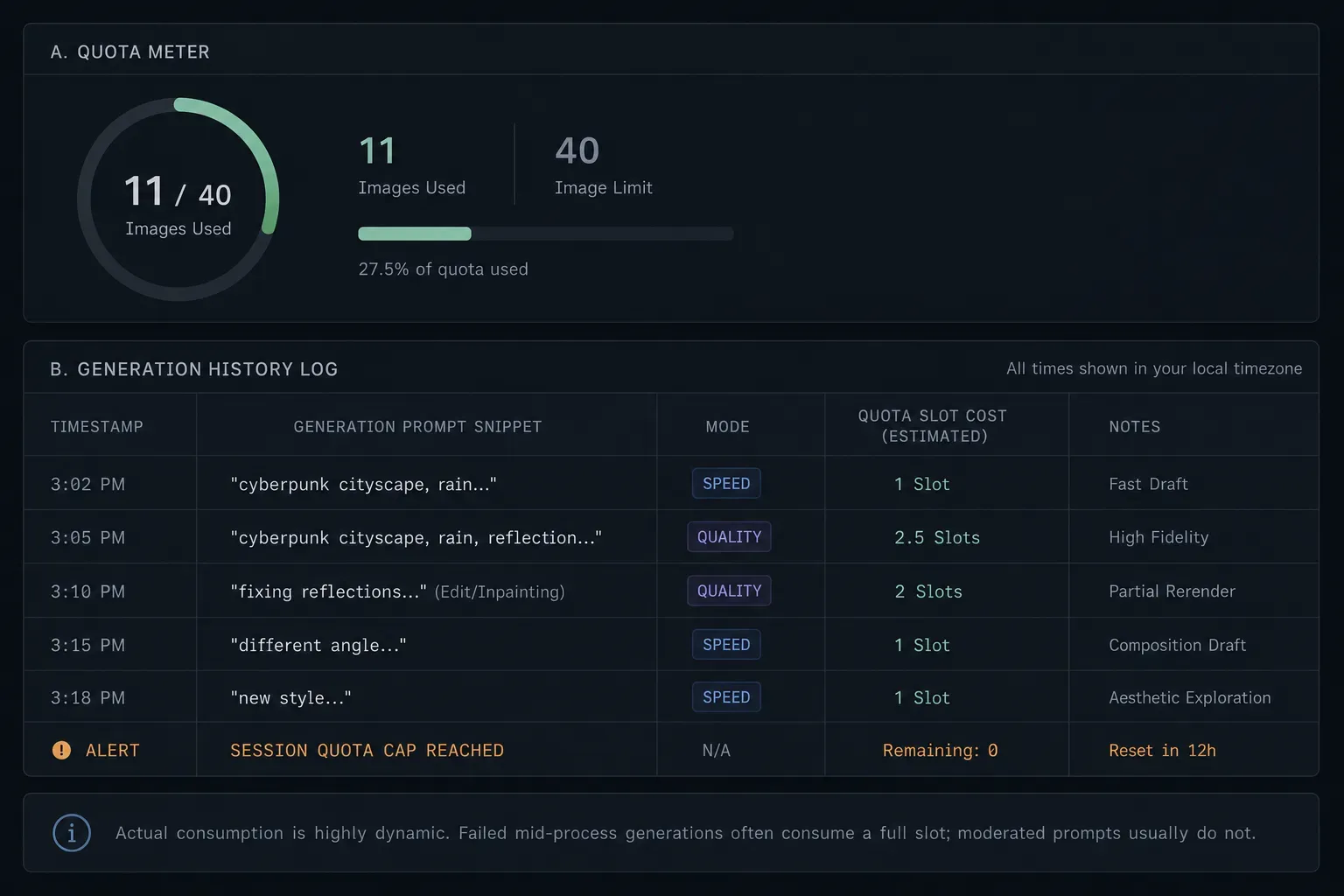
Using advanced features in the Grok Imagine tab—such as brush-based inpainting, canvas expanding (outpainting), or style-blending—does not count as a single transaction if you run multiple iterations. Each time you apply a modification prompt to an existing image, xAI’s Aurora model treats it as a fresh generation request.
For instance, if you generate one image base but perform 5 consecutive brush edits to fix a hand or background detail within 5 minutes, you have actually burned 6 slots out of your total rolling allocation. To preserve your quota during intensive editing sessions, lock down your composition in Speed mode first, and only execute detailed inpainting after switching back to Quality mode.
Chat Generation vs. the Imagine Tab
There is an important distinction between generating images inside a standard Grok chat and using the dedicated Grok Imagine tab:
- Chat generation uses the Flux 1 model and draws from a separate, typically smaller quota pool.
- Grok Imagine tab uses xAI's Aurora model and supports SuperGrok image editing features like inpainting and style control.
These two pools are tracked separately, so burning through your chat-based generations does not necessarily exhaust your Grok Imagine tokens.
Do Failed or Moderated Generations Count?
This is a common source of frustration. Based on community reporting:
- Moderated content (prompts blocked before processing) generally does not consume quota.
- Failed generations that begin processing before erroring out typically do count against your limit.
- Queued requests that time out occupy a gray area and may or may not register as a failed generations rate limit deduction depending on server-side behavior.
When in doubt, assume a failed mid-process generation has used a slot.
How to Check and Track Your Grok Reset Timer
Knowing where to find your Grok limit countdown timer saves a lot of guesswork. The interface does display remaining quota information, but its visibility depends on which platform you are using and whether your limit has actually been reached.
Finding the Timer on Web
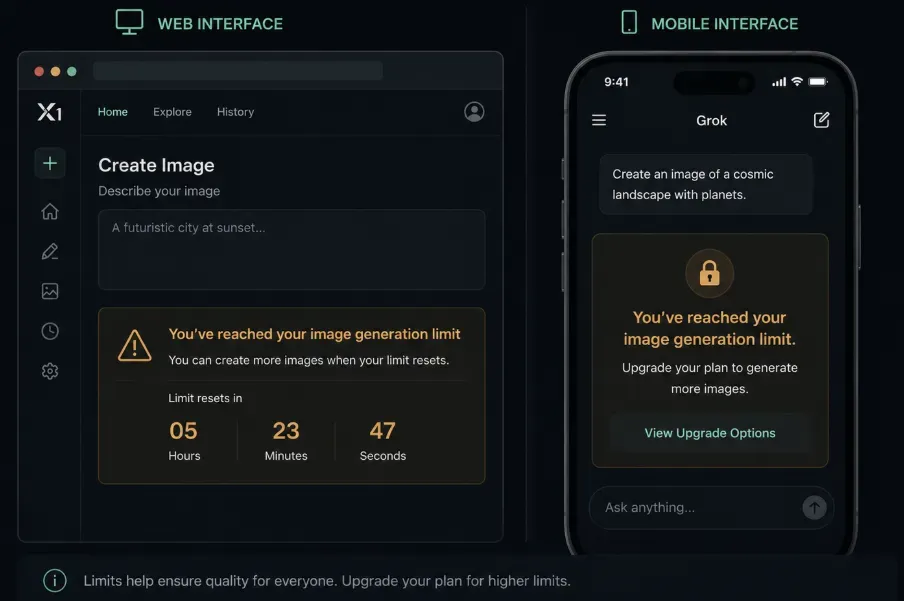
When you hit your image generation cap on the browser version of Grok, a notification typically appears directly in the chat or Imagine tab interface. This message includes an approximate Grok limit countdown timer showing how long until your next slot opens.
To check Grok rate limit status on web:
- Navigate to grok.com and open the Imagine tab.
- Attempt a generation after hitting your limit.
- Look for the reset time displayed inline with the error message.
- Note the timestamp and calculate forward based on your first generation time.
Finding the Timer on Mobile
The X mobile app handles quota display differently. The countdown is less consistently shown and may simply present a generic "limit reached" message without a specific timer. In this case, tracking your first generation time manually is the most reliable workaround.
Why the Timer Glitches or Disappears
Several factors affect Grok AI usage quota 2026 display reliability:
| Cause | Effect on Timer Display |
|---|---|
| Switching between app and browser | Session state mismatch can hide the countdown |
| Server-side A/B testing | Timer UI may not render for all user segments |
| Cached session data | Old quota state may display instead of live data |
| Mid-session account sync | Timer resets or disappears temporarily |
If your timer vanishes after switching platforms, a hard refresh or full logout and login typically restores accurate quota visibility. Do not rely solely on the displayed timer; tracking your own first-generation timestamp remains the most dependable method to check Grok rate limit status.
Smart Strategies to Manage Your Grok Image Generation Quota
Running out of generations mid-project is frustrating, but several practical strategies can help you stretch your quota further without waiting for the rolling window to reset. None of these methods technically bypass Grok rate limits, but they do help you work smarter within the system.
Switch from Quality Mode to Speed Mode
The Aurora model offers two generation modes, and your choice directly affects how heavily each request weighs against your Grok image quality vs speed tokens balance:
| Mode | Token Cost | Best For |
|---|---|---|
| Quality (Aurora) | Higher per request | Final renders, detailed outputs |
| Speed | Lower per request | Drafting, concept exploration, iteration |
The underlying reason Speed mode saves your quota lies in inference step reduction. Under the hood, Quality Mode (Aurora High-Fidelity) runs more denoising steps to clear artifacting, map strict text typography, and maximize micro-details. This consumes significantly more server GPU compute, prompting the xAI rate limiter to penalize your rolling window heavily—sometimes dropping your maximum threshold from 150 images to just 40.
Additionally, creating unusual formats, such as ultra-wide 16:9 or complex vertical aspect ratios, along with long descriptions makes the model work harder. This extra workload significantly increases the chances of a timeout. As a result, the request may register as a failed generation while still consuming your account quota.
For high-volume workflows, drafting in Speed mode and reserving Quality mode for final outputs can meaningfully extend how far your quota goes within a single two-hour window.
Pro Tip: Always prototype your prompts in a standard 1:1 square ratio using Speed mode. Once you achieve the ideal stylistic aesthetic, toggle on Quality mode and adjust the canvas size for your final production run.
Shift Between Web and Mobile Interfaces
Some users report that switching between the browser version and the X mobile app can occasionally surface additional available slots when one interface shows a limit reached status. This is not a guaranteed workaround and likely reflects session-state differences rather than separate quota pools. It is worth attempting, but do not build a workflow dependency around it.
Upgrade to xAI API Access for Power Users
If consistent uptime and volume matter more than subscription limits, moving away from front-end web interfaces to an API ecosystem offers a seamless path.
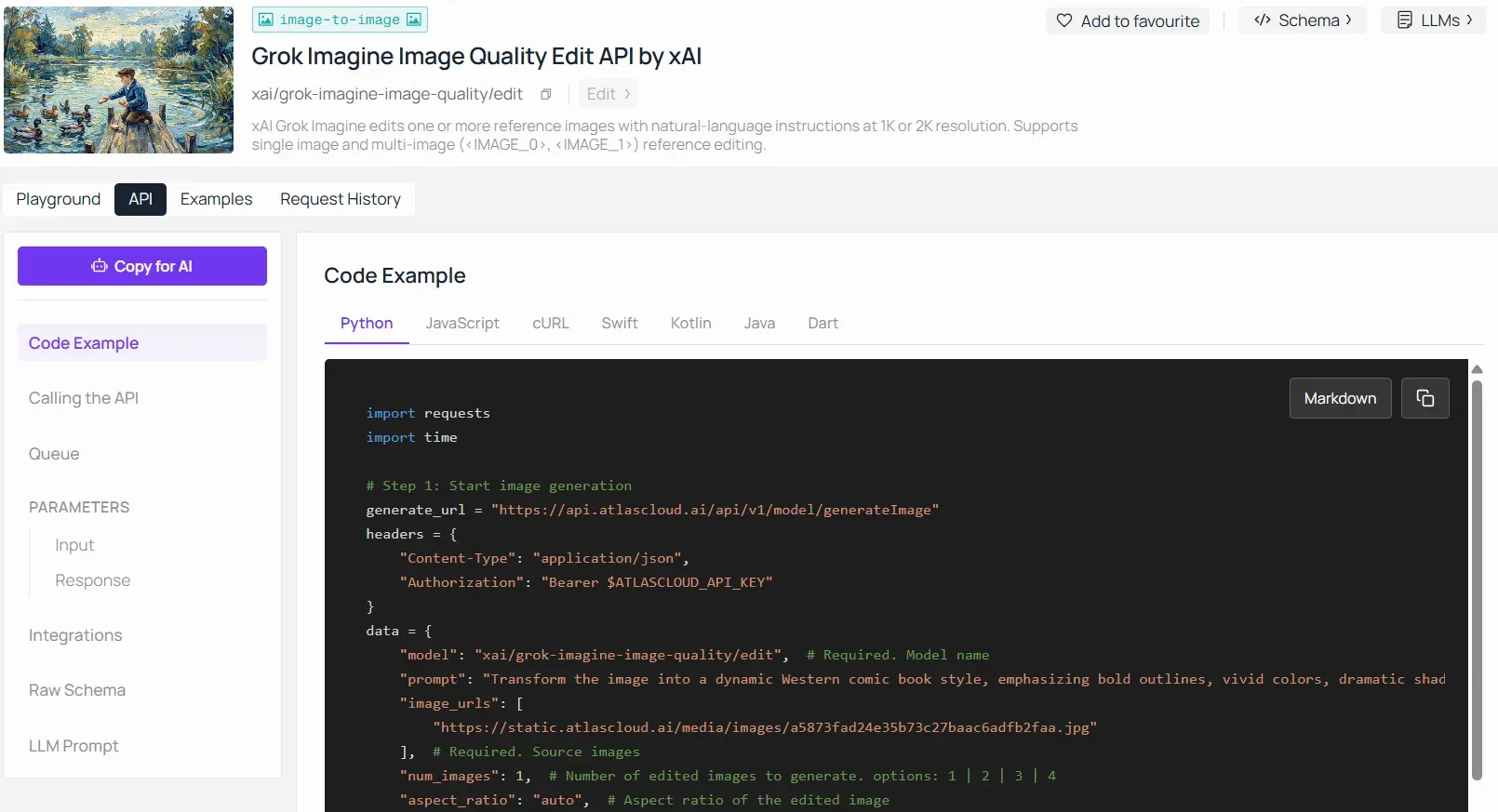
For automated content pipelines, power users frequently leverage platforms like Atlas Cloud to access the official Grok-Imagine Models API. Instead of dealing with X's rigid rolling windows, Atlas Cloud provides stable, serverless REST endpoints for the Grok Imagine Image API, supporting up to 2K text-to-image and image-to-image generation. By routing your requests programmatically, capacity scales dynamically based on a predictable per-picture billing model, eliminating session lockouts entirely.
Explore Unlimited Image Generation Alternatives
For creators who genuinely cannot afford downtime during Grok reset windows, several alternative platforms offer different subscription or infrastructure models to keep your workflow moving:
- Midjourney: A subscription-based, high-volume rendering platform operating via Discord and Web interfaces.
- Adobe Firefly: A corporate-safe option with monthly generative credits, fully integrated into Creative Cloud.
- Stable Diffusion: A self-hosted, open-source setup that is effectively unlimited if you have the local GPU hardware.
- Ideogram: An excellent alternative known for accurate typography rendering with flexible free and premium tiers.
- Atlas Cloud: An API-first platform tailored for developers who prefer bypassing front-end interfaces entirely to query image models (like Flux or Ideogram v2) on a serverless, pay-per-picture infrastructure.
These platforms operate on distinct operational frameworks and can ensure your creative production never grinds to a halt.
Conclusion
The grok image generation limit reset time works on a rolling two-hour window tied to your own usage history, not a fixed daily clock. That single distinction changes how you should approach every session.
The most effective way to manage Grok AI quota is straightforward: pace yourself. Bursting 20 generations within a 15-minute window locks out your oldest slots far faster than spreading the same volume across an hour or two. Slow, deliberate usage keeps the conveyor belt moving in your favor.
Here is a quick action checklist before your next session:
- Note the timestamp of your first generation
- Use Speed mode for drafts, Quality mode for finals
- Track your own timer rather than relying solely on the in-app display
- Treat the two-hour mark as a soft planning horizon, not a hard cutoff
Ultimately, SuperGrok subscription value depends heavily on how well you understand these mechanics. Users who treat the quota as a rigid daily cap consistently feel shortchanged, while those who work with the rolling window rarely hit friction. The system rewards patience and pacing over volume bursting.





