I put a new face inside Gordon Ramsay's Idiot Sandwich. Two bun halves, two hands squeezing her cheeks, the scream still coming out of him. Ten seconds, two credits, done.
Then I stared at it for a while and did not laugh.
Not because it broke. The blend was clean, the features lined up, nothing was smeared. It just was not funny anymore. The face was too sharp, too bright, too 2026, while the kitchen behind it was still stuck inside a 2015 television signal. The joke did not die from bad quality. It died from a sentence nobody ever gets to say to a one-click tool: fuse this face into the ugly photo, do not paste it on top of it.
That gap is the whole article. Below is the real Fotor face swap walkthrough (steps, credits, video billing, the honest good parts), then the one paragraph that fixes the sticker look, then the same trick applied to four more memes.
Key takeaways
- Fotor face swap really is one click: pick a base, upload a face, hit swap. Single-person swaps bill at 2 credits each.
- Multi-person swaps stack: first face 2 credits, each extra face adds 1, up to 5 faces in one photo.
- Fotor AI face swap video is real, billed by the second, and previews are free. Credits only leave your account when you download the full clip.
- The "sticker" look is not a pixel problem. It is a missing instruction. No button has a field where you can say "match the grain."
- One fusion prompt, one short clip, and one ffmpeg command gets you a meme you can actually paste into a group chat.
Fotor Face Swap vs. a Fused Face Swap: Look First, Read Later
Do not read anything yet. Just look at the two panels below and ask which one looks like it came off a 2015 broadcast.
The left side is the original clip frame. The right side has a completely different woman's face in the lower panel. Watch the bread: same compression blocks. Watch the overhead kitchen light: same warm cast falling on her cheek and on the bun at the same exposure. The right side is not sharper than the left. That is the entire point.
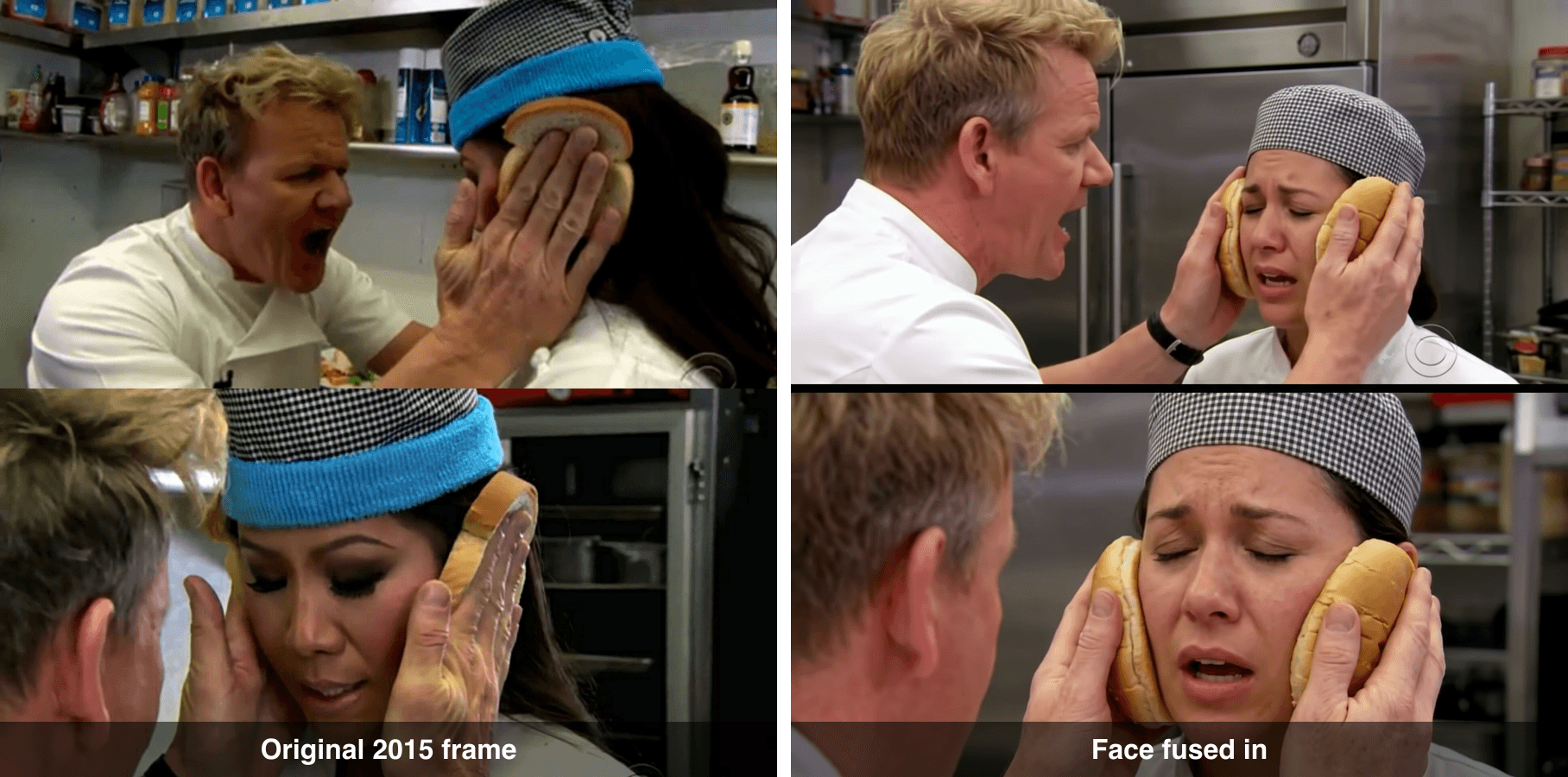
Before and after: the original Idiot Sandwich frame on the left, the same frame with a fused new face on the right
Why Your Fotor Face Swap Looks Like a Sticker
Most people searching for this are not stuck on the buttons. Three clicks is three clicks. They are stuck on the output looking glued on, and that comes down to one thing: the swap improved the face instead of degrading it to match everything around it.
It helps to know what actually carries this particular joke. The scene is from the "Hell's Cafeteria" sketch in episode 50 of The Late Late Show with James Corden, first aired April 26, 2015, where Ramsay clamps Julie Chen's head between two slices of bread and screams "What are you?" at her (Know Your Meme, retrieved July 2026). The humor is not in her face. It is in three things:
- The absurd physical position. A Michelin-starred chef using supermarket buns as a vise.
- The bread and the hands. Remove them and it is just a man shouting in a kitchen.
- The broadcast quality itself. Compression blocks, warm overhead light, a CBS bug in the corner. It reads as a real thing that really aired.
Fix any one of those and the meme is gone. A one-click swap fixes the third one by accident, every single time.
Here are the three tells, in the order people notice them:
- Resolution mismatch. The new face has more detail than the frame it is sitting in. Your eye reads "layer," not "photo."
- White balance mismatch. The base is lit by warm kitchen ceiling lights. The uploaded selfie was lit by a window or a ring light. Two light sources in one face means fake.
- Lost expression. The original subject had her eyes shut, mouth open mid-word, eyebrows up in pure resignation. Most swaps deliver a calm neutral face instead, and the resignation is where the laugh lived.
None of this means the model is weak. It means there is nowhere in a single-button interface to say "keep it ugly." Worth remembering that the same fusion quality has a serious side: face swaps made up 17.6% of deepfake fraud in 2025, and deepfake-driven identity fraud is projected to climb roughly 495% in 2026 (ASIS International, June 2026). The tech is good. Which is exactly why "it looked pasted on" is a prompt problem, not a capability problem.
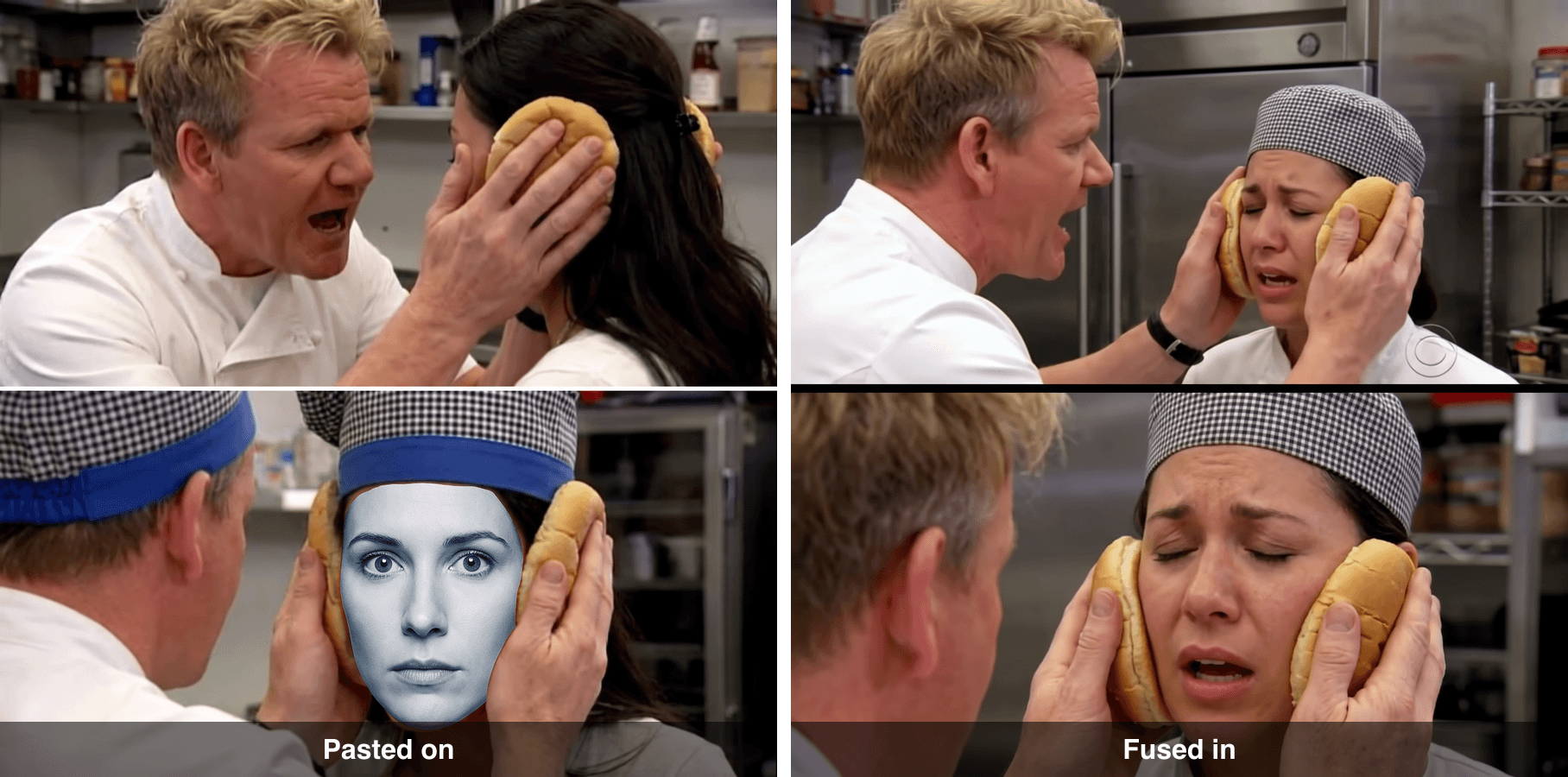
Left: a deliberately pasted-looking reconstruction with a sharp modern face. Right: the fused version that matches the frame's grain and lighting
Left is a reconstruction I made on purpose to show the failure mode, not a Fotor export. Right is the fused version. Same base frame, same source face, one sentence of difference in the prompt.
How to Use Fotor AI Face Swap Step by Step, Including Fotor AI Face Swap Video
Credit where it is due: Fotor's flow is genuinely short, and it runs in a browser on a phone with no prompt writing at all.
The official path is four moves: open Fotor, go to AI Tools and pick Face Swap, upload a photo or choose a template as your base, then upload a second photo with a clear visible face. The AI reads the facial features from the second image, replaces them in the base, and does its own compatibility pass so the result looks harmonious. Then you download. Uploads accept JPEG, PNG and WEBP up to 40MB and 8192 x 8192 (Fotor Help Center, retrieved July 2026).
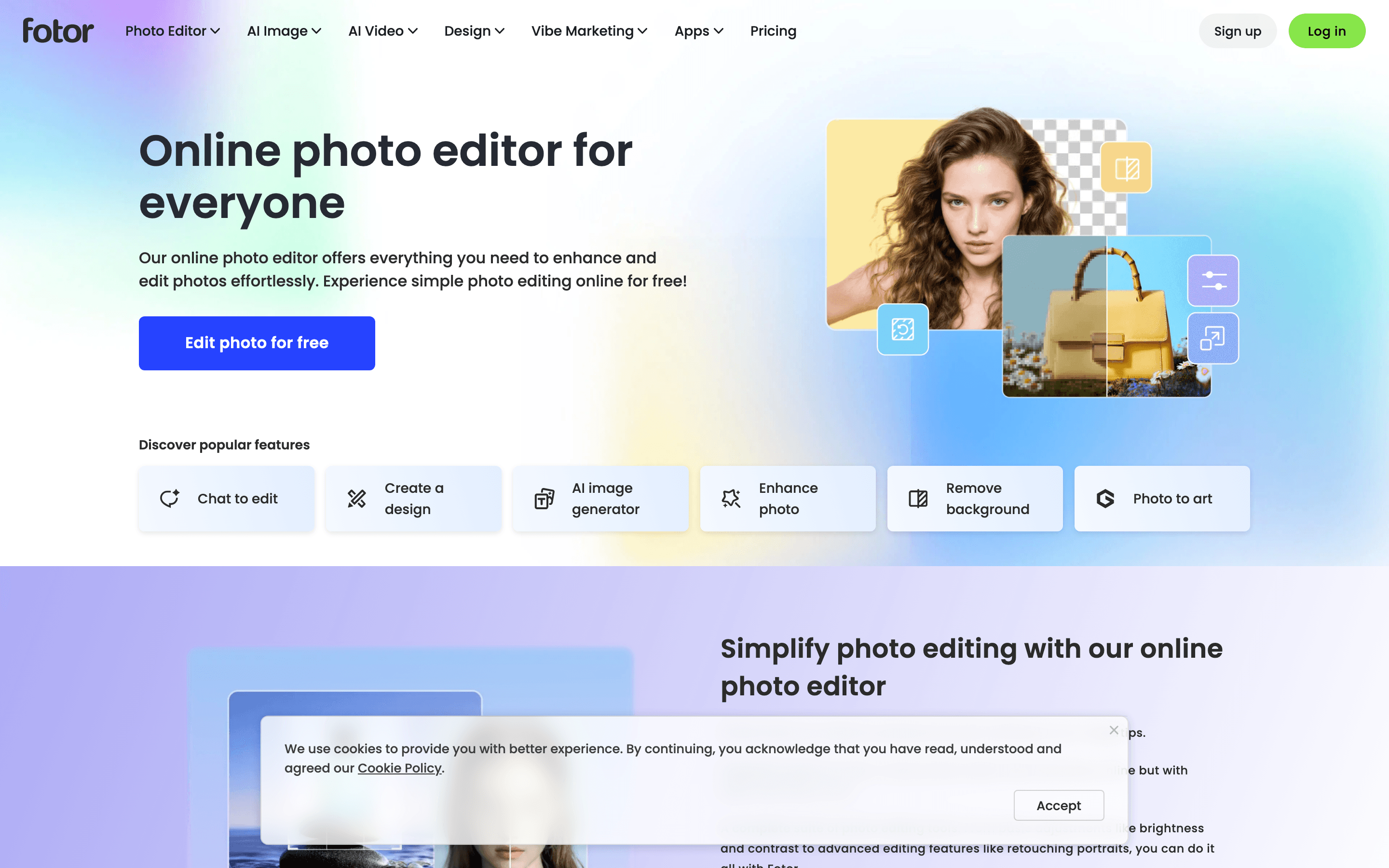
Fotor's own site: the editor's entry point, with the popular-features row that face swap is not even listed in
Small honest note: face swap is not in that "Discover popular features" row. You go looking for it under AI Tools.
What a Fotor swap face job actually bills. This part is documented clearly, which is more than a lot of tools manage:
- Single-person face swapping: 2 credits per swap.
- Multi-person face swapping: first face costs 2 credits, each additional face adds 1 credit, up to 5 faces in a photo.
- Video face swapping: charged by duration, 1 second consumes 1 credit. Clips under a second round up and bill as 1 second.
- Previews are free. Credits are only deducted when you download the full version of the video (Fotor Help Center, retrieved July 2026).
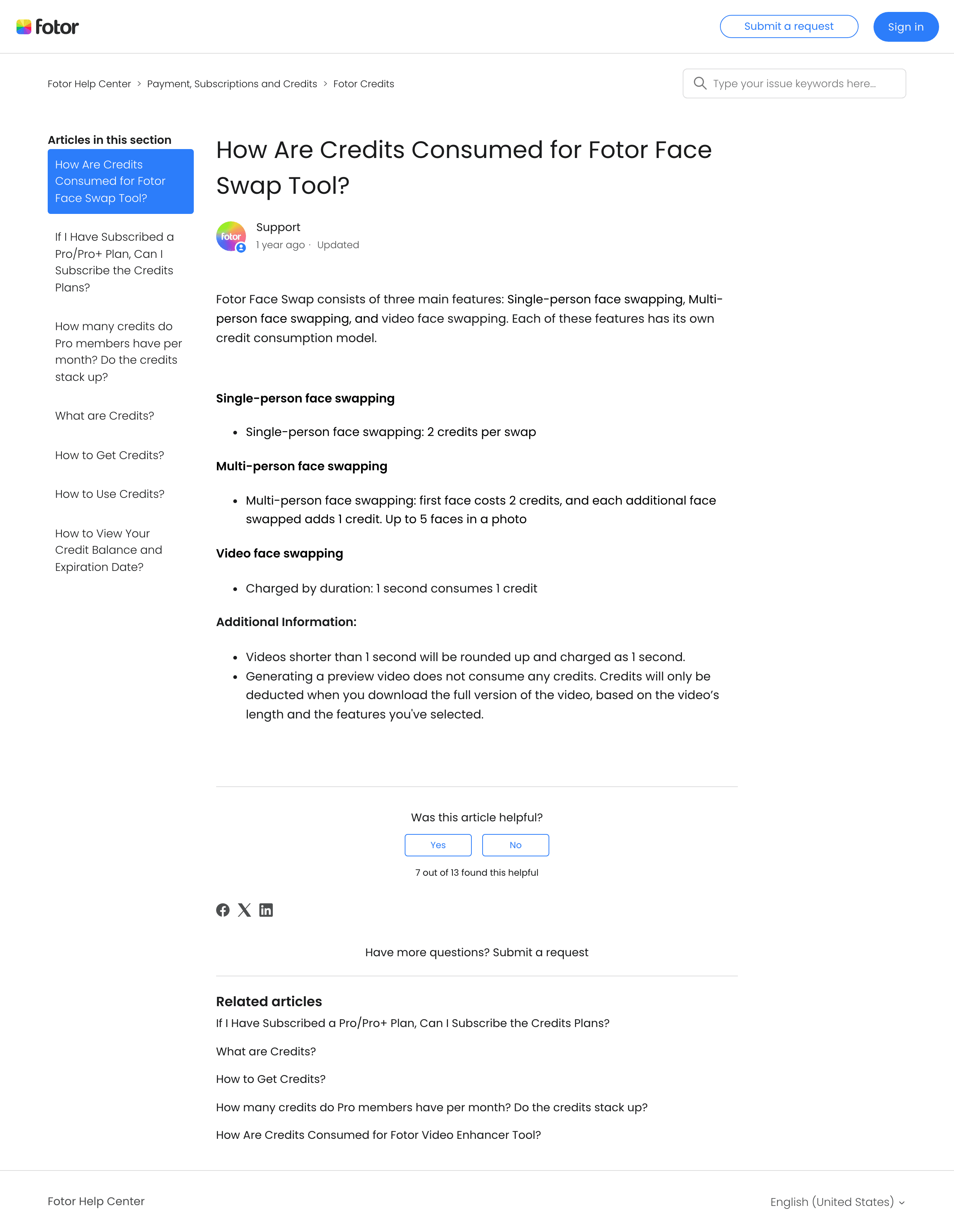
Fotor's Help Center page documenting how credits are consumed by the face swap tool
New accounts get a small starter batch of credits, and free exports carry a watermark, with watermark-free output sitting behind Pro. So treat the free tier as a test drive rather than a meme factory.
On fotor ai face swap video specifically: the free-preview rule is a real kindness, because it lets you see whether your clip is even a candidate before you spend anything. The limitation is the same one every one-click video swapper shares. Locked-off, front-facing footage holds up fine. Fast motion, a head turning to profile, or anything crossing in front of the face is where it starts falling apart.
It does the thing. It just cannot be told how to do the thing.
The Chain That Beats a One-Click Face Swap Fotor Users Settle For
What Fotor is missing is not horsepower. It is a text field. My version of this job is three prompted calls in one browser tab, and every single one of them has a place where I can type "do not improve this image."
| Step | What it does | Model | Billing shape | Why a button cannot do it |
|---|---|---|---|---|
| 1 | Grab the real meme frame as the base | none, just download | Free | Templates give you their scene, not this exact frame |
| 2 | Make (or upload) the face going in | GPT Image 2, text to image | per image | Fine either way, a selfie works too |
| 3 | Fuse the face into the frame's own medium | Nano Banana 2 Edit (or Seedream 5.0 Pro Edit) | per image | This is the step that needs a sentence, not a click |
| 4 | Give it a few seconds of life | Seedance 2.0 Mini, image to video | per second | One-click video swap has no motion constraints field |
| 5 | Convert to a loopable GIF | ffmpeg on your machine | Free | Most platforms, including this one, do not export GIF |
All four model pages sit next to each other on Atlas Cloud, each call is metered on its own, and a chunk of the image and video models are running discounted this month, which you can check on the model list. The edit model behind Step 3 is one of the discounted ones right now:

Atlas Cloud: Seedream 5.0 Pro is 20% off for a limited time
Here is the fair comparison, not the marketing one:
| Fotor AI face swap | Prompted fusion chain | |
|---|---|---|
| Template library | Yes, large | None, you bring the base |
| Learning curve | Three clicks | You write a paragraph |
| Works on a phone browser | Yes | Playground works, but it is a desktop job |
| Keeps the base's grain and lighting | Not by default | Yes, if you ask for it |
| Copies the original subject's expression | Rarely | Yes, if you ask for it |
| Multiple faces in one image | Up to 5, documented | One face per run |
| Video face swap | Yes, free preview | Not a swap, an image-to-video pass on the fused frame |
| GIF export | No | No, one local ffmpeg command |
| Swap the underlying model | No | Yes, that is the whole point |
| Billing shape | Subscription plus credits | Metered per image and per second |
And the honest part, because this is where most comparison posts lie: there is no template gallery here, you have to write a paragraph, GIF export does not exist so step 5 lands on your own machine, it is one face per run, and fusion has variance. The Idiot Sandwich landed first try. Other memes took me two or three runs. If none of that appeals to you, the Fotor button is right there and it is faster.
Fotor Face Swap, Rebuilt: The Full Walkthrough
Step 1 - Download the original scene as your base.
Right-click and save the real frame: https://i.imgflip.com/2awrys.jpg (1893 x 1893, both panels stacked).
Two warnings. Do not generate an AI version of the Idiot Sandwich. You will get a competent photo of a chef yelling at a woman, which is not this meme, and readers clock the fake instantly. And do not upscale, sharpen or denoise it first. Those compression blocks are the 2015 timestamp, and the entire next prompt exists to protect them.
Step 2 - Generate (or upload) the face going in.
If you want your own face in there, skip generating and use a straight-on, evenly lit selfie. I generated one so this tutorial is reproducible end to end.
Model: GPT Image 2 text to image
text1A straight-on passport-style portrait of a 31-year-old woman with dark shoulder-length hair, high cheekbones, neutral closed-mouth expression, plain light grey studio background, even soft frontal lighting, sharp focus on the face, head and shoulders only, no glasses, no earrings, no hat, photorealistic. 2
Settings: Size 1:1 at 1024x1024, Quality high, Output format png, n = 1.
Keep the expression neutral. The meme's expression gets applied in the next step, and a built-in smile will fight it the whole way.
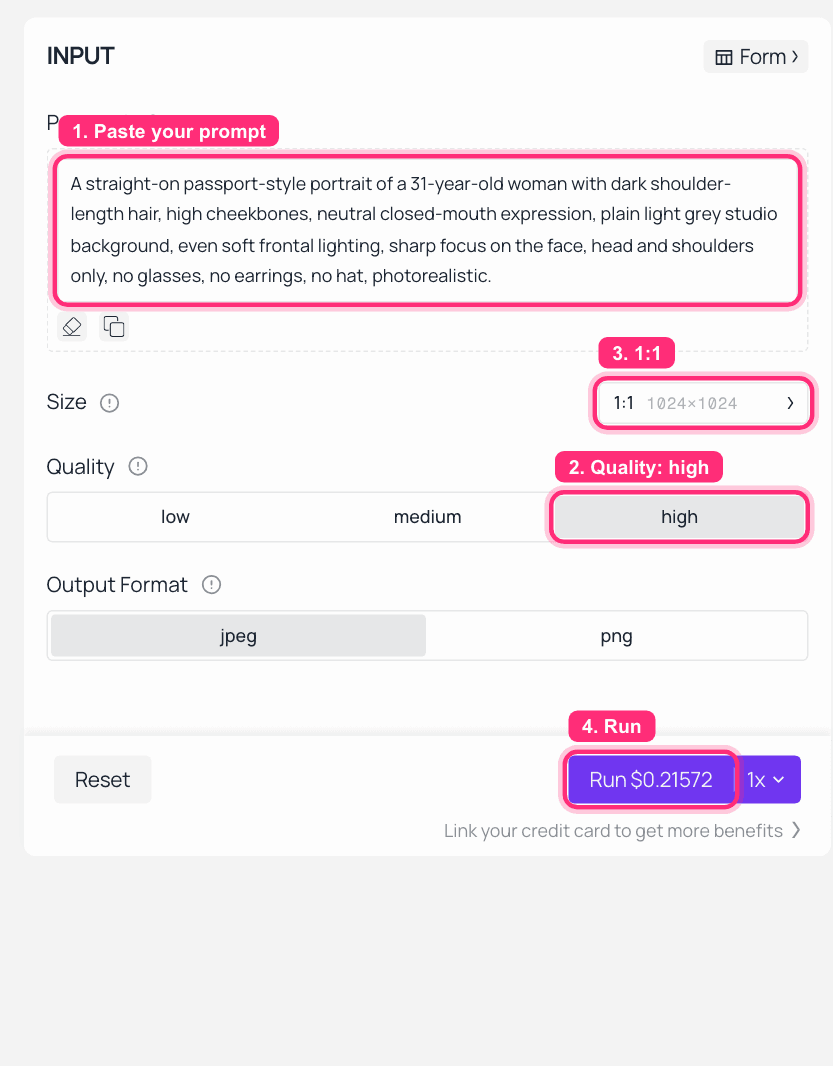
GPT Image 2 on Atlas Cloud with the portrait prompt filled in, quality set to high, and the 1:1 size and Run price marked in red
Step 3 - Fuse the face into the scene, not onto it.
This is the step the whole article is about.
Model: Nano Banana 2 Edit
Load two images in this order: image 1 is the two-panel frame from Step 1, image 2 is the face from Step 2. The order matters, because the prompt identifies them by number.
text1Replace only the face of the woman in the LOWER panel of image 1 with the face of the woman from image 2. This is a photo-fusion task, not a paste: rebuild her face inside image 1's own medium - match the 2015 broadcast-television look, the low resolution and visible JPEG compression blocks, the warm overhead kitchen lighting from above, the slight softness of the video frame, and the identical skin exposure as the bread and the hands. Keep her real human eyes, nose and mouth clearly recognizable, but give her the original subject's exact expression: eyes closed or nearly closed, mouth slightly open mid-word, eyebrows raised in resigned discomfort. Keep the head at the identical angle, size and position. Everything else must stay pixel-identical: both burger bun halves pressed against her cheeks, both of the chef's hands gripping them, the black-and-white checkered chef hat with the blue band, the back of the blond chef's head on the left, the stainless fridge and kitchen shelves behind, the CBS logo, the black divider line, and the entire UPPER panel with the shouting chef must remain completely untouched. Do not sharpen, upscale, denoise, retouch or beautify the image. 2
Settings: Aspect ratio 1:1 so neither panel gets cropped, resolution at the top tier (the "looks bad" part is the prompt's job, not the settings' job), two input images with the base first, and one face per run.
Two things worth saying out loud:
- That last sentence,
Do not sharpen, upscale, denoise, retouch or beautify, is load-bearing. Drop it and the hit rate falls off noticeably, because an edit model's default instinct is to make pictures nicer. - You have two edit models here, and they pull in opposite directions. Pick by what the specific meme needs
Nano Banana 2 Edit vs Seedream 5.0 Pro Edit for the fusion step. For the Idiot Sandwich, grain is the joke, so Nano Banana 2 Edit is the pick: it preserves the base image's degradation instead of cleaning it up, which is exactly what keeps the result reading as a 2015 broadcast. Push the identical prompt through Seedream 5.0 Pro Edit and you get a clean, high-definition, skin-retouched Idiot Sandwich. Technically sharper, but as a grainy meme, softer than you want.
That does not make Seedream the wrong tool, it makes it a different one. Seedream 5.0 Pro Edit wins on two things that matter for face work. It is the more permissive of the two, so it rarely refuses a legitimate face edit that stricter models block outright, and Seedream 5.0 Pro is running a limited-time 20% discount right now, which puts a two-image fused frame around $0.048. So the rule of thumb: reach for Nano Banana 2 when you need to preserve ugly grain, and for Seedream 5.0 Pro Edit when you want a cleaner result, fewer refusals, and the current discount. Same two inputs, same INPUT panel, one just adds a red-boxed size and Run price:
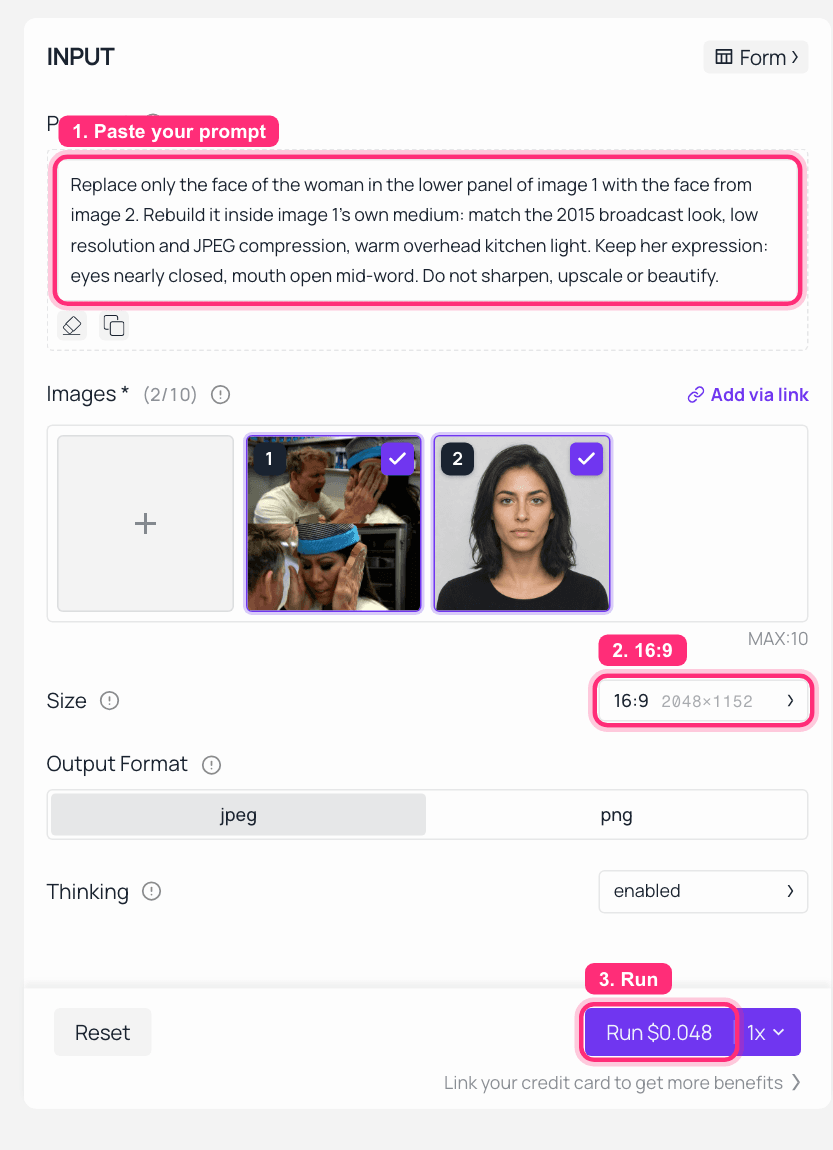
Seedream 5.0 Pro Edit on Atlas Cloud: the Idiot Sandwich frame and a source face loaded as the two references, the fusion prompt filled in, with the size and Run price marked
Step 4 - Animate about five seconds of it.
Model: Seedance 2.0 Mini image to video, first frame = the Step 3 output.
text1Subtle live-photo motion on a 2015 television clip. The chef's hands holding the two bun halves press in a few millimetres tighter and tremble slightly. The woman between them holds her position and holds her resigned expression; her eyebrows lift a fraction higher and she blinks once, mouth still slightly open mid-word. Locked-off broadcast camera with a barely perceptible handheld drift. Do not turn or tilt her head, do not change her identity, do not remove the bread or the hands, keep the original compression artefacts and warm kitchen colour. 2
Settings: Duration 5s, Resolution 720p (this is a meme, not a title sequence), Audio off, first frame set to the Step 3 output.
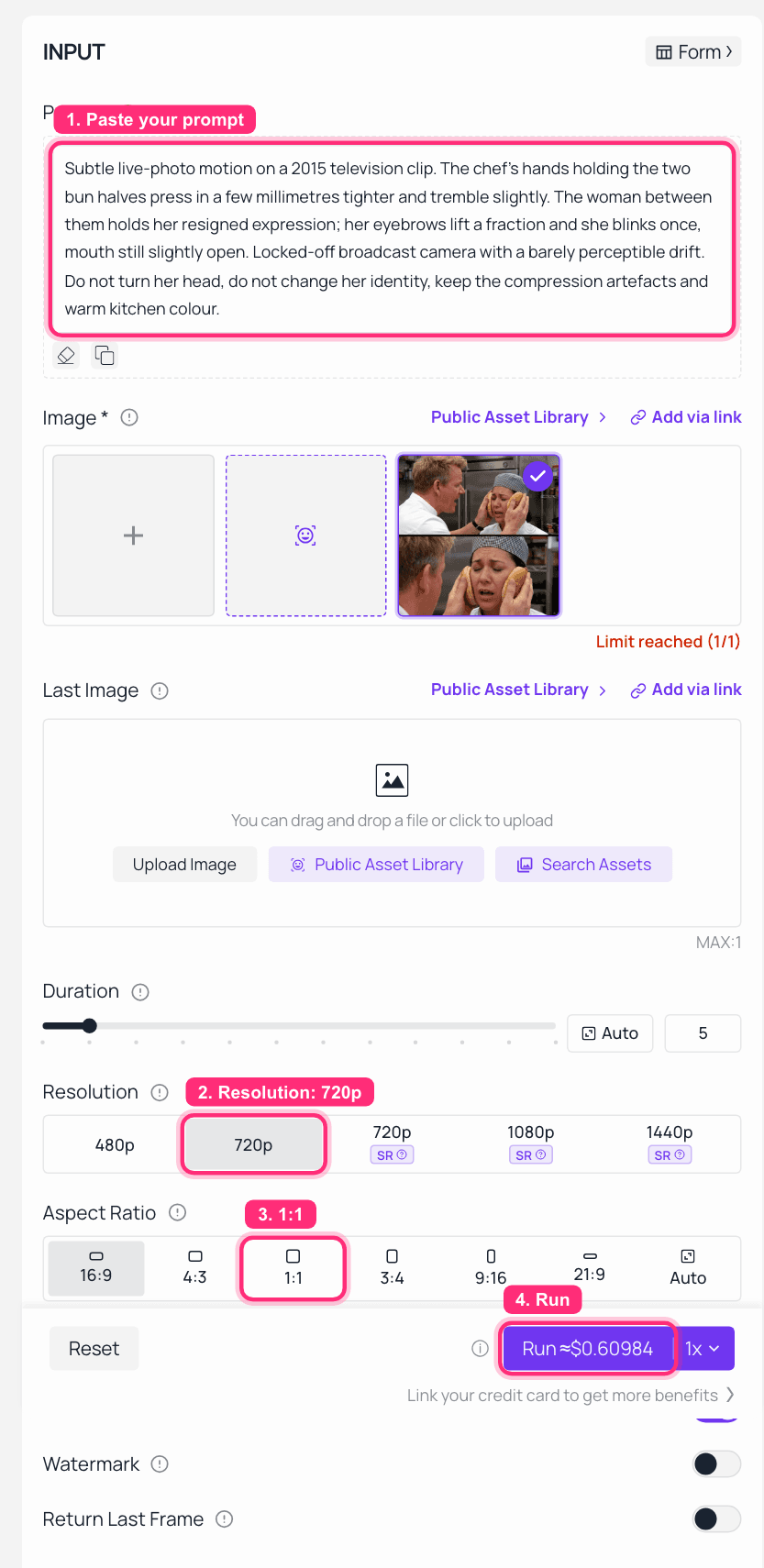
Seedance 2.0 Mini on Atlas Cloud with the fused frame loaded as the first frame, the motion prompt filled in, and duration, 720p resolution and Run price marked in red
Step 5 - Turn the clip into a GIF.
No platform in this chain exports GIF, so this one lands on your own machine. Ask any assistant for the command and you will get the same thing:
text1I have a 5-second 720p MP4 of a face-swapped meme. Give me a single ffmpeg command that converts it to a looping GIF under 8 MB, using a two-pass palettegen/paletteuse for clean colours, 15 fps, width 480px, preserving the compression artefacts. Explain nothing, just the command. 2
Which is the command I actually ran:
bash1ffmpeg -i in.mp4 -vf "fps=15,scale=480:-1:flags=lanczos,palettegen=stats_mode=diff" -y palette.png && \ 2ffmpeg -i in.mp4 -i palette.png -lavfi "fps=15,scale=480:-1:flags=lanczos[x];[x][1:v]paletteuse=dither=bayer:bayer_scale=3" -loop 0 -y out.gif 3
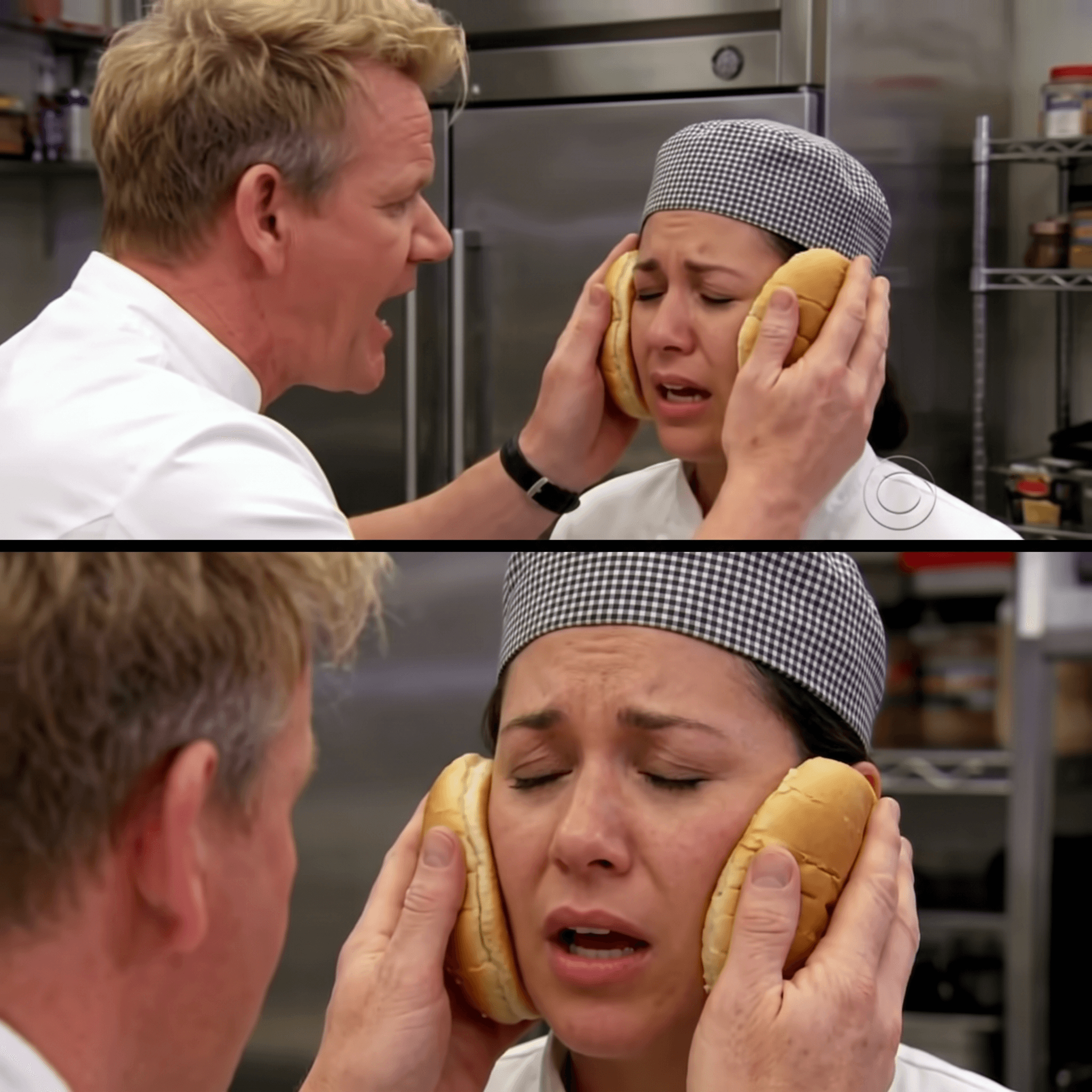
The finished fused Idiot Sandwich: the new face rebuilt inside the 2015 broadcast grain, bun halves still pressed against the cheeks
Run the two-pass ffmpeg command above on your Seedance clip and this still becomes the looping GIF you paste into the group chat.
Troubleshooting: symptom to prompt line.
| Symptom | Line to add to the prompt |
|---|---|
| Face looks too clean, reads as a sticker | Do not sharpen, upscale, denoise, retouch or beautify the image. Match the base image's compression artefacts and resolution exactly. |
| Original expression disappeared | Give her the original subject's exact expression: <describe eyes, mouth, eyebrows literally>. |
| Background got repainted | Everything except the face must stay pixel-identical, including . |
| It swapped in somebody else entirely | Keep the person from image 2 clearly recognizable: her own eyes, eyebrows, nose and mouth. |
| Face warps in the video | Do not turn or tilt her head, do not change her identity. Locked-off camera. |
Four More Fotor Swap Face Ideas From One Fusion Prompt
Same source face, same fusion logic, four formats where the joke lives in the expression rather than the setting. None of these have been used on this blog before:
- Sad Keanu. Telephoto paparazzi compression, plus the sandwich already in his hand. Rhymes with the main case in a way that is almost too neat.
- Side Eyeing Chloe. Camcorder-grade home video, and that side eye doing all the work.
- Ermahgerd Girl. Braces, Goosebumps paperbacks, brutal on-camera flash. The hardest of the four, because hard flash is genuinely difficult to reproduce.
- Grandma Finds the Internet. Older skin texture and screen glow on the face at the same time.
The efficient way: stack all four originals into one 2x2 grid first, then run a single edit call across the whole grid.
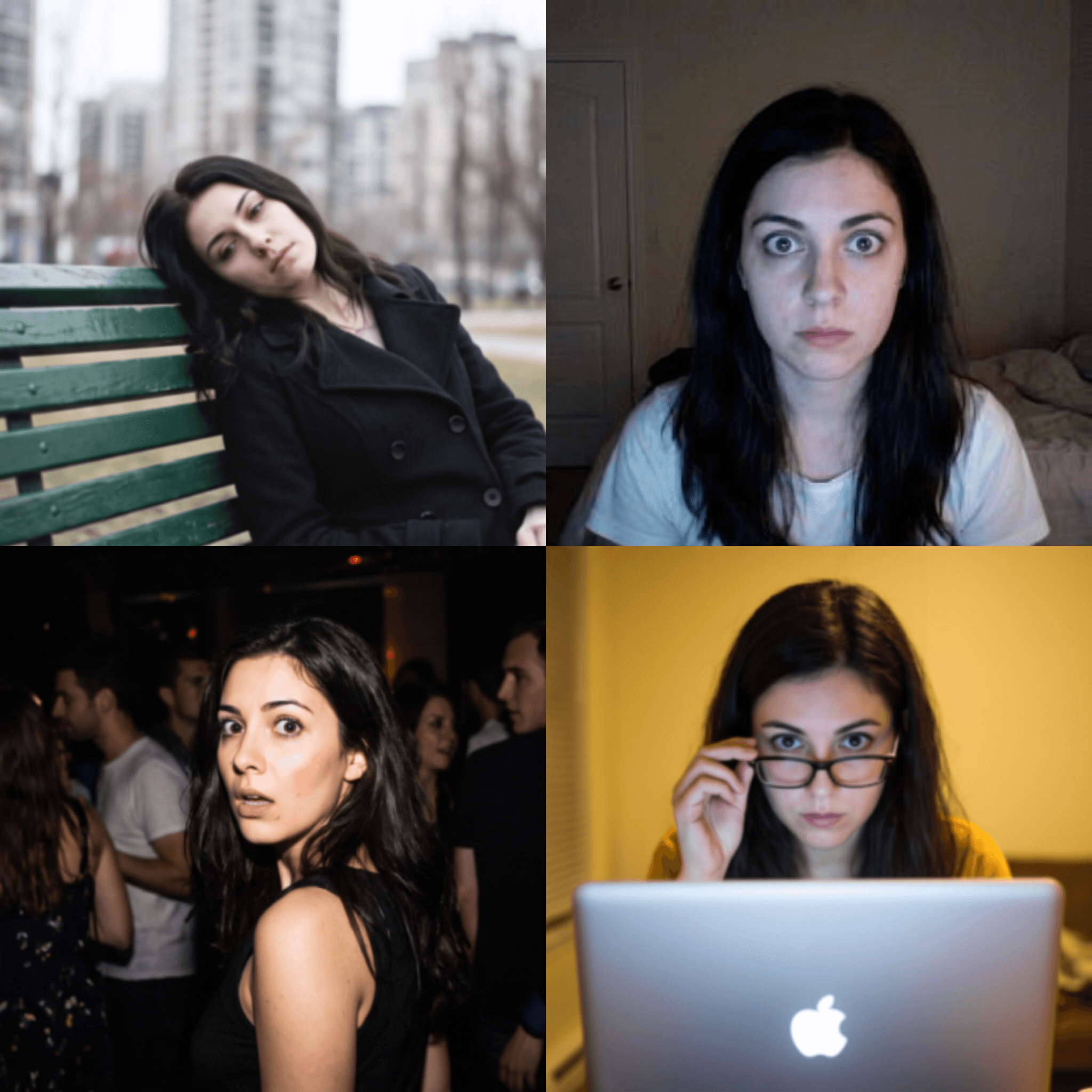
A 2x2 grid of four memes with the same new face fused into all of them: Sad Keanu, Side Eyeing Chloe, Ermahgerd Girl, and Grandma Finds the Internet
Two real observations from doing it this way. Grid fusion is a cost-saving trick, not magic: the corner cells come out weaker than the same meme run on its own, so your hero image still deserves a dedicated call. And formats lit by hard on-camera flash are meaningfully harder than formats lit by daylight, because the model has to rebuild a light source, not just a face.
What This Fotor Face Swap Workflow Costs You, Without Subscription Math
No monthly fee, and no monthly quota to spend down. Images bill per image, video bills per second, the ffmpeg step is free, and a month where you make nothing costs nothing. That changes how a retry feels: rerunning the fusion is one more image, not a bite out of an allowance you already paid for. Current numbers live on the model pages, which is where you should read them rather than trusting a number in a blog post.
To be fair to Fotor: subscription plus credits is a clean model. If you make memes daily and you want a template library sitting right there, that setup is less thinking. Metered per-call pricing suits people whose usage swings wildly month to month and who care about controlling the output.
One thing before you post anything. The people in these memes are real people. That sketch belongs to a broadcaster, and Julie Chen and Gordon Ramsay are not stock characters. Keep it non-commercial, do not manufacture an image implying a real person said or did something they did not, and never use a face swap to pass yourself off as somebody else. The line between a group-chat joke and a real problem is exactly that clear.
Frequently Asked Questions
Is Fotor face swap free?
There is a free tier, and new accounts get a small batch of starter credits, but every AI face swap deducts credits and free exports carry a watermark. Watermark-free output sits behind Pro. Check Fotor's current plan page before committing, since tiers change more often than help docs do.
How many credits does a Fotor face swap use?
Single-person swaps cost 2 credits each. Multi-person swaps charge 2 credits for the first face and 1 credit for each additional face, up to 5 faces in one photo. Video face swapping switches to duration billing: 1 second consumes 1 credit, and anything under a second rounds up to one.
Does fotor ai face swap video actually work?
Yes, with the caveat every one-click video swapper shares. Previews are free and credits are only charged when you download the finished clip, which makes testing cheap. Locked-off, front-facing footage holds together well. Fast motion, profile turns, and objects passing in front of the face are where it visibly struggles.
Why does my Fotor face swap look pasted on?
Because a one-click flow aligns a sharp face onto your base and never matches the base's grain, resolution or white balance. There is no field in a button where that instruction could go. Tell a prompted edit model to rebuild the face inside the base image's own medium, and the sticker look disappears. That is Step 3 above, and the sentence forbidding sharpening is the part doing the work.
Can I face swap a GIF directly?
Direct GIF swapping is poorly supported almost everywhere, because a GIF is a pile of frames on a tiny palette. The reliable route is Steps 3 to 5: swap the still frame, generate a short clip from that frame, then convert with a two-pass palettegen ffmpeg command. You end up with better colour than any direct GIF tool gives you.
Is it legal to face swap a scene like the Idiot Sandwich clip?
Personal meme use is rarely pursued, but the sketch has a rights holder and the frame has two real people in it. Keep it non-commercial, never fabricate an image suggesting a real person said or did something they did not, and never use a face swap to impersonate anyone. If you would not want it done to your face, do not do it.