Pipeline developers spent years stitching secondary keying tools like RemBG into their automation scripts to strip out solid canvas colors, usually destroying sub-pixel edge antialiasing in the process. OpenAI addresses this natively in preview for gpt-image-2 by baking RGBA alpha channels directly into the image diffusion process.
Generating clean transparent assets requires two specific API configurations:
- Parameter Assignment: Set
background="transparent"alongsideoutput_format="png"oroutput_format="webp"in your JSON payload. - Prompt Isolation: Omit descriptive terms like "isolated on white background" or "checkerboard pattern" from your text string to prevent prompt conflicts.
Performance Comparison
| Feature | Legacy Background Removal | Native GPT Image 2 API |
| Edge Precision | Hard clipping with halo artifacts | Sub-pixel antialiased RGBA borders |
| Shadow & Glass | Strips soft drop shadows and refractions | Bakes continuous semi-transparent alpha |
| Pipeline Latency | Requires double API calls and post-processing | Delivers ready-to-use assets in one call |
When building production sticker pipelines or marketing generators, passing these native API flags eliminates post-processing compute costs while keeping glass textures and faint shadows intact.
Technical Specifications and Required API Parameters
Silent validation errors crash production pipelines when developers pass transparency flags to standard JPEG endpoints without realizing lossy formats discard alpha channels entirely. Achieving an openai api background transparent output with gpt-image-2 requires configuring three interconnected API fields inside your JSON payload.
Core Parameter Schema
The background parameter controls canvas rendering and accepts three distinct values:
- transparent: Generates isolated subjects on an RGBA canvas without background pixel fills.
- opaque: Forces a solid color background based on prompt context.
- auto: Evaluates prompt semantics to automatically determine whether a background is required.
Enabling background="transparent" strictly requires setting output_format to either png or webp. Selecting jpeg returns a 400 HTTP error because JPEG lacks a webp alpha channel or PNG transparency map.
Supported Configurations and Output Handling
| Parameter Key | Valid Values | Behavior for Transparency |
| background | transparent, opaque, auto | Set to transparent for isolated assets |
| output_format | png, webp, jpeg | Must use output_format png or webp |
| aspect_ratio | 1:1, 16:9, 9:16 | Retains full alpha channel across all aspect ratios |
| response_format | b64_json | Encodes complete RGBA channel in base64 image payload |
By default, the API returns a stringified base64 image payload within the JSON response body. When decoding this string into binary format, developers must write the file directly using target extensions like .png or .webp to preserve exact transparency data without alpha compression loss. For gpt image 2 transparent background rendering, omitting background adjectives from text prompts remains essential to keep the model from rendering accidental solid fills.
Aspect Ratio Constraints and Canvas Padding
Subjects may clip against canvas edges in non-square aspect ratios of 16:9 and 9:16. Add spatial placement directives to your prompt to maintain safety margins around transparent subjects.
- 1:1 Square (Icons / Badges): Native center-alignment works out-of-the-box.
- 16:9 Widescreen (Hero / Banner Assets): Append
"centered subject, padding on left and right"to prevent edge-clipping during responsive scaling. - 9:16 Vertical (Mobile UI / Stories): Use
"centered vertical composition, top and bottom safety margins"to keep key visual elements away from UI safe zones.
Step by Step SDK Code Setup for Python and Node.js
Debugging corrupted alpha channels usually stems from treating the API response as a web URL rather than parsing raw base64 data streams directly into local memory buffers. Because GPT Image models return encoded payload strings rather than remote hosted links, developers must parse the b64_json payload to output a valid file.
Python Implementation
Using the official Python library, set background="transparent" and specify output_format="png" to generate transparent png gpt-image-2 assets:
plaintext1import base64 2from openai import OpenAI 3 4client = OpenAI() 5 6response = client.images.generate( 7 model="gpt-image-2", 8 prompt="A 3D glass isometric folder icon, clean lines, floating", 9 background="transparent", 10 output_format="png", 11 size="1024x1024" 12) 13 14# Decode b64_json string into binary PNG bytes 15image_bytes = base64.b64decode(response.data[0].b64_json) 16with open("output_asset.png", "wb") as f: 17 f.write(image_bytes)
Executing this python openai image api code decodes the payload into binary bytes, preserving sub-pixel transparency data without compression loss.
Node.js Implementation
For backend server pipelines, configure the official openai nodejs sdk transparency call using fs file buffers:
plaintext1import OpenAI from "openai"; 2import fs from "fs"; 3 4const openai = new OpenAI(); 5 6async function createTransparentAsset() { 7 const response = await openai.images.generate({ 8 model: "gpt-image-2", 9 prompt: "Vector style medical cross badge, flat design", 10 background: "transparent", 11 output_format: "png" 12 }); 13 14 const base64Data = response.data[0].b64_json; 15 const buffer = Buffer.from(base64Data, "base64"); 16 fs.writeFileSync("badge.png", buffer); 17} 18 19createTransparentAsset();
Raw HTTP cURL Execution
When integrating outside client SDKs, send a direct curl image generation request to the generation endpoint:
plaintext1curl https://api.openai.com/v1/images/generations \ 2 -H "Content-Type: application/json" \ 3 -H "Authorization: Bearer $OPENAI_API_KEY" \ 4 -d '{ 5 "model": "gpt-image-2", 6 "prompt": "Minimalist blue robotic arm sticker", 7 "background": "transparent", 8 "output_format": "png" 9 }'
Key Workflow Rules
- Buffer Memory Handling: Always convert b64_json directly into binary format before saving to local storage.
- Extension Alignment: Match output file extensions like .png or .webp strictly with your requested output_format.
- Error Inspection: Check returned HTTP status codes; passing jpeg alongside transparency flags triggers immediate validation errors.
Prompt Engineering Rules for Clean Alpha Channel Generation
A frequent point of failure when requesting transparent PNGs is watching the model render a gray-and-white Photoshop checkerboard grid onto the image canvas as solid pixels. This visual bug occurs when prompt instructions conflict with API flags because text prompt directives override parameter configurations in the gpt-image-2 attention layer.
Resolving Parameter Conflicts
When you set background="transparent" in your API payload, the backend handles canvas rendering natively, requiring you to adapt your standard GPT Image 2 prompt engineering to isolate subject physics from background directives. Mentioning words like "transparent background," "isolated," or "backdrop" inside your prompt forces the text encoder to conflict with the parameters, often generating physical checkerboard tiles.
Here is how to refactor common prompts for clean production generation:
Example 1: E-Commerce Product Asset

❌ Bad Prompt:
plaintext1Wireless headphones isolated on a transparent background with soft drop shadow
Why it fails: The text encoder mistakes "transparent background" for a visual scene, baking grid tiles directly into the RGB layer.
✅ Production Prompt (Clean Alpha Output):
plaintext1A pair of matte black wireless over-ear headphones, studio lighting, detailed leather texture, clear product shot
Why it works: It describes only the subject, materials, and lighting, leaving the canvas rendering entirely to the API parameter.
Example 2: 3D UI / App Icon

❌ Bad Prompt:
plaintext13D metallic gear app icon with transparent backdrop and grid pattern
Why it fails: Words like "transparent backdrop" and "grid pattern" trick the model into rendering fake checkerboard tiles into the image layer.
✅ Production Prompt:
plaintext1Isometric 3D metallic gear icon, vibrant blue and silver, clean vector edges, modern UI asset
Why it works: It focuses strictly on object visuals, leaving canvas rendering to the API parameter.
Example 3: Die-Cut Sticker Design
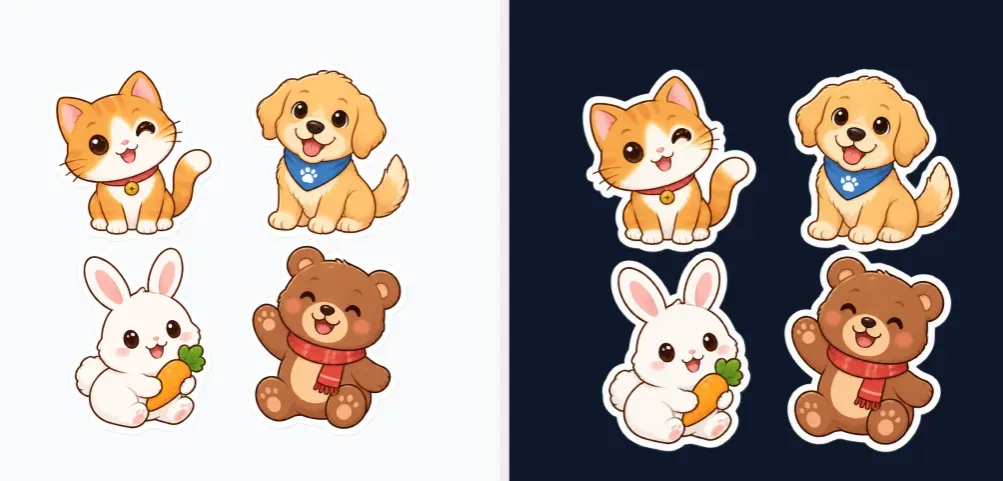
❌ Bad Prompt:
plaintext1Cute cat sticker with white border on transparent canvas
Why it fails: Requesting a "transparent canvas" creates a parameter conflict, prompting the model to draw a solid backdrop or gray-and-white grid.
✅ Production Prompt:
plaintext1Illustrative cute orange cat sticker, thick white die-cut contour border, flat vector graphic
Why it works: It treats the white die-cut border as part of the physical object itself, completely ignoring the surrounding canvas.
Tip: You can request a physical sticker border which is part of the subject, but never request a "transparent canvas" which is part of the environment. If you would like to try out this feature, you can test it using the image generation function in ChatGPT.
Core Production Prompt Rules
To ensure zero background artifacts in batch production, adhere to three simple prompt constraints:
- Describe the subject only: Limit your prompt to the object's physical form, materials, and lighting.
- Drop scene references: Omit environmental keywords such as "backdrop," "floor," "isolated," or "shadow."
- Separate Subject Borders from Canvas: Physical elements like a "white die-cut border" are fine because they belong to the subject itself, but never mention the canvas behind them.
Using targeted transparent background prompts allows gpt-image-2 to pass clean alpha channels directly into downstream design pipelines.
Benchmarking Native Transparency against Legacy Background Removal Tools
Engineers processing e-commerce imagery through secondary keying models frequently suffer from jagged subject contours, green-hued edge halos, and deleted product shadows. Running a separate image segmentation pass after diffusion doubles server latency while destroying delicate visual details like fine hair strands or translucent glassware.
Comparative Feature Analysis
Comparing background removal vs direct generation reveals how native diffusion keying alters asset pipelines:
| Performance Metric | Secondary Background Removal (RemBG) | Native GPT Image 2 Generation |
| Alpha Channel Granularity | Binary threshold (0 or 255 opacity) | Continuous RGBA scale (1 to 254 opacity) |
| Edge Precision | Hard-trimmed borders with color bleed | sub pixel antialiasing AI built into diffusion |
| Shadow Retention | Strips contact shadows and ambient light | Native alpha channel shadow preservation |
| Processing Overhead | Multi-model pipeline execution | Single API call output |
Resolving Edge Artifacts and Preserving Alpha Gradients
Evaluating native transparency vs rembg highlights how direct diffusion keying addresses fundamental matting limitations. Traditional background removal tools apply post-process masks over flat RGB images, which creates severe color bleed around complex subjects. Direct RGBA rendering serves as a complete edge fringing fix by generating variable transparency directly during diffusion, preserving soft refractions across glass, liquid, and hair.
The OpenAI Developer Cookbook demonstrates how native alpha encoding retains environmental lighting without baking in solid canvas colors. Instead of cutting out pixels with a hard clip, the model calculates variable opacity values across object boundaries.
Handling Alpha Channel Edge Cases
A subtle artifact developers often miss: preview builds sometimes assign alpha values of 252 through 254 to theoretically solid subject regions. When compositing generated assets over pitch-black backgrounds, high-contrast dark pixels can seep through these slightly transparent foreground areas.
Developers can fix this by applying a minor alpha threshold normalization step in Python using Pillow:
plaintext1from PIL import Image 2 3def fix_alpha_leak(image_path: str, threshold: int = 250) -> None: 4 img = Image.open(image_path).convert("RGBA") 5 r, g, b, a = img.split() 6 7 # Clamp near-opaque pixels (250-254) straight to 255 8 a = a.point(lambda p: 255 if p >= threshold else p) 9 10 Image.merge("RGBA", (r, g, b, a)).save(image_path)
Troubleshooting Common Errors and Handling Model Edge Cases
Production image pipelines breaking mid-deployment due to unhandled 400 HTTP status exceptions or baked-in checkerboard grids cost engineering teams hours of emergency debugging. When automated design asset workflows fail, isolating parameter configuration conflicts quickly restores generation uptime.
Common API Validation Failures
Passing conflicting payload parameters triggers immediate client-side validation errors before diffusion inference begins.
| Error Condition | HTTP Status | Trigger Mechanism | Resolution Workflow |
| Invalid Format | 400 Bad Request | Setting invalid output_format transparent with lossy JPEG | Change output_format strictly to png or webp |
| Parameter Mismatch | 400 Bad Request | Passing gpt-image-2 background error 400 from unsupported dimensions | Ensure resolution strings meet model aspect constraints |
| Quota Threshold | 429 Too Many Requests | Exceeding api rate limits image generation burst limits | Implement exponential backoff retry algorithms |
Resolving Rendered Grid Textures and Outages
If your output contains hardcoded gray-and-white checkerboard pixels, execute the following audit:
- Strip Grid Keywords: Scan your prompt string for terms like transparent grid, checkerboard, or isolated canvas.
- Enforce Hard Parameter Boundary: Ensure transparency is driven exclusively by the API payload parameter (background: "transparent"), not by descriptive text directives.
Managing Preview Outages with Fallback Logic
Because native transparency for gpt-image-2 remains in preview, API endpoint updates or temporary server instability can disrupt batch image generation. Implementing an automated fallback to gpt-image-1.5 within your API client wrapper ensures continuous asset production by automatically re-routing requests to stable legacy endpoints whenever persistent 5xx status codes occur.
Handling Dynamic Post-Processing on Legacy Fallback
Note that legacy models like gpt-image-1.5 do not accept native background="transparent" payload options. When your wrapper catches persistent 5xx HTTP status codes and routes generation requests to legacy fallbacks, your system architecture must dynamically trigger a secondary segmentation tool, e.g., RemBG or ONNX runtime, on the returned RGB payload to maintain consistent transparent downstream delivery.
Combining strict payload validation with automated fallback routing ensures 99.9% asset generation uptime while native RGBA parameters remain in preview.





