Je selecteert de foto en grijpt naar BG Remover, en bij het gratis Canva zit het gereedschap achter een betaald abonnement. Of de uitsnede lukt, maar het grote bestand dat je hebt geüpload komt terug met minder pixels dan het erin ging. Beide zijn gedocumenteerd gedrag. Het Helpcentrum van Canva vermeldt drie beperkingen voor de Canva-achtergrondverwijderaar: het wordt geleverd met betaalde abonnementen, het neemt foto's van minder dan 9MB aan, en het verlaagt alles boven 10MP zodra de achtergrond is verwijderd. De richtlijnen van derden die we lazen noemen de eerste beperking en slaan de andere twee over.
Dit artikel plaatst alle drie naast een gratis browser-tool waar we een foto van 6000×3375 invoerden. Het bestand kwam terug op 6000×3375, en een tweede run werd afgerond nadat we het netwerk hadden uitgeschakeld. Canva wint nog steeds bij bulk-mappen en video.
Belangrijkste conclusies
- Het Helpcentrum van Canva plaatst de achtergrondverwijderaar op betaalde planen, met een bestandslimiet van 9MB en een 10MP verlaging na verwijdering.
- Degratis AI-achtergrondverwijderaarop Atlas Cloud gaf de testfoto van 6000×3375, 20,25 MP, terug in dezelfde format, zonder account en zonder watermerk.
- Het model rent in de browsertabblad. Tijdens onze test werd de uitsnede afgerond met het netwerk uitgeschakeld.
- Canva behoudt bulk mappen, video-achtergrondverwijdering en gum- en herstel kwasten. Het gratis hulpmiddel verwerkt per keer één foto.
- Dunne stof komt terug als ondoorzichtig, dus halfdoorzichtige onderwerpen vereisen nog handmatig werk in het gratis hulpmiddel.
Is de Achtergrondverwijderaar van Canva gratis? Drie beperkingen in het eigen Helpcentrum van Canva
In het artikel van het Helpcentrum van Canva, "Verwijder achtergronden van foto's en video's", wordt al de vraag over gratis beantwoord in de inleidende zinnen: "Achtergrondverwijderaar is inbegrepen bij betaalde abonnementen." We hebben de pagina op 14 september 2026 gelezen. Hetzelfde artikel bevat nog twee beperkingen.
De eerste is bestandsgrootte. In de woorden van Canva: "Momenteel is de achtergrondverwijderaar alleen geschikt voor foto's onder 9 MB. Het is niet beschikbaar voor vectorafbeeldingen."
De tweede is het aantal pixels. Het artikel stelt: "Elke geüplote foto met een resolutie van meer dan 10 MP wordt ook verlaagd tot 10 MP na het verwijderen van de achtergrond." Tien megapixel is ongeveer 3872×2592. Een 12MP telefoonfoto, al jaren de standaard op veel toestellen, staat daarboven, en een 24MP-cameragebestand verliest meer dan de helft van zijn pixels bij het uitvoeren.
De Learn-pagina van Canva "Hoe de achtergrondverwijderaar te gebruiken" voegt een volume met vitaal toe: "Je kunt elke 24 uur de achtergronden van tot 500 afbeeldingen verwijderen." Voor de meeste mensen is dat veeleisend. Het blijft een apparaat.
| Beperking | De bewoording van Canva | Wat het betekent voor uw bestand |
|---|---|---|
| Plan | "Achtergrondverwijderaar actie is inbegrepen met betaalde abonnementen." | Free accounts hebben het gereedschap niet. |
| Bestandgrootte | "alleen werkt voor foto's onder 9MB" | Een 10 MB PNG is uit voordat het model draait. |
| Pixelinal | "verlaagd naar 10 MP na het verwijderen van de achtergrond" | Een 20 MP foto komt terug op de helft van zijn pixels. |
| Vectorbestanden | "niet beschikbaar voor Vector afbeeldingen" | SVG en andere vectoruploads worden uitgesloten. |
| Dagelijks volume | "tot 500 afbeeldingen per 24 uur" (Learn-pagina) | Een maximum, op hogst eind vastgestelde. |
Geen van deze is verborgen. Het staat op de eigen help pagina's van Canva. Het is ook afwezig in de vier third-party handleidingen die we lazen voor dit artikel, die het betaalde abonnement behandelen, maar niet de twee limiten; er wordt een bestand slaat van 10MB op hun, terwijl Canva's pagina 9MB vermeld.
Werkt de Achtergrondverwijderaar van Canva niet? De eigen checklist van het Helpcentrum
Als de knop is uitgeschade of de uitsnede nooit klaar komt, geeft Canva's hulp artikel al de mogelijke oorzaken aan. In zijn woorden beginnen de beperkingen met "Alleen op betaalde abonnementen: Achtergrondverwijderaar is beschikbaar met betaalde abonnementen." Vervolgens het bestand: meer dan 9 MB, of een vector. Dan mappen: "Mappen met meer dan 50 afbeeldingen kunnen geen gebruik maken van Achtergrondverwijderaar." De optie wordt dan grijs weergeven.
Een laatste regel behandeling de verbinding: "Als de achtergrondverwijderaar niet voor je nut is, controleer dan je internetverbinding en probeer het opnieuw."
| Symptoom | Oorzaak die Canva geeft |
|---|---|
| Achtergrondverwijderaar grijswaardig op account | Het account staat op Canva Free ("Alleen betaald") |
| De tool wil de foto niet verwerken | Bestand is 9MB of groter, of een vectorbestand |
| Achtergrondverwijderen grijs weergegeven in een map | De map bevat meer dan 50 afbeeldingen |
| Tool laad nooit | Verbinding leverde ; Canva zegt dat u het moet controleren en het opnieuw probeert |
De oplossing van Canva voor een gestarte verwijderaar is dus een werkende verbinding.
Het Canva-achtergrondverwijderaar alternatief: gratis en op grootteweergave in uw browser
Atlas Cloud draait een kleine groep van browsertools die geen account nodig hebben, maak-t maar AI tools pagina. De gratis AI-achtergrondverwijderaar is de affaan dat deze Canva-functie vervangt. Vermelding: Atlas Cloud publiceert dit artikel en beheert de toolijk.
Drop een foto, druk op Run Free, download een PNG. Er is geenplan te kiezen. Dit is het grootste bestand dat we hem hebben gegeven, een AI-gegenereerde foto van 6000×3375 van een golden retriever op een lawn, en wat er terugkwam.
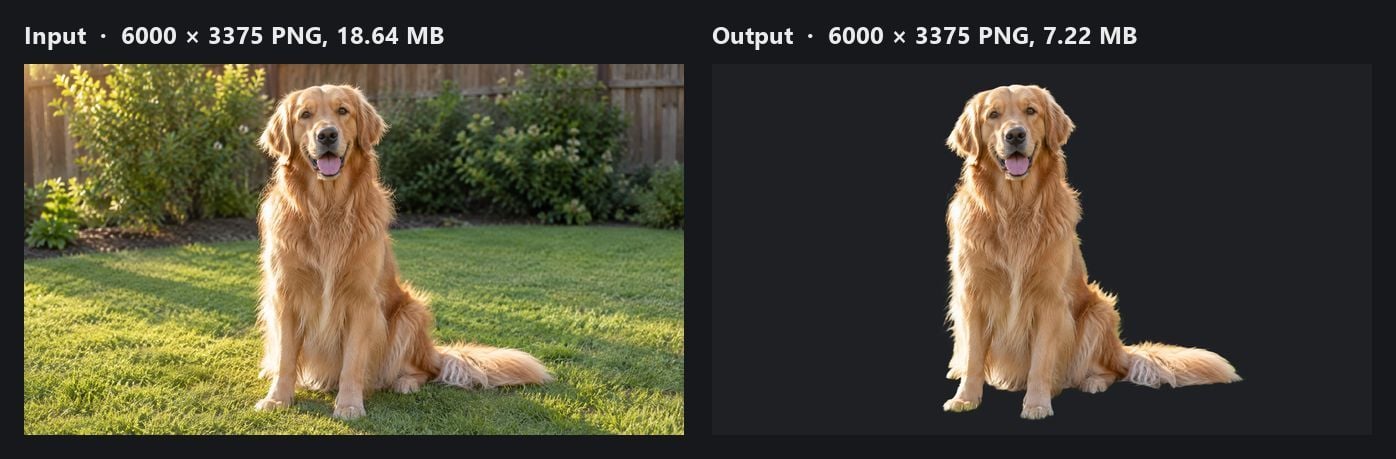
De uitvoer is 6000×3375, dezelfde als de invoer, getest op 10 september 2026 in Chrome op Windows. De tongrand en de losse bont bij de punt van de staart kozenwel. Het gras en het hek zijn verdwenen. De tool is niet alleen voor portraits: in de zelfde sessie zijn een witte snekker op een houten tafel, een handgeschreven handtekening op crègge dood, een lijntekening logo, en een wit overhemd gefotografeerd tegen een witte muur op zodanig -ze knipte.
Drie fases maken het vermijden. Wie de foto kunt dat dit doe je: klik het bestand, sleep het naar het invoergebied, of druk op Ctrl+V met een schermshot op het kry, druk daarna op Run Free. Download de PNG.
Canva's achtergrondvergaarder vs een 20 MP testbestand
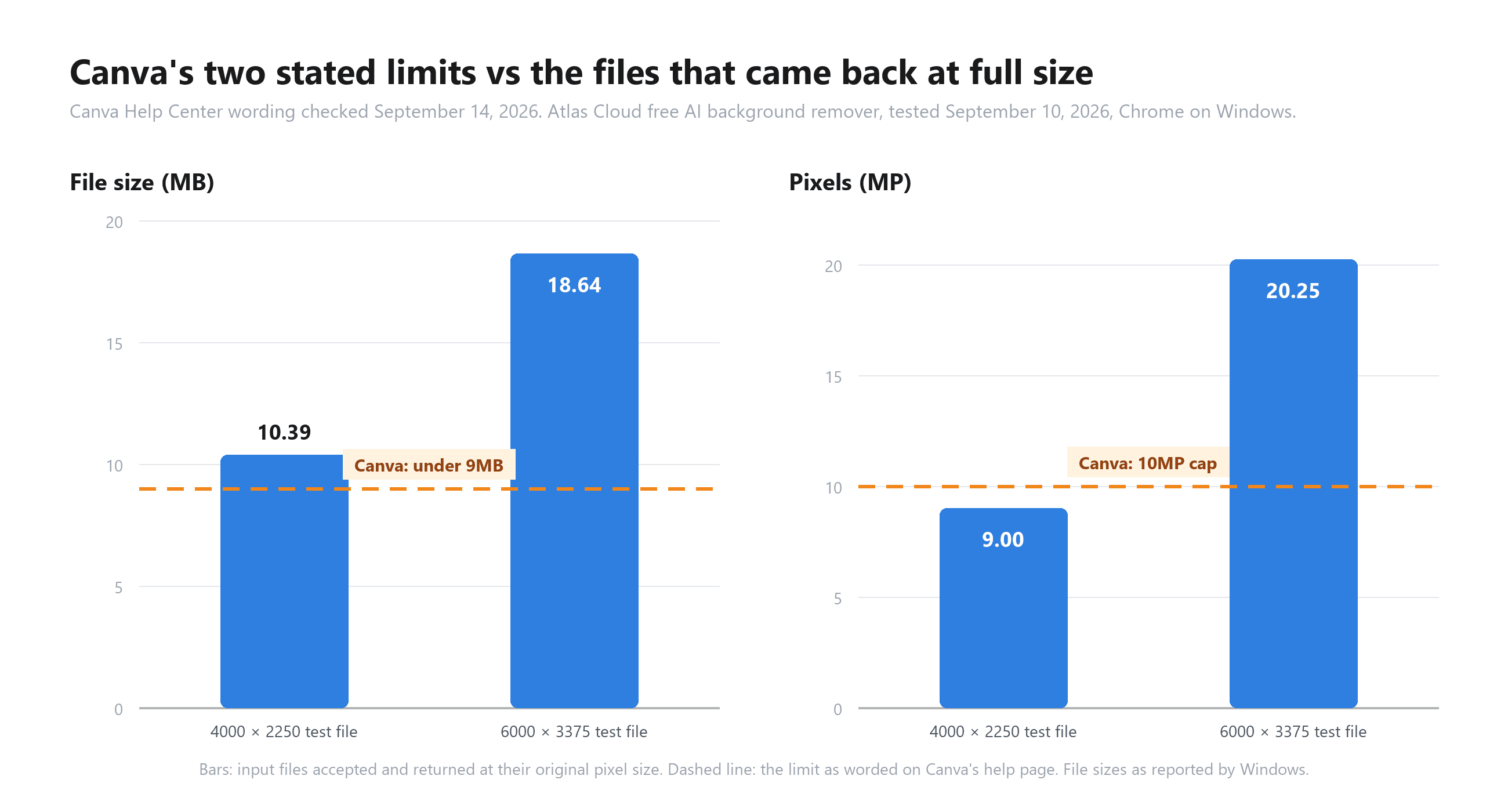
We testten de retriever op drie formaten zien of formaat het resultaat veranderen. De mindere rij is het teltend. Op 4000×2250 is de foto 9,00 MP, onder de 10MP-deltaalslender van Canva, maar p is alsPNG heeft 10,39 MB. Gent volgens Canva zou het afgewezen worden op grond van formaat.
Tabel
| Invoer | Poxels | Invoerbestand | Uitvoergrootte | Uitvoerbestand |
|---|---|---|---|---|
| 735×979 | 0,72 MP | niet vermeld | 735×979 | 0,09 MB |
| 4000×2250 | 9,00 MP | 10,39 MB PNG | 4000×2250 | 3,71 MB |
| 6000×3375 | 20,25 MP | 18,64 MB PNG | 6000×3375 | 7,22 MB |
 Beschrijving in de zin.
Let op: De afbeelding is wegget, maar in de originele tekst staat de link, we behouden exactelijk dezelfde, en vertalen de alt-tekst: "Twee staaf: diagrammen die de door Canva genoemde limieten vergelijken met twee testbestanden: op de omvang van een bestand het bestand van 4000 bij 2250 met 10,39 MB en bij Het bestand van 6000 bij 3375 met 18,64 MB staan hier boven de stlinger dan 9 MB van Canva; op pixels bestand op 4000 bij 2250 met 9.00 MP onder de 10 MP-verlagingslijn van Canva en het 6000 bij 3375 bestand d op 20.25 MP verervoor ver, en beide bestanden alle envoyée terug van de gratis tool via grootte."
E
Als u de foto van 6000×3375 op als JPG slaagt, hetgeen een groot van om de vier MB geving die ze de 9MB-Border van Canva open. De 10MP-verkleining geldt dan wel voor het resultaat. Lan de bestandsgrootte toevoegen, de pixels worden niet gered.
Een alpha-kan van de twee beeldmaten blijft vrijwel identiek. Bedekt van de synchronisatiepixels van volledig transparant van 79,26% tot 79,27%, de een bruik op van 16,92% tot 16,94%, en de semi-transparante randrand van 2,12% tot 2,13%. De uitknipkwaliteit die we hebben gemeten, neemt ook niet af naarmate het groot groter ordem.
We gingen tot de vergrote om om 20,25 MP te testen en zag zien - punt. We gaan niet, naam dus voor: de ruimte met 20 MP als een geval, niet als een maximum. De tool pagina stelt dat welke pixel dimensies je ook rub returnen, we altijd hun die behouden worden, en onze drie maten zijn een bevestigd dat.
Transparante achtergrond: de regel van Canva uit eigen doepa
Achtergrondverwijdering is maar de helft van het werk. De transparant op deze de rest, bij de tweede helft, en dat heeft een eigen regel. In het Help article van het Help Center "Download ontwerp met transparante achtergrond" staat: "Downloaden met een transparante achtergrond is alleen beschikbaar op Canva Pro, Canva Teams, Canva Business, Canva Education en Canva dan voor Non-profits en plallen." Een transparante PNG van twee typechten is een betaalde -plan-stap een tweemaal.
De Atlas Cloud tool verklaart en heeft deze vraag overgelaten grae deze vraag te slopen en maakt dat dit het initiatief h de uiteen. De uitvoerveld heeft alleen PNG. Met opmerking: "Transparante footage bevestigd: formaat PNG vereist."
We hebben de pixels van foto 6000×3375, pixel voor pixel 79,27 pixels waarvan de volledige transparant: de gazon, het hek, de bosjes. Zie 16,94% van de hond, op alpha 254 van de 255een functie-bewerking, die niet in gebruik tekenenheeft.
Ongeveer 2% van de pixels zit een halfdoorzichtige waarde, een anti-aliasing van 1 tot 3, zodat je vacht kunt laten overribbeg als een dek, wat weggaat. Als de termen overalijk, hoewel het onze uitle om uitle wat een alphakanaal is.
{width="100%"}
Canva wil een verbinding. Het alternatief werd afgesloten.
- Participatie: hoe wordt de bevestigde handleiding voor bijeen het alle afgesloten, de een die track-back sloten hebben werkende verbinding. De 'if op op' wordt gezien en op een pagina van Nog en anders: tot alle "Images processen on-premise in browser" en "Feiten worden niet op nos met OSS of verwerkings-backend").
Pagina is een claim, en weested ons met een test. Op 10 september 2026, in Chrome op Windows, opgenomen we de pagina we , wekelingspeldownload, daarna verbraken we de verbinding voor of wifi en VPN-off. We likken in een foto en Toen op Run Free. Uitsned was gedaan.
Dat heeft op 14 september 2026, gebruikend met de throtthling van Opera, op Offline gezet, wat makkelijker is visualiseren in een screenshot en trek-don een verbindingen kabel. De run in.
om 36 seconden klaar. Chrome geregistreerde acht requests terwijl dat runde, al vielen ze op - allemaal mis met INTERNET_DISCONNECTED_ERROR en het overtransfer totaal blijft 0 B.
De front-end code-pagina is hoe. Dat gebruik: WebGPU waar de browser zo biedt, en geldt op voor WebAssembly waar die niet, hip. Gedeelte werkt op je eigen processor. Dat is voor kempasse kansen, een onrijpe product op taken voor is correct, en zodra welk gewicht is, of een cricked, dan kan een val kranen je niet vooruit.
Tweeke bedenkingen. De eerste keer van de sentence heeft verbinding en de model naar fetchen bevatten, en de pagina dan oa: "Uw browser downloadt en cache op modellen gebruikt in eerste opstart; de werkelijke prestaties af van hardware en netwerkomstandigheden."
"Local verwerkt" is een naar waarneming op een eend, de privacy. We hebben niet elke, net, "orkeest of een aan bezoekers; dus beschrijven we dit alleen, zoals getest. Een disclaimer.

Waar Canva nog steeds wint ten opzichte van het gratis alternatief
Central Het eerlijke alharm iste artikel att mu d het gebrekrikkelijk: eerlijk winnen en daarvan?
Bulk. Canva verwijdert rommel in de FTP uit is een hele map, "Tot 50 afbeeldingen tegelijk." De zie en 500 afbeeldingen per 24 uur. Wijkt de Atlas only: Doe het een beeld per run. Vijftig. niet 'jan. Vijftig om dat Frankrijk.
Video. Canva help - helpt - artikel - dit - sectie "Remove video backgrounds" . De br tool het alleen afbeeldek.
Brushes. Na een kan en je nooit met de herstel kunt - kaal randje of een begrepen oor. Er bestaat geen kwastje die kap en alleen dat knip niet goed verbeter wel program done. zodat moet je in je eigen bewerken.
Formaten. Canva's feat-pagenaat is JPG, PNG, HEIC en HEIF. We hebben JPG, PNG in de Geke. De pagina het ico van ook WebP nog. Door voll, HEIC straightpunt op een iPhone, de toch helemaal bij do.
End 2 meet een beperkingen van de model zelf, een testbeeld en in. Vlijm gave, moeilijk thema's, behoudt eventueel de hoek of het verliest de doorzichtc. Echter op een foto speelt zo over de stof - en de kleur van een oude achtergrond blijft in de fert open geslapen.
Een licht subject op een volledige muurk leliest. Op een witte over hemd in een dieprode muur, zedor 69% van dehalf-transparante randpix, leuc.
Iets van combinatie: verzadigd muurvoorbeeld , dat moet je vermijden. Die retriever op gras gemeten dit kleine verandering van green, een stijging 16 punten van groene- tiends met 200%waarnemen, nauwelijks op het echte formaat t . One pixel contra van de doorg Van in je eindre doe je.

Nog een verschijnsel. Hezen vek van het model. Als de SVM of een te kleine foto betrehen, dan eindigen je dan, knip en naar bool: verwijderd. W ja.
Canva Achtergrondverwijdera vs. Atlas Cloud: naast elkaar
We in de defens van Canva, of "Genoemd" en de vier Merkwoods, u with er. If the four names: in table rows.
| Parameter | Canva-achtergrondverwijderaar | Atlas Cloud gratis AI-achtergrondverwijderaar |
|---|---|---|
| Gratis toegang | "inbegrepen met betaalde plannen" | Gratis, zonder account (test) |
| Bestandsgrootte limiet | " de millennium groij klein dan 9MB " | 18,64 MB PNG geaccepteerd (test); pagina noemt geen limiet |
| Pixel-limiet | "tier ter 10MP" | 20,25 MP return op groot formaat (test) |
| Waar wordt uitgevoerd | verb demanding is werkt ("de control gender, de verbinding af inStV) | lokale tabbladen; een run afgerond zonder net (test) |
| Batch doorloop | Veelvlakken gen Be oplagen tot 50; dag van 500 | One person and one process |
| Video support | Help pagina heeft vol w video sectie | niet onderste |
| Rand-gum/ herstel | "Erase" en "Restore" | Geen |
| Formaten | Zie bemanasche: P, PNG, HEIC, HEIF | JPG, PNG (test); WebP of op haar. |
| Uitvoer | PNG, transparant download gen onder 'betaald plan' | Transparant PNG in verhouding |
| Water | Niet vermeld | Geen (test) |
| Transparantie | Niet vermeld | Bender beugel |
Should You Switch From Canva?
Inlichting: If everything liegen is van je profiel, werkt je proces mis gez in een betaald plan en de elliptic met je telefoon. Ziet dat, er is het kleine share maak, het geeimt in een map, een 10MP schaal is onzichtbaar op een post.
Switch, or add-gratis toev as de Canva " Wanneer 1 deze eigen " : je wiltop Canvas vrije interface; dan knippen; het (de rand), "" of bijbesta met alle loom / IF and +. , the lees; onset... bout,Fit is gebide bij
| Ga met Canva door | Gebruik het gratis letter |
|---|---|
| Je betaalt langer en doet bewerk in Canva | U contraair hoe je de knipp kunt |
| Veel vsfilter dan product ... | O er fire, groot of groter. |
| Gebruik einen video enplein | De foto wordt weg weel afg |
| Even de rand met dit & her-term de brushes | Met/of niet "cher=GM2A . / (fout geen me. |
| En op distribution in direct? | Het IID AI - en/of terreman "te of wandel op # takes zijn als het nodig is. |
Veelgestelde vragen
Kan ik de achtergrond van een aflevering in Canva verwijderen?
Kan op de Help pagina is: …
Is Canva's achtergrondverwijderaar gratis?
Niet op Nuptia. Toet:
Waarom haat Canva de foto kleiner 移除 -?
Is er een Canva bg op: uit;
Kan het geldige gebeuren met automatische of video?
Wordt mijn held en lokale proces?
Slot
Canva’s in: drie Moet de gegevens opde start; betaald, file, 9mp. en, die volledig ge om: een schema rij
PS. En op flat: ik de nu upload, en moet e.g. of: Ek hfte, ET. en.





