

Laatste update: Gemini Omni Flash 1.1 is nu live vanaf 1 september 2026.
Je korte bronclip is bijna goed. De timing, camerapositie en expressie kloppen. Maar dan verpest een petkleur, een rekwisiet op de achtergrond of een effect de campagne. Opnieuw filmen kost tijd; een nieuwe clip genereren betekent dat een model de hele uitvoering opnieuw moet raden.
Gemini Omni 1.1 Flash-videobewerking is nuttig wanneer je de originele clip als uitgangspunt behandelt en vervolgens één commerciële variabele wijzigt. Upload een geautoriseerde clip van 10 seconden of korter, geef de wijziging aan, geef het behoudcontract aan en inspecteer de output voordat die in de buurt van een campagne komt.
Deze gids gebruikt drie beoordelingsparen: een pet die wisselt bij elke klap, een groep die verandert in flamingo's terwijl de blokkering leesbaar blijft, en een glazen bol die een bestaande handbeweging volgt. Ze maken de acceptatiecriteria concreet. Het doel is geen magische bewerkknop. Het is een herhaalbare manier om te bepalen wat je behoudt, wat je wijzigt en wanneer je een resultaat afkeurt.
Belangrijkste punten
- Begin met een clip van 5 seconden in één opname en wijzig één variabele.
- Plaats
Change onlyvóór de behoudinstructies.- Controleer de klap-, loop- of handactie frame voor frame.
- Behandel dialoog, lip-sync, merktekst en origineel geluid als afzonderlijke controles.
- Gebruik alleen clips die je bezit of waarvoor je duidelijke toestemming hebt om te bewerken.
Bewegingsreferentie bij de opening: de volledige clip met de petwissel die wordt gebruikt om de timing- en behoudbeoordeling in casus 1 te introduceren.
Waarom Gemini Omni 1.1 Flash-videobewerking faalt zonder beperkingen
Text-to-video begint met een lege tijdlijn. Het model moet de uitvoerder, lens, camerapad, belichting, ruimte en actie afleiden. Videobewerking begint met die beslissingen die al op het scherm staan. Daarom kan een bestaande clip een veel sterker uitgangspunt zijn dan een alinea met beschrijving.
Gemini Omni 1.1 Flash gebruikt de GA-model-ID gemini-omni-1.1-flash. Google documenteert bewerking van geüploade video's, uitbreiding van korte video's en stateful vervolgbewerkingen via zijn Interactions-API. Bewerking van geüploade video's is niet in elke regio beschikbaar en bewerking of uitbreiding van geüploade video's is beperkt tot bronvideo's van 10 seconden of korter (Google Gemini API-documentatie).
Het praktische verschil is terughoudendheid. Een prompt als "maak dit beter" geeft het systeem toestemming om alles te herinterpreteren. Een behoudcontract geeft het een afgebakende taak:
plaintext1Change only: [one element]. 2Keep everything else the same. 3Preserve: subject identity, action timing, camera framing, lighting, background, and original audio where possible. 4No new dialogue, no new text, no extra sound effects.
Die formulering kan nog steeds geen perfect resultaat afdwingen. Het maakt de acceptatiecriteria zichtbaar voordat je de run uitvoert. Als je een fiets in een helikopter verandert, moeten de bewegingsmechanica van het onderwerp en de impliciete fysica van de camera mogelijk opnieuw worden opgebouwd. Als je een pet, een productkleur of één VFX-object wijzigt, geeft de originele beweging het model een duidelijkere route.
Stem- en mondbewegingen verdienen aparte aandacht. Gemini Omni 1.1 Flash kan video met audio produceren, maar ga er niet vanuit dat een geüploade sprekende clip de exacte dialoog, lip-sync of bruikbaar achtergrondgeluid behoudt. Voer eerst een stille of niet-sprekende test uit. Bewaar de originele audio apart wanneer die ertoe doet en beslis daarna in de postproductie of het bewerkte beeld en de brontrack nog bij elkaar passen.
Lange clips, harde cuts, volle ondertitels en prompts die tegelijk persoon, actie, kleding, scène en camera wijzigen, vergroten allemaal het risico op fouten. De veiligere productieregel is eenvoudig: maak een test met één opname onder de uploadlimiet van 10 seconden, keur het behoud goed en maak daarna de volgende enkele wijziging.
Workflow, model en beschikbaarheid
De drie beoordelingsparen hieronder gebruiken Atlas Cloud als een browsergebaseerde route naar een videobewerkworkflow. Houd de bron, prompt, output en beoordeling in één browsertabblad, zodat de operator de originele en voltooide clip kan vergelijken zonder bestanden door een aparte bewerkingsketen te verplaatsen.
| Model en taak | Gebruik in deze gids | Beschikbaarheidscontrole | Wanneer kiezen |
| Gemini Omni 1.1 Flash Video Edit | Upload een korte clip en wijzig één element | Controleer vóór een run de livepagina, het account en de regio | Je hebt de actie en kadrering al |
Controleer de Atlas Cloud-modellijst vlak vóór een betaalde productierun, omdat prijs, resolutieopties en beschikbaarheid kunnen wijzigen.
| Fase | Input | Enige toegestane variabele | Goedkeuringspunt |
|---|---|---|---|
| 1. Clipaudit | Geautoriseerde bron van 5 seconden | Geen | Zijn de persoon, beweging, kadrering en audio het behouden waard? |
| 2. Bewerkingsrun | Bron plus één bewerkingsprompt | Eén object, look of effect | Verschijnt de gevraagde wijziging op het juiste moment? |
| 3. Behoudcontrole | Origineel en output | Geen | Zijn gezicht, handen, achtergrond, timing, tekst of geluid afgeweken? |
| 4. Publicatiebeslissing | Goedgekeurde output | Geen | Probeer slechts één variabele opnieuw of draag over aan normale postproductie |
De livepagina is de bron van waarheid voor tarief, outputinstellingen en beschikbaarheid. Behandel een eerste run als testbudget in plaats van als budget voor een afgewerkte advertentie, en plan afzonderlijk voor menselijke beoordeling, selects, bronlicenties en gewone bewerking.
Voor een goedgekeurd eerste resultaat kan de stateful workflow van Gemini videocontext meenemen naar een vervolginstructie. Dat maakt een tweede, beperkte bewerking gemakkelijker te beoordelen dan opnieuw vanaf een lege prompt te starten. Het neemt niet weg dat je de nieuwe output als een afzonderlijk asset moet beoordelen: elke bewerking kan nog steeds afwijkingen introduceren in een gezicht, hand, reflectie, geluid of achtergronddetail.
Zo bewerk je een video met Gemini Omni 1.1 Flash: 3 herbruikbare runs
Stap 1: bereid een clip voor die een bewerking kan doorstaan
Kies een verticale clip van 5 seconden die je bezit of waarvoor je een licentie hebt, met één doorlopende opname. De uitvoerder mag geen belangrijke dialoog uitspreken. Houd de actie eenvoudig en leesbaar: een klap, een kleine groep die loopt, of een open hand die over een gestructureerd oppervlak beweegt. Vermijd cuts, volle ondertitels, kleding met veel logo's en snelle handocclusie.
Deze voorbereidingsstap voert het model niet uit, dus er valt geen kunstmatig 'voltooid'-scherm te tonen. Gebruik voor een snelle casetest 9:16 op 720p. Controleer de huidige modelpagina voordat je 1080p of 4K gebruikt voor een eindoplevering, en bewaar een schone bronkopie vóór elke bewerkingsrun.
Stap 2: casus 1, verwissel de pet bij elke klap
Upload de voorbereide clip op de Gemini Omni 1.1 Flash Video Edit-pagina. Deze test wijzigt een klein kledingdetail terwijl de uitvoering, kadrering, daglicht en achtergrond het contract vormen. Zet het bewerkingsverzoek eerst en benoem daarna elk onderdeel dat moet blijven bestaan.
plaintext1Use the uploaded video as the motion, timing, camera, and performance reference. 2 3Change only the cap worn by the person. At each hand clap, replace it with a different fashionable cap: first cobalt blue, then warm orange, then forest green. The change must happen exactly on the clap. 4 5Keep everything else the same: the same person, face, hairstyle, body movement, clothing, hands, background, framing, daylight, camera motion, and clip duration. Preserve the original audio if possible. No dialogue, no subtitles, no logos, no extra sound effects, and no other wardrobe changes.
Kies de beschikbare duur, beeldverhouding en resolutie van de livepagina. Voer één keer uit voordat je de prompt wijzigt. Het beoordelingspaar hieronder wordt gebruikt om identiteits-, timing- en behoudcontroles concreet te maken; behandel het niet als een beschikbaarheidsgarantie voor een specifiek account of regio.
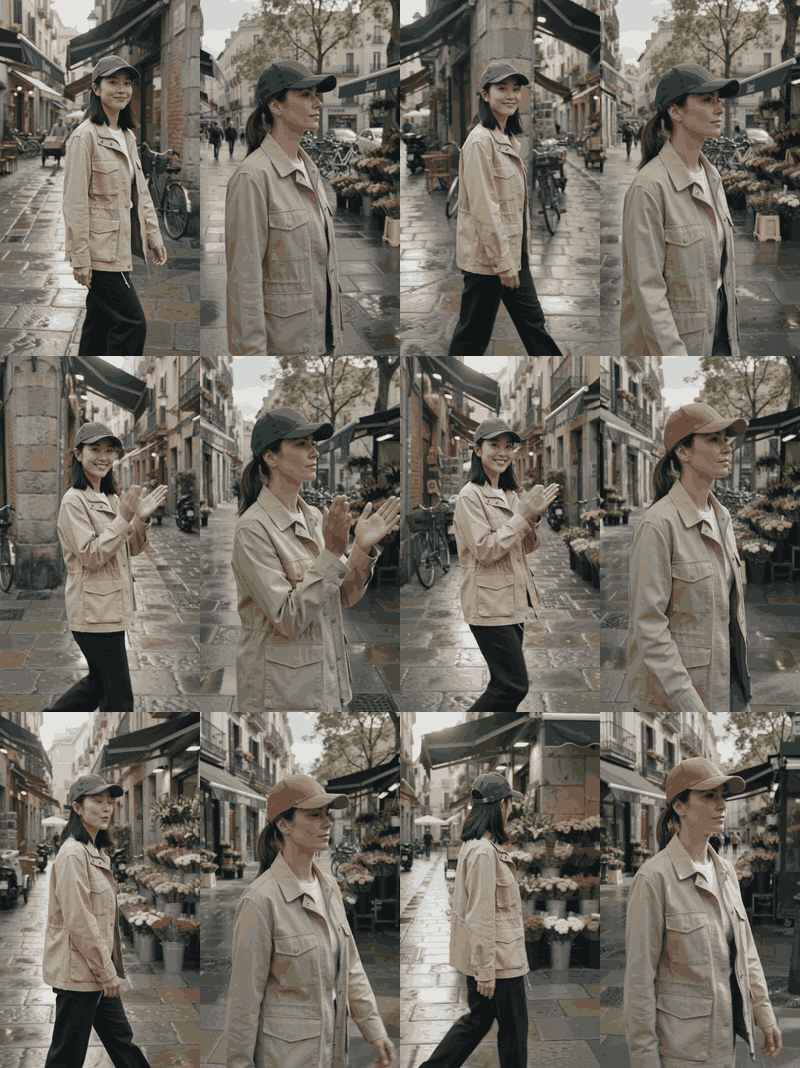
Vergelijking naast elkaar van de beoordeling van de petwissel bij videobewerking
Links: de bronclip. Rechts: de eerste bewerking vangt de klap maar verandert de persoon, dus deze moet worden afgekeurd vanwege identiteitsafwijking.
Beoordeel de exacte klapframes. De pet moet op de beat wisselen, terwijl het gezicht, de handen, het shirt, de straat en het cameragewicht coherent blijven. Wijs een output af die de pet verbetert door stilletjes de persoon of scène te herschrijven.
Stap 3: casus 2, verander de groep in flamingo's
Gebruik een geautoriseerde clip van 5 seconden met 2 of 3 personen die staan of lopen. Dit is een vervangingstest, geen claim van identiteitsbehoud. De nuttige vraag is of de posities van de groep, het tempo, de schaduwen en de camerabeweging de originele blokkering nog steeds overbrengen nadat elke persoon een flamingo is geworden.
plaintext1Transform every person in the uploaded shot into a pink flamingo wearing the same outfit silhouette and colors as the original person. 2 3Keep the original positions, walking pace, body direction, camera movement, composition, pavement, shadows, daylight, and clip duration the same. Preserve the timing of each movement. Do not add people, text, logos, dialogue, or new background objects.
Kies de beschikbare duur, beeldverhouding en resolutie van de livepagina. Voeg geen "maak het cinematisch" of een nieuwe setting toe. Dat zijn afzonderlijke variabelen en zouden de beoordeling moeilijker maken.
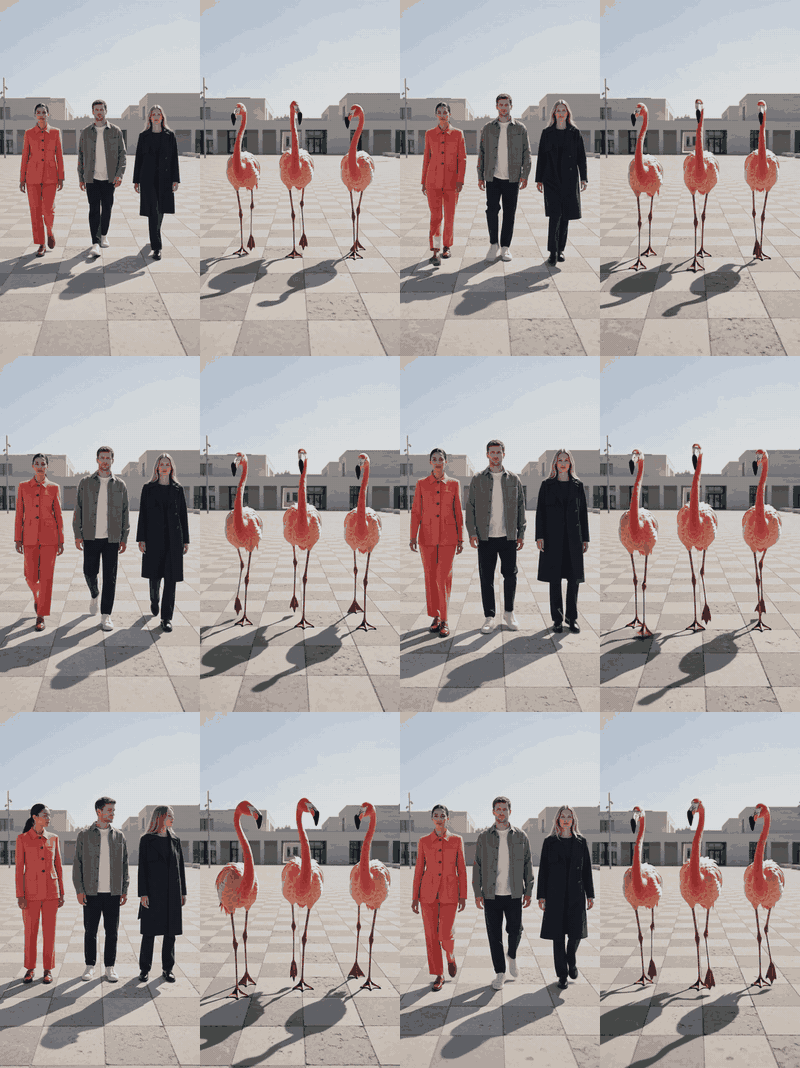
Vergelijking naast elkaar van de beoordeling van mensen-naar-flamingo's bij videobewerking
Links: de originele groep. Rechts: de flamingobewerking behoudt de drie posities, het looptempo, de schaduwen en de camerabeweging.
Stap 4: casus 3, voeg een reactieve glazen bol toe
Gebruik een clip van 5 seconden waarin een open handpalm zijwaarts door daglicht beweegt. Vermijd een close-up met snelle kruisende vingers. Het effect moet reageren op een beweging die al bestaat, zodat de beoordeling zich kan richten op de timing van het contact, de richting van de reflectie en of de persoon zonder toestemming is veranderd.
plaintext1Add one small clear glass orb hovering 10 centimeters above the open palm. The orb should gently follow the hand, reflect the checkerboard pavement and daylight, and make a subtle ripple of light when the hand closes. 2 3Keep everything else the same: the same hand, skin tone, clothing, arm motion, background, camera framing, camera movement, daylight direction, and clip duration. Do not alter the person. No text, no dialogue, no extra objects, and no extra sound effects.
Kies de beschikbare duur, beeldverhouding en resolutie van de livepagina. Houd de prompt beperkt. Google documenteert bewerking van geüploade video's als een manier om wijzigingen in natuurlijke taal toe te passen terwijl de bronvideo als context wordt gebruikt. Dit maakt dit een nuttige test van timing en scènebewuste reflecties in plaats van een oefening in achtergrondvervanging (Google Gemini API-documentatie).
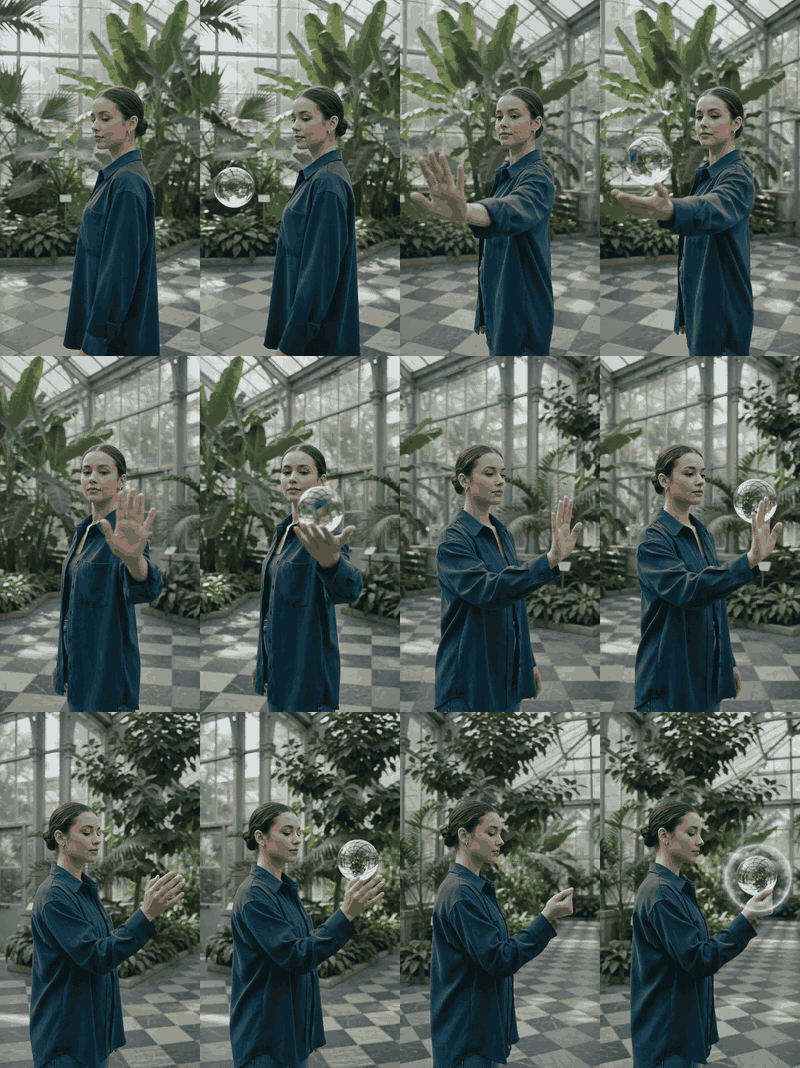
Vergelijking naast elkaar van de beoordeling van de reactieve glazen bol bij videobewerking
Links: de originele handbeweging. Rechts: de glazen bol volgt de hand terwijl de persoon, de serre en de camera stabiel blijven.
Stap 5: accepteer, wijs af of probeer opnieuw
Keur een clip niet goed op basis van één aantrekkelijk frame. Maak een contactblad van het origineel en de output en doorloop deze controles met dezelfde persoon die de creatieve beslissing neemt. Dit is het punt waarop een ogenschijnlijk geslaagd effect kan falen voor de daadwerkelijke marketingbrief.
| Controle | Accepteren wanneer | Opnieuw proberen wanneer |
|---|---|---|
| Bewerkingstiming | Het gevraagde object of effect verschijnt bij de geïnstrueerde gebeurtenis | Het verschijnt te vroeg, te laat of blijft statisch |
| Behoud | Gezicht, handen, kleding, licht en kadrering blijven geloofwaardig | Een niet-gerelateerd element wijzigt |
| Scène-integriteit | Er verschijnt geen tekst, logo, dialoog of object dat niet is gevraagd | Er verschijnt een nieuw merkrisico-element |
| Audio | De brontrack blijft bruikbaar na beoordeling | Veranderingen in spraak, sync of geluid zijn van belang |
| Veiligheid en geschiktheid | Het resultaat is goedgekeurd voor het beoogde kanaal | Een beleidsblokkade of zichtbaar artefact vereist een beperktere herkansing |
Als een run faalt, maak de volgende poging kleiner. Stapel geen nieuwe achtergrond, nieuwe outfit en nieuwe actie op een zwakke eerste poging. Bewaar de goedgekeurde bron en dien één gecorrigeerd wijzigingsverzoek in. Overweeg voor een campagne met essentieel geluid om de onbewerkte brontrack te behouden en de visuele bewerking pas te gebruiken nadat een editor de sync heeft bevestigd.
Variaties voor echte marketingclips
Dezelfde discipline van één variabele werkt goed voor korte marketingbeelden. Het werkt het beste wanneer de originele actie het verhaal al draagt en de wijziging voor een kijker gemakkelijk te herkennen is. Het doel is om bruikbare varianten te creëren, niet om elke versie uitgebreider te maken.
Productvarianttests. Houd een uitpakactie en camerapositie vast en wijzig daarna alleen een productkleur of verpakkingsbehandeling. Zo kan een marketingteam creatieve richtingen vergelijken zonder de handbeweging opnieuw te filmen. Behandel gedrukte labeltekst als een normale postproductietaak, niet als iets dat gegenereerde video moet opleveren.
Scène-opschoning. Verwijder één afleidend achtergrondobject terwijl je de persoon en de belichting behoudt. Een rommelig tafelblad, een losse tas of een enkel bord is een betere eerste poging dan een volledige locatiewissel. Google Workspace beschrijft verwante zakelijke toepassingen, waaronder het opschonen van de achtergrond en het wijzigen van het uiterlijk van een product in een video (Google Workspace-blog, mei 2026).
Evenementlokalisatie. Gebruik een geverifieerde visuele vervanging, zoals één goedgekeurde rekwisietkleur, terwijl je de evenementbeelden en het tempo intact houdt. Voeg on-screen tekst, juridische taal en voice-over later toe met conventionele bewerkingshulpmiddelen. Genereerde video kan waardevol zijn voor de visuele variant, maar mag niet de enige bron worden van vereiste tekst of compliance-boodschappen.
Als je geen beeldmateriaal hebt maar wel een goedgekeurde productheroafbeelding, start dan met een afzonderlijke image-to-video-workflow. Die maakt geen deel uit van de bovenstaande bewerkingsworkflow voor geüploade video's. Behandel de eerste output als een nieuwe bronclip en pas daarna dezelfde audit- en behoudregels toe voordat je om een revisie vraagt.
Outputlimieten en productieplanning
Bewerkingskosten zijn niet de kosten van een voltooide campagneclip. De live modelpagina geeft de huidige runprijs, maar herkansingen, beoordelingstijd, bronlicenties en finale afwerking horen nog steeds bij het productieplan.
td {white-space:nowrap;border:0.5pt solid #dee0e3;font-size:10pt;font-style:normal;font-weight:normal;vertical-align:middle;word-break:normal;word-wrap:normal;}
| Planningsvraag | Beslisregel |
|---|---|
| Is de bron bewerkbaar? | Bevestig dat het een geautoriseerde clip is van 10 seconden of korter in één opname. |
| Wat kan er wijzigen? | Benoem één object, eigenschap of effect. |
| Wat moet blijven? | Specificeer de verwachtingen voor identiteit, actietiming, camera, belichting, achtergrond, tekst en audio. |
| Is de route beschikbaar? | Controleer vlak vóór de run de live Video Edit-pagina, het account en de regionale beschikbaarheid. |
De huidige documentatie van Google beschrijft native multimodale videogeneratie en -bewerking, inclusief stateful bewerkingen en bewerking van geüploade video's met regionale beschikbaarheid. De implementatierichtlijn beperkt geüploade video's die worden gebruikt voor bewerking of uitbreiding tot 10 seconden of korter; controleer de live modelpagina voor de huidige input-, output-, resolutie- en regiobeperkingen vóór productie.
Voor een werkend team is een korte bronclip een voordeel. Het houdt één actie leesbaar, maakt framecontroles praktisch en beperkt de hoeveelheid materiaal die het model moet behouden. Start met de laagst acceptabele livepagina-optie om de creatieve zet te valideren. Voer pas opnieuw uit op de beschikbare eindresolutie nadat de timing- en behoudcontrole is geslaagd. Die volgorde maakt Gemini Omni 1.1 Flash-videobewerking gemakkelijker te budgetteren en gemakkelijker uit te leggen aan een goedkeurder.
Juridische en veiligheidsnotities
Gebruik beeldmateriaal dat je zelf hebt gemaakt, dat je team bezit, of dat onder duidelijke schriftelijke toestemming valt. Een korte clip is nog steeds de gelijkenis van een persoon, een locatie, een productpresentatie en soms een arbeids- of reclameclaim. Bevestig rechten vóór de upload, niet nadat een veelbelovende bewerking verschijnt.
Vermijd demonstraties die echte personen imiteren, beroemdheden of politieke figuren tonen, minderjarigen gebruiken, of gevoelige professionele identiteiten in een visuele grap veranderen. Maak geen misleidende nieuwsachtige beelden. Als de output een advertentie of een openbaar socialmediabericht wordt, pas dan de relevante lokale wetgeving, platformregels en de openbaarmakingsvereisten van het merk toe.
Google zegt dat Omni-outputs SynthID bevatten. Dat herkomstsignaal vervangt geen auteursrechtelijke klaring, toestemming, merkenonderzoek of reclamecompliance. Behandel het als één onderdeel van het geheel van verantwoord gebruik, naast een bronlogboek en een goedkeuringsregistratie van de editor.
FAQ
Kan het een bestaande video bewerken?
Ja. Je kunt een korte video als referentie-input aanleveren en een element beschrijven dat je wilt vervangen of toevoegen. Begin met een bron van 5 seconden in één opname en één gevraagde wijziging, zodat je kunt zien of de originele actie en kadrering zijn behouden.
Hoe voorkom ik dat het alles verandert?
Schrijf eerst Change only en vermeld daarna wat moet blijven. Benoem de persoon, bewegingstiming, camerabeeld, belichting, achtergrond, duur, tekst en audioverwachtingen. Wijzig één object, look of effect per poging.
Kan het de originele stem en dialoog behouden?
Behandel behoud van stem of lip-sync niet als gegarandeerd. Test een kort sample. Als het originele geluid belangrijk is, bewaar de brontrack dan apart en keur de gecombineerde bewerking goed in een normale tijdlijn vóór publicatie.
Welke videolengte moet ik gebruiken?
Gebruik een korte bron in één opname van 10 seconden of korter voor de eerste Gemini Omni 1.1 Flash-videobewerkingstest. Controleer de huidige officiële input-, output- en regiobeperkingen vóór een definitieve run, omdat deze instellingen kunnen wijzigen.
Wat kost Gemini Omni 1.1 Flash Video Edit op Atlas Cloud?
Controleer de live modelpagina voor het huidige tarief, omdat accountvoorwaarden en beschikbaarheid kunnen wijzigen. Budgetteer afzonderlijke herkansingen en menselijke beoordeling.





