A six-panel storyboard can look convincing until the paper airplane moves. Does the stripe stay on the same wing? Does the plane travel toward the notebook, or just hover while the camera moves? This GPT Image 2.6 animated storyboard case compares six selected moments from the generated GIF with the complete loop. The key-frame grid and the GIF answer different questions: where the action goes, and whether it flows between those points.
Key takeaways
- Select six distinct moments from one continuous flight to build the storyboard grid.
- Keep the airplane, stripe, desk, notebook, light, and travel direction consistent throughout.
- Watch the GIF for real subject travel, then inspect the six-frame grid for clear action stages.
What Can GPT Image 2.6 Animate in a Storyboard?
OpenAI introduced GPT Image 2.6 on November 4, 2026, and named animated storyboards as a use for its GIF capability (OpenAI, November 2026). In this case, the GIF shows the complete flight while a six-frame grid makes its key moments easy to compare. The visible result, not the prompt alone, determines whether the paper airplane stays coherent.
A contact sheet gives a creative team six moments to approve in one glance. They can check whether the subject stays recognizable, whether the action progresses, and whether the last panel follows from the first five. The GIF answers a narrower question: does the airplane actually move from the left side of the desk to the notebook without breaking its shape? A full video can carry a longer action, cuts, timing, and sound. Asking one output to serve all three questions makes review harder.
| Output | Question it answers | Multi-shot story and sound | Use it when |
|---|---|---|---|
| Six-frame motion grid | Are the stages of the flight distinct and coherent? | Six selected stills, no playback | The team needs to inspect the trajectory |
| GIF | Does the action flow between those stages? | Short continuous motion, silent | The team needs a movement preview |
| Full video | Do action, cuts, pacing, and audio work together? | Can carry edited shots and sound | The timing and soundtrack matter |
The motion prompt specifies six action beats, how the airplane travels between them, and what stays fixed. A stable camera makes the resulting frame grid useful: each selected still shows a real change in the airplane’s position rather than a new composition hiding a continuity error.
See the Flight as Six Frames and a GIF
Give the action one continuous path
The motion brief keeps the camera fixed, the notebook on the right, and the airplane on a left-to-right path. This makes each stage visible without a cut hiding the change. The plane begins on the desk, lifts, travels through open space, approaches the notebook, and lands. The following prompt is copyable for a six-second motion test:
plaintext1Create a smooth, realistic six-second video in one continuous shot. A small orange folded-paper airplane with exactly one navy-blue stripe on its left wing rests on the left side of a pale oak desk. A closed cobalt-blue notebook sits on the right. Warm morning sunlight enters from the left. Use a fixed, slightly elevated three-quarter camera view that keeps the entire airplane and notebook visible throughout. 2 30–1 second: a gentle breeze makes the paper edges flutter and lifts the airplane's nose. 41–2 seconds: the airplane rises completely off the desk. 52–3 seconds: it flies steadily to the right, gaining a little height. 63–4 seconds: it glides across the middle of the desk; its shadow moves naturally beneath it. 74–5 seconds: it makes one gentle bank toward the notebook while continuing forward. 85–6 seconds: it descends, lands softly on the closed notebook, and settles. 9 10Make the flight continuous and physically plausible, with clear movement throughout and no pauses between actions. Preserve the airplane's folded shape and single navy stripe in every moment. Keep the desk, notebook, lighting, and background consistent. No cuts, camera movement, zoom, slow motion, duplicated airplane, hands, text, logos, or sudden jumps.
Inspect six distinct moments
The grid below selects six of the nine GIF frames, read left to right and then top to bottom. The first frame has the plane resting near the left edge of the desk. In the second, its nose is raised. The third shows clear air between the plane and the desk. It then glides toward the notebook, passes over its edge, and settles on the cover. The consistent desk and window shadows make the change in the airplane's position easy to judge.
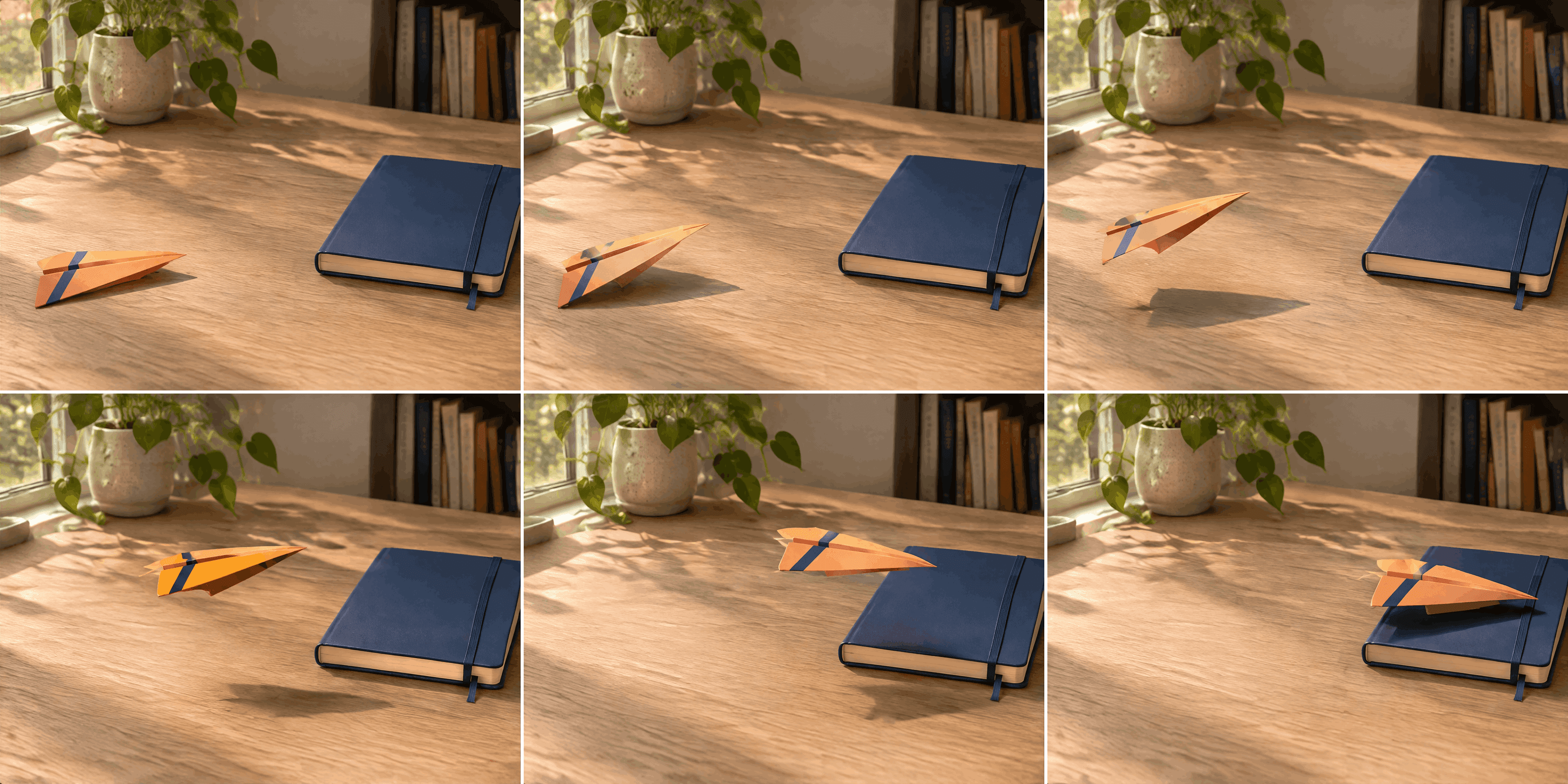
Six key moments from one continuous flight: rest, lift, takeoff, glide, approach, and landing. Each panel is a different moment, not a separately redrawn shot.
The generated GIF shows what the grid cannot: the airplane travels across the desk and lands on the notebook without a cut. Its shadow moves with it. The stripe remains visible, although its apparent width changes as the paper plane tilts. The single fixed camera keeps the notebook in the same place throughout.
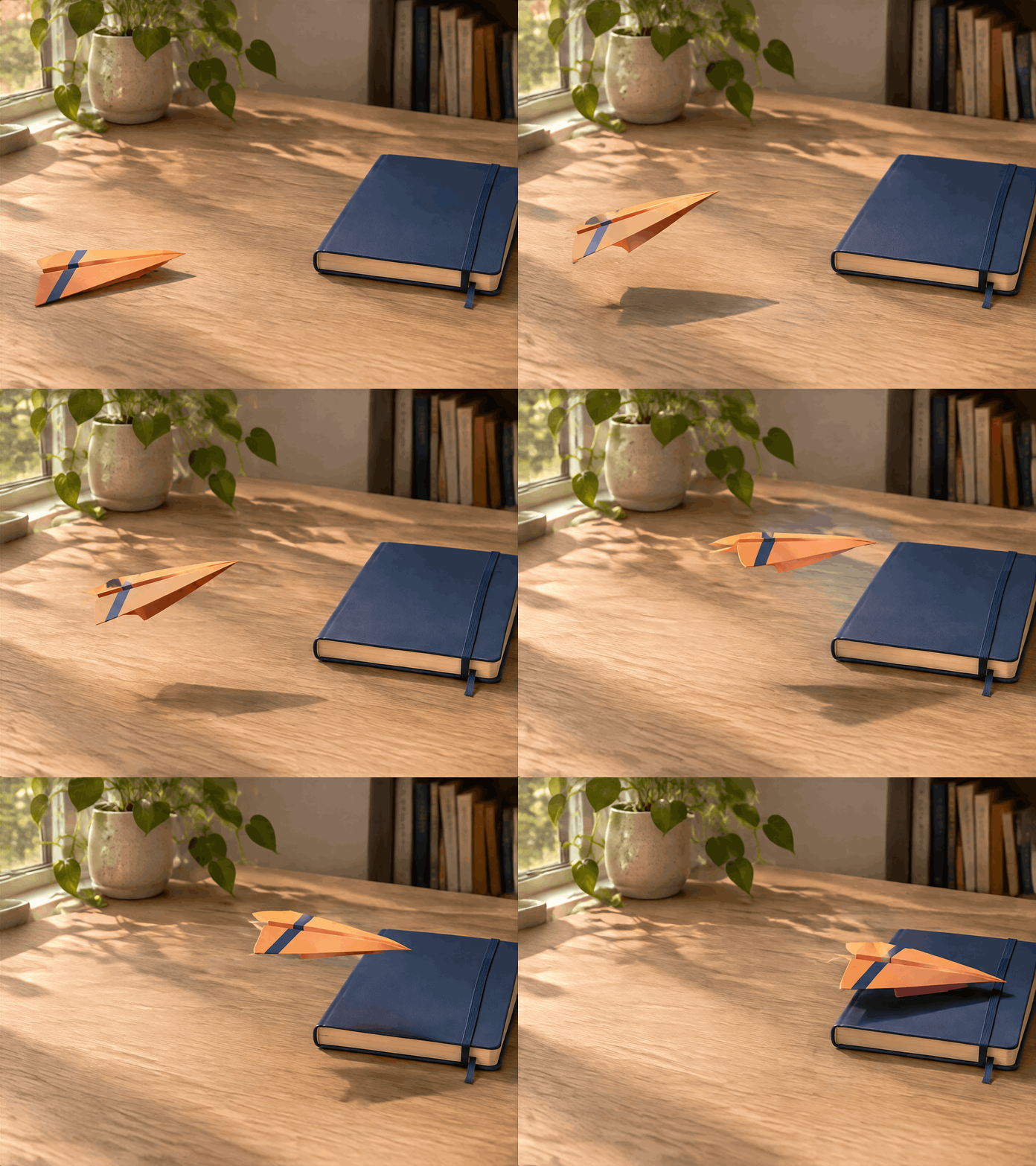
Generated 1.8-second paper-airplane GIF. Watch the plane's position relative to the desk and notebook, then compare it with the six selected moments above.
The generation screen below records the prompt and GIF settings: nine frames at 200 milliseconds each. Although the brief requests six seconds of action, these settings yield a 1.8-second loop. The visible result compresses the planned beats into that shorter duration.
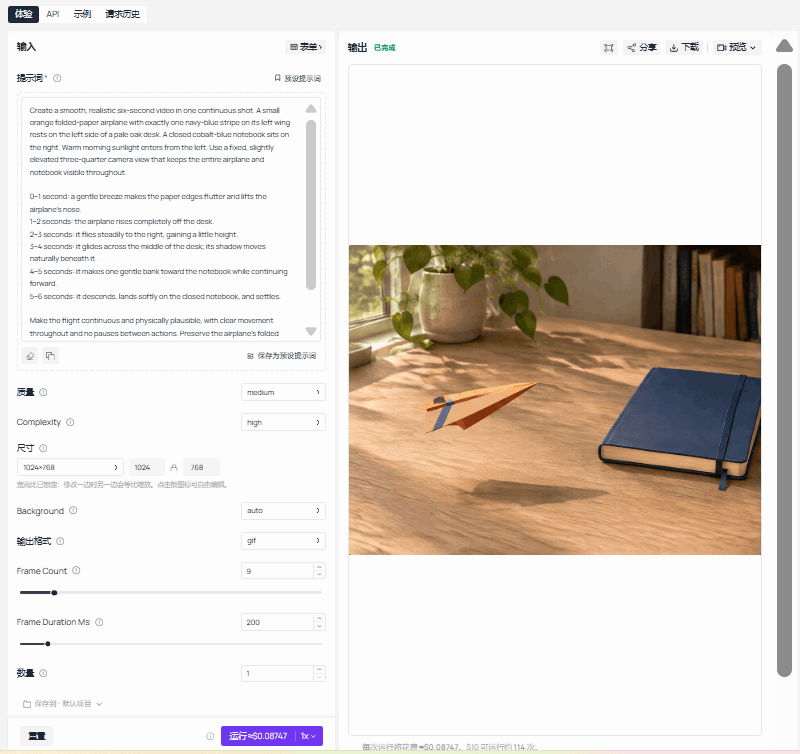
Generation process for the paper-airplane example: the prompt is entered on the left, GIF output is selected, and the generated preview appears on the right.
The generated loop condenses the requested six-second action into nine frames. The six-frame grid still separates rest, lift, flight, approach, and landing; the GIF lets readers judge whether the quick transitions between those poses feel continuous.
Three GPT Image 2.6 storyboard GIF cases
These three examples show short animation loops made with GPT Image 2.6. For each case, the grid is a review sheet assembled from frames in the published animation. It is not a separate storyboard image supplied as model input. That distinction matters when comparing them with the paper-airplane grid above.
Case 1: A falling chart changes a character's expression. In OpenAI's GPT Image 2.6 launch example, the prompt specifies six sequential poses in a 3-by-2 layout: anticipation, recognition, shock, tears, and recovery. The official animation holds the desk, monitor, outfit, and camera position while the face and hands change. Compare the six selected moments with the complete loop to see whether the emotional sequence reads without a scene cut. OpenAI presents this as a GPT Image 2.6 example.

Six-frame review grid sampled from the official launch animation.

The published motion result from the same OpenAI example.
Case 2: A lantern rises and returns. OpenAI's image-generation guide labels this GIF as a GPT Image 2.6 result with nine frames at 200 milliseconds each. A monkey lifts a lantern, blinks, and lowers it in a snowy scene. The grid makes it easy to check whether the lantern handle, coat, and cabin remain recognizable as the light moves. The final pose approaches the first, which is the detail to inspect at the loop join.
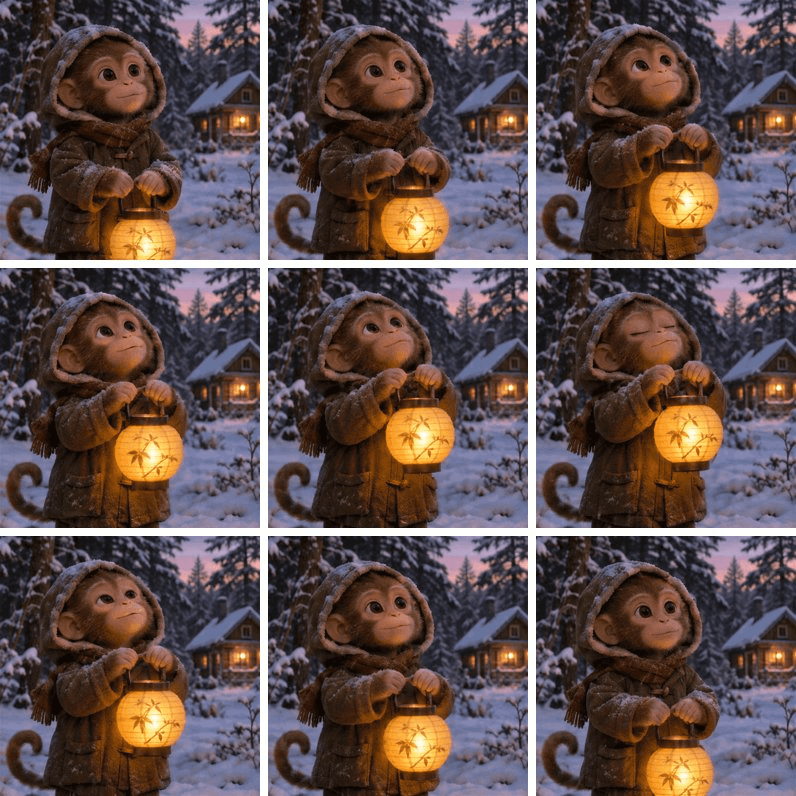
Nine-frame review grid extracted from OpenAI's original GIF.

Original GPT Image 2.6 GIF published in the OpenAI guide.
Case 3: A character nods and closes her eyes. A creator's public test attributes this GIF to GPT Image 2.6 and shares the motion prompt. The requested sequence is a slow upward nod, a quicker downward nod, then a return to the starting pose as the eyes close. The nine-frame grid shows the head and eyelid changes; the GIF shows whether the bow and return feel continuous. The model attribution here is the creator's report, rather than an independently visible model setting.
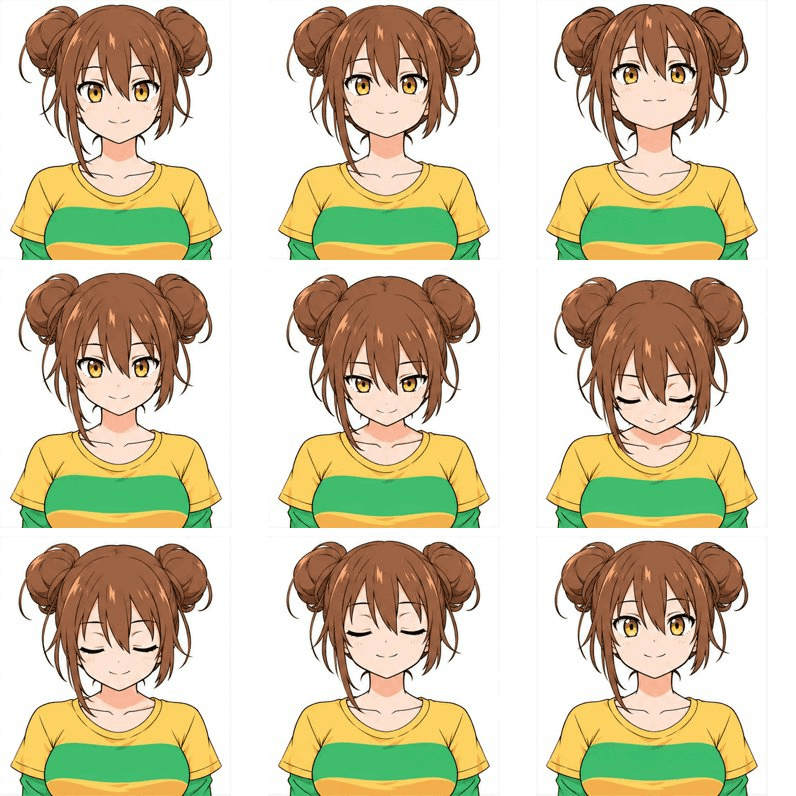
Nine-frame review grid extracted from the creator's posted GIF.
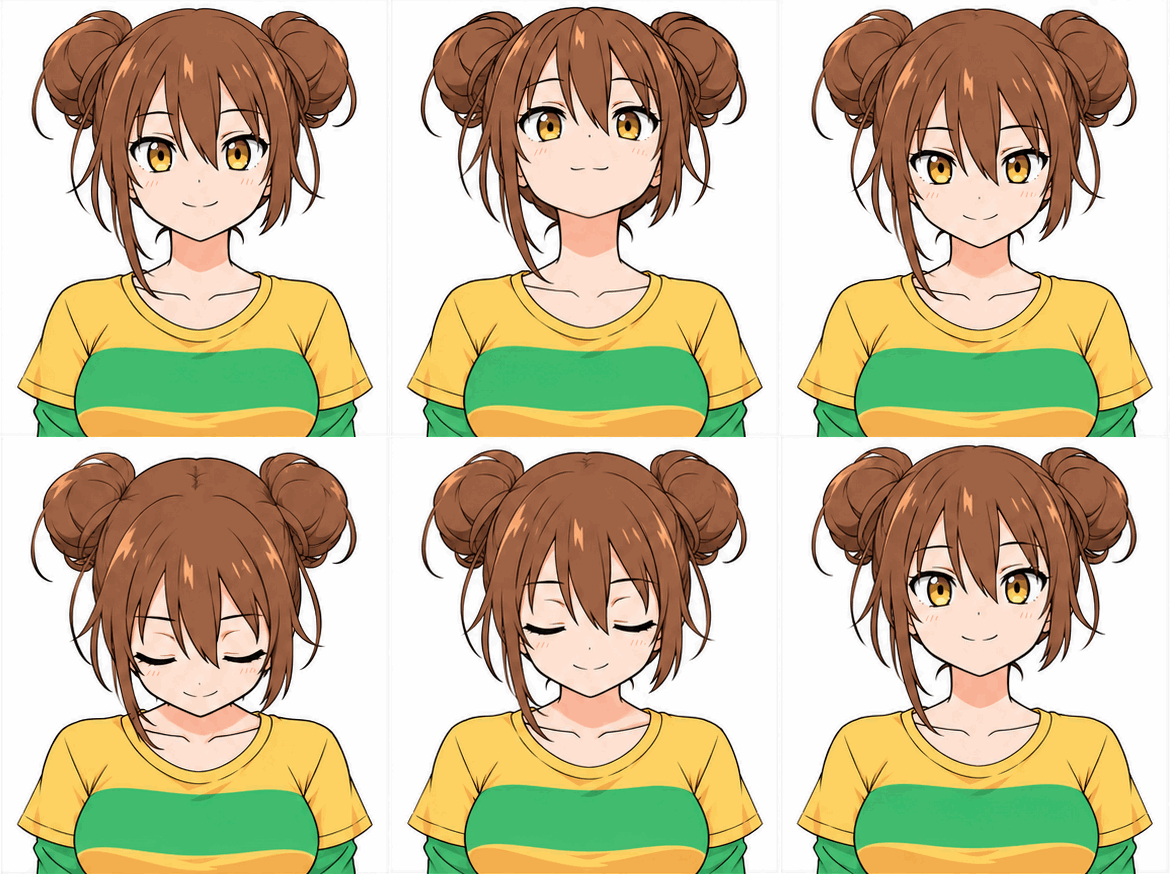
The creator's original GIF plays the same nine poses as a loop.
What the Six-Frame Check Reveals
Check the action against fixed landmarks
The six airplane stills are selected from one GIF, so they show what the generation actually produced. Read them as a route: the plane rests at the left edge, lifts clear of the desk, crosses the open surface, reaches the notebook, and settles on its cover. The notebook remains on the right. If only the camera had shifted, the distance between plane and notebook would not close in that order. The moving shadow gives another point of comparison as the plane rises and travels.
Continuity also means tracking details that should not move or change identity. Here, check the folded shape and single blue stripe on the plane, then compare the notebook's cover and position from panel to panel. The three published cases above call for different checks: the office worker's face changes while the desk and monitor stay put; the monkey moves the lantern while its coat and cabin remain recognizable; the illustrated character changes her head angle and eyelids. OpenAI's office-worker example makes this approach explicit in its prompt by naming both the changing expression and the fixed camera, outfit, and set.
Judge the time between frames separately
A grid cannot tell you whether the journey feels smooth at playback speed. The paper-airplane GIF has nine frames displayed for 200 milliseconds each, making a 1.8-second loop. Its written brief asks for six seconds and assigns a full second to each action beat. The plane reaches the notebook, but the output does not follow that requested pace. A longer delay on the same nine frames would hold each pose for more time; it would not create the missing positions between them. Adobe's frame-by-frame animation guide similarly treats playback speed and the number of distinct drawings as separate parts of perceived motion.
Watch three transitions in the GIF: the moment the nose leaves the desk, the change from flight to approach, and the contact with the notebook. Then watch the replay boundary. The final frame leaves the plane on the notebook, while the first puts it back on the left side of the desk, so the repeating GIF has a visible reset. That works for a short journey preview. A seamless loop needs a return path or a final pose that approaches the opening pose, as in OpenAI's lantern example.
Make the next prompt answer one failed check
A useful revision names the precise problem seen in the output. If the plane appears to jump across the middle, simplify the requested action to lift, steady glide, and landing, with smaller changes in position between frames. If the stripe changes sides, restate which wing carries it and keep that wing visible. If the notebook shifts, specify its place in the frame and keep the camera fixed. OpenAI's image-prompting guidance recommends changing one thing at a time and inspecting the result; that also makes each new GIF easier to evaluate.
For this example, the decision is specific. The six-frame sheet shows a readable path and stable landmarks, and the GIF confirms movement between those points. The output lasts 1.8 seconds and visibly resets after landing. It is useful as a quick motion sketch. A deliverable that must run for six seconds or loop without a jump needs another generation and the same two checks again: inspect representative frames, then play the whole result.
Frequently Asked Questions
Why show both the six-frame grid and the GIF?
The grid makes six distinct stages easy to compare at once. The GIF shows the movement between them. In this case, the desk and notebook provide fixed references for checking whether the airplane truly crosses the scene and lands.
Can GPT Image 2.6 make a six-second GIF from a six-second prompt?
The prompt can request six seconds, but the saved GIF's duration depends on its frame count and the delay for each frame. This example has nine frames at 200 milliseconds each, so it plays for 1.8 seconds. Check the output settings and the downloaded result before treating a requested runtime as the actual runtime.
Can I reuse the GIF as a finished social video?
You can use this short silent loop where the destination accepts GIFs and the airplane’s movement stays legible at its display size. If the post needs sound, a longer arc, a specific video aspect ratio, captions, or platform video controls, make a dedicated video export. Check the platform's current format and file-size rules before publishing.
How do I make a GIF loop without a visible jump?
Give the subject a clear opening pose and return it to that pose before the GIF ends. Keep the camera and background stable so the first frame can follow the last. The paper-airplane GIF ends on the notebook and restarts at the left edge of the desk, so its reset is visible. For a seamless loop, plan an action that returns to its opening position, then replay the GIF to inspect the join.
Can I request GIF output from an image-edit operation?
OpenAI lists GIF as an output format for image generations, not image edits. Start from the generation route, choose GIF as the output format, and put the subject, movement, and loop constraints in the prompt. OpenAI's GPT Image 2.6 parameter guide lists the available settings.


