You have used this before, whatever it was called. You brushed over a bin in a holiday photo and watched it turn into grass. Adobe calls that Generative Fill. Your phone calls it a magic eraser. Engineers call it inpainting.
Same job, three signs over the door: mark part of a picture, let a model rebuild only that part from what surrounds it. The best AI inpainting tools in 2026 split into two camps that the naming hides.
In one camp you mark the area yourself, with a brush, a lasso, a rectangle or a mask file. In the other you type a sentence and the model decides which pixels you meant. Both are sold as inpainting. They break in completely different places, and the tool pages rarely tell you which one you are buying.
So we read what all ten companies publish about their own products during September 2026, and we pulled the published parameter list for 36 cloud image editing endpoints to see how many will even accept a mask. Three will. That number is the spine of this list.
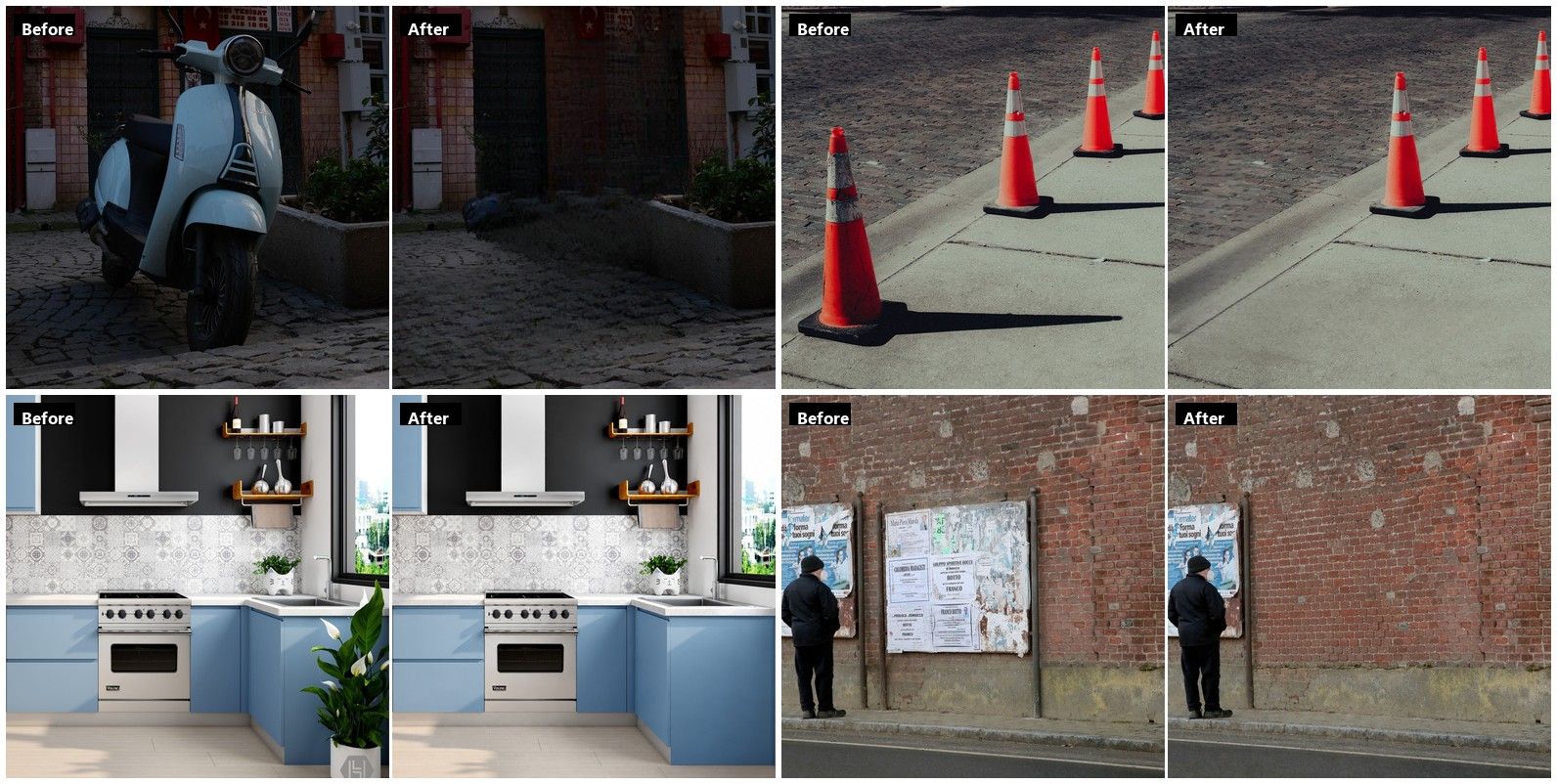
The top pair ran in a browser tab with a lasso drawn by hand, no account and no watermark. The bottom pair ran on a cloud endpoint with a mask file supplied, at 1536 by 1024. Nothing outside the masked area moved in either.
Key Takeaways
- Atlas Cloud's Image Edit workspace lets you choose which model repaints the area, and the free browser eraser lets you draw the area yourself.
- Two different products are sold under one word. One asks you to mark the region. The other reads your sentence and picks the region for you.
- Of 36 cloud image editing endpoints we checked, 3 accept a mask file. The rest rebuild the frame froman instruction.
- Clipdrop gives you 20 free cleanups a day and caps the export at 720 pixels, which is the tightest published free ceiling on this list.
- Midjourney's Vary Region only works on images Midjourney generated, so a photo from your phone cannot go in.
AI Inpainting Tools Comparison Table
Seven of the ten give you something to mark the area with. One says outright that there is nothing to mark. The remaining two describe region editing on their marketing pages without publishing any control that draws a region, which is a gap worth knowing about before you commit a workflow to them.
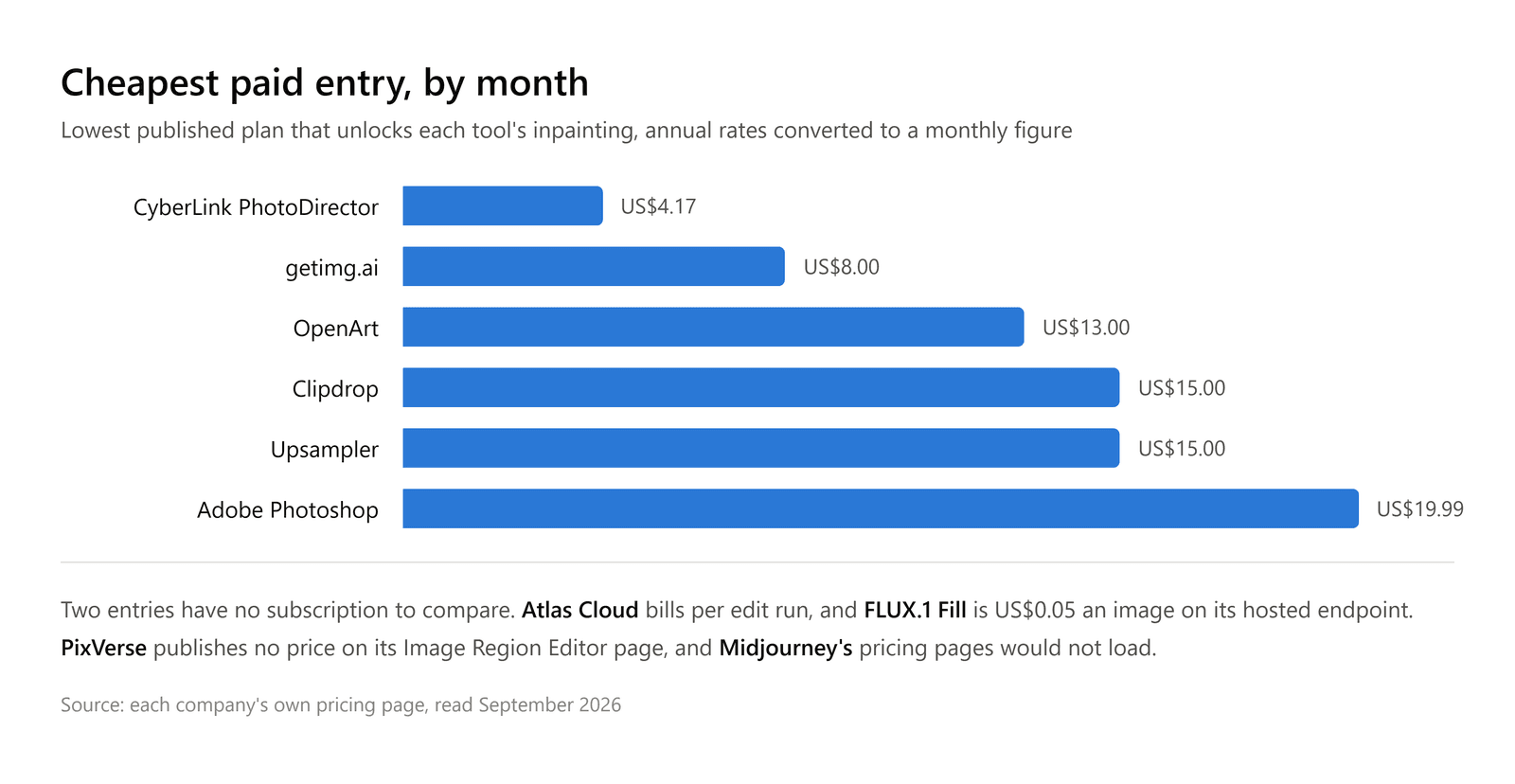
Paid entry prices run from US$4.17 a month at CyberLink, billed as US$49.99 for the year, up to US$19.99 a month for the cheapest Adobe plan that includes Photoshop on the desktop. That is nearly a fivefold spread. Free paths are thinner than the category's reputation suggests: OpenArt and getimg.ai publish no free plan on their pricing pages, Upsampler's no-fee plan carries no credits to spend, and Midjourney's own pages would not load for us at all.
| Tool | Best for | Free tier | Entry paid plan | How you mark the region | Models you can swap |
|---|---|---|---|---|---|
| Atlas Cloud | Choosing the model that repaints the area | Browser object eraser, no account, no daily cap | Billed per edit, no monthly seat | Brush or lasso in the browser tool, mask file or written instruction in the cloud | 22 in the Image Edit picker |
| Adobe Photoshop | Selection based fills inside a full editor | 14 day trial, free Adobe account gets a monthly credit allocation | US$19.99 a month, Photography plan | Any Photoshop selection, including the Selection Brush | 7 named in the picker |
| Clipdrop Cleanup | Wiping one object out of a snapshot | 20 cleanups per 24 hours, export capped at 720 pixels | US$15 a month, Pro | Brush over the object | 1, not named |
| FLUX.1 Fill | Running inpainting on hardware you control | Open weights under a non-commercial licence | US$0.05 an image on the hosted pro endpoint | A mask image you supply | 1, it is the model |
| PixVerse | Region edits beside video work | Not published on the tool page | 15 credits a generate, plans priced elsewhere | Numbered boxes you drag, one prompt each | Wan Image Pro, named in the panel |
| Midjourney Vary Region | Fixing an image Midjourney made | Not stated in its documentation | Not published on any page we could read | Freehand or rectangular selection | 1, the tool runs V6.1 |
| Upsampler | Paying per edit with no subscription | Starter has no fee and no included credits | US$15 a month, Pro | Not published on the pricing page | Choice offered, count not published |
| OpenArt | Inpainting beside a large model catalogue | No free plan on the pricing page | US$13 a seat a month, Starter billed annually | Not published on the pricing page | 100+ across image, video and audio |
| CyberLink PhotoDirector | Desktop editing with layers and masks | PhotoDirector 365 Essential, free with limited features | US$49.99 a year, PhotoDirector 365 | Rough line, circle or square around the object | 1, not named |
| getimg.ai | Describing the change with nothing to draw | No free plan on the pricing page | US$8 a month billed yearly, Entry | Nothing to mark, the model reads your instruction | 11 image models on Entry |
Reading our own row honestly: the browser eraser is the part where you draw, and it does one job, which is taking something out. The cloud endpoints are where the model choice lives, and most of them want a sentence rather than a shape. The section on mask precision below explains why that split matters more than any single price in this table.
How We Tested Every AI Inpainting Tool on This List
Nobody filled in a questionnaire. We read each company's own product, pricing and documentation pages during September 2026, and we treated a marketing headline and a help article as two separate claims that have to agree. Where a company's pages disagreed with each other, that disagreement is written up in its section rather than quietly resolved. Two pages would not load for us at all, and we say so rather than borrowing numbers from a review site.
Four criteria decided the ranking:
- Where the boundary comes from. Do you draw it, or does a sentence stand in for it?
- What the free tier actually returns. Resolution, daily count, watermark, and how fast it stops.
- A price you can calculate. Whether a published number turns into a cost per finished edit.
- Published limits. Whether the company writes down what its tool will not do.
The first criterion carried the most weight. The other three describe the deal before anything goes wrong. The boundary describes what you can do after it goes wrong. If you drew the region, a bad result is a mask you can redraw eight pixels wider. If a sentence stood in for the region, your only move is to rewrite the sentence and hope the model reads it differently, and there is no reliable way to aim it at the same twelve hundred pixels twice.
The third criterion produced the widest spread, and it is worth seeing on one axis. The figures below are all converted to a monthly rate, because these companies do not quote on the same clock: CyberLink prices a year, Adobe prices a month on an annual commitment, and getimg.ai and OpenArt print a monthly number that only applies if you pay twelve of them up front.
Disclosure: Atlas Cloud publishes this article and operates the tool ranked first. Nothing here was paid for and no vendor saw a preview. Every competing product is described from figures those companies publish themselves, apart from the App Store ratings, which come from Apple's own listing data.
1. Atlas Cloud: Best AI Inpainting Tool Overall
Drop a photo in, mark what you want gone, and get the area back rebuilt from the pixels around it. Atlas runs that job on two different tracks, and the useful part is that you pick the track instead of inheriting one. On the Atlas Cloud platform the cloud track hands the same photo to a different model when the first attempt disappoints you.
Open Image Edit and the model selector sits above the upload box, with 22 models in it grouped by the company that trained them.
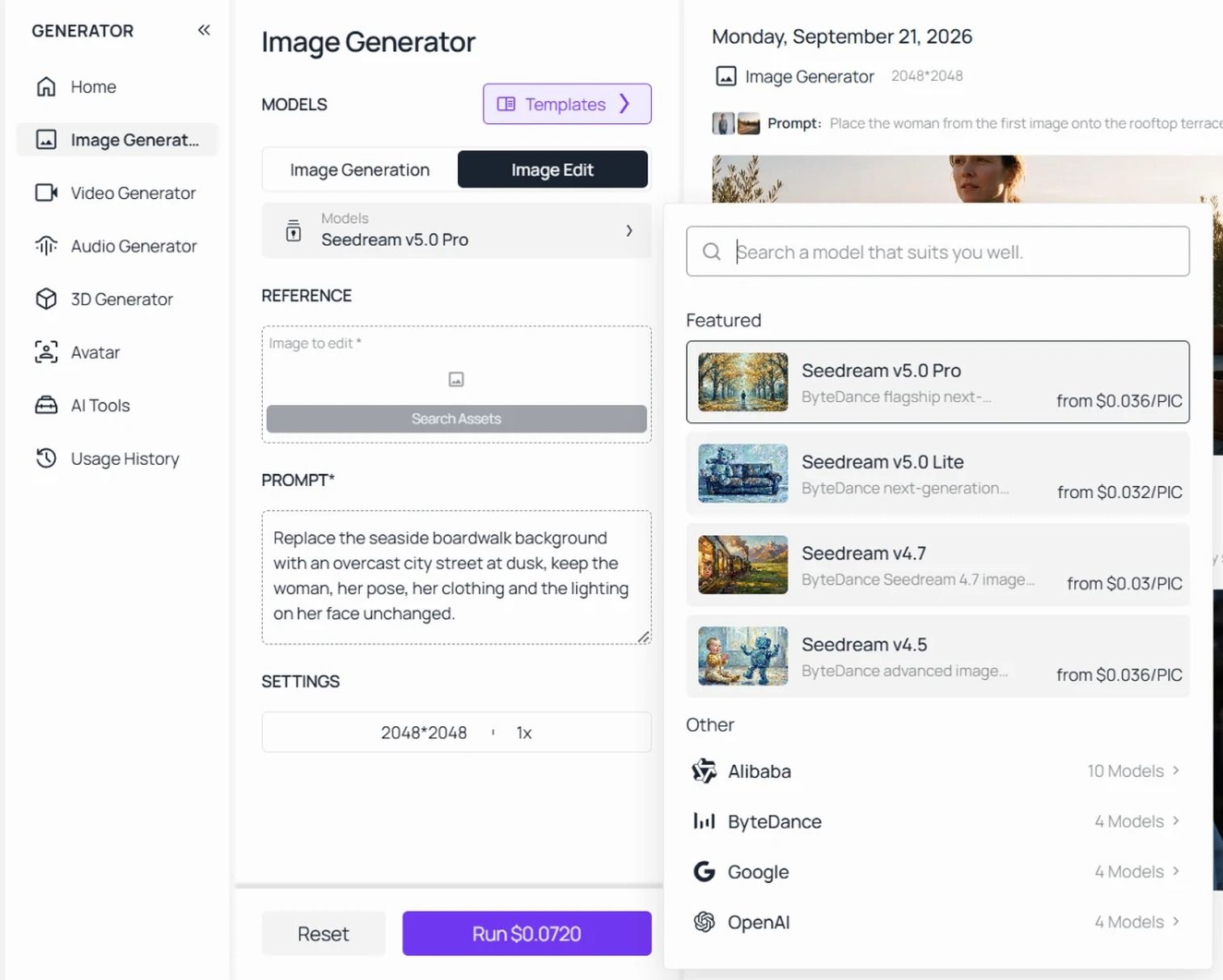
Why it stands out: Three of the image editing endpoints in the catalogue take a mask file directly. The published parameter for the GPT Image 2.5 endpoints describes it plainly: transparent pixels mark the area the model should replace, and the mask has to match the first source image's dimensions. That is inpainting in the strict sense, addressable from the same key that reaches the other thirty-three endpoints, which take a written instruction instead. One account, both behaviours, and the choice sits with you rather than with whoever designed the button.
Best for: Anyone whose edit failed in a way a reworded prompt does not fix. Product shots where the object has to leave without taking the shadow's geometry with it, portraits where a stamp sits across a face, and any job where you already suspect one model handles your kind of texture better than another.
Pricing: The browser object eraser is free, needs no account and has no daily cap, and its output comes back at the same pixel dimensions you put in. Cloud edits are billed per run rather than per seat, so nothing expires at the end of a month you did not use.
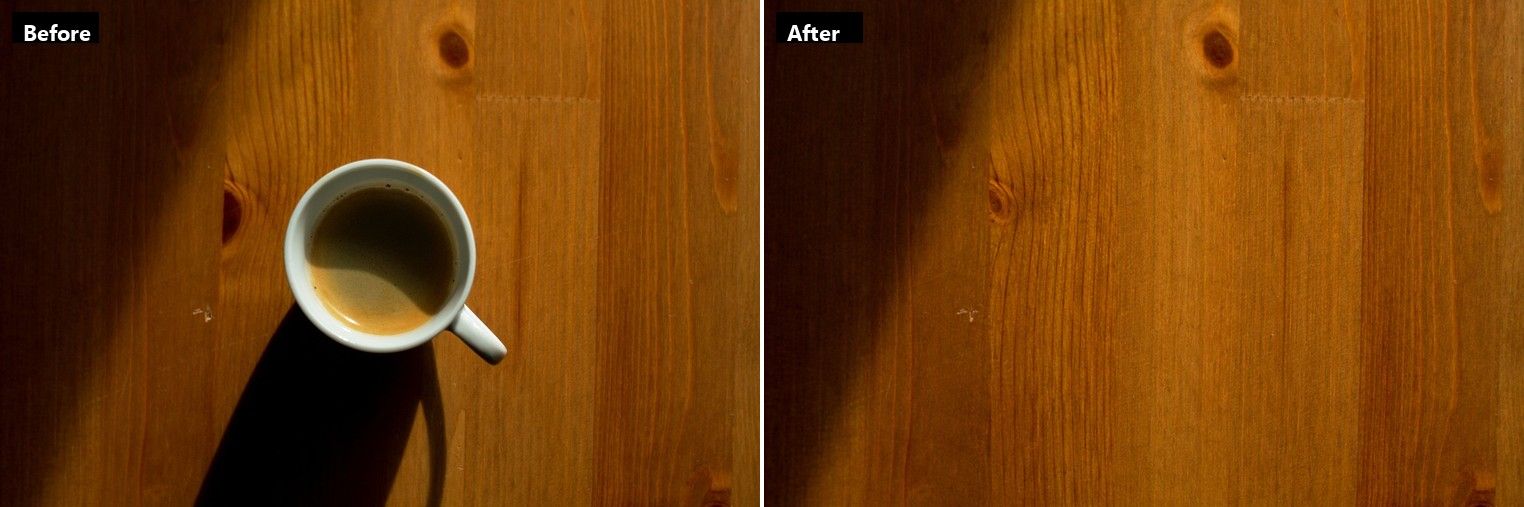
One run on the GPT Image 2.5 Flare edit endpoint at 1536 by 1024, with a mask covering the cup, its handle and the attached shadow.
The cup is gone and the grain lines continue across the gap. The place to look first is where the shadow used to end, because a mask that stopped short of it leaves a flat patch there that no amount of prompt rewriting will fix. That seam is a mask problem, not a model problem, and it is the single most common reason a repair announces itself.
Where it fits: People who want the model to be a choice rather than a default, and who want a masked route and an instruction route without opening two accounts. Not for you if : you want layers, blend modes and a history panel, because this is an upload box and an instruction field.
2. Adobe Photoshop: Best AI Inpainting Tool for Generative Fill
Photoshop is where this operation got its best known name, and its help page is refreshingly literal about the mechanics. You use a selection tool, such as the Selection Brush, to define the area you want to edit, then press Generative Fill. What comes next is the part newer users miss: you can leave the prompt box empty, and Photoshop will fill the selection from the surrounding pixels instead of generating anything new.
The model picker in the Contextual Task Bar names seven options. Adobe's own models are Firefly Fill and Expand, Firefly Image 5 and Firefly Image 1. The partner models are FLUX.2 pro, FLUX Kontext pro, Gemini 3.1 with Nano Banana 2, and Gemini 3 with Nano Banana Pro. Adobe's help page also warns that Gemini 2.5 support is being removed from Photoshop builds from September 2026 onward, which tells you how quickly that list turns over.
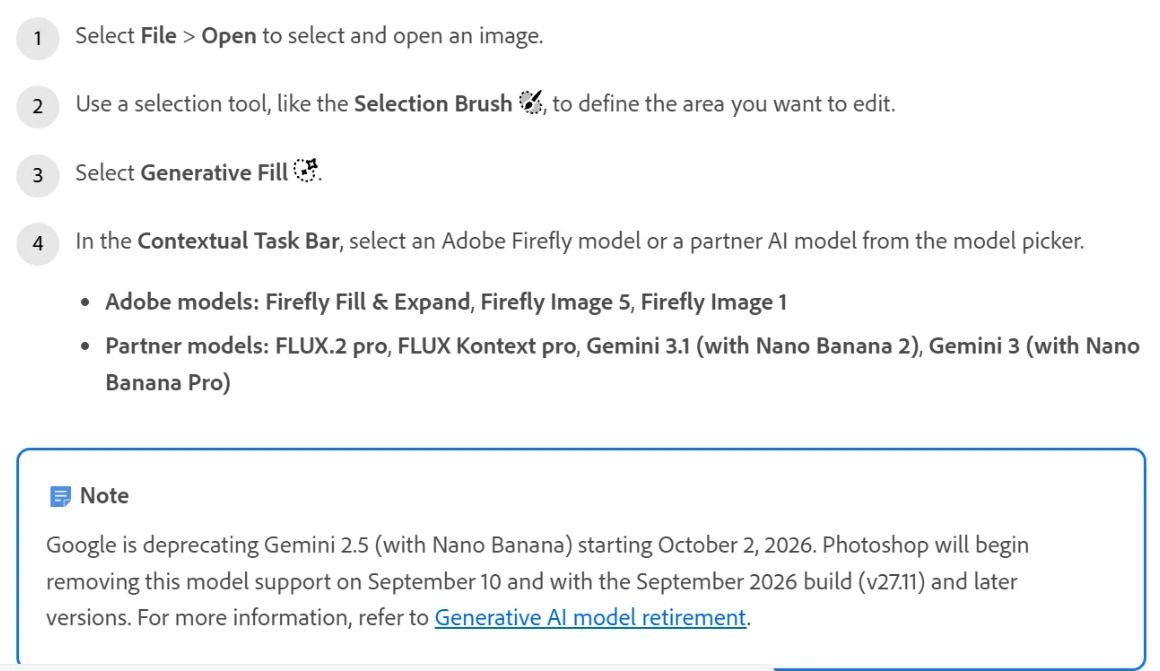
Screenshot from Adobe's own Photoshop help page, September 2026
Where the free tier stops you: There is a 14 day trial, and a free Adobe account carries a monthly generative credit allocation that is granted the first time you use a Firefly feature and expires a month later. Credits do not roll over. Adobe's credit FAQ states that standard features such as Generative Fill with Firefly models use one credit per generation.
What one usable fill actually costs: The cheapest plan that puts Photoshop on your desktop is the Photography plan at US$19.99 a month, which carries 1,000 generative credits. At one credit a generation, that is a thousand fills a month, so roughly two cents each if you use the allowance. The Photoshop single app plan costs US$22.99 a month and carries 25 credits, which is a strange inversion worth checking against your own usage before you subscribe.
What users report: The Adobe Photoshop iPhone app holds 4.5 stars from 93,626 ratings on the US App Store, read in September 2026.
Where it falls short for inpainting: It is a subscription to a large desktop application, and the generative part is metered separately from the application itself. If your whole job is taking one bin out of one photo, you are buying a great deal of software you will not open.
Fits: Retouchers who already work in layers and want the fill to land on its own layer. Not for you if : you want a browser tab and a result in fifteen seconds. Our breakdown of the Photoshop object removal routes prices each path separately.
3. Clipdrop Cleanup: Best Free AI Image Inpainting Tool for Object Removal
Clipdrop Cleanup is the magic eraser idea with nothing else attached. You brush over the thing you dislike and it goes, with no prompt box and nothing to describe. Its own instructions carry one line worth copying onto a sticky note: be sure that the unwanted elements are covered.
That sounds obvious until you have watched a half covered lamp post come back as a half lamp post. The brush is the entire interface, so the brush is the entire skill.
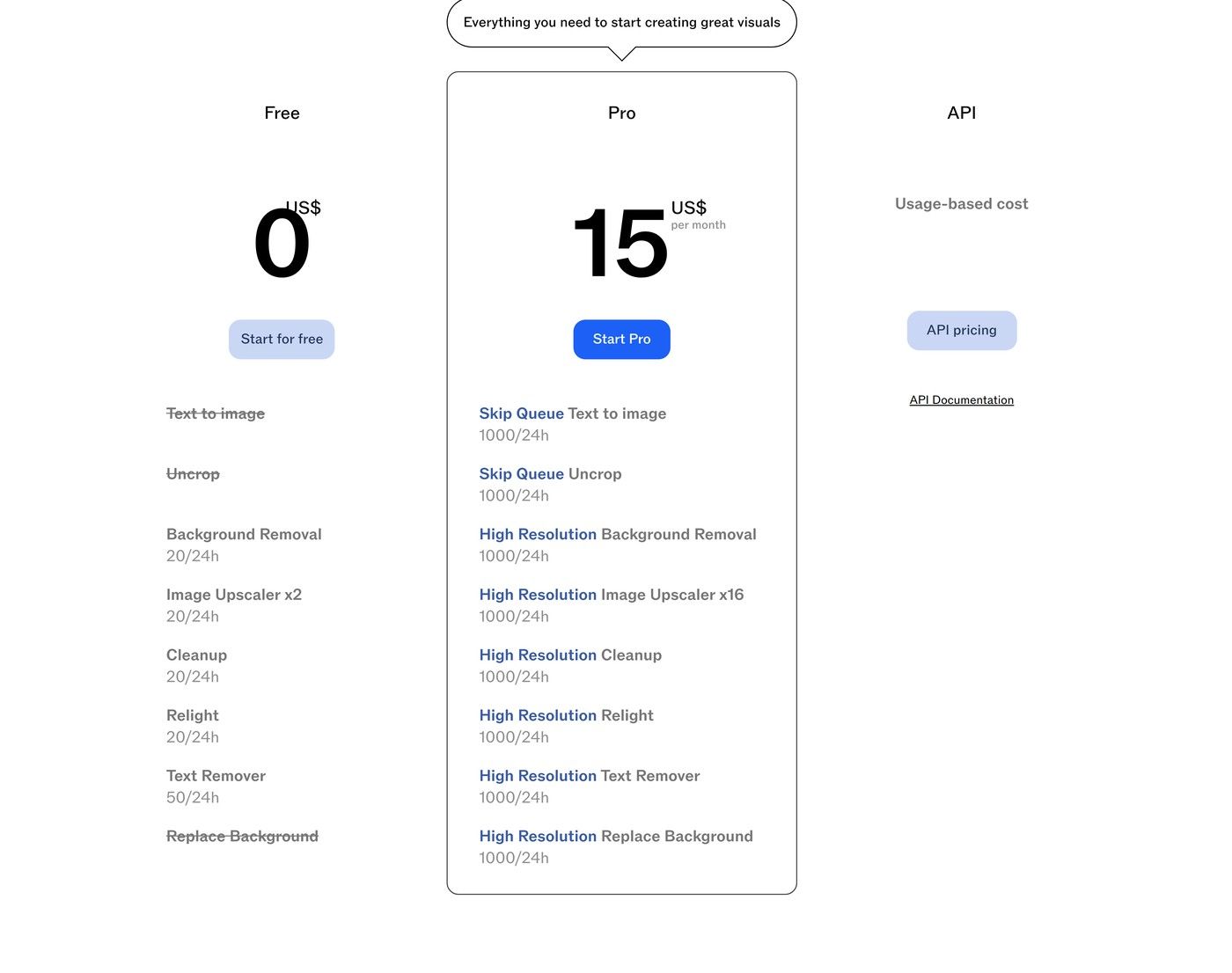
Screenshot from Clipdrop's own pricing page, September 2026
Where the free tier stops you: Twenty cleanups per 24 hours, and the export is limited to 720 pixels on the free version. The company's own FAQ is direct about it: you can import an image of any size, but the free export is capped, and there is no size limit on Pro. A 720 pixel export is a social post. It is not a print, a listing photo or anything that will be cropped later.
What one usable cleanup actually costs: Pro is US$15 a month and lifts both limits at once, to 1,000 high resolution cleanups a day. If you need full resolution twice a month, you are paying US$7.50 an edit. If you need it daily, the price per edit disappears into the noise.
What users report: Its Trustpilot profile is unclaimed and carries a handful of reviews, far too few to read a pattern into. We mention it only because the absence is worth knowing before you search for one.
Where it falls short for inpainting: It removes, and that is all. There is no way to ask for something to appear in the gap, so a wall with a hole in it stays a wall, and a wall that should have a window stays a wall too.
Fits: Anyone who wants the object gone in one brushstroke and can live at 720 pixels, or who removes things often enough to justify the subscription. Not for you if: you need to add or replace rather than delete. For that specific job, our guide to removing text from an image covers what survives at low resolution.
4. FLUX.1 Fill: Best AI Inpainting Model to Self-Host
Everything else on this list is a product. FLUX.1 Fill is a model, and it earns a place because the best AI inpainting models of 2025 and 2026 mostly reach you as the engine inside somebody else's button. Photoshop names two FLUX models in its picker. Plenty of other tools name nothing. Black Forest Labs describes Fill in its own pricing table as targeted and fast text driven image inpainting, priced at 5 credits, which is US$0.05 an image on the hosted pro endpoint.
The dev weights are downloadable. Hugging Face lists the repository under a non-commercial licence, and its counter shows 72,317 downloads over the last 30 days, which is a more honest popularity signal than any star rating on this page.
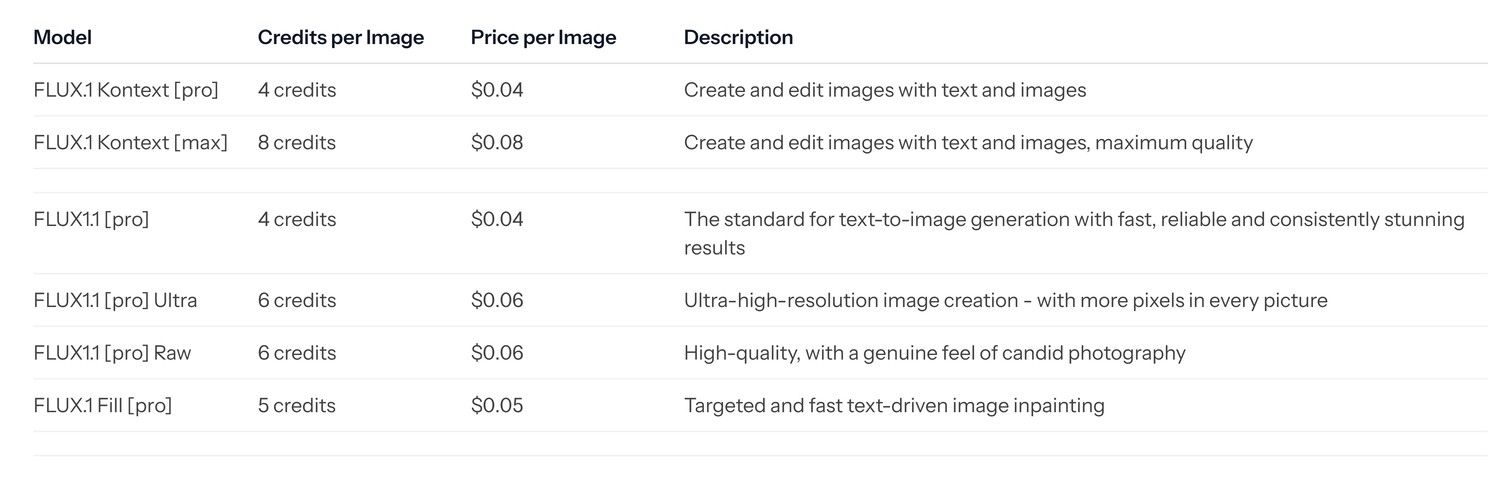
Screenshot from Black Forest Labs' own pricing documentation, September 2026
Where the free tier stops you: There is no free tier, because there is no consumer product. Self-hosting is free of charge and not free of conditions: the licence on the dev weights rules out commercial use, so a studio cannot simply download it and bill a client for the output.
What one usable inpaint actually costs: Five cents on the hosted endpoint. Against that, note where Black Forest Labs has put its attention. Its pricing page files the whole FLUX.1 family under previous generation, and the current FLUX.2 line prices image editing from US$0.045 upward while offering no dedicated Fill variant. The mask-native model is the older one.
What users report: We found no app store listing and no review profile for it, so the download counter is the only adoption number we can cite.
Where it falls short for inpainting: You supply the mask as a file, which means you need something else to draw it. That is fine inside a pipeline and miserable as a one-off.
Fits: Developers building inpainting into their own product, and anyone who needs the weights on their own hardware. Not for you if : you wanted to click something today.
5. PixVerse: Best AI Inpainting Tool Inside a Video Workspace
PixVerse ranks at the top of search results for this category, and its Image Region Editor is a real feature rather than a blog post about one. The pitch is sensible: you have a nearly finished image, one object is wrong, and regenerating the whole frame would cost you the composition you already like.
The page you reach without an account and the tool you reach with one are different products, and only the second is worth your time. The marketing page describes a flow of uploading an image, writing a prompt and picking a model, with nothing in it about drawing anything. Sign in and the editor gives you numbered rectangles you drag onto the picture, each one carrying its own instruction.
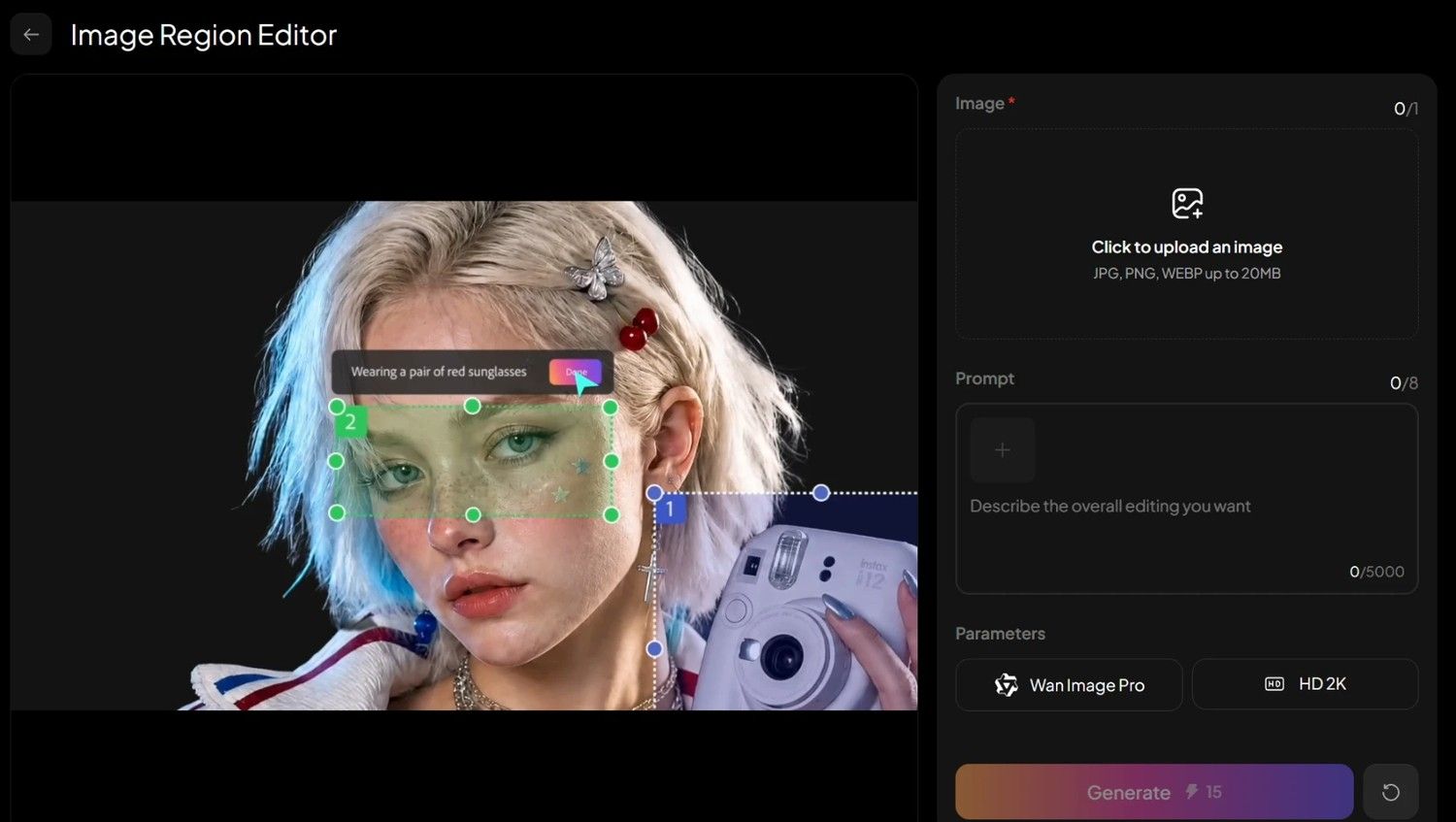
Screenshot from the PixVerse Image Region Editor, September 2026
Where the free tier stops you: Unstated. The tool carries no published free allowance and no daily limit, and the marketing page that search engines see says nothing about either.
What one usable region edit actually costs: The Generate button prices a run at 15 credits and shows you that number before you commit. What a credit costs depends on your plan, and our separate breakdown of PixVerse pricing covers those.
What users report: No first-party PixVerse app appears in the US App Store's top results for the name, and there is no Trustpilot profile, so there is nothing here we can cite.
Where it falls short for inpainting: The regions are rectangles. That is fine for a sign, a box or a window, and awkward for anything with a curved or ragged outline, because the smallest rectangle that covers a bicycle also covers a good deal of the wall behind it. The upload slot takes one image at a time, capped at 20MB, so there is no batch.
Fits: Teams already producing video in PixVerse who want a still fixed without opening a second product, and anyone who likes giving separate instructions to separate parts of one picture. Not for you if: the thing you are removing is not roughly rectangular.
The Other Five AI Inpainting Tools Worth Knowing
These five do the job, and each of them has one published constraint that keeps it out of the upper half. In four cases the constraint is about who is allowed in. In one case it is that the vendor has removed the selection step on purpose and says so.
| Tool | Free path | The hard number | The trade-off |
|---|---|---|---|
| Midjourney Vary Region | None published | Vary Region runs V6.1 on V8.2 images | Only edits Midjourney's own generations |
| Upsampler | Starter account, zero included credits | 5 credits an edit at 4 cents a credit | 20 cents an edit before any subscription |
| OpenArt | No free plan on the pricing page | US$13 a seat a month, 4,000 credits | Credits are shared across image, video and audio |
| CyberLink PhotoDirector | Essential edition, limited features | US$49.99 a year, 100 AI credits a month | Windows and Mac licences do not transfer |
| getimg.ai | No free plan on the pricing page | US$8 a month billed yearly, 3,000 credits | No mask and no selection, by design |
6. Midjourney Vary Region
You select part of an image with a freehand or rectangular tool and regenerate only that area, and Midjourney's documentation is unusually candid about what that selection does to the result. We come back to that below.
Two constraints matter before you plan around it. The tool only accepts images Midjourney itself generated, from version 5 onward, so a camera file has nowhere to go. And although it runs on V8.2 images in Discord, the documentation notes that Vary Region itself currently uses V6.1, two generations behind the thing that made your picture.
Changing the prompt for the selected area also requires Remix Mode switched on first. Midjourney's pricing pages would not load for us, so we are not going to quote a plan price we could not read.
7. Upsampler
Upsampler charges for edits rather than for a seat, which is genuinely rare here. The Starter plan has no monthly fee, no included credits and a pay as you go rate of four cents a credit. An Image Edit costs five credits, so a single edit lands at twenty cents. Pro is US$15 a month for 1,000 credits, dropping the marginal rate to one and a half cents.
Its pricing FAQ says the model you pick sets the cost per image, which confirms there is a choice without ever saying how many models the choice contains. We found nothing published about masks on the pages we could read.
8. OpenArt
OpenArt surrounds its editing tools with a large catalogue, advertising access to more than a hundred premium image, video and audio models on each paid tier it lists. The Starter plan is US$13 a seat a month billed annually, against a US$14 monthly rate, and carries 4,000 credits. The catch is in the arithmetic OpenArt prints itself: those same 4,000 credits buy roughly 4,000 images or roughly 50 videos, so one clip costs what eighty inpaints cost. The pricing page publishes no free plan.
9. CyberLink PhotoDirector
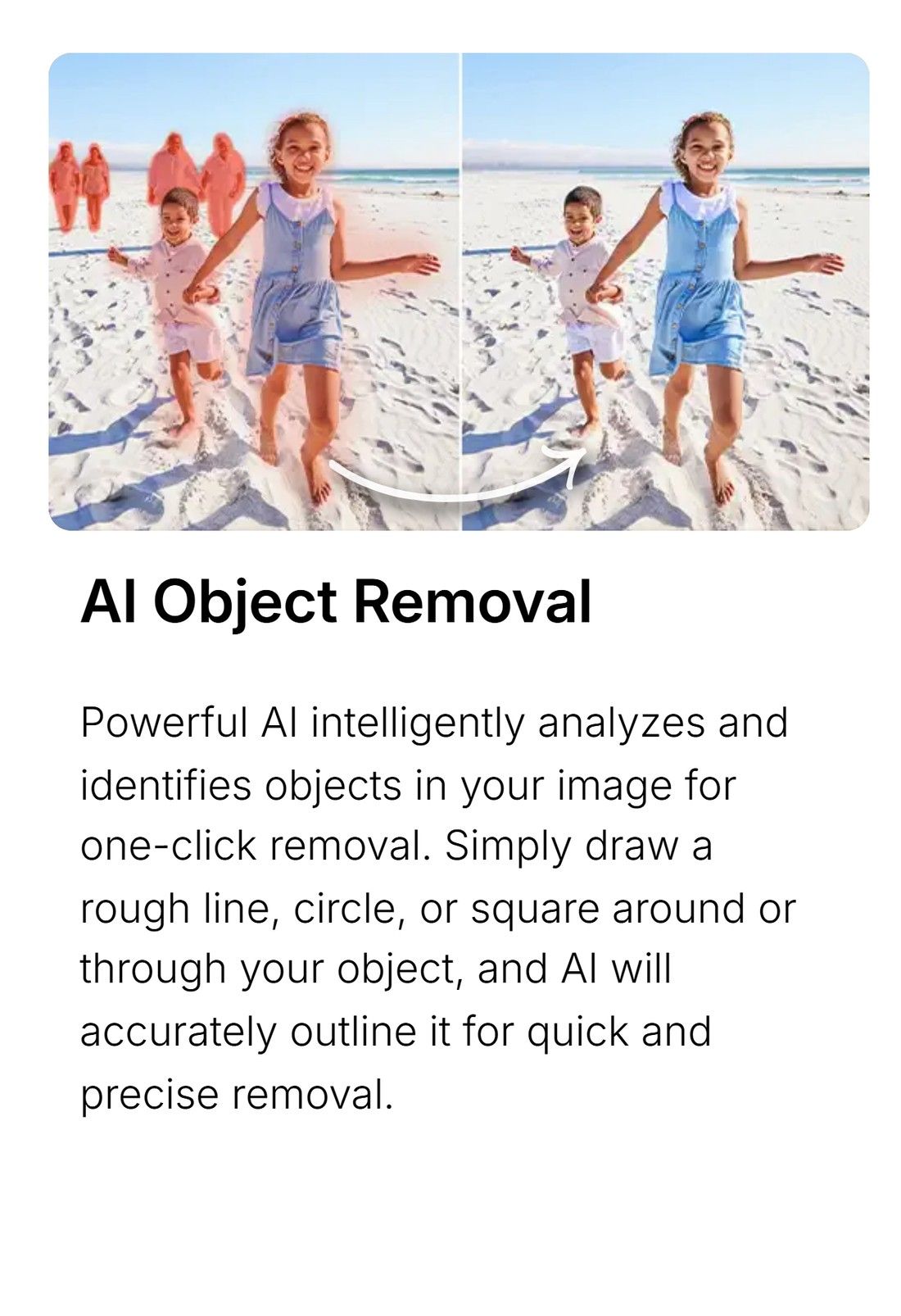
PhotoDirector's AI Object Removal is the friendliest masking interface in this group. Its feature page says you draw a rough line, circle or square around or through the object and the software outlines it accurately for you. That lowers the precision burden without taking placement out of your hands. A separate AI Replace tool handles the generative half, replacing selected parts from a text prompt.
PhotoDirector 365 is US$49.99 for the year, discounted from US$79.99, with 1,200 AI credits a year at 100 a month, and a free Essential edition exists with reduced features. Windows and Mac are sold as separate products and the licence does not carry across.
Screenshot from CyberLink's own PhotoDirector feature page, September 2026
10. getimg.ai
getimg.ai earns the last slot by saying out loud what three other pages here leave you to guess. It sells a product called AI Inpainting, and then tells you there is no masking and no selections, and that the model interprets which part of the image your instruction refers to. It repeats the point further down: no layers to manage, no selections to draw. Entry is US$8 a month billed yearly for 3,000 credits and access to 11 image models, with no free plan listed. If you think the sentence should replace the shape, this is that position stated without hedging.
Why Mask Precision Decides Your AI Inpainting Result
Here is the criterion the ranking pages for this search term leave out. The model is not what decides whether your edit looks pasted on. The boundary is. Every one of these systems solves the same problem, which is inventing plausible pixels for a region while matching the region's edge to everything outside it, and the edge is the part you control.
Two vendors on this list publish evidence for that, which is more than the roundups competing for this search term manage. Midjourney's own documentation warns that the size of your selection affects the result: larger selections give the model more room and more context to match the rest of the image, while selecting too much risks new elements blending into or replacing parts you meant to keep. Clipdrop's instruction is blunter, telling you to make sure the unwanted elements are covered before you run it.
Both are describing the same trade. Mask too tightly and you leave a rim of the original object behind, which is where the smear comes from: the model is faithfully reconstructing a scene that still contains a sliver of bin lid. Mask too loosely and you hand over furniture you wanted untouched.
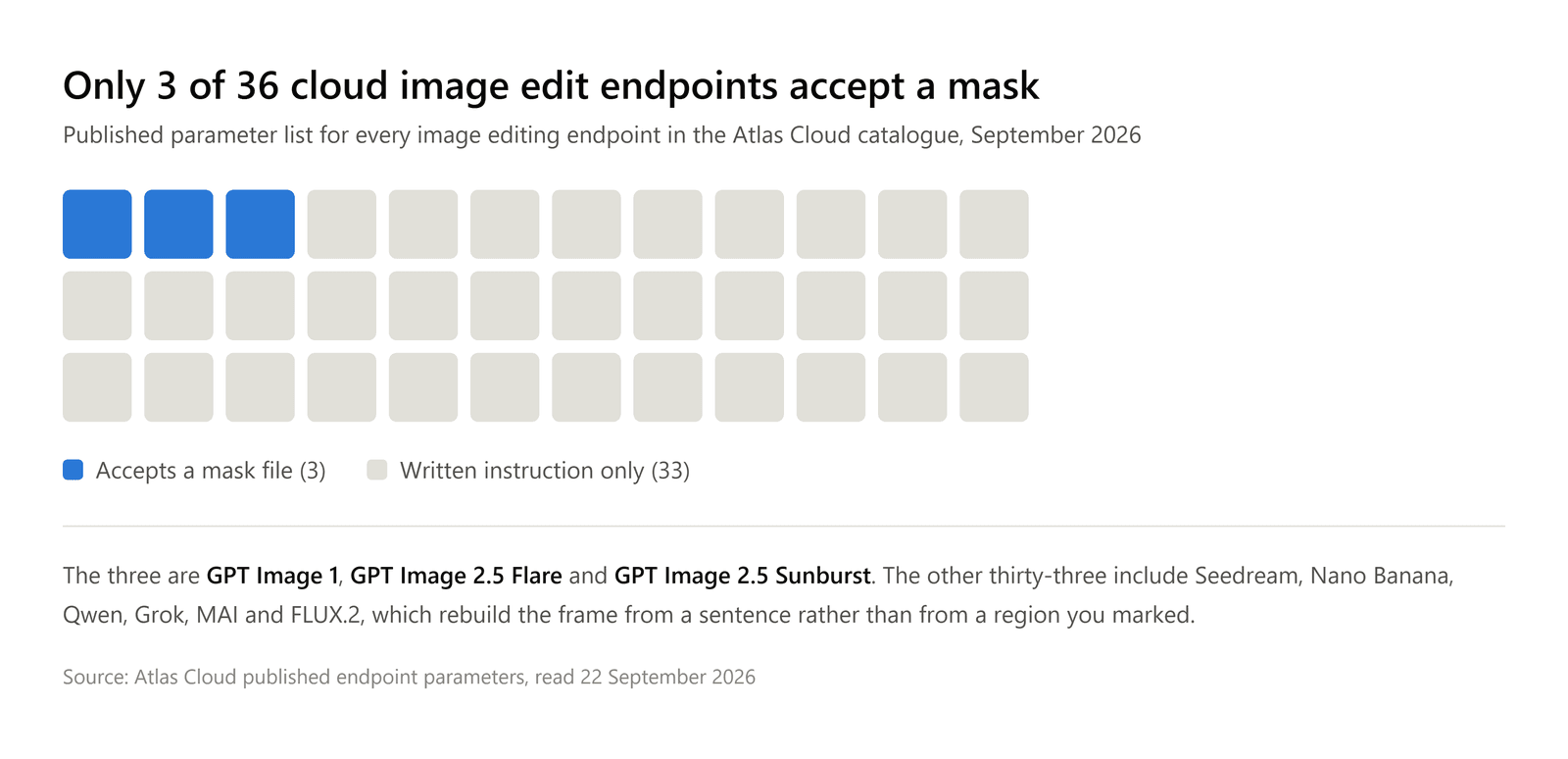
This is also why the split in the comparison table is not a stylistic preference. Look at which models sit on which side of it. All three endpoints that take a mask are GPT Image releases. On the other side sit Seedream, Nano Banana, Qwen, Grok and FLUX.2, which is to say most of the names people reach for when they talk about AI image editing in 2026.
So the mask is the exception here, not the default. It is not even a settled exception inside one vendor's own line: GPT Image 1 takes a mask, GPT Image 1.5 and GPT Image 2 do not, and GPT Image 2.5 takes one again.
What to do instead: Draw the mask a little outside the object rather than along its outline, roughly the width of the object's own soft edge. Include what the object caused, not only the object: its shadow, its reflection in the table, the darker patch of grass it kept dry.
Then run it in two passes when the subject is complicated, taking the object out first and the reflection second. A mask covering both at once asks the model to invent two different surfaces in one go.
Atlas's free object eraser is a cheap place to practise the redraw, because the model loads into your browser tab and nothing is metered, so the fourth attempt costs what the first one did. Our walkthrough of removing a person from a photo works through the four cases where this goes wrong most often.
What Does Reddit Say About the Best AI Inpainting Tools?
Barely anything about which tool is best. The arguments are about the mask, and the same advice turns up in subreddits that share no software at all.
In r/photoshop, someone lost a cat's tail to a crop and asked Generative Fill to rebuild it. The thread that followed drew 57 upvotes in August 2026, and the most practical reply was not about the prompt. Make a larger selection, it said, because the fill always tries to generate a couple of pixels inward from the edge you drew. An Adobe Community Expert added a second diagnosis: the background had already been deleted, so the model had nothing to match against.
Over in r/comfyui, running entirely different software, people arrived at the same place. A workflow post about masked editing collected 500 upvotes, and two separate commenters told the author the same thing: mask the shadow too, because the figure would throw one on the wall and the floor. A third noted that adjusting the mask changes the output even on a fixed seed, so a few attempts are normal.
| Subreddit | Thread | Upvotes | The advice that rose to the top |
|---|---|---|---|
| r/photoshop | Cat's tail rebuilt wrong | 57 | Select wider, the fill starts inside your edge |
| r/comfyui | Masked editing with Qwen | 500 | Mask the shadow and the reflection as well |
| r/photoshop | Removing shadows from a dress | 164 | Generative fill failed, a manual technique solved it |
That third thread is the one worth reading if you are deciding how much to trust any of this. It is flaired Solved. The person who asked for help removing shadows later edited the post to say they tried generative fill a dozen times, got nothing usable, spent an hour and a half on other techniques, ran out of time and sent the file to print unretouched. The answer the thread settled on was frequency separation, which is a manual retouching method older than any model on this page. One commenter put the ceiling plainly: gen fill is nearly useless once the image is 8,000 pixels wide.
Worth noticing what these threads are not about. The tools people name while actually working are mostly not the ones competing for this search term.
Frequently Asked Questions
Is Inpainting the Same as Generative Fill?
Close enough that you can use them interchangeably in conversation, and different enough to matter when you are buying. Inpainting is the general operation: rebuild a marked region of an existing image from its surroundings. Generative Fill is Adobe's branded implementation of it inside Photoshop, tied to a selection and a model picker. Magic eraser is the third common name, usually reserved for the version with no prompt box, where the tool only takes things away. If a page uses one of those three words, check which of the two behaviours it actually ships before you plan a workflow on it.
What Is the Best Free AI Inpainting Tool Online?
For removal with nothing to install, Clipdrop gives 20 cleanups a day with the export capped at 720 pixels, and Atlas Cloud's browser object eraser has no account requirement, no daily cap and returns the file at the size you gave it. The difference shows up when you need the original resolution back, which is the point where most free tiers in this category quietly stop. Free AI inpainting online is realistic for social crops and screenshots. It is not yet realistic for a print file, and any page that suggests otherwise is describing a trial rather than a free tool.
Which AI Inpainting Model Handles Object Removal Best?
Ask instead which one accepts a mask, because that narrows the field faster than any quality comparison, and a mask is what lets you aim at the same region twice. Among open models, FLUX.1 Fill remains the dedicated inpainting entry, though Black Forest Labs now lists the whole FLUX.1 line as previous generation. If you are removing rather than replacing, a dedicated eraser running a removal model will usually beat a general image model told to pretend the object was never there.
Why Does AI Inpainting Leave a Smear Where the Object Was?
Almost always because the mask stopped short of the object. The model rebuilds what it can see at the boundary, so a surviving rim of the original gives it the wrong evidence, and it obligingly blends that rim outward into the gap. The second common cause is shadow. You removed the chair and left the dark shape it cast, so the model treats that shadow as part of the scene and reconstructs a floor to match it. Widen the mask past the edge, take the shadow with you, and most smearing stops without changing tools at all.
Conclusion
The naming is the trap. Three words that mean the same operation, attached to two products that behave nothing alike, sold on pages that mostly decline to say which one you are getting. Seven of the ten tools here let you place the boundary yourself. One tells you outright that it has removed the option. Two describe region editing without publishing a control that draws a region, and one of those seven, PixVerse, hides a perfectly good region editor behind a marketing page that never mentions it. What a company publishes about its own tool turned out to be the least reliable thing we read.
Pick on that axis first and the price question gets easier. If your work is one object at a time and the result has to survive a crop, you want something to draw with and a full resolution export, which rules out most free tiers by lunchtime. If your work is a pipeline, you want an endpoint that accepts a mask file and a model you can change without rebuilding the integration. Either way, the best AI inpainting tools are the ones that let you correct the boundary rather than rewrite the sentence, and you can tell which is which before you spend anything.





