

Here's the moment every AI image user knows too well. You get a generation that's 90% right. The lighting is perfect, the composition works, and then one thing is wrong: the sign says the wrong word, or the sofa is the wrong color. So you rewrite the prompt, roll the dice again, and now five other things have changed. You've traded one problem for four.
That loop is what Seedream 5.0 Pro's editing model is built to break. Instead of describing a whole new image and hoping, you point at the exact region, sketch what you mean, or drop a color code, and only that part changes. ByteDance released the Pro tier of its Seedream 5.0 family in 2026 as a controllable production tool rather than a one-shot generator (ByteDance Seed, 2026).
This guide breaks down the six editing modes that make that possible, with real before-and-after demos, and shows how to run the whole thing from a single API.
Key takeaways
- Interactive editing means you control a local region directly, using selections, points, arrows, boxes, sketches, or color codes, so a single fix doesn't scramble the rest of the image.
- Layer separation is the sleeper feature. It splits one image into a background plus multiple transparent PNG layers you can move and reuse, returning between 2 and 20 images per call.
- Images edited this way become trusted inputs for the Seedance video models, so a fixed frame can move straight into image-to-video without tripping face-detection moderation.
What Makes Seedream 5.0 Pro Interactive Editing Different?
The short version: it treats an image as a set of addressable parts instead of one flat render. Most diffusion models generate a single locked layer, which is exactly why fixing one element forces a full re-roll. Research on layered generation has pushed toward treating images as separately editable pieces, a shift some researchers frame as moving from text-to-image toward text-to-layered-image (PrismLayers, arXiv, 2025).
Seedream 5.0 Pro leans into that idea for practical work. You can describe the change you want, point to a specific area, sketch an idea, adjust colors or materials, repair details, separate layers, and reuse assets across campaigns and variations. The difference between "generate again" and "edit this part" is the difference between gambling and working.
That's the whole thesis of interactive editing, and the rest of this article is what it looks like in practice. 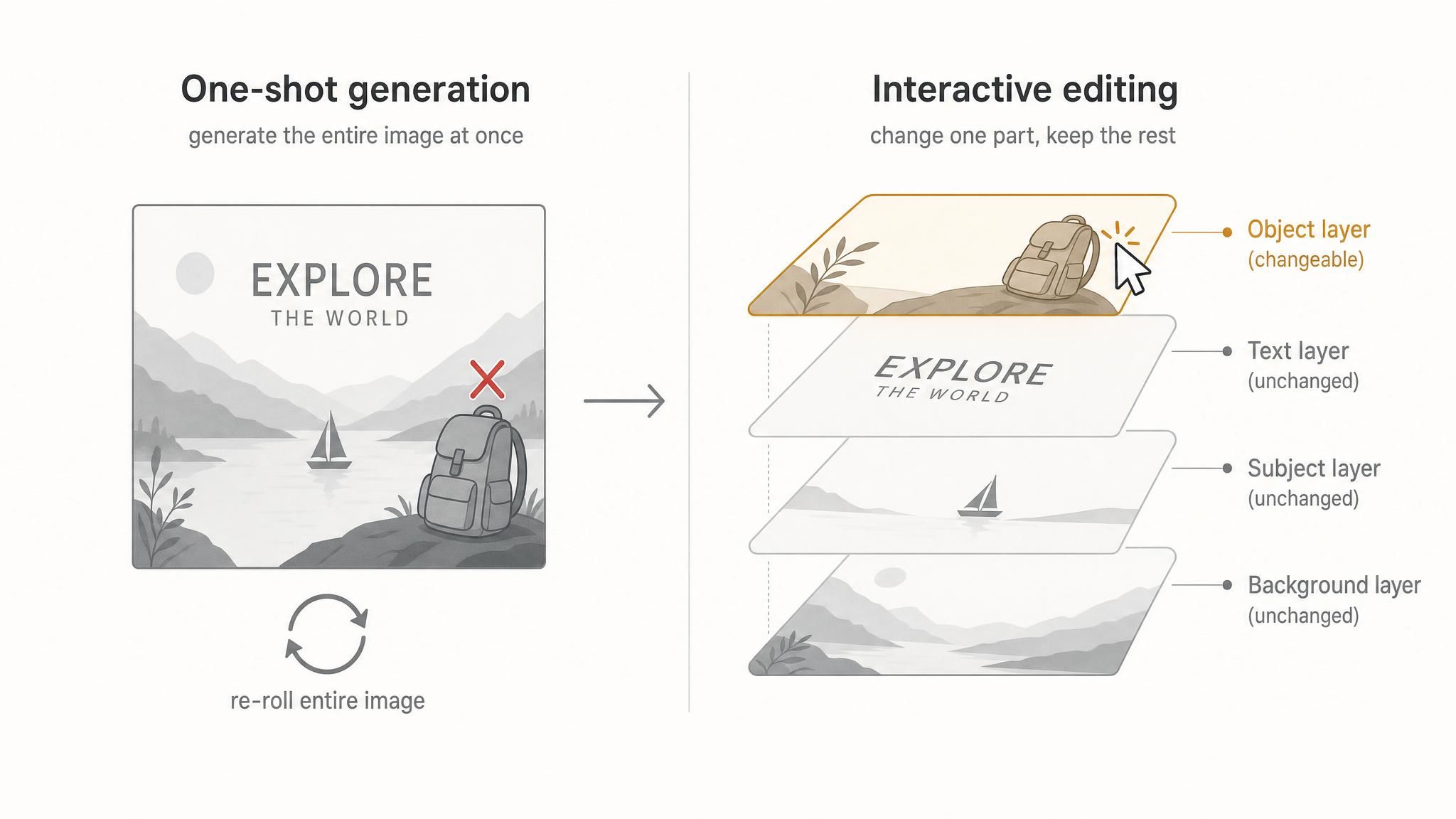
The Six Modes of Seedream 5.0 Pro Interactive Editing
Seedream 5.0 Pro exposes six distinct ways to steer an edit, and each one fits a different real task. Together they cover the gap between "close enough" and "exactly right." Here's how each mode works, with the actual product demos.
Interactive Control Is the First Mode of Interactive Editing
Interactive control lets you mark the edit location directly on the image, using a selection, point, arrow, annotation box, or coordinates, then describe what should happen inside that region. The model changes that region and leaves the rest alone.
This is the mode you'll reach for most. Draw a box around the lamp, write "make this brass," and the lamp changes while the wall behind it stays put. In the demo below, each colored box carries its own instruction, from a blue-furred character head to a specific stack of colored building blocks, and the model resolves all of them in one pass. 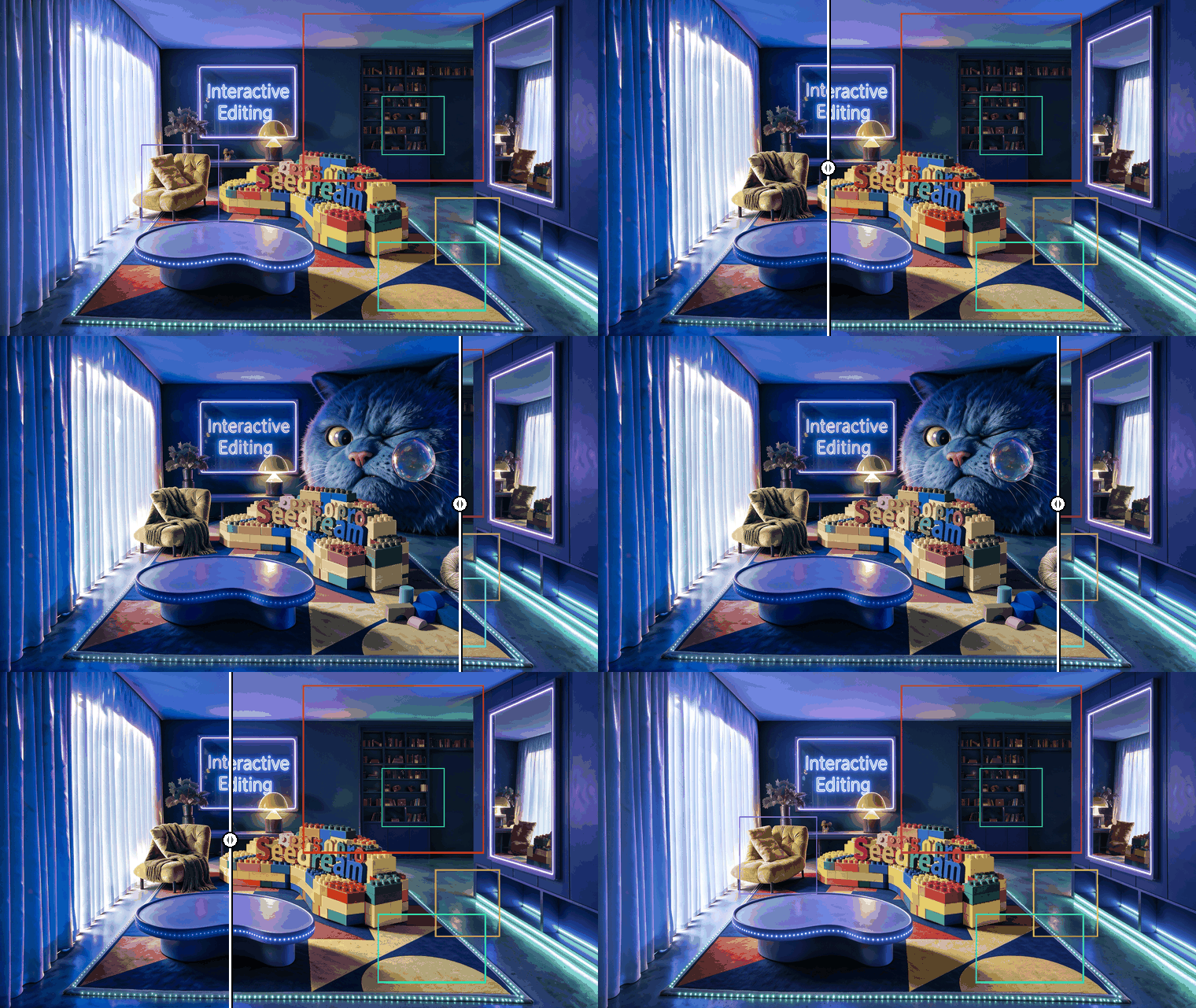
Sketch-Based Interactive Editing With Doodles and Color Blocks
Sketch editing accepts rough visual input as the instruction. You can scribble a doodle, drop a flat color block, draw a few lines, or add a simple sketch, and combine it with a plain-language note. Seedream 5.0 Pro reads the intent and renders the real object.
It sounds loose, but it's precise in practice. A red outline sketched into an empty sky becomes a photorealistic cloud in that exact shape and position. This is how you direct composition without owning a single design skill, and it's a genuinely different way to work than typing longer prompts. 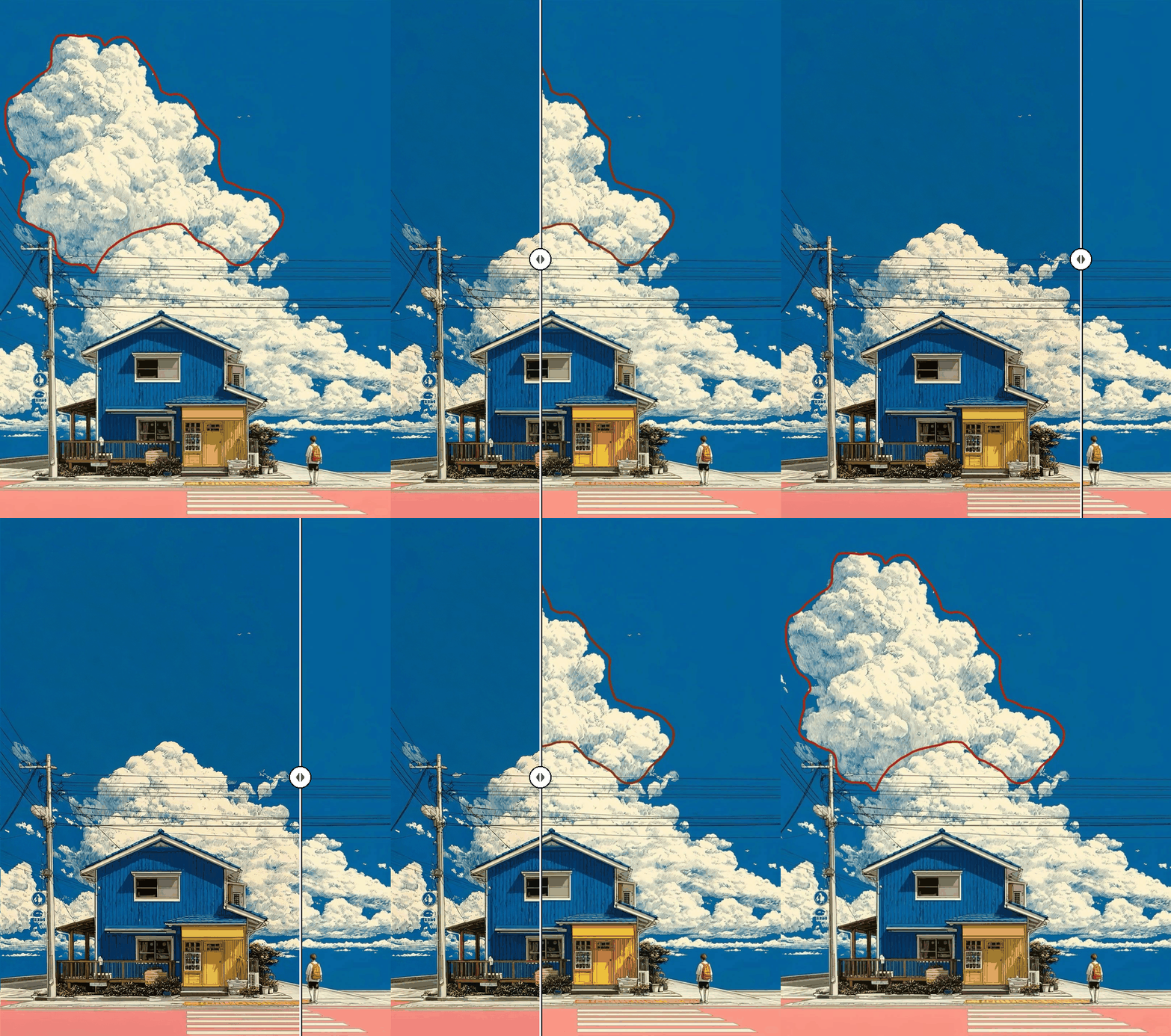
Anchor Editing Delivers Position-Precise Interactive Editing
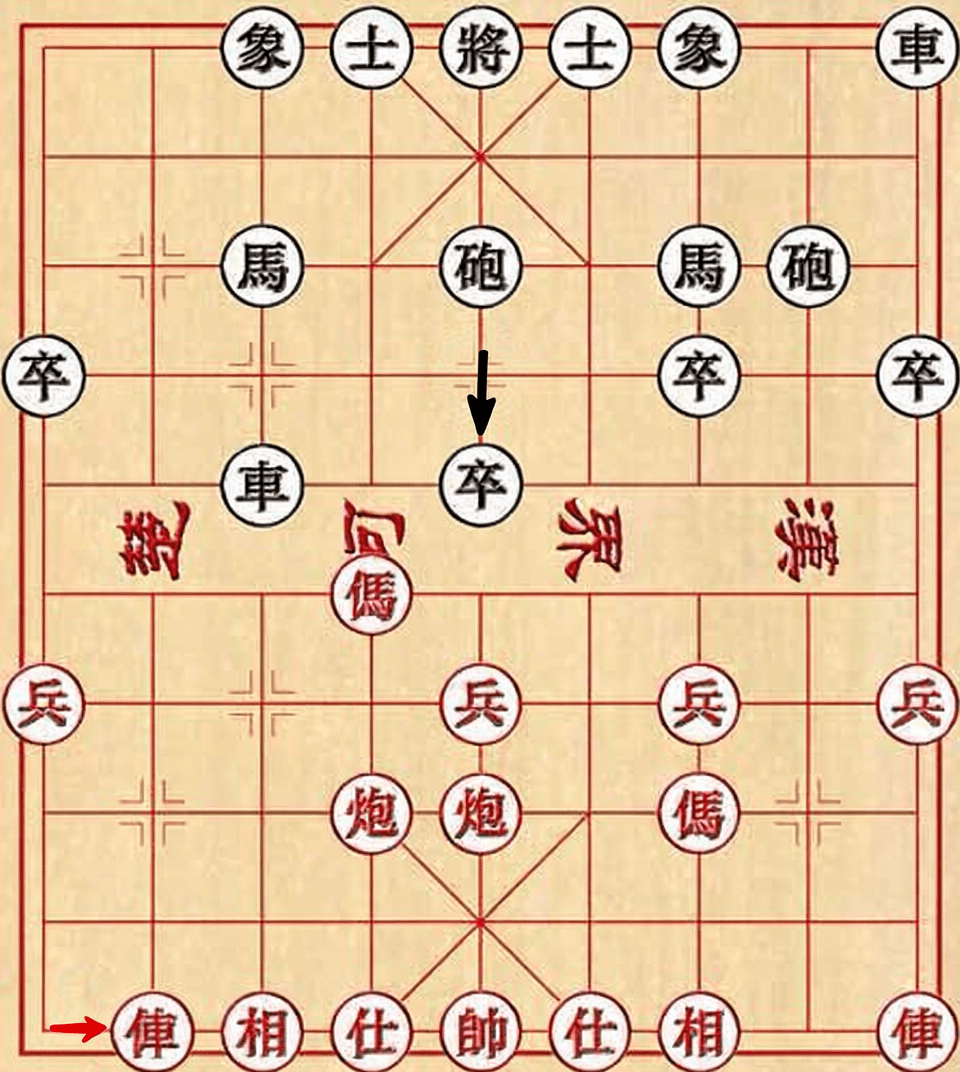
Anchor editing uses anchor points to lock onto a target region for high-precision local edits, while reducing confusion with the content around it. It shines when the image is laid out in clear rows and columns, because the grid gives the model unambiguous coordinates to reason about.
Think of a chessboard, a product grid, or a table of icons. You can say "move this specific piece one square right" and the model understands which piece you mean. The demo uses a Chinese chess board: the red chariot and a black pawn each shift exactly one position, and nothing else on the board moves. 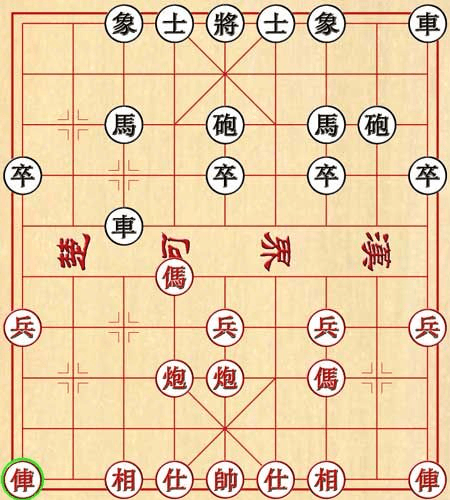
Layer Separation Is the Most Underrated Interactive Editing Mode
Layer separation splits a finished image into one background layer plus multiple element layers, each exported as a PNG with a transparency channel. A single call returns between 2 and 20 images, and the number is decided by the content, not capped by hand.
Why does this matter so much? Because it turns a flat render into a working file. A poster becomes a background, a headline, a photo cutout, and a logo, each on its own transparent layer you can drag, scale, recolor, or drop into the next design. For anyone producing campaign variants at volume, this is the feature that quietly saves the most hours.
According to Seedream 5.0 Pro's specifications, layer separation output ships as PNG files with an alpha channel, which is what makes those pieces reusable downstream in a real design pipeline rather than just previewable on screen. 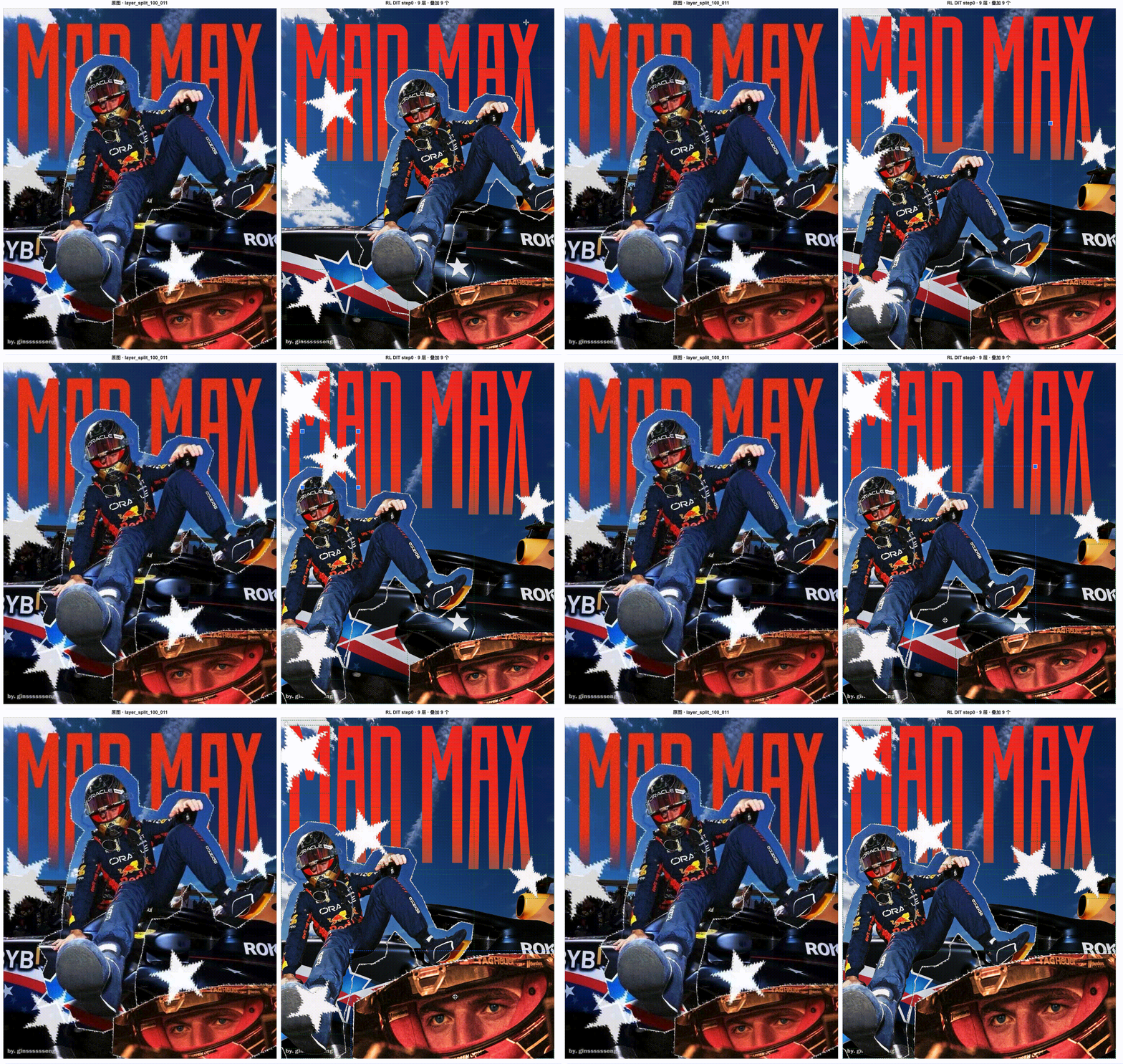
Precise Color Code and Material Response
This mode takes exact color codes and material descriptions and applies them faithfully. You give it a hex value or name a material, and it restores or adjusts the target region to match, keeping the underlying structure intact.
Brand teams live and die by exact color. "Make it blue" is useless when your brand blue is a specific hex code. Here you pass the code and a material like champagne satin, and the model re-renders the surface while the object's shape and lighting hold. One structure, many material and texture variations, without rebuilding the scene. 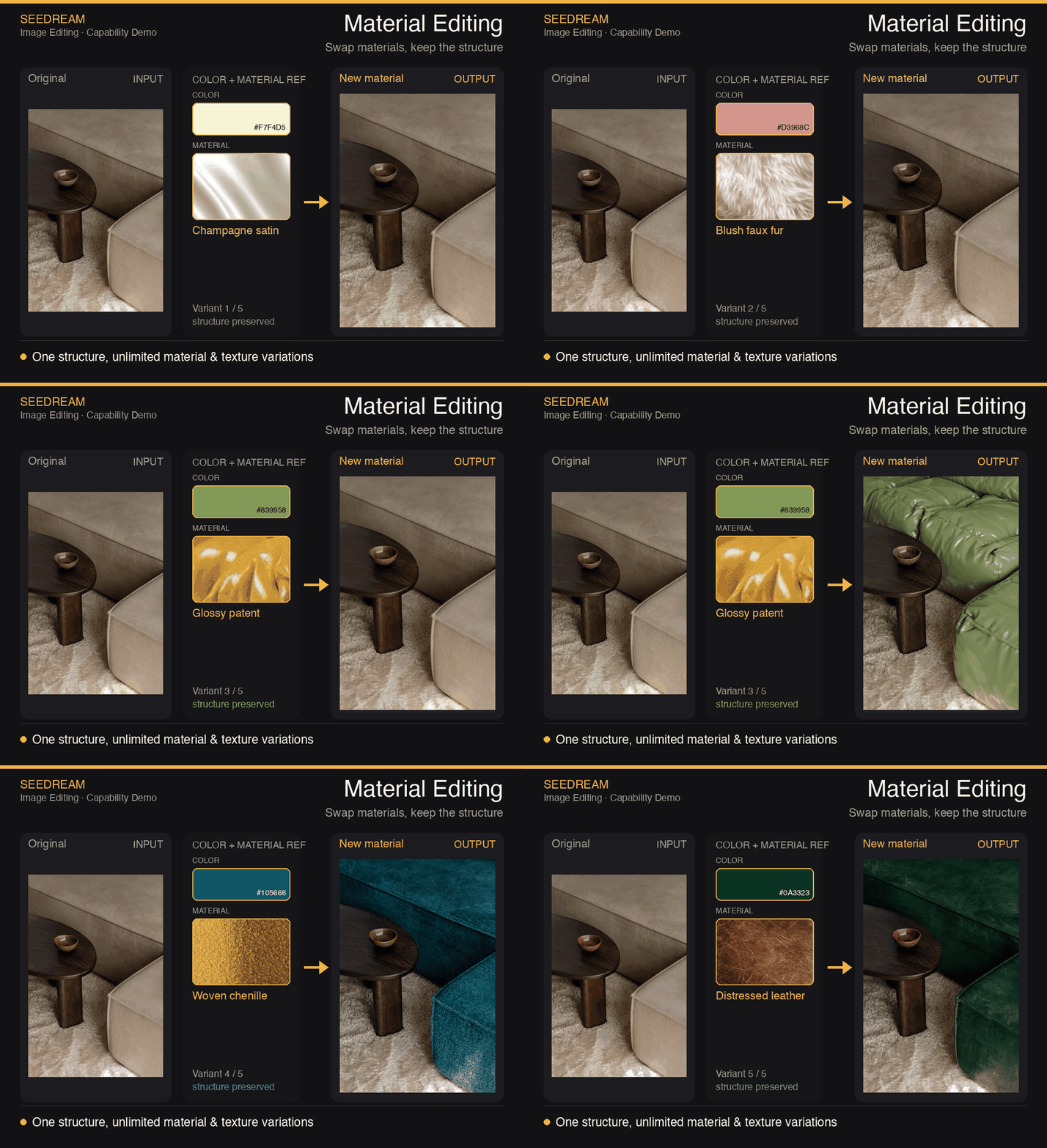
Multi-Image Fusion Editing
Fusion editing pulls objects, styles, and materials from several reference images and composes them into one target image following a single instruction. You can hand it a set of cutouts and a layout note, and it assembles a coherent scene.
The trick is that it respects perspective, light, shadow, and material detail rather than just pasting. The demo composes objects from separate white-background reference photos into one still life, reproducing wood grain, glass, and feathers so the result reads as a single photograph, not a collage. 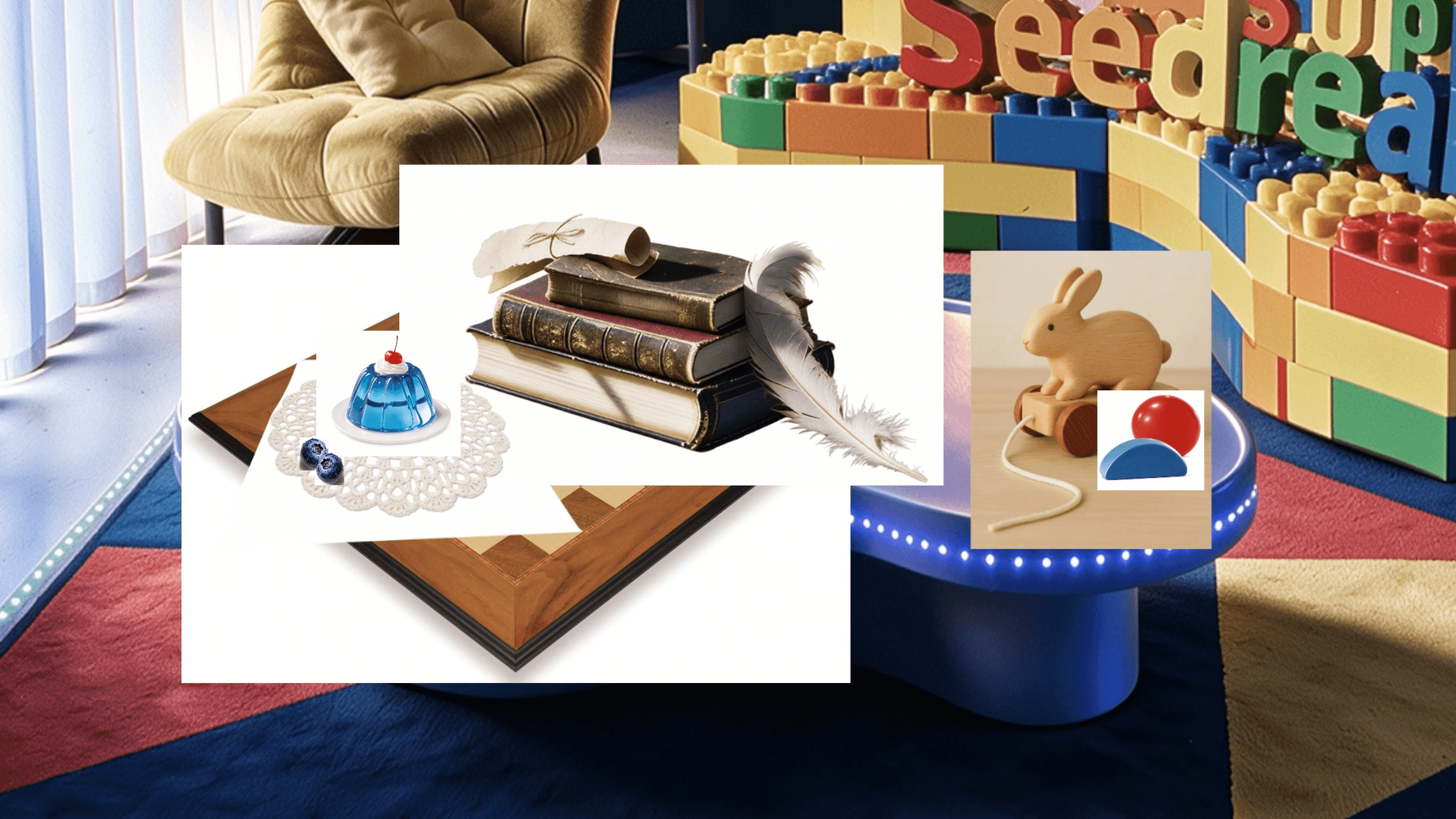

From Interactive Editing to Image-to-Video: The Seedance Bridge
Here's the part that turns a nice editor into a pipeline. Images generated by Seedream 5.0 Pro are recognized as trusted inputs across the Seedance video family, including Seedance 2.5, 2.0, Fast, and Mini. That means a frame you fixed with interactive editing can move straight into image-to-video.
Why this is more than a convenience: Seedance runs real-person face detection, and AI-generated faces can otherwise get flagged. Because Seedream outputs carry a trusted signal, text-to-image outputs are trusted automatically, and image-to-image outputs become trusted after the account passes KYC verification. Trust covers the input reference image, so the final video is still subject to its own output moderation.
The practical workflow falls out naturally. Generate a character portrait, fix the details with interactive editing, then feed that exact frame to Seedance for animation without fighting a false real-person flag. Edit the keyframe once, animate with confidence. 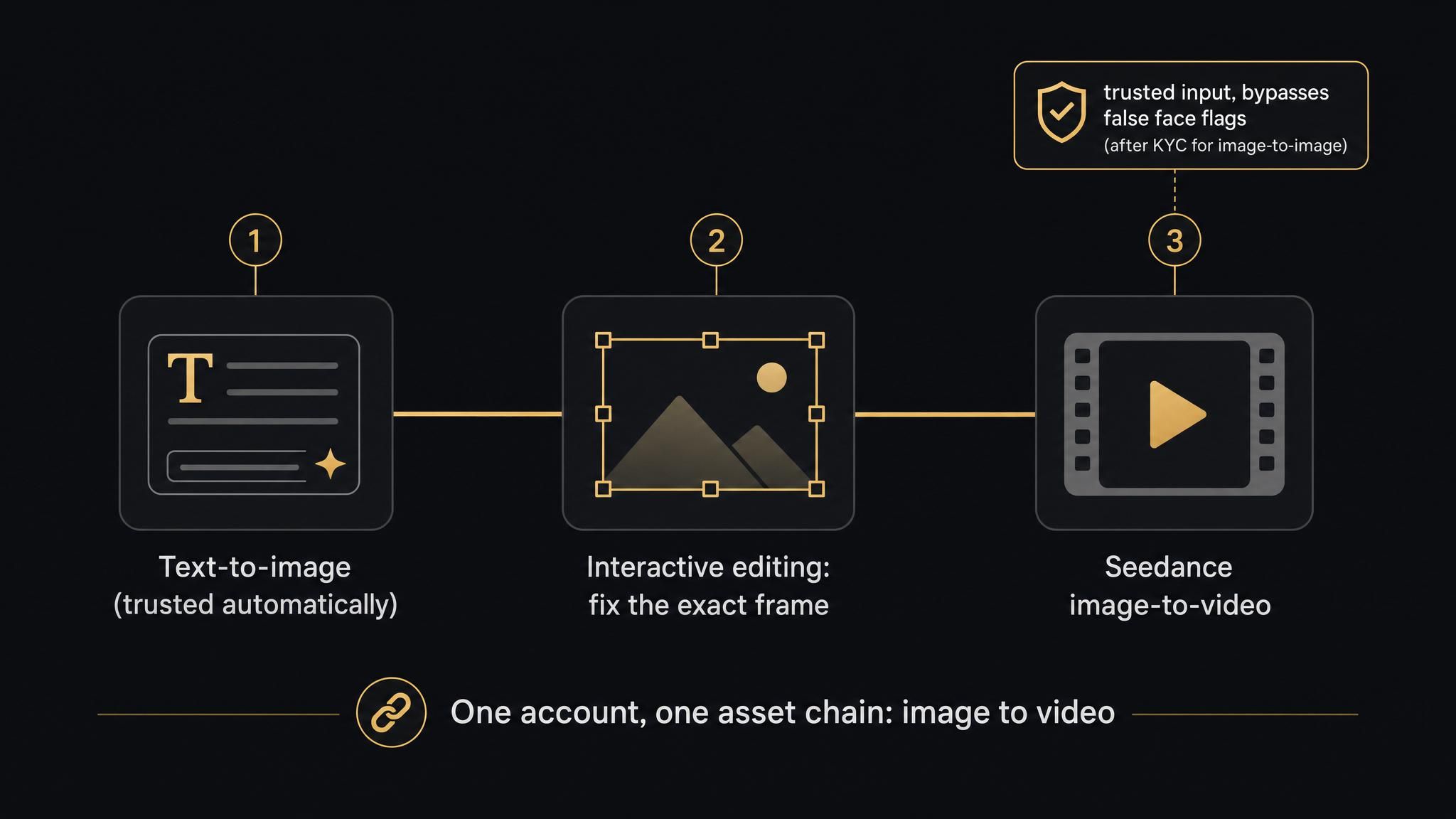
Getting Started With Seedream 5.0 Pro Interactive Editing
You reach every one of these modes through the same image-generation and editing API, so there's no separate tool to learn per feature. A few specs are worth knowing before you build, because they shape what's possible in a single call.
Seedream 5.0 Pro accepts up to 10 reference images per generation, supports eight input formats including PNG, WebP, and HEIC, and takes files up to 30 MB each. For in-image text, it natively supports 15 languages, so rendering a headline in Arabic, Korean, Thai, or Russian is a first-class task rather than a gamble. Output runs up to 2048 by 2048 at 1:1, reaching roughly 2.7K on the long edge at 16:9.
Access is the part that trips up most teams, because these are several distinct models across image and video. Running them from one place matters, and that's now sorted. Seedream 5.0 Pro is live on Atlas Cloud in both text-to-image and editing modes, behind an OpenAI-compatible key, alongside the Seedance video models in one model pool. So the whole edit-then-animate chain is one API key and a model string, not four accounts and four billing dashboards, and that's where the friction actually disappears.
FAQ on Seedream 5.0 Pro Interactive Editing
Is Seedream 5.0 Pro Interactive Editing available through an API?
Yes. All six editing modes run through the same image generation and editing API, with an OpenAI-compatible endpoint, so there's no separate app or per-feature tool. The model is now live on Atlas Cloud in both text-to-image and editing variants, so you can call Seedream 5.0 Pro interactive editing with one key alongside 300+ other models. You pass your reference image and instruction, then select the editing behavior you need.
How many reference images does Interactive Editing support?
Seedream 5.0 Pro accepts up to 10 reference images in a single generation, down from the 14 that Seedream 5.0 Lite allows. The first reference image is included, and each image can be up to 30 MB. Ten references is enough to fuse several objects or hold a character consistent across an edit.
Does Interactive Editing work for non-English text?
Yes, and this is a real strength. The model natively supports 15 languages for in-image text rendering, including Arabic, Russian, Spanish, French, Portuguese, Thai, Korean, and Japanese. Text rendering is described as significantly improved rather than perfect, so proofread small type, but non-Latin scripts are handled natively rather than as an afterthought.
Can I use Interactive Editing outputs for video?
Yes. Images from Seedream 5.0 Pro are trusted inputs across the Seedance family, so an edited frame can feed image-to-video without triggering a false real-person flag. Text-to-image outputs are trusted automatically. Image-to-image outputs become trusted after the account passes KYC. Note that this exempts input moderation, not the video's output moderation.
The pattern under all six modes is the same idea. Stop regenerating the whole picture to fix one part of it. Point at what's wrong, tell the model what you want, and keep everything you already liked. That's a small shift in how you work, and it's the difference between an AI toy and something you can actually ship on a deadline.





