
AnyCrawl helps you convert messy web pages into clean Markdown or JSON for LLM apps. This tutorial shows how to pair AnyCrawl with Atlas Cloud as the model API source, scrape a single project page, extract structured fields, then scale the same pattern to crawl and search workflows.
Most web scraping tutorials stop at "download the HTML". For AI apps, that is usually where the real work begins. Raw pages include headers, footers, sidebars, cookie banners, repeated links, and JavaScript-rendered content. What your model actually needs is a stable data interface: clean text when you want context, typed JSON when you want fields.
That is the useful mental model for AnyCrawl. It is a Node.js / TypeScript crawler and scraper built to turn websites into LLM-ready data, with support for single-page scraping, site crawling, SERP collection, multi-threading / multi-process workloads, and LLM-powered JSON extraction.
What We Will Build
We will build a small “project research extractor.”
Input:
plaintext1A public project page or documentation URL
Output:
plaintext1{ 2 "project_name": "AnyCrawl", 3 "one_sentence_summary": "...", 4 "core_features": ["..."], 5 "best_for": ["..."], 6 "input_types": ["url", "search query"], 7 "output_formats": ["markdown", "json"], 8 "evidence_urls": ["..."] 9}
The showcase uses three AnyCrawl features:
td {white-space:nowrap;border:0.5pt solid #dee0e3;font-size:10pt;font-style:normal;font-weight:normal;vertical-align:middle;word-break:normal;word-wrap:normal;}
| Need | AnyCrawl feature | Why it matters |
| Extract one page | /v1/scrape | Best starting point for turning one URL into Markdown or JSON |
| Extract many pages | /v1/crawl | Useful for docs sites, product pages, blogs, and help centers |
| Find pages first | /v1/search | Useful when you need SERP results before scraping URLs |
| Force stable fields | JSON mode | Useful when your downstream app needs typed output, not just text |
AnyCrawl’s Scrape API converts a URL into LLM-ready structured data and can return Markdown, HTML, text, screenshot, raw HTML, JSON, summary, and links. The docs describe Scrape as synchronous, so you do not need a polling loop for a single page.
Step-by-Step: Run AnyCrawl with Atlas Cloud and Extract Webpages into JSON
In this tutorial, we will self-host AnyCrawl with Docker, set Atlas Cloud as the model API provider for extraction, then call the local AnyCrawl server to turn a webpage into structured JSON.
Note: This tutorial is written for macOS and Linux terminal environments.
Step 1: Create a clean project folder
Open your terminal and create a small folder for this demo.
plaintext1mkdir anycrawl-atlas-demo 2cd anycrawl-atlas-demo
This folder will only hold the environment file and the request body we use to test the API.
Step 2: Get an Atlas Cloud API key
Go to the Atlas Cloud console, open the API Keys page, click Create API Key, then copy and store the key securely. Atlas Cloud notes that the key is only shown once, so save it somewhere safe when it is created.
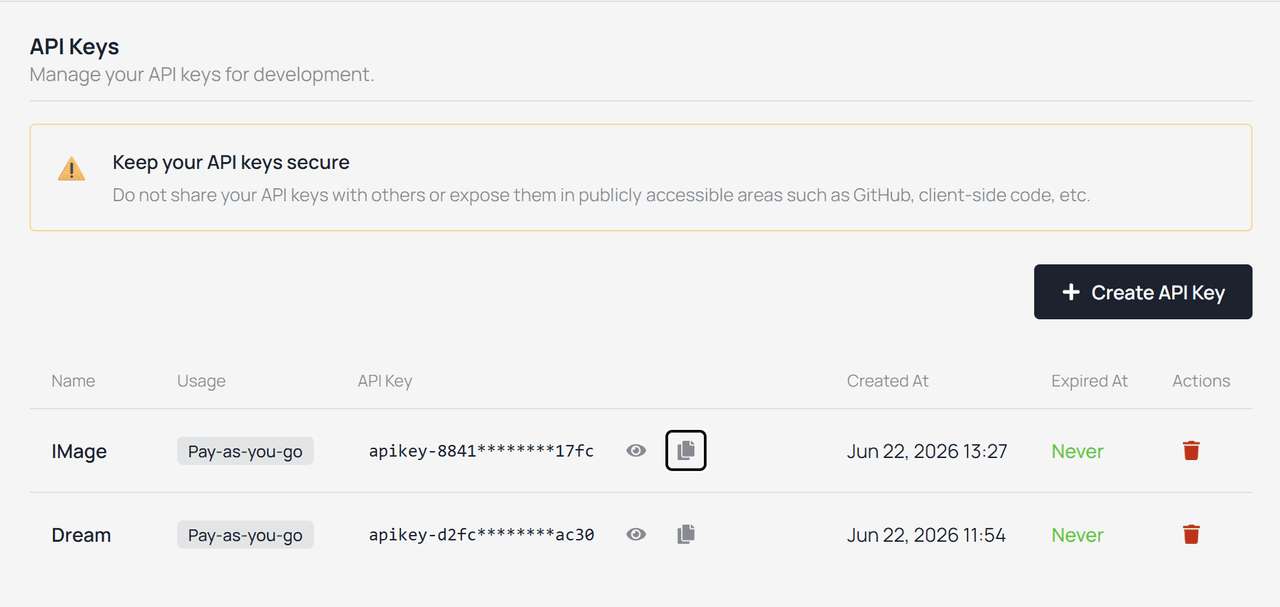
Keep the key private. Do not paste it into a public GitHub repo, public article draft, or screenshot.
Step 3: Create the .env file
Create a .env file in the current folder:
plaintext1cat > .env <<'EOF' 2NODE_ENV=production 3ANYCRAWL_API_PORT=8080 4ANYCRAWL_HEADLESS=true 5ANYCRAWL_API_AUTH_ENABLED=false 6 7ATLASCLOUD_BASE_URL=https://api.atlascloud.ai/v1 8ATLASCLOUD_API_KEY=YOUR_ATLASCLOUD_API_KEY 9DEFAULT_LLM_MODEL=atlascloud/deepseek-v4 10DEFAULT_EXTRACT_MODEL=atlascloud/deepseek-v4 11EOF
Replace YOUR_ATLASCLOUD_API_KEY with your real key.
This is the correct place to configure the model provider. The scrape request itself should stay focused on the URL, output format, and JSON schema. The model routing belongs to the AnyCrawl server environment, because AnyCrawl is the service that runs the LLM-powered extraction step.
Step 4: Start AnyCrawl with Docker
Note: On macOS, make sure Docker Desktop is installed and running before starting AnyCrawl. For Apple Silicon Macs, use auto or playwright instead of puppeteer unless you explicitly run the amd64 image.
Run the all-in-one AnyCrawl container and mount the .env file into it.
plaintext1docker run -d \ 2 --name anycrawl-atlas-demo \ 3 -p 8080:8080 \ 4 -v "$(pwd)/.env:/usr/src/app/.env:ro" \ 5 ghcr.io/any4ai/anycrawl:latest
Check whether the service is running:
plaintext1curl http://localhost:8080/health
The Docker docs use port 8080 for local deployment and show /health as the verification endpoint.
Step 5: Test a basic scrape request first
Before asking for JSON, test whether AnyCrawl can read a page and return Markdown.
plaintext1curl -X POST "http://localhost:8080/v1/scrape" \ 2 -H "Content-Type: application/json" \ 3 -d '{ 4 "url": "https://github.com/any4ai/AnyCrawl", 5 "engine": "auto", 6 "formats": ["markdown"], 7 "only_main_content": true 8 }'
AnyCrawl’s Scrape API turns a URL into LLM-ready structured data. It supports engines such as auto, cheerio, playwright, and puppeteer, and supports output formats including markdown, html, text, json, summary, and links.
For this first request, markdown is enough. You are checking whether the page content is visible before asking the model to extract structured fields.
Step 6: Create the JSON extraction request
Now create a request body that asks AnyCrawl to extract a structured project profile.
plaintext1cat > scrape-project.json <<'EOF' 2{ 3 "url": "https://github.com/any4ai/AnyCrawl", 4 "engine": "auto", 5 "formats": ["markdown", "json"], 6 "only_main_content": true, 7 "extract_source": "markdown", 8 "json_options": { 9 "schema_name": "open_source_project_profile", 10 "schema_description": "A structured profile of an open-source project based only on the visible page content.", 11 "schema": { 12 "type": "object", 13 "properties": { 14 "project_name": { 15 "type": "string" 16 }, 17 "one_sentence_summary": { 18 "type": "string" 19 }, 20 "core_features": { 21 "type": "array", 22 "items": { 23 "type": "string" 24 } 25 }, 26 "best_for": { 27 "type": "array", 28 "items": { 29 "type": "string" 30 } 31 }, 32 "supported_tasks": { 33 "type": "array", 34 "items": { 35 "type": "string" 36 } 37 }, 38 "developer_setup_notes": { 39 "type": "array", 40 "items": { 41 "type": "string" 42 } 43 } 44 }, 45 "required": [ 46 "project_name", 47 "one_sentence_summary", 48 "core_features" 49 ] 50 }, 51 "user_prompt": "Extract only facts that are visible on the page. Do not guess. Summarize the project for a developer who wants to use web data in an AI application." 52 } 53} 54EOF
There is one easy mistake here: when using json_options, you must include "json" in formats; otherwise the response will not contain extracted JSON data. AnyCrawl’s JSON mode supports prompt-only extraction, schema-only extraction, and prompt plus schema. For this tutorial, we use prompt plus schema because it gives both field control and extraction guidance.
Step 7: Run the JSON extraction
Send the request to your local AnyCrawl server:
plaintext1curl -X POST "http://localhost:8080/v1/scrape" \ 2 -H "Content-Type: application/json" \ 3 -d @scrape-project.json
If everything is configured correctly, the response should include a successful scrape result and a JSON extraction result following the schema you defined.
At this point, the flow is complete:
plaintext1GitHub project page 2→ local AnyCrawl scrape API 3→ Markdown extraction 4→ LLM-powered JSON extraction 5→ structured project profile
The important part is that the request never calls the model provider directly. AnyCrawl handles the scrape and extraction workflow, while the model API source is already configured at the server level.
Step 8: Try a JavaScript-heavy page if Markdown looks empty
If the Markdown result is too short, empty, or missing visible page content, switch the engine to playwright.
plaintext1{ 2 "url": "https://example.com", 3 "engine": "playwright", 4 "formats": ["markdown", "json"], 5 "only_main_content": true, 6 "json_options": { 7 "user_prompt": "Extract the main topic, key facts, and important links from this page." 8 } 9}
AnyCrawl’s docs describe cheerio as fast for static HTML, playwright as better for JavaScript-rendered pages, and auto as the general-purpose option that can choose the engine automatically.
Step 9: Stop and clean up the demo container
When you finish testing, stop the container:
plaintext1docker stop anycrawl-atlas-demo 2docker rm anycrawl-atlas-demo
You can restart the same workflow later by running the Docker command again from the folder that contains your .env file.
What You Just Built
You now have a local AnyCrawl service that can scrape a public webpage, clean it into Markdown, and extract typed JSON through a schema-guided LLM workflow. The setup keeps the crawler, the extraction model, and the application output in the right order: web page first, structured content second, app integration last.
FAQ
What is AnyCrawl used for?
AnyCrawl is used to turn webpages, websites, and search results into LLM-ready data such as Markdown and structured JSON. It supports single-page scraping, full-site crawling, SERP collection, and LLM-powered JSON extraction, which makes it useful for RAG apps, AI agents, research tools, and internal data pipelines.
How do I extract JSON from a webpage with AnyCrawl?
Use /v1/scrape, include "json" in formats, and pass json_options with a prompt, schema, or both. AnyCrawl’s JSON mode documentation specifically notes that if you use json_options but forget to include "json" in formats, the response will not contain extracted JSON data.
How do I use Atlas Cloud with AnyCrawl?
Use Atlas Cloud as the OpenAI-compatible LLM provider in the AnyCrawl server environment, not inside every scrape request. Atlas Cloud’s docs describe its LLM endpoint as OpenAI-compatible with the base URL https://api.atlascloud.ai/v1, while AnyCrawl’s provider setup uses environment variables such as ATLASCLOUD_BASE_URL, ATLASCLOUD_API_KEY, and default extraction model settings.
Can AnyCrawl crawl an entire website?
Yes, AnyCrawl can crawl a website through /v1/crawl, which creates an asynchronous crawl job. The Crawl API lets you control scope with options such as max_depth, limit, include_paths, and exclude_paths, then poll the crawl job and fetch paginated results.
Can AnyCrawl scrape Google search results?
Yes, AnyCrawl includes a Search API for collecting structured SERP results before scraping selected URLs. Its Search API supports parameters such as query, pages, limit, lang, country, and timeRange, which makes it useful when your AI workflow starts with a research query instead of a known URL.
Is AnyCrawl better than Firecrawl or Crawl4AI?
Not universally; it depends on your deployment and workflow needs. AnyCrawl is a good fit for this tutorial because we want a local Docker service, server-level model-provider configuration, and a simple /v1/scrape to JSON workflow, while Firecrawl and Crawl4AI each have strengths in managed extraction and programmable crawling respectively.
Should I use Cheerio, Playwright, or Puppeteer in AnyCrawl?
Start with auto or cheerio, then switch to playwright when the page needs JavaScript rendering. AnyCrawl’s scrape documentation positions Cheerio as lightweight for static HTML and Playwright/Puppeteer as browser-based engines for more complex pages, so the practical workflow is to inspect Markdown first and only use a heavier engine when needed.
Why is my AnyCrawl JSON output missing?
The most common reason is that "json" was not included in formats. Another common cause is that the selected engine did not capture the page content correctly, especially on JavaScript-rendered sites; in that case, retry with auto or playwright and check the Markdown before debugging the schema.
Can I use AnyCrawl for RAG data pipelines?
Yes, AnyCrawl is a practical fit for RAG data preparation because it can convert webpages into Markdown and schema-guided JSON before the content enters your vector database or knowledge system. A good production pattern is to scrape first, validate extracted fields, store the source URL, and keep enough Markdown for debugging.
What is the easiest AnyCrawl workflow for beginners?
The easiest workflow is: scrape one URL, request Markdown, confirm the content looks right, add JSON mode, validate the output, and only then move to crawl or search. This avoids mixing page-access problems, rendering problems, and extraction-schema problems into one hard-to-debug request.
Final Takeaway
AnyCrawl is useful because it treats web pages as inputs for AI systems, not just HTML documents to download. Start with one page, inspect the Markdown, add a schema, validate the JSON, and only then scale to crawl or search.
That order keeps the workflow simple. It also keeps the failure points visible, which is what you want when web data becomes part of an AI app.





