If you're building video workflows on Seedance 2.0 or 2.0-Fast, the Asset Library is how you get reference media — images, video, and audio — into your generations cleanly. Instead of passing raw media on every call, you register a file once, Atlas validates and preprocesses it, and you reference it by a stable ID across as many generations as you want.
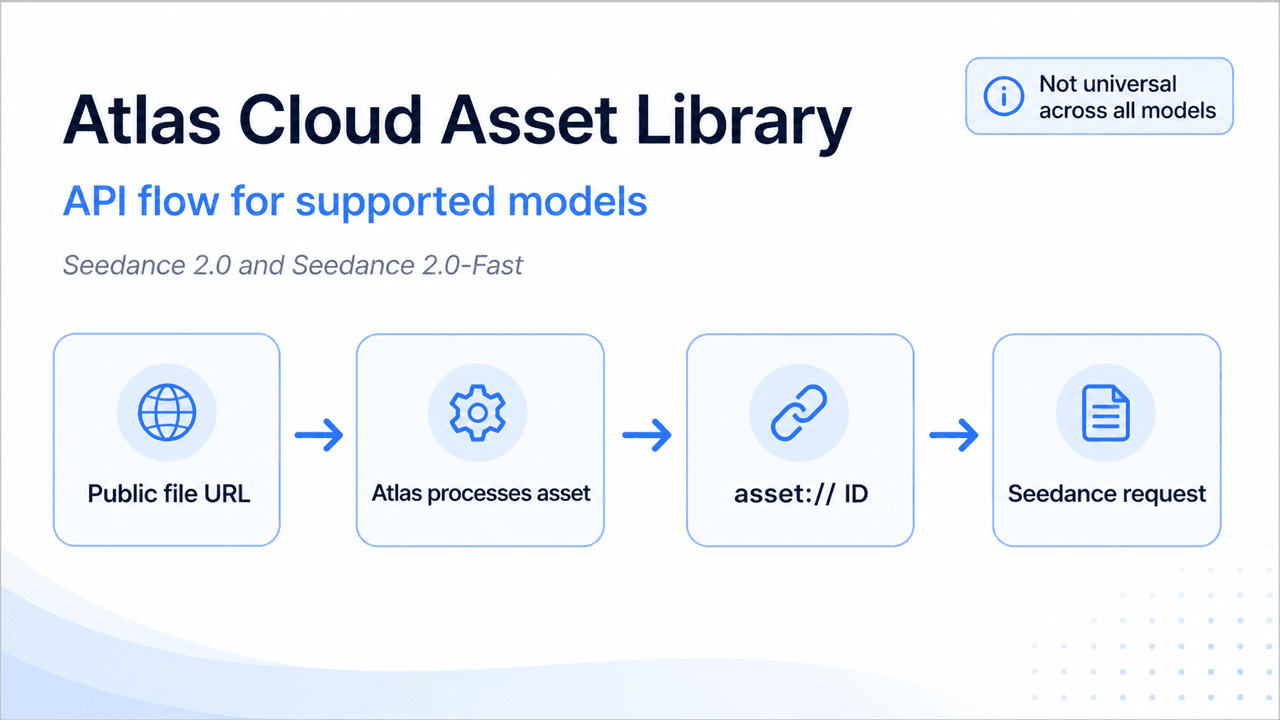
This guide gets you from zero to a working reference in three cURL calls.
What the Asset Library is (and what it isn't)
It's a managed media store scoped to Seedance 2.0 / 2.0-Fast video generation. You register an asset, it preprocesses, and once it's Active you reference it as asset://<asset_id> in your generation request.
Two things to know up front, because they'll save you debugging time:
- Video and audio must be registered here first. They cannot be passed inline as URLs in a generation request. Only images can go inline. So for any video- or audio-reference workflow, the Asset Library is the required entry point, not an optional convenience.
- Upload is by public URL only. Base64 / data URLs are not supported. The file needs to live at a publicly reachable URL when you register it.
Before you start
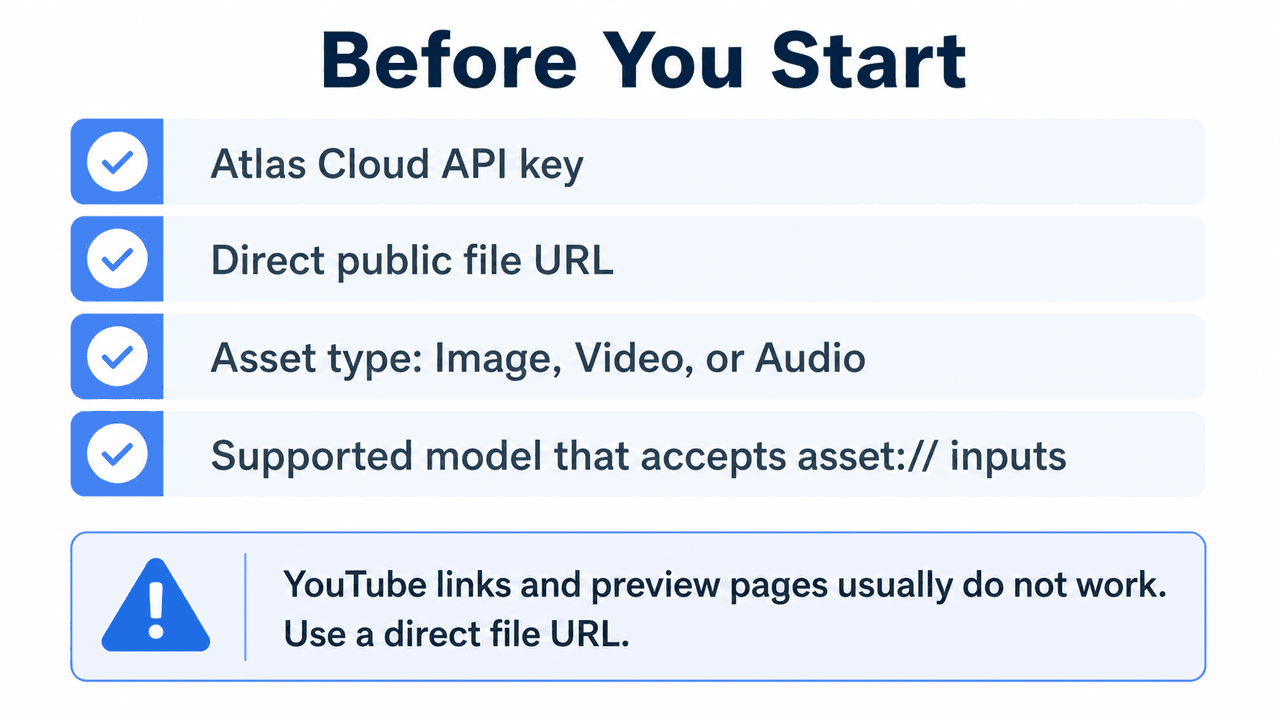
You'll need an Atlas Cloud API key from the dashboard.
One detail that trips people up: the Asset Library and the generation API live on different hosts.
td {white-space:nowrap;border:0.5pt solid #dee0e3;font-size:10pt;font-style:normal;font-weight:normal;vertical-align:middle;word-break:normal;word-wrap:normal;}
| Function | Host | Base URL |
|---|---|---|
| Asset Library (register, poll, manage) | console | https://console.atlascloud.ai/api/v1 |
| Video generation | api | https://api.atlascloud.ai/api/v1 |
Both use the same auth header:
plaintext1export ATLASCLOUD_API_KEY="your-api-key-here"
plaintext1Authorization: Bearer $ATLASCLOUD_API_KEY
The three-step flow
Register → poll until Active → reference in a generation.
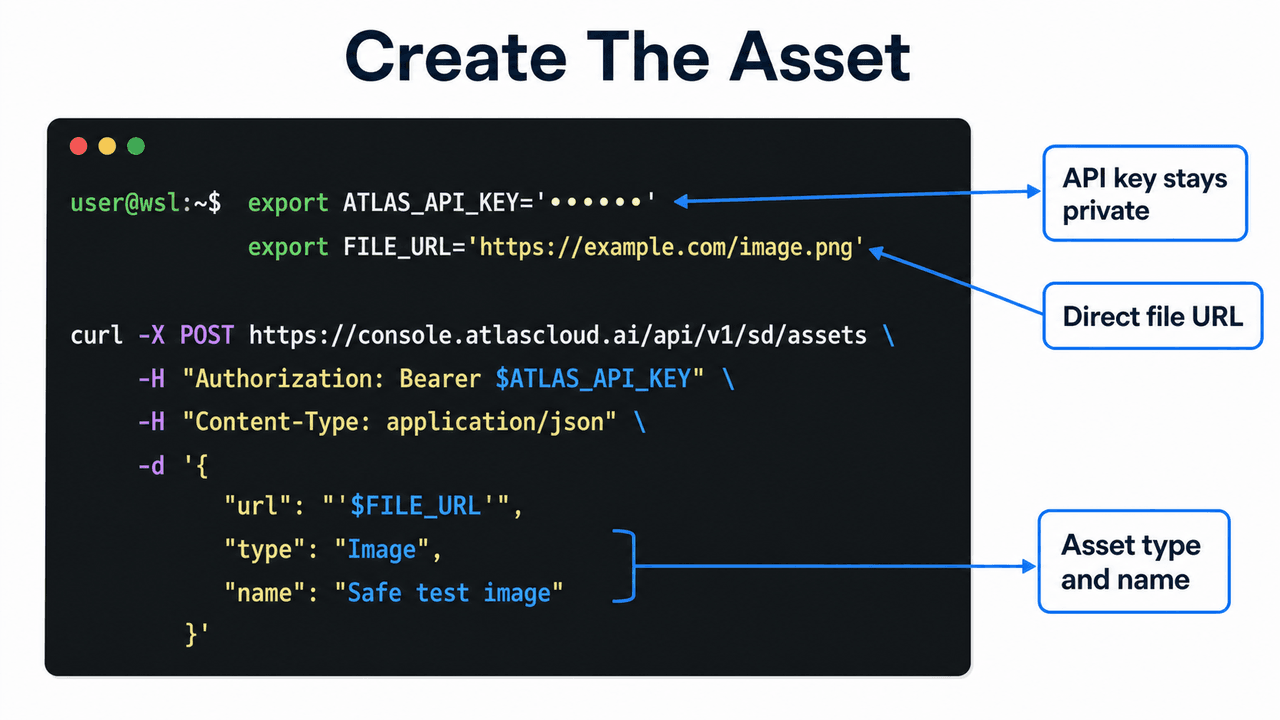
Step 1 — Register an asset
Point Atlas at a public URL. Set type to Image, Video, or Audio (defaults to Image).
plaintext1curl -X POST "https://console.atlascloud.ai/api/v1/sd/assets" \ 2 -H "Authorization: Bearer $ATLASCLOUD_API_KEY" \ 3 -H "Content-Type: application/json" \ 4 -d '{ 5 "type": "Video", 6 "url": "https://your-public-host.com/reference-clip.mp4" 7 }'
The response returns the asset's id and a status of Processing.
It'll look like this below:
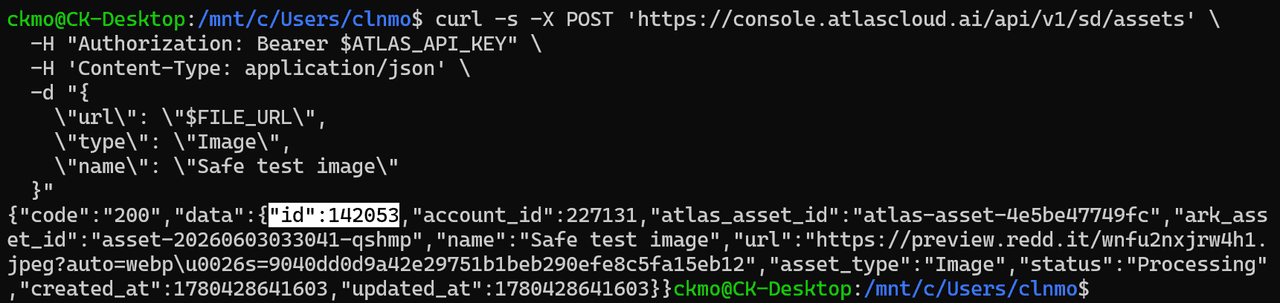
Hold onto the id (highlighted above) — that's what you'll poll and reference.
Quick Note: What counts as a "public URL"?
This is the step people get wrong most often, so it's worth being precise. Atlas fetches your file by doing a plain HTTP GET on the URL. That URL has to return the raw file bytes directly — no login, no cookies, no "click to view" page, no JavaScript required to render it.
The quick test: open the URL in a private/incognito browser tab. If the image displays or the video downloads with no sign-in, Atlas can fetch it. If you see a viewer page, a sign-in prompt, or a preview UI, it won't.
This means a Google Photos or Google Drive share link will not work. Those links point to a web page that displays your media behind Google's auth and redirect system — not to the file itself. Atlas would fetch the page wrapper, not the media.
What works instead:
- Object storage with public-read or a presigned URL — Amazon S3, Google Cloud Storage, Cloudflare R2, Azure Blob. Presigned URLs are ideal: public but time-limited.
- A CDN or your own web server serving the file directly.
- Atlas's own upload endpoint — if you only have a local file (or something you exported from Google Photos), upload it to Atlas first to get a public storage URL, then register that URL:
plaintext1# Upload a local file → returns a public storage.atlascloud.ai URL 2curl -X POST "https://api.atlascloud.ai/api/v1/model/uploadMedia" \ 3 -H "Authorization: Bearer $ATLASCLOUD_API_KEY" \ 4 -F "file=@./reference-clip.mp4"
Take the download_url from that response and use it as the url when you register the asset in Step 1.
Step 2 — Poll until Active
Atlas validates and preprocesses the file. Poll the asset until its status flips to Active. (This endpoint auto-checks the upstream job while it's still Processing.)
plaintext1curl "https://console.atlascloud.ai/api/v1/sd/assets/<asset_id>" \ 2 -H "Authorization: Bearer $ATLASCLOUD_API_KEY"
The lifecycle is:
plaintext1Create → Processing → Active → (ready to use) 2 ↓ 3 Failed → check error_code / error_message
If you get Failed, the error_code and error_message tell you why — almost always a format, size, duration, or dimension limit. See the requirements tables below before you re-register.
Occasionally, you'll see policy violation errors like below — that is because the asset probably violates guardrails. If you strongly believe the asset does not violate any rules or you are the copyright holder yourself, please contact us to resolve this!

Step 3 — Reference it in a generation
Once the asset is Active, pass asset://<asset_id> into the matching field of your Seedance request — image, last_image, reference_images, reference_video, or reference_audio, depending on the endpoint.
Note the host change here: generation is on api.atlascloud.ai.
plaintext1curl -X POST "https://api.atlascloud.ai/api/v1/model/generateVideo" \ 2 -H "Authorization: Bearer $ATLASCLOUD_API_KEY" \ 3 -H "Content-Type: application/json" \ 4 -d '{ 5 "model": "bytedance/seedance-2.0/image-to-video", 6 "input": { 7 "prompt": "A cinematic dolly shot, warm sunset light", 8 "image": "asset://<asset_id>" 9 } 10 }'
This returns a prediction id. Poll it for the finished video:
plaintext1curl "https://api.atlascloud.ai/api/v1/model/prediction/<prediction_id>" \ 2 -H "Authorization: Bearer $ATLASCLOUD_API_KEY"
When status is completed (or succeeded), the result URL is in outputs.
That's the full loop. The point of the asset is reuse: register once, reference that same asset://<asset_id> across as many generations as you need.
Managing assets
The library gives you full lifecycle control.
plaintext1# List your assets (paginated, supports filters) 2curl "https://console.atlascloud.ai/api/v1/sd/assets" \ 3 -H "Authorization: Bearer $ATLASCLOUD_API_KEY" 4 5# Rename an asset 6curl -X PUT "https://console.atlascloud.ai/api/v1/sd/assets/<asset_id>" \ 7 -H "Authorization: Bearer $ATLASCLOUD_API_KEY" \ 8 -H "Content-Type: application/json" \ 9 -d '{ "name": "sunset-reference-v2" }' 10 11# Move to trash (recoverable — this is a soft delete, not a hard delete) 12curl -X DELETE "https://console.atlascloud.ai/api/v1/sd/assets/<asset_id>" \ 13 -H "Authorization: Bearer $ATLASCLOUD_API_KEY" 14 15# List trashed assets 16curl "https://console.atlascloud.ai/api/v1/sd/assets/trash" \ 17 -H "Authorization: Bearer $ATLASCLOUD_API_KEY" 18 19# Restore from trash 20curl -X POST "https://console.atlascloud.ai/api/v1/sd/assets/<asset_id>/restore" \ 21 -H "Authorization: Bearer $ATLASCLOUD_API_KEY"
Delete is recoverable by design — assets move to trash and can be restored, so a wrong call doesn't cost you the asset.
Input requirements
Validation happens at registration, so a malformed file fails here — before you spend a generation call on it. Match these limits to avoid a Failed status.
Image
td {white-space:nowrap;border:0.5pt solid #dee0e3;font-size:10pt;font-style:normal;font-weight:normal;vertical-align:middle;word-break:normal;word-wrap:normal;}
| Property | Limit |
|---|---|
| Formats | jpeg, png, webp, bmp, tiff, gif, heic/heif |
| Aspect ratio (W/H) | 0.4 – 2.5 |
| Width / height | 300 – 6000 px |
| Size | < 30 MB |
Video
td {white-space:nowrap;border:0.5pt solid #dee0e3;font-size:10pt;font-style:normal;font-weight:normal;vertical-align:middle;word-break:normal;word-wrap:normal;}
| Property | Limit |
|---|---|
| Formats | mp4, mov |
| Resolution | 480p, 720p |
| Duration | 2 – 15 s |
| Aspect ratio (W/H) | 0.4 – 2.5 |
| Width / height | 300 – 6000 px |
| Total pixels (W×H) | 409,600 – 927,408 (e.g. 640×640 to 834×1112) |
| Size | ≤ 50 MB |
| FPS | 24 – 60 |
Audio
td {white-space:nowrap;border:0.5pt solid #dee0e3;font-size:10pt;font-style:normal;font-weight:normal;vertical-align:middle;word-break:normal;word-wrap:normal;}
| Property | Limit |
|---|---|
| Formats | wav, mp3 |
| Duration | 2 – 15 s |
| Size | ≤ 15 MB |
Error codes
td {white-space:nowrap;border:0.5pt solid #dee0e3;font-size:10pt;font-style:normal;font-weight:normal;vertical-align:middle;word-break:normal;word-wrap:normal;}
| Code | Meaning |
|---|---|
| 200 | Success |
| 400 | Invalid request |
| 401 | Missing or invalid API key |
| 404 | Asset not found |
| 500 | Server error |
Gotchas worth remembering
- Video and audio must be pre-registered. Only images can be passed inline. Skip registration for video/audio and the generation will have nothing to reference.
- URL only, no base64. The source file must sit at a public URL at registration time.
- Two hosts. Assets on console.atlascloud.ai; generation on api.atlascloud.ai. Mixing them up is the most common 404 / 401 cause.
- Validate-then-generate. Bad inputs fail at registration, not mid-generation — which is the whole point. Check the requirements tables first.





