

Want to save a picture you made with Grok? Here is the quick way to download an image from Grok xAI chat: just click or tap the image in your xAI chat to open it up fully. Then, look for the download button with the down arrow on the screen and click it. The image saves instantly to your device at maximum resolution.
No buried menus. No extra steps. That's it.
Whether you're on a browser or the X (formerly Twitter) mobile app, the process is nearly identical — just slightly different icon placement depending on your platform.
Platform Quick Reference
| Platform | Download Location | File Format |
| Desktop (Web) | Upper/Lower Viewer Corner | PNG / JPEG |
| Mobile (X / Grok App) | Bottom-Right Arrow Icon | Camera Roll / Photos |
A few things worth knowing upfront:
- Images download at their original generated resolution — no quality loss.
- On a computer, your image usually goes straight into your browser's main Downloads folder.
- On a phone, the picture goes right into your Photos app or Camera Roll.
- The image might save as a PNG or a JPEG depending on the style Grok creates.
The steps below show you exactly how this works on every device and how to fix a missing download button.
How to Download Image From Grok xAI Chat on Desktop
The Grok xAI chat download process on desktop is straightforward, but the download button only appears once you interact with the image — it's not visible by default. Here's the exact path to follow.
Steps to Save AI Images From a Web Browser
-
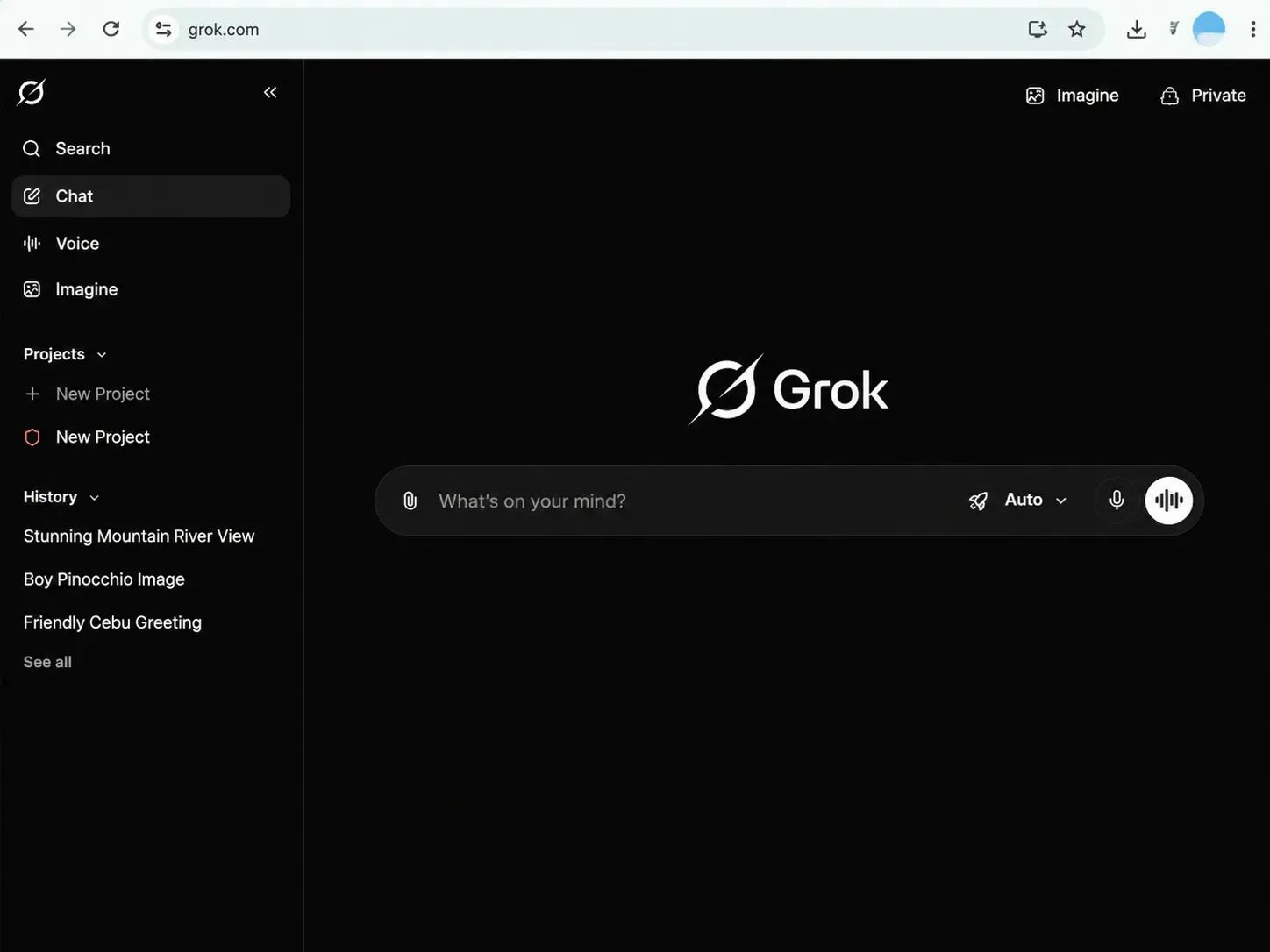
Open Grok — Navigate to grok.com or access Grok through x.com and open a chat session.
-
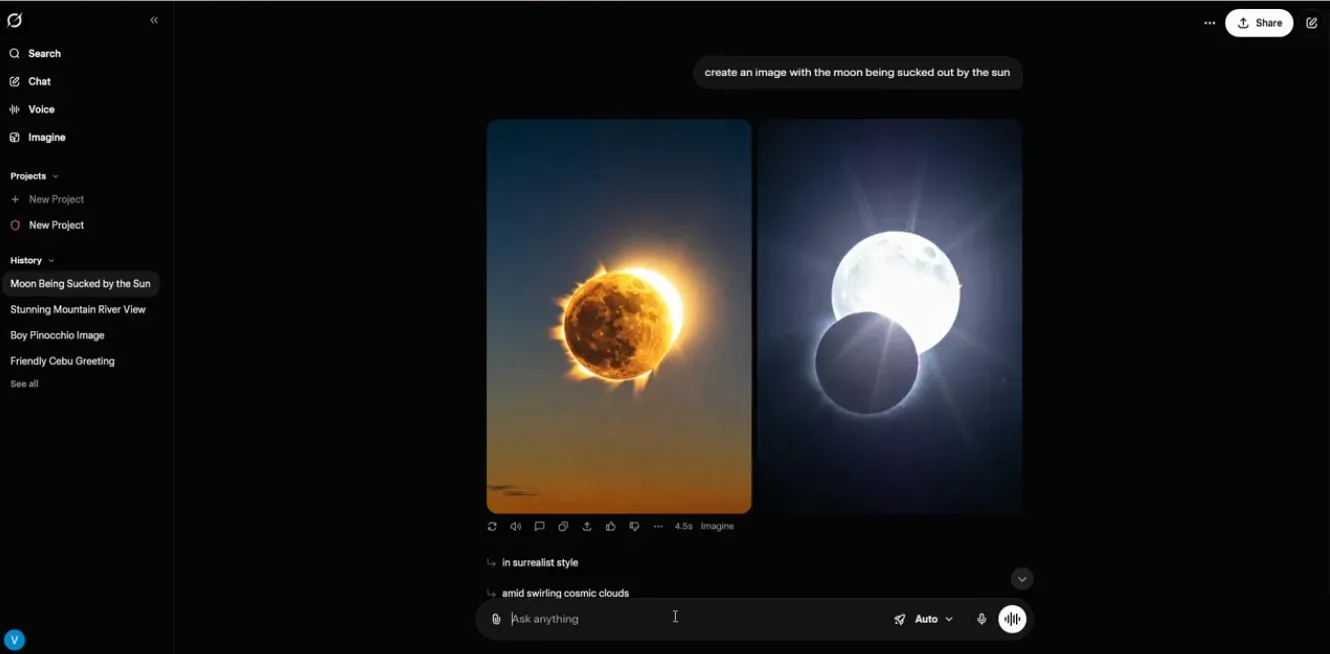
Generate an image — Type a prompt in the Grok Imagine desktop interface with image generation turned on. For example, write: "create an image with the moon being sucked out by the sun".
-
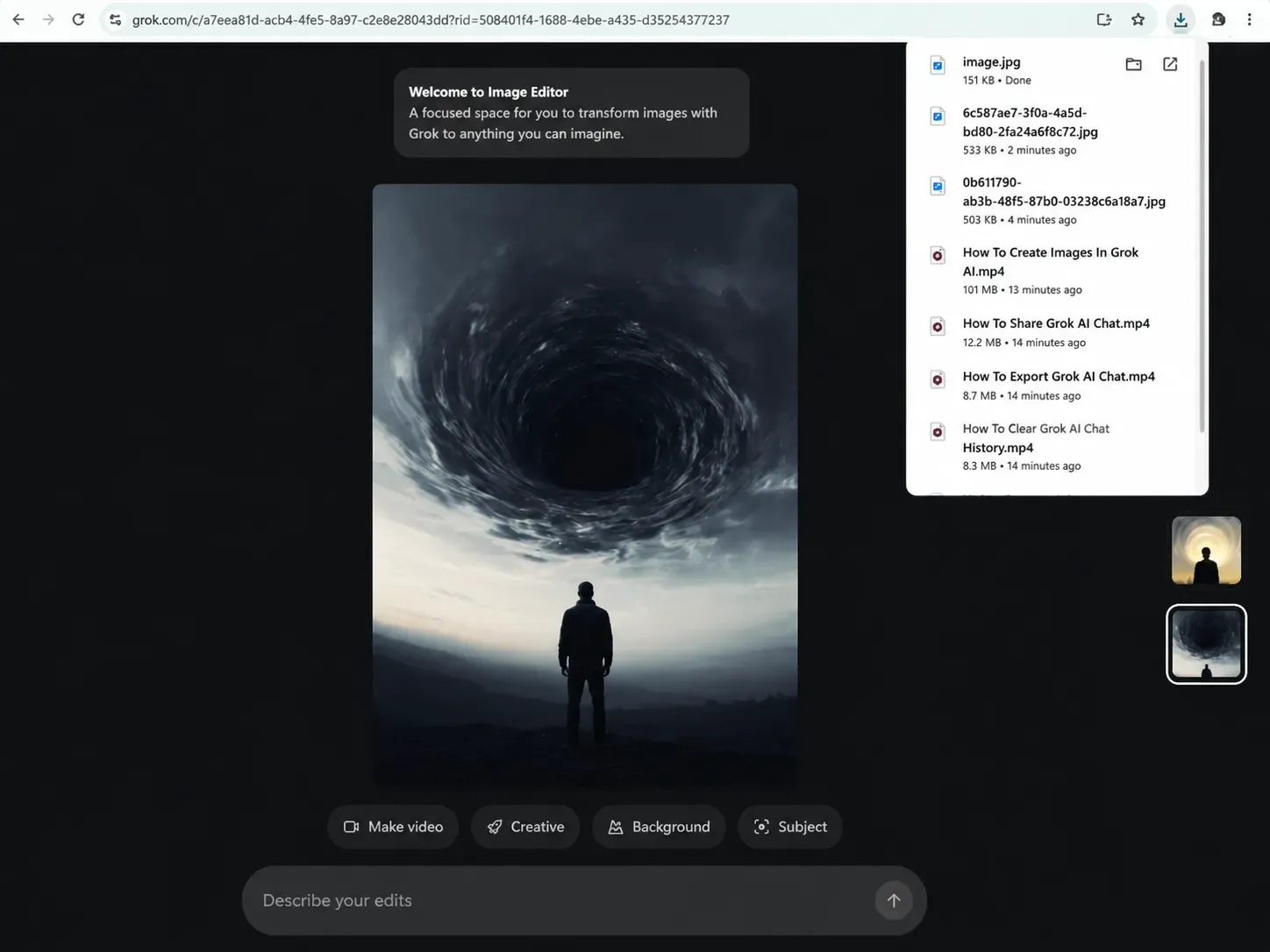
Click the image — Click the rendered image in your chat window to open it in the full-screen viewer.
-
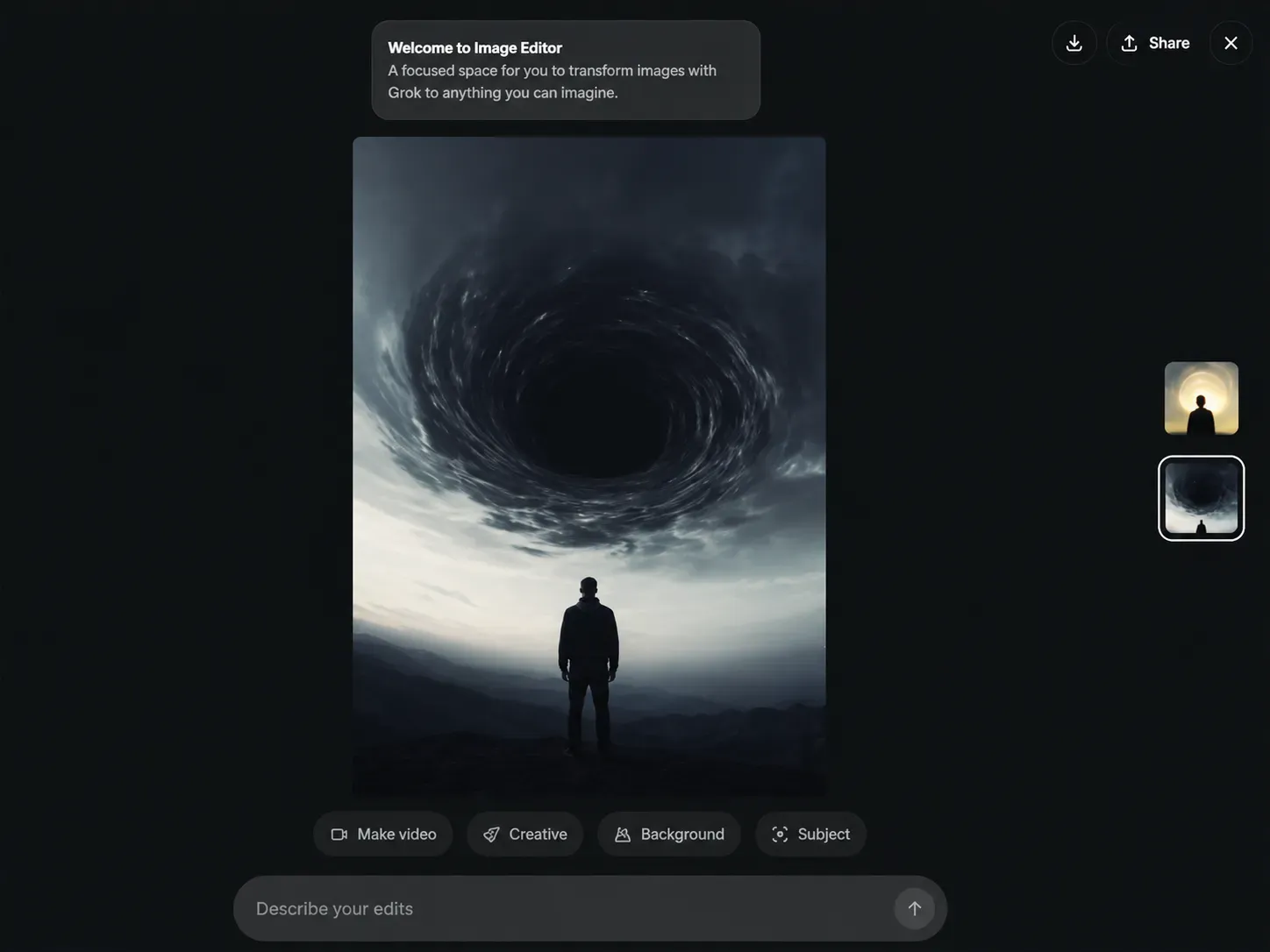
Hover for controls — Move your mouse over the image. A toolbar overlay will pop up, usually in the top-right or bottom-right corner.
-
Click the Download icon — Click the downward-arrow icon. The file saves immediately to your default browser Downloads folder.
What File Format Does Grok Use for Downloads?
When you download high-quality AI visuals from the desktop interface, Grok exports images as standard PNG or JPEG files. The format depends on the underlying generation pipeline — Grok's image models (which leverage Flux-based architecture) output lossless or near-lossless formats to preserve fine detail and color accuracy.
| Export Format | When It Applies |
| PNG | Most generated illustrations and detailed scenes |
| JPEG | Photorealistic outputs in some rendering contexts |
Pro tip: Right-clicking the image and selecting "Save image as..." is a valid fallback if the overlay controls don't appear — though the dedicated download button ensures you get the highest available resolution.
Saving Visuals on Mobile: Downloading From the Grok App and X (Twitter)
The mobile experience mirrors desktop closely, but there's one extra hurdle — a storage permissions popup that catches many users off guard the first time. Here's how to handle it on both platforms.
How to Download Image From Grok xAI Chat on iPhone (iOS)
1. Open the Grok app or navigate to Grok within the X premium app on your iPhone.
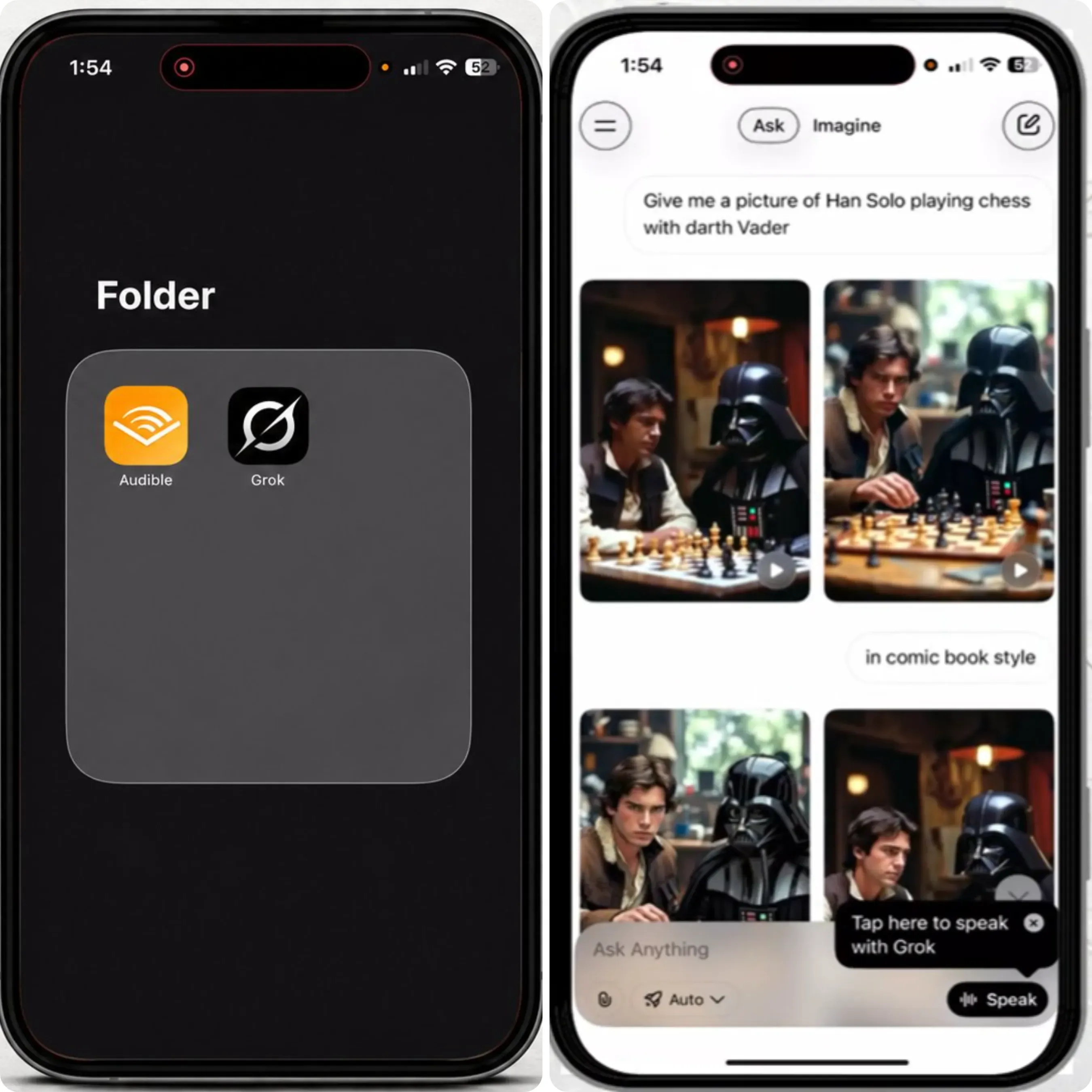
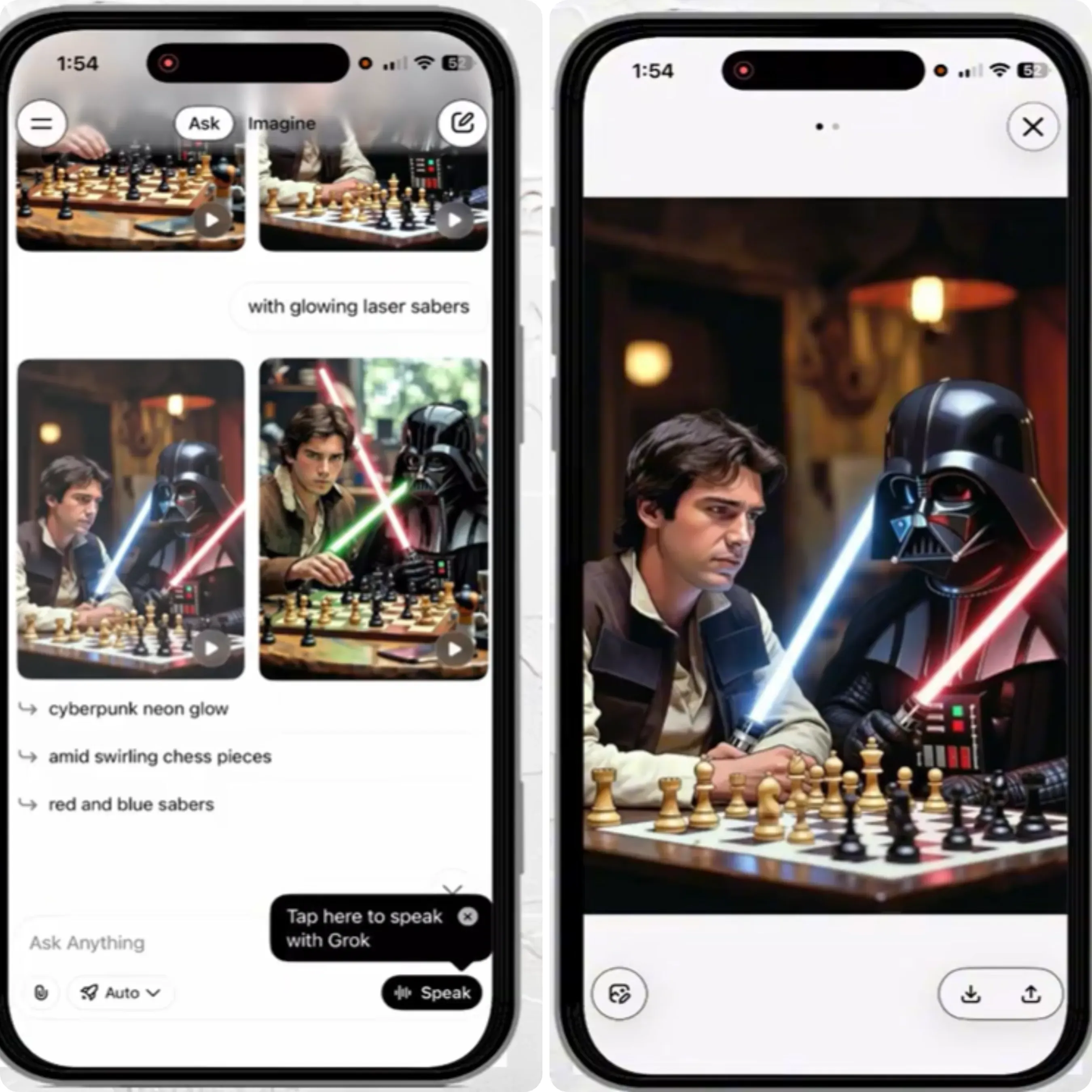
2. Generate or locate the AI image inside your chat session.
3. Tap the image to expand it into full-screen view.
4. Tap the Download arrow, bottom-right corner of the viewer.
5. Grant photo access when the system permission popup appears — tap "Allow" to let Grok write the file to your iOS Photos library.
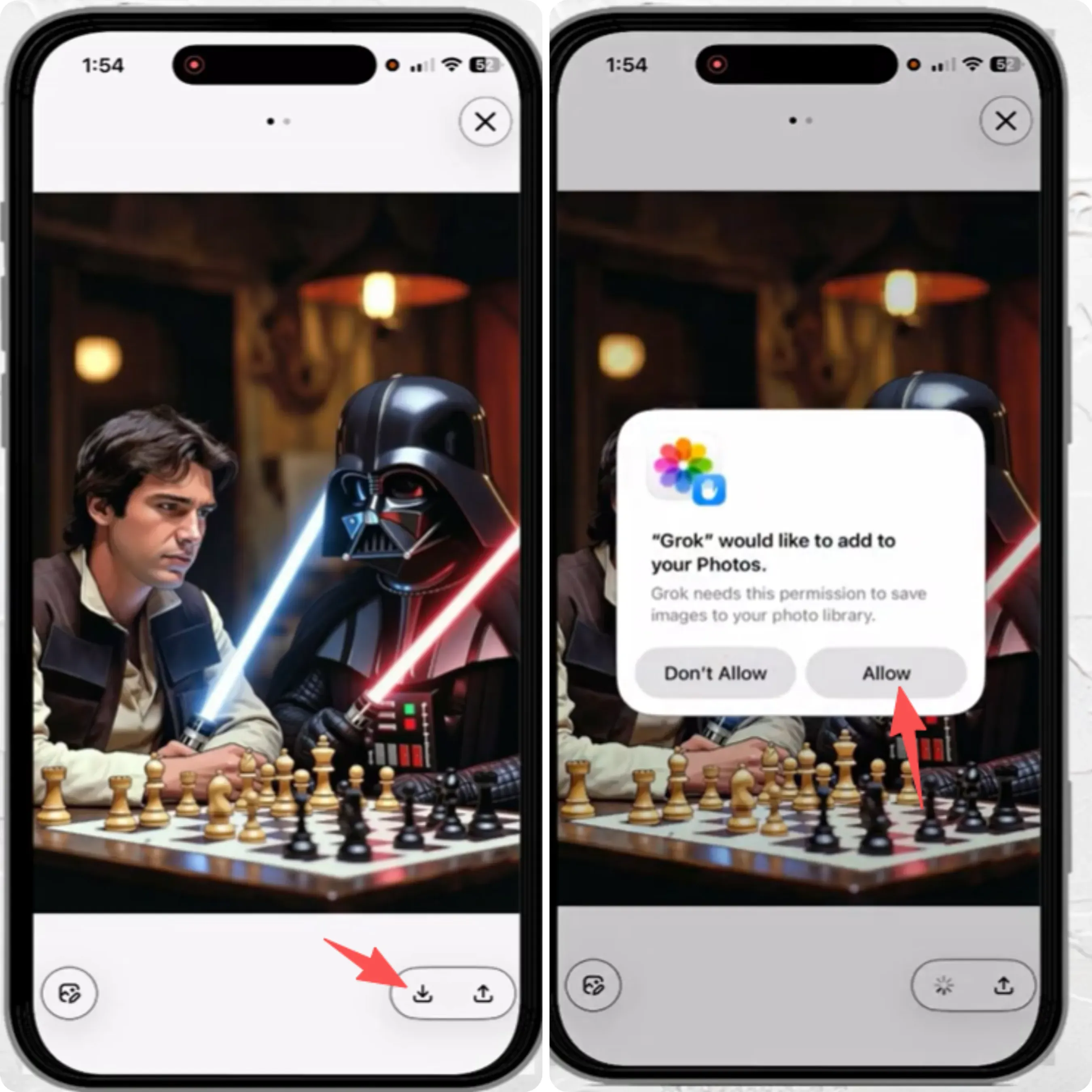
The image saves directly to your Camera Roll under Recents.
How to Save Grok Images to Android Camera Roll
- Open the Grok app or access the image via the X app on Android.
- Tap the generated image to enter full-screen mode.
- Tap the Download icon at the bottom-right of the screen.
- Approve the storage permissions prompt if it appears, required on Android 12 and earlier; Android 13+ uses scoped media permissions automatically.
The file saves to your Gallery or Downloads folder depending on your device manufacturer.
Why Is Grok Asking for Permission to Access My Photos?
Both iOS and Android require apps to request explicit storage permissions before writing any file to local media storage. This is a system-level security requirement — not unique to Grok. The app needs write access to safely commit the generated image to your iOS Photos library or Android media storage folder without overwriting or exposing existing files.
| Platform | Permission Type | Save Location |
| iOS | Photos Library (Write) | Camera Roll / Recents |
| Android 13+ | Scoped Media Access | Gallery / Downloads |
| Android 12 and below | Storage Write Permission | Downloads Folder |
If you previously denied permissions, go to your device Settings → Apps → Grok → Permissions and re-enable Photos or Storage access manually.
Troubleshooting Low-Resolution Previews and Quality Settings in xAI Chat
If your downloaded image looks blurry or pixelated, you're likely not downloading the wrong file — you're downloading it at the wrong moment. Here's what's actually happening and how to fix blurry Grok images for good.
The file isn't the issue if the image you downloaded looks pixelated or blurry. You are probably just saving it too early. Here is what is going wrong and how to fix your blurry Grok images for good.
Why Downloaded Images Look Compressed
The chat interface loads a web-optimized thumbnail first to keep the page responsive. This compressed preview renders almost instantly but is not the final asset. The full original resolution export — the actual grok-imagine-image-quality asset — continues rendering in the background. If you click download during this loading window, you'll capture the low-fidelity preview instead of the source file.
Common causes of poor image quality at download:
| Cause | What's Happening | Fix |
| Downloading too early | Preview thumbnail saved instead of source | Wait for viewer spinner to complete |
| Slow network connection | Full asset hasn't fully transferred | Reload the image, then re-download |
| Chat window thumbnail tapped | Compressed inline preview saved | Open full-screen viewer first, then download |
| Mobile data throttling | Asset load interrupted mid-render | Switch to Wi-Fi before generating |
The thumbnail compression you experience in the frontend chat interface is entirely a user-interface optimization. The raw, underlying model architecture—powered by xAI's Aurora engine—actually generates flawless, high-fidelity outputs.
In fact, developers testing the raw Grok Imagine API via platforms like Atlas Cloud can bypass these frontend rendering delays entirely. The API grants direct access to the Grok Imagine text to image Quality pipeline, exporting lossless or near-lossless 1k/2K files (~$0.055 per picture) immediately upon generation. For everyday users, this means if you simply wait out the frontend loading spinner in your browser, you are giving the system time to fetch that exact high-quality asset from the API layer to your local cache.
How to Download Grok Images in Ultra-HD Resolution
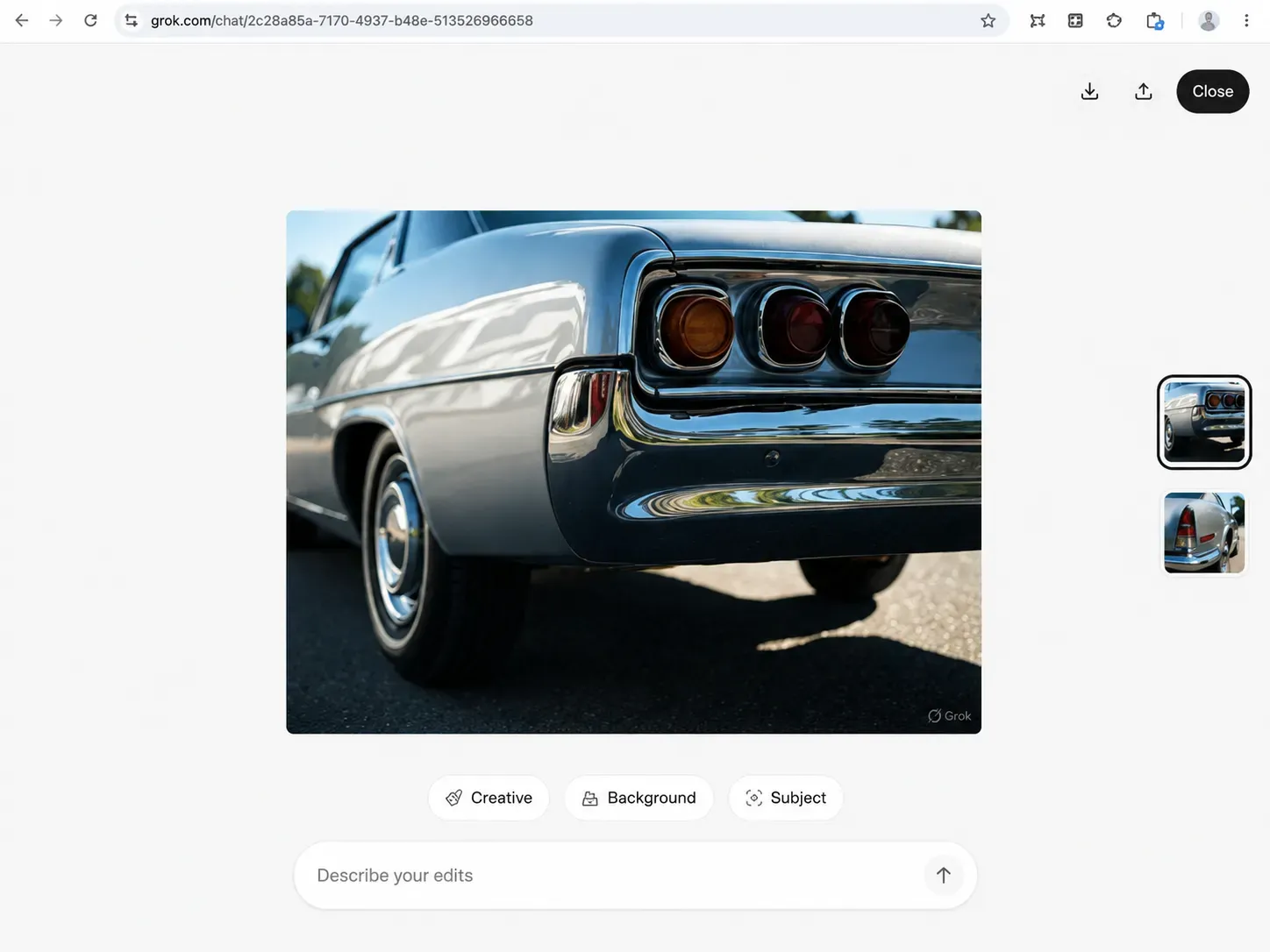
For a reliable Grok HD image download quality every time, follow this sequence:
- Make your image and wait for the small thumbnail to pop up in the chat.
- Click or tap right on the picture to open it up full screen.
- Keep an eye on the loading wheel. Wait until it goes away entirely before doing anything else so you know the full-size image is ready.
- Then click the Download icon. This pulls the uncompressed source file, not the preview layer.
For higher output fidelity, craft prompts that explicitly request quality — for example, adding "high detail," "4K," or "ultra-realistic" can influence the original resolution export Grok generates, depending on current model capabilities.
Note: Grok's maximum output resolution is determined by the underlying image model in use. Grok does not currently offer a user-facing resolution toggle, so grok prompt engineering remains the primary lever for quality control.
Advanced Method: How to Bulk Download All Generated Images From Grok
If you've been actively using Grok's image generation and now face hundreds of visuals to save manually, the one-by-one approach isn't practical. Here's what most users discover too late: xAI's native data export only packages uploaded images — not AI-generated ones. That means your generation history won't appear in a standard account export, and you'll need an alternative method to bulk export Grok images efficiently.
Method 1: Browser Dev Console Script
The most accessible workaround for power users is a JavaScript snippet run directly in Chrome or Firefox DevTools — no installation required.
To mass download your entire Grok generation history in one pass:
- Open the Grok conversation containing your generated images in a desktop browser.
- Scroll through the full chat to ensure all images are loaded into the DOM.
- Press F12 or right-click → Inspect to open DevTools, then navigate to the Console tab.
Let's put this into practice:
If you only want to extract specific images from the chat—for example, the 1st, 3rd, and 5th rendered visuals—you can customize the targetIndexes array in the script below before running it.
plaintext1(async () => { 2 const images = document.querySelectorAll('img'); 3 4 // 🎯 Enter the image numbers you want to download here (1 means the first large image from the top) 5 const targetIndexes = [1, 3, 5]; 6 7 let matchCount = 0; 8 9 for (let i = 0; i < images.length; i++) { 10 const src = images[i].src; 11 if (images[i].naturalWidth < 100 || src.startsWith('data:')) continue; 12 13 matchCount++; // Only count actual generated images, ignoring avatars 14 15 // Skip if the current image number is not in your target array 16 if (!targetIndexes.includes(matchCount)) continue; 17 18 console.log(`Downloading target image #${matchCount}...`); 19 try { 20 const response = await fetch(src); 21 const blob = await response.blob(); 22 const url = URL.createObjectURL(blob); 23 24 const a = document.createElement('a'); 25 a.href = url; 26 a.download = `grok-target-${matchCount}.png`; 27 document.body.appendChild(a); 28 a.click(); 29 document.body.removeChild(a); 30 URL.revokeObjectURL(url); 31 32 await new Promise(resolve => setTimeout(resolve, 200)); 33 } catch (error) { 34 console.error(`Failed to download image #${matchCount}:`, src); 35 } 36 } 37 console.log('Specified index download completed!'); 38})();
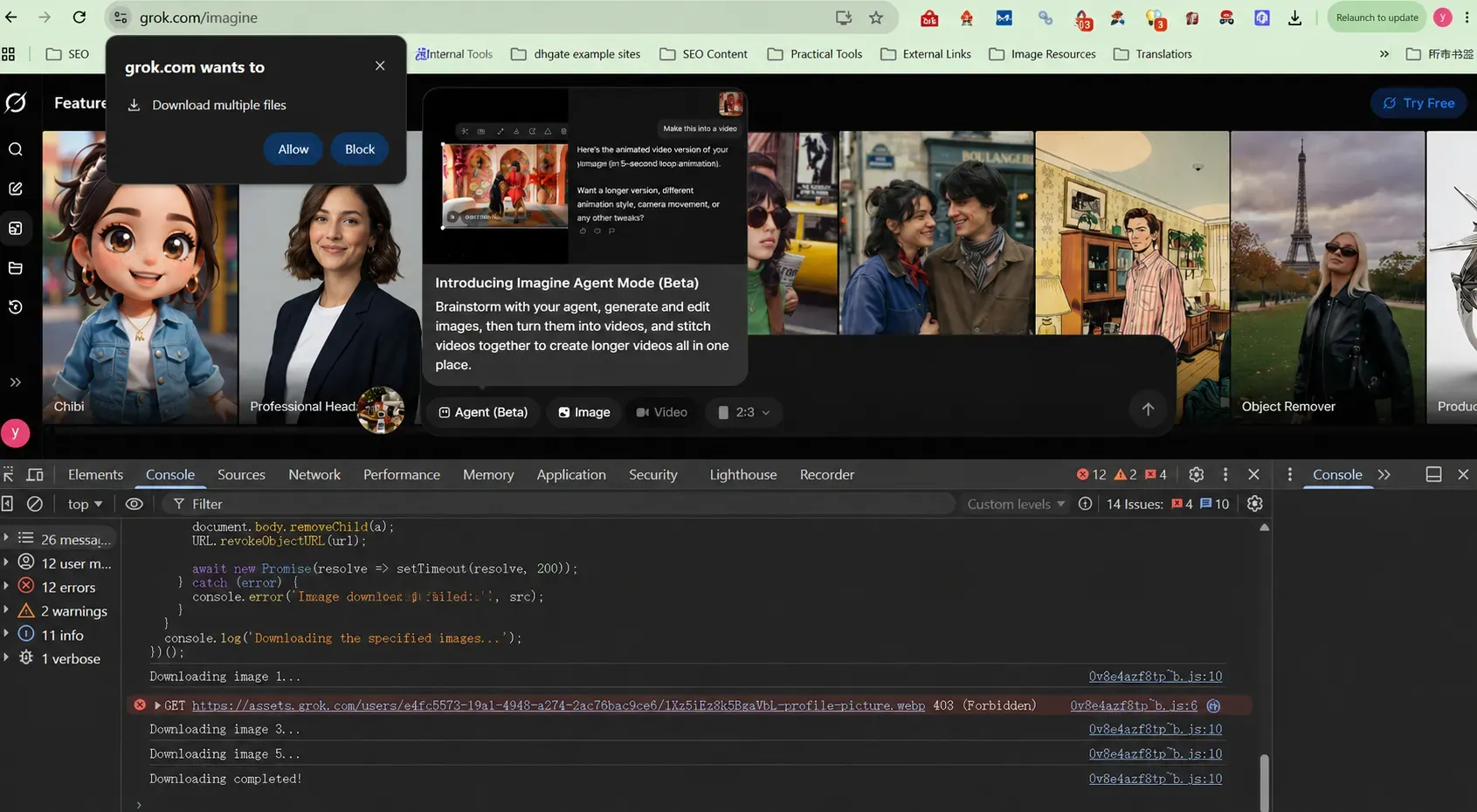
The execution results are as follows:
Pro Tips:
- Give Permission: Click "Allow" right away when the browser asks to download multiple files, or it will block them.
- Ignore 403 Errors: This error just means the script hit a locked profile picture. It automatically skips past it and keeps grabbing your chosen images (1, 3, 5) perfectly fine.
This iterates through every image element rendered in the current conversation window and triggers an individual download per asset. Most browsers will batch these into your Downloads folder automatically.
Important: Browser popup blockers may interrupt the batch. Before running, go to Settings → Site Settings → Pop-ups and allow grok.com to bypass the blocker. This script captures all
elements on the page — including UI icons — so expect a few non-generated files in the output that you'll need to filter out manually.
Method 2: Browser Extension Tools
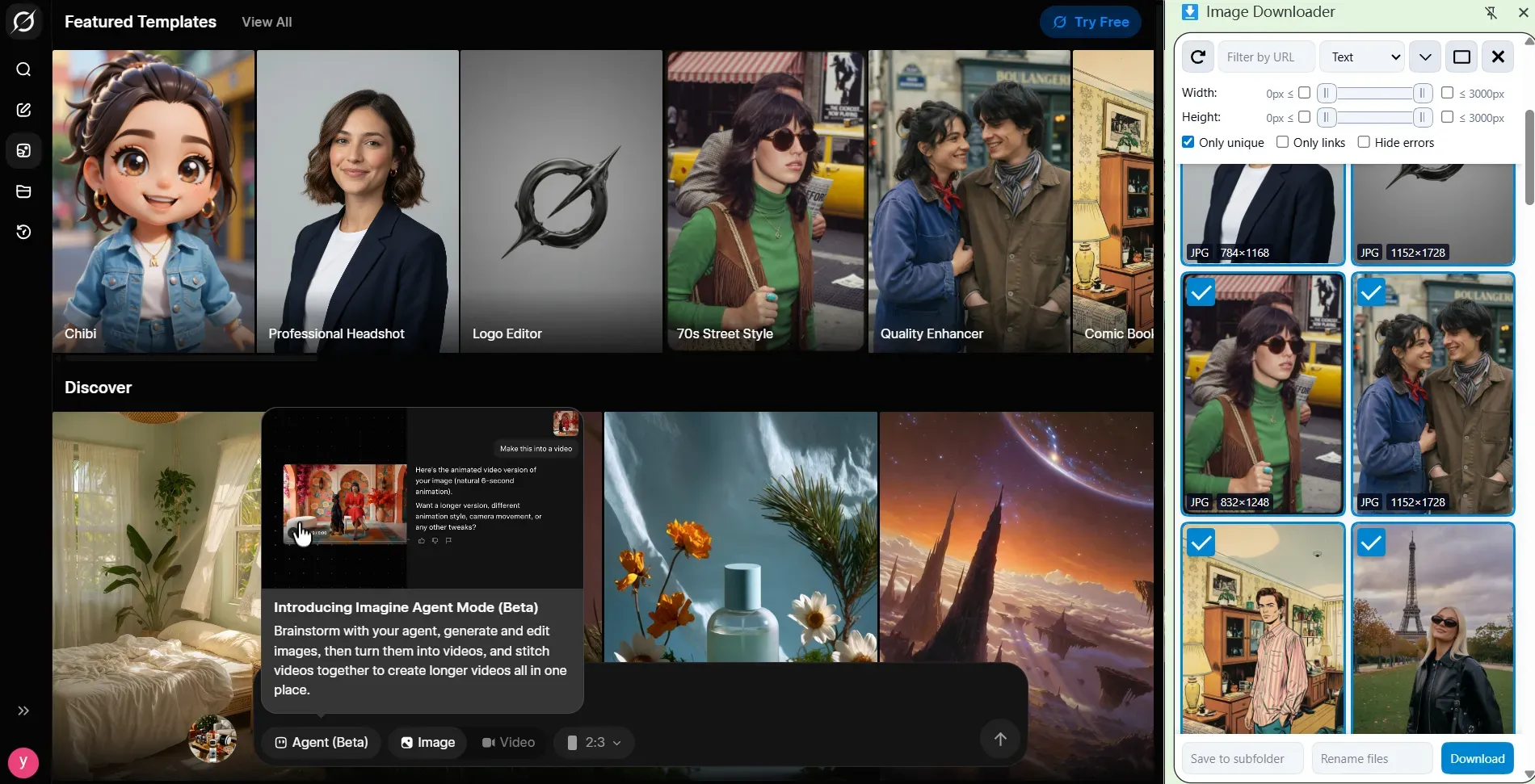
Several image-scraping browser extensions can streamline downloading all xAI chat images simultaneously without touching the console. Extensions like Image Downloader (available on the Chrome Web Store) let you filter visible images by dimension, helping you isolate full-size generated visuals and exclude smaller UI thumbnails before batch saving.
| Method | Technical Skill Required | Speed | Filters UI Icons |
| Dev Console Script | Moderate (copy-paste) | Fast | No — manual cleanup needed |
| Browser Extension | Low | Moderate | Yes — filter by size |
| Manual 1-by-1 | None | Slow | Yes |
Can I Mass Download My Entire Grok Generation History at Once?
Not through Grok's native interface — the platform currently has no built-in download Grok chat history images feature for generated content. The console script above handles up to the full visible conversation window per session. For very long chat histories, scroll to load all images before running the script, or break the process across multiple session segments to avoid incomplete captures.
Copyright and Usage Rights for Images Downloaded From Grok xAI Chat
Saving an image is the easy part. Knowing what you're legally allowed to do with it afterward is where most users lack clarity. Here's what xAI's current terms of service for Grok generations actually say — and what the gaps mean for your projects.
Who Owns a Grok-Generated Image?
According to xAI's current Terms of Service, AI-generated image ownership sits with the user: "To the extent permitted by applicable law, and as between you and xAI, you retain your ownership rights to the User Content."
That applies to both your input prompts and the outputs Grok produces — including every image saved to your device.
Can I Use Images Downloaded From Grok for Commercial Projects?
Yes — commercial use of xAI images is permitted under current policy. The ownership grant in xAI's Terms extends to commercial applications, making Grok AI image copyright fully viable for marketing assets, web design, and content production. That said, several important caveats apply:
| Usage Type | Permitted? | Key Caveat |
| Personal / editorial use | ✅ Yes | No restrictions |
| Commercial marketing | ✅ Yes | No IP indemnification from xAI |
| Depicting real individuals | ⚠️ Restricted | Cannot be misleading or harmful |
| Trademarked characters / logos | ❌ No | Third-party IP still applies |
| Reselling raw outputs as stock | ⚠️ Grey area | No explicit guidance from xAI |
The Indemnification Gap
One meaningful limitation: unlike Adobe Firefly, xAI offers no IP indemnification. If a Grok-generated image inadvertently resembles copyrighted training material, liability falls on the user — not xAI. For high-stakes commercial use, legal review is advisable.
Note: AI copyright laws change incredibly fast. Make sure to double-check the latest xAI Terms of Service before using any generated pictures for work or business projects.
Wrapping Up: Master Your Grok Image Library
Saving AI art from xAI's assistant doesn't have to be a multi-step headache. Whether you are grabbing a quick inspiration shot via the X mobile app, pulling a lossless PNG from your desktop browser, or using our custom JavaScript snippet to bulk-export your entire creative history, you now have full control over your generated assets.
Just remember the golden rules of high-quality Grok downloads:
- ⏳ Always let the loading wheel finish spinning in full-screen view before you download. Otherwise, you will just get a blurry preview.
- 🛡️ Watch out for copyright rules if you plan to use these pictures for big commercial ads.
Your turn now: Go to Grok, make something cool, and try these saving tricks. If you hit a weird bug or know a quicker way to bulk-save your images, drop a comment below!





