Kling AI Motion Control transfers realistic human movement from a reference video onto a static character image, producing output where your subject replicates the body motion and facial expressions from the reference clip. No motion capture rig, no keyframing, no actor on set.
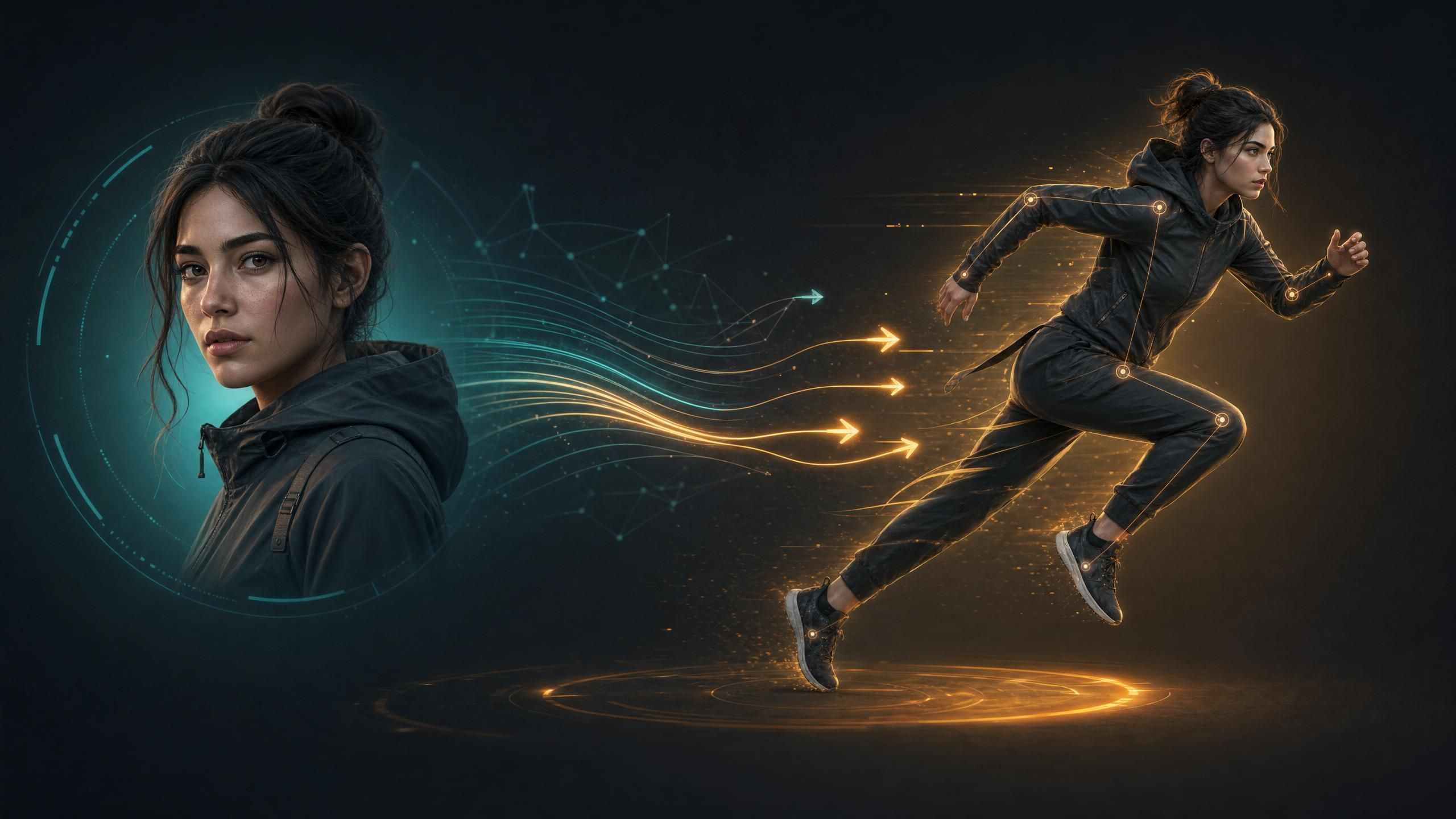
Since Kling 3.0 launched in May 2026, three problems surface constantly in developer forums and creator communities: faces that shift between frames, confusion about whether to use Kling 2.6 or 3.0, and uncertainty about what the Motion Brush control actually does versus full Motion Control. This guide answers all three and adds the practical tips that community testing has surfaced that the official documentation does not cover.
Key Takeaways
- Kling AI Motion Control transfers movement from a reference video to a character image. It works in image-to-video mode only. Text-to-video does not support it.
- Kling 3.0 Motion Control supports multiple character reference images in the web UI for improved face consistency. Kling 2.6 supports a single reference frame. Note: API calls accept one character image per request.
- Motion Brush and Motion Control are different features. Motion Brush applies directional vectors to painted image regions. Motion Control transfers full-body motion from a reference video.
- Atlas Cloud provides pay-as-you-go access to Kling 3.0 at $0.071/second (Standard) and $0.095/second (Professional), with no minimum spend.
What Is Kling AI Motion Control?
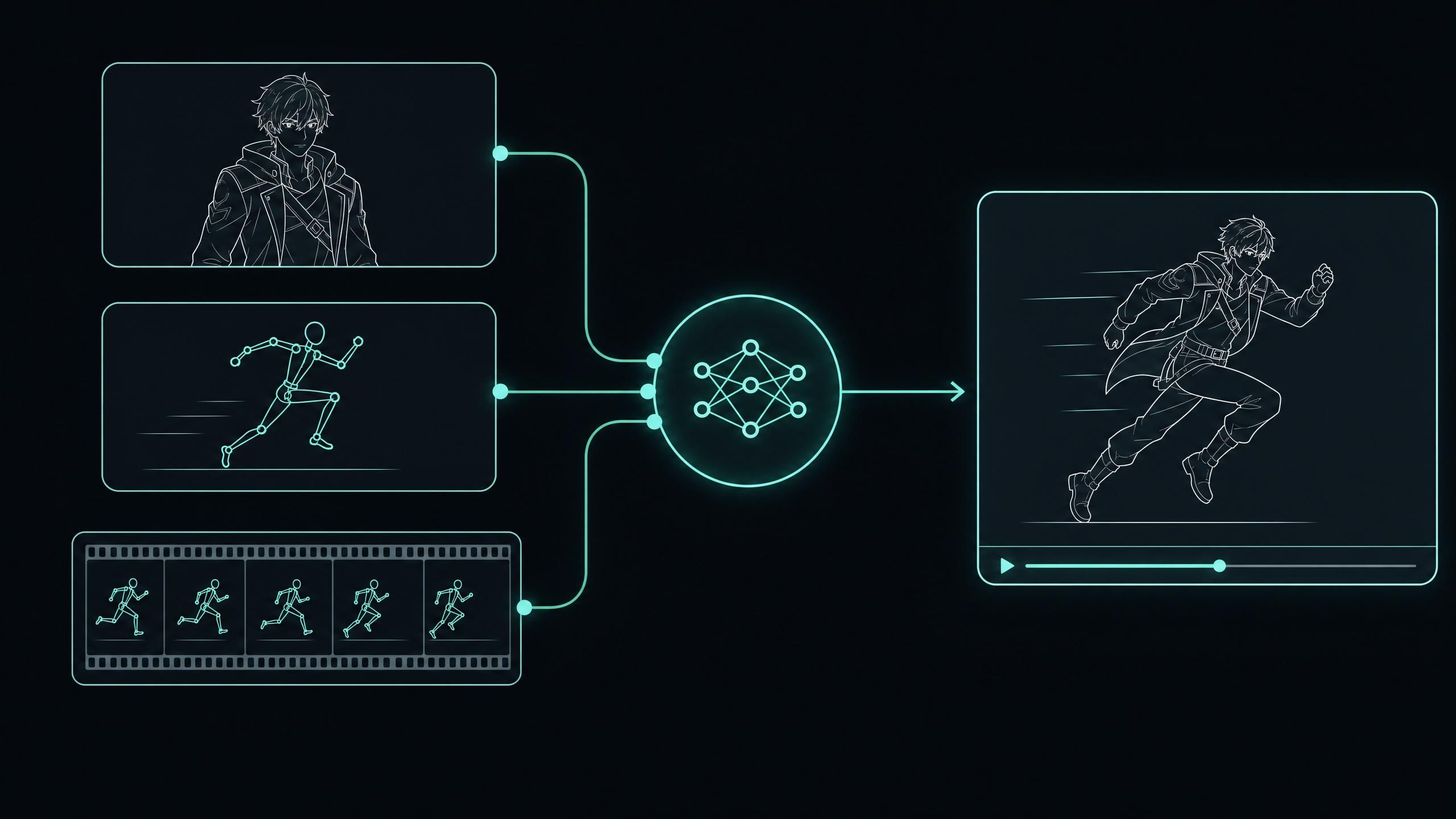
Kling AI Motion Control is an image-to-video generation mode that maps body movement and facial expressions from a reference video onto a static subject image. You supply a character image and a reference clip showing the motion you want replicated. Kling analyzes the motion in the reference, maps it to the subject's body proportions, and generates a video of your character performing the same movement.
The official Kling documentation describes the feature as enabling "precise control of a character's movements and facial expressions based on a reference image." In practice this covers walking cycles, dance moves, gestures, head turns, and synchronized facial expressions, all driven by whatever motion exists in your reference video rather than by text prompting.
Kling AI Motion Control supports three input configurations:
- A single character reference image (available in Kling 2.6 and 3.0)
- Multiple character reference images via the web UI (Kling 3.0 only; API accepts one image per request)
- An optional audio track for synchronized lip-synced output (Kling 3.0 only)
One hard constraint to note: Motion Control requires an image input. Text-to-video mode does not support it. If you want Motion Control output, you must supply a character image. Because the feature always starts from a still frame, our Kling AI image to video guide is the best place to learn how to prepare and animate that source photo first.
Kling 2.6 vs Kling 3.0 Motion Control: What Changed
Both Kling 2.6 and Kling 3.0 include Motion Control, but 3.0 introduces changes that matter in practice. The version confusion is common enough that r/generativeAI has active threads asking about it directly. Here is the full comparison:
| Feature | Kling 2.6 Motion Control | Kling 3.0 Motion Control |
|---|---|---|
| Character reference images | 1 | Up to 7 (web UI) |
| Face consistency approach | Single-frame anchor | Multi-frame visual anchoring |
| Maximum output length | Up to 10 seconds | Up to 15 seconds |
| Audio synchronization | Not supported | Native multilingual lip-sync (CN, EN, JP, KR, ES) |
| Motion quality | High | Higher, with improved physical realism |
| Subject consistency | Standard | Deep visual anchoring across frames |
The most significant practical change is multi-reference support. In Kling 2.6, you anchor your character to one image. The model has limited information about your character's appearance from different angles, and face consistency suffers whenever the reference motion involves significant head rotation. Kling 3.0 lets you upload multiple images of the same character from different angles and lighting conditions in the web UI, giving the model a richer identity map to work from.
When Kling 2.6 Motion Control makes sense: Single-image, frontal character, short generation under 10 seconds, no audio sync requirement. Kling 2.6 Motion Control is capable here and costs less than the 3.0 equivalent.
When Kling 3.0 Motion Control is the right choice: Any generation involving face turns, complex body motion, audio synchronization, or output over 10 seconds. The multi-reference system and improved subject consistency make 3.0 the better option whenever face fidelity matters. To push Kling 3.0 further into film grade results, our cinematic Kling 3 video tutorial shows how to combine these upgrades into polished, story driven sequences.
Step-by-Step: From Character Image to Generated Video
Motion Control is available through the Kling web interface and through the API. The web workflow:
Step 1: Open Motion Control mode.
Navigate to Video Generation and select Motion Control from the mode options.
Step 2: Upload your character image.
This is your reference subject. Frontal, well-lit, with the full body visible in the frame produces the most reliable motion transfer. In Kling 3.0, upload additional character images from different angles to improve face consistency across the generated output.
Step 3: Upload your reference video.
This is the clip containing the motion you want transferred. The reference subject and your character do not need to look alike, only share approximate body proportions and camera framing. Keep the clip between 2 and 5 seconds for best results (see Reference Video Tips below for why this range matters).
Step 4: Set the generation strength control.
Kling's web interface includes a strength slider in Motion Control mode that affects how closely the output follows the reference video. Start at the midpoint and adjust based on output quality. Note: in third-party API implementations, this concept maps to the cfg_scale parameter, which controls generation adherence on a 0 to 1 scale.
Step 5: Add an optional text prompt.
The prompt guides background, lighting, and scene context. It does not override the motion reference but it does influence stylistic elements of the output.
Step 6: Generate and review.
If the output shows face drift or limb artifacts, the troubleshooting section below covers the most reliable fixes.
Developers using Atlas Cloud's Kling 3.0 endpoint pass the same inputs programmatically: character image, reference video, and generation parameters. To sharpen the optional text prompt that sets background, lighting, and scene context, our Kling AI video prompt guide covers the exact wording that keeps output stable.
Kling AI Motion Brush Feature Explained
The Kling AI Motion Brush feature is a different tool from Motion Control. Where Motion Control transfers full-body movement from a reference video, Motion Brush lets you paint directional motion vectors onto specific regions of a single image. Selected areas animate in the direction you define. Unselected areas remain static.
Using Motion Brush:
- Upload a static image.
- Select Motion Brush from the generation options.
- Paint over the region you want to animate: a character's arm, flowing fabric, water surface, hair, foliage.
- Set the direction (left, right, up, down, zoom in, zoom out).
- Adjust brush strength and generate.
Motion Brush vs Motion Control: which to use
| Use case | Tool |
|---|---|
| Full-body character movement from a reference clip | Motion Control |
| Hair moving in wind | Motion Brush |
| Replicating a specific dance or gesture sequence | Motion Control |
| Animating water, fire, or fabric in a scene | Motion Brush |
| Synchronized body and face movement | Motion Control |
| Ambient portrait animation | Motion Brush |
| Any motion that needs to match a specific reference | Motion Control |
Motion Brush generates at lower cost than full Motion Control because it does not require reference video processing. For simple directional animations where you do not need to match a specific movement, Motion Brush is the more economical option.
Why Does Kling Motion Control Keep Changing My Character's Face?
Face inconsistency is the highest-frequency problem reported by Kling Motion Control users. On r/generativeAI, the thread "Kling Motion Control keeps changing my character's face" (8 comments, 1 month ago) captures the exact situation: creators using quality character images from tools like Higgsfield Soul 2.0 and Nano Banana Pro still seeing the face drift or shift between frames when Motion Control runs.
The root cause is a spatial anchoring conflict. Motion Control uses the reference video's layout to extract the motion signal. When the reference subject's face position, angle, or lighting differs significantly from the character image, the model cannot cleanly separate "identity from the character image" from "motion signal from the reference." The face drifts toward the reference subject's appearance as a result.
Fixes in order of effectiveness:
1. Upload multiple character reference images (Kling 3.0 web UI only).
The most effective fix for persistent face drift. Upload 3 or more images of your character from different angles and lighting conditions. Kling 3.0's multi-reference anchoring builds a richer identity model for your character and holds it more consistently under complex motion. This fix alone resolves the majority of reported face-changing problems.
2. Use a reference video where the face stays frontal.
Reference clips where the subject's face turns sharply away from camera, or is partially occluded, produce ambiguous face signals. A reference where the face remains roughly forward-facing through most of the motion produces significantly better character face retention.
3. Match framing between your character image and the reference video.
A close-up portrait paired with a full-body reference video creates a spatial mismatch that the model handles poorly. Crop or scale one input to match the spatial proportions of the other before generating.
4. Lower the generation strength setting.
Higher strength pushes the model harder toward the reference, which increases face drift pressure. Pulling the slider toward the midpoint often visibly reduces face inconsistency without degrading the motion quality.
5. Choose reference videos with minimal facial expression movement.
For body-only motion (a walking cycle, arm gestures), use reference clips where the subject's face is relatively neutral. Less competing face signal means less conflict with your character's face identity.
Reference Video Tips for Cleaner Generations
These practices are drawn from community testing documented in r/generativeAI ("Kling Motion Control is awesomeee Guide", 3 comments, 4 months ago), supplemented by observed patterns in diffusion-based motion transfer behavior.
Keep the reference video between 2 and 5 seconds.
Longer clips introduce motion variation and lighting shifts that dilute the motion signal. A short, stable 2 to 5 second clip gives the model a focused reference to work from. The r/generativeAI community identifies this as the single most impactful reference quality factor.
Minimize occlusion in the reference.
When the reference subject's hands cross in front of their body, or limbs overlap limbs, the model generates artifacts in the corresponding region of your character. Community testers describe this as the "spaghetti limbs" problem. A reference clip where arms are mostly clear of the body and limbs do not cross produces noticeably cleaner output.
Stabilize your reference video before uploading.
Shaky handheld footage introduces camera motion that the model can read as body motion. A basic stabilization pass before uploading removes this noise from the motion signal.
Match body proportions between your character and the reference subject.
Motion Control maps the reference subject's joints to your character's joints. Significant proportion mismatches produce distortion that is most visible in arm and leg length scaling. When the reference and character are similar in height and build, the joint mapping is more accurate.
Test with a simple reference before using your final one.
Before spending credits on a production reference, test your character image with a neutral clip (a person walking slowly toward camera) to confirm the character image is compatible with Motion Control. Character images with complex backgrounds, multiple visible subjects, or ambiguous body framing often fail independently of the reference video quality.
Kling AI Motion Control Free: How to Access It Without Paying Full Price
Kling AI Motion Control free access is available through kling.ai's daily credit allowance on its free tier. The free credits cover a small number of generations per day, enough for testing a reference video and character image combination but not for production volume.
For creators and developers who need more generation capacity, two options exist:
Kling.ai subscription plans include a fixed monthly credit allocation. Motion Control generations consume credits based on output duration and quality tier. A subscription is cost-effective when you generate consistently at volume throughout the month.
Atlas Cloud pay-as-you-go provides access to Kling 3.0 Motion Control without a subscription or minimum spend. Pricing from the Atlas Cloud Kling 3.0 model page: $0.071 per second for Standard and $0.095 per second for Professional, charged only for what you generate. For teams with variable output volume, pay-as-you-go is often cheaper than a monthly plan because you only pay for what you actually run.
The recommended workflow for Kling AI Motion Control free testing: use the kling.ai free tier credits to validate your reference video and character image combination first. Confirm the motion transfer is working the way you need before moving to paid credits for the full production run.
Using Kling Motion Control Through the Atlas Cloud API
Developers integrating Kling Motion Control into production workflows access the feature through Atlas Cloud's unified API. The endpoint accepts a character image, a reference video, and generation parameters. In third-party API implementations, the generation strength concept maps to cfg_scale (0 to 1).
Implementation recommendations for production:
Log every request with its full context.
When a Motion Control generation fails, the error response does not specify whether the cause was a content policy flag, a parameter validation issue, or a transient capacity problem. Logging the full request alongside each error is the only reliable way to diagnose failure patterns at scale.
Implement exponential backoff.
Some Motion Control failures are transient. Retry logic with exponential backoff separates transient errors from persistent ones and avoids unnecessary load on the endpoint.
Pre-validate reference video inputs.
Reference videos that fall outside supported duration, resolution, or format requirements fail validation before generation begins. Checking these parameters client-side before submission avoids wasted API calls and credits.
Build and maintain a reference video library.
Motion Control output quality is heavily dependent on reference video quality. A tested library of reference clips organized by motion type (walk cycles, gestures, dance styles, facial expressions) reduces per-generation experimentation time and makes production workflows predictable and repeatable. For a broader view of how Motion Control fits alongside every other capability, our complete Kling AI guide maps out the full platform and its models.
Atlas Cloud's API documentation covers the full parameter schema for Kling 3.0 video generation endpoints, including Motion Control.
Frequently Asked Questions
Does Kling 2.6 support Motion Control?
Yes. Kling 2.6 supports Motion Control with a single character reference image. The workflow is identical to Kling 3.0 but without multi-reference support and with a maximum output length of 10 seconds. For Kling 2.6 Motion Control tasks where face consistency across complex motion is not required, Kling 2.6 is a capable and cost-effective option.
How many reference images can I upload for Kling 3.0 Motion Control?
Kling 3.0 supports uploading multiple character reference images via the web UI to build a richer identity anchor. Uploading images from different angles and lighting conditions significantly improves face consistency, particularly for generations involving head turns or complex body movement. Note that the API accepts one character image per generation request.
Does Kling Motion Control work in text-to-video mode?
No. Kling AI Motion Control requires an image input and operates only in image-to-video mode. There is no text-to-video Motion Control option. You must supply a character image to use the feature.
What is the difference between the Kling AI Motion Brush feature and Motion Control?
Motion Brush lets you paint directional motion vectors onto specific regions of an image. Motion Control transfers full-body movement and facial expressions from a reference video onto a character image. The Kling AI Motion Brush feature is better for simple region-specific animation (hair, fabric, water). Motion Control is better for realistic human movement that needs to match a specific reference performance.
What is the Kling AI motion strength parameter?
Kling's web interface includes a generation strength slider in Motion Control mode that affects how closely the output follows the reference video. "Motion strength" is the label used in the UI, but it is not a named parameter in published third-party API implementations of Kling Motion Control (WaveSpeed, fal.ai, kie.ai). In those API integrations, generation adherence is controlled by cfg_scale, a 0 to 1 value that affects how closely the model follows the input. Start at the midpoint and adjust from there.
Is Kling AI Motion Control free to use?
Kling AI provides a limited number of free daily generation credits on kling.ai that can be applied to Motion Control. For higher-volume usage, paid subscription plans on kling.ai or pay-as-you-go access via Atlas Cloud are the available options. Atlas Cloud requires no minimum spend.





