Key Takeaways
- Access Tiers: Use Google Flow for visual UI control; use Vertex AI (
veo-3.1-generate-preview) for API workflows.- Consistency: Avoid text-only character prompts—use Ingredients Mode slots to eliminate facial drift.
- Prompt Formula: Deploy a 7-layer structure combining camera lenses, force vectors, and audio tags.
- Audio Control: Implement bracketed syntax
[SFX: ...]and[Ambient: ...]for native 48kHz audio sync.
Unanchored text-to-video prompts often produce morphing faces, erratic camera movements, and silent, unusable clips. Mastering how to use Veo 3.1 requires abandoning conversational descriptions in favor of an end-to-end AI video production workflow.
Quick-Start Execution Pipeline
Transform raw concepts into audio-synchronized, multi-shot 4K video using this sequence:
- Select Access Tier: Launch via Google Flow UI or the Vertex AI API (
veo-3.1-generate-preview). - Anchor Visual Assets: Upload reference images in Ingredients Mode or supply keyframe bounds.
- Execute Prompt Engineering: Apply structured syntax combining camera directives, subject motion, and native audio cues.
- Extend Duration: Sequence tail-frame extensions to build clips beyond the initial 8-second window.
Standard Text-to-Video vs. Veo 3.1 Multi-Modal Conditioning
| Generation Feature | Legacy Text-to-Video | Veo 3.1 Advanced Conditioning |
| Character Consistency | High temporal drift across renders | Reference image slots lock character identity |
| Scene Transitions | Random interpolated movement | First and Last Frame Control dictates camera trajectory |
| Audio Integration | Silent output requiring external post-production | Native 48kHz sound effects, ambience, and lip-sync dialogue |
| Output Aspect Ratios | Fixed 16:9 widescreen rendering | Native 16:9 widescreen and 9:16 portrait formats |
Official operational specifications and syntax guidelines can be reviewed via the Google AI Veo Documentation and Google DeepMind Veo Portal.
Preparing Your Workspace: Google Flow vs. Vertex AI & Engine Selection
Burning through project budgets on full-resolution trial renders is the fastest way to drain generation credits. Creators often waste resources testing basic prompt logic on high-cost model tiers, only to restart when a camera movement strays. Selecting the right workspace and engine variant before triggering a generation pass prevents this unnecessary burn rate.
Where Can I Access Veo 3.1?
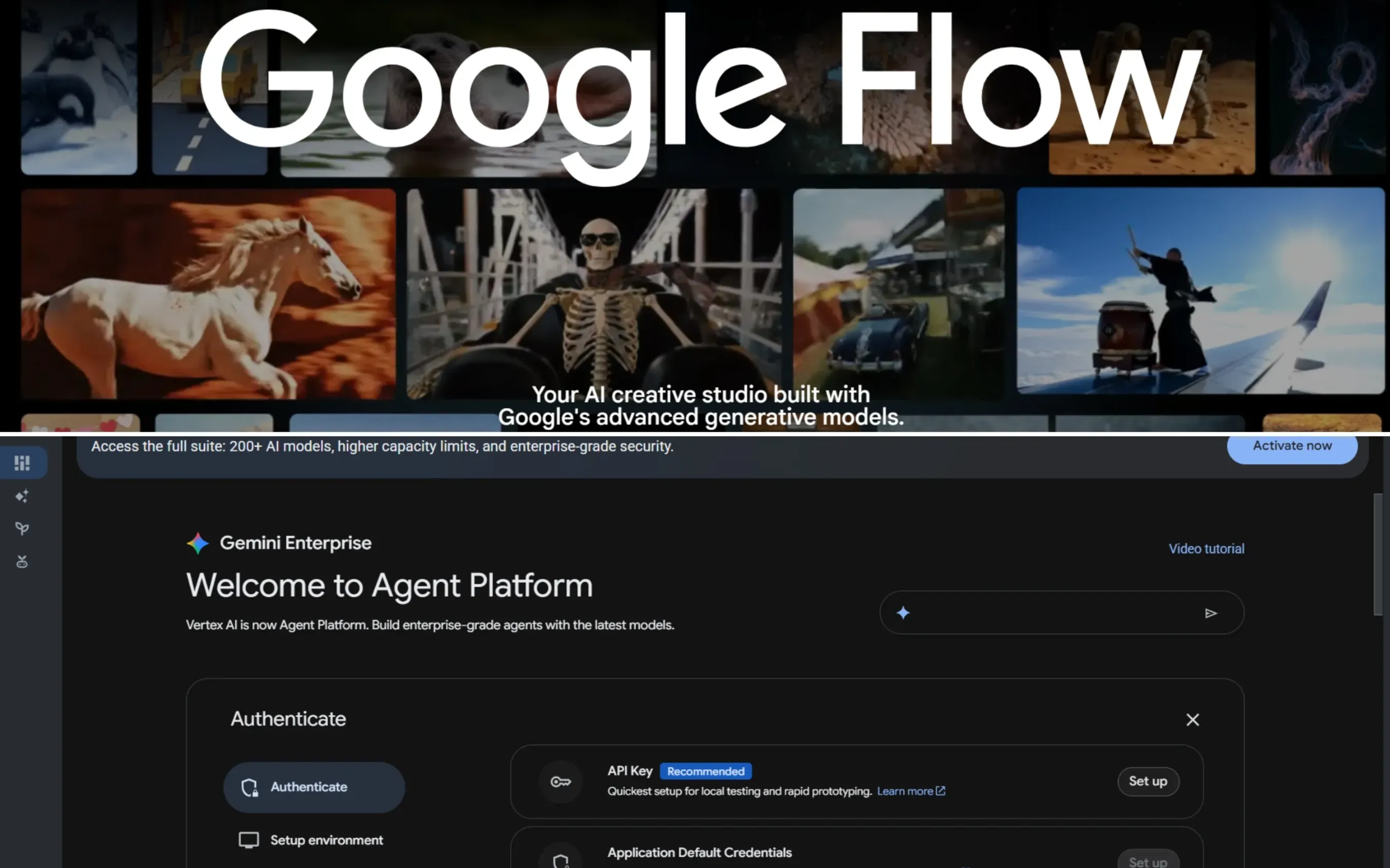
Access depends on whether your project requires interactive visual controls or automated batch pipelines:
- Google Flow Workspace: The interactive, web-based canvas. Best for manual editing, reference image anchoring, and instant audio-visual previews.
- Vertex AI API Access: The programmatic gateway. Best for developers integrating
veo-3.1-generate-previewinto custom apps or running batch generations via Python, Node.js, or REST.
Note: Vertex AI is now rebranded to Agent Platform.
Engine Selection: Veo 3.1 Lite vs. Fast vs. Quality
Choosing between speed and fidelity dictates both cost efficiency and output quality. Run early composition tests in Fast mode, then switch to Quality for final delivery.
| Feature / Metric | Veo 3.1 Lite | Veo 3.1 Fast | Veo 3.1 Quality / Standard |
| Primary Use Case | Ultra-low-cost ideation, high-volume batch drafts, rapid storyboard pre-visualization | Balanced production rendering, quick iterations, social content automation | Master-grade final renders, commercial/broadcast deliverables, complex hero shots |
| Generation Speed | Fastest (~5 to 10s per clip) | Rapid (~15 to 30s per clip) | Standard (~60 to 120s per clip) |
| Relative Cost / Credit | Minimal (~$0.05 / 87% lower than Quality) | Optimized (~$0.15 / 62% lower than Quality) | Full rate (~$0.40 per pass) |
| Native Resolution | 720p / Draft 1080p | Native 1080p | Native 1080p with dedicated 4K upscaling pass |
| Lighting, Physics & Audio | Functional physics, basic background sound floor | Strong motion coherence, balanced volumetric lighting & audio sync | Full spatial physics, complex fluid dynamics, precision 48kHz soundstage |
Production Recommendation
To optimize your generation budget across large projects, apply a three-stage tier escalation workflow:
- Ideation & Prompt Testing (Lite): Run initial composition, framing, and camera direction tests on Veo 3.1 Lite to lock down prompt syntax at minimal cost.
- Motion & Audio Refinement (Fast): Switch to Veo 3.1 Fast to evaluate lip-sync dialogue, complex object motion, and character continuity.
- Final Mastering (Quality): Once seed values and motion vectors are locked, execute the final pass under Veo 3.1 Quality with the dedicated 4K upscaling pipeline.
Mastering Visual Anchors: How to Maintain Character & Style Consistency
You finally generate a perfect wide shot, but when the camera pushes in, your protagonist’s facial features warp and their clothing shifts from cotton to leather. This phenomenon, known as temporal drift, plagues most text-to-video models. To achieve professional character consistency, you must stop relying on text prompts alone and leverage Veo 3.1’s Ingredients Mode (Ingredients-to-Video).
Utilizing Ingredients Mode for Structural Control
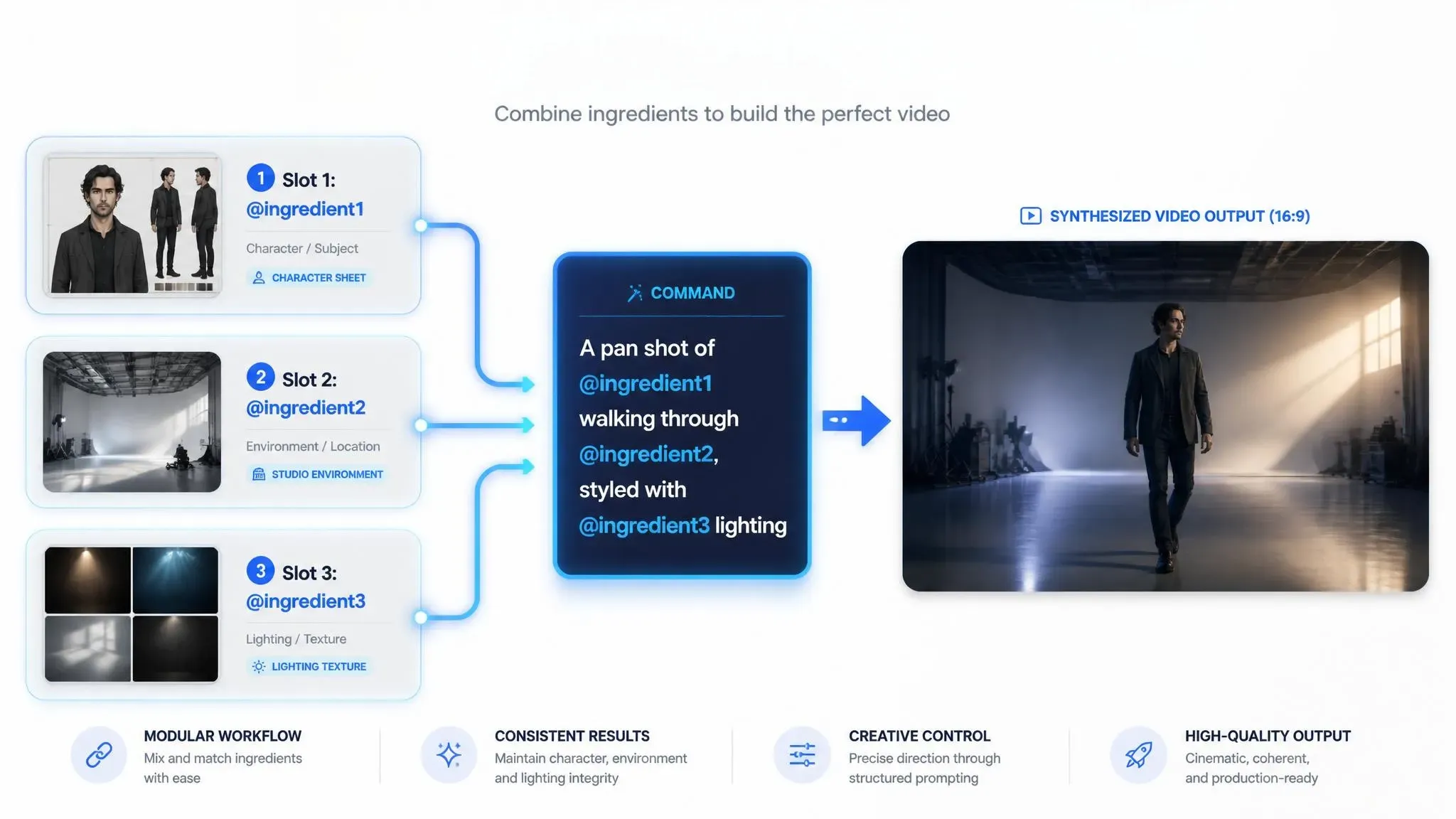
Veo 3.1 allows you to upload up to three visual ingredients simultaneously. Instead of forcing the latent engine to "guess" details, Ingredients Mode locks identity, environment, and aesthetic texture using direct visual references. Apply this recommended three-ingredient allocation strategy:
| Ingredient Slot Strategy | Primary Function | Official Prompting Best Practice |
| Subject Ingredient (@character) | Locks facial geometry, body proportions, and attire | Tag the asset in your prompt (e.g., "@ingredient1 walking through...") and use a neutral, front-facing sheet. |
| Environment Ingredient (@background) | Sets spatial boundaries and floor-to-ceiling perspective | Supply a wide-angle shot establishing atmospheric lighting and depth. |
| Style Ingredient (@style) | Governs film grain, color grading, and surface textures | Upload high-contrast stills showing specific material weaves, skin pores, or lighting setup. |
Step-by-Step Style Locking
Use this structured process to strictly stick to your uploaded materials in order to establish image-to-video visual anchors:
- Match Asset Aspect Ratios: Crop all reference assets to your target aspect ratio 16:9 or 9:16 and maintain dimensions above 1024px prior to uploading. Pre-cropping prevents the latent engine from stretching or warping your static inputs during early diffusion passes.
- Assign Material Cues: In your text prompt, explicitly describe the surface properties found in your reference image alongside ingredient tags. If your style anchor shows brushed aluminum, write "brushed aluminum reflections on @ingredient1" to bridge the gap between static asset features and motion rendering.
- Resolve Token Conflicts: If character drift occurs, clear out redundant descriptive adjectives regarding visual appearance from your text prompt and rely primarily on the @ingredient1 reference tag for identity enforcement.
By offloading visual complexity to designated reference slots, you reserve the text-generation tokens for camera movement and action-based physics. This division of labor remains the most reliable method for maintaining identity stability across multi-shot sequences.
The 7-Layer Prompting Formula for Photorealistic Generations
Typing vague descriptors like "a high quality, hyperrealistic cinematic scene" frequently yields floaty motion, flat lighting, and rubbery physics. Generative video diffusion models require explicit physical and optical parameters using a structured Veo 3.1 prompt guide framework rather than generic praise.
Creators often ask: How do I format prompts for Veo 3.1?
The answer lies in abandoning conversational prose and adopting a structured prompt architecture that translates directly into rendering commands.
The 7-Layer Prompt Structure
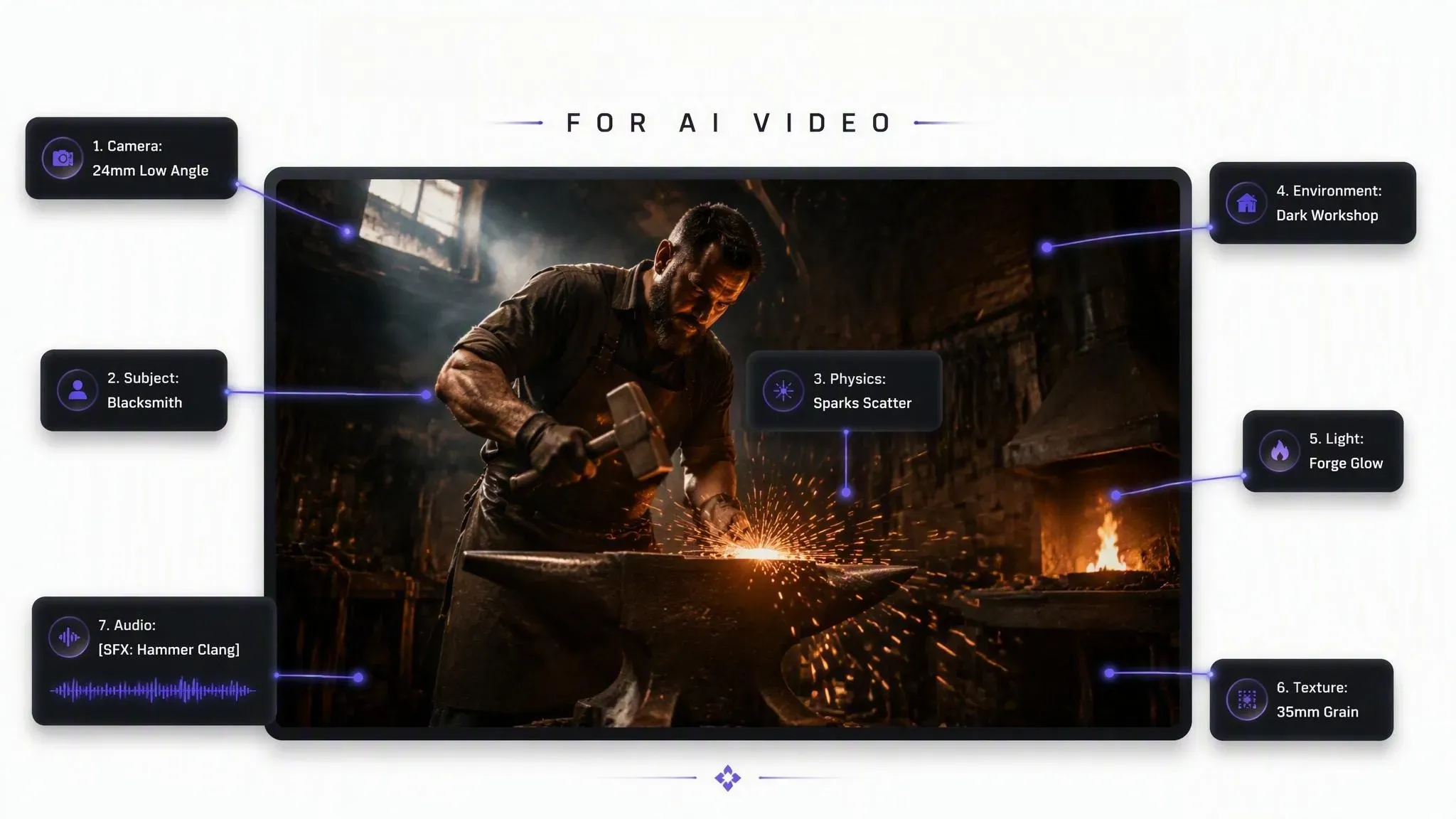
To achieve physical fidelity and precise camera execution, organize your text input into this repeatable sequence:
| Layer | Objective | Example Syntax |
| 1. Camera & Lens Choice | Dictates field of view and tracking motion | 35mm lens, slow dolly-in, shallow depth of field |
| 2. Subject Definition | Front-loads visual character anchors | A 40-year-old carpenter with weathered hands |
| 3. Action & Physics | Uses force-based action verbs to ground movement | strikes a iron chisel, sending wood shavings flying |
| 4. Environment & Atmosphere | Establishes spatial depth and air quality | woodworking workshop, volumetric sawdust haze |
| 5. Lighting Engine | Positions explicit light sources for dynamic shadows | single key light from an overhead industrial bulb |
| 6. Style & Texture | Defines surface finish and optical artifacts | Kodak 35mm film stock, micro-scratches, visible grain |
| 7. Native Audio Cues | Directs integrated dialogue and sound effects | [SFX: sharp metallic thud of chisel] "Almost done." |
Comparing Flawed vs. Directorial Prompts
Notice how replacing descriptive fluff with cinematic force vectors radically changes output quality:
- Flawed Prompt: "An amazing cinematic video of a man working hard in his shop, hyperrealistic."
- Directorial Prompt: "Low-angle tracking shot, 24mm lens. A blacksmith hammers glowing yellow steel on a steel anvil. Sparks scatter across the dark concrete floor. Key light from the forge illuminates his face. [SFX: heavy hammer clang] [Ambient: roaring furnace fire]."
Front-loading cinematic camera movements and specifying photorealistic lighting cues forces the latent engine to calculate real shadow paths and focal depth, eliminating the unnatural motion typical of unstructured prompts.
Case Study: Stress-Testing Physical Motion Limits
During our empirical testing with Veo 3.1, a crucial distinction emerged regarding how the latent engine processes physical motion across prompt styles:
High-Impact Stress Motion (Blacksmithing)
- Prompt Strategy: Directorial (7-Layer Formula)
- Latent Behavior: Successfully triggers precise audio synchronization, volumetric forge lighting, and particle vectors. However, high-impact collision forces push the latent model's physics engine to its limits, occasionally introducing subtle motion softness.
Linear Micro-Motion (Woodworking)
- Prompt Strategy: Flawed / Vague Text
- Latent Behavior: Yields exceptionally clean spatial lighting and seamless audio alignment. Because the motion is linear and repetitive, the base diffusion model easily interpolates fluid movement without severe physical calculation artifacts.
Key Takeaway: While the 7-Layer Prompt Formula gives you strict control over camera coordinates, lighting direction, and native audio tags, high-stress physical collisions still test the current boundary of generative video engines. For extreme motion, couple your directorial prompt with Ingredients Mode references to enforce spatial geometry.
Native Soundstage Direction: Syncing Dialogue, SFX, and Ambience
Generating a visually stunning clip only to spend hours manually aligning footstep audio, room tone, and lip movements in external editing software breaks creative momentum. Legacy diffusion models treated video as silent motion, forcing post-production audio stitching. Veo 3.1 resolves this bottleneck by synthesizing a synchronized 48kHz stereo track directly alongside the visual pass, operating under unified frame timing.
Master Bracketed Audio Syntax
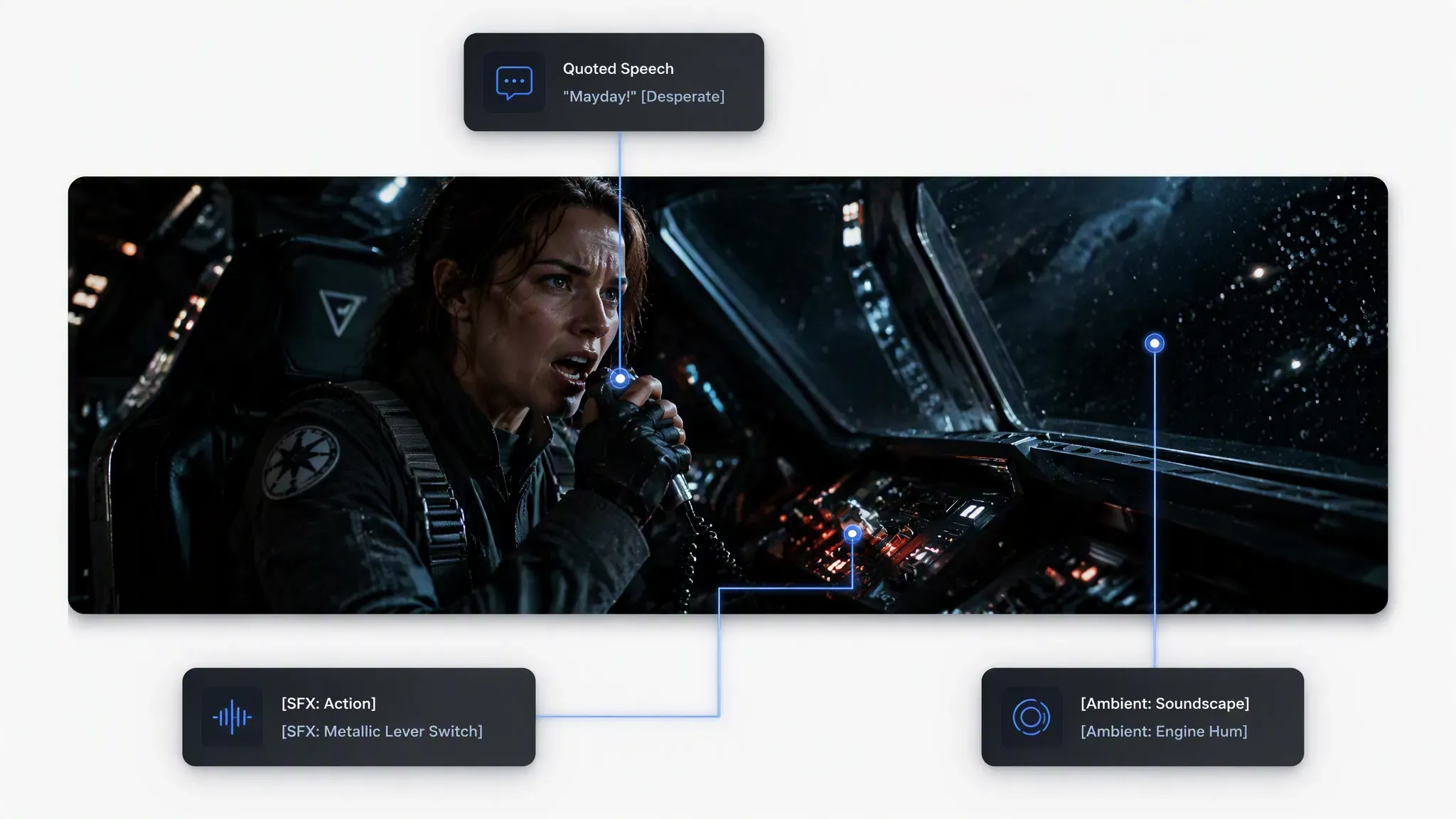
To utilize Veo 3.1 audio generation, you must structure text inputs using explicit tag delimiters. This bracketed audio syntax separates visual commands from acoustic directions, enabling precision 48kHz soundstage control:
[Visual Prompt] + "Spoken Dialogue" [Voice Modifier] + [SFX: Specific Action] + [Ambient: Environment Noise]
Structuring Multi-Layer Audio Prompts
When directing native SFX generation and spoken lines, balance the acoustic layers so dialogue remains intelligible over room ambience:
| Audio Layer | Prompt Formatting Example | Technical Execution Rule |
| Spoken Dialogue | A woman looks up, saying, "We need to leave now" in an urgent whisper. | Keep lines under 12 words per 8-second clip to prevent truncated speech. |
| Discrete SFX | [SFX: Heavy gravel crunching under boots] | Position sound markers immediately after the visual trigger description. |
| Ambient Floor | [Ambient: Low wind howling through concrete ruins, distant rain] | Establish background tone at the end of the prompt to avoid masking primary SFX. |
Preventing Speech Truncation and Desync
Achieving tight lip-sync AI video requires strict pacing management:
- Word Count Caps: An 8-second generation window accommodates approximately 15 to 18 spoken words at normal speaking cadence. Exceeding this limit forces the engine to cut off sentence endings or accelerate lip movements unnaturally.
- Acoustic Positioning: Place character visibility cues (e.g.,
close-up profile,front-facing medium shot) directly adjacent to dialogue tags. Clear facial visibility allows the model to map phonetic mouth shapes directly to audio waveform generation.
Multi-Shot Scene Extensions & First/Last Frame Control
Hitting an artificial Veo 3.1 8-second length limit mid-scene ruins narrative pacing and forces awkward edit cuts. Single-pass generations rarely offer enough runway for complex narrative arcs or multi-stage physical actions.
Creators frequently ask: How do I make long AI videos with Veo 3.1?
Expanding project length requires moving beyond isolated clips and implementing structured multi-pass continuation workflows.
Method 1: Tail-Frame Continuity (Extend Mode)
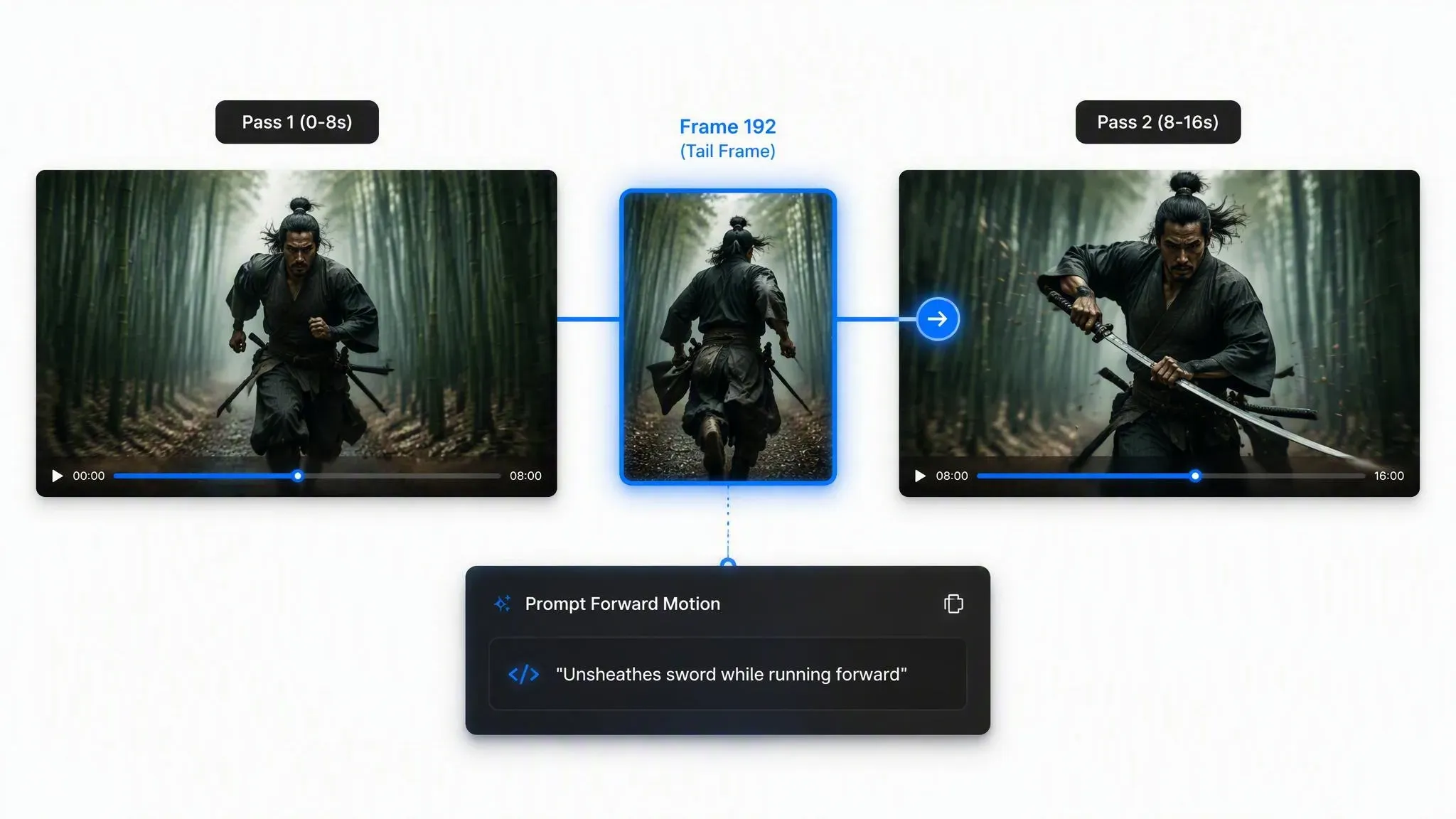
To build continuous sequences scaling up to 148 seconds without identity degradation, utilize Veo 3.1 scene extension through iterative tail-frame chaining:
- Extract Keyframes: Isolate the final frame of your initial 8-second render pass to serve as the baseline seed.
- Re-Inject Character Anchors: Upload the extracted frame into the primary reference slot while retaining your core character configuration JSON or prompt tags.
- Prompt Forward Motion: Instead of recounting existing lighting or background details, write prompt updates that are only focused on upcoming physical acts.
Pass 1 (0-8s) ──► Extract Frame 192 ──► Re-inject Frame 192 + Extend Prompt ──► Pass 2 (8-16s)
Method 2: Bookend Control (First & Last Frame)
When connecting two distinct visual narrative points, First and Last Frame control acts as an automated interpolation engine. Instead of hoping the model guesses your intended destination, supply both visual boundaries:
| Workflow Step | Action Required | System Execution |
| 1. Frame Generation | Create starting and ending keyframe images using standard image generation tools. | Sets exact visual start (Frame A) and end (Frame B) targets. |
| 2. Keyframe Slotting | Load Frame A into the First Frame slot and Frame B into the Last Frame slot. | Establishes spatial boundaries for video diffusion calculation. |
| 3. Path Guidance | Write a bridging prompt detailing camera movement between points. | Interpolates motion physics, filling the intervening 8-second gap. |
Using bookend prompting for keyframe bridging eliminates random camera shifts, providing smooth motion pathways between fixed narrative beats across long-form projects.
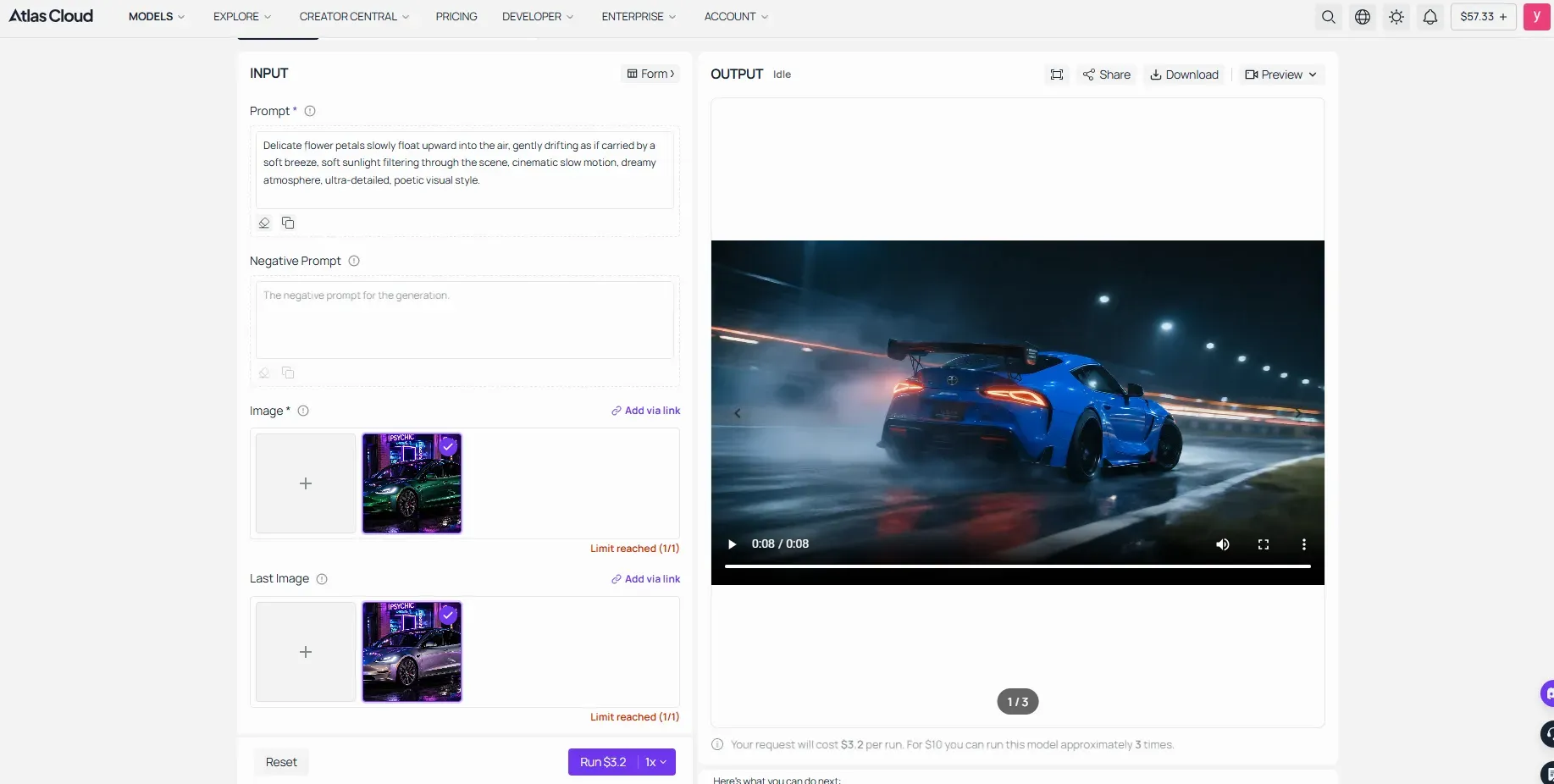
Implementing multi-pass continuation workflows manually through a browser interface can quickly become a bottleneck for studio pipelines. For scalable API-driven execution, developers typically route these multi-pass renders through Atlas Cloud, which unifies underlying model API interfaces into a single endpoint. Routing your extension prompts and keyframe payloads via Atlas Cloud ensures automated tail-frame extraction, reduced latency, and reliable token scheduling across long-form video pipelines.
Troubleshooting Common Failure Modes: Artifacts, Warping, and Audio Sync Drops
Nothing ruins a generation pass faster than watching a character's jawline dissolve into background geometry mid-sentence or having spoken dialogue drift out of sync with lip movements. Most diffusion model errors stem from prompt conflicts or over-saturation of latent commands rather than engine glitches. Systematic diagnosis resolves these issues without wasting rendering credits.
Practical Diagnostic and Fix Matrix
When facing generation defects, cross-reference symptoms against this operational repair guide for Veo 3.1 troubleshooting:
| Failure Mode / Symptom | Technical Root Cause | Immediate Operational Fix |
| Facial Warping / Deformity | Unclear subject definition or conflicting motion commands | Front-load subject traits in prompt layer 2. Avoid stacking multiple action verbs in a single sentence pass. |
| Floaty / Weightless Motion | Overuse of passive verbs (e.g., "he walks confidently") | Replace passive descriptions with force-based verbs (e.g., "he pushes off the curb, leaning forward into the wind"). |
| Audio-Visual Desynchronization | Dialogue character length exceeds clip runtime | Limit bracketed spoken lines to single-breath sentences under 12 words per 8-second clip. |
| Background Morphing Across Clips | Missing environmental lighting anchor | Explicitly define a single, fixed key light source (e.g., "lit by a single 5600K overhead spotlight"). |
Preventing Latent Contradictions
To execute AI video artifact repair effectively, isolate syntax errors that force the model to guess spatial physics:
- Eliminate Prompt Conflict Errors: Avoid mixing opposing directional vector commands like "camera panning right while subject turns left quickly" within a single text block. This contradiction causes body geometry to shear or stretch.
- Apply a Temporal Drift Fix: When extending multi-clip sequences, clear out redundant descriptive adjectives from earlier frames and re-anchor background assets using clean environment image slots.
- Correct Negative Prompting: Do not list excluded terms as positive sentences (e.g., "no blurry faces"). Instead, define specific camera parameters, such as "sharp 35mm focal plane," to fix AI video warping at the source.
Aspect Ratio Formatting, Upscaling, and Export Workflows
Cropping a 16:9 widescreen video down to 9:16 for TikTok or YouTube Shorts routinely chops off primary subjects, mangles camera framing, and degrades pixel density. Forcing post-production reframing ruins carefully crafted compositions and wastes rendering effort. Setting your target dimensions at the generation stage ensures full spatial framing across every output channel.
Native Aspect Ratio Selection vs. Post-Cropping
Veo 3.1 supports native aspect rendering across both horizontal and vertical formats, preserving resolution and compositional intent:
| Delivery Channel | Target Format | Ratio Setting | Spatial Advantage |
| YouTube / Broadcast / Film | Landscape | 16:9 (1920x1080 / 3840x2160) | Full horizontal field of view and cinematic background depth. |
| TikTok / Reels / Shorts | Vertical | 9:16 (9:16 vertical AI video) | Native subject framing without center-crop pan-and-scan artifacts. |
Two-Stage Upscaling Pipeline
To deliver clean master files without overspending credit budgets during draft iterations, execute this video upscaling workflow:
- Drafting Phase: Render initial motion tests at 720p or 1080p using the Fast engine variant to verify prompt timing and audio sync.
- Mastering Phase: Once keyframes align, execute a final pass or apply a second-stage spatial upscale pass to produce a broadcast-ready 4K video export.
Selecting the correct aspect parameter and running low-cost drafts prior to final mastering keeps production pipelines both frame-accurate and budget-efficient. By combining Veo 3.1’s multi-modal conditioning with structured 7-layer prompting and API-driven extension workflows, creators can transition from generating isolated 8-second clips to executing fully synchronized, broadcast-ready AI video productions.





