TL;DR:
- Native Single-Pass Cap: Strict 8 seconds max per prompt (4s/6s/8s for 720p/1080p; locked 8s for 4K or multi-asset inputs).
- Maximum Extended Length: Up to 148 seconds using iterative pipeline chaining.
- How to Bypass: Use the UI "Extend" tool, set Bookend Keyframes (First/Last Frame), or automate POST requests via Google Gemini/Vertex API.
Hitting an immediate cut right as a dynamic camera movement reaches its peak is a primary friction point in AI video generation. The native Veo 3.1 length limit caps single-pass generation at a strict 8-second clip cap, with exact duration determined by output resolution and API parameters.
Official Google Veo API Documentation, base clip generation adheres to fixed interval thresholds:
| Resolution Tier | Base Generation Cap | Maximum Extended Duration |
| 720p / 1080p | 4s / 6s / 8s | 148 seconds (via iterative chaining) |
| 4K Resolution | 8s (Locked) | 148 seconds (via multi-pass extend) |
While single-prompt execution stops at 8 seconds, users can bypass single-pass google veo 3.1 generation limits. By chaining sequential extensions and re-injecting tail-frame context into the platform pipeline, you can expand a single continuous scene to a max video duration of 148 seconds.
Understanding the Veo 3.1 Length Limit: Technical Hard Caps
Watching a detailed subject blur into unprompted shapes midway through a clip highlights the main physical bottleneck of AI video models. These hardware limitations define how duration parameters function behind the scenes.
The veo 3.1 architecture relies on spatial-temporal latent diffusion network layers that process visual features across compressed 3D blocks. Generating temporal consistency across continuous frames scales computational costs exponentially.
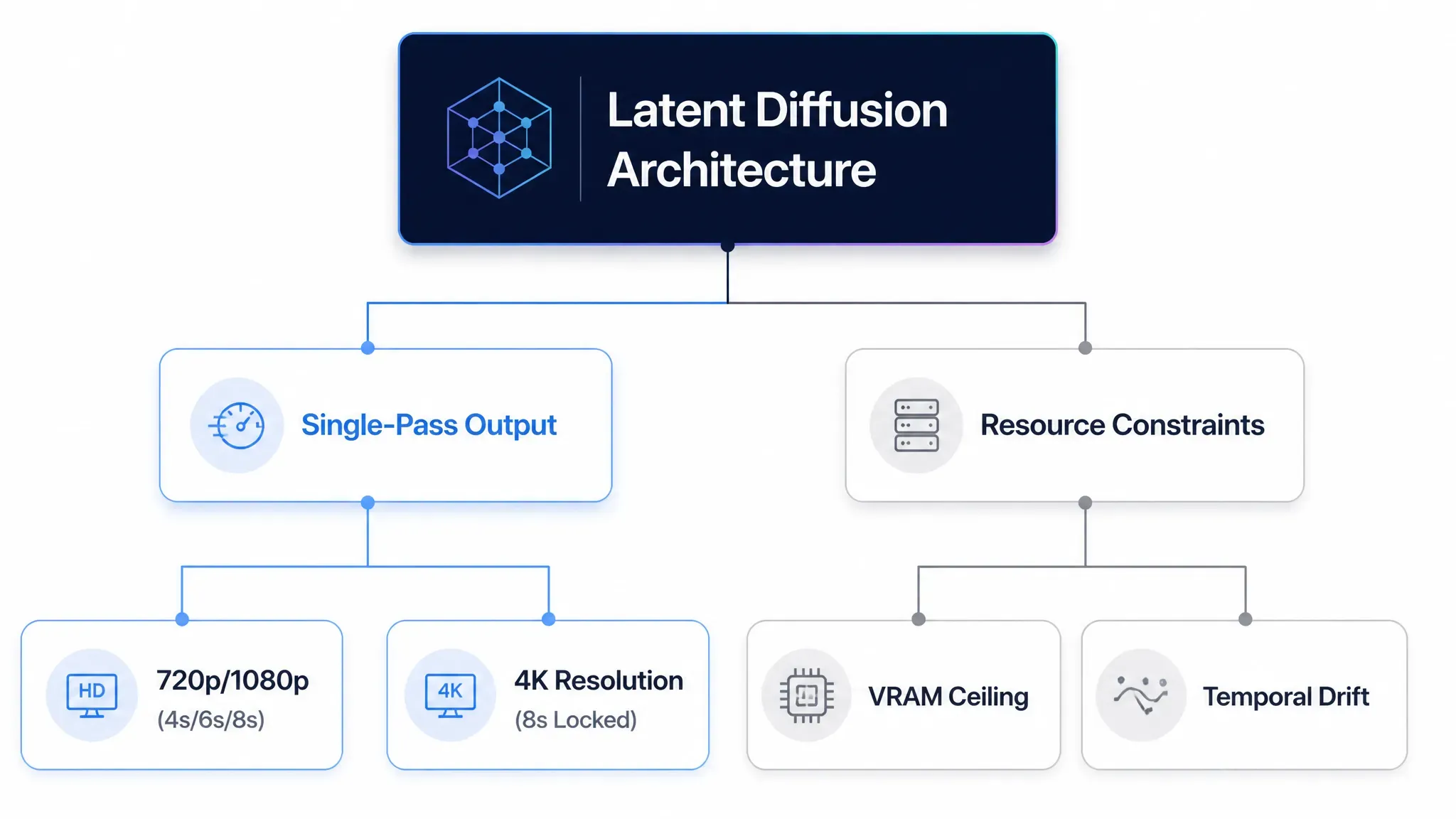
Hardware constraints force distinct operational limits across production tiers:
- Latent diffusion memory overhead: High-resolution frames require dense latent tensor buffers. Processing continuous frames at elevated pixel dimensions rapidly reaches GPU memory limits, necessitating strict single-pass duration caps.
- Preventing temporal drift: As temporal step counts accumulate without fresh anchor conditioning, cross-attention mechanisms lose track of early reference vectors, causing lighting shifts and subject morphing.
- 4K video resolution limits: At 4K resolution, the extreme spatial data density mandates a locked 8-second generation parameter in the API to maintain inference throughput.
- Reference image lock: Injecting conditioning images or using first and last frame controls consumes dedicated attention slots in the latent pipeline, locking the output length strictly to an 8-second execution window.
Maintaining high visual fidelity across extended frames requires precise batch processing. To balance computational throughput with spatial accuracy, single-pass generations remain strictly capped, leaving long-form extensions to multi-pass pipeline chaining.
Resolution and Asset Rules: Why Your Video Is Locked to 8 Seconds
Submitting a batch API request only to receive an immediate validation rejection burns time and breaks automated pipelines. These failures typically stem from parameter mismatch errors where chosen settings violate strict API schema rules.
The Google Vertex AI and Gemini API endpoints enforce rigid google veo 3.1 configuration rules. Passing invalid parameter combinations, such as requesting a 4-second clip at 4K resolution or attaching multiple asset inputs alongside non-standard durations, causes the backend to throw an api validation error.
The technical reference documentation on Google Cloud Veo API Specifications outlines valid parameter dependencies across production settings:
| Input Configuration | Resolution | Duration (s) | Validation Behavior |
| Text-only prompt | 720p / 1080p | 4, 6, 8 | Validated |
| Text-only prompt | 4K | 8 | Fixed lock; lower values trigger error |
| With Reference Images | 720p / 1080p | 8 | Fixed lock; non-8s values fail |
| First + Last Frame (Bookend) | 720p / 1080p | 8 | Fixed lock; non-8s values fail |
| Video Extension Mode | Same as source | 8 Per extension pass (net +7s due to 1s overlap context) | Fixed increment |
To keep pipelines operational, check these specific parameter rules:
- Video resolution vs duration constraint: Setting 4K output automatically forces
durationSecondsto 8. Requesting 4s or 6s at 4K results in an immediate HTTP 400 bad request. - Reference images constraint: Conditioning a prompt on external images consumes predefined attention maps, requiring a fixed 8-second temporal window.
- Asset aspect ratio alignment: Source images or video inputs for extension must match the target aspect ratio (
16:9or9:16), or generation fails prior to inference.
How to Bypass the 8-Second Limit: Three Proven Workflows
Watching a character's clothing style or face shape alter mid-scene during an extension pass ruins an otherwise clean continuous shot. Standard generation stops at 8 seconds, but structured extension pipelines allow creators to build long-form video assets without losing visual identity.
Method 1: The "Veo 3.1 Extend" UI Workflow
For creators using native web interface controls like Google Flow or VideoFX, expanding clip duration relies on progressive tail-frame extension passes. Executing a structured Google Flow video extension workflow appends continuous 7-second increments while maintaining prompt descriptor continuity across each pass.
1. Generate and Select Base Clip: Requirements: 720p or 1080p source video.
Create an initial 8-second base video using standard text or image prompts. Once rendering finishes, load the clip into the editing timeline.
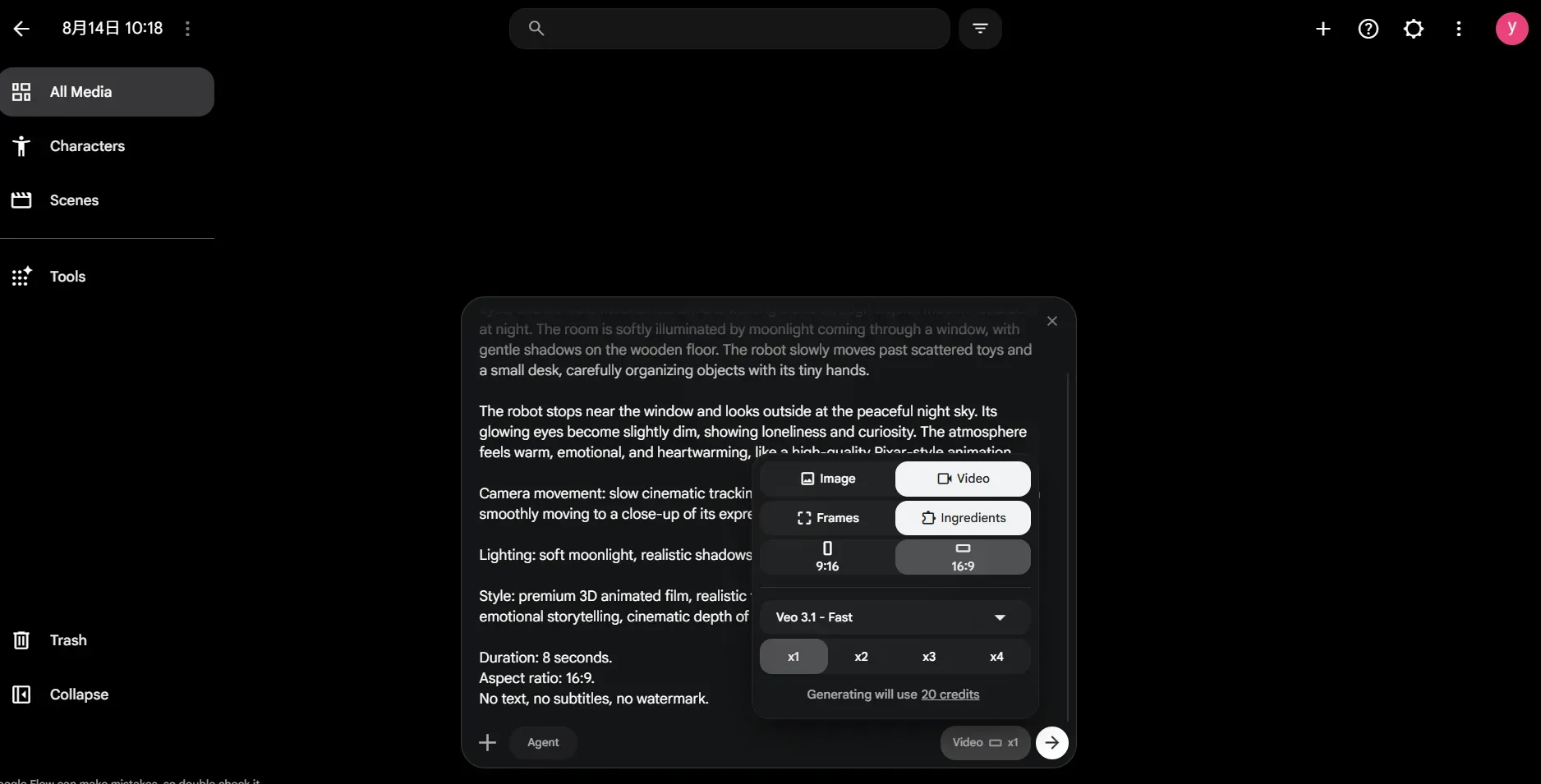
Note: Veo 3.1 extend is available for Veo 3.1 & Veo 3.1 Fast models only, not Veo 3.1 Lite.
2. Trigger the Video Extension Action:
Select the Extend option on the target clip. The system automatically extracts the final frame of the source video to serve as the initial structural anchor for the next 8-second segment.
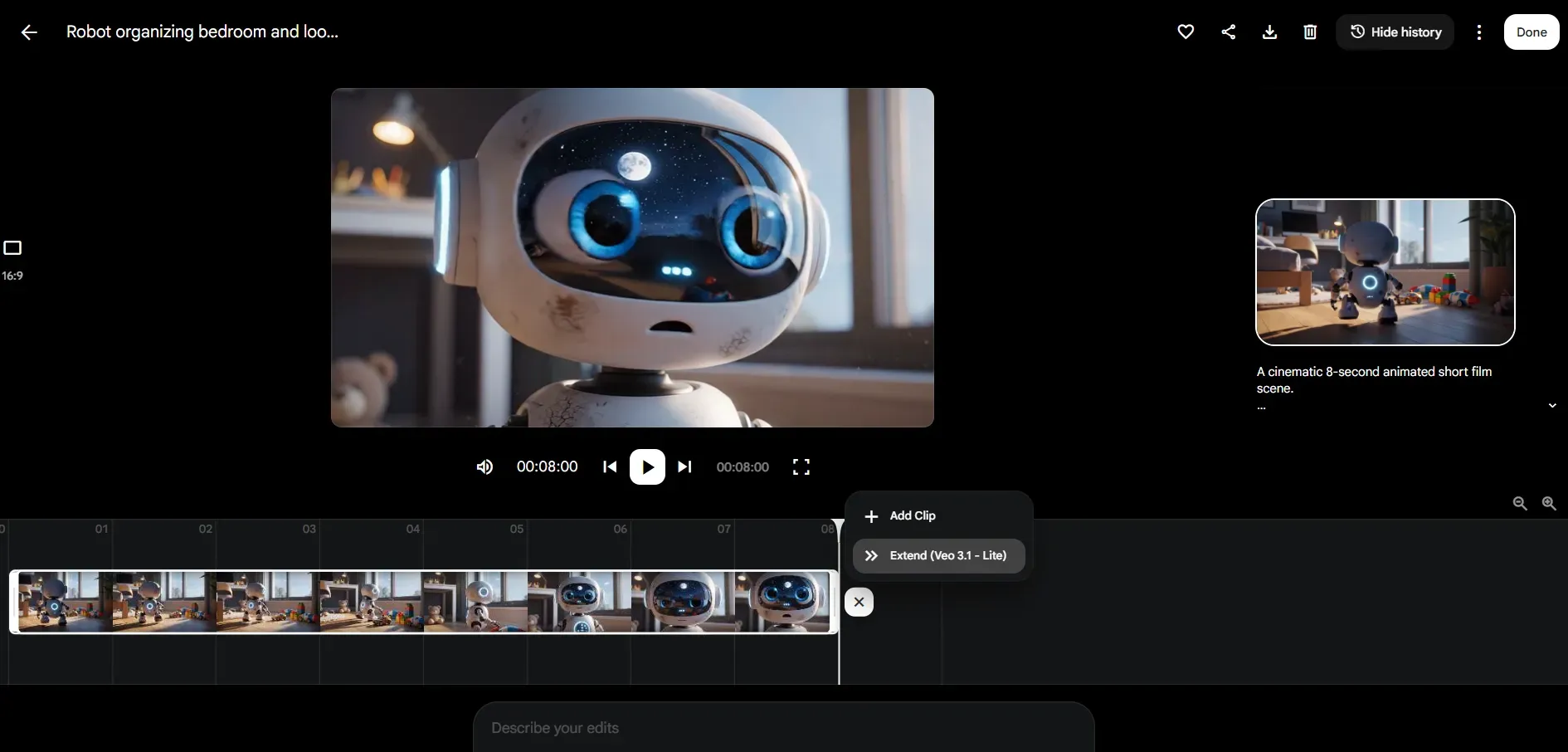
3. Maintain Prompt Descriptor Consistency:
Ensure character descriptors, clothing details, and environmental tags (e.g., "a silver robot with glowing blue ocular lenses") remain completely identical to the base clip's prompt. Rather than introducing new reference images—which is locked during extension passes—Veo relies on the combined context of your text prompt and the prior clip's ending frames to lock visual continuity.
Note: Native Video Extension operates strictly on the preceding video asset as its primary conditioning input. You cannot combine multi-image reference slots with active extension payloads; temporal stability relies entirely on keeping your core JSON prompt tags uniform across passes.
4. Update Prompt Context and Execute Render:
Adjust the text prompt to reflect the next chronological action while keeping subject descriptors identical. Run the generation to add 8 seconds. Repeat this cycle up to the 148-second upper limit.
⚠️ Google Veo Official Extending Rules & Hard Limitations:
Before automating long-form extensions, account for these explicit Google API & Platform requirements:
- Model Compatibility: Video extension is only supported on Veo 3.1 and Veo 3.1 Fast models. It is NOT available for Veo 3.1 Lite.
- Input Specifications: Source videos must be set to 720p resolution with a 16:9 or 9:16 aspect ratio, and be 141s or less.
- Asset Lifetime & Expiration: Extended videos are stored on Google servers for 2 days. Referencing a clip for extension resets its 2-day storage countdown timer.
Real-World Workflow Analysis: A 23-Second Continuous Scene Test
To test real-world consistency within free platform credits (e.g., 50 credits), I built a 23-second continuous scene by chaining two extension passes from an initial 8-second base clip:
- Base Clip (0-8s): The robot walks through the bedroom, finds a red toy ball, and approaches a sleeping cat.
- Extension 1 (8-15s): The robot interacts with the cat, offering the toy ball ("Hello, are you my friend?").
- Extension 2 (15-23s): The cat steps onto the couch, and responds to the robot.
Visually, the 23-second render looks great. The robot's metallic texture and the cat's fur stay consistent throughout. That said, it stumbles on audio-visual sync:
The Audio-Visual Misalignment Bug: Around timestamp 00:19, the sound effect/dialogue says "Meow", but the animation erroneously opens the robot's mouth to emit the cat sound, rather than animating the white cat's vocalization.
Pro Tips:
- Isolate Audio-Visual Prompts in JSON: Explicitly specify audio attribution in your prompt. Instead of writing "The cat meows", write {"audio": "cat meow sound effect", "action": "cat opens mouth slightly, robot remains silent and attentive"}.
- Manage Your Credit Budget: Running 3 passes (1 base + 2 extends) consumes ~50 credits on standard settings. Use Veo 3.1 Fast for initial extensions, and only commit to full renders once character action keyframes align.
Method 2: Deterministic Scene Bridging (Bookend Control)
To eliminate jarring jump-cuts and camera angle shifts between two distinct scenes, creators use dual-frame conditioning. By anchoring both the starting frame (from Clip A) and the target ending frame (from Clip B), the model generates a smooth 8-second motion vector connecting the two keyframes.
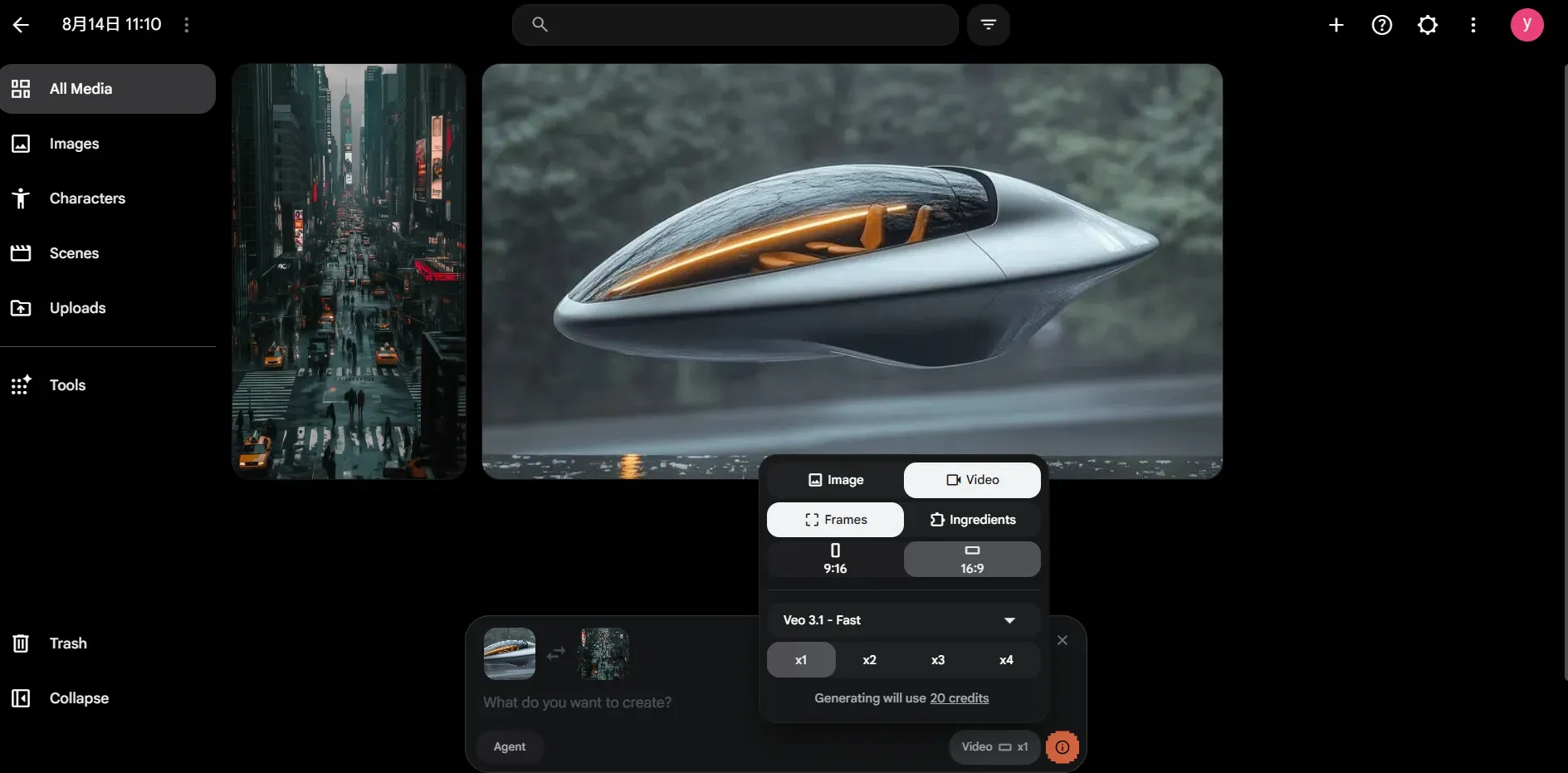
Note: Dual-frame bridging operates via Veo's Image-to-Video interpolation mode, whereas standard Video Extension strictly appends +7 seconds from a single tail-frame anchor.
| Workflow Phase | Frame Control Setting | Action & Alignment Requirements |
| Clip A Ending | Source Last Frame | Extract the final high-resolution frame of Clip A as the start anchor. |
| Clip B Target | Target First Frame | Provide a target keyframe for Clip B with matching subject proportions and horizon lines. |
| Spatial Alignment | Vector Matching | Align vanishing points, focal lengths, and spatial coordinates to prevent camera distortion. |
| Inference Pass | Dual-Frame Lock | Run the generation pass using both keyframes as absolute boundary constraints. |
When bridging two keyframes, misaligned horizon lines or sudden lens shifts can cause severe foreground wrapping and spatial warp artifacts. Always ensure that the scale of primary subjects and background vanishing points remain visually aligned across both boundary images before submitting the prompt.
Method 3: Programmatic API Job Chaining (For Developers)
Automating multi-clip extensions across enterprise pipelines requires systematic state management to manage execution latency and prevent scene drift.
According to technical integration specs in the Google Gemini API & Vertex AI Veo Guide, developers must use an asynchronous polling architecture to execute programmatic video chaining:
- Submit Initial Generation Request:
- Send a POST request to the
predictLongRunningendpoint specifying initial text prompts, aspect ratio, and resolution parameters. Save the returnedoperation_idstring for state tracking. - Poll Operation Status:
- Query the operation URI via GET calls at 10-to-15-second intervals. Continue polling until the payload reflects a
done: truestatus alongside the generated video asset reference. - Pass Previous Video Asset into Extension Payload:
- Send a new generation request to the Veo 3.1 extension endpoint. Pass the previously generated video reference, e.g.,
operation.response.generated_videos[0].videoor its GCS URI, directly into the video input parameter, no serverless frame extraction is required. Append updated chronological text prompts while retaining identical subject description schemas. - Iterate Extension Loop:
- Repeat this asynchronous loop sequential pass by pass. Each extension pass appends 7 seconds of net continuous footage, allowing you to build contiguous scenes up to the 148-second upper limit.
Programmatic Implementation (Python SDK Example)
The following Python snippet demonstrates how to chaining video extensions using the official Google GenAI / Vertex AI SDK with asynchronous polling:
plaintext1import time 2from google.genai import types 3from google.genai import client 4 5# 1. Initialize Google GenAI Client 6ai_client = client.Client() 7 8# Step 1: Generate initial base clip (8 seconds) 9print("Initiating base video generation...") 10operation = ai_client.models.generate_videos( 11 model="veo-3.1-generate-001", 12 prompt="your prompt", 13 config=types.GenerateVideosConfig( 14 person_generation="allow_adult", 15 aspect_ratio="16:9", 16 duration_seconds=8, 17 ), 18) 19 20# Step 2: Poll operation status until completed 21while not operation.done: 22 print("Waiting for base video generation...") 23 time.sleep(15) 24 operation = ai_client.operations.get(operation) 25 26base_video_uri = operation.response.generated_videos[0].video.uri 27print(f"Base video generated successfully: {base_video_uri}") 28 29# Step 3 & 4: Execute Extension Pass (Appends +7s) 30print("Executing 1st Extension Pass...") 31extend_operation = ai_client.models.generate_videos( 32 model="veo-3.1-generate-001", # Use veo-3.1 or veo-3.1-fast (Lite not supported) 33 prompt="your prompt", 34 config=types.GenerateVideosConfig( 35 video_prompt=base_video_uri, # Pass the GCS URI of the previous video directly 36 aspect_ratio="16:9", 37 ), 38) 39 40# Poll extension pass 41while not extend_operation.done: 42 print("Waiting for video extension pass...") 43 time.sleep(15) 44 extend_operation = ai_client.operations.get(extend_operation) 45 46extended_video_uri = extend_operation.response.generated_videos[0].video.uri 47print(f"Extended 15s video ready: {extended_video_uri}")
Pro Tip: Store your intermediate GCS video URIs and operation_id in Firestore or Redis. Multi-pass chaining takes time, and losing state mid-pipeline forces a full restart. Also, keep the 2-day asset retention limit in mind—referenced clips expire after 48 hours.
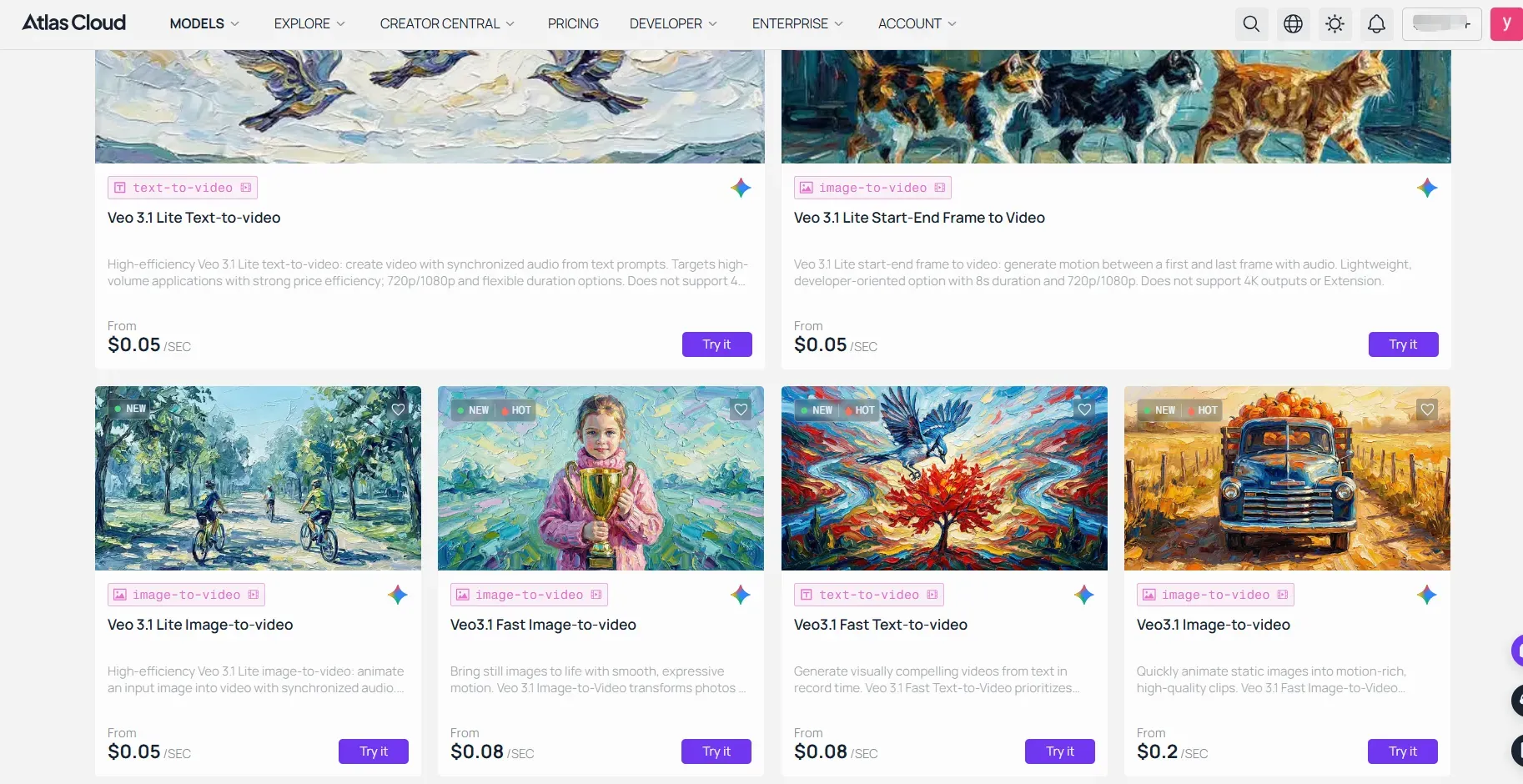
Unified Multi-Model Infrastructure: When automating multi-pass extension pipelines at scale, managing model-specific rate limits, storage expiration windows, and asynchronous webhooks across different providers can introduce latency. Unified cloud infrastructure platforms—such as Atlas Cloud—simplify this pipeline by standardizing the Veo 3.1 API interfaces alongside other video generation backends into a single integration endpoint.
Maintaining Visual and Audio Continuity Across Extended Clips
Watching a character's face warp or hearing background ambience vanish between extended passes instantly breaks immersion. Maintaining visual and acoustic continuity across sequential extension passes requires locking key prompt parameters and leveraging Veo's internal context memory.
Why Do Characters Morph During Multi-Pass Extensions?
Facial features drift because text prompts alone cannot fully lock latent spaces across consecutive generations. While standard text-to-video relies heavily on text embeddings, Veo's Extension mode passes the prior video's full visual context (input_video) directly into the model to preserve character identity without requiring external reference image injections.
To maintain temporal stability across extended scenes, follow this continuity checklist:
- Keep Subject Descriptions Consistent: Copy-paste your exact character prompt across every pass. Utilizing structured Veo 3.1 JSON prompt schemas helps lock latent spaces and prevents character drift.
- Lock the Background Audio: Keep environmental sound tags—like room tone, rain, or street hum—identical across passes to avoid abrupt audio cuts at clip boundaries.
- Lock Camera and Lighting Specs: Retain fixed focal lengths, camera angles, and color temperature tags, e.g., "35mm lens, warm indoor morning light", across every submission pass.
💡 Pro Tip: Veo generates audio synchronously alongside visuals. To avoid abrupt audio cuts when chaining passes, maintain identical audio prompt tags, e.g.,
{"audio": "soft rain on window glass"}, across every sequential request.
Troubleshooting Common Generation Failures and Artifacts
Dealing with a character's limbs doubling or speech slurring into muffled noise right at the 8-second transition boundary quickly ruins a render pass. Systematic diagnostics help resolve these common generation failures.
Why Can't I Generate a 1-Minute Video in a Single Pass?
Before troubleshooting clip transitions, note that no single prompt execution can output a 60-second video directly. Latent diffusion processing requires massive GPU memory allocation, making single-pass long video generation computationally unfeasible without severe quality loss. Multi-clip composition remains the standard industry approach for building longer sequences.
Because chaining multiple short clips introduces seam boundaries, you may encounter rendering errors during multi-pass extensions. Use this troubleshooting reference to identify and fix those artifacts:
| Failure Mode | Root Cause | Corrective Action |
| Character Morphing | Prompt drift across passes | Keep character descriptions identical in JSON format across every pass; do not alter core descriptors. |
| Jump Cuts | Misaligned camera vectors | Use Frames mode (First & Last frame interpolation) to bridge disparate camera angles smoothly. |
| Audio Slurring/Drop-outs | Missing ambient audio prompts | Include constant background sound tags (e.g., steady room tone) to prevent audio cut-offs. |
| API 400 Rejections | Unsupported resolution or length | Ensure source inputs meet official constraints: 720p resolution, 16:9 or 9:16 aspect ratio, and under 141s. |
Applying these diagnostics helps maintain clean cut transitions while troubleshooting veo 3.1 pipelines. Resolving geometry distortion and morphing issues at the source guarantees cleaner extended outputs across multi-clip renders.
Conclusion: Mastering the Pipeline Strategy
Burning through API generation credits on full 4K renders only to discover a framing error halfway through a clip remains a costly mistake in production. Efficient workflows separate composition testing from final asset rendering to optimize resource usage.
Structured pipeline strategies split workloads between performance tiers:
| Production Phase | Model Selection | Core Purpose |
| Drafting & Layout | Veo 3.1 Fast | Validate camera angles, framing, and basic motion vectors at reduced computational cost. |
| Master Rendering | Veo 3.1 Standard | Execute high-fidelity 4K passes and final multi-clip extended renders. |
The single-pass duration cap functions as a deliberate hardware memory management safeguard rather than a creative restriction. Integrating multi-pass chaining, tail-frame re-injection, and bookend keyframes into a professional ai video generation workflow allows creators to bypass the 8-second limit while maintaining continuous visual stability across an ai video production pipeline. Comparing veo 3.1 fast vs standard capabilities during early prototyping prevents wasted compute and guarantees consistent output quality.





