
Search for WorkBuddy's MCP guide and the official page that still tops Google now opens a 404. The setting moved too. In WorkBuddy 5.9.4, WorkBuddy MCP servers live behind a Custom connectors button in the desktop app.
We used it to plug in the Atlas Cloud MCP server, then asked a brand strategy expert to turn a perfume photo into a Seedance 2.5 clip. Below: the exact config, the trust step older guides skip, and how connectors differ from skills and plugins.
Key Takeaways
- WorkBuddy connectors run on MCP, and the desktop Custom connectors button adds any MCP server you choose.
- The web app only lists built-in connectors, so custom MCP setup happensinthe desktop client.
- The Atlas Cloud MCP server gives every WorkBuddy task 15 tools for images, video, audio and spend tracking.
- Skills load instructions on demand, connectors expose live tools, and plugins can package both together.
- In our test, a built-in Brand Strategist expert turned a product photo into a Seedance 2.5 clip without loading a skill.
Does WorkBuddy Support MCP?
Yes. Tencent's Connector guide says connectors bring outside services into WorkBuddy "based on standardized protocols such as MCP". The desktop catalog lists 26 of them, from Gmail and Notion to Kling AI and Tripo 3D, and the Custom connectors button adds servers that aren't listed.
Two details trip people up:
- Desktop only. The web app at workbuddy.ai/app has a shorter catalog and no custom option. Company admins can also switch the feature off, and the app's notice for that reads "Your administrator has disabled adding custom connectors".
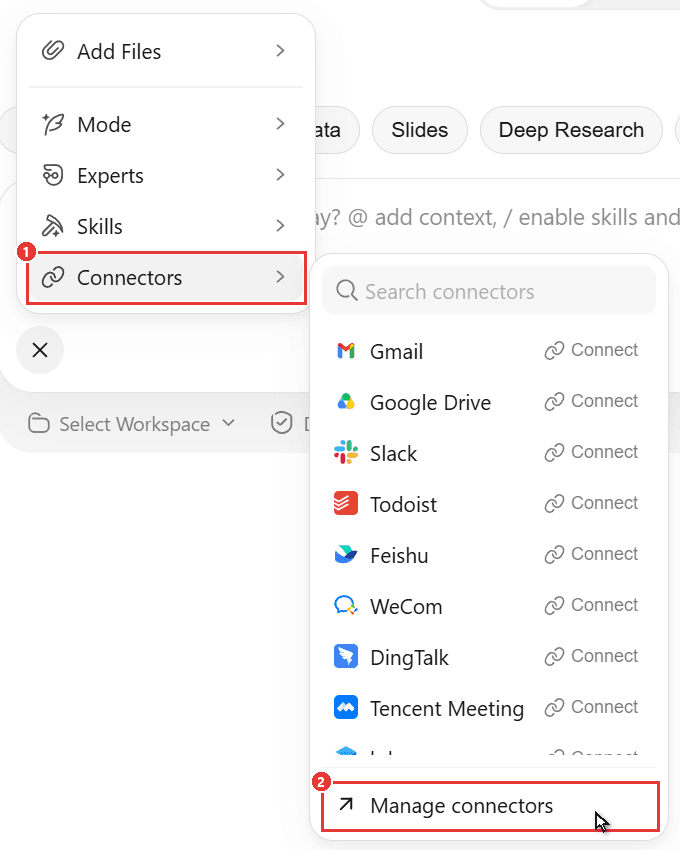
- No MCP page under Settings. Older guides point there, but in 5.9.4 MCP lives under Experts · Skills · Connectors.
Tencent is pushing the same protocol into company systems. On October 30, ComputerWeekly quoted Tencent senior executive vice-president Dowson Tong saying siloed business systems "can now expose model context protocol (MCP) interfaces to WorkBuddy".
Add Atlas Cloud as a WorkBuddy Custom Connector
The catalog's creative connectors each cover one vendor. Atlas Cloud puts 400+ models behind one MCP server, so one connector adds image, video and audio generation plus tools that report each job's cost. WorkBuddy runs it locally through npx, so install Node.js 18 or newer first.
Method 1: Add an MCP Server to WorkBuddy in the Custom Connectors Editor
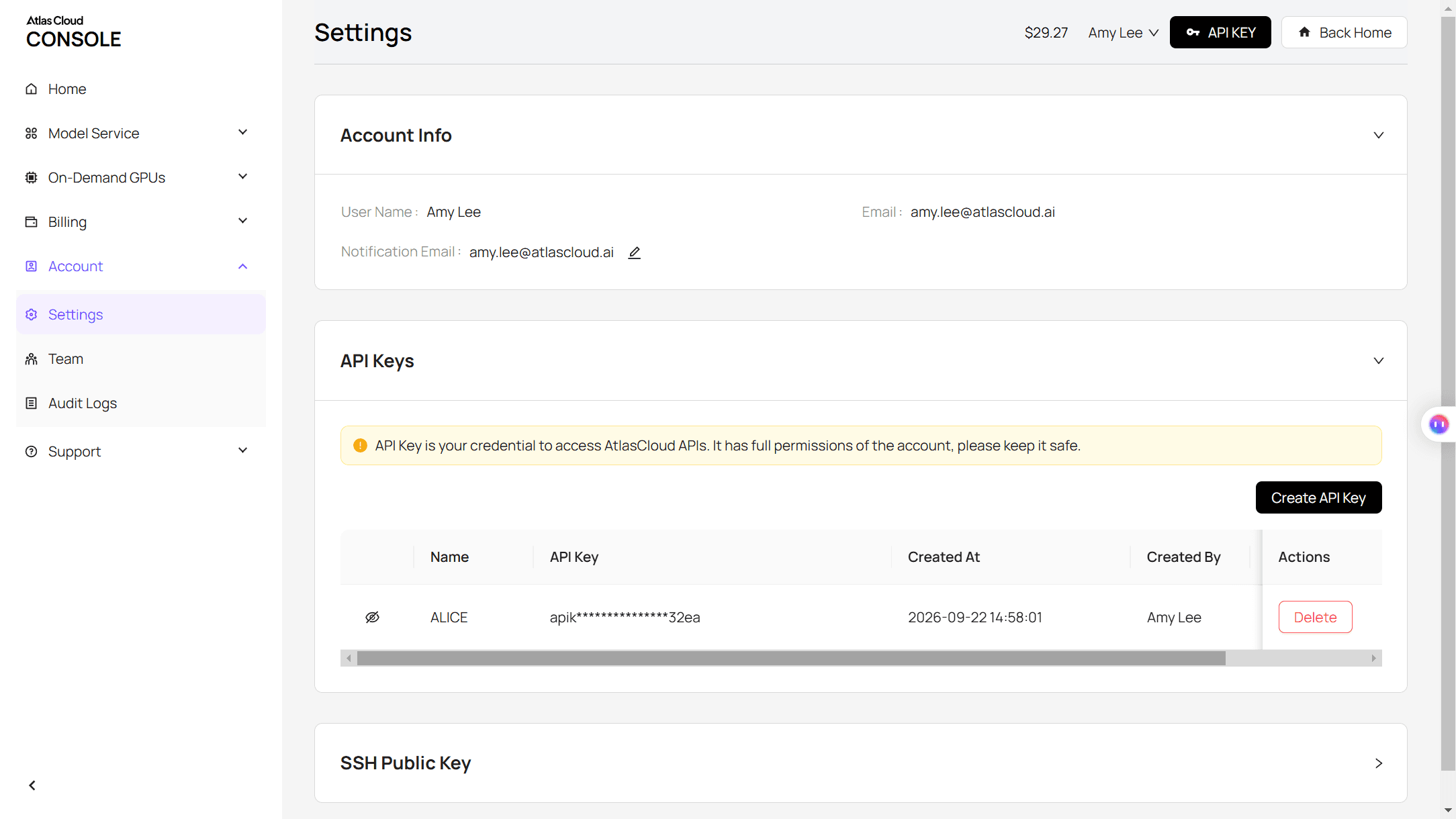
Step 1: Create an Atlas Cloud API key. Sign in, open Settings, and click Create API Key in the API Keys panel.
Step 2: Paste the server config. Open Experts · Skills · Connectors in the sidebar, switch to Connectors (1) and click Custom connectors (2). In the MCP Server Management window, click Add MCP (3), replace everything in the editor with the config below (4), and click Save (5).
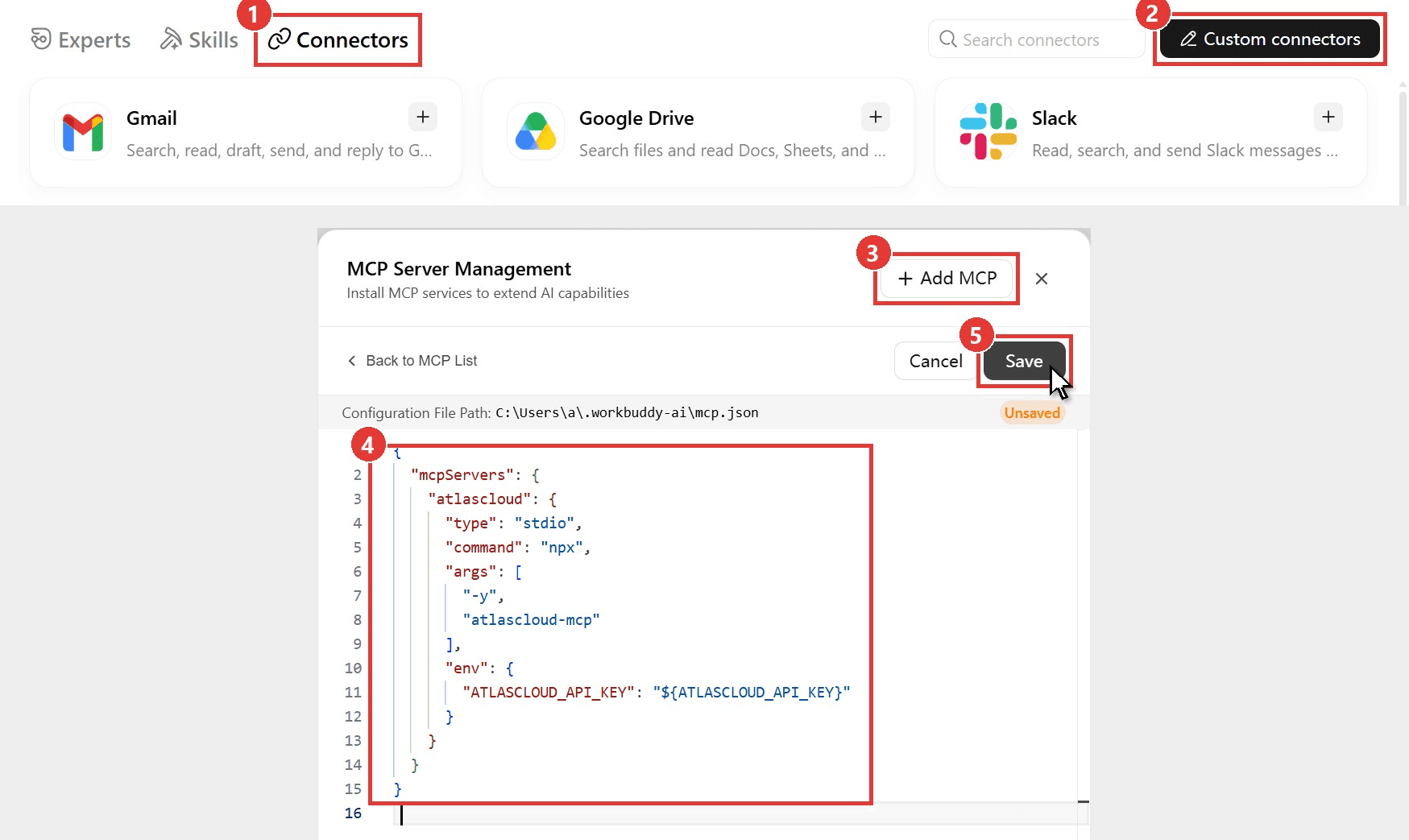
plaintext1{ 2 "mcpServers": { 3 "atlascloud": { 4 "type": "stdio", 5 "command": "npx", 6 "args": ["-y", "atlascloud-mcp"], 7 "env": { 8 "ATLASCLOUD_API_KEY": "${ATLASCLOUD_API_KEY}" 9 } 10 } 11 } 12}
The "${ATLASCLOUD_API_KEY}" value reads the key from an environment variable, so it never sits in the file. Set the variable and restart WorkBuddy, or paste the key between the quotes. Atlas Cloud's MCP setup guide covers the same server in other clients.
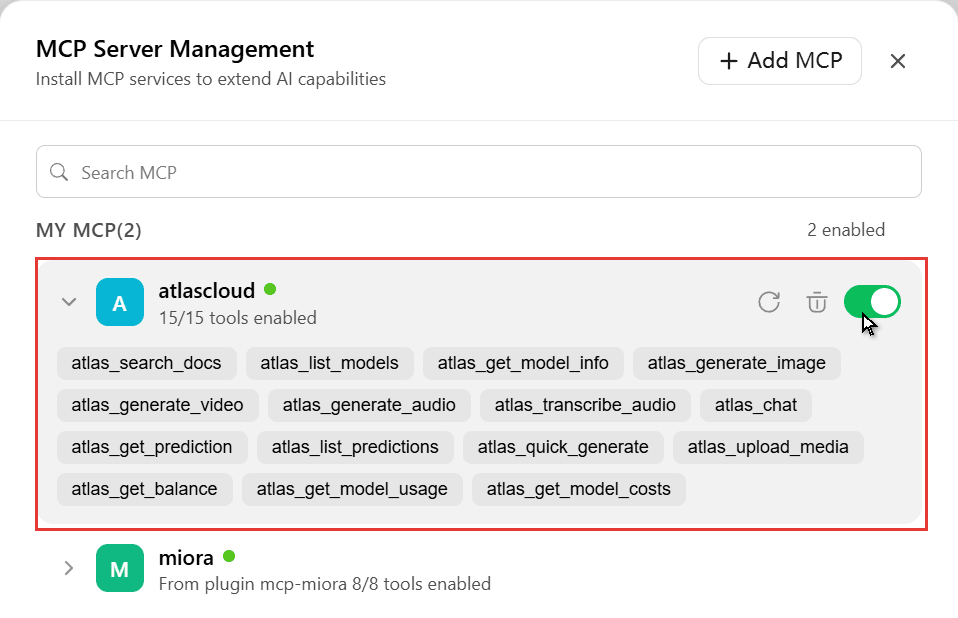
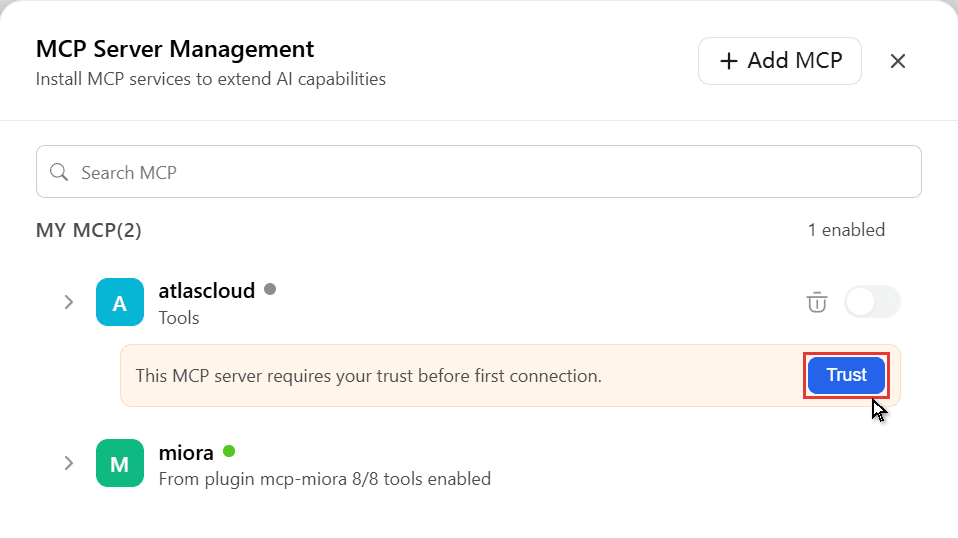
Step 3: Trust the server. Click Back to MCP List. A new server stays grey with the notice "This MCP server requires your trust before first connection". Click Trust, and within half a minute the dot turns green and the card reads 15/15 tools enabled.
Method 2: Use a WorkBuddy MCP Config File Instead
The editor in Method 1 writes to a plain file whose path it prints: .workbuddy-ai\mcp.json in your user folder. Edit it directly to add several servers at once or reuse a setup on another computer, then check MCP Server Management for the Trust prompt.
| Field | What it does | Value for Atlas Cloud |
|---|---|---|
| type | Connection type | stdio, a local process |
| command and args | What starts the server | npx with -y and atlascloud-mcp |
| env | Variables for that process | ATLASCLOUD_API_KEY, your key or a ${...} reference |
| url and headers | Remote servers only | Not needed here |
The format follows WorkBuddy's MCP reference, and our Claude Code MCP configuration guide walks through the same fields.
Generate a Product Clip From Any WorkBuddy Task
A custom server's tools load into every task while its toggle is on. To test that, we summoned Brand Strategist, an expert whose listed strengths are brand strategy, consistency and visual identity, kept the model on Auto, and made a workspace holding a model's portrait and a shot of an unbranded perfume bottle. Then we sent this:
plaintext1We're launching an amber perfume called Golden Hour. In this workspace, model.jpg is our model and perfume.jpg is the bottle. Using the atlascloud tools: (1) upload both images, (2) make one 9:16 photo with Seedream 5.0 Pro Edit of her holding the bottle near her face by a sunlit window, keeping her face and the bottle unchanged, (3) animate it with Seedance 2.5 image-to-video, 5 seconds, 720p, with audio, as she turns toward the light and smiles while the camera slowly pushes in, (4) save both files here and write a two-line launch caption. Check my Atlas balance before and after and report the cost. Reply in English.
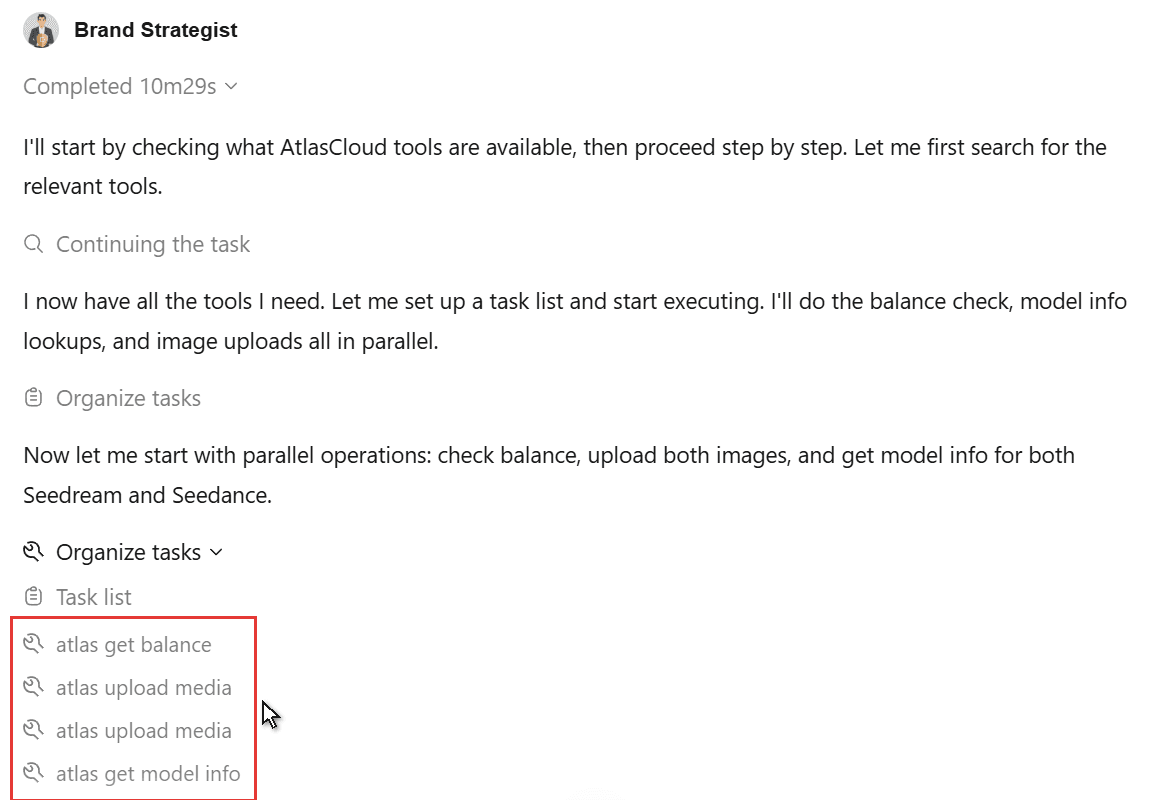
The expert never loaded a skill. It checked the balance, uploaded both photos, read the model schemas, had Seedream place the bottle in her hand, and passed that frame to Seedance 2.5 image-to-video. No Atlas call stopped for approval under default permissions, and the task finished in 10 minutes 29 seconds with the portrait, clip and caption saved to the workspace.
The clip came back at 720 x 1280, 24 fps and five seconds with audio, and her face and the bottle hold steady as she turns into the light. To rerun the motion on your own frame, use the Seedance 2.5 image-to-video playground.
What Each Atlas Tool Does in a Task
Our run used seven of the 15 tools the server added.
| Job | Tools | Used in our run |
|---|---|---|
| Find a model | atlas_search_docs, atlas_list_models, atlas_get_model_info | list models, get model info |
| Create media | atlas_generate_image, atlas_generate_video, atlas_generate_audio, atlas_quick_generate | generate image, generate video |
| Handle files and text | atlas_upload_media, atlas_transcribe_audio, atlas_chat | upload media |
| Track jobs | atlas_get_prediction, atlas_list_predictions | get prediction |
| Watch spending | atlas_get_balance, atlas_get_model_usage, atlas_get_model_costs | get balance |
WorkBuddy Plugins vs Skills vs Connectors
The three names blur. The difference is what WorkBuddy receives: live tools, written instructions, or a package holding both.
| Connector (MCP server) | Skill | Plugin | |
|---|---|---|---|
| What WorkBuddy gets | Tools it can call, such as a video generation tool | A SKILL.md playbook it reads when a task matches | A bundle that can hold skills, agents, hooks and MCP servers |
| How you add one | Pick a catalog card, or Custom connectors on desktop | Skills tab, then Add Skill and Upload Skill | Ships through a plugin marketplace |
| When it loads | In every task while its toggle is on | When the task calls for it, or you pick it with / | With whatever it contains |
| Good fit | A service you want on hand everywhere | A repeatable workflow with house rules | Several pieces a team wants to share as one install |
Plugins are the packaging layer. WorkBuddy's plugin docs say they extend the agent "with custom skills, agents, hooks, and MCP servers". In MCP Server Management, the Miora canvas server is labeled "From plugin mcp-miora".
Atlas Cloud works both ways: upload its skills on the web app, as our WorkBuddy AI walkthrough shows, or add the connector on desktop and stop pasting a key into each chat.
Fix Common WorkBuddy MCP Connection Problems
Most WorkBuddy MCP stalls happen between Save and the first tool call.
| Symptom | Likely cause | Fix |
|---|---|---|
| Green dot never appears, or 0 tools load | Node.js is missing or older than version 18 | Install Node.js 18+, then click the refresh icon on the server card |
| Atlas tools fail with a key error | The ${ATLASCLOUD_API_KEY} variable was set after WorkBuddy started | Restart WorkBuddy, or paste the key into the config |
| Atlas isn't in the + > Connectors list | That list shows catalog connectors only | Check it under Custom connectors; its tools still load in tasks |
| The hosted Atlas URL asks you to sign in | That endpoint uses OAuth sign-in | In WorkBuddy, use the npm server with your API key |
Frequently Asked Questions
Do I need a paid WorkBuddy plan for MCP connectors?
No. Every step in this guide ran on a Free account, and WorkBuddy's pricing page includes experts, skills and connectors in the free plan. Credits are the limit you'll notice, and the credits question below breaks that down.
Can I add a remote server over HTTP?
Yes, according to WorkBuddy's MCP reference, which lists stdio, SSE and streamable HTTP. A remote entry uses "url" and optional "headers" (where a Bearer token goes) instead of "command", in the same mcp.json editor.
Does a WorkBuddy MCP connector use credits?
Adding one is free, but the agent's thinking time is not. Our 10-minute run on Auto used about 56 WorkBuddy credits, much of it while the agent checked render status 30-plus times. The media bills to your Atlas Cloud account: $1.55 for one Seedream edit plus a five-second 720p Seedance 2.5 clip. With the 20% discount listed in November 2026, Atlas estimates about $1.52 for five seconds of 720p image-to-video and about $3.04 for 10 seconds.
Can other AI agents use WorkBuddy as an MCP server?
Yes, through a community project. The open-source workbuddy-mcp server wraps the WorkBuddy command line in one tool, run_workbuddy_task, so Claude Code, Codex or Cursor can hand WorkBuddy a job. It needs the CLI signed in, and by default it skips permission prompts, so check its settings first.
Conclusion
WorkBuddy's MCP support is real but tucked away: Custom connectors on desktop, one JSON entry, a Save and a Trust click. After that, the server's tools follow you into every task and every expert, even one that knows nothing about video.
For images and video inside WorkBuddy, connect the Atlas Cloud server once and ask in plain language. For any other server, the same workbuddy mcp steps apply: paste it into mcp.json, save, trust it, and start a task.


