Klippet är elva år gammalt, filmat på en telefon som toppade på 480p, och det är det enda materialet från den födelsedagen som någon behöll. På en modern skärm ser det ut som om det filmades genom en duschdörr.
Det är vanligtvis då någon söker efter bästa videouppskalaren, hamnar i en sammanställning och hittar en lista över skrivbordsappar märkta gratis. Läs det finstilta och gratis visar sig betyda en vattenstämpel, en exportgräns på 30 sekunder eller en provperiod som tar slut innan renderingen blir klar.
Så vi ställde tio uppskalare inför tre enkla frågor. Vad du får ut från verktyget med ett gratiskonto. Var din film bearbetas. Vad en ren export faktiskt kostar när provperioden är slut.
Alla priser och gränser nedan kommer från respektive leverantörs egna sidor i september 2026. Tabellen kommer först, sedan verktygen i ordning.
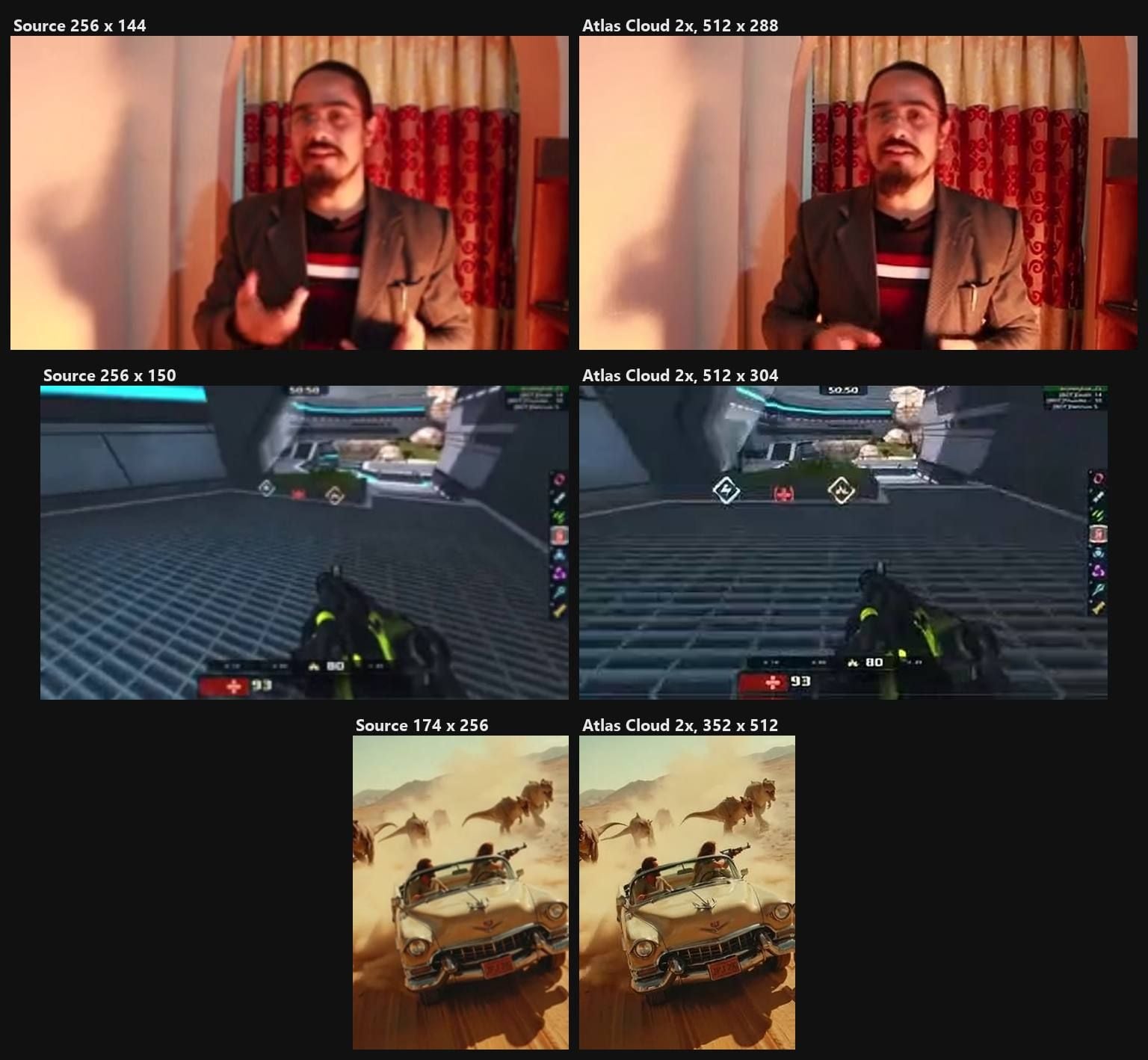
Bildrutor från våra tre testkörningar med det kostnadsfria webbläsarverktyget på standardinställningarna. Till vänster: 256-pixelskällorna förstorade så som en spelare skulle förstora dem. Till höger: 2x-WebM-filen som verktyget returnerade: inget konto, ingen uppladdning, ingen vattenstämpel.
Viktiga insikter
- Gratis betyder fyra olika saker bland dessa tio verktyg: utan mätning, export som räknas, vattenmärkt, eller en provperiod som inte kan exportera alls.
- Atlas Cloud och Video2X returnerar en fil utan vattenstämpel, utan konto, utan exporträknare och utan provperiodsklocka, och den kostnadsfria videouppskalaren i webbläsaren är den av de två som inte kräver någon installation.
- Sex av tio renderar på ditt eget grafikkort, och de publicerade minimikraven börjar på 4 GB videominne.
- Detaljer som en uppskalare lägger till är detaljer den har hittat på, och Topaz egen dokumentation beskriver sitt Creative-läge som att byta realism mot konstnärlig kvalitet.
- Ett uppskalat klipp är bara så skarpt som den bithastighet du exporterar det i, och YouTube publicerar siffrorna.
Jämförelsetabell för bästa videouppskalare
De tio verktygen delar upp sig i tre läger kring var arbetet sker. Sex renderar på ditt eget grafikkort: Topaz Video AI, Video2X, VideoProc Converter AI, AVCLabs, HitPaw VikPea och UniFab. Tre skickar filen till leverantörens servrar: TensorPix, CapCut och Pixop. Ett utför arbetet i din webbläsarflik utan uppladdning, och det är Atlas Cloud. Prisläget: Atlas Cloud och Video2X körs obegränsat utan vattenstämpel, VideoProc räknar dina gratisexporter, AVCLabs och HitPaw vattenmärker provversionen, Topaz har ingen provperiod alls, och Pixop bearbetar inte en enda bildruta förrän du lägger till en betalmetod. Publicerade startpriser ligger från $5.5 i månaden vid årlig fakturering till $299 per år.
| Verktyg | Bäst för | Gratisnivå | Betald startplan | Maximal utdata | Körs på |
|---|---|---|---|---|---|
| Atlas Cloud | Korta klipp, inget att installera | Obegränsade 2x-körningar, inget konto, ingen vattenstämpel | Molnmodell faktureras per sekund, ingen plan | 512 px brett som standard, högst 640 px i webbläsaren, 1080p eller 2K via molnmodellen | Din webbläsarflik |
| Topaz Video AI | Restaurering av långt material | Ingen provversion för den nuvarande skrivbordsversionen | $299/år Personal | 4K och över | Din dator, minst 6 GB VRAM |
| Video2X | Obegränsade lokala körningar, animekällor | Gratis och öppen källkod, inget konto | Ingen | Vilken faktor du än ställer in, 2x som standard | Din dator, ett Vulkan-grafikkort från 2012 och framåt |
| VideoProc Converter AI | Billigaste skrivbordsvägen | 5 exporter utan vattenstämpel, filer under 5 minuter | $34.95/år för 3 enheter | 4K, upp till 4x | Din dator, Vulkan 1.2-grafikkort |
| TensorPix | Molnjobb från en webbläsare | Registreringskrediter för cirka 5 minuter, 720p-ingångstak | $5.5/mån vid årlig fakturering | 4x, 4K-ingång på betalda planer | TensorPix servrar |
| AVCLabs Video Enhancer AI | Att köpa en evig licens | Vattenmärkt provversion, 30 sekunders exporter | $39.95/mån, evig licens från $149.90 | 4K eller 8K | Din dator, 4 GB GPU-minne |
| HitPaw VikPea | 8K-mål med ett molntillägg | Vattenmärkt tills du köper | $43.19/mån, eller $81.24/år vid kampanj | 8K | Din dator, eller betalda molnkrediter |
| CapCut | Redigerare som redan är i CapCut | Gratis verktygssida, gränser anges inte | Pro $19.99/mån, varierar per region | 4K i verktyget | CapCut servrar och appar |
| UniFab Video Upscaler AI | En modul, en livstidsavgift | 30 dagars provperiod, ingen vattenstämpel | $129.99 livstid | 16K enligt uppgift | Din dator, 8 GB VRAM rekommenderas |
| Pixop | Sändningsarkiv, betala per gigapixel | Ingen, provversionen kan inte bearbeta | Minsta köp av krediter $10 | Inget angivet tak | Pixops moln |
Hur vi testade varje videouppskalare i den här listan
Alla priser, gränser och tak i den här artikeln lästes från leverantörernas egna pris-, funktions- eller dokumentationssidor i september 2026. Betyg kom från Trustpilot, Capterra, App Store och Google Play, lästa samma månad. Den praktiska delen är begränsad och värd att nämna: vi körde tre egna klipp, vart och ett under 8 sekunder, genom den kostnadsfria webbläsarvägen för att se vad en 2x-körning ger tillbaka, och de körningarna finns i Atlas Cloud-avsnittet nedan. Vi renderade inte samma material genom alla tio verktyg, och den här artikeln gör inget anspråk på en rangordning av bildkvalitet.
En sak till om kategorin. Video-leverantörer skiljer inte förbättring från uppskalning på samma sätt som fotoverktyg gör. CapCut kallar sitt verktyg för både uppskalare och förbättrare i samma andetag, och Topaz säljer båda i en och samma app. För stillbilder drog vi den gränsen i fotoförbättrare vs bilduppskalare, och samma logik gäller här: en uppskalare lägger till pixlar, en förbättrare ändrar de du har.
Fyra kriterier avgjorde rangordningen:
- Vad du får ut från verktyget med ett gratiskonto. En vattenstämpel, en gräns för klipplängd, en exporträknare eller en blockerad nedladdning betyder i praktiken samma sak: du har inte filen än.
- Uppskalarspecifika kontroller. En publicerad målupplösning eller faktor, ett modellval för verkligt material kontra animering, huruvida den ursprungliga bildfrekvensen bevaras, och ett angivet ingångstak.
- Pristransparens. Huruvida siffran står tryckt på webbplatsen, är dold bakom en registrering, eller visas som en överstruken kampanj som kanske inte finns nästa månad.
- Var ditt material tar vägen. Lokal rendering, en uppladdning till leverantörens moln, eller bearbetning i webbläsaren, och huruvida leverantören säger hur länge filen sparas.
Den första väger tyngst. Ett verktyg som renderar ett vackert 4K-resultat och sedan ger dig en vattenmärkt förhandsvisning har inte löst problemet du kom med, AVCLabs och HitPaw VikPea gör precis det, och Topaz Video och Pixop renderar inte en enda gratis bildruta.
De tre klippen, skalade till verktygets standardkant på 256 pixlar före körningen:
| Testklipp | Vad det innehåller | Källstorlek | Längd | Ursprung |
|---|---|---|---|---|
| Porträtt | En man som pratar mot kameran framför ett mönstrat draperi | 256 x 144 | 7 s | Arkivmaterial under Pexels-licensen |
| Spelinspelning | Xonotic deathmatch med siffror för hälsa och rustning samt en resultattavla | 256 x 150 | 7 s | Spelinspelning med öppen källkod från Wikimedia Commons |
| AI-klipp | Dinosaurier som jagar en vintage cabriolet genom en öken | 174 x 256 | 5.4 s | Demoklipp från Atlas Clouds modellsida för videouppskalare |
Upplysning: Atlas Cloud publicerar den här artikeln och driver verktyget som rankas först. Inget annat verktyg här har betalat för placering, och vart och ett av dem beskrivs utifrån sina egna publicerade sidor.
1. Atlas Cloud: Bästa AI-videouppskalare totalt
Släpp ett klipp under 8 sekunder på sidan, tryck på körknappen som det står Free, no charge på, och en WebM med dubbelt så lång kant som du valde kommer tillbaka från din egen dator: 512 pixlar brett vid standardinställningen, 640 vid den högsta. Inget stämplas på den, och det finns inget konto att skapa först. Den ligger först enbart av den anledningen: gratiskörningen slutar med en fil du kan använda.
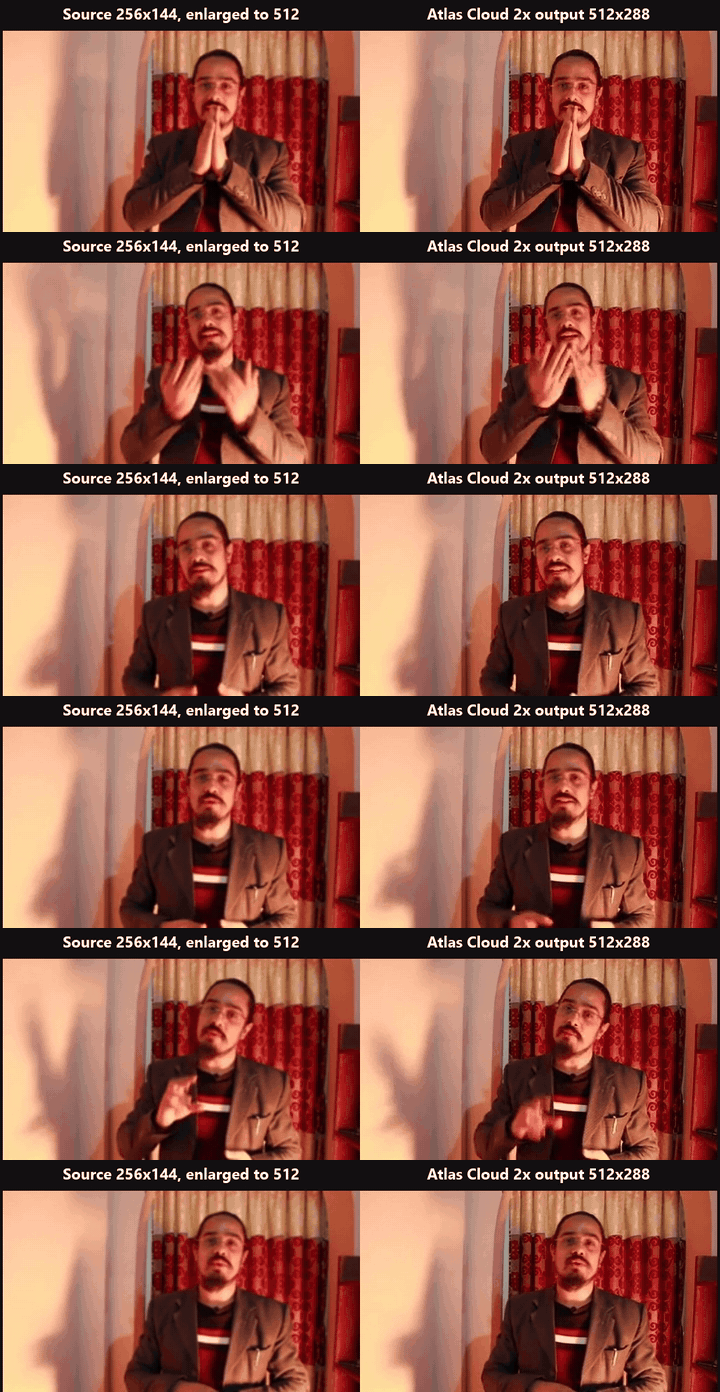
Loopen nedan är den körningen, sida vid sida. Till vänster är vår 256 x 144-källa, en man som pratar mot kameran framför ett mönstrat draperi, förstorad till 512 pixlar så som en videospelare skulle förstora den. Till höger är 512 x 288-WebM-filen som verktyget returnerade med standardinställningarna, båda sidor i matchad bildfrekvens så att den enda skillnaden du ser är pixlarna. Titta på kanten av glasögonen, skägget och draperimönstret: högersidan håller en renare linje.
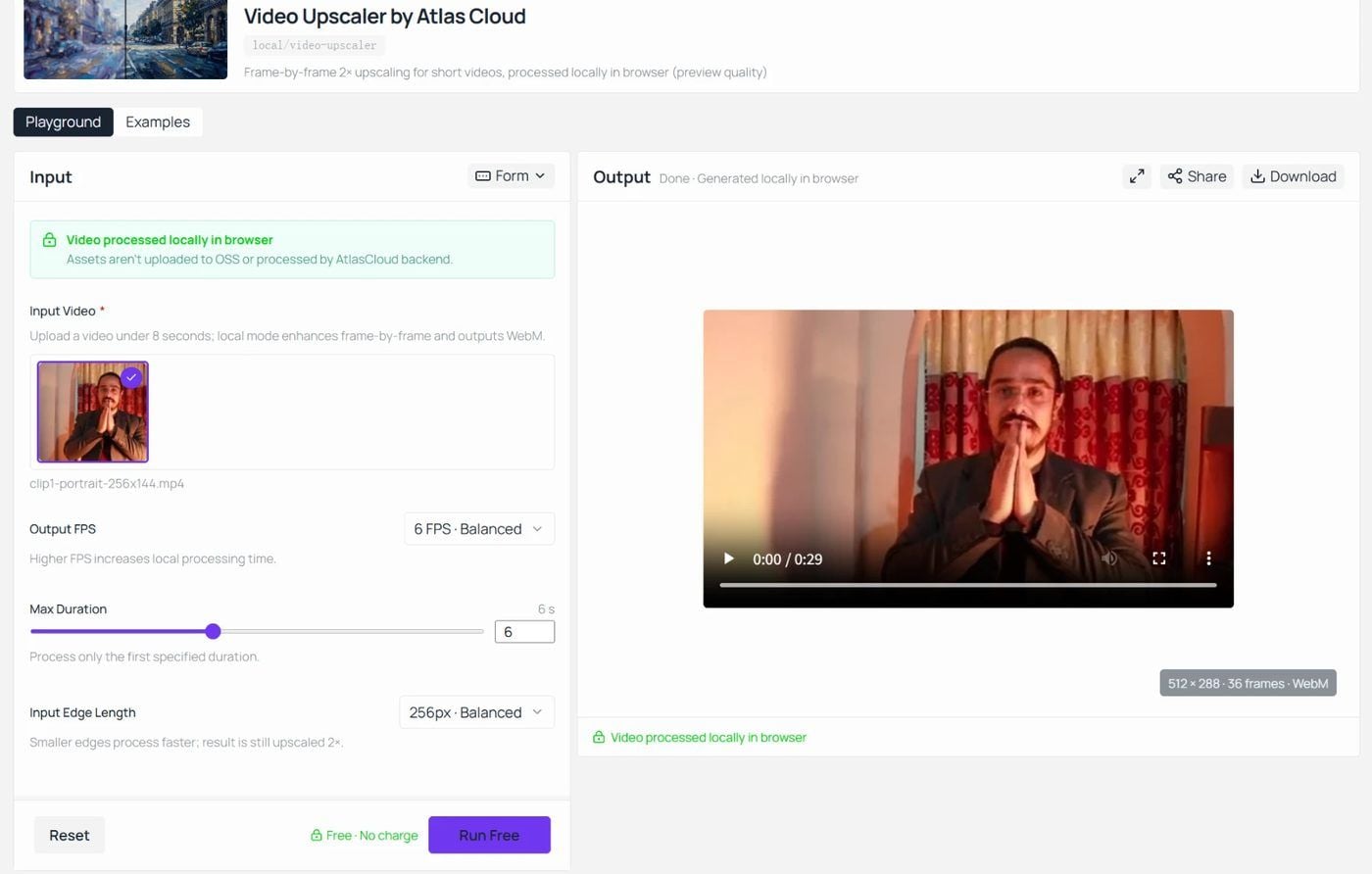
Atlas Cloud kör den här uppskalaren på en super resolutions-modell som laddas ner i din flik en gång och sedan bearbetar varje bildruta med WebGPU på din egen hårdvara. Det är ett av företagets kostnadsfria AI-verktyg, en liten grupp som även omfattar bilduppskalning och bakgrundsborttagning, och det här kräver ingen inloggning.
Sidan är tydlig med gränsen som följer av att köras i en webbläsare. Fältet Input Edge Length erbjuder 192, 256 eller 320 pixlar och har standardvärdet 256 på en inställning märkt Balanced. Klippet skalas till den långa kanten innan modellen ser det, och utdata är dubbelt så stor: vårt testklipp på 636 x 360 kom tillbaka i 512 x 304 med standardinställningen, och den högsta inställningen toppar på 640. Betrakta detta som en skärpningskörning för klipp upp till 320 pixlar breda snarare än en väg till full HD, eftersom nedskalningen till din valda kant sker innan modellen körs. Output FPS erbjuder 4, 6 eller 8 bilder per sekund och har standardvärdet 6: välj 8 när klippet har rörelse, och de lägre inställningarna när du vill få renderingen tillbaka snabbare. Max Duration har standardvärdet 6 sekunder, går upp till 12, och bearbetar bara den första delen av klippet, medan uppladdningsfältet självt efterfrågar klipp under 8 sekunder.
Samma standardkörning på spelinspelningen, där HUD-siffrorna och golvrastret avslöjar det:
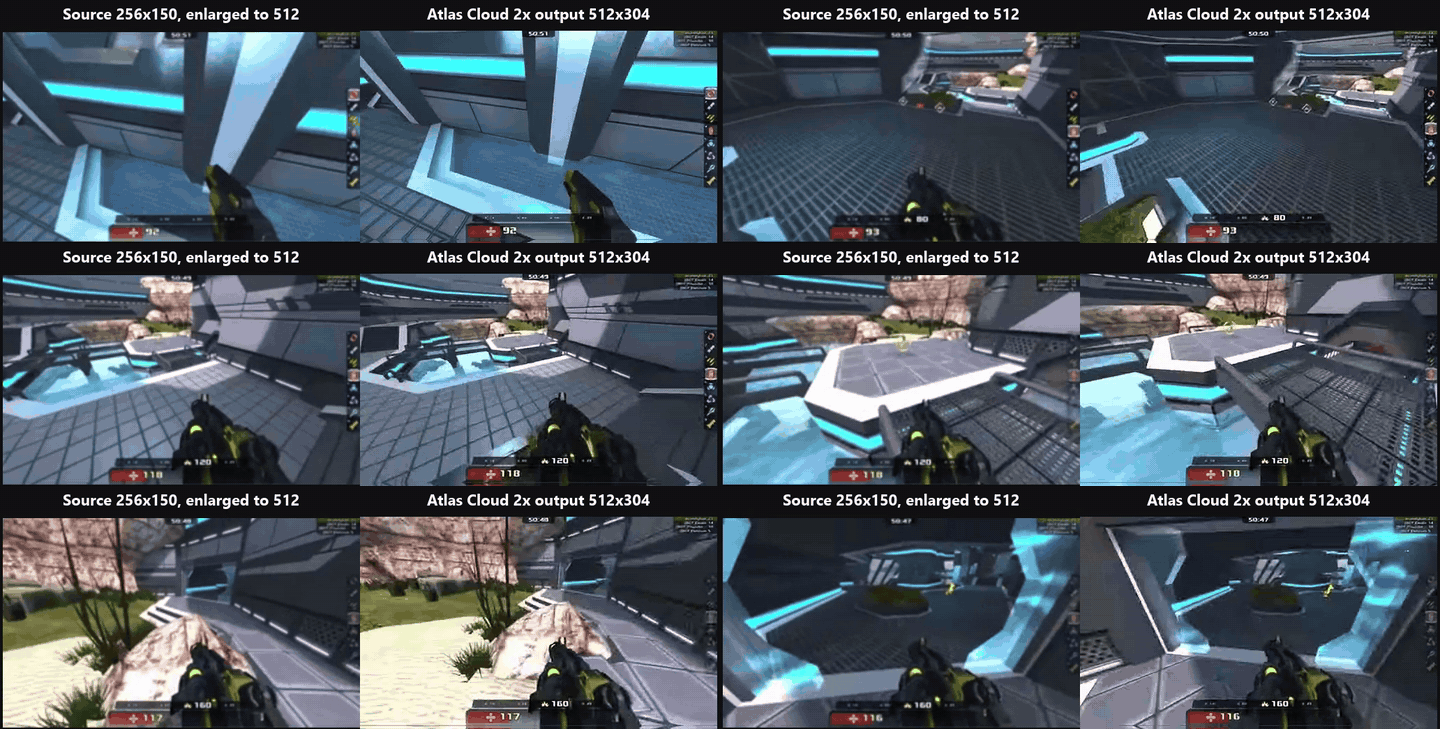
De standardinställningarna beskriver jobbet som det här verktyget är byggt för: en skarpare körning på en gammal telefonvideo innan den hamnar i ett familjearkiv, en spelinspelning vars HUD-text har blivit suddig, ett klipp från en AI-videogenerator som kom tillbaka mjukare än väntat. Sidan nämner själv dessa fall.
För material bortom den gränsen tar videouppskalarmodellen i Atlas Cloud-playground en video-URL och en målupplösning på 1080p eller 2K, vilket modelldokumentationen definierar som 2560 x 1440. 1080p-inställningen accepterar klipp upp till 53 sekunder, 2K-inställningen upp till 23 sekunder, och indata måste vara 30 bilder per sekund eller lägre. Den ursprungliga bildfrekvensen behålls, utan interpolering. Samma dokumentation listar 4K som planerat för en senare version, så vi räknar inte med det.
Varför den utmärker sig: Gratisvägen och den betalda vägen är samma idé i två storlekar. Du lär dig vad super resolution gör med din typ av material på ett kort klipp i webbläsaren, utan att något laddas upp, och skickar det längre klippet till den hostade modellen när du vet att resultatet är värt att betala för.
Bäst för: Den vars problem är ett kort klipp snarare än ett långt. Familjevideor från en gammal telefon, retrospelinspelningar, skärminspelningar med liten text, AI-genererade klipp som behöver en sista körning innan de går vidare.
Priser: Webbläsarverktyget är gratis utan konto att skapa, utan gräns för hur många klipp du kör, utan vattenstämpel på nedladdningen och utan uppladdning av ditt material. Den hostade modellen fakturerar per sekund av indata från samma Atlas Cloud-saldo som täcker alla andra modeller på plattformen.
2. Topaz Video AI: Bästa videouppskalningsprogramvaran för långt material
Topaz Video är namnet som dyker upp först i de flesta r/VideoEditing-trådar vi läste om restaurering av gammalt material, och produktsidan lutar sig mot samma punkt: lokal rendering, där dina filer aldrig lämnar datorn. Modellistan på prissidan sträcker sig från Proteus och Iris till Starlight Precise, och appen finns för att mala igenom timmar av material snarare än sekunder.
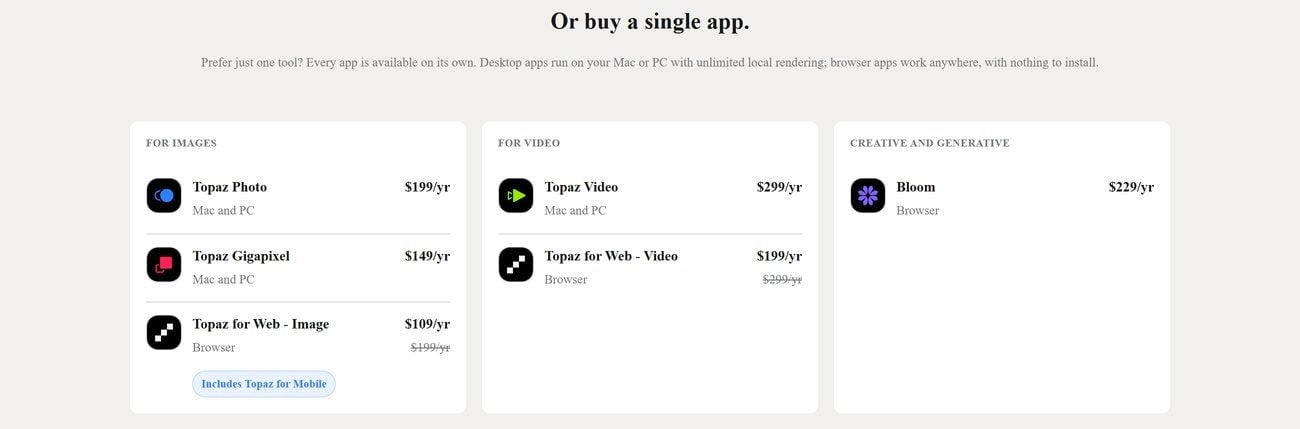
Skärmbild från Topaz Labs officiella prissida, september 2026.
Var gratisnivån stoppar dig: Innan den börjar. Ett svar från Topaz personal på företagets communityforum, läst i september 2026, säger att den nuvarande skrivbordsversionen av Topaz Video inte erbjuder någon gratis provperiod. Topaz Labs slutade också sälja eviga licenser den 3 oktober 2025, en förändring som rapporterades av CG Channel och Digital Production då, så det enda sättet in är en prenumeration.
Vad en användbar video faktiskt kostar: Personal-planen kostar $299 per år, eller $39 i månaden vid ett årsåtagande, eller $59 månad för månad. Pro-licensen, som lägger till fulla kommersiella rättigheter för organisationer med över $1 miljon i intäkter, kostar $699 per år. Topaz Studio-paketet med alla Topaz-appar kostar $399 per år.
Vad användare rapporterar: Trustpilot visar 3,7 av 5 från 56 525 recensioner på Topaz Labs företagsövergripande profil, som omfattar både fotoapparna och video.
Var den brister för videouppskalning: Hårdvara. Sidan med systemkrav begär 6 GB videominne på NVIDIA-, AMD- eller Intel-grafik och 16 GB system-RAM, och på Mac stöds endast Apple Silicon. Renderingstid är den andra kostnaden: en användare på r/VideoEditing beskrev ett 22 minuter långt avsnitt som tog cirka 36 minuter att nå 4K på ett RTX 4090, och en annan frågade hur man batchkör klipp på en M3 Pro MacBook utan termisk strypning.
Passar: Den som har en låda full av band, ett kapabelt grafikkort och ett års restaureringsarbete framför sig. Inte för dig om: du har en handfull korta klipp och ingen lust med en årlig utgift på $299.
3. Video2X: Bästa kostnadsfria videouppskalaren för lokala GPU-körningar
Video2X är ett öppen källkod-projekt under AGPL 3.0-licensen med 21,7 tusen GitHub-stjärnor i september 2026, och det är verktyget som användare på r/VideoEditing sträcker sig efter när ordet gratis måste betyda gratis. Det lindar in fyra motorer bakom ett gränssnitt: Real-ESRGAN och Real-CUGAN för uppskalning, RIFE för bildruteinterpolering och Anime4K version 4 via libplacebo-shaders.
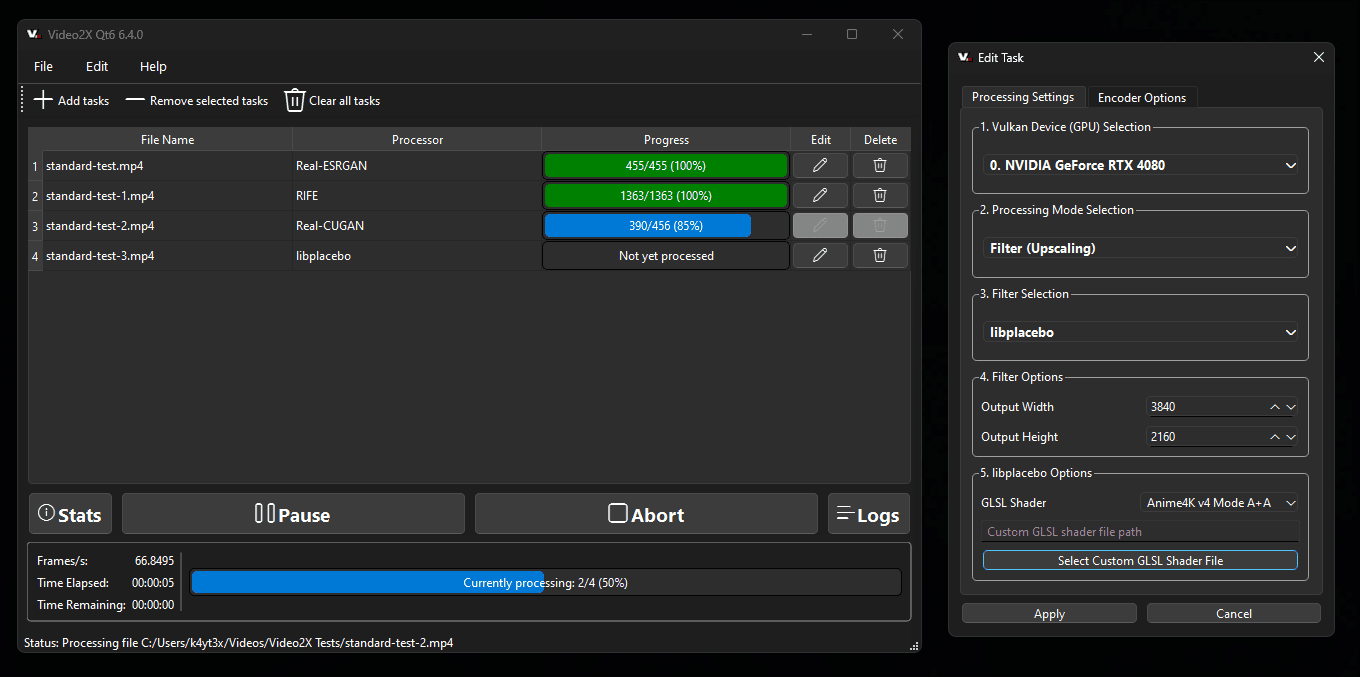
Skärmbild från Video2X-projektets README, september 2026.
Var gratisnivån stoppar dig: Ingenstans på priset. Det finns inget konto, ingen vattenstämpel, ingen räknare och ingen tidsgräns. Den stoppar vid hårdvara. Projektet begär ett Vulkan-kompatibelt grafikkort, vilket sträcker sig tillbaka till NVIDIA Kepler-kort från 2012, AMD GCN 1.0 och Intel HD Graphics 4000, och GUI-installationsprogrammet finns för Windows. I övrigt är det en kommandorad.
Vad en användbar video faktiskt kostar: Noll dollar och mycket GPU-tid. I en r/VideoEditing-tråd från 2023 sade en användare med ett RTX 3080 att en 10 minuter lång video tog ungefär ett och ett halvt dygn, och kallade ändå resultatet det bästa de hade testat. Det var en äldre version, den nuvarande versionen lägger till libplacebo-shadervägen, och ingen publicerar ett benchmark som man kan hålla dem till.
Vad användare rapporterar: Det finns ingen Trustpilot- eller appbutikslistning för ett självhostat verktyg, så de 21,7 tusen stjärnorna är det närmaste ett betyg man kommer. Det återkommande berömmet i de r/VideoEditing-trådar vi läste är utdatakvaliteten, och det återkommande klagomålet är hastigheten.
Var den brister för videouppskalning: Skalfaktorn är en flagga du ställer in själv, 2x som standard och 4x i dokumentationens exempel, utan skyddsräcke om du begär mer än källan klarar. Verkligt material går genom Real-ESRGAN eller Real-CUGAN, och ingen av de fyra motorerna är specifikt trimmad för ansikten, så resultat på människor varierar med källan.
Passar: Den som har ett dedikerat grafikkort, en mapp med anime- eller spelmaterial och tid att låta datorn gå över natten. Inte för dig om : du vill ha ett klipp tillbaka inom en minut eller sitter på en bärbar dator med integrerad grafik.
4. VideoProc Converter AI: Bästa videouppskalningsprogramvaran på en budget
VideoProc Converter AI är först och främst en omvandlare, med en AI Super Resolution-modul påskruvad, och dess gratisversion låter dig exportera utan vattenstämpel, fem gånger.
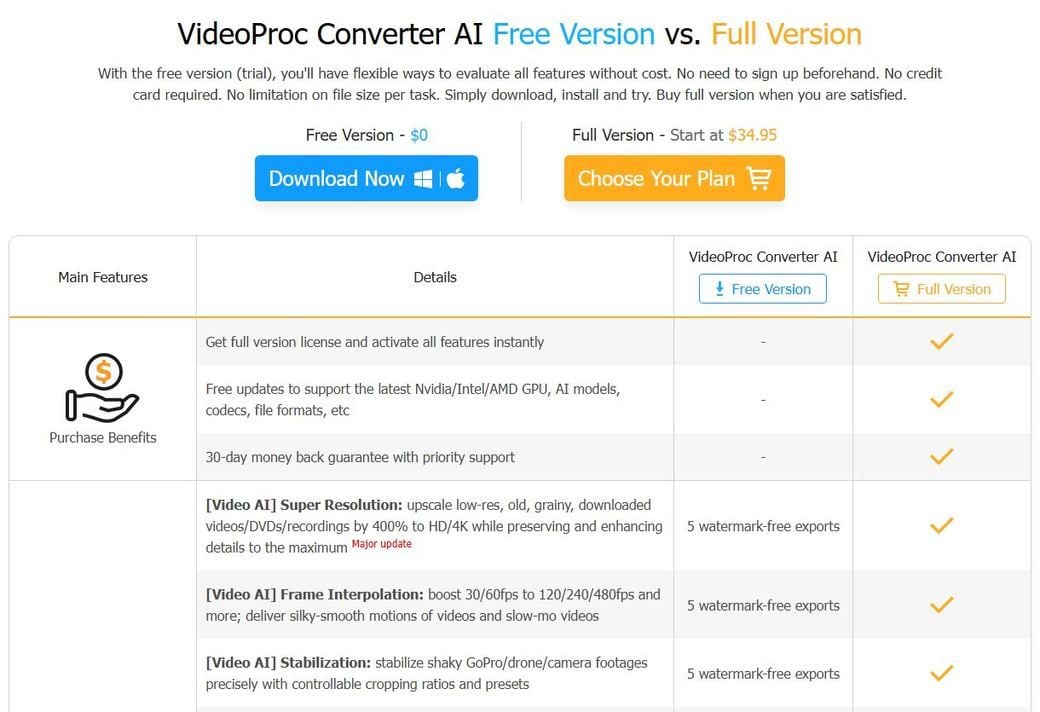
Skärmbild från VideoProcs officiella sida om gratis kontra full version, september 2026.
Var gratisnivån stoppar dig: Vid den sjätte exporten. Jämförelsesidan listar 5 exporter utan vattenstämpel för AI Super Resolution, och provversionen begränsar filer till under 5 minuter. Efter det behöver modulen en licens.
Vad en användbar video faktiskt kostar: Premium 365-planen kostar $34.95 per år för tre enheter, visat som en rabatt från $59.95, och förnyelsepriset anges som $39.95. En livstidslicens för en enhet kostar $54.95, och en familjelicens för tre till fem enheter kostar $79.95. Alla tre har en 30 dagars pengarna-tillbaka-garanti.
Vad användare rapporterar: Trustpilot visar 4,2 av 5 från 513 recensioner, och Capterra 4,1 av 5 från 21.
Var den brister för videouppskalning: Taket är 4K och 4x, vilket täcker telefon- och kameramaterial och stannar kort om 8K-påståendena någon annanstans i listan. Det kräver ett grafikkort med Vulkan 1.2-stöd för AI-funktionerna. Och på frågan om var ditt material tar vägen säger företagets säkerhetssida bara att den upptäcker hårdvaruinformation för optimering; vi kunde inte hitta en mening som säger att materialet stannar på din dator.
Passar: Den som vill ha ett permanent skrivbordsverktyg för under $60 och inte behöver mer än 4K. Inte för dig om : fem gratisexporter inte täcker det test du vill köra innan du betalar.
5. TensorPix: Bästa online-videouppskalaren för molnjobb
TensorPix körs i molnet, så maskinen du sitter på spelar ingen roll, och dess prissida trycker siffrorna du behöver för att räkna ut en kostnad per minut.
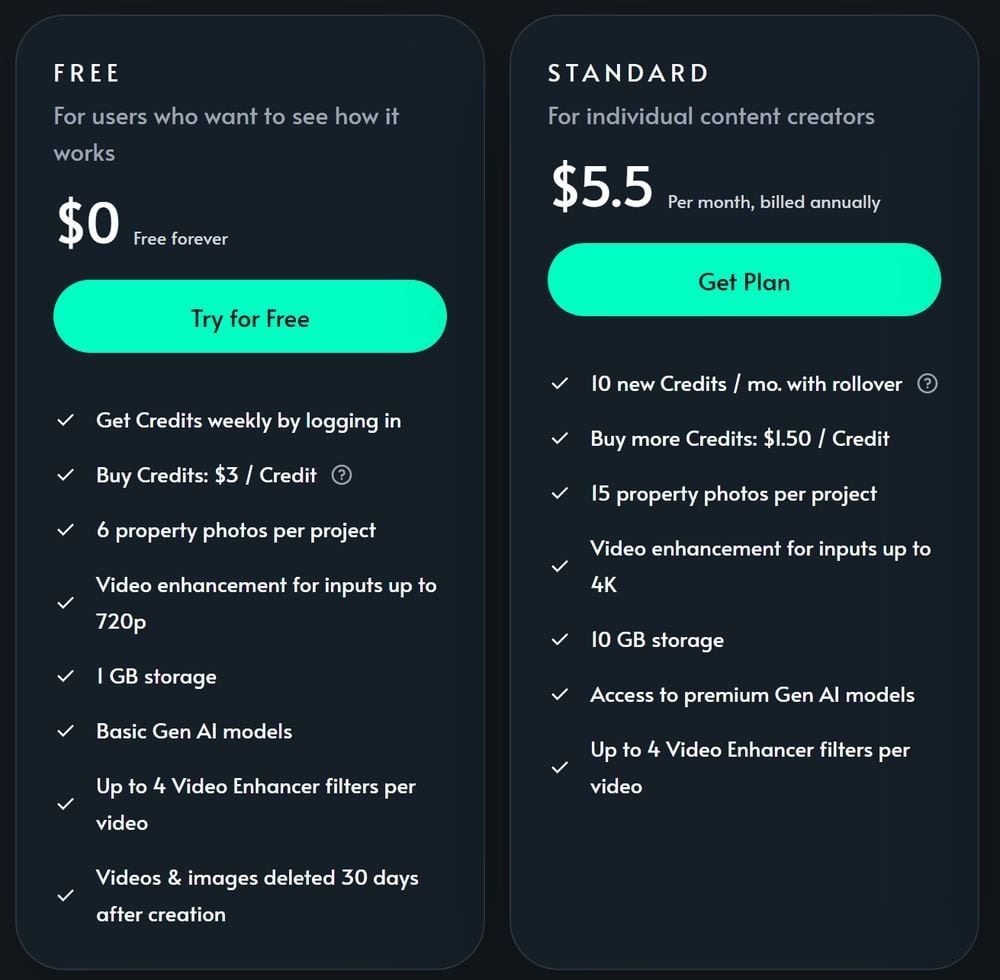
Skärmbild från TensorPix officiella prissida, september 2026.
Var gratisnivån stoppar dig: När registreringskrediterna tar slut, vilket prissidan uppskattar till ungefär fem minuters förbättring. Indata är begränsad till 720p, lagringen är 1 GB, och prissidan säger att filer i gratisnivån raderas 30 dagar efter skapandet. Bearbetning kräver ett konto.
Vad en användbar video faktiskt kostar: Standard-planen kostar $5.5 i månaden vid årlig fakturering och inkluderar 10 krediter i månaden med överföring. Sidan definierar en kredit som cirka 2 minuter förbättrad video, så planen täcker ungefär 20 minuter i månaden, vilket motsvarar ungefär $0.28 per minut. Extra krediter kostar $1.50 styck, eller cirka $0.75 per minut.
Vad användare rapporterar: Trustpilot visar 4,2 av 5 från 121 recensioner.
Var den brister för videouppskalning: Allt är en uppladdning, så konfidentiellt material är först ett samtal med din kund. 4K-indatanivån är endast betald. Och ett långt projekt vänder snabbt matematiken per minut mot dig: en timmes material på plankrediter är tre månaders tillgodohavande.
Passar: Den som sitter på en bärbar dator utan GPU och har några minuters material i månaden. Inte för dig om: materialet inte får lämna byggnaden, eller du har timmar av det.
De andra fem videouppskalarna värda att känna till
Dessa fem tog sig inte till övre halvan av en av fem anledningar: provversionen vattenmärker allt, priset på sidan är en nedräkningskampanj, prissättningen publiceras inte alls, den rekommenderade hårdvaran är ett skrivbordsgrafikkort för gaming, eller det finns ingen gratis bearbetning att testa med. Var och en är fortfarande rätt verktyg för någon, så här är var gratisnivån stoppar och vad startpriset köper.
6. AVCLabs Video Enhancer AI: Evig licens, vattenmärkt provversion
AVCLabs säljer en skrivbordsuppskalare som bearbetar lokalt, med en produktsida som lovar inga uppladdningar och inga molnberoenden. Provversionen har alla funktioner, men varje export är vattenmärkt och begränsad till 30 sekunder, utan gräns för hur många du kör. Priset är $39.95 i månaden, $119.95 per år visat som $95.96, eller en evig licens för $299.90 visat som $149.90. Sidan hävdar 4K- eller 8K-utdata och upp till 400 procents skalning. Hårdvarubeskrivningen är rörig: en officiell kravsida begär 4 GB GPU-minne och ett GTX 1060 eller bättre, medan specifikationssidan bara nämner NVIDIA Kepler- eller AMD GCN-generationskort. Trustpilot visar 4,1 av 5 från 553 recensioner. Avvägningen är ett sant köp-en-gång-pris mot en provversion som aldrig visar dig en ren bildruta.
7. HitPaw VikPea: 8K-påståenden med ett valfritt molntillägg
HitPaw bytte namn på sin Video Enhancer till VikPea i slutet av 2024 och marknadsför 4K- och 8K-utdata. Gratis provversions-sidan är tydlig: förbättrade videor bär en vattenstämpel tills du köper. Köpsidan i september 2026 visade $43.19 i månaden, $99.99 per år rabatterat till $81.24, och en evig licens för $350.39 rabatterat till $284.69, allt under en banner med 35 procent rabatt och en nedräkningsklocka. Bearbetning sker lokalt som standard, och ett betalt molnaccelerationsalternativ förbrukar krediter. Det som får oss att tveka är recensionssidan: Trustpilot visar ett meddelande om att företagets betyg inte är tillgängligt på grund av brott mot deras riktlinjer, med 2 730 recensioner registrerade, och VikPea-listningen på Capterra har inga. Avvägningen är en stor upplösningssiffra mot ett pris du måste pricka rätt dag.
8. CapCut: AI-videouppskalare inuti en redigerare
CapCuts webbsverktygssida erbjuder HD-, UHD- och 4K-utdata och beskriver sig som gratis, men ingen av verktygssidorna anger huruvida den kostnadsfria exporten är vattenmärkt eller begränsad, och CapCut publicerar ingen fast prissida. Deras egen jämförelseartikel sätter Pro till $19.99 i månaden eller $179.99 per år, säger att avancerade videoförbättringsverktyg endast är för Pro, och varnar för att priser varierar per region och plattform. Betygen berättar två historier: 4,6 av 5 från 1,1 miljoner App Store-betyg och 3,6 från 13 miljoner på Google Play, mot 1,2 av 5 från 1 292 Trustpilot-recensioner. Avvägningen är bekvämlighet inuti en redigerare du kanske redan använder mot gränser du bara upptäcker vid exportknappen.
9. UniFab Video Upscaler AI: En modul, ett livstidspris
UniFab säljer sin uppskalare som en fristående modul för $129.99 som livstidslicens, eller i ett All-In-One-paket med 26 verktyg för $429.99. 30-dagarsprovperioden beskrivs som full åtkomst utan vattenstämpel. Produktsidan hävdar utdata upp till 16K och rekommenderar 16 GB RAM, 8 GB videominne och ett RTX 30-serie-kort eller bättre i Windows; Mac-kraven begär 32 GB RAM. Bearbetning sker lokalt, med en valfri FabCloud-väg på 0,5 krediter per minut. Trustpilot visar 4,1 av 5 från 178 recensioner. Avvägningen är en ren provperiod och ett fast pris mot en hårdvarurekommendation som riktar sig till skrivbordsgrafikkort för gaming.
10. Pixop: Videouppskalning per gigapixel för arkiv
Pixop är byggt för sändningsbolag och arkiv, och låtsas inte ha en gratisnivå. 14-dagarsprovperioden låter dig titta på gränssnittet, och hjälpcentret säger att du inte kan ladda upp, ladda ner eller bearbeta förrän en betalmetod finns registrerad, med ett minsta kreditköp på $10. Prissättningen är per gigapixel bearbetad video: Super Resolution-filtret kostar $0.079 per gigapixel, vilket vid 1080p och 24 bilder per sekund motsvarar ungefär $0.24 per minut för enbart uppskalningen före kodning, och ungefär fyra gånger det vid 4K. Trustpilot visar 3,8 av 5 från 29 recensioner. Avvägningen är transparent mätarbaserad prissättning och ett lokalt alternativ mot en räkning som skalas med varje pixel du rör.
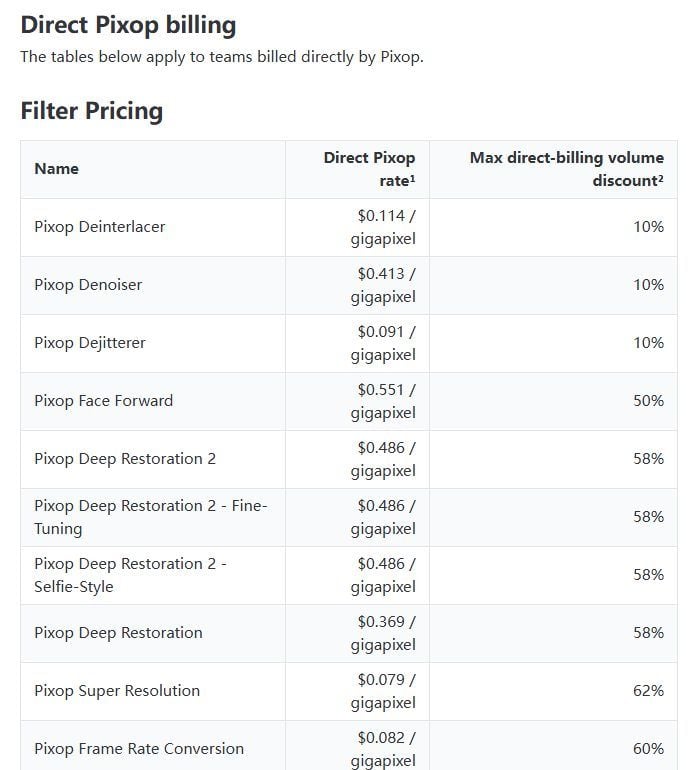
Skärmbild från Pixops officiella prisdokumentation, september 2026.
Håller YouTube din uppskalade video skarp?
Tre av de fyra leverantörssammanställningar som rankar för den här sökningen hoppar över vad som händer efter exporten, och det avgör huruvida uppskalningen var värd att göra. Filmskaparen och Premiere Pro-författaren Jarle Leirpoll skrev i en 2024 Frame.io-artikel om exportmyter att "filen du laddar upp till YouTube och andra sociala medier aldrig ses av användarna." YouTube kodar om allt, och det kodar om efter upplösningsnivå.
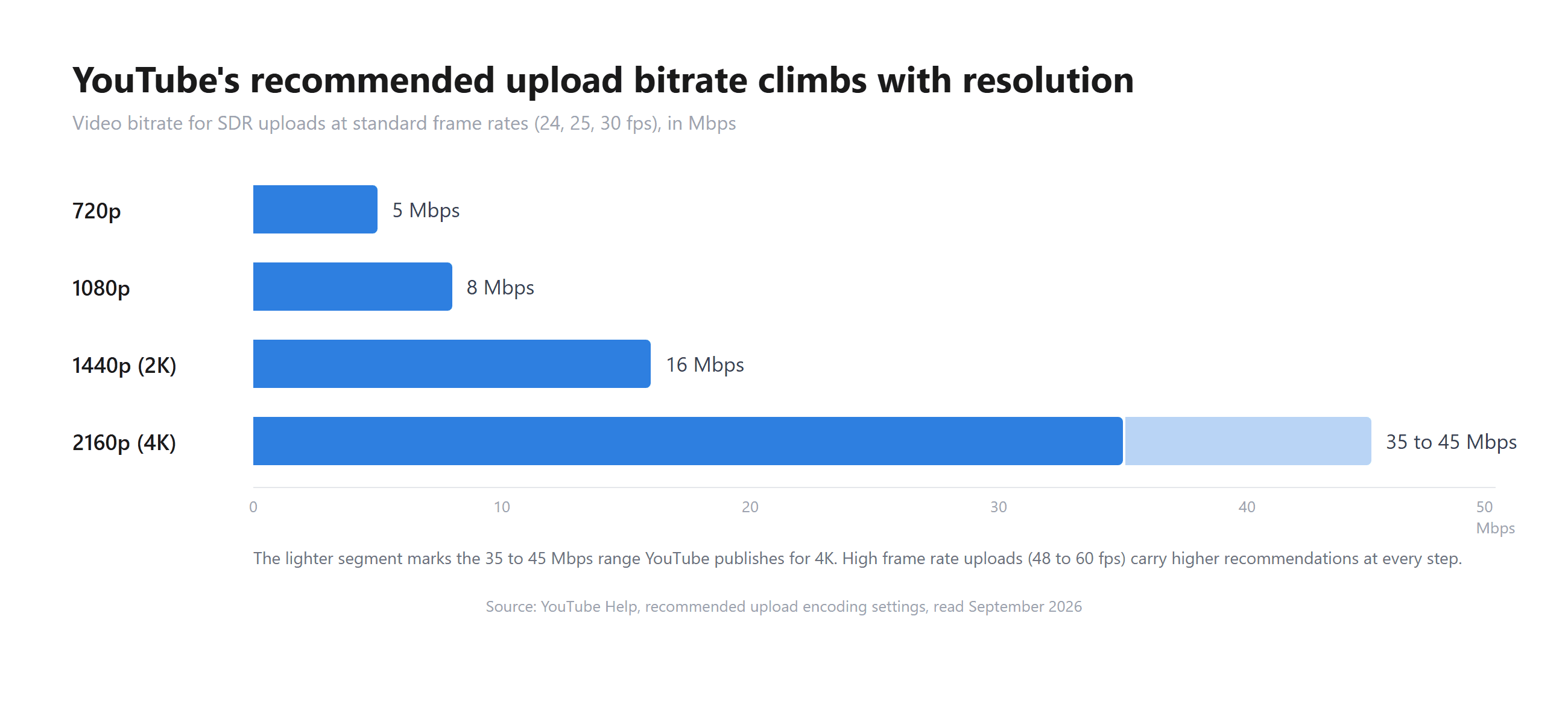
Nivåerna är offentliga. YouTubes rekommenderade uppladdningsinställningar listar 8 Mbps för 1080p, 16 Mbps för 1440p och 35 till 45 Mbps för 2160p vid standardbildfrekvenser i SDR. Samma sida tillägger att visning av nya 4K-uppladdningar i 4K kräver en webbläsare eller enhet som stöder VP9, och Leirpolls artikel noterar att YouTube använder en modernare codec för 4K-uppladdningar, vilket är varför vissa redigerare skalar upp HD till 4K före uppladdning. En 2x-körning från 720p landar på 1440p, och YouTubes rekommendation för den nivån är dubbelt så hög som 1080p-siffran.
Den andra begränsningen är vad uppskalaren hittar på på vägen upp. Topaz egen dokumentation för webbappen Astra beskriver Creative Mode som att prioritera konstnärlig kvalitet framför strikt realism, och parar ihop det med ett Precise Mode för detaljbevarande arbete. Det är delningen en generativ uppskalare lever med: detaljer som modellen lägger till är detaljer som modellen valde.
Vad du bör göra i stället: Exportera det uppskalade klippet med den bithastighet YouTube rekommenderar för dess nya upplösning, inte källans bithastighet. Behåll källans bildfrekvens om du inte medvetet interpolerar. För material som måste förbli troget, en intervju, en produktdemo, bevis för vad som helst, välj den precisa eller standardmodellen framför den kreativa, och behåll originalfilen bredvid den uppskalade versionen.
Vad säger Reddit om den bästa videouppskalaren?
r/VideoEditing-gemenskapen, med ungefär en halv miljon medlemmar, har svarat på den här frågan i åratal, och svaren kommer nu med en varning om Topaz prenumeration. I en tråd från december 2025 med rubrik om att hitta ett icke-prenumerationsalternativ till Topaz Video för gamla familjevideor pekade svaren på öppna modellbibliotek och på funktionen AI Super Scale i DaVinci Resolve Studio snarare än på ännu en betald uppskalare.
Priset är inte det enda klagomålet. En tråd från november 2024 efterfrågade en gratis Windows-uppskalare utan vattenstämplar och utan provversioner bortom Topaz och Video2X. Shutter Encoder dök upp som ett gratisalternativ med 2x- och 4x-AI-skalning, och originalinläggets uppföljning var att även bra källmaterial kom tillbaka med synliga AI-artefakter. En tråd från juni 2025 på samma subreddit hade en medlem som kallade senaste Topaz några steg före allt annat, med en varning om att en batch klipp inställda på 1080p innebar att komma tillbaka om ett par dagar, medan andra rekommenderade Resolve Studio och den öppna källkoden QualityScaler.
Mönstret i dessa trådar är konsekvent. Topaz är fortfarande kvalitetsreferensen för långt, verkligt material. Video2X och dess öppen källkod-kusiner är gratis svaret, med hastighet och artefakter som kostnad. Webbläsarverktyg dyker knappt upp, eftersom fallet med korta klipp inte är det folk skriver om.
| Trådfråga, r/VideoEditing | Vad som rekommenderades | Vad som varnades för |
|---|---|---|
| Icke-prenumerationsalternativ till Topaz Video, december 2025 | Öppna modellbibliotek, DaVinci Resolve Studio Super Scale | Topaz går över till endast prenumeration |
| Gratis Windows-uppskalare, ingen vattenstämpel, ingen provversion, november 2024 | Shutter Encoder, ComfyUI-uppsättningar | AI-artefakter även på rena källor |
| Bästa verktyg för att skala upp mycket video till 1080p, juni 2025 | Topaz, Resolve Studio, QualityScaler, After Effects Detail-preserving Upscale | Rendertider på flera dagar för Topaz-batcher |
| Snabbare alternativ än Video2X, maj 2023 | Topaz | Ett 10 minuter långt klipp som tar ungefär ett och ett halvt dygn på ett RTX 3080 |
Vanliga frågor
Vilken är den bästa kostnadsfria videouppskalaren utan vattenstämpel?
Atlas Cloud och Video2X returnerar en fil utan vattenstämpel, utan konto, utan exporträknare och utan provperiodsklocka. Den kostnadsfria AI-videouppskalaren från Atlas Cloud gör en 2x-körning på klipp under 8 sekunder i din webbläsare, och Video2X gör vilken faktor du än ställer in på din egen GPU utan tidsgräns. VideoProc Converter AI ger dig fem exporter utan vattenstämpel innan den begär en licens. AVCLabs och HitPaw VikPea vattenmärker varje export i provversionen, och Topaz Video har ingen provversion alls.
Kan jag skala upp video till 1080p gratis?
Gratis och i full 1080p, bara med en lokal GPU: Video2X tar en 540p-källa till 1080p utan kostnad om du ställer in faktorn till 2 och har ett Vulkan-kort. Atlas Clouds webbläsarverktyg skalar ditt klipp till en vald lång kant, 256 pixlar som standard och högst 320, och returnerar dubbelt så mycket, så dess tak är 640 pixlar brett: ett kostnadsfritt skärpningssteg för små klipp snarare än ett sätt att nå 1080p. För ett klipp som måste landa på 1080p utan GPU tar den hostade Atlas Cloud-videouppskalarmodellen en 1080p-målupplösning på klipp upp till 53 sekunder och fakturerar per sekund.
Hur mycket kostar AI-videouppskalningsprogramvara?
Skrivbordsuppskalare i den här sammanställningen ligger från $34.95 per år för VideoProc Converter AI till $299 per år för Topaz Video AI, med livstidslicenser från $54.95 hos VideoProc till $284.69 hos HitPaw VikPea i deras kampanj i september 2026. Molnverktyg mäter i stället: TensorPix motsvarar ungefär $0.28 per minut på sin årsplan och Pixop tar $0.079 per gigapixel, ungefär $0.24 per minut för 1080p enbart för uppskalningsfiltret. Den hostade Atlas Cloud-videouppskalaren fakturerar $0.018 per sekund indata vid 1080p och $0.024 per sekund vid 2K, med ett minimum på fem sekunder, så ett 5 sekunder långt klipp kostar $0.09 vid 1080p och $0.12 vid 2K, utan rabatt vid skrivandet.
Behöver en videouppskalare en dedikerad GPU?
Skrivbordsverktygen gör det. Topaz Video begär 6 GB videominne, AVCLabs 4 GB, och UniFab rekommenderar 8 GB och ett RTX 30-serie-kort. Video2X körs på vilket grafikkort som helst med Vulkan-stöd, vilket inkluderar NVIDIA-kort tillbaka till 2012, även om äldre hårdvara innebär längre renderingar. Molnverktyg som TensorPix och Pixop använder sina egna servrar, så din bärbara dator behöver bara en webbläsare. Atlas Clouds webbläsarverktyg använder WebGPU på vilken grafik din enhet än har, och dess parameternoteringar säger att en högre bildfrekvens eller en större ingångskant innebär längre lokal bearbetning.
Slutsats
Tio uppskalare, och ordet gratis betydde något annat hos nästan var och en. Atlas Cloud och Video2X ger dig en ren fil utan villkor, VideoProc räknar till fem, AVCLabs och HitPaw vattenmärker provversionen, Topaz har ingen provversion, Pixop vill ha ett kort innan den renderar en bildruta, och resten ligger någonstans däremellan. Skrivbordsapparna äger fortfarande långt material, och de tar betalt för det i prenumerationer, GPU-minne och renderingar över natten. Molnverktygen byter integritet mot bekvämlighet och mäter det du laddar upp. Om samma fråga dyker upp för stillbilder körde vi sammanställningen av bilduppskalare under samma tre frågor.
Så den bästa videouppskalaren beror på längden på klippet framför dig mer än på någon resultattavla. Ett bandarkiv hör hemma i Topaz eller Video2X. En tio sekunder lång telefonvideo från ett födelsedagskalas för elva år sedan hör hemma i en webbläsarflik, skärpt och nedladdad från samma sida, med inget uppladdat och inget skyldigt.





