

You upload the photos late at night and the listing goes live. Then it drops out of search. The product is fine. The background behind it was a few shades off white, and that one detail is enough for Amazon to hide a listing.
This guide walks through the Amazon image requirements as Seller Central writes them, from file size to the main image to the rule on AI-generated people. Every rule comes from Amazon's own help pages, checked in October 2026, and we tested the AI-tagging step on a real file. Along the way, you'll see how one product photo became a full set of supporting images on Atlas Cloud.

Key Takeaways
- Every Amazon product image needs at least 500 pixels on its longest side, and 1,000 pixelsturnson zoom.
- Main images need pure white (RGB 255, 255, 255) behind a product that fills 85% of the frame.
- Amazon asks for one compliant main image and recommends at least six more images plus a video.
- Any photo with a photorealistic AI-generated person needs the contains-synthetic-performer keyword in its XMP metadata.
- One product photo is enough for the Listing Image Generator to fill the six additional image slots in one run.
Amazon Product Image Requirements for Every Photo in a Listing
Some rules apply to every image on the page, from the main shot to the last thumbnail. They're the first gate: a file that fails the technical checks never gets uploaded, so it never reaches the stricter main-image review.
Amazon's product image guide lists the specs below. The file name format is optional, and RGB is listed as preferred rather than required.
| Requirement | What Amazon asks for |
|---|---|
| File format | JPEG, TIFF, PNG or non-animated GIF (JPEG recommended) |
| Image size | 500 to 10,000 pixels on the longest side |
| Resolution | At least 72 dpi |
| Color mode | RGB preferred |
| Image quality | Clear, not pixelated, no jagged edges |
| File name (optional) | Product ID, variant code and extension, separated by periods, such as B000123456.MAIN.jpg |
Amazon's technical file requirements page adds a few file-level details. It won't accept EPS, BMP or PDF files, or native Photoshop (PSD) files. It also asks for minimal compression and for all layers to be removed before upload.
Then come the content rules, which cover every image in the listing:
- The picture has to match the listing. Each image must accurately show the product you sell and match the product title.
- No borrowed trust signals. Customer reviews, five-star graphics and claims such as "free shipping" are banned on all images.
- No Amazon branding. Amazon logos and badges like "Amazon's Choice" or "Best seller" can't appear anywhere, including modified versions that look similar.
- Swatch images stay clean. A swatch, the small color sample shoppers click, can't carry text or pricing.
Amazon Listing Image Size Starts at 500 Pixels, but Zoom Needs 1,000
Amazon measures one number: the longest side. A 900 × 1,200 image counts as 1,200 pixels, even though it's only 900 wide.
Below 500 pixels, the upload fails. Between 500 and 999, the image uploads but shoppers can't zoom in. At 1,000 pixels or more, zoom turns on, and Amazon recommends that size "for the best customer experience." The ceiling is 10,000 pixels.
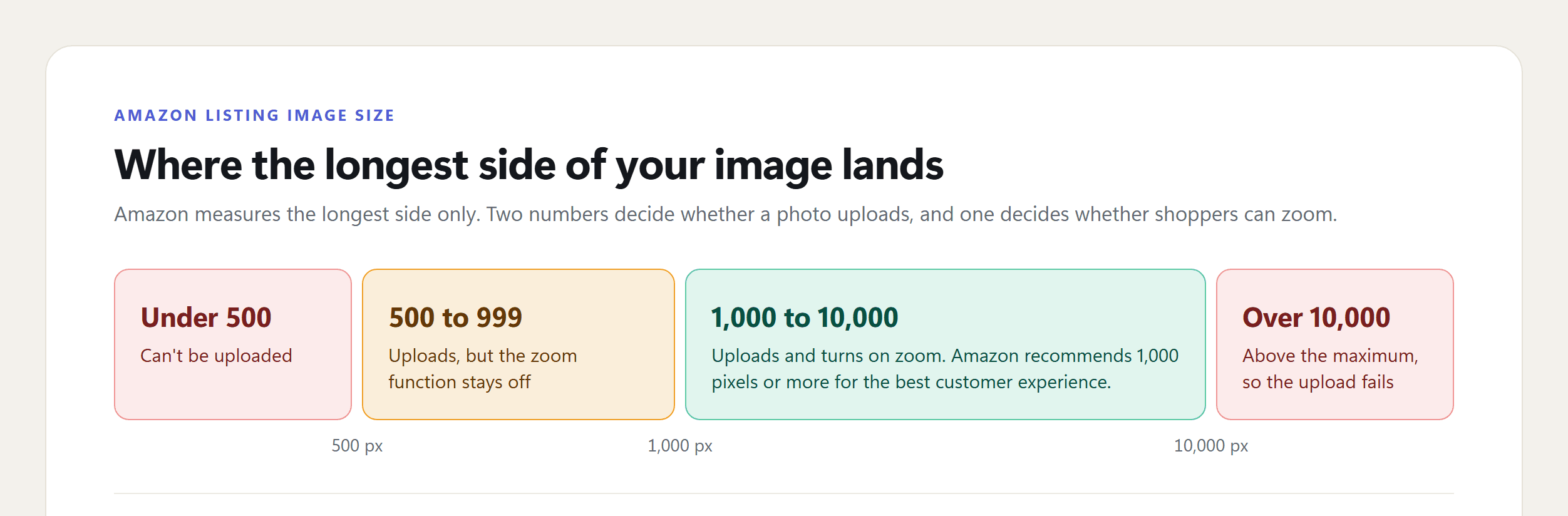
One line in the guide is easy to miss: "Do not artificially enlarge small images." Stretching a 600-pixel file to 1,200 clears the size check but adds blur, and blurriness is one of Amazon's listed suppression reasons. Shoot or export at full size instead. A 12-megapixel phone photo (4,032 × 3,024) has room to spare even after you crop it.
To check a file without editing software, Amazon suggests right-clicking the image and opening its properties, where the pixel dimensions are listed. Children's clothing has a stricter floor: Amazon's clothing guidelines prohibit kids' wear images below 1,000 pixels.
Amazon Listing Design for the Six Images After the Main One
Before the strict main-image rules, it helps to see the whole gallery, since the main image is only one slot of seven. So how many images should an Amazon listing have? Amazon requires one compliant main image and recommends "at least six additional images and one video." Clothing has a published cap: up to eight alternate images for each parent or child SKU.
Amazon doesn't assign a job to each slot, so give every image a different question to answer, the way a shopper would turn the product over in a store. Use this as an Amazon listing template for the gallery:
| Slot | Variant code | What it should show | Listing Image Generator type |
|---|---|---|---|
| Main | MAIN | The product alone on pure white | Your own photo, checked against the main image rules below |
| 2 | PT01 | Front, side and back, so shoppers can turn the product around | Multi-angle View |
| 3 | PT02 | Material, stitching and hardware up close | Detail Shot |
| 4 | PT03 | The features worth paying for, one per panel | Feature Image |
| 5 | PT04 | Real dimensions, with the measurements labeled | Size & Specs |
| 6 | PT05 | The product on a person, for fit and scale | On-model Image |
| 7 | PT06 | The product in the setting where it gets used | Lifestyle Image |
| Video | Separate upload | The product moving or in use | Not an image slot |
Slots 4 and 5 are where an Amazon listing infographic usually goes. Amazon's text ban covers the main image and swatches, so callouts and measurements are fine here, as long as they skip the review quotes, star ratings and badges that are banned on every image.
Shooting six more images takes real time. Every slot needs its own setup, and an on-model shot means booking a model.
The Marketing Studio workflows on Atlas Cloud handle that step. The Listing Image Generator workflow takes one product photo, or a product page link, and renders every image type you tick in a single run.
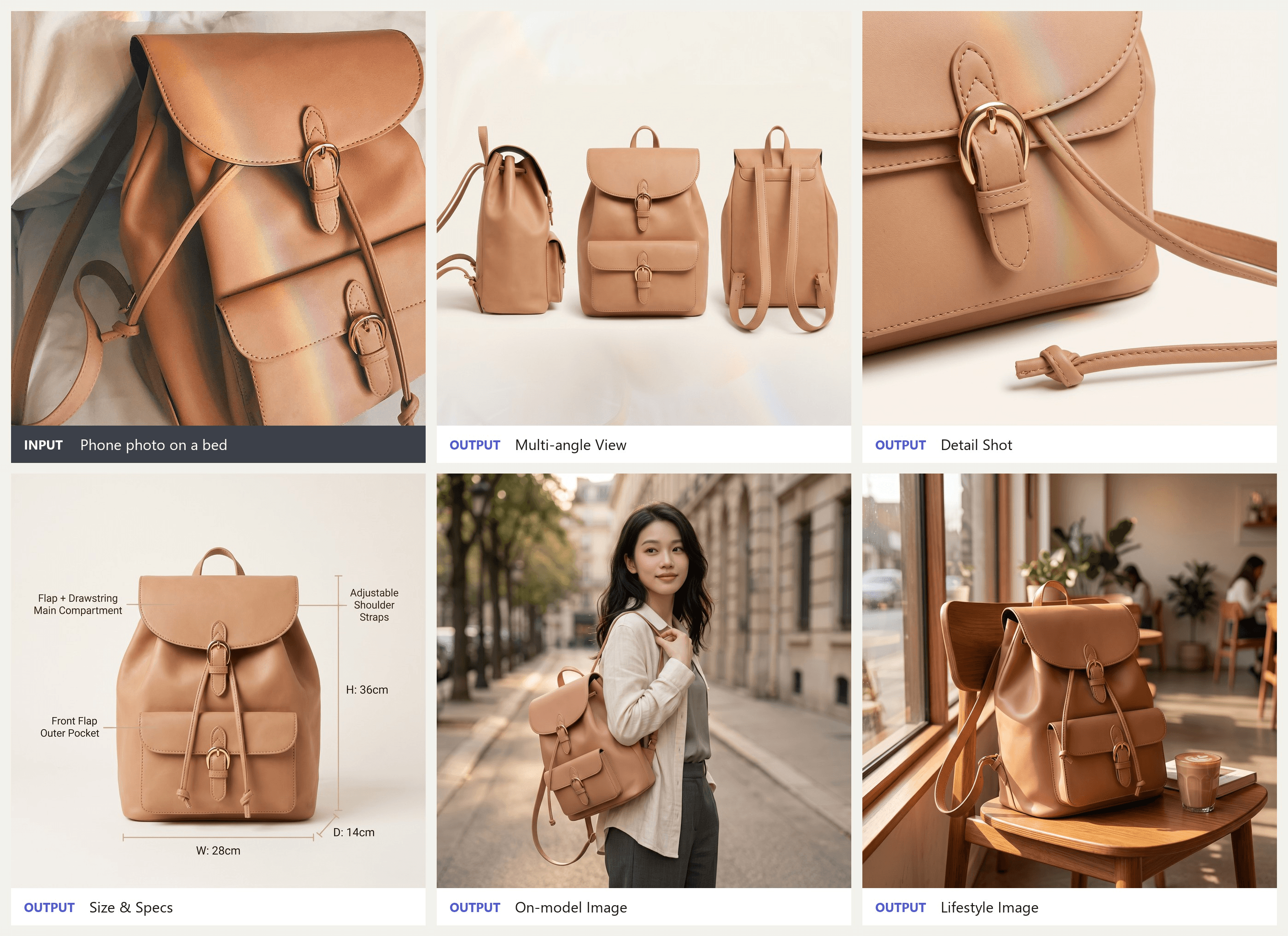
Input photo by Saja Beraam on Unsplash. The outputs came from one Listing Image Generator run at 1:1 and 2K.
Our input was the kind of photo many sellers already have: a tan leather backpack lying on a bed, with a streak of rainbow light across the flap. The brief gave the bag's size and asked for a clean warm-white backdrop for the product shots.
The Multi-angle View put the side, the front and the back in a single frame. The Size & Specs image drew the 28 cm width, the 36 cm height and the 14 cm depth from the brief, then labeled the flap, the straps and the front pocket. The On-model Image kept the face from the model photo we uploaded, and the Lifestyle Image set the bag on a café chair beside a latte.
Every output came back as a 2,048 × 2,048 JPEG. That's double Amazon's 1,000-pixel zoom line, so there's room to crop a frame tighter before upload.
How to Generate a Full Amazon Listing Image Set on Atlas Cloud
The whole run happens in one form. Here's how we filled it in for the backpack set.
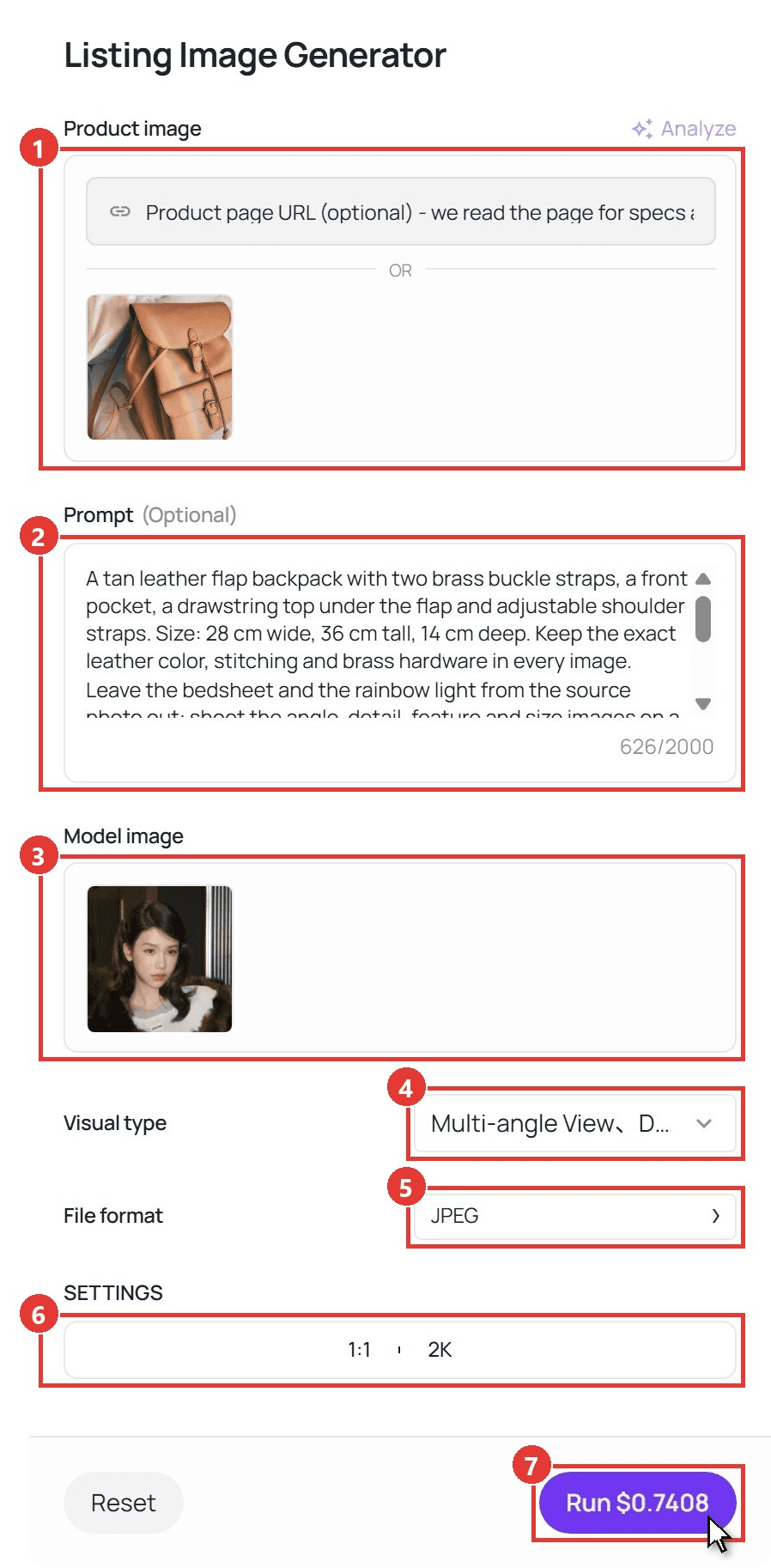
- Add the product under Product image. Upload one clear photo, up to 10 MB. You can also paste a product page link into the field above it, and the workflow reads the page for specs and selling points.
- Write the brief in Prompt. Name the material and the real dimensions, then say which backdrop and scenes you want. This is the brief we used:
plaintext1A tan leather flap backpack with two brass buckle straps, a front pocket, a drawstring top under the flap and adjustable shoulder straps. Size: 28 cm wide, 36 cm tall, 14 cm deep. Keep the exact leather color, stitching and brass hardware in every image. Leave the bedsheet and the rainbow light from the source photo out: shoot the angle, detail, feature and size images on a clean warm-white studio backdrop with soft, even light. In the on-model image, the model wears the backpack over one shoulder on a quiet city street at golden hour. In the lifestyle image, the backpack rests on a wooden café chair by a sunny window.
- Add a Model image for a specific person. We uploaded a portrait of our model. If you leave it empty, the workflow creates a person for the on-model shot, which changes the tagging rules covered further down.
- Tick the image types under Visual type. You can pick several at once. We chose all six additional types and left Main Image off, so the run filled only the slots after the main one.
- Choose JPEG under File format. It's the format Amazon recommends. PNG is the default.
- Set the canvas under SETTINGS. There are seven ratios from 16:9 to 9:16 and three resolutions (1K, 2K and 4K). We used 1:1 at 2K.
- Click Run. The finished images appear under Output, each with a Download button.
Amazon Main Image Requirements That Decide Whether You Show Up in Search
Of the seven slots, the main image carries the most weight. It's the picture shoppers see in search results and the first one on the product page. If a listing has no main image that meets the rules, Amazon says it may "temporarily remove the product listing from search" until you upload a compliant one.
Here's what the MAIN slot needs, in Amazon's terms:
- Pure white background. The value is RGB 255, 255, 255. Off-white, light gray and gradient sweeps don't count.
- The product fills 85% of the image. It sits large in the frame with a thin white margin around it.
- The whole product, shown once. Nothing is cropped at the edges, and you show one view (the front, not the front and back side by side).
- One unit. Show a single unit plus any accessories that come in the box.
- No props and no packaging. Packaging is allowed only when it's part of the product, such as a carrying case.
- Realistic and accurate. The scale, quantity and color have to match what arrives. Placeholder images aren't allowed.
Pure white is easy to get wrong, because a photo can look white on screen and still read 250 or so in an eyedropper. Our white background guide covers how to get there without washing out light-colored products.
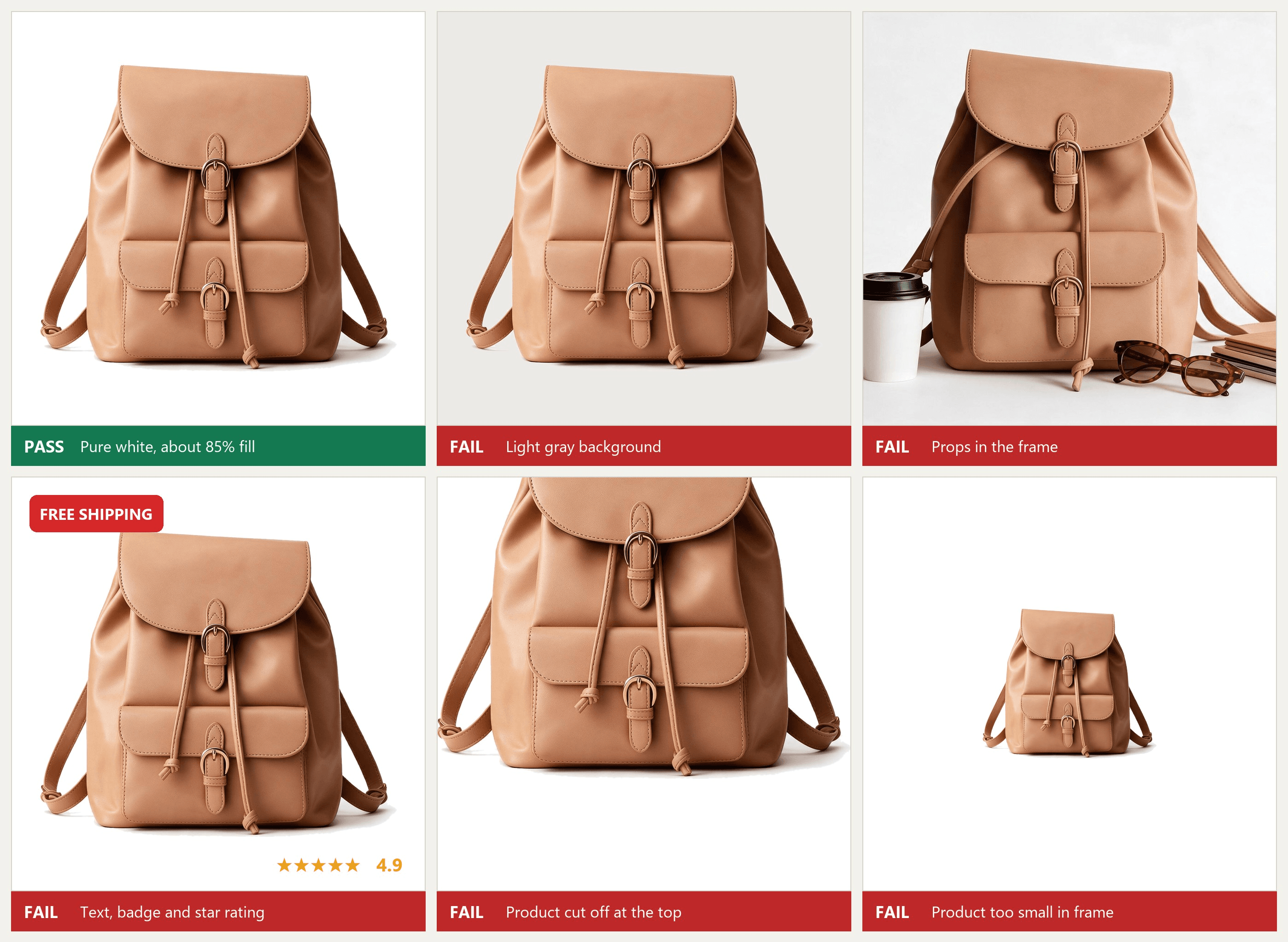
The same backpack shown six ways. Only the first tile would pass as a main image.
Category Rules That Change the Amazon Main Image
The rules above are the default. Clothing, shoes and a few other categories add their own, and a main image that passes the general checklist can still get suppressed for missing one of these.
| Category | Main image rule | Amazon source |
|---|---|---|
| Adult clothing | Shown on a model who is standing, not sitting, kneeling, leaning or lying down | Product image guide |
| Clothing (all) | Front view, aspect ratio close to 3:4, no folded items, no visible tags | Clothing image guidelines |
| Any product | No part of a mannequin or hanger, whether clear, flesh-toned or a wire frame | Product image guide |
| Shoes | A single shoe, facing left, at a 45-degree angle | Product image guide |
| Clothing accessories and multipacks | Laid flat, without a model | Product image guide |
| Kids' and baby underwear, swimwear, leotards | Laid flat and never on a model, in every image | Product image guide |
| Kids, baby, shoes, luggage, watches, jewelry | No human model in the main image | Image suppression page |
| Beds, bed frames, mattresses, rugs, rug pads, sofas | A lifestyle image may be the main image | Product page style guides |
The last row is the only place Amazon allows a room scene in the MAIN slot. For everything else, lifestyle shots belong in the additional images. If you sell apparel, Amazon's clothing image guidelines go further than the table, with rules on poses, transparency and swatches.
Are AI-Generated Images Allowed on Amazon?
Amazon's product image guide has no rule against images made with AI tools. Two of its rules matter here, though. Every image still has to show the real product accurately, and photorealistic AI-generated people need a label.
The label is a metadata keyword, contains-synthetic-performer, added to the image file before upload. Amazon notes that some jurisdictions may require disclosure of AI-generated people, and when the tag is present, Amazon adds a disclosure for shoppers where it applies. The guide is specific about when the tag belongs:
| What's in the image | Add contains-synthetic-performer? |
|---|---|
| A photorealistic person generated entirely by AI | Yes |
| A real person, even after editing with AI tools | No |
| No people at all | No |
| People who aren't photorealistic, such as illustrations | No |
| Characters from movies, games or other creative works | No |
The Model image field in the Listing Image Generator decides which row you land in. We uploaded a photo of a real model for the set above, so that on-model shot is based on a real person and needs no tag. Then we ran the same brief with the field left empty, and the workflow created a woman to wear the backpack. That second image is the one Amazon wants tagged.
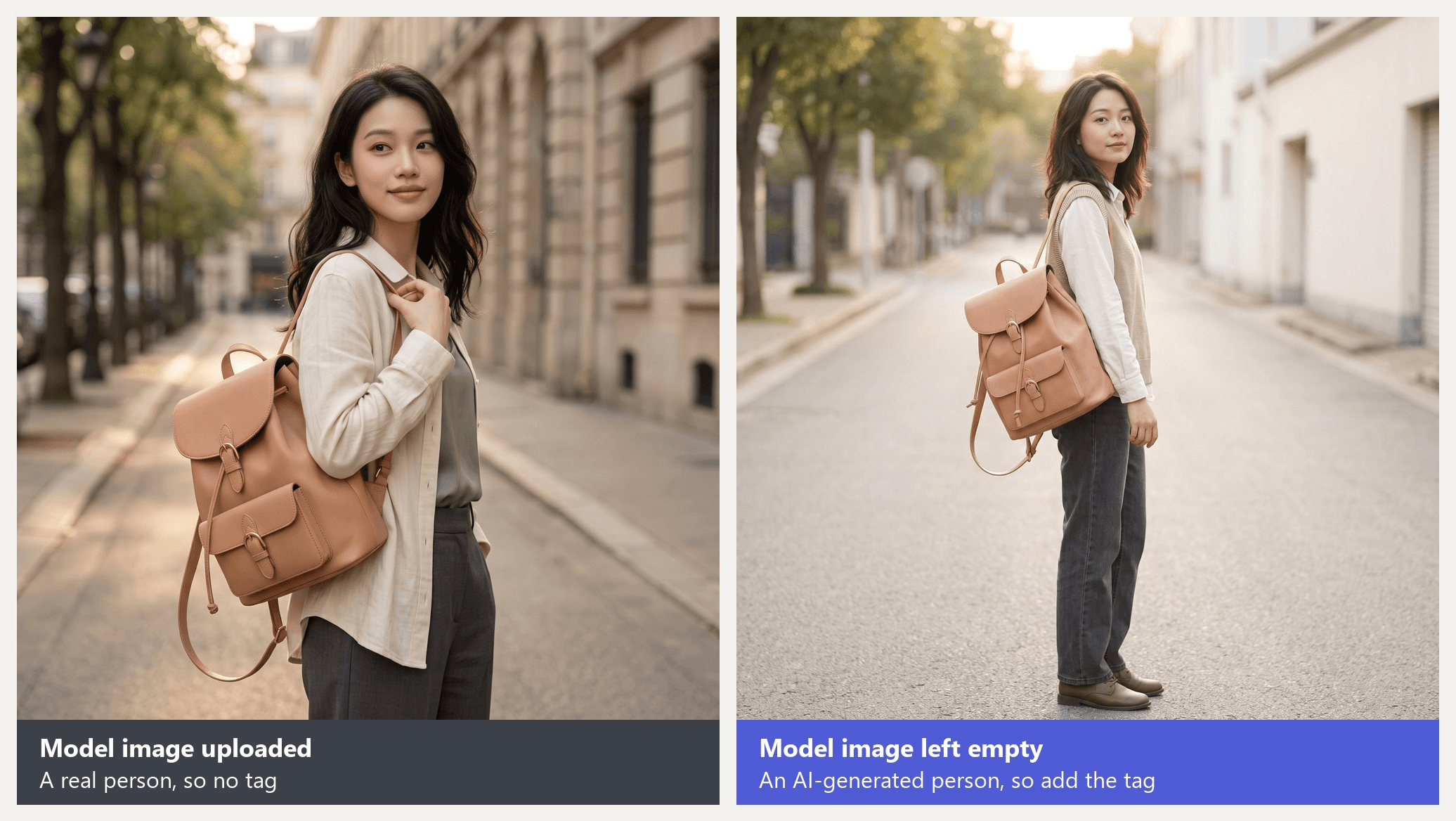
The tag goes on after download, on your own computer, so it fits naturally into the step where you rename files for upload. One thing to watch: some AI tools write an IPTC label such as trainedAlgorithmicMedia into their files. That label sits in a different field from the keyword Amazon asks for, so a file can carry it and still be untagged by Amazon's standard.
How to Add the contains-synthetic-performer Tag Before Upload
Amazon's tagging instructions ask for the keyword in the XMP dc:subject field. You don't need special software for that.
- Windows: right-click the file, choose Properties, open the Details tab and type contains-synthetic-performer into the Tags field. Amazon points out that Subject and Tags write to different places, so leave Subject alone.
- Mac: open the file in Preview, press Cmd+I, click the Keywords tab, click + and type the keyword.
- Any system with exiftool: run the command below. The += operator adds the keyword without erasing existing ones, and a whole folder can be tagged at once with a wildcard such as *.png.
plaintext1exiftool -XMP-dc:Subject+=contains-synthetic-performer image.jpg 2exiftool -G1 image.jpg | grep Subject
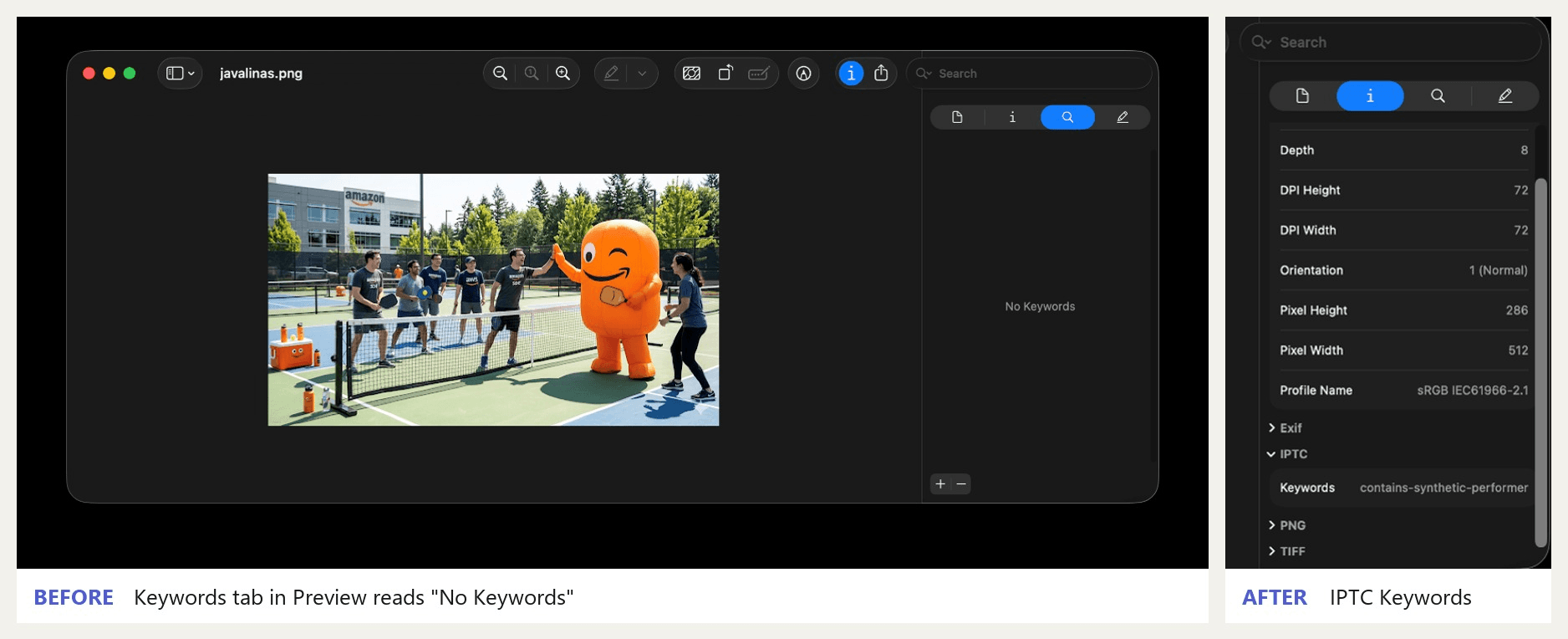
Screenshots from Amazon's tagging help page in Seller Central.
We tested the Windows route on the AI-model image from our run, and on a PNG copy of a test photo, by writing the keyword to the Tags property that File Explorer edits. Reading the files back showed contains-synthetic-performer inside the XMP dc:subject list in both, which is the exact field Amazon names. On Windows 11, PNG and JPEG both took the tag, so the File format setting doesn't decide whether you can tag.
How to Keep Amazon Image Requirements From Suppressing Your Listing
Amazon checks images against its requirements as you upload them, and a non-compliant image can be removed or modified. The image suppression page lists the most common reasons. Most of them are quick to catch before you upload:
| Suppression reason | Applies to | Check before you upload |
|---|---|---|
| Non-white background | Main image | Sample the corners and the area near the product with an eyedropper. Every reading should be 255, 255, 255. |
| Text, logo, graphic or watermark | Main image | View at 100% and look for leftover badges, borders or watermarks from editing apps. |
| Cropped product | Main image | Check that no strap, cord or edge of the product touches the frame. |
| Product too small | Any image | Draw a selection around the product. It should cover about 85% of the image. |
| Blurriness or pixelation | Any image | Zoom to 100% on the sharpest detail, such as stitching or a label. |
| Additional items or props | Main image | Only the product and the accessories that ship with it. |
| Packaging or tags | Main image | Remove swing tags and take the product out of its box. |
| Mannequin, hanger or wrong pose | Main image, apparel | A standing model for adult clothing, flat lay for accessories, no mannequin. |
The 85% rule has a wrinkle. The general guide says the product should be "85% of the image," while the clothing guide says "85% of the total image area occupied." For most products, aim for a product that nearly touches the margins on its longer side.
If an image does get suppressed, fix it rather than delete it. Amazon recommends uploading a replacement with the MAIN variant code, because every ASIN needs a main image.
FAQ
What aspect ratio should Amazon product images be?
Amazon's general image guide doesn't set an aspect ratio. It only limits the longest side to 500 to 10,000 pixels. Clothing is the exception, with a minimum aspect ratio "close to 3:4" for main images. Outside clothing, pick the canvas that lets your product fill about 85% of the frame. A square suits most boxy products, and a tall canvas suits bottles or standing bags.
Can you upload Amazon product images in bulk?
Yes. The Upload Images tool in Seller Central accepts zip files of up to 1,000 images and 1 GB each, and you can send several zips at once. For bulk uploads, the file name must carry the variant code, such as B000123456.MAIN.jpg for the main image or B000123456.PT01.jpg for the first additional image.
Why isn't my new image showing on my Amazon listing?
Give it a day. Amazon says a selected image can take up to 24 hours to appear. Uploading also doesn't guarantee display, because Amazon picks and arranges images from multiple sellers on that product page, and it may modify images to meet its rules. If your image still doesn't appear, check it against the requirements above, since compliant images have the best chance of being chosen.
Why do product photos look different after upload to Amazon?
Usually it's the color setup. Amazon prefers RGB, asks you to convert CMYK files before upload and warns against relying on ICC color profiles, which web displays don't commonly use. Grayscale is accepted only for gray or silver metal products. Save JPEGs at the highest quality, and avoid re-saving the same JPEG during editing, since each save loses detail.
Conclusion
The listing in our opening dropped out of search over a background a few shades off pure white. Amazon's suppression reasons are just as concrete, and three quick checks cover several of them: an eyedropper on the background, the pixel count on the longest side, and a look at how much of the frame the product fills.
Start with the main image, since it's the one shoppers see in search. Then fill the six slots behind it, tag any AI-generated person before upload, and keep this list of Amazon image requirements handy for your next gallery refresh.





