A reaction GIF has about a second to make its point. A character can move beautifully and still fail as a reply if the emotion is vague or the last frame snaps back to the first. To see what matters in practice, I inspected three published GPT Image 2.6 GIFs: a cat giving a thumbs-up, an excited owl, and a person smiling and waving. They show three different jobs for the same format: a reusable chat sticker, an expressive character, and a personalized response.
The examples below are published outputs from Flixly and PTTL, credited beside each asset. They are not Atlas Cloud generations or a controlled comparison between GPT Image 2.6 Flare and GPT Image 2.6 Sunburst. The practical test is simpler: does the emotion read at chat size, does the subject stay recognizable, and what happens when the last frame meets the first?
Key takeaways
- Give the viewer one clear emotion and one action that can return to its starting pose.
- Name what must stay fixed: character details, background, camera, and props.
- Inspect the downloaded GIF, especially its first and last frames, before sharing it.
- A published example can teach a prompt pattern, but its result does not guarantee your next run.
Three Real GPT Image 2.6 Reaction GIFs
Case 1: A thumbs-up cat that works at message size
Flixly published a nine-frame, 512 × 512 GIF made with GPT Image 2.6 Sunburst at medium quality. Its prompt asked for a round yellow cat sticker that winks and gives a thumbs-up. The result moves through a readable sequence: neutral face, wink, raised paw, then a return toward neutral. The face and striped tail remain recognizable throughout. The plain composition makes the gesture legible even when the GIF is displayed small.

Published GIF: Flixly, November 5, 2026. The source reports nine frames, normal speed, and a 33-second generation. The background came out yellow although the prompt requested a light plain background.
That background mismatch is useful evidence. A prompt can specify the broad action while the output still interprets a visual detail differently. For a sticker that must match a brand palette, state an exact background color or use a suitable reference, then check the actual file. For a casual reaction, the clearer lesson is to keep the face, hand, and gesture large enough to read without a caption.
Case 2: An excited owl that returns to its perch
PTTL published a nine-frame owl animation created in ChatGPT from a short text request. The owl widens its eyes, lifts its wings, hops, and settles back on the same branch. Its final pose closely matches its first, so the repeated action has a natural reset. The branch and moon remain stable while the character supplies the motion. This is an excitement reaction, not merely an animal that happens to move.
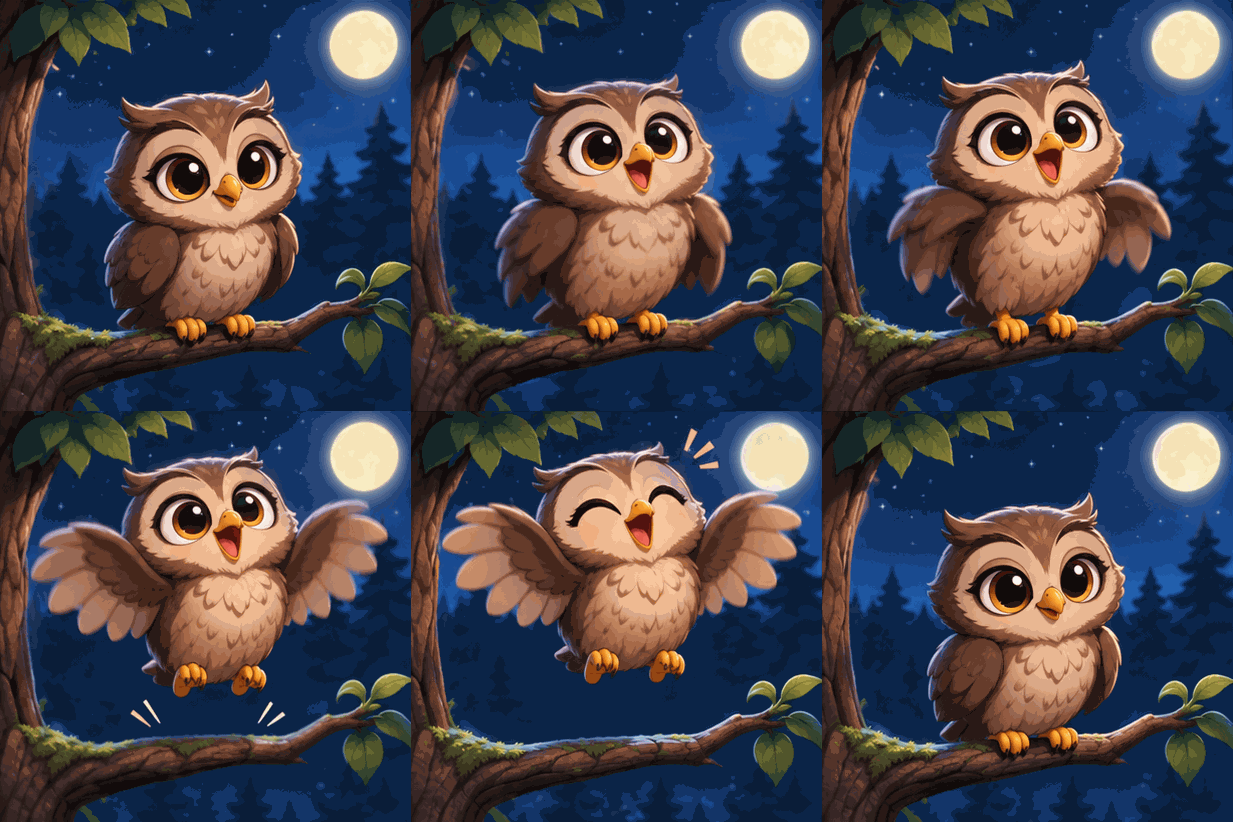
Published animation: PTTL, November 5, 2026. The site's animated WebP was converted to GIF for this article without changing its nine-frame sequence. PTTL also supplies a more detailed revision prompt that fixes the camera and background.
The published first request was brief. Its revised prompt made the motion more explicit: the owl should widen its eyes, raise its wings, hop, and return, while the branch and night scene stay still. This is a useful layout pattern to borrow from the source article: put the short request beside the result, then explain what the refined request would control. Do not describe that revised wording as the prompt proven to produce the displayed file; the displayed GIF came from the original request.
Case 3: A personal wave that needs a seam check
Flixly also animated a reference portrait with GPT Image 2.6 Sunburst Edit. Its nine-frame GIF shows a person moving from neutral to a smile, blink, and wave. The hair, scarf, sweater, and face remain easy to recognize. The last shown frame still has a raised hand, while the first has hands down. That does not make the GIF useless, but it gives the loop a more visible reset than the owl example. Watch the actual repeat before using it as a continuous reaction.
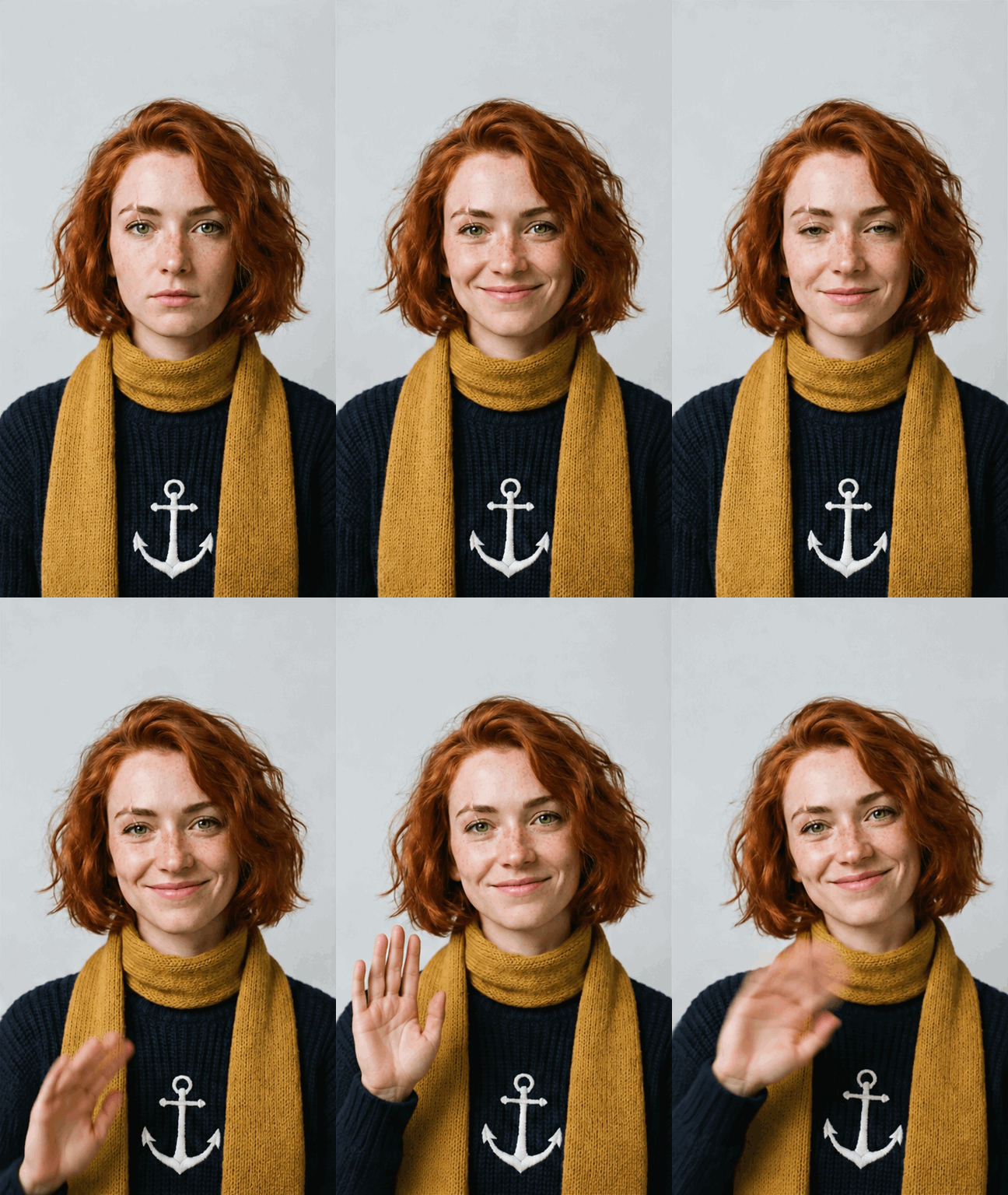
Published GIF: Flixly, November 5, 2026. The source reports one reference image, medium quality, nine frames at normal speed, and a 48-second generation. This is a reference-image edit example, not the text-only Atlas Cloud workflow below.
These three cases suggest a useful choice. Use a simple sticker when the reaction needs to work in many conversations. Use a small character action when the emotion itself carries the reply. Use a portrait when recognizability matters, but review the gesture and loop seam more closely. The source articles place the prompt next to each result and record the settings or observed limitation; that is more informative than an attractive GIF with no context.
What to Check Before You Write the Prompt
Make the emotion visible before the motion gets elaborate
At 200 pixels wide, a raised thumb, wide eyes, or a clear smile reads faster than a detailed scene. Choose one emotion, then one action that communicates it. “Approval: wink, raise the thumb, lower the thumb, return to neutral” gives the viewer a complete thought. A character walking across a room may be animated, but it is less useful as a reaction unless the movement expresses the message.
Give the model anchors that should not drift: face markings, clothing, a held prop, and the background. The cat's tail stripes, the owl's branch, and the portrait's scarf each make changes easy to spot. If a prop swaps hands or a face changes between frames, the viewer notices that before the emotion. Keep the camera fixed for these short loops; a zoom makes the last-to-first join harder to hide.
Check the first and last frames, not only the preview
Here is a contact sheet made from all nine frames of the published portrait GIF. Read left to right, top to bottom. The smile and wave build clearly, but the hand remains raised in frame nine while frame one begins with hands down. The contact sheet shows why a GIF can look consistent within its sequence yet still need a seam check at repeat.
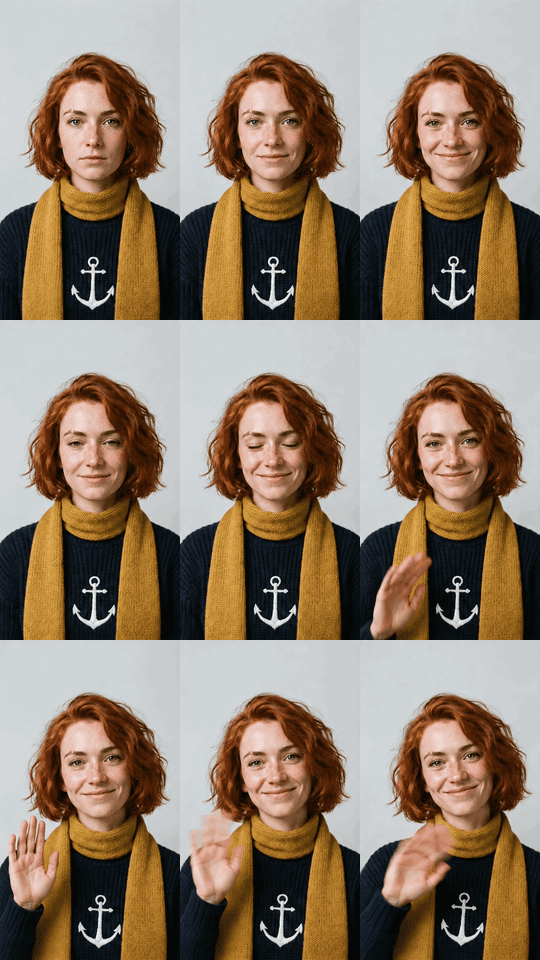
Frame check assembled from the published Flixly GIF. This is an inspection image, not a separate model generation.
Play each candidate for at least three cycles. Compare the first, most expressive, and last frames at equal size. A natural loop usually returns the head, eyes, hands, and props close to their initial positions. If the final frame still carries the peak gesture, ask for a clear return phase. If the expression is too subtle, enlarge the meaningful movement instead of adding unrelated action.
Make Your Own GPT Image 2.6 Reaction GIF
Choose a route and keep the settings visible
ChatGPT can create a GIF from a text request where the feature has reached your account. For the hands-on example here, we used GPT Image 2.6 Sunburst Text-to-Image on Atlas Cloud. The completed playground screenshot below records the model, prompt, GIF controls, and returned output. The Atlas Cloud model catalog lists GPT Image 2.6 Flare and GPT Image 2.6 Sunburst, but its still-image starting figure is not a fixed quote for an animated request.
The downloaded GIF measures 768 × 768 pixels and contains 10 frames at 200 milliseconds each, making a 2-second loop. Those are properties of the actual file, not just requested settings. Confirm your own download in the same way: a GIF extension can also belong to a single-frame image.
A face-first example: silent disbelief
Our original cinnamon-brown puppy starts with a calm face. Its brows rise, eyes widen, and mouth opens into a small O; a slight head tilt and lifted forepaw reinforce the change. The face carries the reaction while the body stays mostly still. By the last frame, the paw and expression have settled close to the opening pose, making the repeat less abrupt.
| Setting | Completed Atlas Cloud run |
|---|---|
| Model | GPT Image 2.6 Sunburst Text-to-Image |
| Output format | GIF |
| Size per frame | 768 × 768 pixels |
| Quality | High |
| Complexity | High |
| Frame count | 10 |
| Frame duration | 200 ms per frame, 2 seconds per loop |
| Background | Auto |
| Number of outputs | 1 |
Prompt used for this result
plaintext1Create one actual animated GIF, not a still image or a sprite sheet. 2Show an original cinnamon-brown puppy with a cream muzzle, one folded ear, 3and a simple rust-red collar, seated against a clean warm-ivory background. 4Use hand-painted 2D gouache styling, a clear silhouette, soft diffused light, 5and a fixed medium close-up; the face fills most of the square frame. 6The reaction is sudden, silent disbelief. In frames 1–2, the puppy is calm. 7Across frames 3–5, its brows lift, eyes widen, and mouth forms a small O. 8Its head tilts slightly, one forepaw lifts a little, and the shoulders rise. 9Hold the surprised expression in frame 6. Across frames 7–9, let the brows, 10eyes, mouth, head, ear, paw, and shoulders settle back gradually. 11Frame 9 must match the neutral pose and framing in frame 1 for a clean loop. 12Keep the same muzzle markings, ear shape, collar, proportions, lighting, 13and background in every frame. Make the facial change readable at chat size. 14No words, captions, logos, extra characters, extra limbs, cuts, or camera zoom.
The pasted prompt refers to frame 9 as the final frame, while the playground was set to 10. The downloaded file has 10 frames. For a repeat run with the same settings, change the return phase to “across frames 7–10” and ask frame 10 to match frame 1. The result below is the unedited file from the completed run.
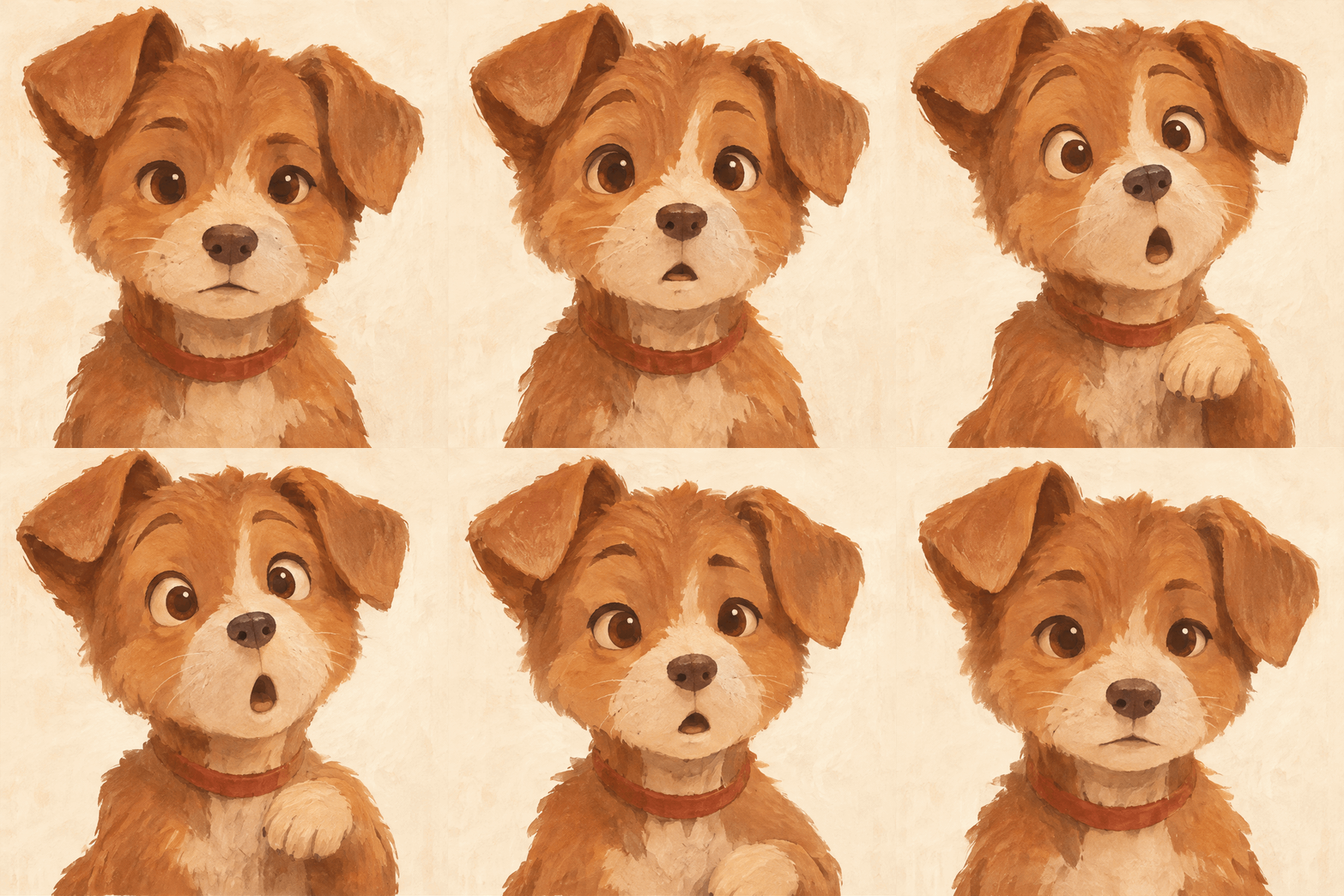
Original Atlas Cloud GIF: 768 × 768 pixels, 10 frames, 200 ms per frame. The widening eyes and open mouth lead the reaction; the forepaw rises briefly and returns.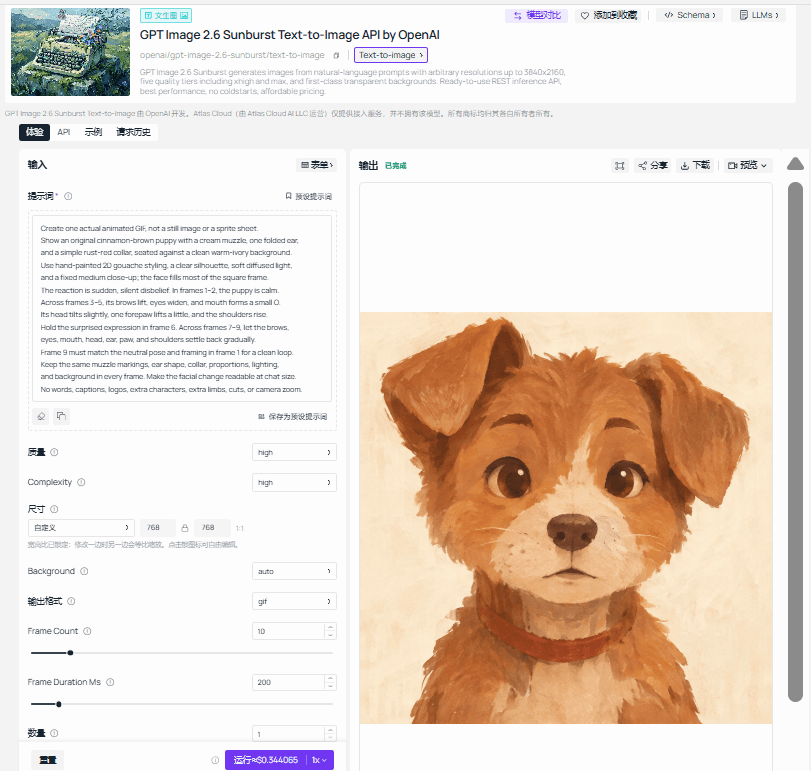
Screenshot from the completed Atlas Cloud run. The visible controls show GIF output, High quality, High complexity, 768 × 768 size, 10 frames, and 200 ms per frame.
The GIF shows the motion; the screenshot records how it was made. At chat size, the surprise remains legible because the face fills most of the frame. The cream muzzle and red collar also give you stable details to check across frames. If a future attempt loses the expression or jumps at the seam, revise the facial change or the return phase one at a time while keeping the rest of the prompt stable.
Export and Share Without Losing the Reaction
Open the downloaded GIF locally and confirm that it has multiple frames and repeats. Preview it near the size used by your chat or social platform. The strongest full-size frame is irrelevant if the expression disappears when reduced. Watch the last-to-first transition, then check whether the destination preserves animation after upload. Some platforms display or transform GIFs differently from a local viewer.
GIF file size can grow quickly with more frames and textured backgrounds. Check the actual download before sharing. If a platform limit requires compression, replay the compressed file because color reduction can introduce flicker around eyes, outlines, or gradients. Keep the original file for later exports.
For cost, use the current Atlas Cloud model details and the recorded usage for your own run. Output size, quality, and animation settings can change consumption. A still-image starting price in the catalog is not a reliable quote for a multi-frame GIF. One focused candidate, followed by a revision based on an observed defect, makes the comparison easier to understand.
Frequently Asked Questions
Can GPT Image 2.6 animate my own photo?
The published portrait case used a reference image with GPT Image 2.6 Sunburst Edit. A text-to-image model page begins from a written prompt instead. Choose the corresponding edit route if you want to animate a supplied photo, and verify that its current GIF output option is available before treating it as the same workflow.
Should I use GPT Image 2.6 Flare or GPT Image 2.6 Sunburst?
Use the model and settings your current interface supports, then judge the actual file. The cat sticker and portrait cases above used GPT Image 2.6 Sunburst, but this small collection does not measure one variant against the other. A matched prompt, size, frame count, and quality would be needed for a fair comparison.
Can a reaction GIF have a transparent background?
Do not assume a still-image transparency control also applies to GIF output. These three published examples use visible backgrounds. If you need a transparent sticker, check the exact model route and inspect the downloaded GIF over light and dark surfaces before publishing it.


