You opened Photopea because it costs nothing, loads in a browser tab, and opens the PSD your designer emailed you. Then you tried to delete a stranger from a holiday photo, and twenty minutes later you were still cloning pixels from a patch of grass. That gap is why people go looking for a Photopea alternative. Before you pick one, there is a fact about Photopea itself worth getting straight.
Photopea has AI. Its own home page has a section headed State-of-the-art AI. What it also has is a credit meter, and the free account does not get any credits. I walked four everyday edits through Photopea using its own documentation, then ran the same four through a prompt-based editor, and the difference turned out to be about metering rather than capability.
Keep reading if you want the step counts before you decide anything.
Key Takeaways
- Photopea is free, opens PSD files properly, and runs on your own device. Those three things are still the best reason to keep it .
- It ships two AI features, one-click background removal and Magic Replace, both announced back in 2023.
- AI credits in Photopea belong to Premium accounts. Free users get an ad prompt instead.
- Atlas Cloud Image Edit runs 22 editing models from four labs in one browser workspace.
- Layer work stays in Photopea. Prompt work moves. The two coexist better than they compete.
What Photopea Does Well, and Why It Stays Free
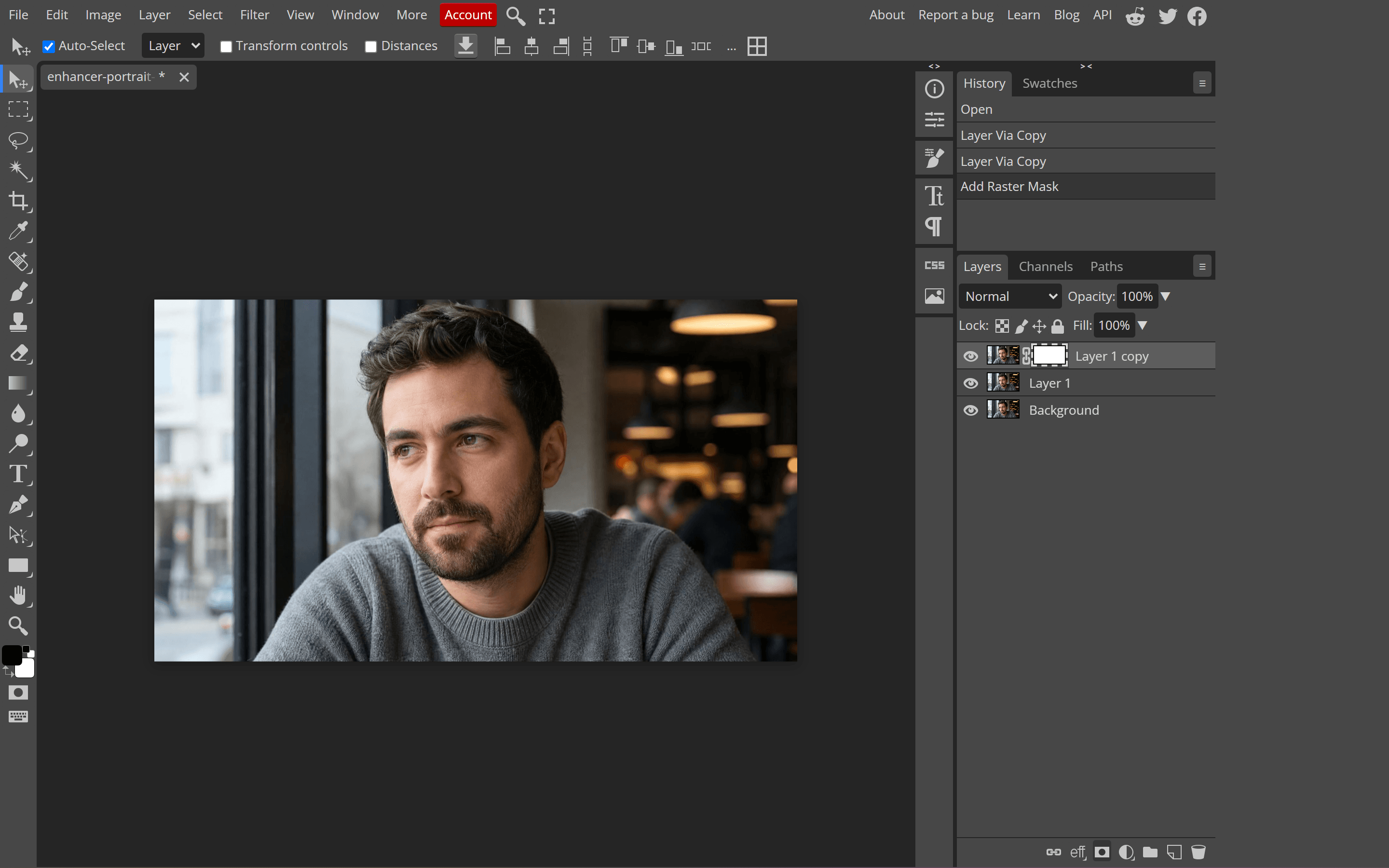
Start with what the tool actually is, because the rest of this article only makes sense against it. Photopea describes itself as an advanced image editor that handles raster and vector graphics, and that description holds up. Layers, masks, layer styles, smart objects, adjustment layers, channels and paths are all there.
PSD is its native format, read and written, which is the whole reason design teams pass files through it. It opens roughly 40 other formats too, including AI, XD, Figma, Sketch and InDesign documents, plus camera RAW from DNG, CR2, CR3, NEF, ARW, RW2, RAF, ORF and FFF files.
The terms page is blunt about cost: the editor can be used by anyone for any purpose, for free. Premium exists, but it buys ad removal, a bigger PeaDrive and history depth, and it is sold as a one-time payment for a fixed number of days rather than a rolling subscription.
Then there is the promise that shapes everything else. Photopea's learn pages state that it runs completely on your device, does not upload your files to the internet, and keeps working if you disconnect. Load the page, pull the plug, keep editing. That comes from shipping the whole editor as code that runs in your browser instead of on a server.
Photopea vs Photoshop: The Comparison That Comes First
Before anyone searches for an alternative, they usually run a different comparison first. The photopea vs photoshop question is really one question: can the free browser tool stand in for the subscription?
On file handling, close enough for a lot of jobs. Layers behave, PSD round-trips, RAW opens, and the keyboard shortcuts transfer. Where the two separate is generative editing. Photoshop's Generative Fill now carries a model picker, with Adobe's own Firefly Fill and Expand, Firefly Image 5 and Firefly Image 1 on one side, and partner models including FLUX.2 pro, FLUX Kontext pro and Google's Gemini 3.1 and Gemini 3 on the other.
| Photopea | Photoshop | |
|---|---|---|
| Runs in a browser | Yes, nothing to install | Desktop app, web version limited |
| PSD support | Native read and write | Native |
| Generative editing | Two features, metered by credits | Model picker, Adobe plus partner models |
| Cost model | Free, optional one-time Premium | Subscription |
So the real fork runs between a free tool whose AI carries a meter and a paid tool whose AI comes bundled into a subscription you may not want. A third position exists, and it is the reason this article exists.
Photopea Does Have AI: Here Is Exactly Where It Stops
Open photopea.com and scroll down. There is a section headed State-of-the-art AI, promising one-click background removal and the ability to replace any part of an image through a text description. Guides that tell you this editor has no AI-assisted editing were written against an older version of it.
Both are real and both are old. Photopea's official account announced Magic Replace in May 2023 and one-click background removal in December 2023. The learn documentation has a whole page called Smart Tools that opens by saying those tools use artificial intelligence and can save you a lot of time.
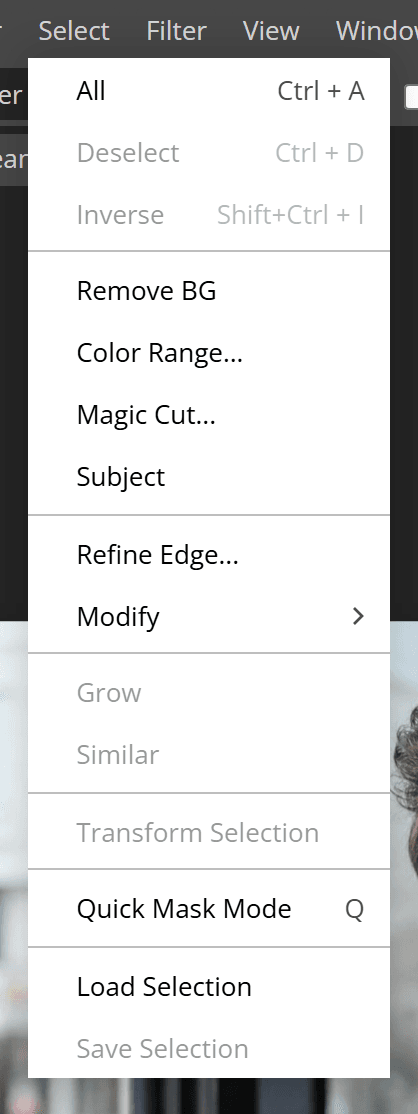
You reach the background remover through Select then Remove BG in the menu bar, sitting between Invert and Color Range. Magic Replace sits in the toolbar, sharing a slot with the lasso tools. Nothing is hidden.
What has not happened since is a follow-up. The official Photopea blog's most recent entry is version 5.6 from April 2024, and no release since then has announced a new AI feature. Meanwhile the models available elsewhere went through several generations.
The Credit Wall Behind Remove BG and Magic Replace
What limits Photopea's AI is the counter attached to it, rather than the output it produces.
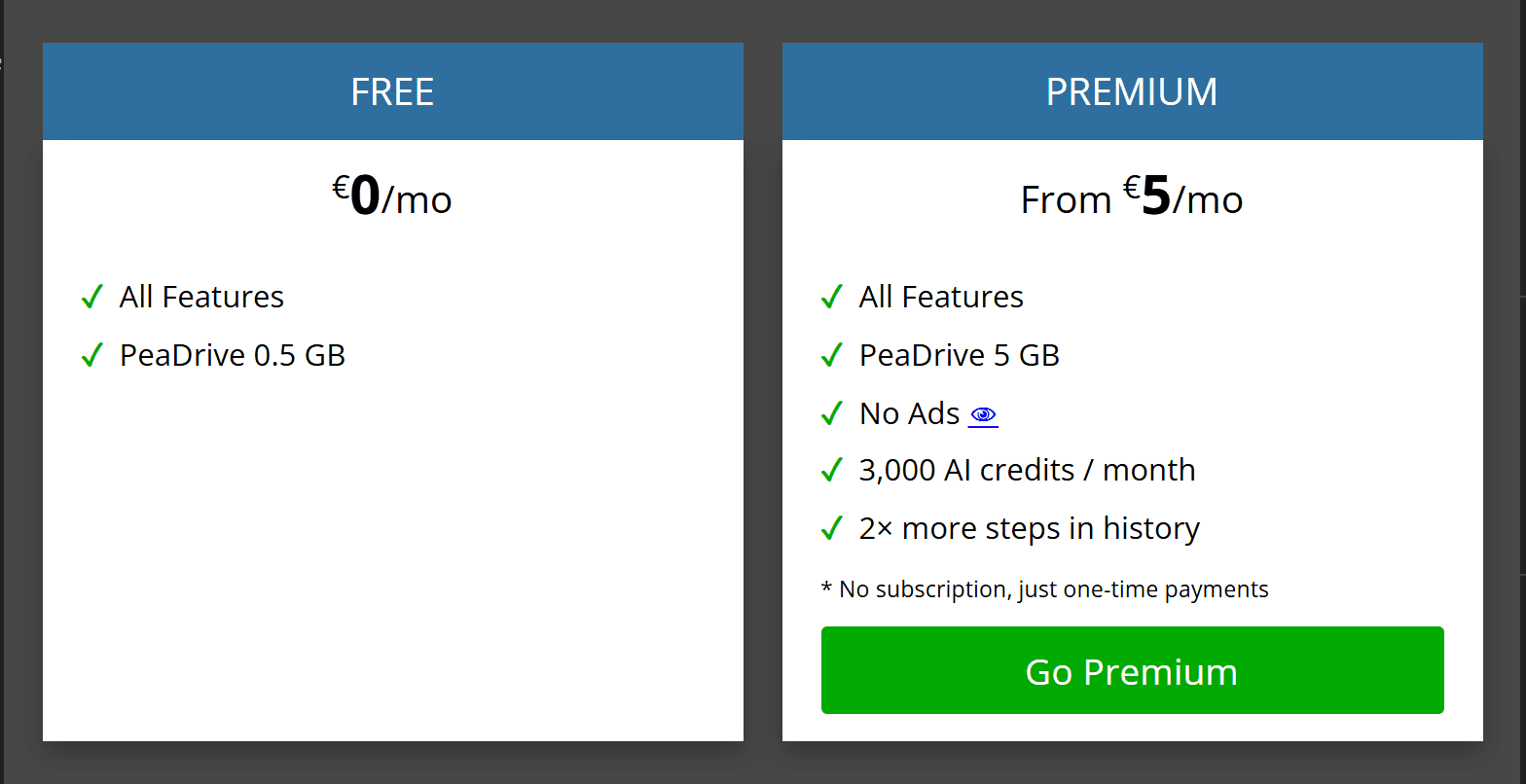
Open Account then Account Types in Photopea and you get two columns. The free column lists all features and 0.5 GB of PeaDrive storage. The Premium column adds no ads, 5 GB of storage, double the history steps, and 3,000 AI credits per month. Hover the credits line and the tooltip prices the features: Remove BG costs 1 credit, Magic Replace costs 3 credits.
The AI credits tab in the same panel puts it in one sentence. AI credits are available only to Premium users.
Free accounts are not locked out entirely. When you run out, Photopea offers to let you watch a short ad in exchange for one use. That is a reasonable deal for a tool with no subscription, and the reason behind it is worth saying plainly. Work that runs on your own CPU stays free. Work that runs on someone else's server has to be paid for somehow.
Premium itself is sold by the day rather than by the month, in tiers of 30, 90 and 365 days for a single user, and the panel tells you exactly what happens at the end: after X days you are switched back to a free version with ads.
Magic Replace carries a size limit too. Select too large an area and the editor stops you with a message saying the area is too big and only smaller areas are supported. For a blemish or a signpost that is fine. For replacing a whole background it is not the right tool.
Four Photo Edits, Counted Step by Step
Counting steps is more honest than trading adjectives, so here are four jobs people actually bring to an image editor, with the Photopea path taken straight from its own documentation.
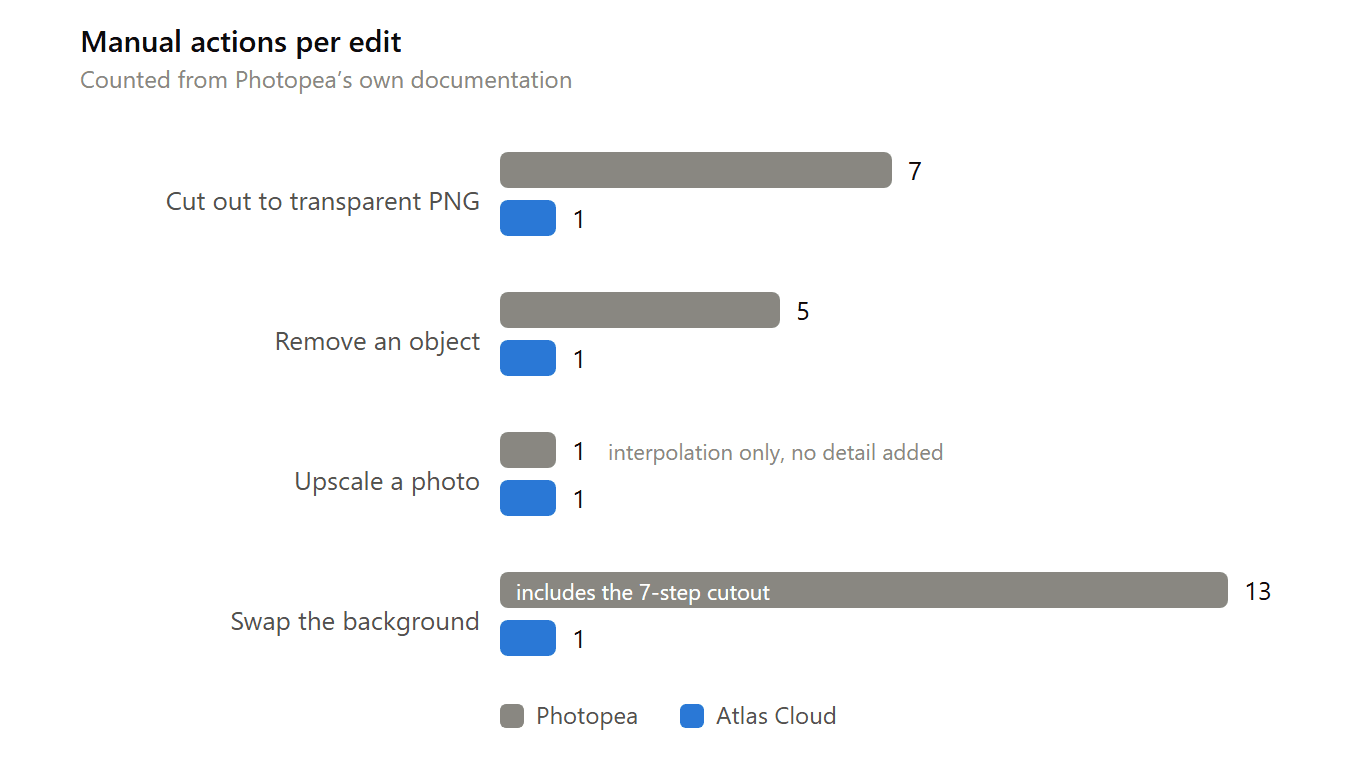
| Task | In Photopea | In Atlas Cloud |
|---|---|---|
| Cut out a subject to transparent PNG | Quick Selection, subtract overselected areas, Refine Edge, paint a grey trimap along the edge, output as new layer, delete background, export | Free background remover, one click |
| Remove an object | Spot Healing Brush, size the brush, paint over the object, wait, patch leftovers with Clone Stamp | Image Edit, one prompt |
| Upscale a photo | Image Size with interpolation, no new detail | Image Upscale in AI Tools |
| Swap the background | Cut out first, source a backdrop, place it below, match scale, match colour and light, clean the edge | Image Edit, one prompt |
The cutout row deserves a note, because Refine Edge is genuinely clever and genuinely manual. Photopea asks you to paint a trimap: white over the subject, black over the background, grey over anything uncertain. It then works out the transparency of the grey zone for you.
On hair or fur you will paint that grey band by hand and go back to fix it. The same job in another free layer editor runs into the white-on-white problem that appears whenever the subject and the background share a colour.
Object removal is the row where Photopea does best. Its own docs say the Spot Healing Brush usually takes one to five seconds, stretching to ten when the area covers more than half the image, and the fill comes from surrounding content.
Remove a stone from a beach and you get sand. Remove a person standing in front of a railing and the railing has to be invented, which is a different problem, and one we walked through in removing objects without Photoshop.
Upscaling is the row with no AI option on the Photopea side. Image Size changes resolution by interpolation and can set DPI, which is correct behaviour for a classical editor. Nothing in there reconstructs detail the sensor never recorded.
Atlas Cloud Image Edit: One Prompt Replaces the Manual Steps
The AI image editor workspace at Atlas Cloud takes the opposite approach to the same four jobs. You upload the picture, type what should change, pick a model, and press run. The product page describes the behaviour in one line: say what should change and the model repaints just that.
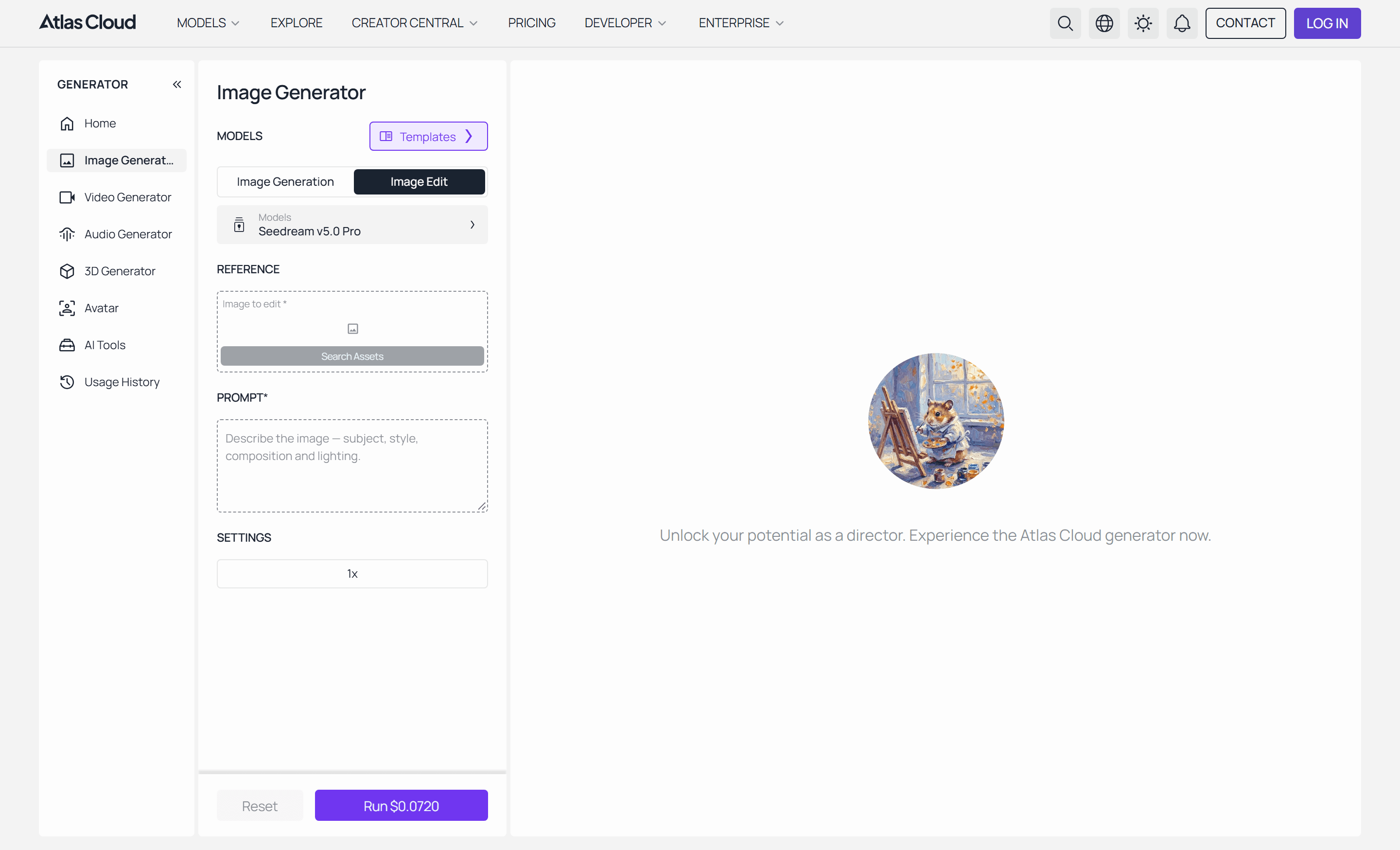
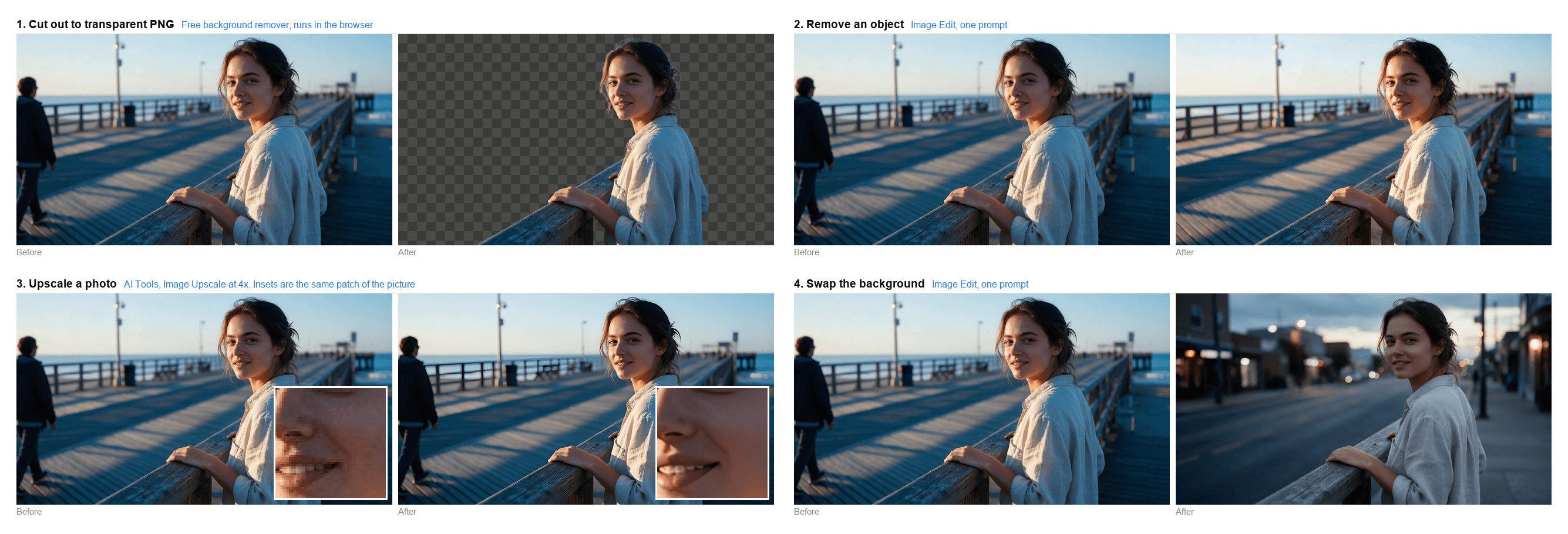
There is no selection step. Removing the stranger from the holiday photo is a sentence about the stranger, and the model handles the railing behind them because it understands what a railing is. Swapping a background is a sentence about the background, and the lighting on the subject gets adjusted with it.
That trade cuts both ways. A prompt gives you less precision than a lasso when you want exactly these pixels and no others, and it will not hand you a layered file at the end. For the edits in the table above, a sentence is faster. For a composite built from eight layers that a client will reopen next week, it is the wrong tool.
22 AI Image Editing Models in One Workspace
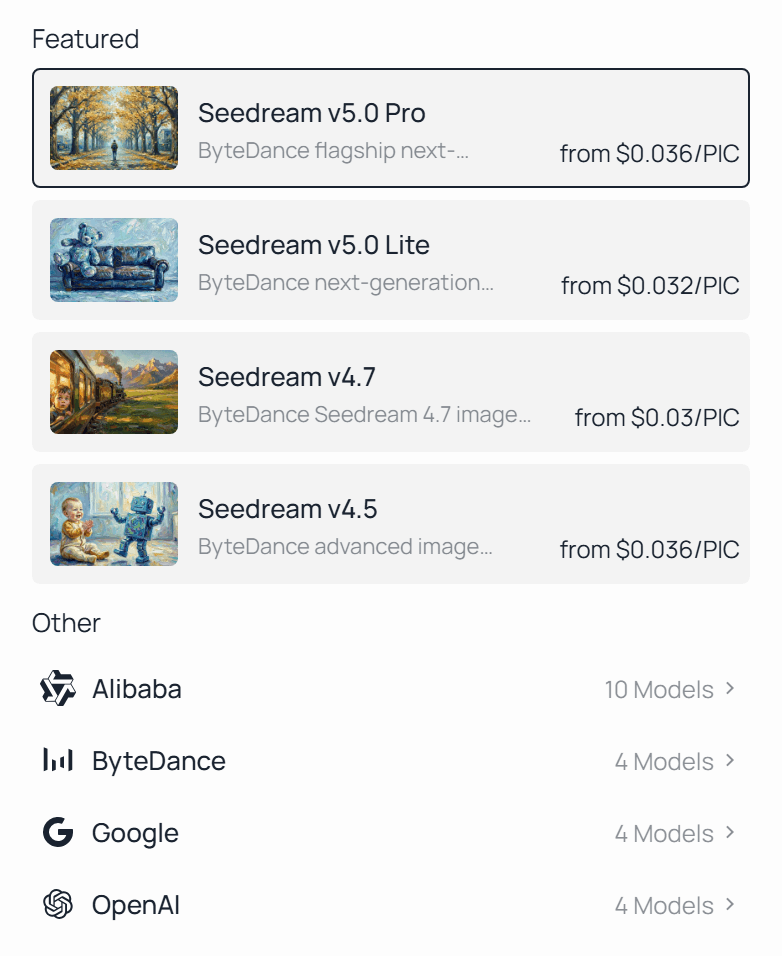
Switch the task selector to Image Edit and the model list is grouped by lab: ten from Alibaba, four from ByteDance, four from Google and four from OpenAI, 22 editing models in one place. The generation side carries 24.
That matters because editing models disagree with each other. One holds a face together and softens the background, another nails typography but shifts skin tone. Seedream v5.0 Pro accepts up to ten reference images and is built to preserve identity, lighting and colour tones across an edit. Nano Banana 2 behaves differently on the same prompt. Running both and keeping the better result takes one dropdown rather than two subscriptions.
If you want the longer read on which model suits which job, we compared them in AI image editing models.
When a Local, No-Upload Tool Is Still the Right Call
Photopea's local promise is not marketing filler, and if you are editing a medical scan or an unreleased product shot, it should decide the matter. Nothing leaves the machine.
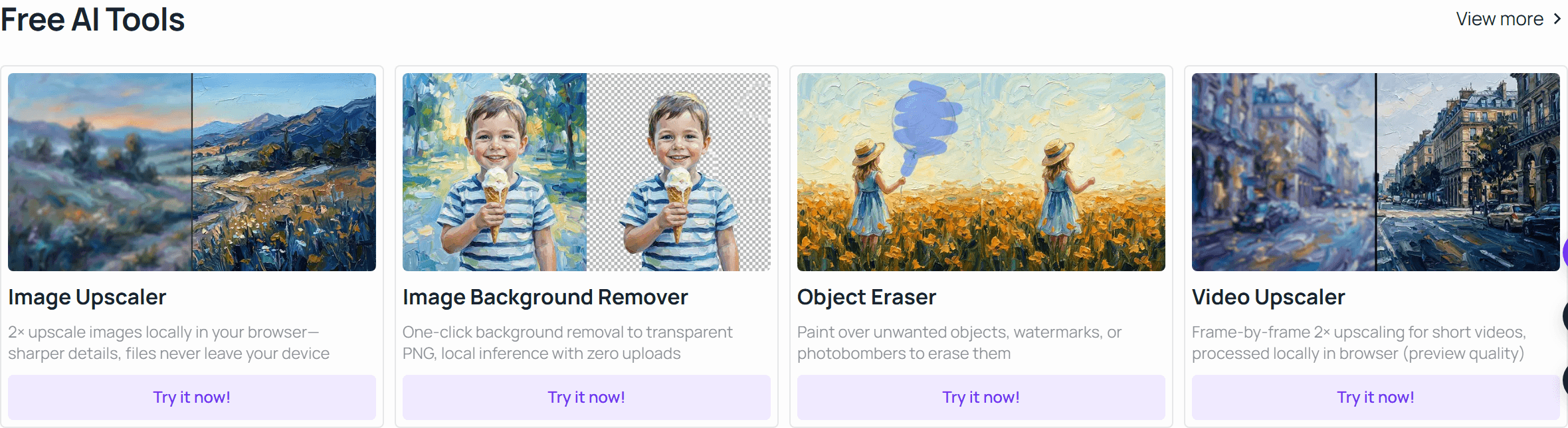
That constraint is worth respecting rather than arguing with, which is why the same reasoning shows up on our side. The free background remover runs inference in the browser and returns a transparent PNG without uploading anything, and the object eraser and the 2x image upscaler work the same way. No login, no credits, no ad prompt.
So the honest question is which of your edits need a server at all. Cutouts and small cleanups do not. Regenerating a background does.
Photopea vs Atlas Cloud Image Edit, Feature by Feature
Everything above condenses into one table. Read the last row first if you are deciding quickly.
| Photopea | Atlas Cloud Image Edit | |
|---|---|---|
| Runs in a browser | Yes | Yes |
| Layers, masks, PSD | Full read and write | Not a layer editor |
| RAW and vector formats | Extensive | No |
| Prompt-driven editing | Magic Replace, size-limited | Any model in the list |
| Models you can switch between | Two built-in features | 22 editing models, four labs |
| Free route to AI edits | Watch an ad per use | Local free tools, no credits |
| Works offline | Yes, outside AI features | No |
| Files stay on device | Yes, outside AI features | Yes in the free local tools |
| Suits | Layer work, PSD handoff, RAW | Prompt edits, model comparison |
Should You Switch to a Photopea Alternative?
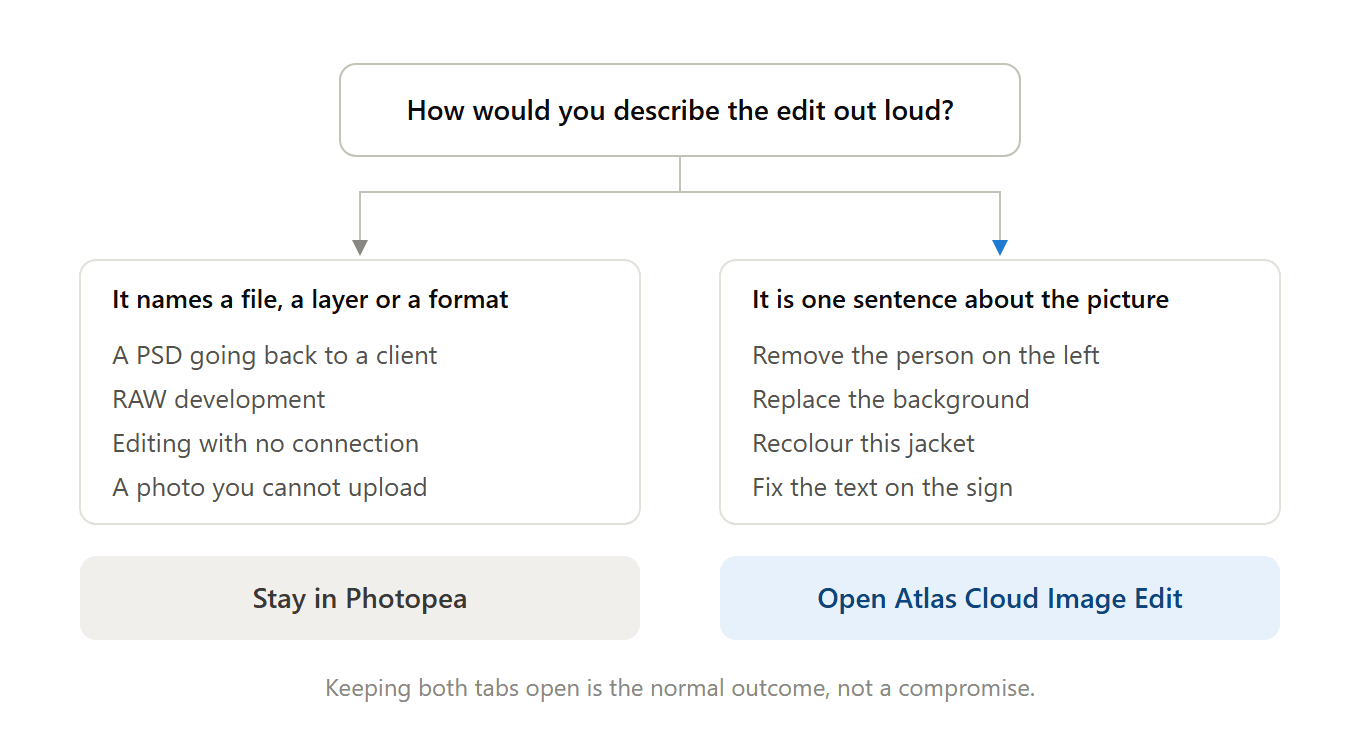
Stay with Photopea if your work has layers in it. PSD delivery to a client, a composite you will reopen, RAW development, offline editing on a flight, or anything you are not willing to upload. Nothing in this article beats it on those, and the price is still zero.
Move the work if your day is mostly prompt-shaped. Removing objects, replacing backgrounds, recolouring a product, fixing a sign, testing which model handles your kind of photo best. Those tasks hit Photopea's credit meter first and its size limit second, and the ad-per-use route stops being funny around the fourth time.
Running both is a normal outcome, and the split is easy to hold in your head. Structure and file formats stay in the layer editor. Anything you would describe in a sentence goes to the model.
FAQ
Is there a free Photopea alternative?
Several, though free means different things. Atlas Cloud's browser tools for background removal, object erasing and 2x upscaling run locally with no account and no credit meter, so they are genuinely free for those three jobs. Prompt-based editing across the full model list is paid per image, which is the part worth checking before you commit a workflow to it.
Does Photopea have AI?
Yes, two features: one-click background removal and Magic Replace, both announced in 2023. The catch is metering. AI credits are available only to Premium users, and free accounts are offered an ad in exchange for a single use. If you only need a cutout now and then, that is perfectly workable.
Are there apps like Photopea that keep working offline?
Photopea itself is the strongest answer, since it runs on your device and survives losing the connection. Desktop editors like GIMP cover the same ground with an install. Anything that generates new pixels from a prompt needs a server, so offline and generative editing rarely come in the same package.
What does it cost to edit an image with AI on Atlas Cloud?
You pay per run, and the price depends on the model and the output size. The Seedream v5.0 Pro Edit playground quotes $0.036 per run at 2048x1152 as of September 2026, a limited-time 20% off its $0.045 list price, with larger 2K output sizes billed one tier up. Paying per run rather than per month is what makes model comparison cheap: three models on the same photo costs three images.
Conclusion
Photopea earned its reputation honestly. It is free, it opens PSD, Illustrator and camera RAW files inside a browser tab, it keeps your images on your own machine, and it has been maintained for over a decade by a very small team. The two AI features it added in 2023 work, and the credit meter attached to them is a fair way to pay for server time in a tool that refuses to sell subscriptions.
What changed sits outside it. Editing models moved several generations while Photopea's two stayed where they were in 2023, and the jobs that used to mean twenty minutes of cloning now mean one sentence. If your week is full of those sentences, the right Photopea alternative is not a replacement for the layer editor at all. It is a second tab you open next to it, and you will know which one to reach for by how you would describe the edit out loud.





