Forget the "random guess" method of basic text prompts for AI video in 2026. You need a solid strategy if you want a cinematic look without the high studio costs. To keep realistic look, professional creators use a strict, multi-layered workflow.
Follow these four clear steps:
- High-Res Start: Begin with a sharp source image.
- Motion Control: Manually guide how the camera moves.
- 4K Polish: Use an upscaler for a crisp finish.
- Audio Layer: Add custom sound for a final touch.
This method cuts out the "weird" AI look and ensures a clean result. It is the best way to get high-end quality for free.
The Shift to Cinematic Realism
The "Zero-Dollar" revolution is powered by a new generation of state-of-the-art models. By leveraging free-tier professional tools and open-source stacks, creators can now bypass the "melted" look of early AI.
| Model | Primary Strength | Free Tier Accessibility |
|---|---|---|
| Veo | Cinematic physics & consistent lighting | Available via Google Labs |
| Kling | Complex human motion & long durations | Daily free credits |
| Seedance | High-speed motion & rhythmic sync | Generous trial period |
| Luma Dream Machine | Fluid transitions & camera realism | 30 free renders/month |
Mastering the Image to Video 4K Upscale Workflow
The secret to professional results lies in a hybrid image to video 4K upscale workflow. Instead of relying on raw text-to-video—which often lacks structural integrity—experts start with a high-resolution base image. This image acts as a "visual anchor."
- Generate a Base: Use a high-quality image generator for the initial frame.
- Animate: Pass the frame through a model like Veo or Luma.
- Upscale: Utilize open-source tools like Topaz or Real-ESRGAN to reach true 4K.
This handbook will show you how to master these tools without spending a dime.
Step 1: The Architecture of a High-Resolution Source
In the world of AI Video Generation, the "Text-to-Video" approach is often a gamble. If you want professional results, you must treat the first frame as your production's North Star.
Why the "Still Image" is King
Starting with a static image to a cinematic video AI workflow provides roughly 10x more control over the final output. When you prompt a video model with text alone, the AI must simultaneously calculate character design, background geometry, and motion. This often leads to "morphing" artifacts. By providing a high-quality source image, you lock in the spatial data, allowing the AI to focus 100% of its compute on temporal physics.
The Prompting Framework: Mastering "Camera Language"
To move beyond amateur clips, your image prompt must speak the language of a Cinematographer. Instead of "a man in a city," use a framework that defines the lens, lighting, and depth.
- Lens:35mm anamorphic, 70mm IMAX, or f/1.8 bokeh.
- Lighting:Golden hour rim lighting, volumetric fog, or high-contrast noir.
- Film Stock:Kodak Portra 400 or grainy 16mm aesthetic.
Tool Spotlight: Foundational Frame Generation
For the best free image to video AI 2026 entry point, I recommend starting with nano-banana-2. It excels at photorealistic prompt adherence, providing a "clean" base that prevents early-stage distortion. The standard workflow involves exporting your image renders and feeding them into dedicated video animators like Kling or Luma.
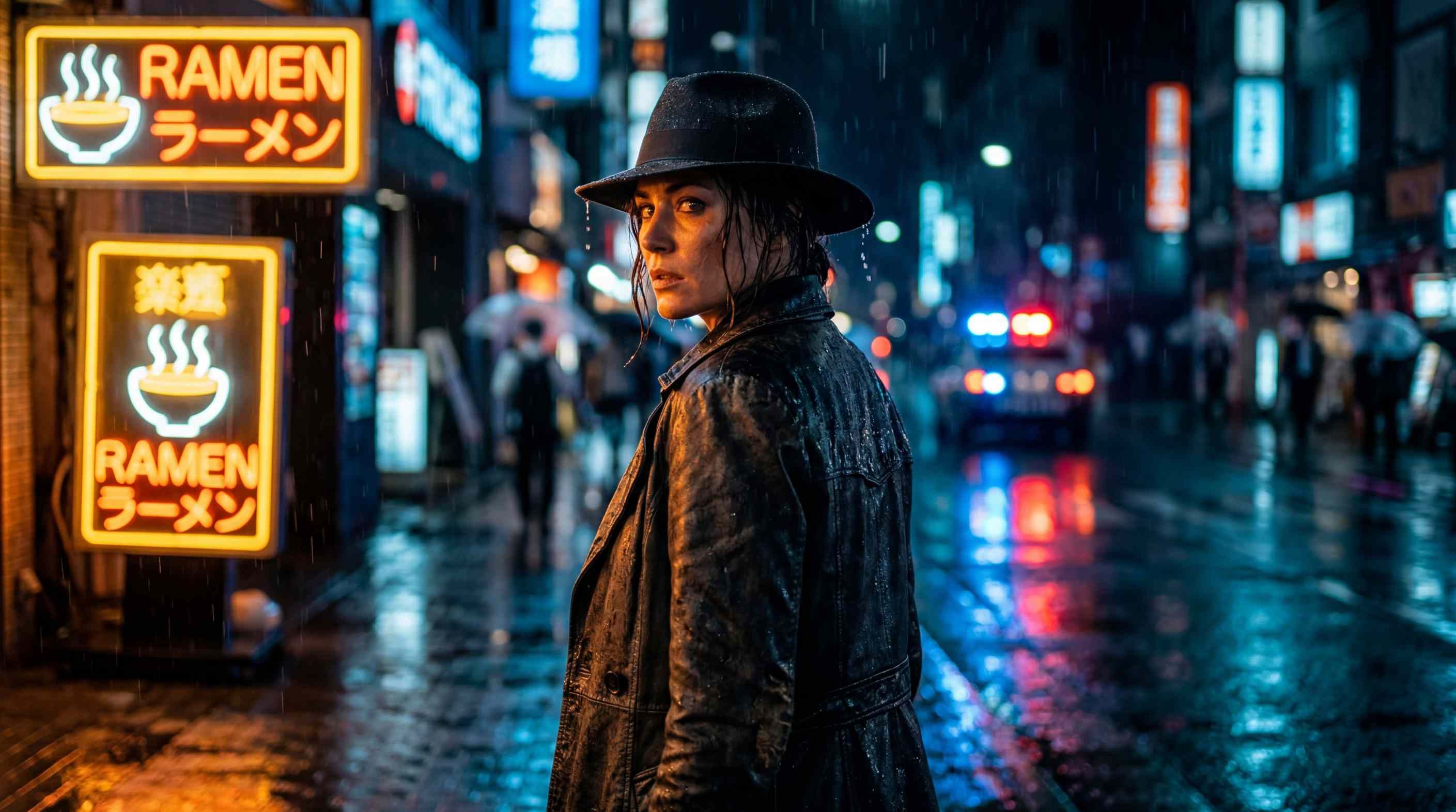
This is an image I generated using Atlas Cloud's nano-banana-2, I want to create a video of Neo-Noir.
Step 2: Directing the Motion (The "How-To" Core)
Once your high-resolution "hero frame" is ready, the next phase is bringing it to life without losing the cinematic quality.
Luma Dream Machine & Kling AI: The Physics Kings
Kling AI 3.0 and Luma Dream Machine 2.5 lead the market in physical realism.
- Kling AI: Offers 66 refresh credits, making it the top choice for high-action scenes.
- Luma: Provides 30 monthly renders, specializing in cinematic camera movements for image to video like "dolly zooms" and “orbit shots.”
I created this 5-second video using free credits on Kling 3.0; it cost me 50 credits, and the resolution is limited to 720p.
The Secret Sauce: Motion Brushes
One of the most effective ways to fix AI video face distortion is to avoid animating the face entirely if it doesn’t need to move. While earlier models like Runway Gen-2 popularized the "Motion Brush," the latest high-end models—such as Runway Gen-4 Turbo and Pika 2.5—have evolved this into Region Control and Animate Keyframes.
Use these tools to animate only specific parts, such as moving hair or waves, while the background stays still. This way, your subject keeps its shape. It stops faces from morphing or "melting" while the video renders.
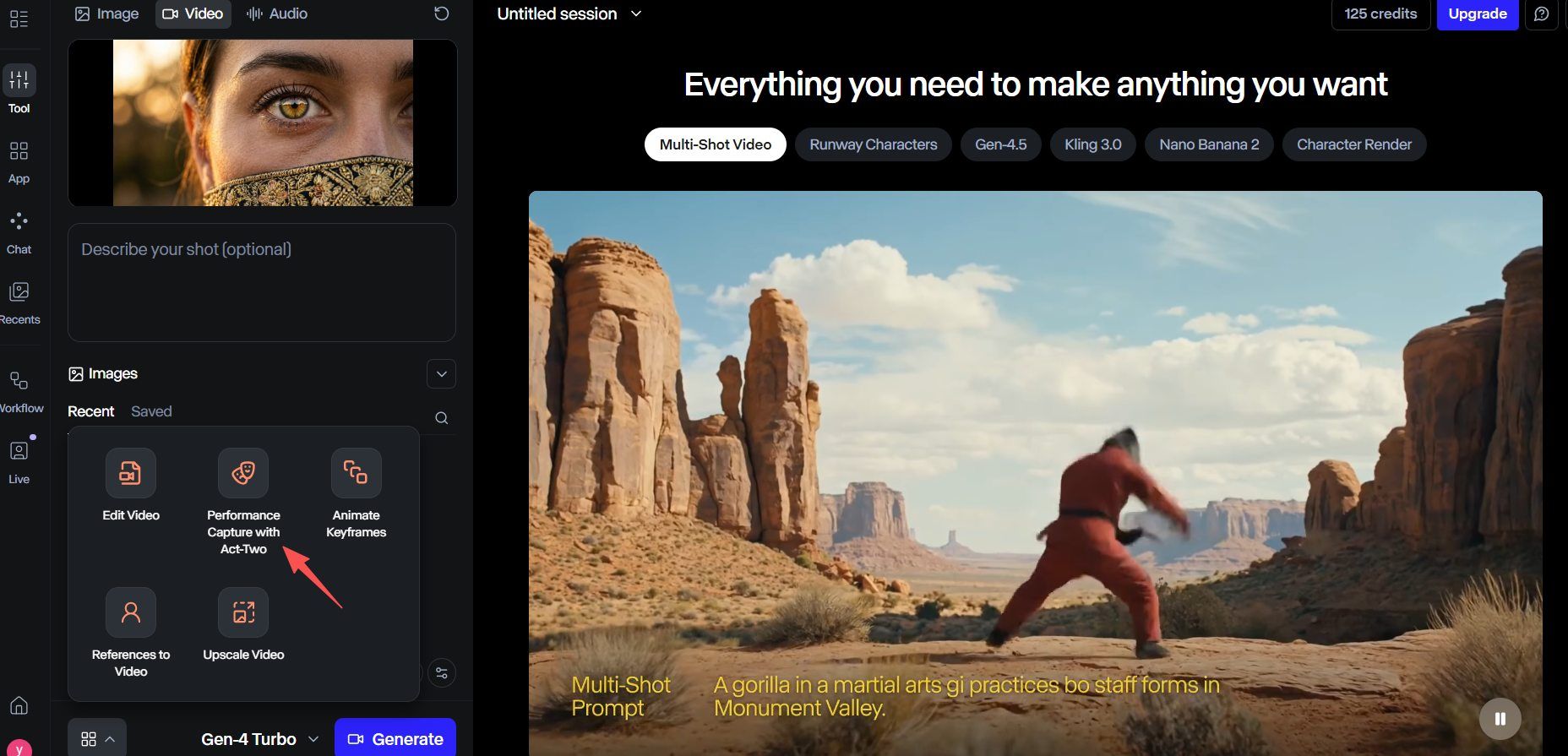
Note: However, it is worth noting that this feature is not available for free; to use it, you must upgrade.
Maintaining Consistency & Quality
To achieve a high bitrate 4K AI video free, follow this consistency checklist:
| Production Goal | Recommended Strategy |
|---|---|
| Character Likeness | Use "Character ID" in Kling 3.0 by uploading 3 reference angles. |
| Face Fixes | Apply a "soft front lighting" prompt to minimize shadow artifacts. |
| Fluidity | Set motion sliders to 3–5; higher values often cause warping. |
| Resolution | Generate at 1080p, then apply an image to video 4K upscale workflow. |
Group your shots together. Before moving on to your wide shots, create all of your close-ups. This keeps your visual style steady. It makes your final edit look like a real movie instead of a bunch of separate clips.
Step 3: The "4K Cinema" Upscaling Workflow
While modern AI models are revolutionary, they possess a hidden limitation: compute costs. Most free-tier AI Video Generation tools currently output at 720p or 1080p to save on server resources. To achieve a high bitrate 4K AI video free, you must move your production to a local or specialized cloud upscaling environment.
These are the results from using free.upscaler.video for AI video upscaling. If you look at the comparison, the clarity has indeed improved significantly.
The Truth About Native Output
Standard AI video often has "pixel crawling." This is a shaky effect where details blur between frames. If you export 4K straight from a generator, the file stays big but the picture stays soft. You need a separate 4K upscaling step. This process rebuilds lost textures and makes the footage look sharp.
Free Upscaling Solutions for 2026
In 2026, you no longer need a $300 Topaz subscription to get professional results. Several high-performance alternatives have democratized the process:
| Tool | Best For | Technical Edge |
|---|---|---|
| CapCut Desktop | Quick social 4K exports | Uses "Image Enhancement" cloud models for free 4K upscaling. |
| free.upscaler.video | Open-source, browser-based processing | Offers a transparent, no-signup, and no-watermark workflow directly in the browser. |
| WebGPU Upscaler | Zero-install privacy | Leverages local GPU power via browser for 100% private, watermark-free upscaling. |
| Artplayer upscaler | In-browser super resolution | Runs entirely locally using WebGPU/WebGL; ensures files never leave your device. |
Frame Interpolation: The "Buttery" 60fps Secret
AI video is typically generated at 24fps. To get that ultra-smooth cinematic feel, you need frame interpolation. Tools like SVP or the RIFE neural network, available in various free GUI wrappers, insert "predicted" frames between your original ones. This changes jerky 2-second clips into smooth, high-frame-rate videos. It fixes the "stutter" often found in basic AI results.
Step 4: Soundscapes & Final Polish
50% of a film experience is visual and 50% is audio. Without a spatial soundscape, even the most perfect static image to cinematic video AI output would seem lifeless.
AI Foley & Scoring with Lyria 3
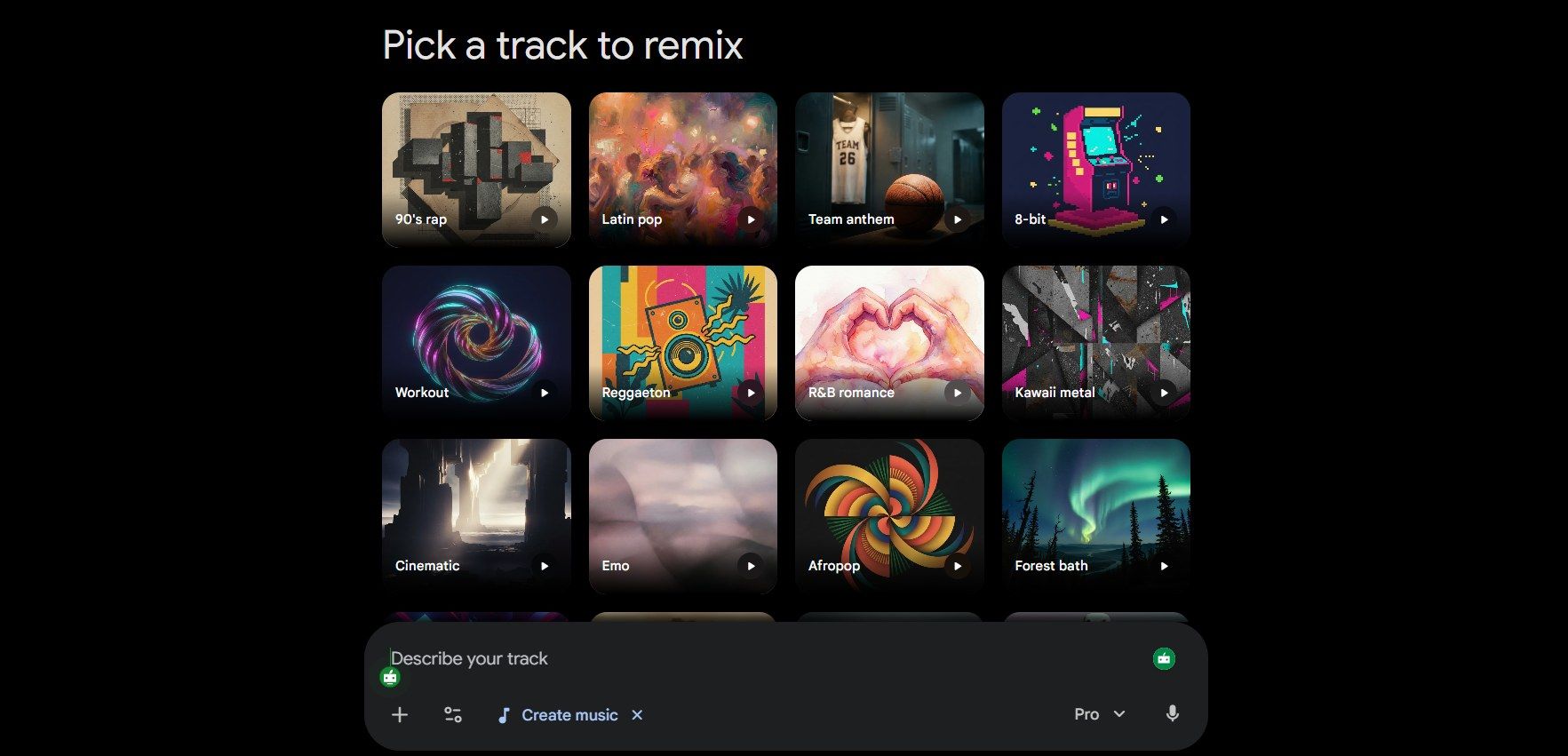
Google's Lyria 3 is now the top choice for creators on a budget. It is better than basic stock audio because it offers "Image-to-Music" tools. Just upload a frame from your video. The AI reads the "vibe," like a gritty sci-fi scene or wet city streets. Then, it builds a custom 30-second track just for your project.
- Atmospheric Foley: Make unique sounds like wind through a valley or a faint mechanical buzz.
- Rhythmic Sync: Use the "Tempo Match" setting. This locks your music's rhythm to your camera shifts for a smoother flow.
Color Grading: Defeating the "AI Look"
AI clips often have a "glossy" look that feels too digital. You can fix this easily by using CapCut or the free DaVinci Resolve. Just add a professional LUT, like "Teal and Orange" or a "Kodak 2383" film style. This helps blend your colors together. It makes the footage feel more like a real movie and less like a computer render. This step is vital for AI video character consistency from image, as it masks slight color shifts between different generated shots, making them look like they were filmed on the same physical camera sensor.
Pro Tip: For developers and agencies, the goal of the " One-Key " Workflow is to build a "one-key" pipeline: Input Image Path → Motion Prompt → API Call (Kling/Seedance) → Auto-Upscale (4K) → Output to Local Storage.
The "Trust" Factor: Ethical AI & Best Practices
AI video tools are now widely used, making it hard to distinguish real clips from digital ones. Creating content ethically is about more than high quality. It focuses on being open about your methods and protecting the integrity of online spaces.
Watermarking & Transparency
By 2026, top companies like Google started using two layers of protection. New tools like Veo 3.1 and Lyria 3 now include SynthID. This tech hides a digital mark inside the video pixels and sound. Even if you crop the file or shrink it, the mark stays there. Specialized software can still find it to prove it was made by AI, which helps stop the spread of lies.
Usage Rights: Free vs. Pro
Understanding the rules for "free" tools is a must if you want to make money from your work. Many sites give you plenty of free trials to start. However, you usually need to pay for a subscription to get full commercial rights.
| Tool | Free Tier Usage | Commercial Rights | Watermark Status |
|---|---|---|---|
| Veo 3.1 | Personal/Trial | Pro/Enterprise Only | Visible + SynthID |
| Kling 3.0 | Personal Use | Paid Tiers Only | Optional on Pro |
| Luma Dream Machine | Personal Use | Included in Subscriptions | Visible on Free |
| Seedance 2.0 | Testing Only | Pro Tier Only | Mandatory Watermark |
To achieve a high bitrate 4K AI video free for a commercial client, the best practice is to use free tools for the "proof of concept" phase and upgrade for the final, licensed export.
Scaling Your Production: The "Studio" Shift
As you transition from creating isolated 5-second clips to producing full-length cinematic narratives, you will inevitably encounter the "Manual Bottleneck." Managing dozen of browser tabs, tracking multiple subscription quotas, and manually triggering upscalers for hundreds of shots is the primary reason many AI projects stall in the post-production phase.
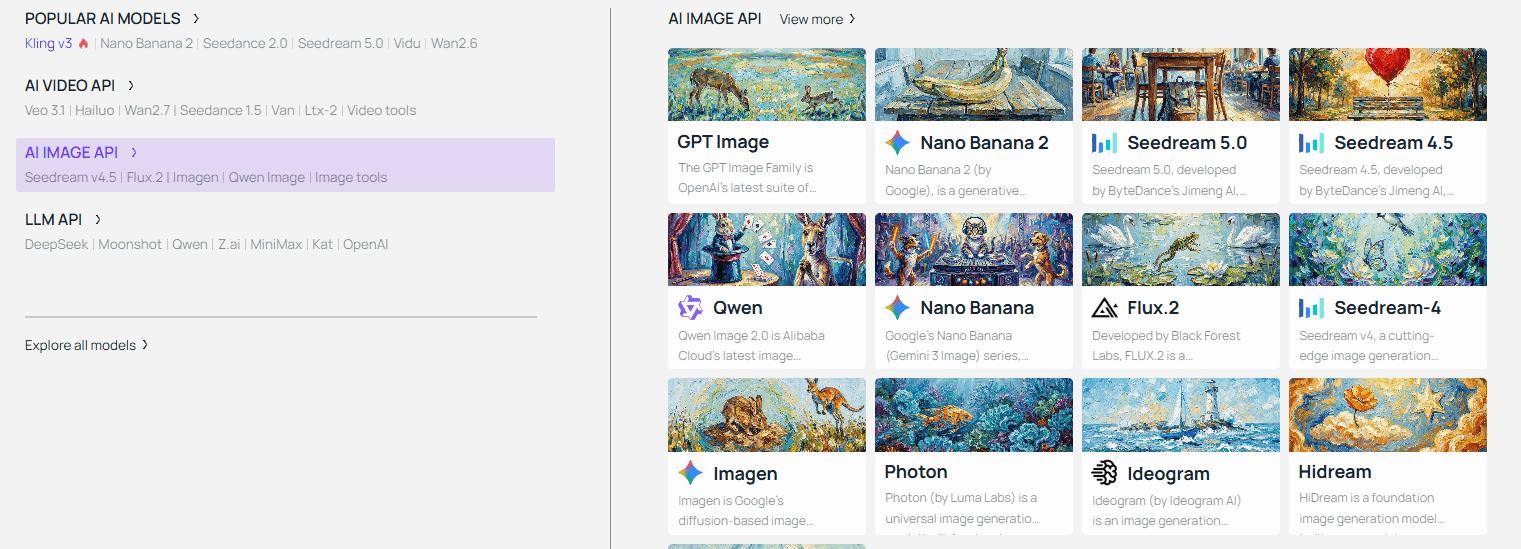
To grow past basic testing, you need to switch from a "one-by-one" style to a batch workflow. Stop jumping between separate accounts for Kling, Seedance, or Luma. Instead, top creators use a single hub to run their whole production line. Unified API systems like Atlas Cloud offer a solid foundation here, serving as a real infrastructure rather than just another app.
| Scaling Challenge | Traditional Manual Workflow | Scaling with Atlas Cloud |
|---|---|---|
| Model Diversity | Switching tabs and re-uploading assets. | Switch between Kling 3.0 and Vidu via one API. |
| Cost Management | Paying $30+/mo per tool (Sunk Cost). | Pay-Per-Second billing; only pay for active GPU time. |
| Throughput | Sequential rendering (One by one). | Parallel Batching; generate 50+ clips simultaneously. |
| API Stability | "Service Busy" errors on free tiers. | Enterprise-grade stability for heavy workloads. |
Solving the "Resolution-at-Scale" Problem
The most significant hurdle in scaling is the 4K upscale. Manually running a local Real-ESRGAN script on 200 clips can take days on a standard consumer GPU.
By leveraging Atlas Cloud’s automated pipeline, the "upscale-as-a-service" model allows you to:
- Standardize Quality: Apply a fixed bitrate across all exports to keep your clips sharp and professional.
- Cut Wait Times: Use cloud-based A100/H100 clusters to render footage 10x faster than any desktop setup.
- Simplify Licensing: Manage commercial rights in one spot so every batch video is ready for legal release.
Comparative Cost Analysis: 2026 Industry Standards
According to recent industry benchmarks on cloud compute efficiency, utilizing a specialized AI aggregator can reduce overhead for small studios significantly.
- Standard Pro Subscriptions (if 3 Tools): Approx. $90–$120/month.
- Atlas Cloud "Fast" Tier: Users typically see a 70% to 90% reduction in cost for high-volume projects due to the "pay-for-what-you-use" architecture.
Check Atlas Cloud's on-demand pricing: Transparent, on-demand pricing for every Atlas Cloud API. Pay only for what you use.
By removing the manual friction of the web UI, you transform your workspace from a digital sandbox into a high-fidelity cinema factory.
FAQ
Why is starting with a still image better than using raw text-to-video?
Direct text-to-video generation often forces the AI to calculate composition, character identity, and motion simultaneously, which frequently results in "morphing" or "melting" artifacts. By utilizing an Image-to-Video (I2V) workflow, you provide a "spatial anchor." This allows the model to dedicate 100% of its compute power to temporal physics—how objects move—rather than what they look like.
- Control: 10x higher consistency in character likeness.
- Quality: Prevents background shifting and geometry warping.
- Efficiency: Reduces the need for multiple re-rolls to "fix" a character's face.
How can I achieve true 4K resolution using only free tools?
Most free-tier AI models (like Kling 3.0 or Luma) cap native output at 720p or 1080p to manage server load. To reach 4K, you must implement an external upscaling stage. Here, I recommend free.upscaler.video and Artplayer Upscaler. Neither of these two tools requires registration, and they are completely free—making them very convenient to use.
Is commercial use allowed for content created on free tiers?
Navigating usage rights is critical for professional creators. While 2026 tools are powerful, their legal protections vary by tier.
| Model | Free Tier Rights | Commercial Rights Trigger | Key Constraints in 2026 |
|---|---|---|---|
| Google Veo 3.1 | Personal/Trial Only | Gemini Enterprise / Vertex AI | Must include SynthID watermarking; requires "Altered Content" label for YouTube. |
| Kling 3.0 | Non-Commercial | Any Paid Tier (Standard, Pro, etc.) | Paid users get 1080p+ and no watermark; Free tier limited to 720p with logo. |
| Luma Dream Machine | Personal Only | Plus Plan ($30/mo) & Above | Lite/Free versions do not grant commercial rights even if credits are purchased separately. |