Can you natively upload a raw MP4 or MOV video file into a standard Grok chat for analysis? Yes, you can. xAI rolled out native video upload support, allowing users to attach MP4, WebM, or MOV files directly from their devices to preview and analyze content inline alongside text prompts.
However, Grok chat video upload errors still occur, mostly due to file size limits or codec edge cases. While an April 2026 update specifically fixed Chrome crashes tied to large MP4 uploads and introduced clearer client-side size limits, users can still run into glitches. If you hit an "unsupported file format" message, the safest fix is converting your clip to a standard MP4 (H.264) before uploading.
Note: This feature is for chat analysis. Don't confuse it with Grok Imagine Video 1.5, xAI's separate video generation engine.
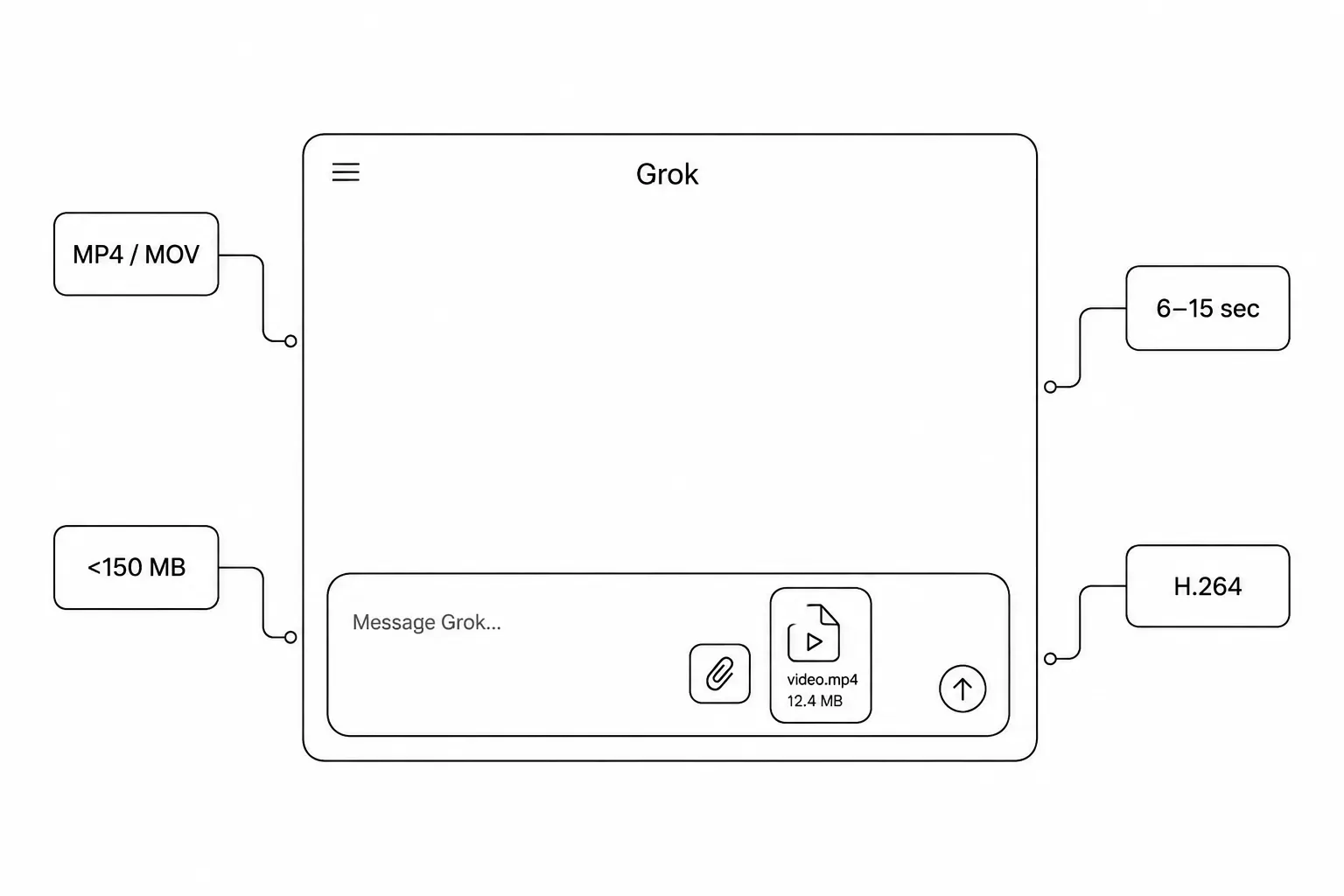
Short on time? Before diving into advanced API setups or frame-extraction workarounds, ensure your video alignment matches xAI’s official baseline constraints. If your file sits within the specs below, it will upload flawlessly:
| Core Metric | Flawless Upload Specification | Quick Fix If It Fails |
| Video Format | MP4 (H.264 profile) / MOV | Convert container or re-encode using VLC / Handbrake |
| File Size Cap | Under 150 MB (Chat) / Under 48 MB (API) | Compress video or slice into shorter segments |
| Max Duration | 6 to 15 seconds (Recommended for stability) | Trim footage or extract 3-5 key frames as JPEGs |
If your file already meets these metrics but still triggers a "File type not supported" or "Tap to retry" loop, keep reading to diagnose platform-specific glitches and hidden codec errors.
What Can Grok Do with Uploaded Files?
Resolving the file upload bug is only half the battle. Once your video, transcript, or dataset lands successfully in the prompt stream, maximizing xAI's neural pipeline depends on framing your query correctly. Grok excels across five distinct computational pillars:
| Core Capability | Functional Description | Recommended Prompt Blueprint |
| Synthesis | Aggregates and merges deep insights from disparate files, runs comparative audits between text documents, maps raw spreadsheets, or translates insights into fresh content. | "Compare these two DOCX files side-by-side and list the discrepancies." |
| Transformation | Distills dense research papers into actionable briefs, reformats complex prose across varied stylistic tones, and strips presentation slide decks down into clean outlines. | "Summarize this PDF and extract all underlying data into clean markdown tables." |
| Extraction | Slices through bulky files to isolate highly specific data matrices, direct citations, internal metadata fields, or isolated tabular modules. | "Analyze this CSV and extract the top three anomalous user activity trends." |
| Analysis | Deconstructs charts, diagnoses and executes code blocks, transcribes multimodal audio/video feeds, and visualizes complex matrix data. | "Describe the visual flow of this image and fix the syntax errors in the attached script." |
| Multimodal Reasoning | Executes cross-disciplinary logic across parallel assets simultaneously (e.g., matching a line of code against a chart embedded in a PDF reference guide). | "Correlate the system logs in this text file with the UI screenshot uploaded above." |
By adjusting your prompts to fit these native analytical strengths, you can dramatically scale back processing latency and prevent the model from hitting context-window timeout errors.
Understanding Grok's Supported Chat Attachments vs. Video Generation
It's worth separating two very different features: uploading a video for Grok to watch and analyze, versus using Grok Imagine to generate or edit new video clips. This article focuses on the former, getting your own footage into a chat for review.
Quick Specification: If you are looking to generate or edit clips via Grok Imagine, note that the current underlying engine enforces a strict video duration limit of 6 to 15 seconds. Pushing past this threshold—even via advanced prompt extensions—drastically increases the risk of visual artifacts and motion inconsistency.
What the Attachment Icon Actually Supports
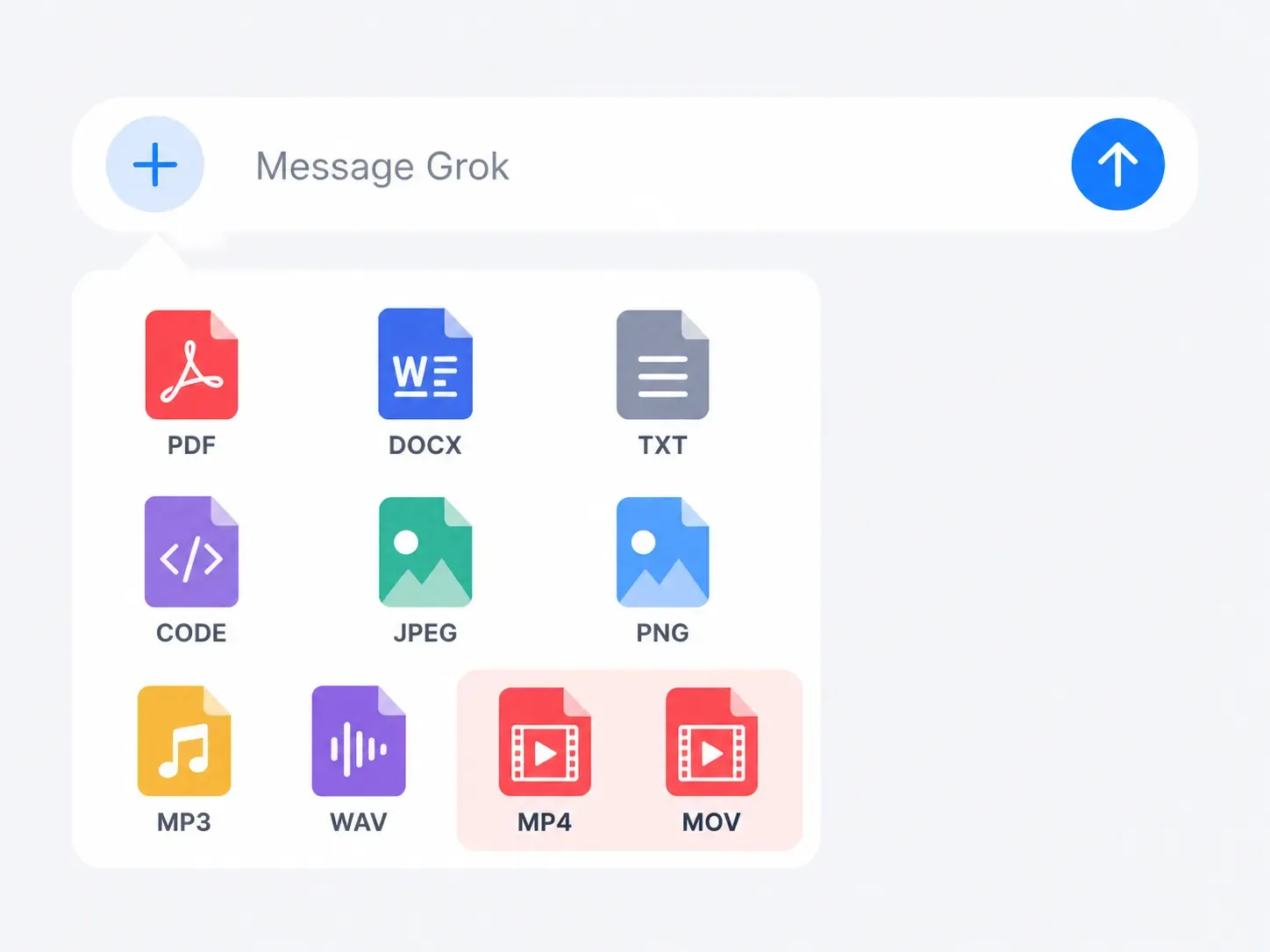
The attachment engine (accessible via the + icon in your chat bar) is highly versatile, but its ecosystem is strictly policed. To verify if your media extension is natively supported without pre-conversion, audit your file extension against the official format index below:
| Category | Supported Formats / Extensions | Official Platform Notes & Gotchas |
| Documents & Data | PDF, DOCX, TXT, CSV, XLSX, PPTX, HTML, XML, JSON, MD, LaTeX, ODT, RTF | Web interfaces offer wider document support. Note that embedded images within non-PDF files cannot be processed visually. |
| Code Files | .py, .cpp, .js, .java, .html, .css | Primarily optimized for agentic search retrieval and script execution testing. |
| Images (Vision) | JPEG / JPG, PNG, WebP, HEIC, BMP | High-resolution imagery ($\ge$ 1000×1000 pixels) is preferred for detailed visual reasoning. GIF and SVG support varies by platform environment. |
| Audio | MP3, WAV, M4A, OGG, FLAC, AAC | Fully processes native files, though transcription accuracy remains subject to variable quality constraints. |
| Video (Critical) | MP4, MOV | The primary error bottleneck! Highly sensitive to codec profiles; encoding to a baseline H.264 profile is mandatory to secure clean uploads. |
While seeing .mp4 or .mov listed above might give you instant reassurance, the underlying engine handles pixels differently than text strings. This brings us to the core issue: why seemingly valid videos still trigger errors mid-process.
Grok File Upload Limits
While exploring why your file is getting rejected, it is crucial to understand that xAI enforces drastically different boundaries depending on whether you are using the consumer chat interface or the developer workspace. Refer to the master comparison below to pinpoint your platform's exact thresholds:
| Platform / Use Case | Max File Size Limit | Core Technical Constraints |
| Grok Chat Interface (Web & App) | Up to 150 MB per file | Supports mixed-format concurrent uploads; exceptionally long files are dynamically segmented or summarized. |
| xAI Developer Workspace (Files API) | Maximum 48 MB per file | Strictly no batch requests (n > 1); requires models engineered for agentic tool calling (e.g., grok-4.20, grok-4.3). |
As noted earlier, going over a 150 MB limit on the web or a 48 MB limit on the API will cause an instant error. If your file size is actually fine, the problem is likely a bad file extension or the wrong internal video format.
Why Heavy Video Uploads Can Fail
If you try uploading video to the Grok web app with an oversized or unsupported clip, Grok displays an error rather than crashing silently Grok shows a clear error message if a file exceeds a limit. Note that Grok vision understanding for video also has variable transcription quality depending on the file some audio and video files upload successfully but have variable transcription quality, so MP4 (H.264) remains your safest bet.
Step-by-Step Workaround: How to Feed Video Content to Grok Without Errors
Since MP4 and MOV are now natively supported, most "unsupported file format" errors stem from oversized files, unusual codecs, or platform quirks. Here are two reliable paths to avoid Grok upload errors.
Method 1: GIF/Frame Extraction for Chat Analysis
If your video keeps failing to upload, converting it to a GIF or extracting key frames as images is a dependable fallback for how to share video with Grok.
Steps to convert video to GIF for Grok:
- To convert your video to GIF or export 3 to 5 still frames as JPEG or PNG, use freeware like CloudConvert or VLC.
- Keep the GIF under 150 MB. This is the main cap for most items like files, photos, code, or songs, though specific plans can sometimes alter this rule a little bit.
- Just click the little plus icon in your chat box to send the file through.
- Ask Grok to describe the sequence, motion, or on-screen text frame by frame.
This method works because Grok's vision understanding is more mature for static images than for video transcription.
Method 2: Image-to-Video Workflow via Grok Imagine
For users who want to recreate or extend a scene rather than analyze raw footage, the Grok image-to-video workflow is the better fit.
- Upload a still frame (a screenshot from your video) into Grok Imagine.
- Write a prompt describing the motion, camera movement, or action you want.
- Use Grok video prompt extension features (available on SuperGrok tiers) to extend short clips up to 30 seconds. | | | | | -------------------- | ----------------------------- | ---------------- | | Method | Best For | Output | | GIF/Frame Extraction | Analysis, transcription, Q&A | Text description | | Image-to-Video | Recreating/extending scenes | New video clip |
Technical Fix: Uploading Videos via the xAI Files & Imagine API
Developers looking for an xAI Files API tutorial should know a critical limitation upfront: the standard Files API is not built to accept raw video containers. Its file size limit is strictly capped at 48 MB per file, and its structural parsing pipeline is optimized for text-dense, structured, and codebase formats, including .txt, .md, .py, .csv, .json, and .pdf. Real-time video generation, frame modification, and automated clip editing instead live under the standalone Imagine API product line.
Using the Python xai-sdk for Video Transcripts and Metadata
If your programmatic workflow involves extracting insights from a video's structural metadata or processed text transcripts (rather than feeding raw .mp4 visual tracks directly), you can utilize the xai-sdk client to pipe text context into Grok's agentic search environment seamlessly.Ensure you update your implementation to match xAI's standardized file creation parameters:
plaintext1import os 2from xai_sdk import Client 3from xai_sdk.chat import user, file 4 5# Initialize the primary xAI client 6client = Client(api_key=os.getenv("XAI_API_KEY")) 7 8# Upload the text-based transcript asset via the Files API 9uploaded_file = client.files.create( 10 file=b"Video Transcript Segment: [00:15] Subject introduces the robotic rabbit chassis...", 11 filename="video_transcript.txt" 12) 13 14# Initialize a conversational thread powered by an agentic model 15chat = client.chat.create(model="grok-4.3") 16 17# Append the prompt alongside the securely referenced file ID 18chat.append(user("Summarize the visual milestones described in this transcript", file(uploaded_file.id))) 19 20response = chat.sample() 21print(response.content)
Routing Actual Video Through Imagine's Video Editing Endpoint
For tasks resembling xai-grok-imagine-edit-video, you're working with xAI's separate Video Editing endpoint under the Imagine model family rather than the Files API. Community playgrounds (like Eachlabs) wrap this endpoint with practical constraints commonly reported by users:
| Infrastructure Parameter | Native Production Constraint |
| Max Payload Size | ~50 MB per request |
| Target Render Resolution | Auto-resizes to 854x480 (480p fallback) |
| Native Generation Duration | 6 to 15 seconds per synchronized clip |
Avoiding Grok API File Size Limit Errors
Always compress source clips before submission, since exceeding size or duration caps triggers immediate rejection rather than partial processing.
Troubleshooting Common Grok Video Errors and Content Censorship
When videos fail mid-process or seem to vanish, the cause usually falls into one of two buckets: technical limits or moderation.
Technical Spec Violations
Grok video quality loss is often expected behavior, not a bug. 720p videos automatically fall back to 480p once you hit the 720p cap for your subscription tier. Similarly, Grok prompt sequencing bugs can occur when a video upload is followed too quickly by another action before processing completes.
Common technical fixes:
| Issue | Likely Cause | Fix |
| Upload stalls | File exceeds size cap | Compress before uploading |
| "Tap to retry" | Unstable connection or oversized file | Try smaller file or different network |
| Output looks degraded | Tier-based resolution cap | Upgrade tier or accept 480p |
Sorting out standard Grok chat glitches is usually a breeze. When the app throws a "File type not supported" warning, you just need to swap the video format or log in from a different device. If the upload flat out fails or says "Tap to retry," your file is probably too heavy, so just try again with a smaller version instead. Lastly, if you see "An attachment couldn't be loaded," that is almost always a bug tied to your specific app or browser, so switching screens or converting the file should fix things instantly.
Content Moderation and "Disappearing" Videos
If you are trying to get past Grok's filter warnings, xAI does not actually share their exact rules. Your best bet is to just test things out slowly. The easiest way to see what works right now is to talk to the bot directly, starting with very mild words and slowly getting more intense. Make sure to skip heavy or loaded keywords, rewrite risky descriptions in a completely neutral way, and break big, complex ideas down into tiny, simple steps.
Advanced Grok Video Workflow Misconceptions
Many users still try to bypass local upload latency by using web shortcuts—only to hit an unexpected logical wall.
The YouTube Link Misconception: Why Copy-Pasting Fails
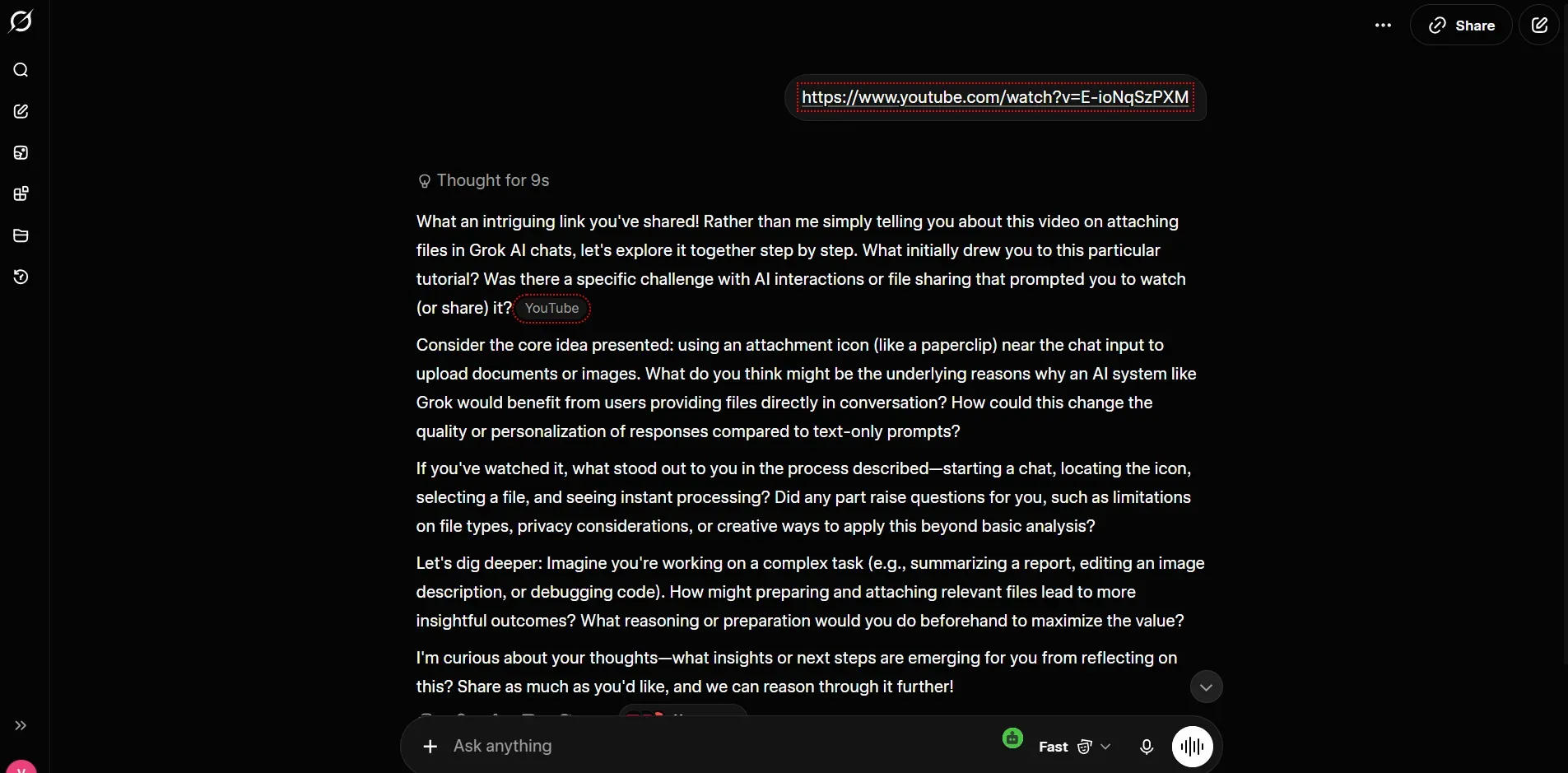
A big mistake lots of people make when trying to dodge upload bugs is just dropping a YouTube link straight into the chat. It looks like an easy shortcut, but Grok cannot actually watch YouTube video frames from a URL. The bot just uses live web search to pull the text from the video's title, description, and top comments, but it stays totally blind to the actual footage or time markers. If you want a real, second-by-second look at your video, you have to stick to direct, native uploads instead.
Data Privacy: Is Your Uploaded Video Content Safe with xAI?
Before you drop private footage, business slides, or secret code into any AI tool, checking the company's safety rules is a must. Since xAI runs inside a massive, linked social and data network, you really need to know exactly how long your uploaded videos stay on their servers.
By default, your raw video files, audio tracks, and document streams are governed by enterprise-grade consumer privacy controls, but the system's behavior changes depending on your account configurations.
The Enterprise Boundary: Is Your Data Used for Model Training?
The most pressing question for technical professionals is whether uploaded videos are parsed to train future iterations of Grok (such as Grok 4.5 or 5).
- Standard Consumer Accounts: By default, unless opted out in your account settings, data passing through consumer conversation streams can be utilized to refine xAI’s generative models. If you are uploading proprietary or trade-secret video clips, you must manually navigate to Settings > Data Privacy and toggle off the data sharing feature.
- API Use & Business Accounts: Information sent through the xAI Files API or Imagine endpoints is kept completely separate. xAI follows strict rules and never keeps this data to train their models. This means your business files are never used to upgrade the public AI.
Lifespan of an Uploaded Asset: The Retention Timeline
When a video file is attached to a Grok chat, it does not live on the cloud indefinitely. xAI segments file storage into three distinct operational lifecycles:
| Data State | Operational Mechanism | Retention Window |
| Active Session Storage | The video is cached on secure servers to allow the visual language model to reference it across a single conversational thread. | Remains active as long as the specific chat thread exists. |
| User-Initiated Deletion | If you manually delete a chat thread or remove an attached file from your dashboard, a purge signal is sent to the database. | The index is dropped immediately; binary file blocks are overwritten within a standard 30-day retention window. |
| Public Link Generation | If you explicitly click the "Share Thread" icon to generate a public URL, the privacy shield is dropped for that specific snapshot. | Permanently public on xAI's CDN until you manually revoke the shared link. |
Security Best Practices for Grok File Uploads
To keep your files private while using Grok's image and video tools, always follow these simple security steps:
- Hide Sensitive Info: Before you upload any system screenshots or tracking logs, use a basic video editor to blur out secret API keys, internal IP addresses, or personal details.
- Check Your Account Settings: Make sure you go into your profile settings and turn off "Data Training and Refinement" before you upload any private business documents.
- Avoid URL Scraping for Private Feeds: Never attempt to pass private, unlisted YouTube or Google Drive URLs containing sensitive footage; if Grok's live search agent can scrape it, the access boundary might be compromised.
Conclusion
This upload video to Grok xAI chat tutorial boils down to a few core principles. MP4 and MOV uploads now work natively for files under 150MB, but format mismatches and oversized files remain the top causes of errors.
For error-free Grok video processing, remember:
- Stick to MP4 (H.264) for the most reliable uploads
- Convert to GIF or extract frames if direct upload fails
- Use Grok Imagine's image-to-video workflow for generation tasks
- Keep prompts neutral to avoid moderation flags
Mastering Grok AI chat isn't about forcing every file type through the attachment icon, it's knowing which workflow matches your goal: analysis, generation, or editing. When in doubt, check the official FAQ and files documentation for the latest specs, since xAI updates these limits frequently.





