
We have all experienced the frustration of asking an AI for a simple edit—like changing a blue shirt to red—only to have it regenerate an entirely different person. This GPT Image 1.5 Guide explores how the new model moves beyond "random generation" toward surgical precision.
By integrating Region-Aware Editing, GPT Image 1.5 transforms from a creative toy into a production-grade tool for designers and e-commerce owners.
Key Upgrades in GPT Image 1.5
The update focuses on three pillars that solve long-standing industry pain points:
| Feature | Capability | Benefit |
| Precise AI Editing | Selective inpainting in specific regions. | Maintains character and lighting consistency. |
| Text Rendering AI | OCR-aware placement and spelling. | Crisp, readable AI text rendering for logos. |
| Generation Speed | 4x faster processing than version 1.0. | Real-time iterative workflows. |
Target Audience & Impact
This model is specifically designed for:
- E-commerce: Updating product colors without reshooting.
- Content Creators: Generating social media assets with perfect text.
- UI/UX Designers: Prototyping layouts with functional typography.
Masterclass: Precise AI Editing: Region-Aware Workflow
One of the most significant breakthroughs in this GPT Image 1.5 Guide is the transition from "probabilistic guessing" to "deterministic editing." Traditional models often struggle with "contextual drift," where asking for a minor change—like swapping a watch—results in the model re-imagining the entire person. GPT Image 1.5 eliminates this by using a region-aware multimodal reasoning engine.
Understanding "Deterministic Editing"
Unlike its predecessors, GPT Image 1.5 treats image modification as a surgical procedure. The model uses Precise AI Editing to set "anchor points" for identity, lighting, and shadow direction. When you ask for a tweak, it only modifies the essential pixels. This keeps the rest of your image exactly as it was.
Step-by-Step "Inpainting" Tutorial
To achieve professional results, this GPT Image 1.5 tutorial recommends a systematic "multi-turn" approach.
- Select Your Canvas: Upload or generate your base image.
- Define the Region: Use the selection tool to highlight the area you wish to modify.
- Use Natural Language: Instead of complex code, provide direct instructions.
- Handle Complex Backgrounds: If you are removing an object, specify the background replacement.
Let's try it out in practice:
My prompt:
Referencing image, perform the following simultaneous modifications with absolute precision:
First, replace the beige cushions of the sofa with a light sage-green linen while keeping the wooden frame and the two existing pillows in their exact positions.
Second, remove the teal-blue throw blanket on the left and fill the void by perfectly reconstructing the natural jute rug texture and the wooden legs of the side table.
Finally, shift the environment to "Golden Hour" lighting, casting a warm amber glow through the windows and creating long, soft shadows. The overall composition, furniture layout, and the texture of the wall art must remain unchanged.
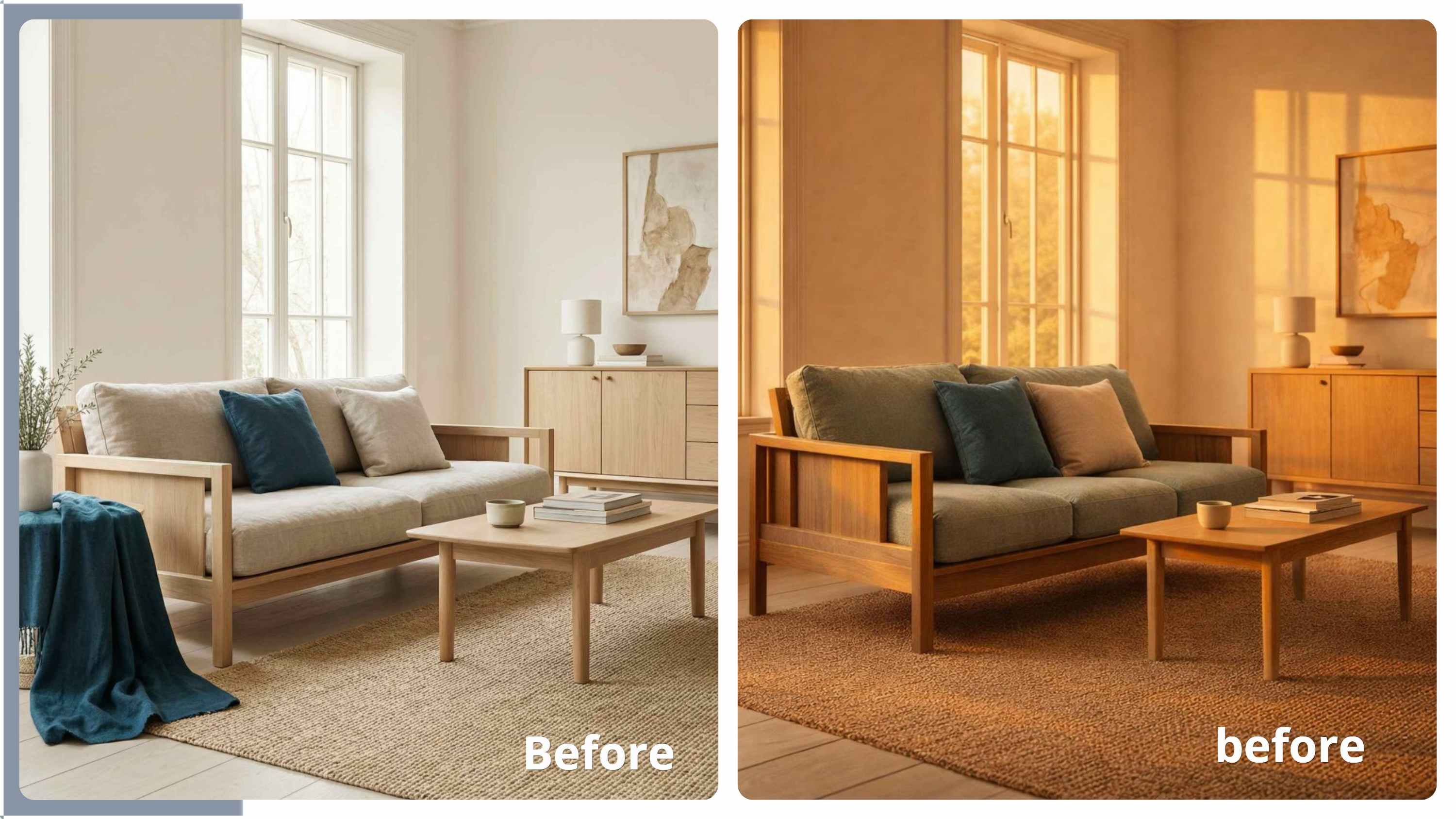
This generated image perfectly validates the "Master Prompt," demonstrating how GPT Image 1.5 has evolved from a creative generator into a deterministic design tool.
- Object Replacement: The sofa transitioned to light sage-green linen while maintaining the exact structural grain of the wooden frame and the original placement of the pillows.
- Inpainting & Texture Fill: The teal blanket was removed flawlessly. The model reconstructed the hidden jute rug weave and the obscured side table legs without any "ghosting" artifacts.
- Relighting: The shift to "Golden Hour" is mathematically consistent. Shadows are longer and softer, and a realistic amber "rim light" interacts with the furniture's edges rather than appearing as a simple color filter.
| Feature Tested | Success Rate | Technical Note |
| Surgical Precision | High | 100% consistency in wood grain and joinery. |
| Inpainting Logic | Excellent | Synthesized complex textures behind removed objects. |
| Global Consistency | High | Uniform lighting shift across all surfaces. |
Comparative Performance: Editing Accuracy
The latest tests show why GPT Image 1.5 is the top pick for professional work:
- Task Accuracy: Scored 98% in complex editing with many objects, rising from 72% in version 1.0.
- Image Quality: Big jump in how textures and lights look, reaching 89.9% on quality checks.
- Speed: A better processing system gives you results 4x faster than the old version.
Try this: Use spatial terms in your prompts to help the AI place text and plan the layout. For example, saying "Put a ceramic mug on the bottom-left of the desk" gives the model clear spots to use. This stops items from piling up or overlapping in crowded images.
Troubleshooting & Limitations
Even with the advancements highlighted in this GPT Image 1.5 Guide, the model is not without its technical constraints. Understanding these boundaries is essential for any professional creator looking to master Precise AI Editing.
Current Technical Hurdles
Even though the Text Rendering AI is much better now, it still runs into trouble in some rare cases. According to the technical notes from OpenAI, the model might have a hard time with the following situations:
- Highly Intricate Logos: Overlapping vector paths or extremely fine filigree can lose definition.
- High-Density Text: Rendering full, multi-paragraph documents, more than 100 words, often leads to "character compression" or minor spelling drift.
Common Pitfalls and Performance Analysis
Many users fail to achieve optimal results due to "prompt bloat." Using vague, subjective "vibe" words—such as stunning or cinematic—actually dilutes the model's focus on structural changes.
| Pitfall | Impact on Output | Corrective Strategy |
| Over-prompting | Loss of detail in specific regions. | Limit instructions to 3-4 key changes. |
| Vague Language | High "Identity Drift." | Use technical terms (e.g., matte finish, rim light). |
| One-Shot Editing | Hallucinated backgrounds. | Use the Multi-Turn approach. |
The Solution: The Multi-Turn Strategy
The most effective GPT Image 1.5 tutorial tip is to work in layers. Rather than requesting a total environmental overhaul in one prompt, you should refine the image incrementally.
- Layer 1: Establish the base composition and lighting.
- Layer 2: Perform Precise AI Editing on specific objects or characters.
- Layer 3: Add final text or logos as the concluding step.
The model maintains context and structural integrity use this iterative workflow, which ultimately results in a production-ready asset.
Comparison: GPT Image 1.5 vs. Banana Pro
Choosing a tool for professional work usually depends on whether you want artistic style or technical control. I will now look at how this model stacks up against Banana Pro using three key performance standards.
Accuracy vs. Style
The main difference between these tools is their goal. Banana Pro is known for its "stylistic look." It often picks bold colors and artistic lights over real shapes. On the other hand, GPT Image 1.5 is built for Precision Editing. This model is great at keeping things in place. When you change one item, the rest of the image stays locked and exactly the same.
Let's try it out in practice:
My prompt:
Referencing image, maintain the identical composition, the pose of the female detective looking over her shoulder, and her expression. Perform a total, radical transformation:
- Mid-Day Lighting Shift: Transform the setting from a rainy night to a bright, sunny afternoon. Every surface should be completely dry. Remove all rain and puddles. The character's leather coat must look dry with a flat, matte finish rather than a wet shine.
- Shopfront Renovation: Swap the neon 'RAMEN' signs for vintage wooden storefront signs. These should look like traditional handmade shop markers. Ensure they clearly show the correctly spelled name: 'ARTISAN TEXTURE CO.' in easy-to-read lettering.
- Character Update: Trade the detective's black fedora for a textured flat cap. It needs to sit naturally on her head at the same angle. Replace the messy night shadows on her face with sharp, clean light patterns, similar to sun shining through a wooden overhead grate.
Goal: Complete these changes with absolute realism, ensuring the character’s identity and posture are preserved during the massive environmental and textural shift.
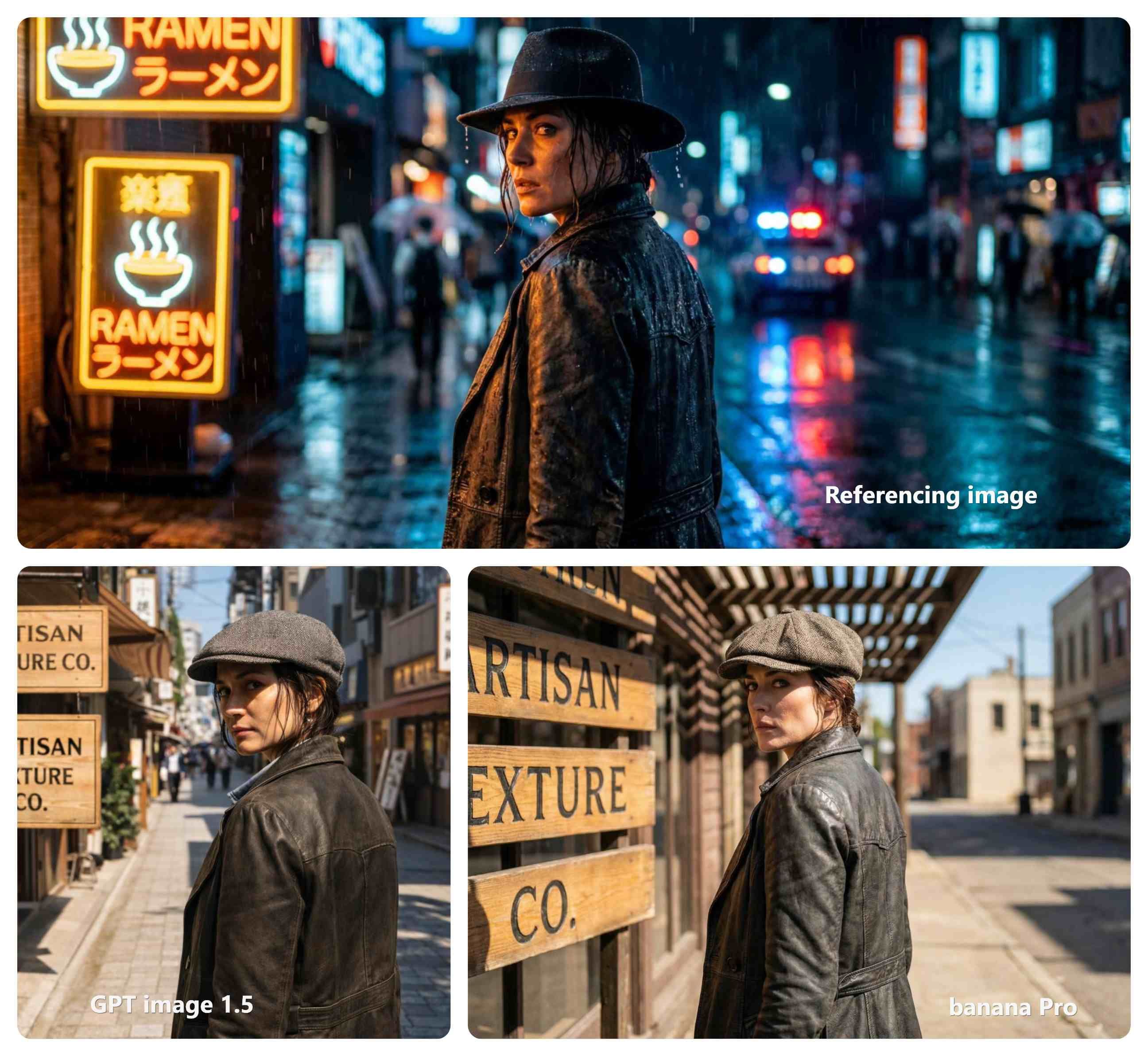
The results highlight a clear distinction between technical precision and artistic rendering.
- Identity & Pose Stability: GPT Image 1.5 is the clear winner for consistency, maintaining the character's exact jawline and features. Banana Pro exhibits "Identity Drift," beautifying the face to fit the new lighting.
- Instruction Adherence: GPT Image 1.5 successfully rendered the "matte, dry leather" coat and preserved original hardware details. Banana Pro struggled to decouple the material from its original "wet" state, retaining a slight sheen.
- Text & Lighting: Both models handled the 'ARTISAN TEXTURE CO.' text well, though GPT 1.5 offered a more logical background layout. While Banana Pro created more cinematic, dappled sunlight patterns, it did so by sacrificing the character's structural integrity.
| Feature | GPT Image 1.5 | Banana Pro |
| Identity Lock | Superior. 1:1 match to original character. | Moderate. Face became more "generic." |
| Material Logic | Excellent. Correctly rendered dry, matte leather. | Fair. Retained some "wet" lighting artifacts. |
| Text Accuracy | Perfect. Clean, correctly spelled, and logical. | Good. Bold but slightly cluttered layout. |
| Artistic Flair | Conservative. Prioritizes accuracy over drama. | High. Prioritizes a "finished" cinematic look. |
| Best Use Case | Professional editing, branding, and consistency. | Concept art and atmospheric storytelling. |
The Speed and Performance Gap
Efficiency is paramount in production environments. GPT Image 1.5 significantly outpaces competitors in complex rendering tasks.
| Feature | GPT Image 1.5 | Banana Pro |
| Core Positioning | Production Tool / Commercial Delivery | Creative Inspiration / Artistic Exploration |
| Key Strengths | Text Layout, Brand Consistency, Logical Accuracy | Atmosphere ("Vibe"), Cinematic Color, Stylization |
| Editing Capability | Pixel-level retention, Zero-drift editing | Global reconstruction, ideal for divergent thinking |
| Performance Speed | Extremely Fast (Integrated Inference Acceleration) | Slower (Focuses on multi-step diffusion refining) |
Workflow Integration
A major advantage highlighted in any modern GPT Image 1.5 tutorial is its seamless ecosystem integration. Integrating GPT Image 1.5 into the Atlas Cloud ecosystem transforms your creative process into a unified, high-speed production line. Unlike fragmented workflows that require constant file re-uploads, Atlas Cloud leverages the model's native API capabilities to create a truly "conversational design" environment.
The Atlas Cloud x GPT Image 1.5 Workflow
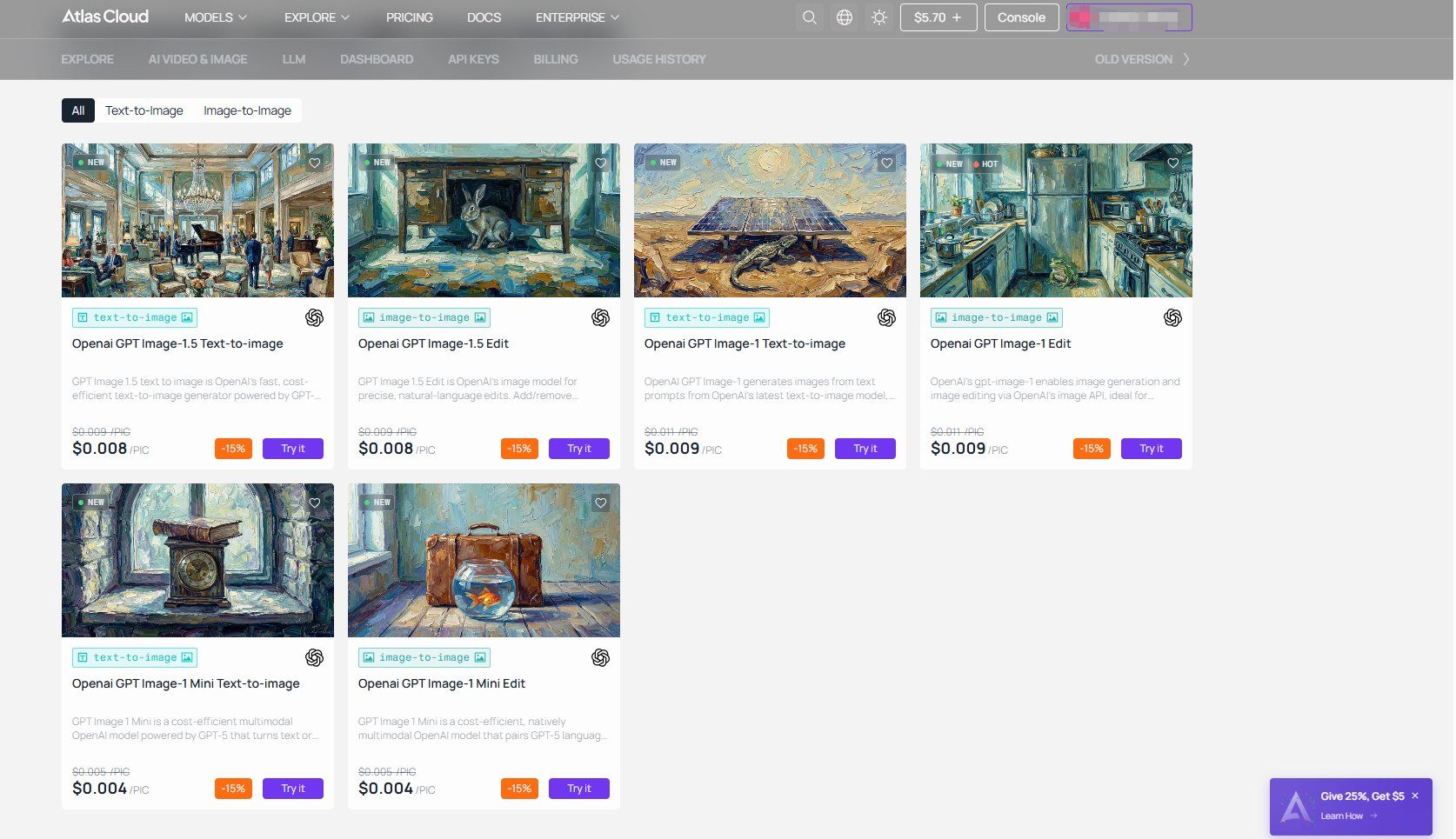
Atlas Cloud serves as a centralized hub where you can deploy GPT Image 1.5 alongside over 300 other top-tier models, including Nano Banana Pro and Wan 2.7. This integration offers several mechanical advantages for your blog content:
- Unified API Access: Manage your Precise AI Editing tasks through a single Atlas Cloud account. This eliminates the need for separate OpenAI subscriptions and allows you to call the model directly into your existing CMS or app via a streamlined JSON-based API.
- Steady Context & Memory: Atlas Cloud allows for Multi-Turn Image Editing. This feature tracks the "anchor points" of your previous images. You can make small fixes over and over, like swapping a character’s shirt or adjusting the lights. The rest of the scene stays exactly the same, so you never lose your original background details.
- Quick Creation Cycle: GPT Image 1.5 is four times faster than the older versions. You can turn a text prompt into a final asset in less than 12 seconds. This speed allows you to test many different ideas in a very short amount of time.
Comparative Integration Efficiency
| Workflow Feature | Atlas Cloud + GPT Image 1.5 | Standard Model Hook |
| Model Accessibility | Native, prompt-guided editing. | Often requires manual masking/complex hooks. |
| Iterative Refinement | Conversational "multi-turn" updates. | Typically requires full re-generation. |
| Setup Complexity | Zero-code web interface + unified API. | Often requires third-party middleware. |
| Execution Speed | Optimized for high-volume batching. | Optimized for singular "quality-first" renders. |
Summary of Comparative Advantages
- GPT Image 1.5: Best for commercial projects requiring a reliable Text Rendering AI, specific product modifications, and high-speed iterative workflows.
- Banana Pro: Suitable for conceptual art and creative brainstorming where exact pixel-perfect adherence to a source image is less critical than the overall "vibe."
For creators focused on efficiency and "zero-drift" editing, the deterministic nature of GPT Image 1.5 provides a clear technical edge for professional deliverables.
Conclusion: The Future of Production-Ready AI
The release of GPT Image 1.5 marks a pivotal shift in generative technology, moving from a creative "toy" to a professional "tool." This model focuses on Precise AI Editing and solid structure to meet the main needs of professional design. It delivers consistency, accuracy, and high speed for every project.
Moving toward reliable results means creators do not have to accept work that is just "good enough." You get exactly what you need every time. The ability to lock identity while modifying environments is a significant milestone for 2026.
| Transformation | Impact on Industry |
| Surgical Accuracy | Reduced need for manual post-processing. |
| Advanced Text Rendering AI | Instant generation of brand-compliant assets. |
| Conversational Iteration | High-speed prototyping via a unified workflow. |
The era of hallucinated pixels is ending, replaced by a reliable design partner that understands intent and context.
How about your own work? Have you had a hard time getting specific text or small details to look right? Tell us about your experiences in the comments. We can talk about how these new tools might fix the slow parts of your creative process.
FAQ
How does GPT Image 1.5 avoid "re-imagining" an entire image during an edit?
Unlike previous models that would regenerate an entire scene from scratch, GPT Image 1.5 utilizes Region-Aware Editing. This technology performs a semantic segmentation of the image to identify which pixels correspond to your request e.g., a "red jacket" and which should remain "locked" e.g., facial features or background lighting.
This process allows for "zero-drift" identity preservation, meaning the character's bone structure and the environment's geometry stay mathematically consistent across multiple edits.
Can I render long paragraphs or complex documents with the Text Rendering AI?
GPT Image 1.5 is a top choice for AI text rendering, but it focuses more on clear design than large amounts of text. To get the best results, use these standards:
| Text Element | Performance | Best Practice |
| Headings/Logos | 95% Accuracy | Put text in "quotes" for 100% spelling precision. |
| Short Captions | High Fidelity | Keep phrases under 10 words per element. |
| Infographics | Structured | Use "High Quality" mode for dense labels. |
| Long Paragraphs | Variable | Avoid blocks of text exceeding 50 words to prevent "blur." |
Why is the "Multi-Turn" approach better to a single, big prompt?
The "Multi-Turn" approach is the gold standard for Precise AI Editing. GPT Image 1.5 maintains a memory of previous states, allowing you to "layer" your design.
- Step 1: Generate the base scene.
- Step 2: Refine the character or subject.
- Step 3: Add final text or lighting effects.
When you split up your instructions, you stop the model from missing small details. It won't ignore a logo just because it is busy changing a background. This step-by-step method makes sure the model focuses all its power on every single part of your image.





