

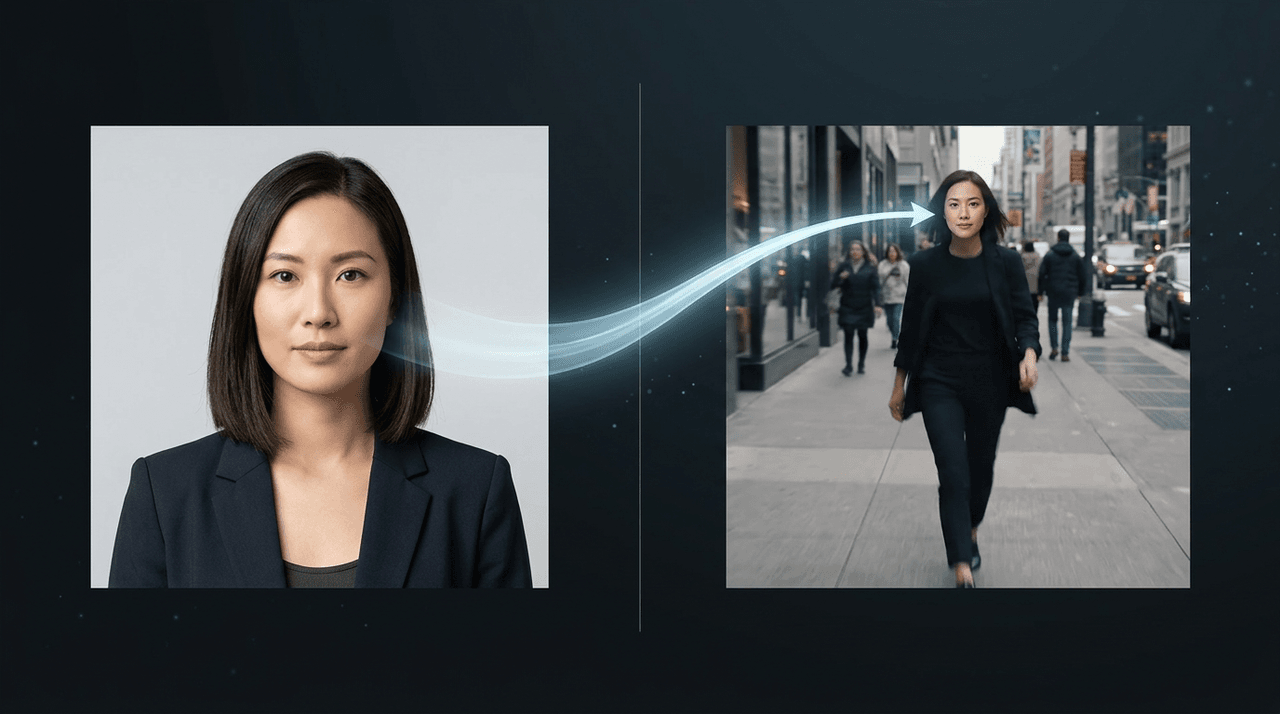
PixVerse face swap takes a video you already have, lets you point at one element in it, and replaces that element with whatever you upload as a reference image. The motion, timing, and camera work stay put. The face, or the whole person, changes. That's the entire pitch, and it's why the feature shows up in so many "actor recast" and "put me in this scene" clips.
This guide is built from PixVerse's own platform docs and live pricing from the API hosts that run the model. It covers what the tool does, the three swap modes, how to run it step by step, what a clean result actually requires, and where an API route makes sense once you're doing this at volume.
Key Takeaways
- PixVerse Swap replaces a person, object, or background in a video using a single reference image, while keeping the original motion and camera intact (PixVerse Platform Docs, 2026).
- Source videos can be up to 30 seconds, 1920p, and 50MB, in MP4 or MOV.
- split into the two real billing lines — 2 credits mask selection + 9 credits/s (360p/540p) / 12 credits/s (720p) render, no 1080p tier.
- There's no dedicated swap endpoint on Atlas Cloud, but its hosted PixVerse V6 reference-to-video model locks a subject's face across frames from up to 7 tagged references, starting at $0.025/sec.
How Does PixVerse Face Swap Work?
You give it a video and one image, and it does a targeted replacement rather than regenerating the whole clip. According to PixVerse's platform documentation, you select a frame, mark the object you want to change, upload a target image, and the system renders a new video with that element swapped in. Everything you didn't select, the body movement, the lighting, the camera path, is preserved.
The important detail is that this is editing, not generation from scratch. A text-to-video model invents motion. Swap keeps the motion that's already there and only changes appearance. That's why a face swap done this way tends to hold body language and timing that a fresh generation would lose.
Source clips have hard limits worth knowing before you start: MP4 or MOV, up to 30 seconds, up to 1920p, and a 50MB file cap.
PixVerse Swap Modes: Person, Object, and Background
PixVerse Swap isn't only a face tool. It runs in three modes, and picking the right one is half the job.
| Mode | What it replaces | Common use |
|---|---|---|
| Person | The human subject, including face and clothing | Actor recast, character preview, face swap |
| Object | A non-human element in the frame | Product swaps, prop changes |
| Background | The entire scene behind the subject | New setting, relight, environmental change |
A face swap is really Person mode aimed at one subject. The model keeps body movement and facial orientation from the original and maps your reference onto it. That's a different job from Background mode, which holds the person and motion steady while replacing everything behind them.
PixVerse AI Face Swap at Scale: The Atlas Cloud API Route
If you're swapping one clip for fun, PixVerse's own app is the fastest path. If you're wiring pixverse ai face swap into a product or generating at volume, you'll want a metered API instead of a consumer credit plan, and that's the gap Atlas Cloud fills.
One honest caveat first: Atlas Cloud doesn't host a dedicated Swap endpoint today. What it does host is the underlying PixVerse model family, V6 and C1, on one pay-as-you-go API. The most relevant piece for identity work is PixVerse V6 reference-to-video, which takes up to seven tagged reference images and locks a subject's face and looks across every frame it generates. That's the programmatic way to keep a specific face consistent when you're producing clips at scale, rather than editing one existing video by hand.
The reasons builders route through it:
- True pay-as-you-go. No monthly floor. V6 starts at $0.025/sec, and reference-to-video runs about $0.060/sec at 720p with audio.
- One API, many models. Swap pixverse/v6 for Seedance, Kling, or Vidu on the same calling convention to compare identity consistency without a second contract.
- Watermark-free, day-0 access. New PixVerse versions land at launch, output is clean at every tier.
So the split is simple: use PixVerse's Swap tool to edit a video you already have, and use Atlas Cloud's reference-to-video API when you need to generate identity-consistent clips programmatically.
How to Use It on Atlas Cloud
Option 1 — in the browser, no code. Log in to Atlas Cloud and open the reference-to-video model page: upload your reference images, tag each as subject or background, write the prompt, and generate right on the page.
Option 2 — through the API, three steps:
- Get your API key. Create one in the console dashboard and copy it.
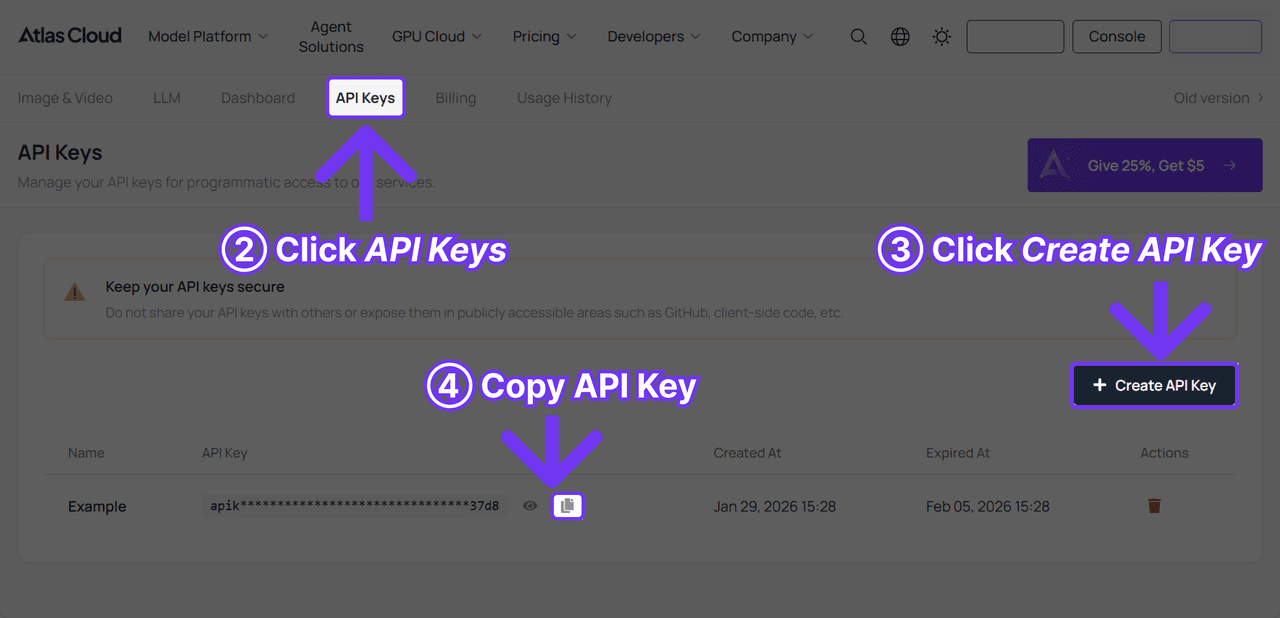
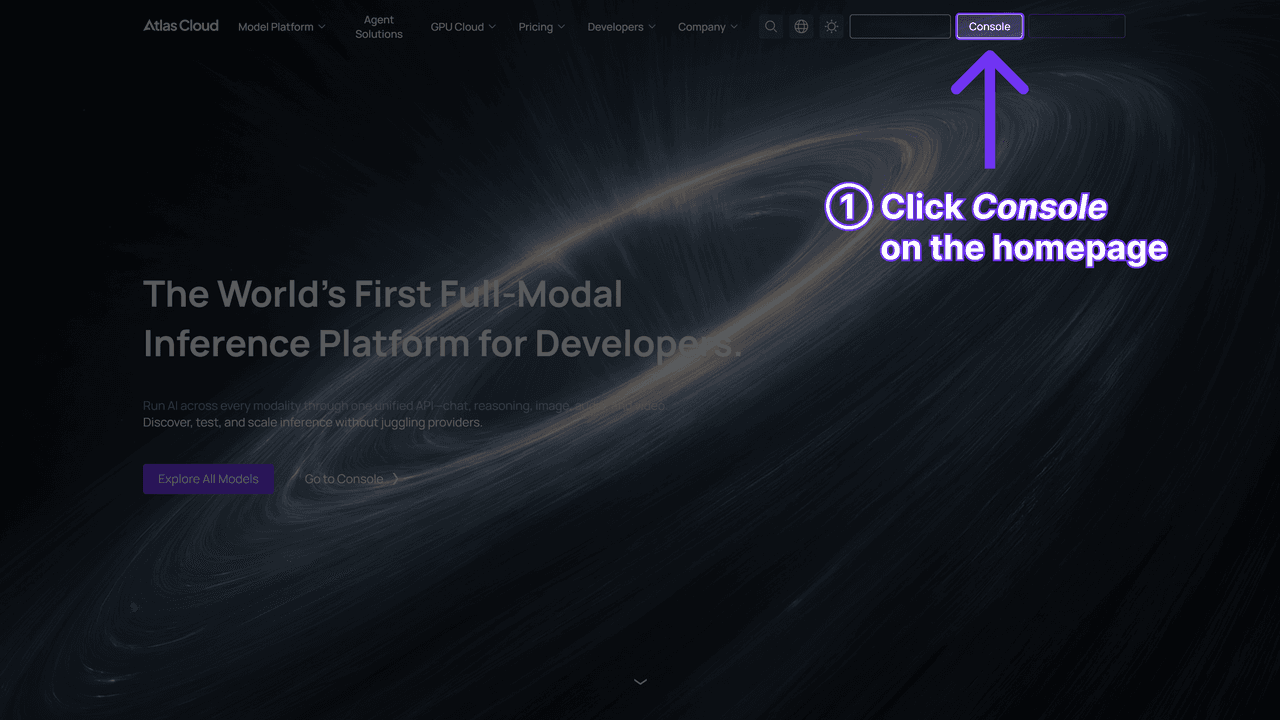
- Check the API docs for the endpoint, request parameters, and authentication.
- Send your first request. One API, one calling convention for every model on the platform. When a new model lands, you switch by changing the model name in the request, pixverse/v6 to Seedance, Kling, or Vidu, no re-integration, which also makes A/B-testing identity consistency across models a one-line change.
So the split is simple: use PixVerse's Swap tool to edit a video you already have, and use Atlas Cloud's reference-to-video API when you need to generate identity-consistent clips programmatically.
What Does PixVerse Face Swap Cost?
It depends entirely on which door you use, and the numbers aren't close.
On PixVerse's own platform, a swap is billed in two parts. Mask selection is a flat 2 credits per request, and the swap render itself is metered per second by resolution: 9 credits/sec at 360p and 540p, 12 credits/sec at 720p, with no 1080p tier. So a 5-second 720p swap costs 2 + (5 × 12) = 62 credits. In dollars, PixVerse's cheapest API plan is $100/month for 15,000 credits, about $0.0067 per credit, which puts that 62-credit swap at roughly $0.41 per clip, on top of the $100 monthly minimum.
On Atlas Cloud, there's no swap endpoint, but the reference-to-video path that does identity-locked generation is metered per second, from $0.025/sec on V6 up to roughly $0.060/sec at 720p with audio, no monthly minimum. For a developer generating consistent-face clips in volume, per-second billing scales more predictably than a per-clip swap fee that doubles past five seconds.
If you want the fuller picture on the model powering all of this, the PixVerse V6 review breaks down the per-second rates against PixVerse's own $100-a-month API floor.
How to Use PixVerse AI Swap in the Web App
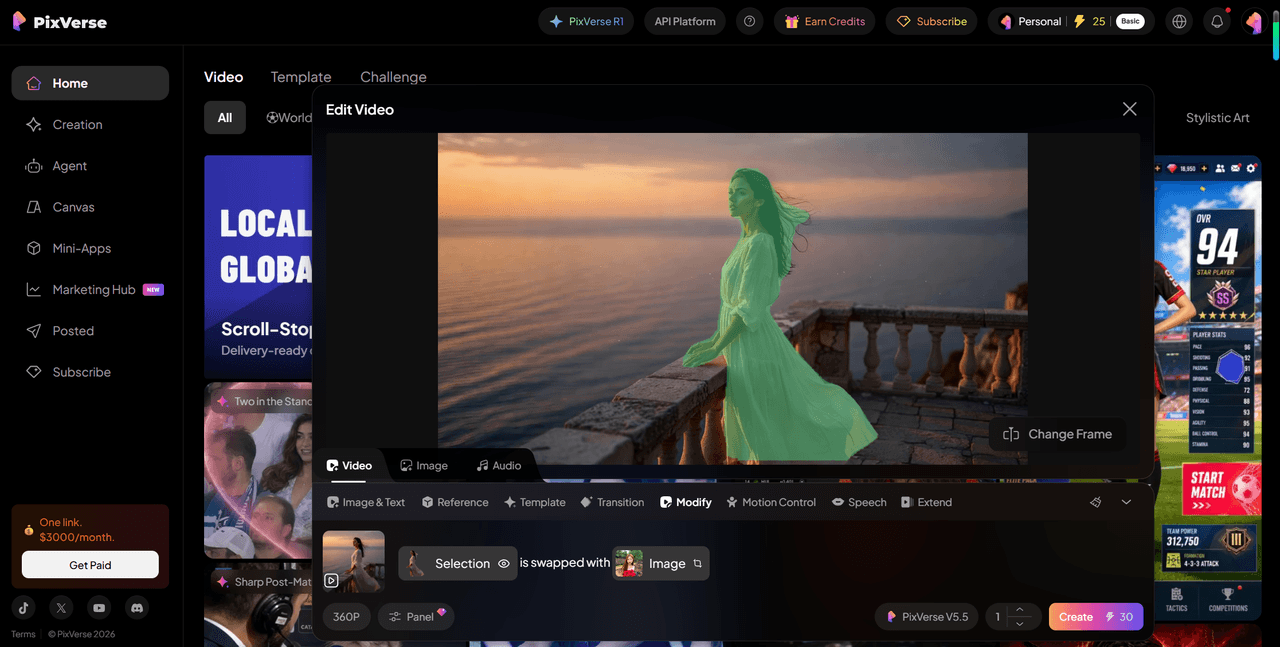
Everything happens inside the Modify tool at app.pixverse.ai:
- Open Modify. On the home screen, stay on the Video tab and pick Modify in the creation bar.
- Upload your video into the player slot (MP4/MOV, up to 30 seconds, 1920p, 50MB). Use Change Frame if the default keyframe isn't the moment you want to edit from.
- Type @ in the prompt box. A three-tab menu pops up: Selection, Image, and Mode. Under Selection, the app has already segmented your frame into clickable objects, the person, individual objects, the background, plus a Custom option to draw your own region and a Retry to re-run detection. Click the person.
- Add the new face. Switch to the Image tab and upload your reference image.
- Pick Swap and generate. Under Mode, choose Swap (the other modes, Add, Remove, Restyle, cover different edits), then hit Create. The app renders and shows the result; a typical 5-second run costs at least 25 credits.
No masks to draw, no IDs to track. The auto-detected object list under Selection is the mask step, just rendered as a menu.
Getting a Clean PixVerse Face Swap: Reference Image Rules
The single biggest predictor of a good result is matching the reference pose to the video. PixVerse's docs are direct about it: a frontal face swap needs a frontal reference, and a profile shot needs a profile reference. Hand the model a straight-on headshot for a subject filmed in three-quarter profile and the geometry won't line up.
Two more things help:
- Match the head angle and framing, not just the direction. A tilted head in the clip wants a similarly tilted reference.
- Use a clean, well-lit reference. Harsh shadows or a busy background give the model less reliable signal to map onto the moving subject.
None of this is exotic. It's the same rule that governs every AI face tool: the closer your input is to the target's geometry, the less the model has to guess.
Where PixVerse Face Swap Falls Short
Two real limits. First, it's bounded by that pose-matching rule: swaps degrade fast when the reference and the subject don't share a similar angle, and you often don't know until credits are already spent. Second, the 30-second and 50MB source caps mean it's a short-clip tool, not something for long-form footage without splitting it first.
It also isn't a magic identity transfer. Person mode maps appearance onto existing motion well, but fine facial expression tied to the original performance can shift, which matters more for close-up dialogue than for wide action shots.
Frequently Asked Questions
What is PixVerse face swap?
It's PixVerse's Swap feature used in Person mode: you upload a video and a reference image, mark the subject, and the model replaces that person's face and look while keeping the original body motion, timing, and camera intact.
What video length and size does PixVerse Swap support?
Source videos can be MP4 or MOV, up to 30 seconds long, up to 1920p resolution, and no larger than 50MB. Longer footage has to be split before swapping.
Can I run PixVerse swap through an API?
Yes. PixVerse exposes Swap through its own developer API. For programmatic identity-consistent generation rather than editing an existing clip, Atlas Cloud's PixVerse V6 reference-to-video endpoint locks a face across frames using up to seven tagged references.
How much does a PixVerse AI face swap cost?
On PixVerse's platform it's billed in two parts: 2 credits for mask selection, plus a per-second render of 9 credits/sec (360p/540p) or 12 credits/sec (720p), with no 1080p option. Atlas Cloud has no swap endpoint but offers identity-locked reference-to-video from $0.025/sec.
Why does my PixVerse face swap look wrong?
Almost always a reference mismatch. The reference image's head angle and pose need to match the video subject, frontal for frontal, profile for profile. A clean, evenly lit reference at the right angle fixes most bad results.
Conclusion
PixVerse face swap is a focused, genuinely useful tool: it edits one element into an existing video without throwing away the motion that makes the clip work. The three modes cover most real jobs, the workflow is short, and the quality mostly comes down to one discipline, matching your reference image to the subject's pose.
Decide by use case. For a one-off edit of footage you already have, PixVerse's own Swap tool is the direct path. For generating identity-consistent clips at volume through code, the reference-to-video route on Atlas Cloud bills per second with no monthly minimum and lets you A/B other models on the same API. Match the tool to the job and neither the credits nor the render time gets wasted.





