A character finally looks right. The lighting, the motion, the framing, all of it works. Then the mouth moves and nothing lines up with the words. The whole clip breaks in that one moment.
That mismatch is the exact problem PixVerse Lip Sync was built to fix. It takes a video and an audio track and matches mouth movement to sound, so speech, singing, or narration reads as real rather than dubbed. This guide covers how the pixverse ai lip sync feature actually works, what it costs, and where it still falls short in 2026.
Key Takeaways
- PixVerse's Speech (Lip Sync) feature analyzes audio and mouth movement together and re-renders the video so they match, supporting speech, singing, and ads in multiple languages.
- Source video is capped at 30 seconds, 1920p, and 50MB in MP4 or MOV; audio can be your own MP3/WAV file or PixVerse's built-in text-to-speech, capped near 140 characters per request.
- On PixVerse's own platform, lip sync runs 4 credits per second of audio, or 4 credits per 15 bytes of TTS text, on top of whatever the source video already cost.
- Atlas Cloud doesn't host a standalone re-dub endpoint, but PixVerse V6 and C1 generate synced speech and mouth movement natively during creation, at $0.035/sec (V6) or $0.04/sec (C1) at 360p with audio.
What Is PixVerse Lip Sync?
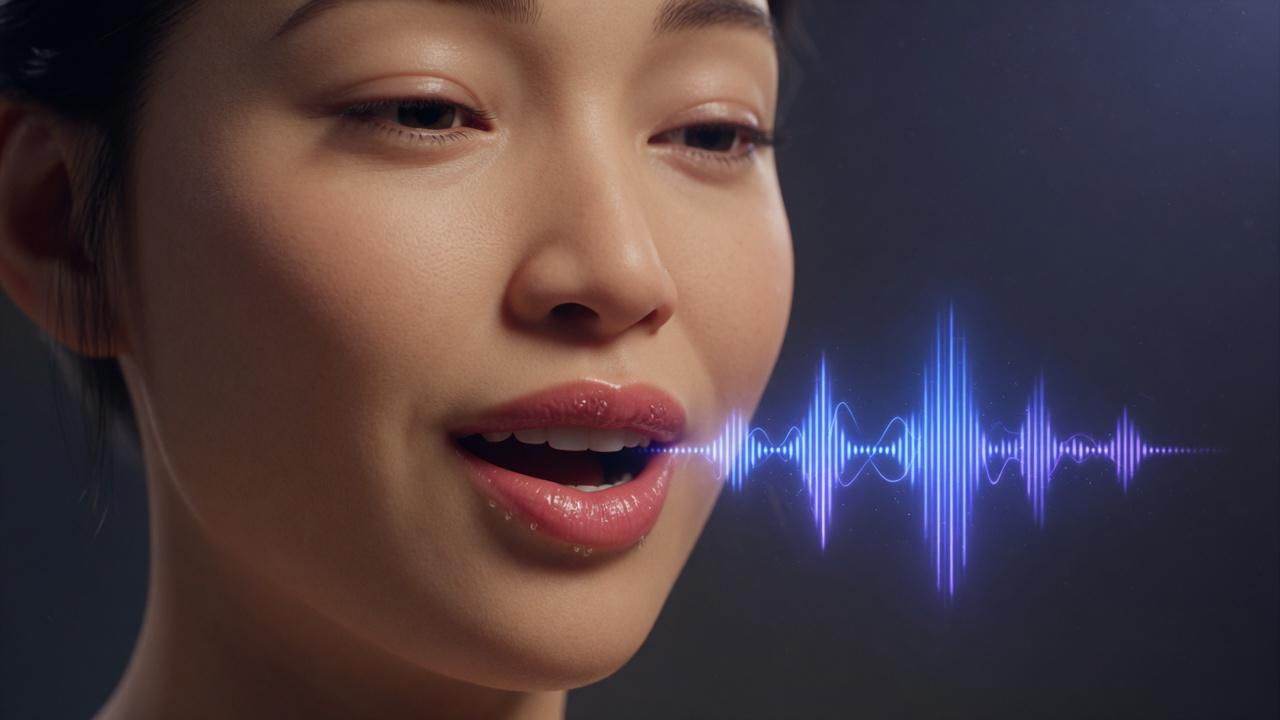
PixVerse lip sync, officially the Speech (Lip Sync) feature, takes a video and an audio source and re-renders the mouth so it matches what's being said. According to PixVerse's platform documentation, the system analyzes the audio and the speaker's existing mouth movement together, then corrects the mismatch. It works across speech, singing, and ad-style narration, in multiple languages.
You can feed it a video you already have, or a video PixVerse just generated for you. Either way, the inputs and outputs follow the same hard limits.
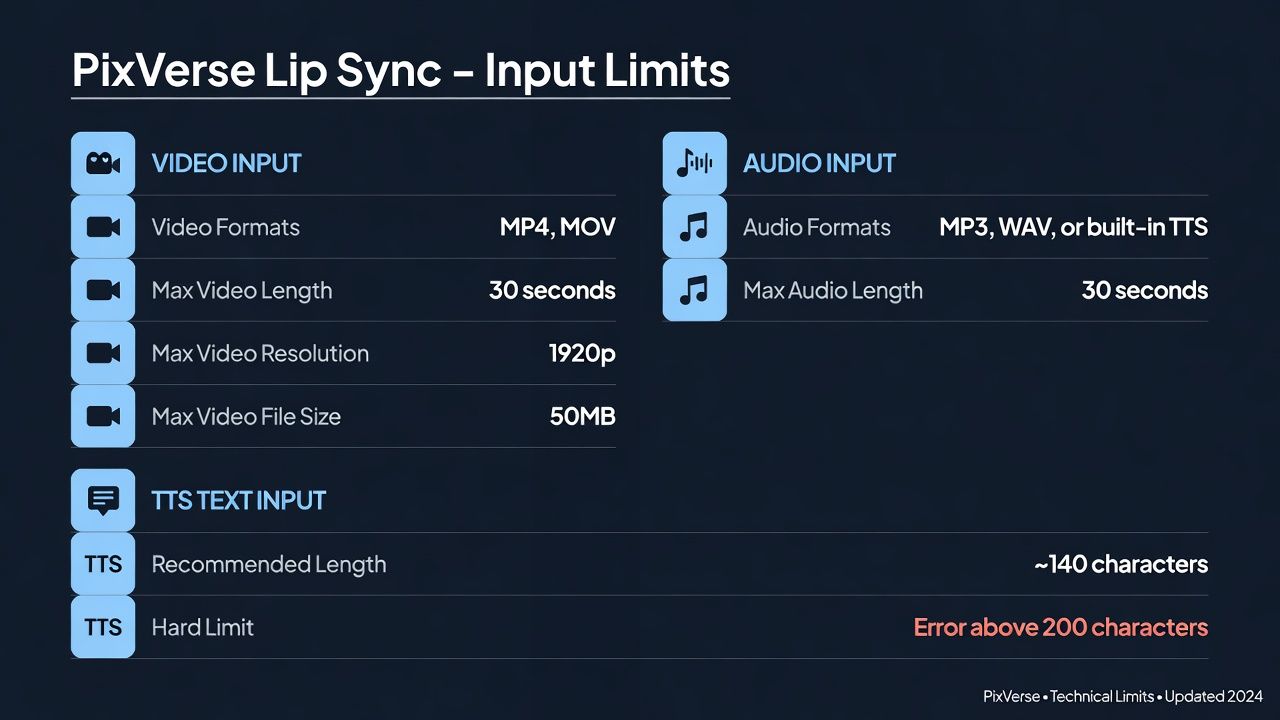
Anything longer than 30 seconds needs to be split first. There's no partial workaround for that cap today.
Who Uses PixVerse AI Lip Sync and Why?
The feature shows up anywhere a still image or a silent clip needs to say something. The common thread across all of them is the same: match a voice to a face without reshooting anything.
| Use case | What lip sync solves |
|---|---|
| Dubbing and localization | Re-voice a clip in a new language without a reshoot |
| Talking avatars | Turn a static portrait into a speaking presenter |
| Social clips | Add narration or a voiceover line to existing footage |
| Music and singing clips | Match mouth movement to a vocal track, not just speech |
| Ad voiceovers | Sync a brand's script to a character already on camera |
The dubbing use case is the one most guides skip. Because the feature works from any audio track in any supported language, a single source video can be re-synced multiple times, once per target language, without regenerating the footage itself. That's a meaningfully cheaper localization loop than reshooting or hiring separate voice-match editors per market.
Running the PixVerse Lip Sync Feature at Scale With Atlas Cloud
Syncing one clip by hand in the PixVerse app is fine for a single post. Wiring pixverse ai lip sync into a pipeline that renders dozens of talking clips a day is a different problem, and it's the one Atlas Cloud is built to solve.
Here's the honest caveat first. Atlas Cloud has no standalone endpoint that re-dubs an existing video the way PixVerse's own Speech (Lip Sync) tool does. What it hosts instead is the full PixVerse model family. Both V6 and C1 generate synchronized speech and mouth movement natively, in the same pass as the video itself. You write a prompt, and the model produces a talking character with matching audio built in from frame one.
That's a different workflow than a retrofit tool. But it solves the same underlying job: getting a character on screen whose mouth matches the words, watermark-free at every tier, with new PixVerse versions available the day they ship.
What Does PixVerse Lip Sync Cost?
The billing models on the two routes don't line up cleanly, so here's the math side by side.
On PixVerse's own platform, the Speech (Lip Sync) endpoint bills 4 credits per second when you supply your own audio, or 4 credits per 15 bytes of UTF-8-encoded text when you use built-in TTS. That's on top of whatever the source video already cost. At the Essential API plan's rate of $100 for 15,000 credits, about $0.0067 per credit, a 5-second sync with your own audio runs roughly 20 credits, near $0.13, before the $100 monthly floor.
On Atlas Cloud, there's no separate sync fee at all. Audio and mouth movement are generated together with the video, and the whole clip bills per second with no monthly minimum: V6 starts at $0.025/sec without audio and $0.035/sec with it at 360p, so a 5-second talking clip runs $0.175 all-in. The multi-shot C1 variant runs slightly higher, $0.04/sec with audio at 360p.
| Route | Billing basis | 5-second talking clip |
|---|---|---|
| PixVerse platform (Speech/Lip Sync) | 4 credits/sec of audio, on top of the source video's own cost | 20 credits ($0.13) + $100/mo API floor |
| Atlas Cloud (native audio at generation) | Per-second by resolution, video and audio in one price | $0.175 at V6 360p with audio |
Line the two up and the pattern is clear: per-second pricing beats a prepaid credit floor once you're rendering more than a handful of clips a month. PixVerse's own $100 minimum only pencils out once you're using a meaningful share of those 15,000 credits every cycle. For a deeper teardown of V6's full rate card, the PixVerse V6 review runs the per-second math against every resolution tier.
How to Use It on Atlas Cloud
Option 1: in the browser, no code. Log in to Atlas Cloud and open the PixVerse V6 text-to-video playground: describe the scene and the line you want spoken in the prompt, leave the sound toggle on, pick duration and resolution, and generate right on the page.
Option 2: through the API, three steps:
-
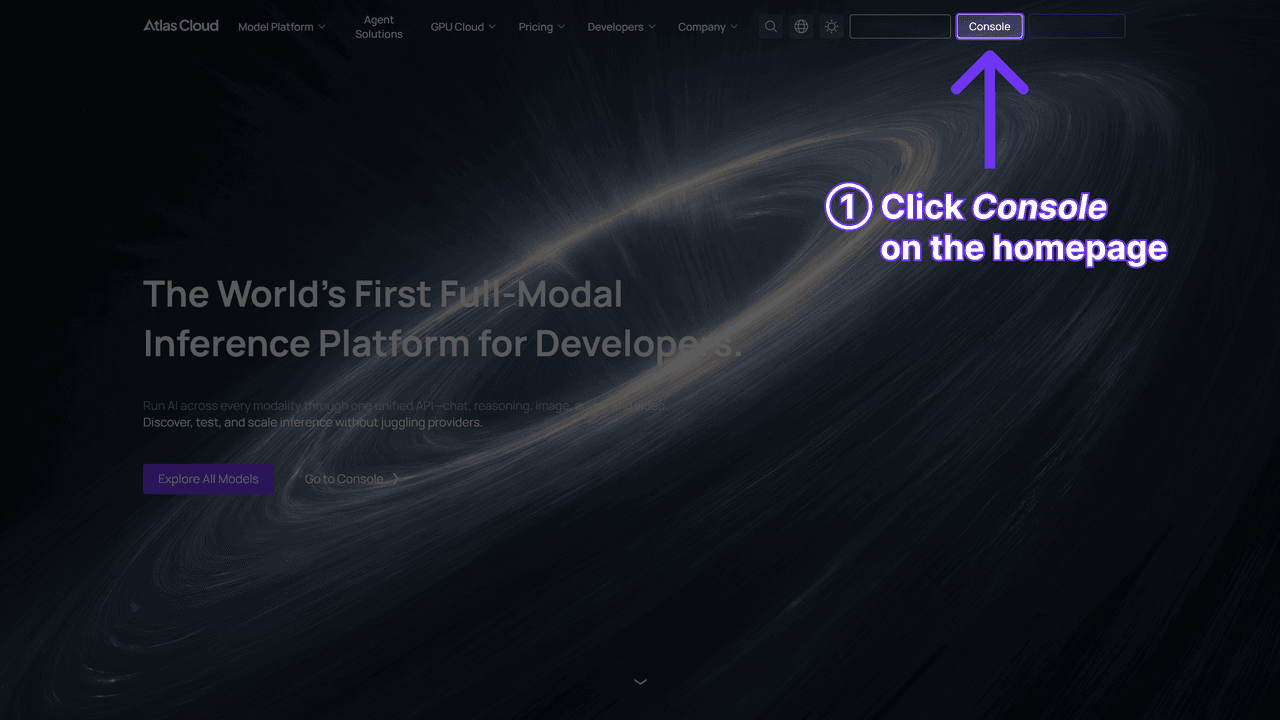
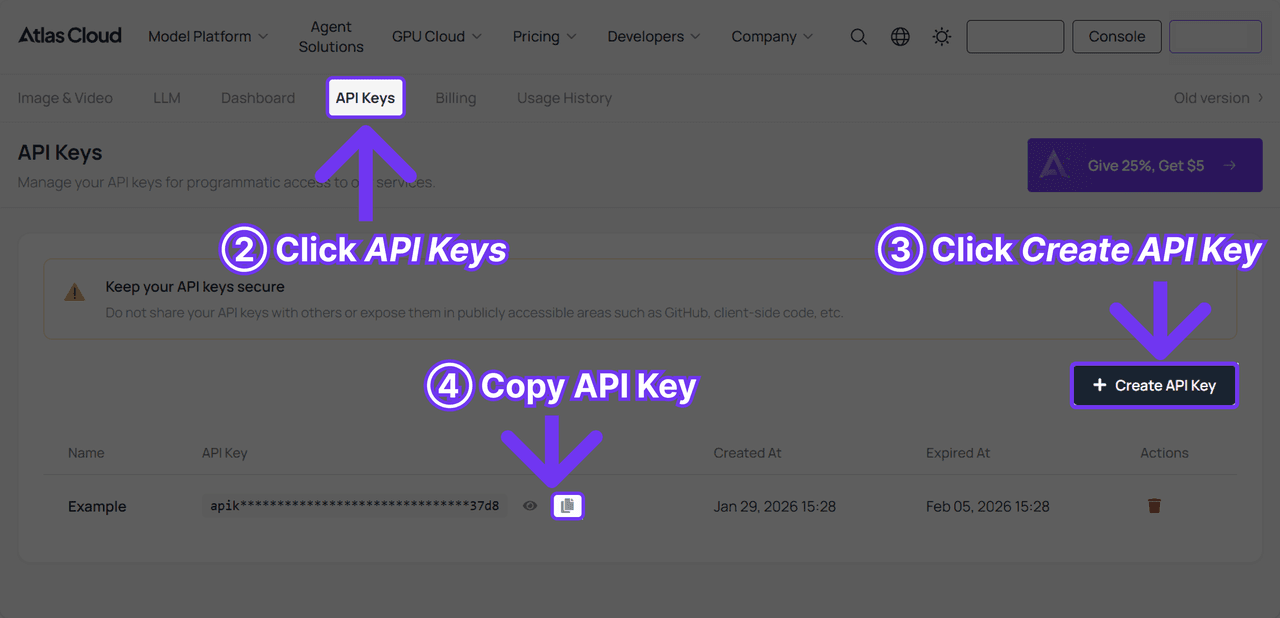
Get your API key. Create one in the console dashboard and copy it.
-
Check the Atlas Cloud API docs for the endpoint, request parameters and authentication.
-
Send your first request. One API, one calling convention for every model on the platform. When a new model lands, you switch by changing the model name in the request,
pixverse/v6to Seedance, Kling, or Wan, no re-integration, which also makes A/B-testing native audio quality across models a one-line change.
How Does the Sync Process Actually Work?
Back on PixVerse's own platform, two paths lead to the same result. You can supply your own audio file, or type text and let PixVerse's TTS voice speak it for you. Both run through the same endpoint, just with different inputs.
PixVerse's how-to guide lists four valid combinations. Each one ends at the same place: one video ID, one audio source, and the system does the matching.
| Video source | Audio source |
|---|---|
| Already-generated PixVerse video | Your own uploaded audio |
| Already-generated PixVerse video | Built-in TTS text |
| Freshly uploaded video | Your own uploaded audio |
| Freshly uploaded video | Built-in TTS text |
The mechanics are simple. Upload the video, upload or generate the audio, submit the pairing, then poll until the render finishes. One documented catch: TTS audio that runs longer than the video gets truncated rather than stretching the clip, so time your line to the footage before submitting.
Tips for Cleaner PixVerse Lipsync Results
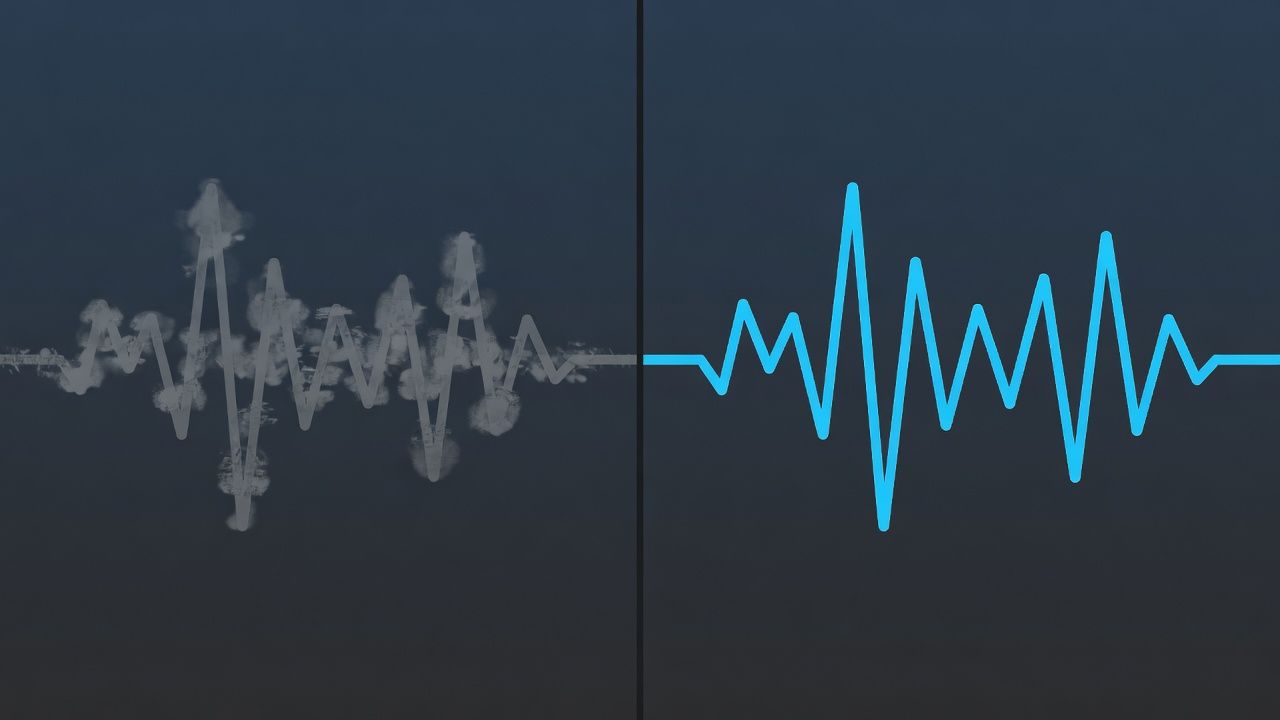
Audio quality is the single biggest lever. PixVerse's own documentation is direct about it: the audio needs to be clear for the mouth-matching to land correctly. A noisy recording or a mumbled TTS line gives the model less signal to work from.
Two habits that make a real difference:
- Size the script before you render. Keep each TTS line near the 140-character mark and timed to the clip's length, so nothing errors out or gets cut mid-word. A longer script becomes several sync calls, one per clip segment.
- Pick source footage where the mouth is clearly visible. A profile shot or a partially obscured face gives the model less to sync against than a clean, front-facing frame.
None of this is exotic. It's the same discipline that governs every audio-driven video tool: clean input in, clean sync out.
Where PixVerse Lip Sync Falls Short
Two limits show up fastest in practice. The 30-second, 50MB source cap turns this into a short-clip tool, not something for a full monologue without splitting the footage first. And the TTS character cap means a real script needs several sync calls chained together rather than one pass.
It's also not a full performance transfer. The feature matches mouth shape to sound well, but it doesn't touch the rest of the performance, eyebrows, eye contact, head tilt, which still come entirely from the original footage. For close-up dialogue where the whole face carries the scene, that gap shows more than it does in wider shots.
Frequently Asked Questions
What is PixVerse lip sync?
It's PixVerse's Speech (Lip Sync) feature: you supply a video and an audio source, and the system analyzes both together, then re-renders the mouth to match what's being said. It supports speech, singing, and ad narration in multiple languages.
How much does the PixVerse lip sync feature cost?
On PixVerse's own platform it's 4 credits per second of audio, or 4 credits per 15 bytes of TTS text, on top of the source video's own cost. At the $100-for-15,000-credit Essential rate, a 5-second sync with your own audio runs about $0.13, before counting the plan's monthly minimum.
Can I use text-to-speech instead of uploading audio for pixverse ai lip sync?
Yes. PixVerse's built-in TTS generates the voice itself, no audio file needed. The parameter spec recommends keeping each line near 140 characters, and requests error out past 200, so longer scripts need to be split across multiple sync calls.
Does Atlas Cloud offer a PixVerse lip sync API?
Not a standalone re-dub endpoint. Atlas Cloud hosts PixVerse V6 and C1, which generate synchronized speech and mouth movement natively during text-to-video or image-to-video generation, at $0.035/sec for V6 and $0.04/sec for C1 with audio at 360p, rather than syncing new audio onto footage you already have.
What video length does the pixverse lipsync feature support?
Source video is capped at 30 seconds, 1920p resolution, and 50MB, in MP4 or MOV. Anything longer has to be split into shorter segments before it can be synced.
Conclusion
PixVerse lip sync solves a narrow, real problem well: making a mouth match a voice without reshooting anything. The 30-second cap and the TTS character limit keep it a short-clip tool, but for dubbing, talking avatars, and quick voiceover work, it's fast and the credit math is straightforward once you know the per-second and per-byte rates.
Pick your route by workflow. Syncing footage you already have is PixVerse's own job to do. Generating a talking character from scratch with audio built in from frame one is what PixVerse V6 on Atlas Cloud is for, and it bills per second with no monthly floor to plan around. For the surrounding prompt craft that makes either route land on the first try, the [PixVerse prompts guide](pixverse-prompts-guide.md) covers the phrasing that keeps renders from needing a second pass.





