The shot is right except for one stranger's elbow. Or a bin. Or a power line that slices straight through the sky. Your camera roll has one of these, and the question of how to remove an object from a photo on iPhone now has two honest answers instead of one.
Apple's Clean Up tool picked up a new set of models in iOS 27, which shipped on September 14, 2026, and it can take out bigger things than it could a year ago. It also still refuses to appear on 19 iPhone models that run iOS 27 without complaint. This guide covers the built-in route, then a Safari route with no app and no account, and closes with the two kinds of object that decide which route you want.

Key Takeaways
- Clean Up needs an iPhone 15 Pro or later. The 19 other iPhones on the iOS 27 list, from the iPhone 11 to the iPhone 15 Plus, do not get the tool.
- In iOS 27, Clean Up switches between Fast on the phone and High Quality on Apple's servers, and server edits count toward a daily limit that Apple has not put a number on.
- Circle a face and Clean Up pixelates it instead of removing it. Reports from iOS 18 onward describe this as built-in behaviour with no switch.
- On any iPhone running iOS 26 or later, Safari can run a brush-and-erase tool with no app, no account, and the photostayingon the phone.
- Both routes clear small background clutter. For a large object beside the subject, Clean Up reachesforHigh Quality, and the browser route relies on a generous loop plus a second pass.
Which iPhones Can Remove Objects From Photos Without an App?
Two routes need nothing from the App Store. One is the Clean Up tool inside Photos, which belongs to Apple Intelligence. The other is a web page in Safari that runs the AI model inside the tab. Which one you get to use comes down to the phone in your hand.
Apple publishes both lists. The iOS 27 compatibility page covers 33 iPhones, starting at the iPhone 11 and the second-generation SE. Apple Intelligence, per the footnote on the iOS 27 release announcement, runs on the iPhone 15 Pro and 15 Pro Max, iPhone 16 models or later, iPhone Air, and iPhone Duo. Subtract one list from the other and 19 phones are left with the OS update and no Clean Up.
| iPhone | Runs iOS 27 | Has Clean Up | Safari eraser |
|---|---|---|---|
| iPhone SE (2nd and 3rd generation) | Yes | No | Yes |
| iPhone 11, 11 Pro, 11 Pro Max | Yes | No | Yes |
| iPhone 12 mini, 12, 12 Pro, 12 Pro Max | Yes | No | Yes |
| iPhone 13 mini, 13, 13 Pro, 13 Pro Max | Yes | No | Yes |
| iPhone 14, 14 Plus, 14 Pro, 14 Pro Max | Yes | No | Yes |
| iPhone 15, 15 Plus | Yes | No | Yes |
| iPhone 15 Pro, 15 Pro Max | Yes | Yes | Yes |
| iPhone 16 series, 17 series, Air, 18 Pro | Yes | Yes | Yes |
If your phone sits in the first six rows, skip ahead to the Safari section. If it sits in the last two, the next section is for you, and the Safari route still earns a place as the fallback for edits Clean Up will not do.
How to Use Clean Up on iPhone in iOS 27
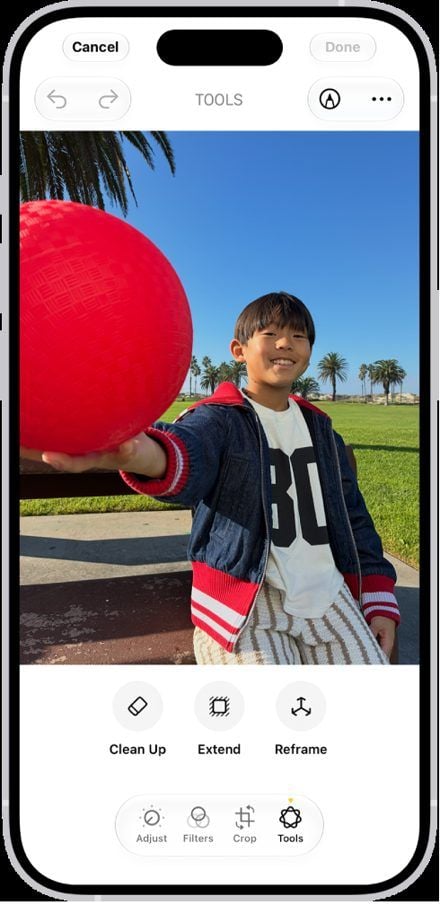
Clean Up lives inside the photo editor, under Tools. The steps below follow Apple's own guide for iOS 27, which also introduced the Extend and Reframe tools beside it.
- Open Photos, open the photo, and tap the Edit button.
- Tap Tools, then tap Clean Up.
- Tap, brush, or circle what you want gone. Photos highlights some items on its own so a single tap removes them. Pinch with two fingers to zoom in on small things.
- If you are on High Quality processing, tap Clean Up to run the edit.
- Tap Done, then Done again to close the photo.
Changed your mind a week later? Apple's guide says to open Edit, Tools, Clean Up again and tap Reset. The original comes back without you having kept a copy.

Image from Apple's iPhone User Guide for iOS 27, September 2026.
Apple Clean Up Tool Modes: Fast, High Quality, Auto
The iOS 18 tutorials predate this part. Apple's guide states that you can choose the processing type Photos uses for Clean Up, Auto, Fast, or High Quality, by tapping Auto during the edit. At WWDC in June 2026, Apple described Fast as the speed option, High Quality as the mode for more detailed reconstruction, and Auto as the system picking for you, as AppleInsider reported on June 9, 2026.
What the guide does not spell out is where each mode runs. TechRadar's Axel Metz tested the developer beta in July 2026 and found that High Quality "taps into Apple's own Private Cloud Compute servers", while Fast uses the on-device models that iOS 26 relied on.
That matters because of a line in Apple's own footnote: features that rely on server-side models are "subject to daily usage limits", and Apple names "Intelligent Photo Editing Tools" among them, adding that expanded access "will be available for a fee in the future". No number is published.
| Mode | Where it runs | Speed | Daily limit | Best for |
|---|---|---|---|---|
| Fast | On the phone | Faster of the two | No | Wires, small clutter, plain backgrounds |
| High Quality | Apple's servers, per TechRadar's beta test | Longer, with more battery use | Yes, per Apple's footnote | Large objects, busy textures |
| Auto | Either, chosen by Photos | Varies | Only when it picks High Quality | Everyday edits |
Macworld's Mahmoud Itani ran six scenes through both modes on an iPhone 17 Pro Max in August 2026. Fast, in his words, "failed miserably" at removing buildings from a sunset view, while High Quality "consumes significantly more time and power" and produced results he called far more reliable. The big jobs are the ones with a meter on them.
How to Remove Objects From Pictures on iPhone Without Clean Up
For the phones in the top six rows of the table, and for anyone who would rather not spend a daily allowance on a bin, the answer is a browser tab. Atlas Cloud runs a free Object Eraser page that loads the AI model into Safari itself. You loop the swimmer who wandered into the middle of your sunset shot, the eraser rebuilds the water and the horizon line behind them, and the finished PNG comes back at the same width and height you gave it.

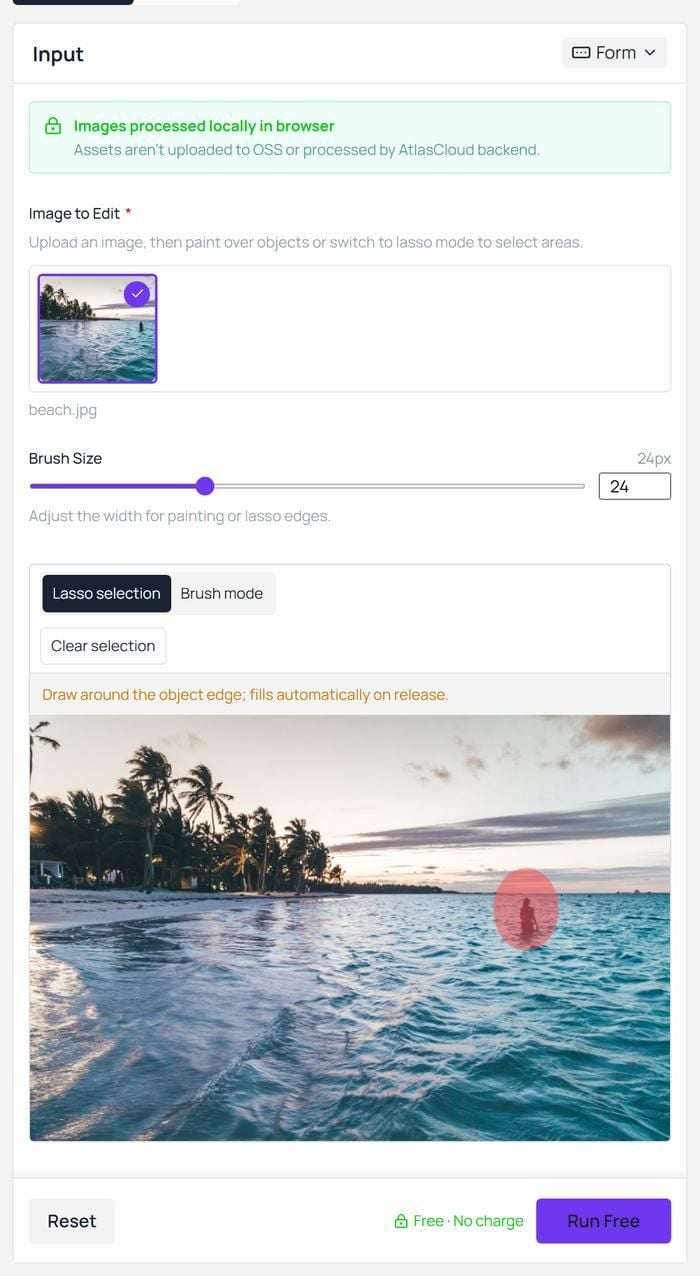
Three things on the page shape how the tool behaves. The input panel states that images are processed locally in the browser and that assets are not uploaded to storage or processed by the Atlas Cloud backend. The FAQ states that no account is needed at any point and that there is no daily allowance or credit balance.
It sits among the other free AI tools on the site, next to a background remover and an upscaler that run the same way.
Remove Object From Photo on iPhone in Safari: 3 Steps
- Open the free AI image eraser in Safari. Tap the upload area, choose Photo Library, and pick the photo. Do the first run on Wi-Fi and keep the tab in front while the weights arrive; after that they load from Safari's cache.
- Choose Lasso selection and draw a loose loop around the object. The loop fills itself when you lift your finger, and the page notes it closes small gaps in the stroke. For a wire or a line of text, switch to Brush mode and slide the brush size down from its default of 24 px. Include the object's shadow inside the selection. Tap Run Free.
- Tap Download. The PNG lands in your downloads, ready to move into Photos, and your original is untouched because the tool hands back a new file.

Shadow, Margin, Second Pass: Cleaner Erases on Any iPhone
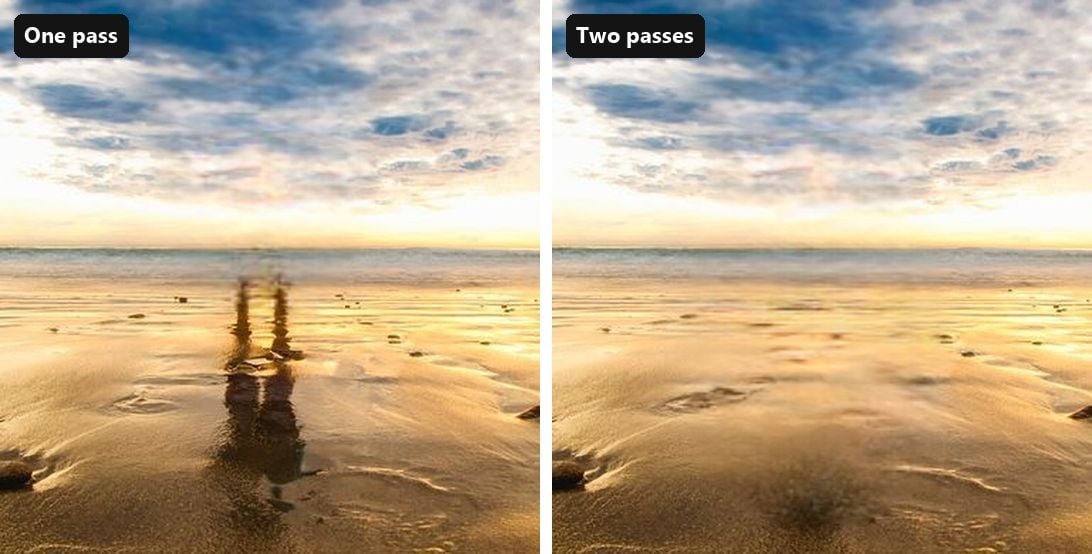
When an erase disappoints, look at the selection, and the page's own tips section says as much. A person standing in sunlight leaves a shadow, and anyone at the water's edge leaves a reflection on the wet sand. Loop only the figure and that reflection stays behind with nothing casting it. Loop both and the ground reads as ground.
Give the loop a little air. A stroke that runs slightly past the object's edge gives the fill room to blend, whereas a tight trace can leave a thin outline of the original. Bulky shapes want the lasso rather than colouring in, and several unwanted items can share one pass, since the eraser clears everything marked at once.
If a faint patch survives, drop the downloaded result back into the tool as a new image and erase the patch on its own. Two short passes tend to beat one heavy-handed one, and because the output keeps the original width and height, the second round costs no detail.

iPhone Clean Up vs Browser Eraser by Object Size
Object size decides more than the tool does. Two cases stress the routes differently: a small object well behind the subject, and a large object right beside it, the kind Clean Up used to smear.
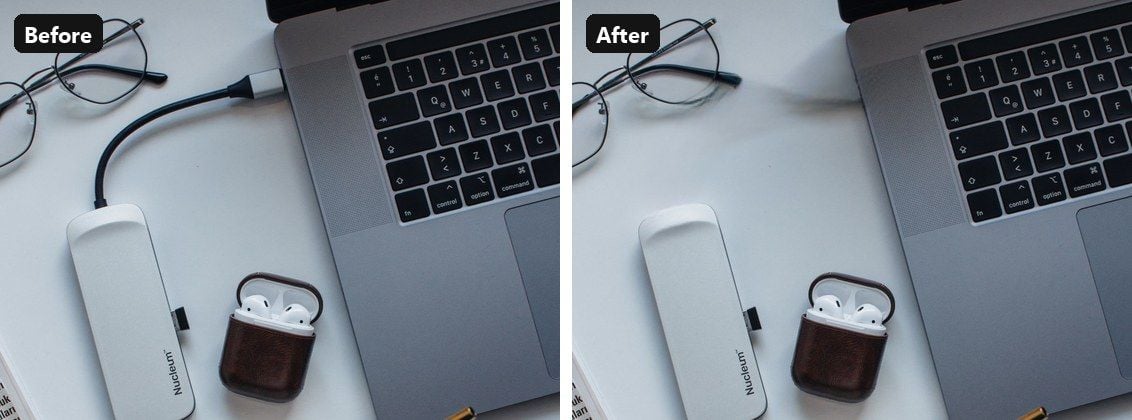
Our own erases in the browser cover both ends, the thin cable and the figure standing in the water at the top of this page. For Clean Up we lean on Apple's guide and the published iOS 27 tests, because the tool stays switched off on the iPhone 17 in our office, a unit bought in mainland China, which is one of the limits Apple documents.
Small and far back is the case Clean Up was built around. MacRumors' November 2024 guide described the tool as at its best with smaller objects set against clear, uncluttered backgrounds. In iOS 27, TechRadar's testing suggests Auto hands this kind of edit to Fast, so it runs on the phone and stays clear of the daily allowance.
The browser eraser treats this as a question of brush width rather than model choice. The thin charging cable higher up this page went in one pass with the slider dialled down, and the same pass rebuilt the desk underneath it.
Large and right beside the subject is where the routes split. TechRadar's side-by-side of iOS 26 against the iOS 27 beta shows the older on-device model leaving "an unnatural smear in place of the dog", while the new pass filled the gap with something that "looks more like a bush than grass" and still read as the better result. Macworld saw the same pattern on a kitten photo, where High Quality "correctly generated the kittens' bodies, along with convincing paws".
Both results came out of High Quality, the mode TechRadar traced to Apple's servers and the one Apple's footnote meters. In the browser eraser the same job comes down to the loop. The swimmer at the top of this page came out with one loose loop and the water closed over the gap, while on the beach shot further up a loop around the figure alone left the reflection standing on the sand until a second pass took that out too.
| Clean Up in iOS 27 | Browser eraser | |
|---|---|---|
| Works on | iPhone 15 Pro and later with Apple Intelligence | Any iPhone on iOS 26 or later, in Safari |
| Where the edit runs | On the phone in Fast, on Apple's servers in High Quality | Inside the browser tab |
| Daily allowance | Server edits count toward Apple's daily limit | None stated on the page |
| Faces in the selection | Pixelated rather than removed, per user reports | Erased like anything else you mark |
| What you get back | The same photo, edited in place, with Reset available | A separate PNG at the upload's width and height |
| First use | Tool may download on first launch | Model weights download into the browser |
Why Clean Up Is Missing, Blurring, or Pixelating on Your iPhone
Apple Community threads about Clean Up cluster around a handful of complaints. The table collects them, with the fix for each.
| What you see | Likely cause | What to do |
|---|---|---|
| No Clean Up under Tools | Phone lacks Apple Intelligence, or the device or region is excluded | Check the device table above, then use the Safari route |
| Clean Up shows a download step | First use fetches the tool | Stay on Wi-Fi and let it finish |
| A smear where the object was | Fast mode on a large object | Tap Auto and pick High Quality, or loop the object with its shadow in the browser eraser |
| A pixelated face | Photos treats a selected face as something to obscure | Keep faces out of the selection, or use the browser eraser |
| Edit stalls in High Quality | Server-side daily limit reached | Switch to Fast, wait for the reset, or use the browser eraser |
| Live Photo lost its motion | Clean Up turns a Live Photo into a still, per reports since iOS 18 | Duplicate the photo before editing |
Region is easy to overlook. Apple's Clean Up requirements page states that the tool will not work on devices purchased in mainland China, and that it stays unavailable if you are in mainland China with an Apple Account set to the same region. The language list matters too: Apple Intelligence needs Siri and the device language set to one of the supported languages the guide enumerates.
Pixelated faces are the complaint Apple's guide leaves unexplained. Several Apple-focused sites have described the behaviour since iOS 18: brush or circle a face and Photos applies a mosaic over it instead of removing the person, with no setting to turn that off.
MacObserver's October 2025 workaround is to crop and zoom until the face is out of frame before running Clean Up. The browser eraser has no such rule; it removes whatever you loop, which is the right tool when the passerby's face is the whole problem.
A last mismatch. If what you want gone is everything except the subject, that is a different job, and a brush will make a mess of it. Our guide to the best AI background removers covers the tools built for that cut.
Frequently Asked Questions
Can I remove an object from a picture on iPhone 13 or 14?
Yes, though not with Clean Up. Those models run iOS 27 but sit outside Apple Intelligence, so Tools does not show the option. Open the browser eraser in Safari instead: no login, no signup, nothing from the App Store, and the photo stays on the phone while the model works. Loop the object and download the PNG.
Does Clean Up send my photo to Apple?
In Fast mode the edit runs on the phone. In High Quality mode, TechRadar's beta testing found the request going to Apple's Private Cloud Compute servers. Auto can pick either without telling you in advance, so if you want the photo to stay local, force Fast before you start, or use the browser eraser, whose page states that images are not uploaded.
Is there a daily limit on Clean Up in iOS 27?
Apple's footnote says features that rely on server-side models, including the intelligent photo editing tools, are subject to daily usage limits that vary by feature, request complexity, and system demand, with expanded access to come later for a fee. No figure has been published. Fast mode is not on that list, so a stalled High Quality edit can usually be redone in Fast, and the browser eraser has no cap to hit.
Does removing an object lower the photo's resolution?
Clean Up edits the photo in place, with Reset available afterwards. The browser eraser returns a PNG at the same width and height as the upload, rebuilding only the area you marked. Keep both files: the PNG is the one to share, and the untouched HEIC is the one to reprint from.
Is Google Photos Magic Eraser free on iPhone?
Yes. Google announced in April 2024 that Magic Eraser would be free for all Google Photos users from May 15, 2024, on devices with at least 3 GB of RAM running iOS 15 or later, while Magic Editor stays capped at 10 saves per month without a Pixel or a premium Google One plan. It is a separate app with its own sign-in, so it falls outside the two no-install routes here, but it suits an older iPhone whose library already lives there.
Conclusion
The elbow, the bin, and the power line all come out now. Which tool you reach for depends on the phone. Clean Up in iOS 27 handles far more than it did, provided your phone carries Apple Intelligence, the object is not a face, and you accept that the bigger edits run on Apple's servers under a daily allowance. The Safari eraser does the same brushwork on the iPhones Apple Intelligence skips, keeps the photo on the device, and hands back a PNG at full size.
Pick by the phone first and the photo second. If Tools shows Clean Up, try Auto and let it choose. If it does not, or the edit stalls, open the eraser in Safari, loop the object with its shadow, and download. Either way, the knack to remove an object from a photo on iPhone is the same: select generously, keep faces out of the loop, and run a second pass before you call it done.