Don't waste compute on initial drafts. Use Veo 3.1 Fast as your everyday workhorse for prompt tuning and blocking out scenes. Once your sequence is approved, switch over to Veo 3.1 Quality for the final hero render.
Both tiers handle images and text prompts just fine—the real difference comes down to rendering speed and cost. Fast gives you quick, cheap takes to test keyframes and camera moves, while Quality takes extra time to clean up frame detail and smooth out complex motion for final exports.
Veo 3.1 Fast vs. Quality: Quick Decision Matrix
| Decision Criteria | Recommended Mode | Credit Cost | Turnaround Speed | Primary Rationale & Workflow Role |
| Speed & Budget Control | Veo 3.1 Fast | 20 Credits | High (~11–30s) | Minimizes latency and maximizes credit ROI for everyday iteration |
| Drafting & Prototyping | Veo 3.1 Fast | 20 Credits | High (~11–30s) | Rapid feedback loop for prompt tuning, keyframes, and pre-vis |
| Visual Fidelity & Detail | Veo 3.1 Quality | 100 Credits | Standard (~2–6m) | Superior per-frame refinement, complex physics, and motion stability |
| Commercial Finalization | Veo 3.1 Quality | 100 Credits | Standard (~2–6m) | Essential for client-ready assets, paid ads, and high-res broadcasts |
By adopting this veo 3.1 fast vs quality strategy, you maximize credit efficiency across your account. Drafting on Fast allows for rapid prompt tuning at a lower cost, ensuring you only commit premium credits to the final, approved sequence.
Veo 3.1 Fast vs. Quality Specifications: Parameters, Ratios, and Inputs
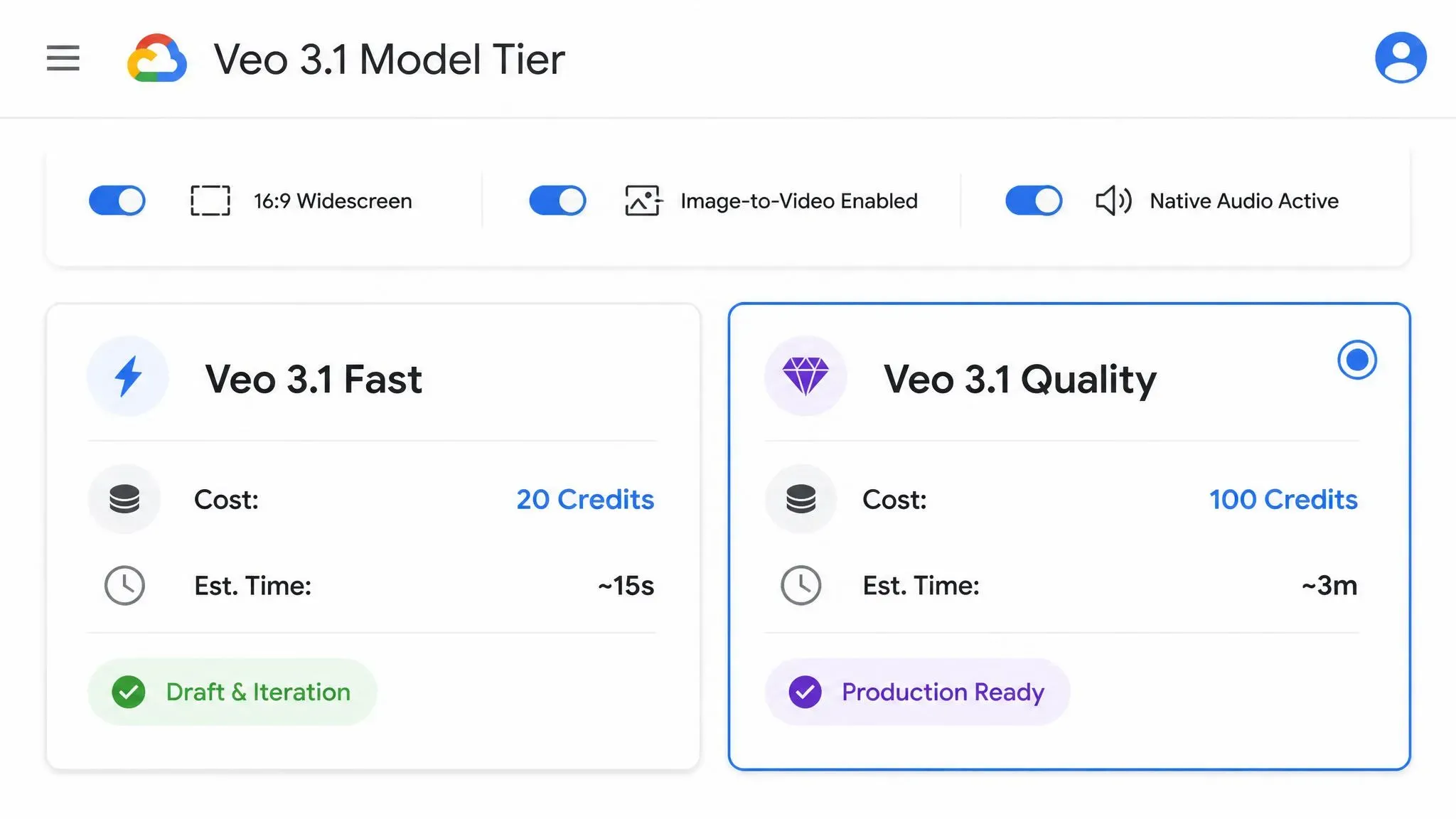
Both Fast and Quality tiers run on the same control surface, giving you identical access to core prompt features, aspect ratios, and multimodal inputs:
- Prompt Handling: Veo 3.1 automatically optimizes your input using a built-in LLM prompt rewriter to expand scene details and camera cues. Note that if your original input is under 30 words, the expanded prompt will also be returned in the API response.
- Formatting: Direct output for 16:9 widescreen, 9:16 vertical feeds, or Auto framing.
- Image & Text Inputs: Both Fast and Quality accept reference images, keyframe guides, and text-only prompts equally.
- Native Audio: Integrated audio synthesis for spatial soundscapes, FX, and dialogue across both tiers.
Where the Modes Actually Diverge
The difference isn't input capability—it’s how each mode handles inference speed and render depth. Fast delivers rapid turnaround for quick keyframe checks and rapid prompting, while Quality invests extra compute into frame-level denoising, motion consistency, and sharper texture rendering.
| Feature / Parameter | Veo 3.1 Fast | Veo 3.1 Quality |
| Text-to-Video | Supported | Supported |
| Image-to-Video (image_urls) | Supported | Supported |
| Aspect Ratios | 16:9, 9:16, Auto | 16:9, 9:16, Auto |
| Native Audio Synthesis | Integrated | Integrated |
| Latency Profile | Low (Seconds) | High (Minutes) |
| Primary Engine Purpose | Rapid Iteration & Drafts | Hero Renders & Final Delivery |
Fast is ideal when you need to quickly test image-to-video concepts—like product placement, character poses, or keyframe transitions—without burning through credits. Quality handles those same reference images, but saves its compute for rich per-frame details and smoother motion.
Don't worry about losing sound on Fast, either. A common misconception is that Fast skips audio synthesis to cut down render time. In reality, full native audio—including ambient noise and voice tracks—remains fully active in both tiers.
Generation Speed and Latency: How Turnaround Times Impact Creative Flow
Hitting "Generate" and watching a loading spinner for minutes kills creative momentum. When you're fine-tuning lighting cues or camera motion, render speed becomes your biggest productivity bottleneck.
The Compounding Cost of Wait Times
Choosing between tiers comes down to cumulative time savings. Official API benchmarks show generation times ranging from as fast as 11 seconds to up to 6 minutes during peak hours with higher output resolutions naturally pushing latency toward the longer end. Users often manage these workspace credit limits and dual rendering modes directly within Google Flow Veo 3.1 workspaces to optimize daily iteration thresholds.
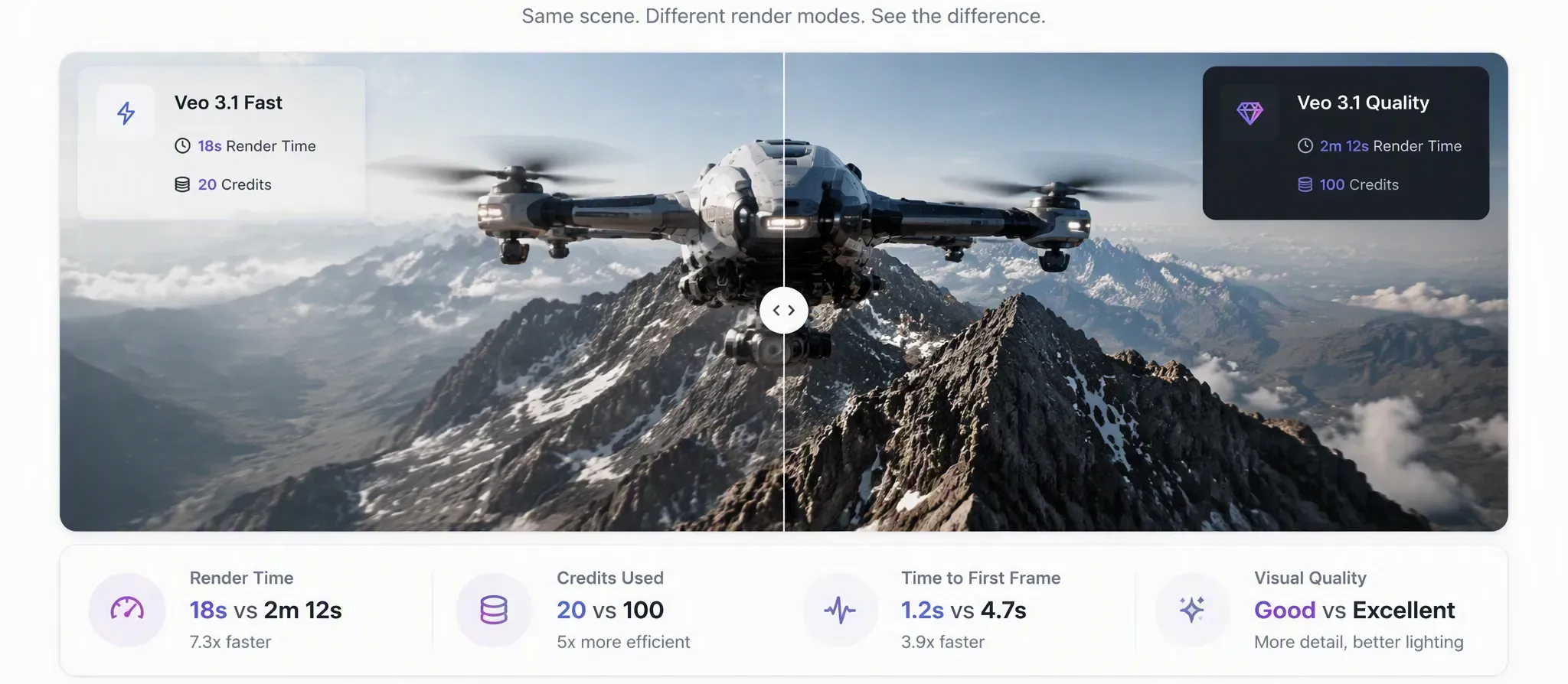
If a Quality pass takes 4 minutes at high resolution while a Fast pass completes in under 30 seconds, every iteration costs you over 3.5 extra minutes of downtime. Across 20 test runs, Fast buys back over an hour of active production time—making it essential for:
- Blocking Scenes: Rapidly testing camera angles, compositions, and subject placement.
- Prompt Tuning: Fine-tuning specific modifiers without waiting on full high-res renders.
- Batch Seed Testing: Running multiple seeds in parallel to pin down stable scene geometry.
API Infrastructure and Throughput
Both Veo tiers operate via Long-Running Operations (LROs) in Vertex AI, requiring asynchronous polling for job completion. However, Fast's lower compute footprint delivers 3x to 10x faster response cycles during peak traffic. This significantly lowers job timeout risks and concurrency bottlenecks when powering web applications or automated pipelines.
Performance Benchmark Summary
Render times shift based on server traffic and output resolution, but in practice, Fast consistently delivers a 3x to 4x speed boost over Quality. Because it burns through less compute per generation, it clears server queues far more efficiently during peak traffic.
| Metric | Veo 3.1 Fast | Veo 3.1 Quality |
| Official Latency Range | As fast as ~11–30 Seconds | ~2 to 6 Minutes (Peak / High-Res) |
| Resolution Impact | Lower latency across standard resolutions | Scales significantly with higher resolutions |
| Compute Footprint | Lightweight (High Concurrency) | Heavy (Compute-Intensive) |
| API Architecture | Asynchronous LRO (Fast Cycles) | Asynchronous LRO (Batch Runs) |
| Workflow Priority | Prototyping & High-Volume Drafts | Client-Ready Final Exports |
By prioritizing Fast for the majority of your development and iteration cycles, you stabilize your turnaround time, preserve account credits, and keep your production pipeline moving without hitting high-latency bottlenecks.
Visual Fidelity Benchmarks: When Does Veo 3.1 Quality Truly Outperform Fast?
While Veo 3.1 Fast excels at speed, it occasionally struggles with temporal coherence in high-motion scenes. Choosing between tiers requires an understanding of where your compute budget actually translates into visible visual fidelity.

The Quality Advantage: High-Stakes Visuals
Reserve the Quality tier for scenarios where sub-pixel precision and temporal stability directly impact the final output:
- Complex Physics & Dynamics: Scenes where realism is defined by particle consistency, such as those involving fluid motion, splashing water, smoke, or falling sand.
- Multi-Subject Interaction: Sequences when the movement of many characters overlaps, which frequently causes motion artifacts in lower-compute modes.
- Fine Textures & Micro-Details: Capture details like human skin, fabric textures, or metallic shine. Perfect for prompts that need precise light and shadow effects.
- Typography & On-Screen Text: Shots that require legible logos or persistent text elements, which can blur during aggressive fast renders.
When Fast is More Than Enough
For a broad range of digital and social media content, the performance gap between Fast and Quality is practically invisible. You can safely default to Fast for:
- Stylized & 2D Animation: Use cel-shaded, vector, or flat graphic styles. They naturally hide small rendering flaws and keep visuals clean.
- Single-Subject Focus: Simple camera moves—like smooth zooms or tracking shots—focused on a single subject.
- Looping Backgrounds: Environmental B-roll where slight visual grain blends in naturally.
Addressing the Mobile Viewing Question
Creators frequently ask: "Will mobile viewers on TikTok or Shorts notice the difference if I render on Fast?"
For vertical mobile feeds, the answer is usually no. Aggressive platform compression algorithmically flattens micro-details, masking the high-res output differences between Fast and Quality. Unless your video hinges on fine-grained texture close-ups, Fast's prompt adherence is well-suited for mobile screens.
By matching your render mode to the target platform and visual complexity, you avoid burning credits on unnecessary compute while keeping your production quality high.
Cost Efficiency Analysis: Optimizing Credit Spend Between Fast and Quality Tiers
Running every test prompt directly through high-tier compute quickly drains generation quotas. When exploring new concepts, rendering drafts in Quality mode burns your balance 5x faster than necessary. Maximizing your production output requires matching model tiers to specific workflow stages.
The Mathematics of Credit Consumption
Understanding the platform cost gap helps stretch your total production budget. Inside environments like Google Flow, credit allocation operates on a fixed-per-pass system rather than a variable rate:
- Veo 3.1 Fast: Consumes 20 credits per render pass (~$0.15/sec on developer API tiers).
- Veo 3.1 Quality: Consumes 100 credits per render pass (~$0.40/sec on developer API tiers).
Production Budget Comparison
| Production Metric | Veo 3.1 Fast Tier | Veo 3.1 Quality Tier | Quota Delta |
| Credit Cost (Google Flow) | 20 Credits / pass | 100 Credits / pass | Fast saves 80% in credit volume |
| Renders per 1,000 Credits | 50 Videos | 10 Videos | Fast yields 5x more total output |
| Workflow Role | High-volume iteration & prompt locks | Targeted hero passes & client deliverables | Quality reserved for final exports |
Testing ten scene variations in Quality burns 1,000 credits. Running those same ten exploratory drafts in Fast costs just 200 credits—saving 800 credits for final production renders.
The "Draft-on-Fast, Finalize-on-Quality" Workflow
To protect your allocation, structure your pipeline into two clear phases:
- Composition & Motion Lock (Fast): Generate 5 to 10 draft clips in Fast. Tweak prompt phrasing, camera movements, and subject framing until scene timing is locked.
- Hero Pass Render (Quality): Take your proven prompt text and run a single, targeted pass in Quality for maximum visual sharpness.
Can You Direct-Upgrade a Fast Draft to Quality?
Creators often ask if a Fast draft can be directly upscaled to Quality without shifting scene composition.
Because generative models use probabilistic diffusion noise, changing the model tier alters the layout and movement of the scene. Switching tiers updates the underlying neural pipeline; Quality generates a fresh interpretation of your text prompt rather than executing an exact pixel-for-pixel upscale of the Fast preview.
Deterministic Benchmarking: Pinning Numeric Seeds to Compare Fast and Quality Output
You attempt a direct comparison between Veo 3.1 Fast and Quality, only to find the subject’s position, camera movement, and background composition completely shifted between the two renders. This randomness is the default state of diffusion models, which introduce stochastic noise to every generation. To perform an accurate assessment of model performance, you must move beyond subjective visual checks and utilize numeric seed control.
The Problem with Unseeded Testing
Without locking a seed, every request initiates a new random distribution pattern. Consequently, even minor prompt adjustments create wildly divergent scene geometries. Comparing an "unseeded" Fast output to an "unseeded" Quality output is effectively comparing two unrelated videos, making it impossible to isolate the actual fidelity improvements of the higher-tier model. Implementing deterministic testing allows you to strip away this noise, ensuring the underlying scene structure remains constant across tiers.
Step-by-Step Benchmarking Method
To conduct a controlled side-by-side benchmarking analysis, follow this standardized prompt iteration workflow:
- Initialize the Seed: In your API call or interface settings, define a fixed integer (e.g.,
seed=42). - Lock Composition on Fast: Run your prompt through Veo 3.1 Fast. If the scene layout is incorrect, adjust your prompt modifiers—not the seed. Repeat until the composition, camera path, and subject placement are stable.
- Evaluate Fidelity on Quality: Submit that exact, validated prompt and the same
seedinteger to the Quality tier.
Because the seed is locked, the model uses the same initial noise map for both tiers. This allows you to evaluate how Quality handles lighting, texture, and motion vectors within the exact frame boundaries established by your Fast-tier draft.
See It in Action: Seed-Locked Comparison Case Study
To evaluate how seed locking works in practice, we ran the same cyberpunk drone prompt through both Veo 3.1 Fast and Quality using a locked seed (
seed=42).Veo 3.1 Fast (Left) vs. Quality (Right) generated at 720p resolution and 8-second duration. Left: Veo 3.1 Fast via Google Flow (20 credits). Right: Veo 3.1 Quality via Atlas Cloud (Text-to-Video API, $3.20)
Visual Benchmark Breakdown:
- Composition & Geometry (Locked by Seed): As shown above, setting
seed=42successfully keeps the main structural geometry intact across both modes. The drone placement, street markers, and background cyberpunk architecture align nearly frame-for-frame, proving that seed control removes random variance.- Motion & Camera Tracking (Quality Advantage): While the Fast render presents a mostly static hover with basic camera alignment, the Quality pass introduces smooth, dynamic dolly tracking with refined spatial perspective—bringing fluidity to the drone's flight path.
- Lighting & Texture Refinement: In the Quality render, the extra compute translates directly into surface physics. The wet asphalt reflects neon lighting with realistic light decay, and volumetric fog blends softly into the background without the digital noise visible in the Fast draft.
Why Outputs Differ Despite Shared Prompts
Even when you provide an identical seed and prompt, the underlying architecture differs significantly. Fast and Quality tiers utilize different model weights and inference paths. Even with identical seeds and prompts, Fast and Quality rely on different model weights and inference pipelines.
Use Case Checklist: Should You Choose Veo 3.1 Fast or Quality?
You don't need top-tier settings for every single generation. By picking the right model for each stage of your pipeline, you avoid blowing credits on quick test takes and keep your budget intact for final delivery.
Choose Veo 3.1 Fast For Iteration and Volume
Veo 3.1 fast use cases center on speed, composition control, and high-volume output. This tier is the workhorse of your creative process. Select Fast when:
- You rely on Image-to-Video: Fast is your only option for projects requiring reference images (
image_urls) to dictate character poses or product placement. - You are in the Pre-visualization Phase: Stick to Fast for animatics, blocking out scenes, and quick team reviews where timing and composition matter more than hyper-realistic detail.
- You are managing Social Media Video Production: If your video is heading to vertical feeds, platform compression will wipe out the subtle detail differences anyway—making Fast more than enough.
- You are scaling via API: For automated applications that require high concurrency, the lower latency of the Fast tier prevents request timeouts and keeps your pipeline flowing.
Choose Veo 3.1 Quality For Final Assets
Reserve veo 3.1 quality production work for scenarios where visual precision is non-negotiable. This tier should be the destination for your final, locked-in sequences. Select Quality when:
- You are delivering Commercial Deliverables: When output is client-facing or intended for paid advertising, the superior denoising and edge definition of the Quality tier provide the professional polish required for projects aligned with the Veo 3.1 free versus paid tier breakdown.
- The Scene Demands Complex Dynamics: Use this tier for sequences involving multi-subject interaction, fluid physics, or intricate hair and fabric movement where temporal stability is critical.
- The Output Platform is High-Resolution: If your video will be displayed on large desktop monitors, television broadcasts, or projection screens, the increased clarity of the Quality tier is necessary to avoid visible compression.
Pro Tip: Master this hybrid workflow—draft quickly on Fast, finalize on Quality—to maximize your account efficiency without sacrificing professional output.





