Tu campaña de cold brew está aprobada. La botella, la mano, la luz de la ventana, los reflejos: todo bien. Luego el equipo de producto cambia una línea de la etiqueta. Una regeneración de toda la imagen puede convertir esa pequeña actualización en una costosa búsqueda del tesoro para encontrar la pose original de la mano.
GPT Image 2.5 comment edit te ofrece una forma más limpia de señalar la decisión que cambió. Coloca el comentario en la etiqueta, di exactamente qué debe cambiar y nombra los detalles que ya pasaron la revisión. El marcador ayuda a localizar la solicitud. La lista de preservación ayuda a proteger el resto.
Esa distinción importa. Un comentario no es un bloqueo de píxeles ni una máscara de capa de Photoshop. Es una forma inusualmente directa de expresar la intención a un modelo de imagen, seguida de un hábito deliberado de inspección y reversión.
Puntos clave
- Cambia un concepto por edición.
- Indica el cambio y la lista de preservación.
- Compara cada ejecución con un máster aprobado.
- Trata el texto visible y las uniones como de alto riesgo.
- Revierte temprano en lugar de acumular reparaciones.
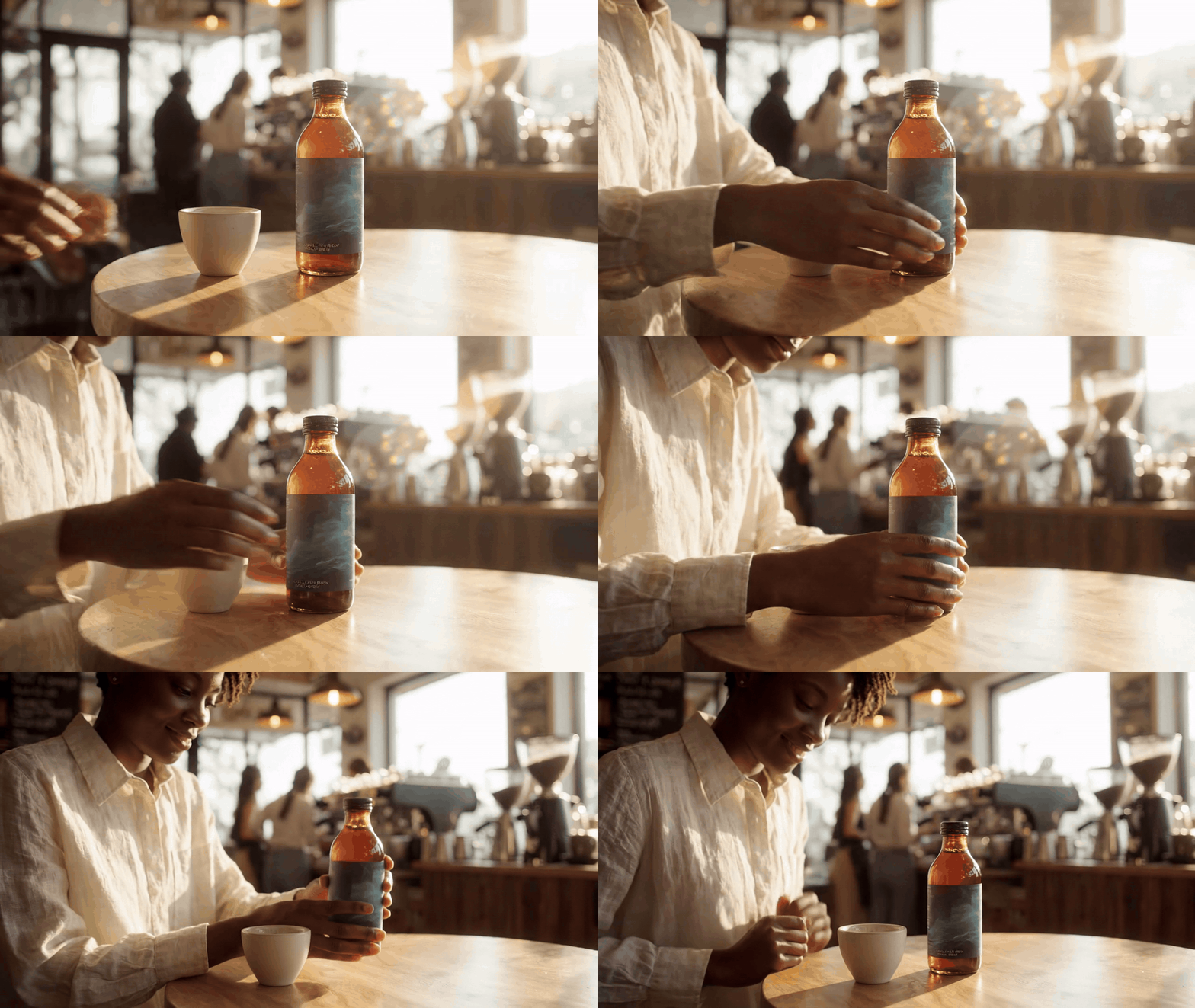
Caso de edición por comentarios de cold brew con Google Veo 3.1 Lite de ocho segundos: una mujer presenta la botella desde varios ángulos de cámara
Caso de movimiento de apertura: una mujer, una botella de cold brew y un entorno de cafetería pasan de un encuadre del lado del producto a una vista de tres cuartos y una inspección por encima del hombro. Ilustra por qué una solicitud local de etiqueta aún necesita una revisión de todo el encuadre.
Por qué GPT Image 2.5 Comment Edit está de moda y por qué aún puede fallar
La edición por comentarios está de moda porque se ajusta a cómo las personas dan retroalimentación creativa. Nadie que revisa una imagen de producto dice: «Por favor, infiere el vecindario semántico alrededor de esta frase». Señalan la etiqueta y dicen: «Este nombre cambió». OpenAI describe Images 2.5 como un lanzamiento de generación y edición de imágenes más rápido, con mejor fidelidad de detalles, consistencia en múltiples ediciones y ediciones basadas en comentarios. Se está implementando en las superficies de ChatGPT, mientras que la API agrega los modelos GPT-Image-2.5 Flare y Sunburst. (Anuncio de OpenAI, septiembre de 2026)
En móvil, abre una imagen generada en pantalla completa y usa los controles de edición disponibles, incluido Comentario. El comentario se coloca en el área que deseas discutir. Seleccionar es útil cuando necesitas definir un área con más precisión; Bocetar es para dibujar una instrucción visual. Estos controles reducen la ambigüedad, pero ninguno convierte un modelo de imagen en un editor de gráficos determinista.
El modo de falla es familiar: la etiqueta cambia, pero un dedo se desplaza, una sombra desaparece, un reflejo cambia de color o una línea de texto se reajusta. La propia guía de soporte de OpenAI advierte que una selección puede no ser exacta y que una edición puede extenderse fuera de ella. (Centro de ayuda de OpenAI, septiembre de 2026)
El marcador le dice al modelo dónde está la decisión. No hace que cada píxel cercano sea intocable. Trata una edición local como una solicitud acotada que aún necesita una revisión de todo el encuadre.
Usa esta revisión de calidad de cinco partes antes de aceptar un resultado:
- Identidad del sujeto: el rostro, la posición de la mano, la pose y los rasgos reconocibles aún coinciden.
- Producto y material: la geometría de la botella, la tela, la piel, el vidrio, el metal y los reflejos aún se comportan de manera plausible.
- Diseño y texto: la ortografía, la jerarquía, el espaciado, los márgenes y cada carácter no marcado sobrevivieron.
- Fondo: los accesorios, las líneas del horizonte, las costuras y las pequeñas pistas de contexto no se han desplazado.
- Sombras y bordes: los puntos de contacto, los bordes de recorte, la perspectiva y la dirección de la luz aún tienen sentido.
Flujo de trabajo de GPT Image 2.5 Comment Edit: Comentario nativo vs. edición acotada repetible
Aquí hay dos flujos de trabajo relacionados, y mantenerlos separados evita mucha documentación confusa. ChatGPT Images 2.5 Comment es un comportamiento nativo de la interfaz de ChatGPT. Atlas Cloud no afirma reproducir esa UI de marcador sobre imagen. En su lugar, un equipo puede usar la misma regla operativa, «cambia una cosa y preserva el máster aprobado», en un flujo repetible de edición de imágenes en lenguaje natural.
Para una revisión personal única, usa el control nativo Comentario o Seleccionar. Para un equipo que necesita archivos fuente aprobados, prompts guardados, versiones con nombre y ejecuciones repetibles, el prompt de edición acotada puede pasar por un flujo de trabajo del navegador de Atlas. El trabajo permanece en una pestaña del navegador: genera el máster, sube ese máster aprobado a la página de edición, almacena el delta exacto y conserva el resultado junto a él.
| Flujo de trabajo | Cómo se especifica el área | Ideal para | ¿Programático? | Limitación principal |
|---|---|---|---|---|
| ChatGPT mobile Comment | Un marcador más retroalimentación escrita | Una nota de revisión visual rápida | Sin equivalente nativo de API para el control | El marcador no es una máscara rígida |
| ChatGPT Select | Una región seleccionada más instrucción | Una eliminación o reemplazo acotado | Sin equivalente nativo de API para el control | Las ediciones aún pueden afectar píxeles adyacentes |
| Atlas scoped edit | Región nombrada primero en un prompt de preservación | Másters compartidos, registros de versiones, ejecuciones repetibles | Sí, a través del flujo de trabajo del modelo | El usuario debe describir el alcance con precisión |
Comienza el máster en GPT Image 2 Text-to-Image, luego envía el archivo aprobado a GPT Image 2 Edit. Ambas páginas admiten un flujo de trabajo práctico de imágenes en un navegador; la última admite entradas de imagen y adiciones, eliminaciones, actualizaciones de texto, cambios de fondo y ediciones de color en lenguaje natural.
Las páginas públicas de modelos mostraron aproximadamente $0.009 por ejecución de texto a imagen y $0.01 por ejecución de GPT Image 2 Edit cuando se preparó esta guía. Trata las páginas de modelos como la fuente de verdad en el momento de la publicación, ya que la configuración y los precios pueden cambiar.
Tutorial de GPT Image 2.5 Comment Edit: Marcar, preservar, inspeccionar
Paso 1: Construye un máster que valga la pena aprobar, no un borrador desechable
Crea un máster lo suficientemente bueno como para protegerlo. Si la base sigue siendo un concepto vago, las revisiones locales solo preservarán los problemas. En ChatGPT Images 2.5, elige 16:9 y la calidad más alta ofrecida. Para la versión repetible de Atlas, usa GPT Image 2 Text-to-Image a 1536×1024, alta calidad, PNG.
plaintext1Create a premium editorial product photograph in a sunlit neighborhood coffee bar. 2A clear amber glass bottle labeled “HARBOR / OAT COLD BREW” stands on a light walnut table. 3A woman in a cream linen shirt places the bottle with one hand. Morning window light comes from the left, soft realistic shadows, shallow depth of field,warm neutral color grade, 16:9 composition. 4Keep the bottle label fully readable and centered. No extra logos, no watermark.
El resultado debe convertirse en tu máster aprobado antes de continuar. Guárdalo con un nombre de versión como harbor-master-v1.png, no con un nombre de descarga vago.
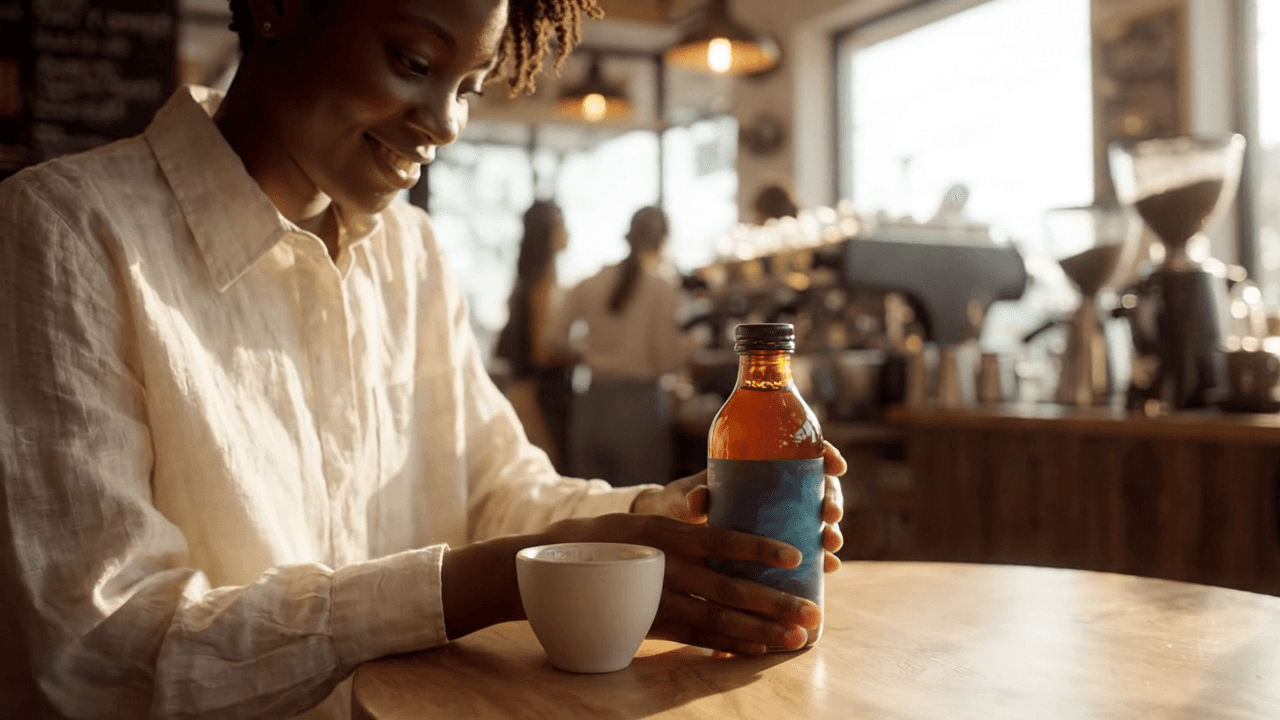
Fotograma claro seleccionado del caso de revisión de cold brew generado
Fotograma del caso 1: la composición aprobada mantiene visibles a la persona, la botella, la taza, los reflejos y el contexto de la cafetería para que el revisor pueda detectar desviaciones no deseadas después de un cambio local.
Paso 2: Coloca el comentario donde está la decisión
Abre la imagen aprobada en pantalla completa en ChatGPT móvil, elige Comentario y coloca el marcador en el centro de la etiqueta de la botella. Evita solicitudes amplias como «hazlo más premium». Un revisor debería poder decidir en segundos si el resultado pasó.
plaintext1The decision is on the front bottle label only. I will replace the product name and the accent color while keeping the approved photograph intact.
Para el equivalente en Atlas, sube el máster aprobado a GPT Image 2 Edit. Configura 1536×1024, alta calidad y PNG. Como allí no hay un marcador de Comentario nativo, haz que la región visual sea la primera frase del prompt. Mantén la relación de aspecto de origen.
No recortes primero. El recorte puede eliminar contexto que ayuda al modelo a preservar la mano, la silueta de la botella y la relación de luz alrededor de la etiqueta.
Paso 3: Haz un cambio local y nombra cada elemento protegido
Ahora haz una única edición acotada. El siguiente texto sirve tanto como instrucción de comentario de ChatGPT como prompt de edición de Atlas. Nombra el objetivo, el reemplazo exacto y los detalles aprobados que no pueden desviarse.
plaintext1Only change the front bottle label in the marked area. 2Replace “HARBOR / OAT COLD BREW” with “HARBOR / VANILLA OAT COLD BREW” in the same clean condensed sans-serif style. 3Change only the label accent color from muted rust to deep ocean blue. 4Preserve the woman’s face, hand position, bottle shape, glass reflections, table, coffee-bar background, crop, camera angle, light direction, shadow softness, and all unmarked details. Make no other changes.
Ejecuta a 1536×1024, alta calidad, PNG. Inspecciona la ortografía, la perspectiva del cilindro, el contacto del dedo con la botella y si el azul se filtró en reflejos u otras áreas no marcadas. Si uno de esos falla, vuelve al máster. No emitas un segundo comentario sobre la salida dañada.
Paso 4: Usa la misma fórmula de comentario para texto que debe sobrevivir
El texto en imágenes merece más precaución que un cambio de color. Un comentario puede señalar el bloque de fecha, pero no puede eliminar la necesidad de una corrección carácter por carácter. Usa un pase ficticio, no un documento de viaje, concierto, gubernamental, de pago o de identidad.
plaintext1Create a premium vertical printed event pass on a pale concrete desk with a navy fabric lanyard and a brushed silver clip. 2The pass is for a fictional event called “NORTHLINE CREATIVE SUMMIT”. 3Use a restrained editorial grid, deep navy and ivory palette, legible typographic hierarchy, subtle paper grain, and no real company logos. Portrait 2:3.
plaintext1Only change the marked date-and-location block. 2Replace “LISBON · OCT 14–15” with “COPENHAGEN · NOV 6–7”. 3Keep the event name, hierarchy, font family, line spacing, margins, lanyard, clip, paper texture, desk, camera angle, colors, and every unmarked character unchanged. Do not invent a barcode or a real travel ticket.
Usa Comentario nativo o GPT Image 2 Edit a 1024×1536, alta calidad, PNG. Haz zoom después de la ejecución y verifica la ortografía, los saltos de línea, los bordes, los márgenes y la consistencia visual de cualquier marca decorativa similar a un código. Un resultado visual que parece plausible aún puede contener datos incorrectos.
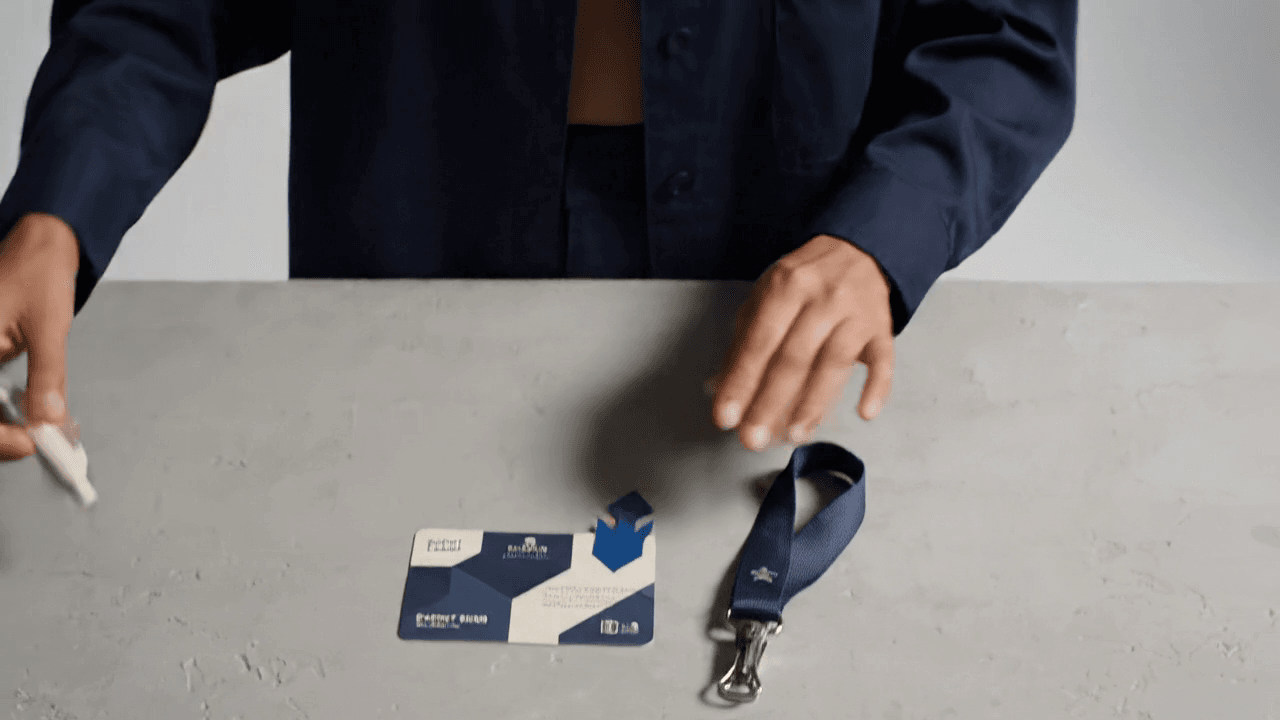
Fotograma claro seleccionado del caso de revisión de pase de evento ficticio generado
Fotograma del caso 2: un pase ficticio, cordón, clip y marcador de color son visibles intencionalmente antes de que el equipo verifique el cambio local carácter por carácter.
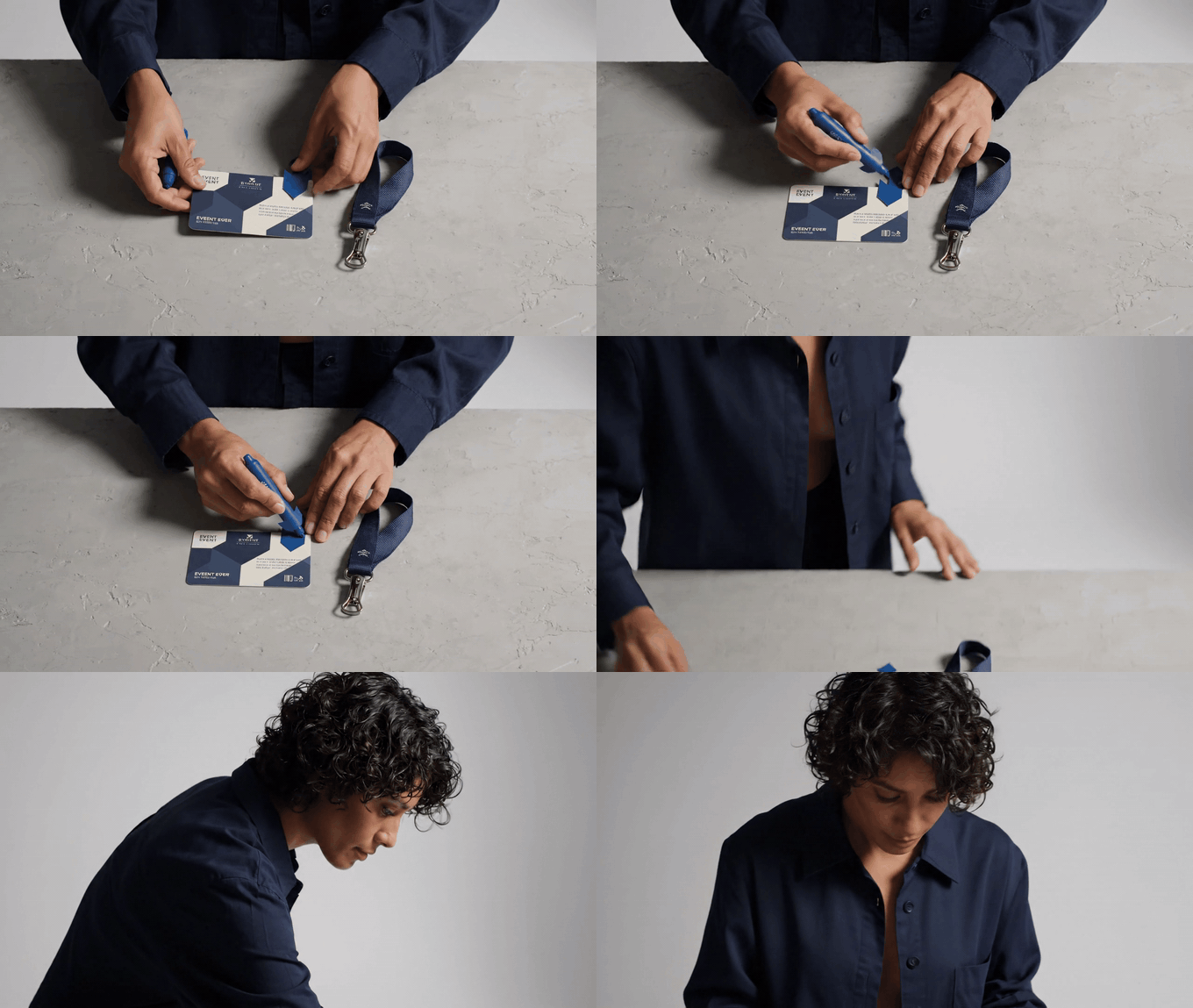
Secuencia de revisión de pase de evento con Google Veo 3.1 Lite de ocho segundos con un cambio de cámara de arriba hacia abajo, lateral y por encima del hombro
Caso de movimiento: el diseñador coloca un pase ficticio y un cordón, cambia el pequeño marcador y luego verifica el resultado desde un ángulo de visión diferente. Es un escenario de revisión visual, no un ticket ni una interfaz reales.
Paso 5: Usa comentarios para una pequeña adición, no para reiniciar el estilo
Las pequeñas adiciones funcionan bien cuando defines el área vacía y proteges el lenguaje visual existente. Este ejemplo usa el antebrazo de un modelo adulto sin rostro identificable y un diseño de tatuaje original y autorizado. Trata la salida como una vista previa de diseño. Un tatuador calificado debe evaluar el grosor final de la línea, la ubicación, la condición de la piel y la ejecución práctica.
plaintext1Only add a tiny four-point star and two small olive leaves in the marked empty space above the existing laurel tattoo. 2Match the existing black fine-line stroke weight, skin perspective, ink softness, and natural window lighting. 3Preserve every existing tattoo line, the arm pose, skin texture, freckles, sleeve edge, background, crop, and exposure. Do not enlarge, recolor, or redesign the original tattoo.
Usa Comentario nativo o GPT Image 2 Edit a 1024×1536, alta calidad, PNG. Mantén el marcador dentro de piel genuinamente libre. Si la marca solicitada toca una línea existente, divide el trabajo en un nuevo máster y una revisión más pequeña en lugar de pedirle al modelo que vuelva a dibujar toda una manga de tatuaje.
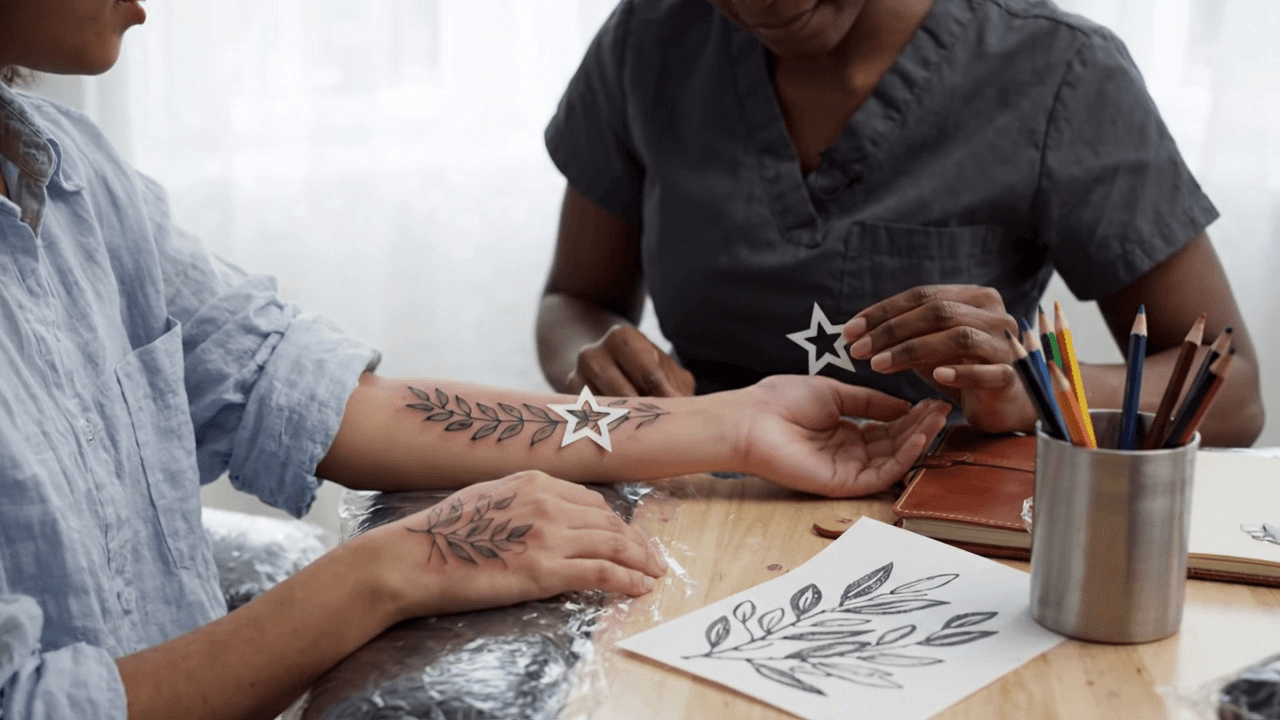
Fotograma claro seleccionado del caso de vista previa de diseño de tatuaje para adultos generado
Fotograma del caso 3: un cliente adulto, un diseño de laurel, una plantilla de papel y las herramientas del estudio permanecen visibles mientras se revisa la pequeña adición propuesta.
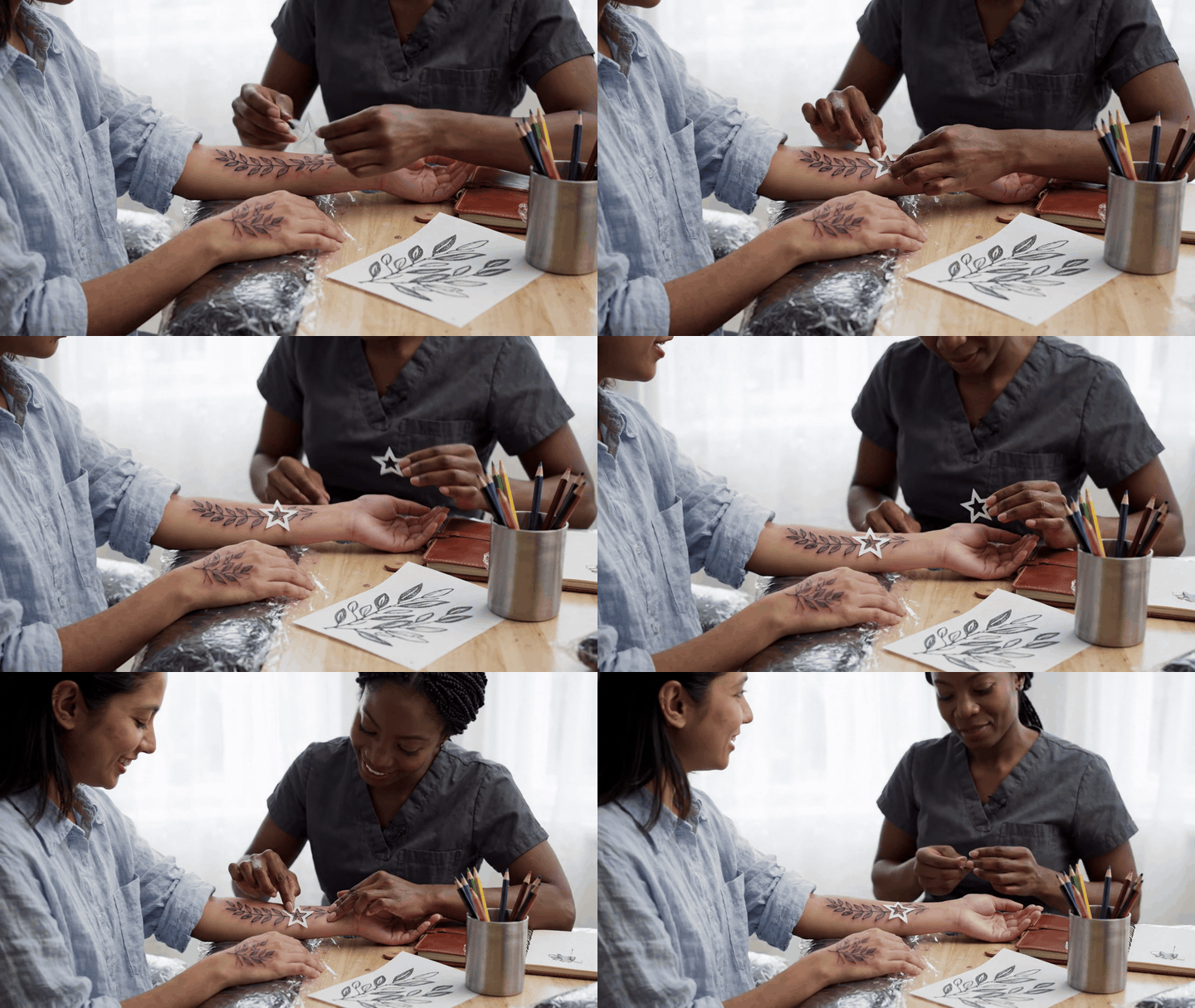
Secuencia de vista previa de diseño de tatuaje con Google Veo 3.1 Lite de ocho segundos con vistas lateral, de lado y alta de tres cuartos
Caso de movimiento: se coloca una plantilla de estrella de papel sobre el diseño de laurel existente y luego se verifica desde dos ángulos más. El clip es un flujo de trabajo ilustrativo de vista previa de diseño, no un tratamiento ni un procedimiento de tatuaje.
Paso 6: Detente, compara, revierte y luego exporta
Haz un registro por cada edición aceptada. Un equipo pequeño puede mantener esto en una hoja compartida o en la misma carpeta del proyecto que el máster. El objetivo es evitar que una revisión defectuosa se convierta en la próxima imagen fuente por accidente.
| Máster aprobado | Delta solicitado | Elementos protegidos | Verificación de calidad | Decisión de reversión |
|---|---|---|---|---|
harbor-master-v1.png | Nuevo nombre de producto y acento azul en la etiqueta | Mano, botella, reflejos, recorte, luz | Texto, borde de contacto, reflejo | Volver a ejecutar desde el máster si aparece alguna desviación |
northline-pass-v1.png | Nueva ciudad y fechas | Todo el demás texto, márgenes, cordón, escritorio | Comprobación carácter por carácter | Volver a ejecutar desde el máster si aparece reajuste |
laurel-arm-v1.png | Una estrella y dos hojas | Tinta existente, piel, pose, exposición | Uniones de líneas y textura de la piel | Volver a ejecutar desde el máster si se redibuja el tatuaje antiguo |
Confirma el contenido antes de redimensionar, agregar transparencia o hacer recortes de entrega. Esas son operaciones separadas. La medida de recuperación más rápida es siempre volver al último máster aprobado, reducir el delta solicitado y ejecutar de nuevo.
Variaciones y costo de GPT Image 2.5 Comment Edit
El protocolo de preservación se adapta a ediciones comunes. Mantén el objetivo primero, luego enumera los elementos protegidos en el orden en que un revisor los notaría.
- Color:
Change only [object] from [old] to [new]. Preserve [list]. - Eliminación:
Remove only [object]. Reconstruct only the background behind it. Preserve [list]. - Texto:
Replace only [exact visible text] with “[new text]”. Preserve line breaks, placement, hierarchy, and all unmarked letters. - Extensión:
Extend to [ratio]. Do not crop or stretch [subject]. Add only background content consistent with the existing scene.
El uso de ChatGPT Images depende del plan y los límites temporales adjuntos a una cuenta de usuario. No trates el precio de una ejecución de API como el precio de una suscripción a ChatGPT. En Atlas, un experimento compacto con una base aprobada más tres ediciones es aproximadamente una ejecución base más tres ejecuciones de edición a los precios mostrados en las páginas de modelos relevantes. Resoluciones más grandes y selecciones de mayor calidad pueden cambiar el costo o el tiempo de cola, así que consulta el catálogo de modelos actual antes de publicar un presupuesto.
Los equipos que repiten la misma solicitud pueden guardar el máster, la lista de preservación aprobada y el registro de control de calidad como una receta de edición ligera. Eso es más confiable que tratar de recordar qué prompt funcionó el mes pasado.
GPT Image 2.5 Comment Edit: consentimiento, derechos de autor y uso seguro
Edita imágenes y diseños que posees, tienes licencia para usar o tienes permiso claro para cambiar. Obtén permiso antes de cambiar el rostro, tatuaje o activo de marca de otra persona. No presentes imágenes editadas por IA como noticias reales, identificación oficial, comprobante de pago, credenciales de viaje o prueba médica de antes y después.
Los humanos deben verificar fechas, precios, nombres, afirmaciones y especificaciones de productos en la imagen final. El modelo puede representar un arreglo visual convincente sin establecer de forma independiente que el contenido sea correcto.
Preguntas frecuentes sobre GPT Image 2.5 Comment Edit
¿Qué es GPT Image 2.5 comment edit?
GPT Image 2.5 comment edit es un flujo de trabajo de ChatGPT Images en el que abres una imagen, colocas retroalimentación en un área específica y describes el cambio. Úsalo con una lista de preservación explícita y una revisión de calidad de toda la imagen, porque la ubicación del comentario es una guía en lugar de un bloqueo rígido de píxeles.
¿Dónde está el botón Comentario en ChatGPT Images?
En las experiencias móviles compatibles de ChatGPT, abre una imagen generada en pantalla completa y usa los controles de edición de imágenes para agregar un comentario. La disponibilidad puede variar a medida que se implementa una función, así que usa la interfaz actual del producto y la guía del Centro de ayuda en lugar de confiar en una captura de pantalla antigua.
¿GPT Image 2.5 comment edit cambia solo el área marcada?
Dirige la solicitud al área marcada, pero los detalles cercanos e incluso no marcados pueden desplazarse. Protege los elementos importantes por escrito, inspecciona la imagen completa y vuelve al máster aprobado después de cualquier resultado fallido.
¿Cuál es el mejor prompt para preservar un rostro, logotipo o diseño?
Comienza con «Only change [target area]». Indica el contenido nuevo exacto. Luego agrega «Preserve» seguido del rostro, la pose, la ubicación del logotipo, la jerarquía del texto, el recorte, la dirección de la luz, los materiales y todos los detalles no marcados que importan. Termina con «Make no other changes».
¿Puedo usar GPT Image 2.5 comment edit en imágenes subidas?
Usa solo imágenes que tengas derecho a editar. Se aplica la misma disciplina de edición local: aprueba una versión fuente, señala el objetivo, escribe el delta y la lista de preservación, e inspecciona el resultado. La disponibilidad de la función depende de la superficie de ChatGPT y su implementación.
¿Está disponible GPT Image 2.5 comment edit a través de una API?
El control Comentario es una función nativa de la interfaz de ChatGPT, no un botón de Atlas Cloud ni un endpoint de API. Los desarrolladores pueden reproducir el protocolo de decisión con un prompt de edición de imágenes acotado, un archivo fuente aprobado, un registro de versión y un flujo de trabajo de edición de imágenes ejecutable. Eso hace que GPT Image 2.5 comment edit sea útil más allá de la retroalimentación única, sin dejar de ser honestos sobre lo que hace la interfaz en sí.





