Satu orang asing. Mereka masuk ke dalam bingkai setengah detik sebelum rana menutup, merekalah satu-satunya yang salah dalam bidikan yang seharusnya bersih, dan merekalah satu-satunya alasan Photoshop dibuka sama sekali.
Ada tiga cara berbeda untuk membuatnya hilang, dan daftar langkah yang menduduki peringkat untuk photoshop remove object cenderung menjejerkannya sebagai tiga tombol di rak yang sama. Ketiganya berjalan di perangkat keras berbeda. Ketiganya menagih dalam mata uang berbeda. Salah satunya akan berwarna abu-abu di banyak laptop sebelum Anda sempat mendekatinya.
Jadi ini justru sisi harga dari pertanyaannya. Semua yang di bawah ini berasal dari halaman bantuan dan halaman paket Adobe sendiri, dibaca pada September 2026: alat mana yang menghabiskan kredit generatif dan mana yang tidak, apa yang dituntut Remove tool dari kartu grafis Anda, dan apa yang sebenarnya termasuk dalam paket yang menyandang nama Photoshop. Lalu versi pekerjaan yang berjalan di tab browser secara gratis.
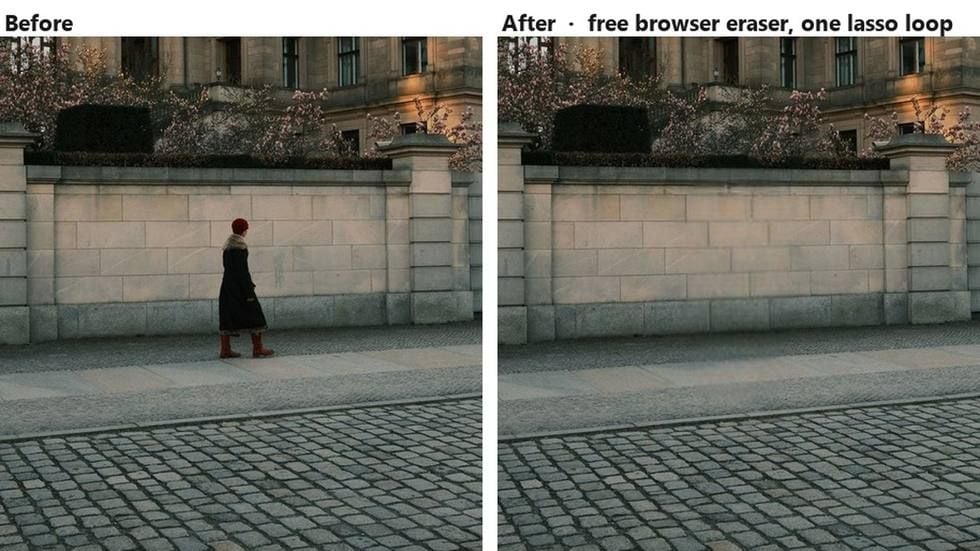
Poin Penting
- Photoshop menawarkan tiga jalur penghapusan dengan tiga mekanisme: Remove tool menjalankan model, Content-Aware Fill menyalin piksel di sekitarnya, dan Generative Fill menulis konten baru dari prompt.
- FAQ kredit generatif Adobe mencantumkan Photoshop Remove tool di antara fitur yang tidak menghabiskan kredit sama sekali. Masalahnya ada di perangkat keras, dan Adobe mempublikasikan spesifikasi minimumnya.
- Generative Fill dengan model Adobe Firefly berbiaya 1 kredit per generasi, dan paket yang dijual sebagai Photoshop membawa 25 kredit sebulan yang tidak dapat diakumulasi.
- Object Eraser gratis melakukan pekerjaan mask-and-fill di dalam tab browser tanpa akun, tanpa meteran kredit, dan tanpa instalasi.
- Untuk perubahan yang tidak dapat dijelaskan oleh mask, model penyuntingan gambar terkelola menerima instruksi tertulis dan menagih per proses, bukan per bulan.
Apa yang Sebenarnya Dijalankan Photoshop Remove Tool
Instruksi Adobe sendiri dimulai di sini: pilih Remove tool dari panel Tools, gambar putaran di sekeliling orang asing itu, dan Photoshop menggantinya. Adobe memperkenalkannya bersamaan dengan Generative Fill dalam pengumuman 23 Mei 2023, mendeskripsikannya sebagai fitur bertenaga AI yang menggantikan objek yang tidak diinginkan "cukup dengan menyapunya," dan merekomendasikannya untuk objek besar serta untuk apa pun yang berada di depan struktur seperti pagar atau garis horizon.
Dua kontrol menentukan apa yang terjadi selanjutnya. Opsi Mode di bilah Options menentukan apakah AI generatif digunakan sama sekali: Auto, aktif, atau nonaktif. Saat aktif, muncul pilihan kedua antara pemrosesan Cloud dan Device. Contextual Task Bar juga membawa dropdown Find distractions yang mencari tiga kategori sendiri: gangguan umum, orang, dan kabel serta tali.
Lalu tibalah bagian yang menentukan apakah Anda bisa menggunakannya sama sekali. Adobe mempublikasikan halaman perangkat keras terpisah untuk satu alat ini, dan batas bawahnya jauh di atas milik Photoshop sendiri. Aplikasi ini terpasang di mesin dengan RAM 8 GB dan memori GPU 1,5 GB. Halaman Remove tool meminta RAM 16 GB dan kartu diskret berkapasitas 8 GB.
| Komponen | Minimum Remove tool, Windows | Model generatif on-device |
|---|---|---|
| CPU | 8 core, Intel Rocket Lake atau setara | Sama |
| GPU diskret | Kartu seperti NVIDIA RTX 3060 atau lebih tinggi dengan RAM minimal 8 GB | NVIDIA RTX seri 30 atau lebih baru dengan VRAM 14 GB, Intel Arc dengan VRAM 12 GB, atau AMD RDNA2 atau lebih baru dengan VRAM 23 GB |
| GPU terintegrasi | Tidak dicantumkan | Intel Arrow Lake atau Lunar Lake dengan RAM 32 GB, atau AMD RDNA2 atau lebih baru dengan RAM 64 GB |
| Memori | 16 GB | Tercakup oleh baris di atas |
| Penyimpanan | SSD 512 GB | Komponen diunduh sekali saat penggunaan pertama |
| Driver | Driver GPU terbaru direkomendasikan | Driver lebih lama dari 2 tahun mungkin tidak didukung |
Halaman known-issues milik Adobe sendiri menjelaskan apa yang terjadi ketika mesin kurang memadai: opsi Device langsung menjadi tidak tersedia dan Anda diminta menggunakan mode Cloud. Halaman itu juga membahas pesan saat pertama kali dijalankan tentang komponen yang diperlukan sedang diunduh, dan solusi crash yang melibatkan pemilihan More stable di bawah Remove Tool Processing di Preferences.
Sekarang kejutannya. FAQ kredit generatif Adobe menyimpan daftar singkat fitur generatif yang tidak menghabiskan kredit, dan "Photoshop: Remove Tool" ada di dalamnya. Jalankan seribu kali dalam sebulan dan saldo kredit di menu akun Anda tidak bergerak. Alat ini tidak dimeteran. Yang membatasinya adalah kartu grafis dan langganan.
Content-Aware Fill: Penghapusan Tanpa Model
Ketika Remove tool tidak tersedia atau hasilnya menjadi kabur, cadangannya lebih tua dan lebih aneh. Content-Aware Fill sudah ada di Photoshop selama bertahun-tahun, dan deskripsi Adobe tentangnya sangatlah lugas: ia menghapus objek dan mengisi area tersebut "dengan piksel di sekitarnya."
Tidak ada model yang berjalan. Tidak ada yang diunduh. Tidak ada yang dihasilkan. Photoshop menyalin tekstur dari tempat lain di gambar Anda dan memadukannya di atas lubang, itulah sebabnya alur kerjanya dimulai dengan alat seleksi alih-alih kuas, dan mengapa pengisian ini membuka ruang kerjanya sendiri dengan area sampling yang diharapkan Anda sesuaikan.
Ruang kerja itulah tempat kerja kerasnya berpindah. Alih-alih model yang menentukan apa yang seharusnya berada di belakang sosok itu, Anda memberi tahu Photoshop ke mana harus melihat.
| Kontrol | Apa yang Anda atur | Opsi |
|---|---|---|
| Area sampling | Piksel mana yang disalin Photoshop | Auto, Rectangular, Custom via Sampling Brush, Sample All Layers |
| Color Adaptation | Pencocokan kontras dan kecerahan untuk pergeseran bertahap | None, Default, High, Very High |
| Rotation Adaptation | Penyelarasan untuk pola yang diputar atau melengkung | None, Low, Medium, High, Full |
| Scale | Pengubahan ukuran untuk pola berulang pada ukuran berbeda | On atau off |
| Mirror | Pembalikan horizontal untuk bingkai simetris | On atau off |
| Output To | Di mana konten yang terisi ditempatkan | Current Layer, New Layer, Duplicate Layer |
Enam kontrol, dan pembacaan yang jujur dari daftar itu adalah bahwa Content-Aware Fill tidak memiliki konsep tentang apa itu manusia. Ia mengambil sampel dan memadukan. Pada dinding rata atau halaman rumput yang merata itu sudah cukup. Di seberang garis horizon, pagar, atau lantai berubin, Anda akan menyeret Sampling Brush cukup lama, dan dropdown Rotation Adaptation ada justru karena jawaban naif menjadi salah.
Apakah Ada Content-Aware Fill Online?
Orang mengetik frasa itu karena mereka menginginkan hasilnya tanpa aplikasi desktop, dan penting untuk memperjelas apa yang bisa diberikan browser. Panel di atas adalah ruang kerja desktop dengan enam pengaturan yang saling bergantung, jadi halaman web tidak akan mereproduksinya kontrol demi kontrol.
Yang bisa dijalankan browser adalah mekanisme yang sama sekali berbeda: model inpainting bertopeng yang melihat lubang dan seluruh gambar lalu melukiskan apa yang menurutnya pantas berada di sana. Itu lebih dekat dengan apa yang dilakukan Remove tool daripada apa yang dilakukan Content-Aware Fill, dan hanya butuh satu input dari Anda alih-alih enam. Bagian selanjutnya adalah alat itu.
Alternatif Photoshop Remove Object Gratis yang Berjalan di Tab Browser
Buka tab, jatuhkan foto, gambar putaran di sekeliling orang asing itu, unduh PNG. Tanpa langkah instalasi, tanpa akun, tanpa penghitung yang terus turun, dan gambar tidak pernah meninggalkan mesin tempat Anda duduk.
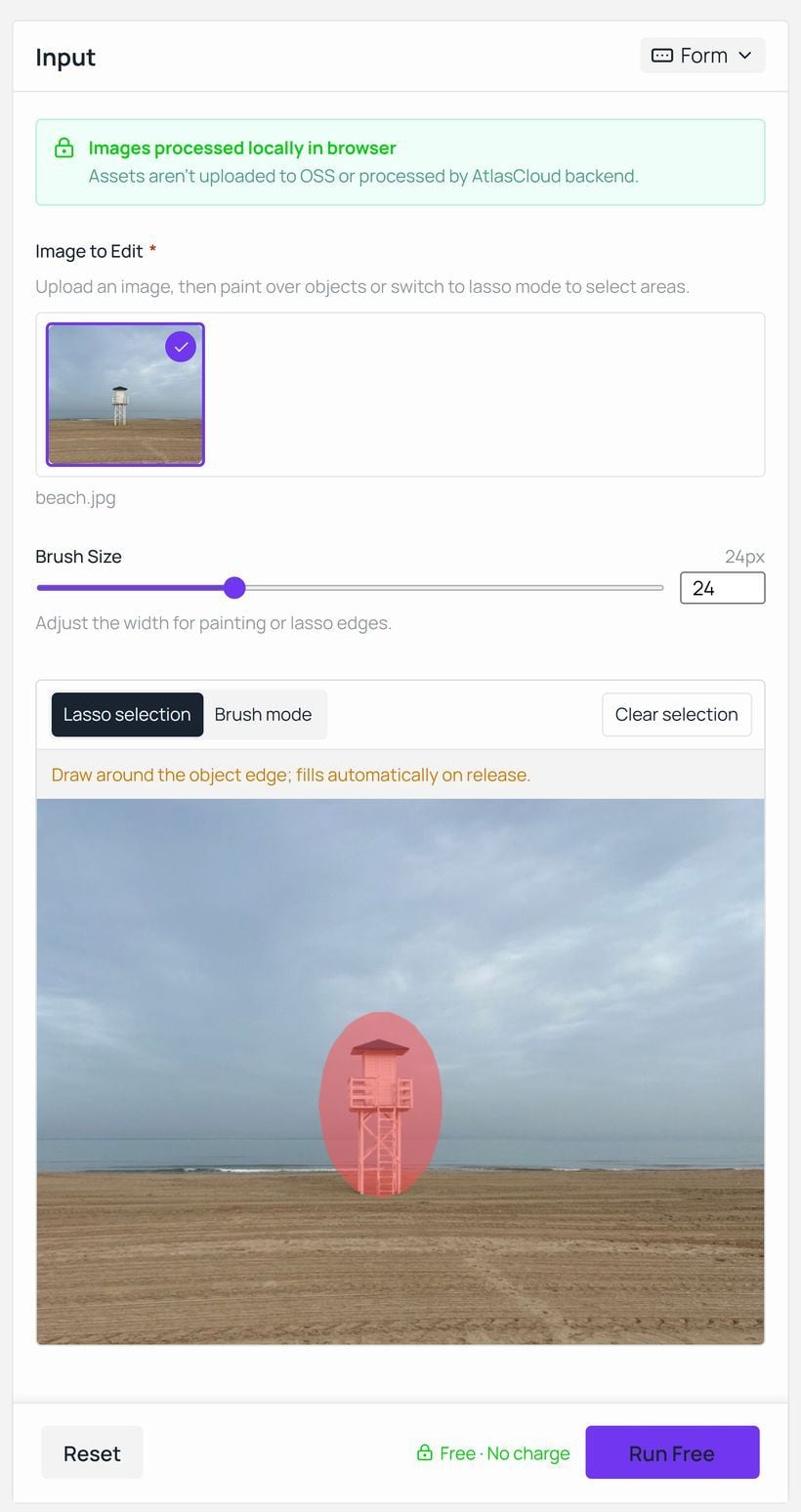
Halaman ini adalah salah satu dari alat AI gratis yang dijalankan Atlas Cloud tanpa dinding masuk. FAQ-nya sendiri menyatakan syaratnya dengan gamblang: "Tidak diperlukan akun pada titik mana pun," dan alat ini gratis "tanpa kredit, tanpa batas harian, dan tanpa metering seberapa banyak yang Anda hapus." Sebuah panel di halaman menambahkan bahwa gambar diproses secara lokal di browser dan aset tidak diunggah ke penyimpanan atau ditangani oleh backend.
Keluarannya mempertahankan resolusi file yang Anda masukkan. Catatan di bawah ruang kerja menjelaskan satu hal yang perlu diketahui sebelum klik pertama: browser mengunduh dan menyimpan bobot model di cache saat pertama kali dijalankan, dan kecepatan sebenarnya bergantung pada performa perangkat serta kondisi jaringan. Jika fotonya ada di ponsel, opsi bawaan dibandingkan secara terpisah dalam panduan kami tentang menghapus objek di iPhone.
Mengoperasikan penghapus objek browser membutuhkan tiga langkah, dan langkah kedua adalah satu-satunya yang mengandung keputusan.
- Unggah foto, atau seret ke area unggah.
- Pilih cara menandai objek. Lasso selection menginginkan putaran yang digambar di sekeliling tepi dan mengisinya saat dilepas. Brush mode melukis langsung di atas objek, dengan Brush Size berkisar dari 6 hingga 64 piksel.
- Tekan Run Free, lalu Download ketika panel keluaran melaporkan selesai.
Laso lebih cepat pada satu objek ringkas seperti bollard atau rambu jalan. Kuas lebih baik pada sesuatu yang memiliki anggota badan dan celah, di mana putaran akan menelan separuh latar belakang bersamanya. Apa pun pilihannya, Anda melakukan pekerjaan yang dilakukan Sampling Brush di Content-Aware Fill, kecuali Anda menandai apa yang harus hilang alih-alih dari mana harus menyalin. Menghapus seluruh latar belakang di belakang subjek adalah tugas berbeda dengan alat berbeda, dibahas dalam kumpulan kami tentang penghapus latar belakang AI.
Di Mana Generative Fill Berhenti Gratis
Jalur Photoshop ketiga adalah yang melakukan lebih dari sekadar menghapus. Pilih area, buka Generative Fill, pilih model, dan ketikkan apa yang seharusnya ada di sana. Halaman bantuan Adobe mencatat Anda juga bisa membiarkan prompt kosong dan membiarkan Photoshop mengisi seleksi dari piksel di sekitarnya.
Pemilih model patut dibaca, karena sudah bertambah. Sisi Adobe sendiri menawarkan Firefly Fill & Expand, Firefly Image 5 dan Firefly Image 1. Di sampingnya ada model mitra: FLUX.2 pro, FLUX Kontext pro, Gemini 3.1 dengan Nano Banana 2, dan Gemini 3 dengan Nano Banana Pro.
Pemilih itu juga menjadi batas penagihannya. FAQ kredit Adobe mendeskripsikan Generative Fill dengan model Adobe Firefly sebagai fitur standar dengan 1 kredit per generasi. Model mitra diklasifikasikan sebagai premium, di mana biaya kredit bervariasi menurut model, keluaran, dan ukuran file. Kredit direset setiap bulan pada tanggal penagihan Anda, dan FAQ-nya tidak ambigu bahwa kredit tidak dapat diakumulasi.
Jadi berapa banyak generasi yang terkandung dalam sebulan? Itu sepenuhnya bergantung pada paket mana yang Anda beli.
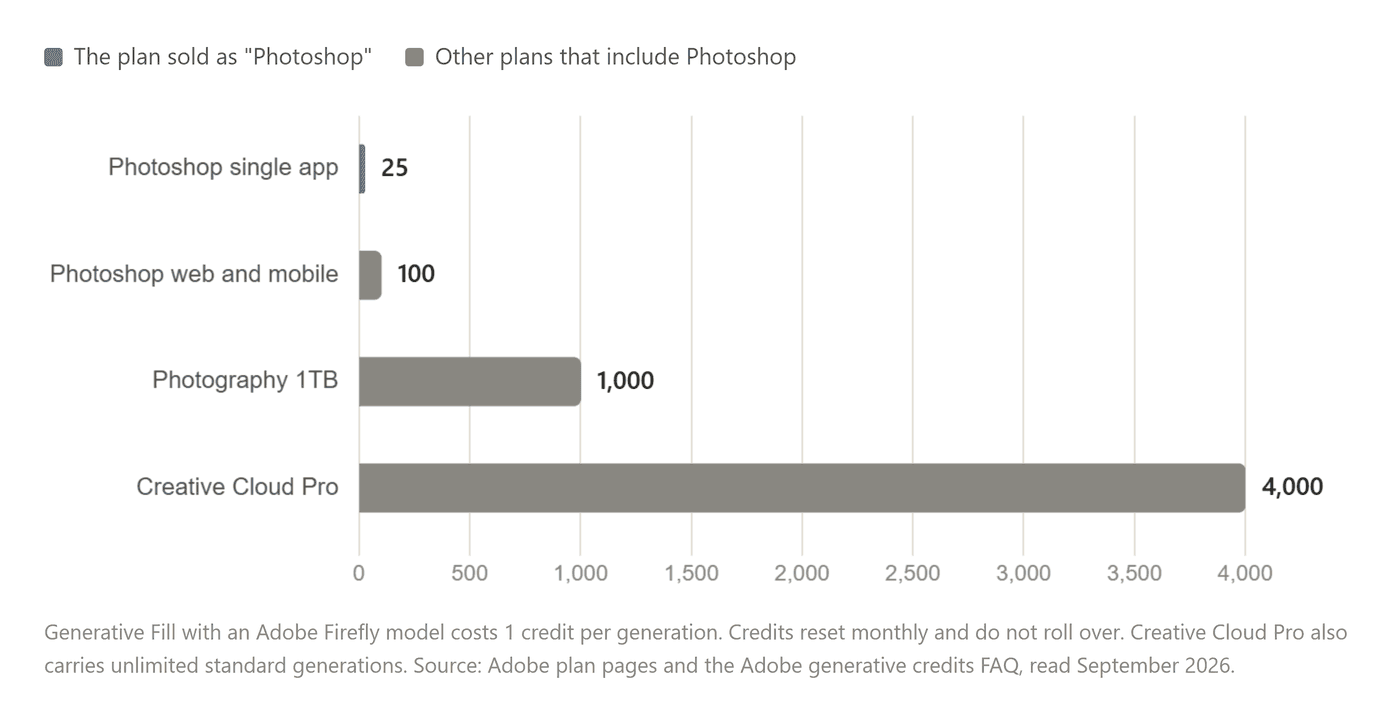
Baca lagi batang teratas. Halaman paket Photoshop Adobe, diperiksa pada September 2026, mencantumkan aplikasi mandiri seharga US$22,99 sebulan dengan penagihan tahunan, atau US$263,88 dibayar untuk setahun, dan menetapkan jatah kredit generatifnya di 25 sebulan. Baris perbandingan yang sama menandai fitur AI standar seperti Generative Fill sebagai "Access with generative credits" pada paket itu, sementara Creative Cloud Pro dan paket Firefly mendapatkan generasi standar tanpa batas.
Dua puluh lima generasi Firefly. Setiap kali menekan Generate pada suatu seleksi adalah satu, dan pengisian yang Anda tolak karena bayangannya jatuh ke arah yang salah juga satu. Paket Photography seharga US$19,99 sebulan menyertakan 1.000 kredit, penyimpanan 1TB dan Lightroom bersamanya, yang merupakan arbitrase diam-diam dalam jajaran produk Adobe bagi siapa pun yang membeli paket Photoshop untuk menyunting foto. Yang Anda lepaskan dengan memilih jalur itu adalah paket Adobe Express Premium yang dibundel dengan tingkat Photoshop.
Dua baris lagi dari halaman yang sama perlu dicatat. Adobe menjawab "Can I buy Photoshop outright?" dengan "No. Photoshop is available only through a Creative Cloud subscription." Dan uji coba gratis berlangsung 7 hari, setelah itu "akan secara otomatis berubah menjadi keanggotaan Creative Cloud berbayar" kecuali Anda membatalkannya lebih dulu.
Alternatif Photoshop Generative Fill Tanpa Meteran Bulanan
Penyuntingan berbasis prompt tidak harus datang terbundel dengan jatah. Kelas model yang sama dapat dijalankan secara langsung, satu pekerjaan sekaligus, dengan harga per proses.
Perhatikan nama mana yang muncul di daftar mitra Adobe. Nano Banana 2 ada di pemilih model Photoshop sebagai fitur premium yang mengurangi kredit, dan Nano Banana 2 Edit tersedia sendiri di playground Atlas Cloud dengan keluaran 1K, 2K dan 4K. Anda mengunggah bingkai, menulis instruksi, dan playground menampilkan biaya proses itu sebelum Anda mengirimkannya. Tidak ada saldo bulanan yang harus dihabiskan dan tidak ada yang kedaluwarsa di akhir bulan.
Instruksi adalah tempat jalur ini membuktikan nilainya. Mask mengatakan "area ini salah." Prompt mengatakan apa yang harus menggantikannya, yang merupakan perbedaan antara menghapus mobil yang terparkir dan mengubah ruang yang ditempatinya kembali menjadi trotoar yang berkesinambungan dengan arah bayangan yang tepat. Halaman penghapus sendiri menarik garis yang sama: ia mengisi celah dengan latar belakang yang serasi "alih-alih menyisipkan konten baru," dan mengarahkan apa pun yang membutuhkan elemen yang benar-benar baru ke penyuntingan generatif.
Tulis kalimatnya seperti ringkasan tugas: sebutkan objek yang akan dihapus, deskripsikan latar belakang di belakangnya harus berlanjut menjadi apa, dan nyatakan bahwa tidak ada hal lain di bingkai yang boleh berubah.
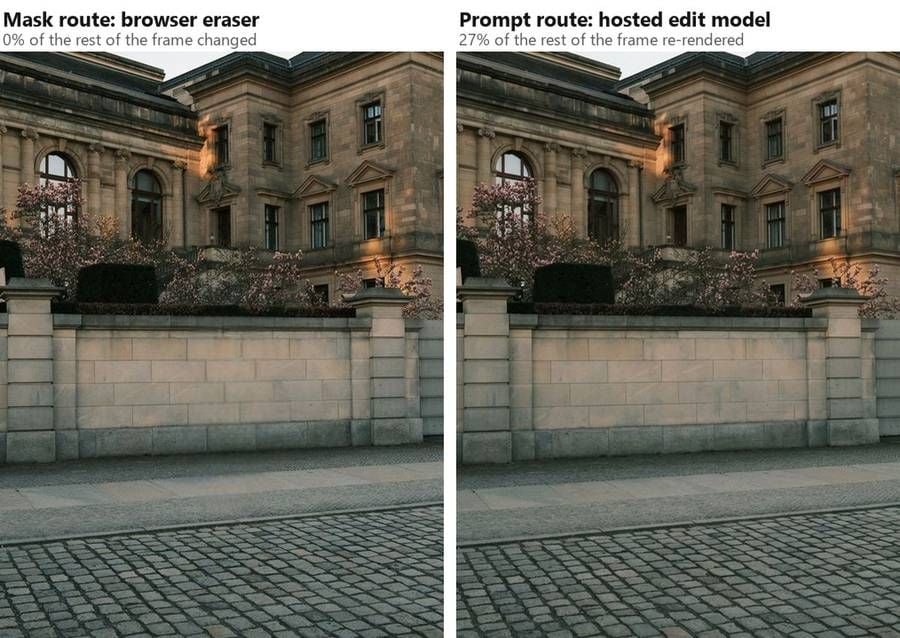
Perbedaan itu dapat diukur. Kami menjalankan kedua jalur pada foto yang sama lalu membandingkan setiap piksel di luar area yang telah dibersihkan.
Penghapus browser mengembalikan sisa bingkai tanpa perubahan, piksel demi piksel. Model terkelola mengembalikan bingkai di mana 27% dari piksel yang tersisa itu telah bergerak: pergeseran kecil pada batuannya, bunga, dan warna senja. Inpainting bertopeng mengisi lubang dan memadukan yang asli kembali di sekelilingnya. Penyuntingan generatif membaca seluruh gambar dan menulis yang baru.
Jadi jalur mask cocok untuk pekerjaan di mana segala sesuatu yang tidak Anda pilih harus kembali persis seperti saat masuk, dan jalur prompt cocok untuk pekerjaan di mana adegannya sendiri harus berubah alih-alih menutup.
Adobe Photoshop Object Removal vs Atlas Cloud, Berdampingan
| Adobe Photoshop | Atlas Cloud | |
|---|---|---|
| Cara Anda masuk | Hanya langganan Creative Cloud, uji coba 7 hari berubah otomatis | Tab browser untuk penghapus gratis, akun untuk model terkelola |
| Penghapusan berbasis mask | Remove tool, plus Content-Aware Fill | Object Eraser gratis, laso atau kuas |
| Kredit untuk penghapusan berbasis mask | Tidak ada. Adobe mencantumkan Remove tool sebagai bebas kredit | Tidak ada pada alat gratis, dan tanpa batas harian |
| Penghapusan berbasis prompt | Generative Fill, 1 kredit per generasi Firefly | Model penyuntingan gambar terkelola, berharga per proses |
| Jatah bulanan | 25 kredit pada paket Photoshop, tanpa akumulasi | Tidak ada jatah bulanan yang bisa habis |
| Batas bawah perangkat keras | Minimum yang dipublikasikan termasuk GPU diskret 8 GB untuk Remove tool | Browser dengan dukungan WebGPU |
| Ke mana pikselnya pergi | Cloud atau Device, pilihan Anda di opsi Mode Remove tool | Tetap di browser pada alat gratis, diunggah untuk model terkelola |
| Apa lagi yang bisa dilakukannya | Layer, mask, CMYK dan 16-bit, plus segala hal lain di aplikasi tersebut | Satu pekerjaan per halaman, tanpa model dokumen |
Baris terakhir adalah yang harus jujur diakui. Photoshop bukan penghapus serbaguna dan tidak ada apa pun di tab browser yang menggantikan sisanya.
Haruskah Anda Beralih?
Tidak sepenuhnya, dan itu jawaban yang wajar. Pertanyaan yang berguna lebih sempit: untuk pekerjaan spesifik menghilangkan satu hal yang tidak diinginkan dari satu foto, sisi mana yang harus Anda buka?
| Tetap di Photoshop ketika | Buka alat browser ketika |
|---|---|
| Anda sudah berlangganan, dan mesin Anda memenuhi spesifikasi Remove tool | Photoshop tidak terpasang, atau opsi Device berwarna abu-abu |
| Penghapusan adalah satu langkah di dalam komposit berlapis | Foto butuh satu perbaikan dan tidak ada lagi |
| Anda membutuhkan CMYK, 16-bit, atau action yang berjalan di seluruh folder | Filenya JPEG atau PNG menuju web |
| Pengisian harus disetel manual dengan kontrol sampling | Anda ingin hasilnya sebelum selesai membaca pengaturannya |
| Langganan Anda menyertakan 1.000 atau 4.000 kredit untuk pekerjaan prompt | Anda lebih suka membayar per proses daripada per bulan |
Ada jalur tengah yang gratis untuk dicoba. Jalankan dulu penghapus gambar AI gratis, karena hanya butuh satu menit dan tanpa biaya. Jika pengisiannya tetap bagus pada ukuran penuh, pekerjaan selesai. Jika ia mengaburkan pagar atau meninggalkan hantu di tempat bayangannya dulu ada, Anda hanya kehilangan satu menit dan Anda masih punya Photoshop, atau model berbasis prompt yang bisa diberi tahu persis apa yang harus dilakukan pagar itu.
Pertanyaan yang Sering Diajukan
Bagaimana cara menghapus objek di Photoshop?
Tiga alat melakukannya dan cara kerjanya berbeda. Remove tool menyapu atau memutari objek dan membangun ulang area dengan model. Content-Aware Fill meminta seleksi terlebih dahulu dan mengisinya dari piksel di sekitarnya. Generative Fill mengambil seleksi plus prompt tertulis dan menghasilkan konten pengganti. Pusat bantuan Adobe memuat instruksi langkah demi langkah terkini untuk masing-masingnya, dan instruksi itu berubah seiring rilis.
Bagaimana cara menghapus objek di Photoshop di laptop dengan grafis terintegrasi?
Periksa dulu opsi Mode di Remove tool. Jika perangkat keras Anda kurang dari spesifikasi yang dipublikasikan Adobe, pengaturan Device akan tidak tersedia dan pemrosesan Cloud yang menangani pekerjaannya, yang membutuhkan koneksi tetapi tidak kartu grafis. Content-Aware Fill adalah jalur lain di dalam aplikasi, karena ia mengambil sampel piksel alih-alih menjalankan model. Alat browser yang memproses secara lokal adalah opsi ketiga, dan ia punya persyaratan WebGPU tersendiri.
Bisakah Lightroom menghapus objek sebagai gantinya?
Bisa, dan penagihannya berbeda. Generative Remove di Lightroom menutupi objek dan membiarkan Adobe Firefly mengisi areanya, mengembalikan tiga variasi untuk dipilih. Opsi Detect objects-nya akan mengenali bayangan atau pantulan objek bersama objek itu sendiri saat Anda mencoret di atasnya. Catatan Adobe sendiri di halaman itu menyatakan bahwa kredit generatif tidak dikurangi untuk penggunaan Generative Remove.
Apakah Generative Fill gratis?
Tidak di semua paket. Adobe menghitung Generative Fill dengan model Firefly sebagai fitur generatif standar dengan 1 kredit per generasi, dan paket yang dijual sebagai Photoshop menyertakan 25 kredit sebulan yang tidak dapat diakumulasi. Creative Cloud Pro dan paket Firefly membawa generasi standar tanpa batas, jadi pada paket itu tindakan yang sama tidak berbiaya. Model mitra seperti Nano Banana 2 diklasifikasikan sebagai premium, di mana Adobe menyatakan biaya kreditnya bergantung pada model, keluaran, dan ukuran file.
Berapa biaya penghapusan berbasis prompt di Atlas Cloud?
Nano Banana 2 Edit dihargai $0,08 per gambar pada 1K, $0,12 pada 2K dan $0,16 pada 4K pada 20 September 2026, tanpa diskon yang diterapkan, dan Nano Banana 2 Lite Edit yang lebih ringan di $0,04 untuk 1K. Playground menampilkan angka untuk pengaturan Anda yang tepat sebelum proses dimulai. Object Eraser di browser tetap gratis dan tanpa metering apa pun yang Anda lakukan dengannya.
Apakah penghapus gratis itu benar-benar gratis, dan apakah ia memberi watermark pada unduhannya?
Halaman alat itu menjawab keduanya. Alat ini gratis "tanpa kredit, tanpa batas harian, dan tanpa metering seberapa banyak yang Anda hapus," tidak diperlukan akun pada titik mana pun, dan unduhannya "tidak membawa watermark." Halaman itu juga menyatakan model yang menjadi dasarnya membawa lisensi yang mengizinkan penggunaan komersial, dengan syarat yang jelas bahwa Anda memegang hak atas foto yang Anda sunting.
Kesimpulan
Kembali ke orang asing di dalam bingkai. Jika Anda sudah berada di dalam Photoshop pada mesin yang memenuhi spesifikasi, Remove tool adalah jalur yang harus dijangkau, karena Adobe tidak menagih kredit generatif untuknya sama sekali. Jangkau Generative Fill sebagai gantinya dan meteran mulai berjalan, dengan satu kredit per generasi terhadap jatah dua puluh lima pada paket yang menyandang nama Photoshop.
Jadi keputusannya bergantung pada jalur mana yang Anda pilih, bukan pada aplikasi mana yang Anda miliki. Tandai objeknya dan biarkan model membangun ulang apa yang ada di belakangnya, dan tab browser melakukannya tanpa akun dan tanpa saldo bulanan. Deskripsikan penggantinya dalam satu kalimat, dan model penyuntingan terkelola menagih per proses dan tidak lebih. Apa pun pilihannya, Anda punya alternatif photoshop remove object yang berfungsi untuk sore hari ketika satu-satunya hal antara Anda dan foto yang selesai hanyalah satu tiang.





