The new logo went live on Monday. By Wednesday someone noticed the old one still sits in the corner of forty product videos, on the mug in the unboxing clip, and in the animated card that opens every tutorial. Re-shooting is off the table, so the question becomes how to remove a logo from a video you already published without leaving a blurry square where the mark used to be.
The fix depends on where that logo actually lives. Some marks aren't in the file at all and come off with a setting. Some are burned into every frame and need an AI editing pass that repaints the pixels behind them. A few are printed on real objects in the shot, which is a harder job that logo remover pages tend to skip.
This guide sorts your clip into the right case first, then walks through each fix, including how to drop the new logo into the spot the old one left behind. Watermarks count too: for this purpose a semi-transparent brand mark and a solid logo are the same problem.
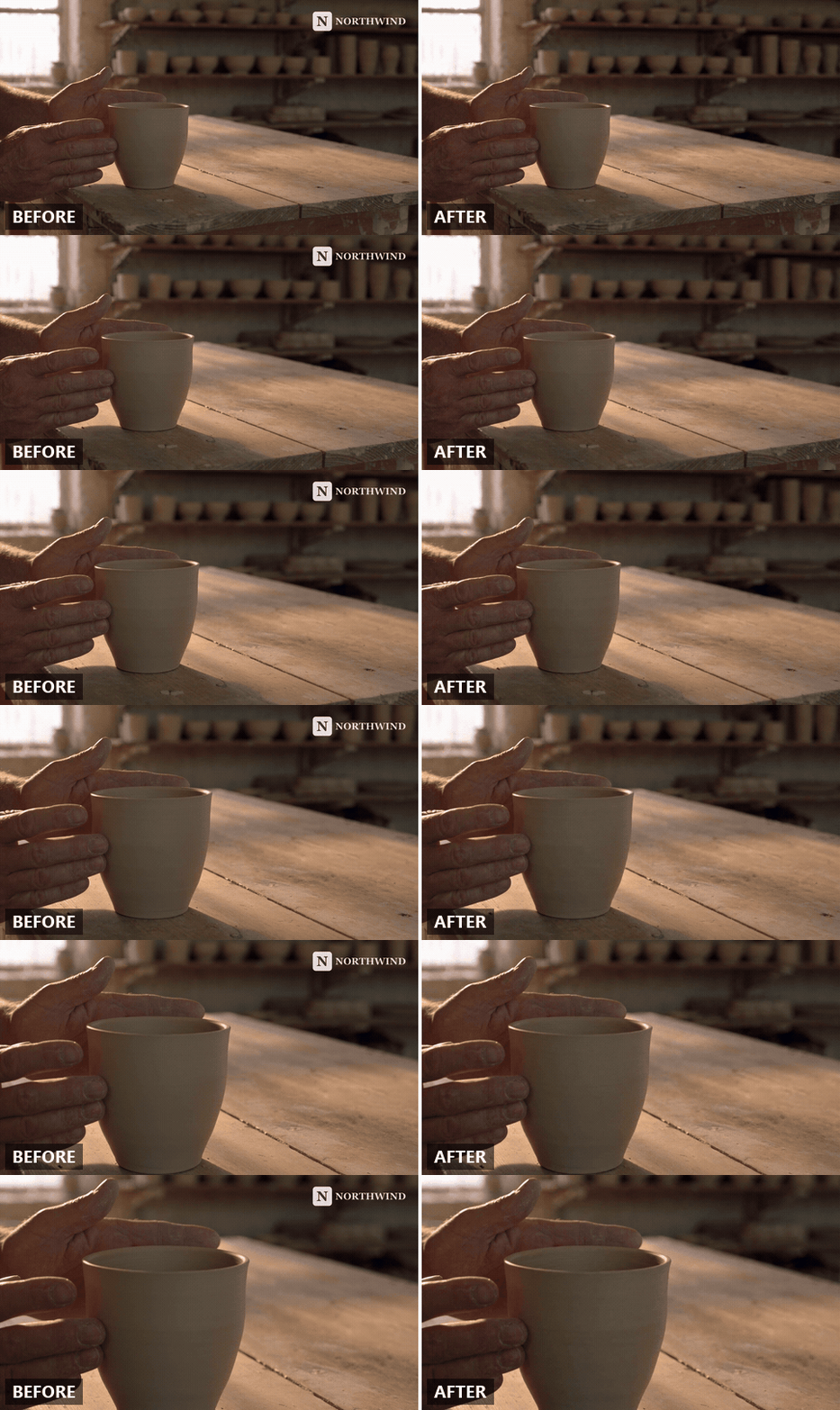
Key Takeaways
- Check where the logo lives first: a YouTube channel watermark sits on the player, not in the file, and comes off in Studio without any editing.
- A burned-in corner bug or lower third is a video editing job. Upload the clip to the Video Edit tab and describe the logo in one sentence.
- A logo printed on a mug, shirt or storefront in the shot can be repainted too, but the prompt has to name the object and say what belongs there instead.
- You don't have to settle for a blank corner. Add the new logo as a reference image and the same pass swaps it in.
- Edit only footage you own or have rights to. Stripping someone else's mark can count as removing copyright management information under US law.
Which Kind of Logo Is in Your Video? Three Cases, Three Fixes
Before you upload anything, work out how the logo got there. A rebrand usually surfaces all three kinds at once, and each one has a different fix.
| Where the logo lives | How to tell | What removes it |
|---|---|---|
| Overlaid by the platform (a YouTube channel watermark) | Download the original file from YouTube Studio: the logo isn't in it | A setting in YouTube Studio, no editing needed |
| Burned into the frames (corner bug, lower third, animated intro card) | The logo is in every export, every player, every frame | An AI editing pass that repaints the area behind it |
| Printed on a physical object in the shot (mug, shirt, packaging, signage) | The logo bends with the object and moves with it | The same AI pass, with a prompt that names the object |
The first case is the one people often try to fix with a video logo remover when a settings page would have done it in two minutes. The second is what a typical remove logo from video tool is built for. The third is where those tools stop, because a logo on a curved mug under changing light is an object removal problem rather than a corner patch.
One thing this guide doesn't cover: the watermark an AI video generator stamps on its own output. That mark carries provenance rules of its own, and the Veo watermark guide handles it separately.
Remove a Video Logo YouTube Added: Two Minutes in Studio, No AI
If the only place you see the old logo is in the corner of the YouTube player, it's YouTube's own branding feature, and the file you uploaded is clean. YouTube calls it a video watermark: a small image you pick once, and the player draws it over every video on the channel, either for the whole runtime, from a custom start time, or for the last 15 seconds. It's drawn by the player rather than baked into the upload, which is why Google notes it doesn't appear on chromeless embeds.
Google's help page for channel branding spells out where it lives: "From the left menu, select Customization and then Profile." The video watermark section sits on that page. It's a channel-level setting, which is why the same page also calls it the channel watermark: one image, one place to change it.
That makes a rebrand the easy case. Swap the watermark image for the new logo and the old one leaves the player in one edit. Google's page documents adding and changing the image and doesn't spell out a removal step, so if you want no corner mark at all, that same section is the place to look.
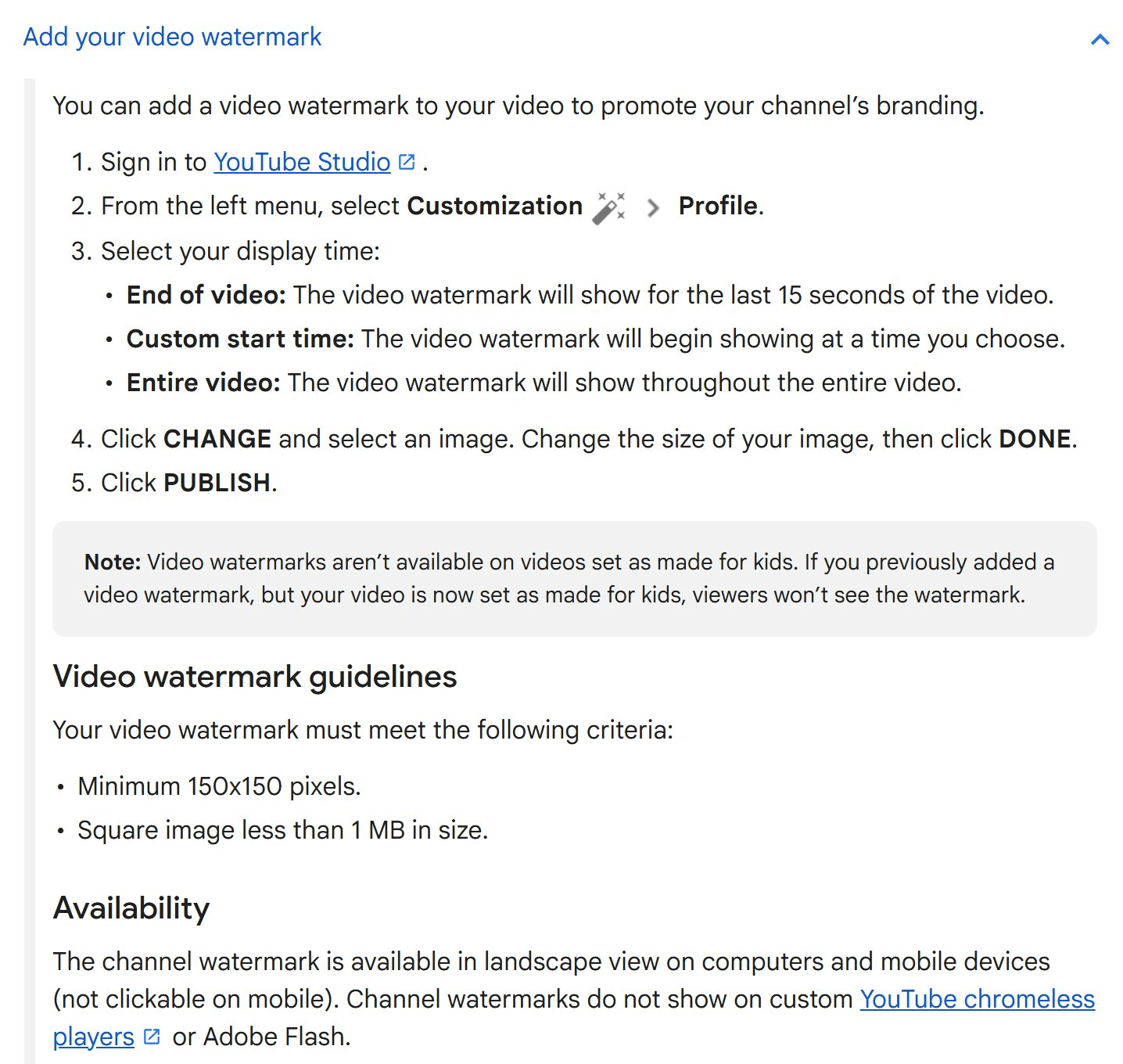
Screenshot from YouTube Help's official channel branding page.
One quick test tells you which case you're in. Open the video anywhere except YouTube, or download the original from Studio. Logo still there? It's burned in, and you need the next section.
How to Remove a Logo From a Video in 4 Steps With Atlas Cloud Video Edit
A burned-in logo is part of the picture. Every frame has it, and behind it is whatever the camera saw, which the export threw away.
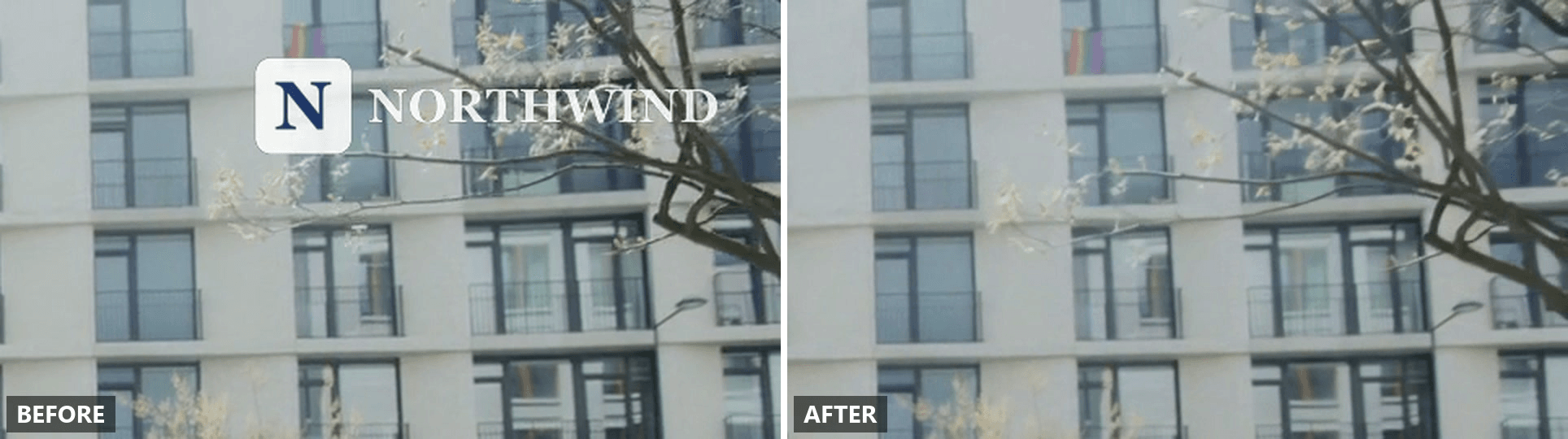
Atlas Cloud handles this as a video editing task: you upload the clip, describe the logo in plain words, and the model repaints that region across the whole clip while the rest of the frame stays as shot. Below is the corner of a second test clip, a street scene, cropped to full size, before and after a single Video Edit pass. The window frames, balconies and the tree branch that ran behind the old mark are all back in place.
Method 1: Erase the Old Logo in the Video Edit Tab
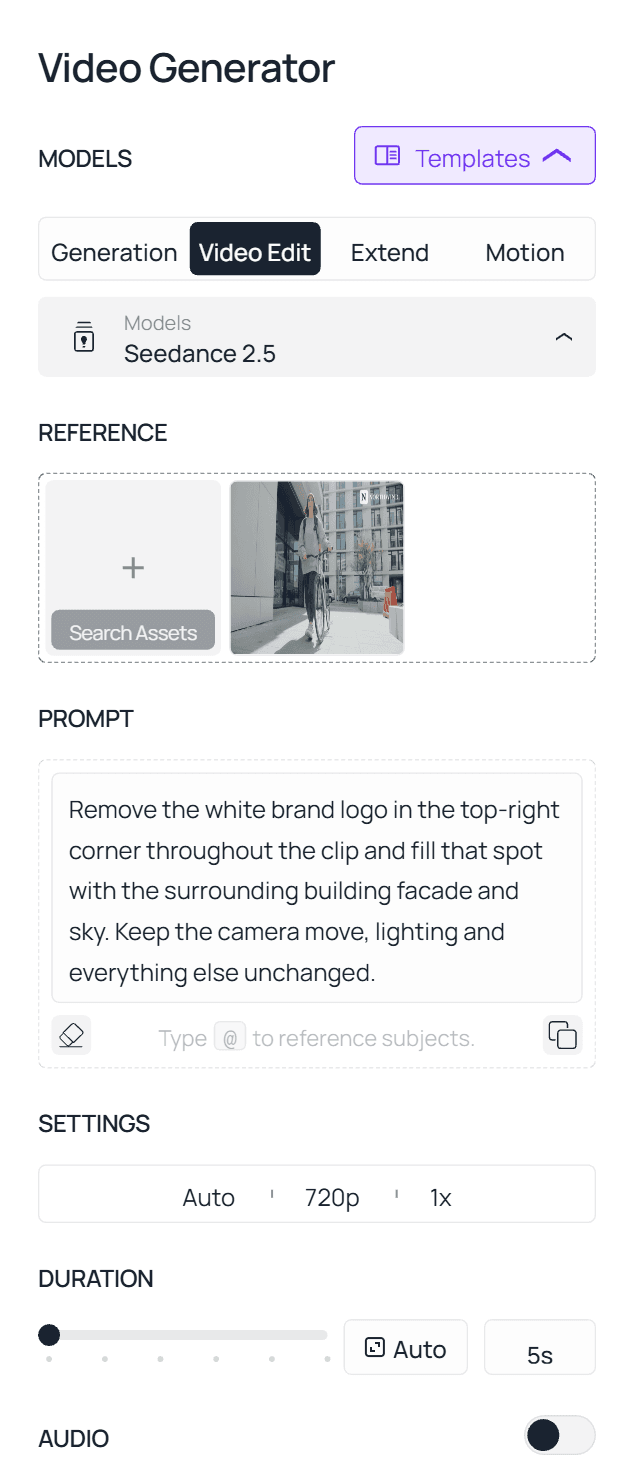
- Open the AI video editor and switch to the Video Edit tab. That tab is what tells the model to read your upload instead of generating from scratch. Seedance 2.5 is selected by default and is the model behind every example in this guide.
- Upload the clip. Use the export you published, not a screen recording of it. Seedance 2.5 accepts MP4 and MOV files from 2 to 30 seconds, up to 4K.
- Describe the logo in one sentence with three parts: what it is, where it sits, and what should be there instead. For a corner bug: "Remove the white brand logo in the top-right corner throughout the clip and fill that spot with the surrounding building facade and sky. Keep the camera move, lighting and everything else unchanged." The last clause matters as much as the first. It fences off the rest of the frame so a corner fix doesn't turn into a regrade of the whole shot.
- Run the job and check the corner at full size, not in the thumbnail. A leftover ghost of a small logo hides easily at preview scale.
Method 2: Remove the Logo From a Video via API
Forty videos is a batch job, and a batch job wants a script.
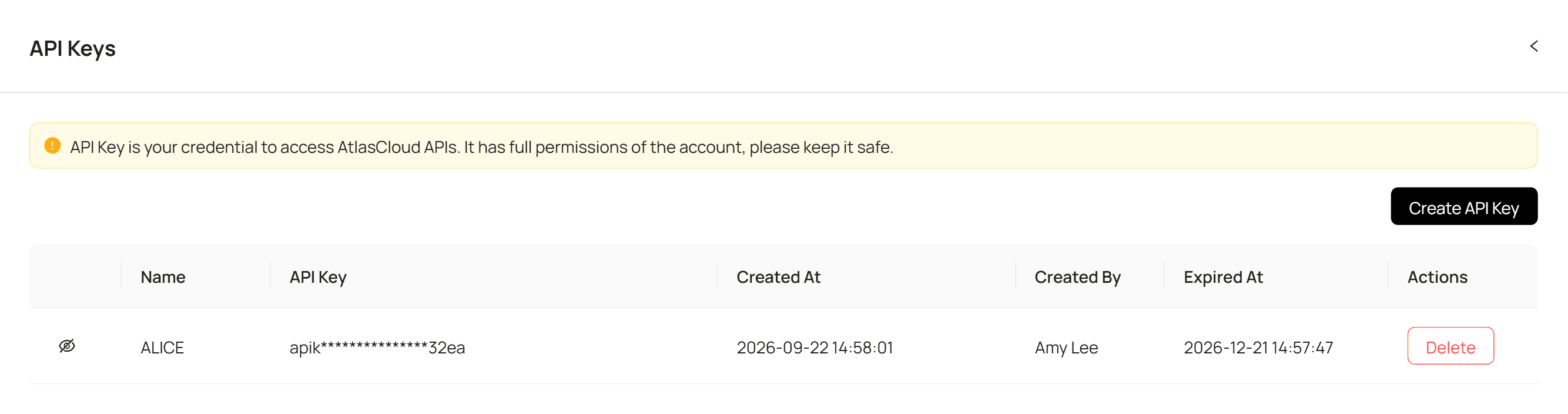
Step 1: Get your API key. Create one in the Atlas Cloud console under API Keys and copy it.
Step 2: Check the API docs. Accepted formats, clip length limits and the reference-to-video parameters are in the API documentation.
Step 3: Make your first request. Submit the clip with the same instruction you'd type in the editor:
plaintext1curl -X POST https://api.atlascloud.ai/api/v1/model/generateVideo \ 2 -H "Content-Type: application/json" \ 3 -H "Authorization: Bearer $ATLASCLOUD_API_KEY" \ 4 -d '{ 5 "model": "bytedance/seedance-2.5/reference-to-video", 6 "prompt": "Remove the white brand logo in the top-right corner throughout the clip and fill that spot with the surrounding building facade and sky. Keep the camera move, lighting and everything else unchanged.", 7 "reference_videos": ["<your_clip_url>"], 8 "duration": -1, 9 "resolution": "720p" 10 }'
duration stays at -1 for an editing prompt. It tells the model to follow the source clip's length instead of generating a clip of a set duration, and an edit request sent with a fixed duration comes back rejected as a generation job.
Poll until the job finishes:
plaintext1curl https://api.atlascloud.ai/api/v1/model/prediction/<prediction_id> \ 2 -H "Authorization: Bearer $ATLASCLOUD_API_KEY"
Loop that over the folder of old videos and the cleanup runs unattended. Atlas Cloud exposes one API across every model it hosts, so the key and the submit-and-poll loop above carry over unchanged if you point the model string at a different editor later.
Swap the Old Logo for the New One in the Same Pass
Erasing the logo leaves you with a clean corner and a second job: adding the new mark back in an editor. There's a shorter route. The same reference-to-video endpoint that reads your clip also reads reference images, up to 30 of them in one request, and the prompt can point at each one by name. Seedance 2.5's documentation describes the underlying capability as localized editing "to revise a specific element" of the footage while the rest stays put.
So instead of a two-step remove-then-overlay, upload the new logo as a reference image alongside the clip and ask for the swap directly:
"Replace the old logo in the top-right corner with @Image1, same size and position, throughout the clip. Keep everything else unchanged."
Three things make this work better. Give the model a clean PNG of the new logo on a transparent or plain background, so it isn't guessing where the mark ends. Keep the new logo roughly the same shape as the old one; a wide wordmark going into the footprint of a square icon forces the model to invent more of the frame than it needs to. And if the logo is a lockup, name both halves in the prompt, for example "the square N icon and the NORTHWIND wordmark next to it", so the icon and the type get replaced together.
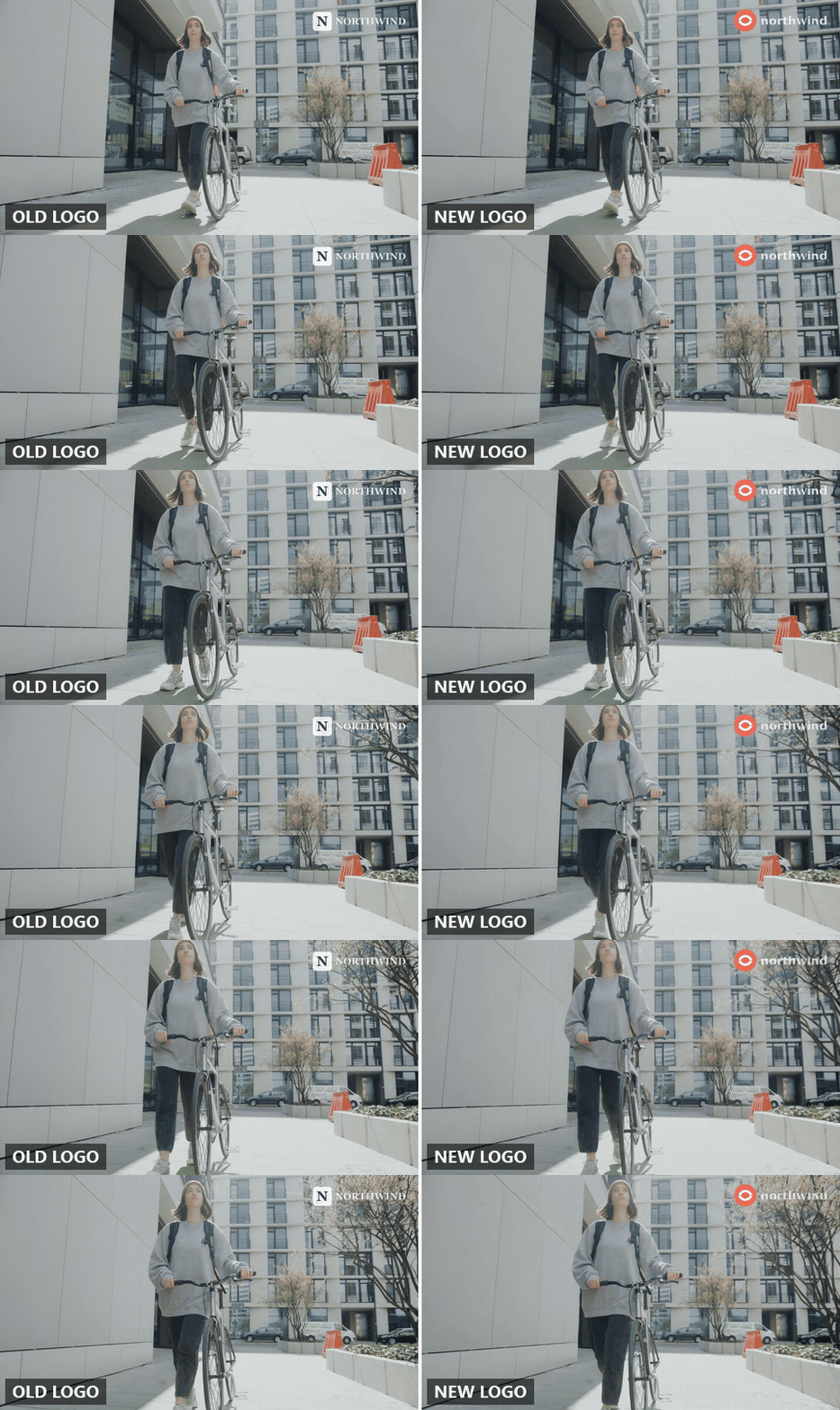
This is the step that turns a takedown into an actual rebrand. Forty old videos come back carrying the current mark, with no suspicious empty corner.
We Tested Logo Removal on 3 Rebrand Cases
A static logo in the corner of a locked-off shot is the easy case. A rebrand hands you messier material, so we picked three clips that don't cooperate.
A corner logo riding on a camera move. The mark stays pinned to the frame while the background slides behind it, so the fill has to change every frame to match what's passing underneath. Prompt pattern: "Remove the [colour] [brand] logo in the top-right corner throughout the clip and fill that spot with the surrounding [background]. Keep the camera move, lighting and everything else unchanged."
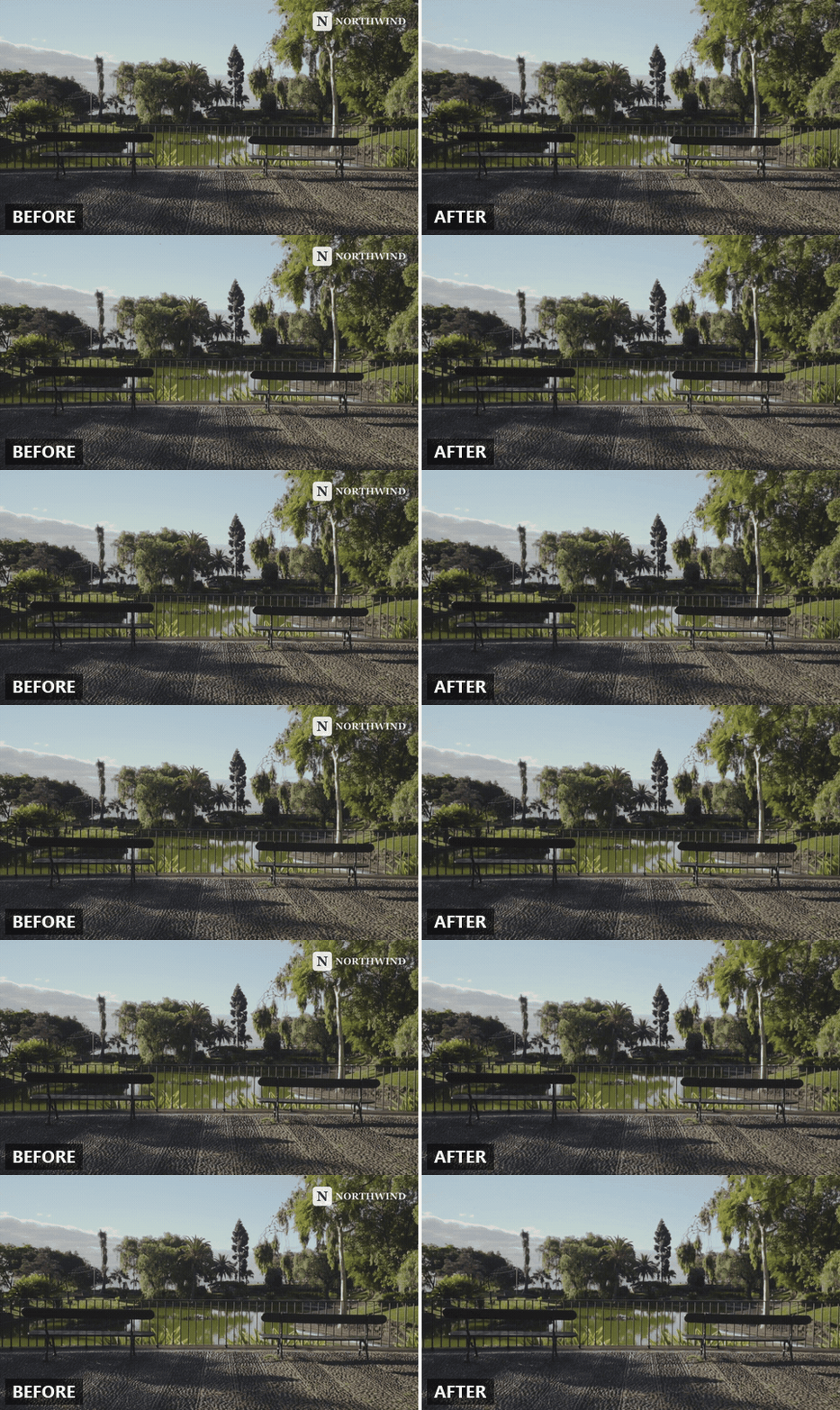
In our park clip the logo sat half on open sky and half on a tree. In the result the sky and the hanging leaves fill that spot and keep drifting with the camera, while the benches, railing and cobbles look the same as in the source.
A logo printed on a real object. An old mark on a mug, a shirt or a storefront sign isn't a flat overlay. It wraps around the surface, catches the light and moves with the object. The prompt has to name the object and describe the material that should show once the print is gone: "Remove the printed logo on the front of the [object] and repaint that area as plain [material or colour], matching the object's lighting and curvature. Keep the person, motion, framing and everything else unchanged."
If the object is what the shot is about, this is closer to removing an object from video than to a corner patch, and the same prompt discipline applies.
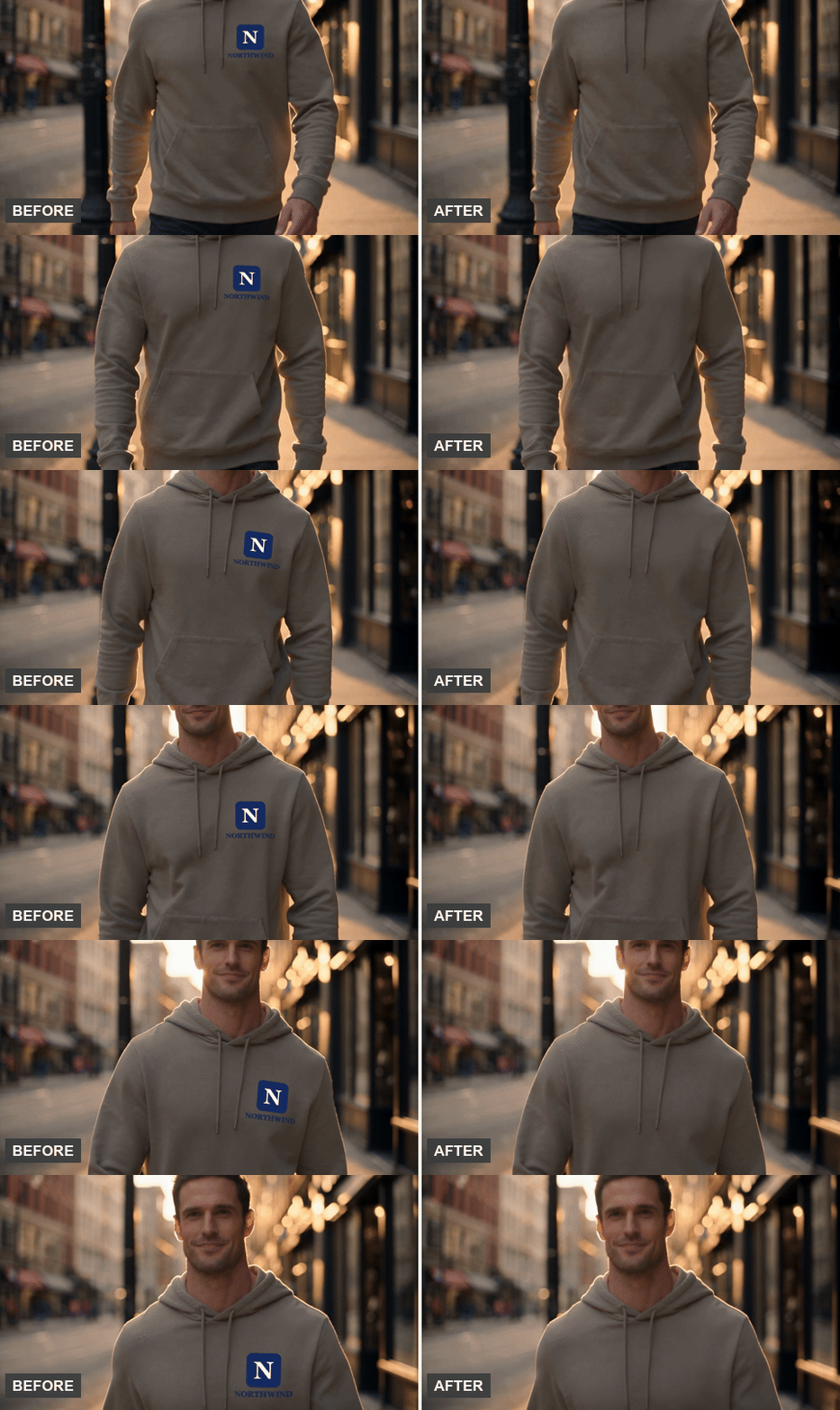
We tested this on a hoodie with the old N icon and NORTHWIND wordmark printed on the chest, using "Remove the navy N logo and the NORTHWIND wordmark printed on the chest of the hoodie, and repaint that area as plain beige fleece that matches the hoodie's lighting and folds throughout the clip." In the result the chest reads as plain fleece from the first frame to the last, and the drawstrings, the folds that shift as he walks and the warm backlight on his shoulders carry through the spot where the print was.
An animated intro card. Many old videos open with the logo sliding in over the first shot for two or three seconds. Here the request is to keep the shot and its motion while the logo animation goes: "Remove the animated logo card at the start; keep the background plate, motion and timing exactly as they are." Trim the clip to the intro before uploading so the model spends its effort on the seconds that matter.
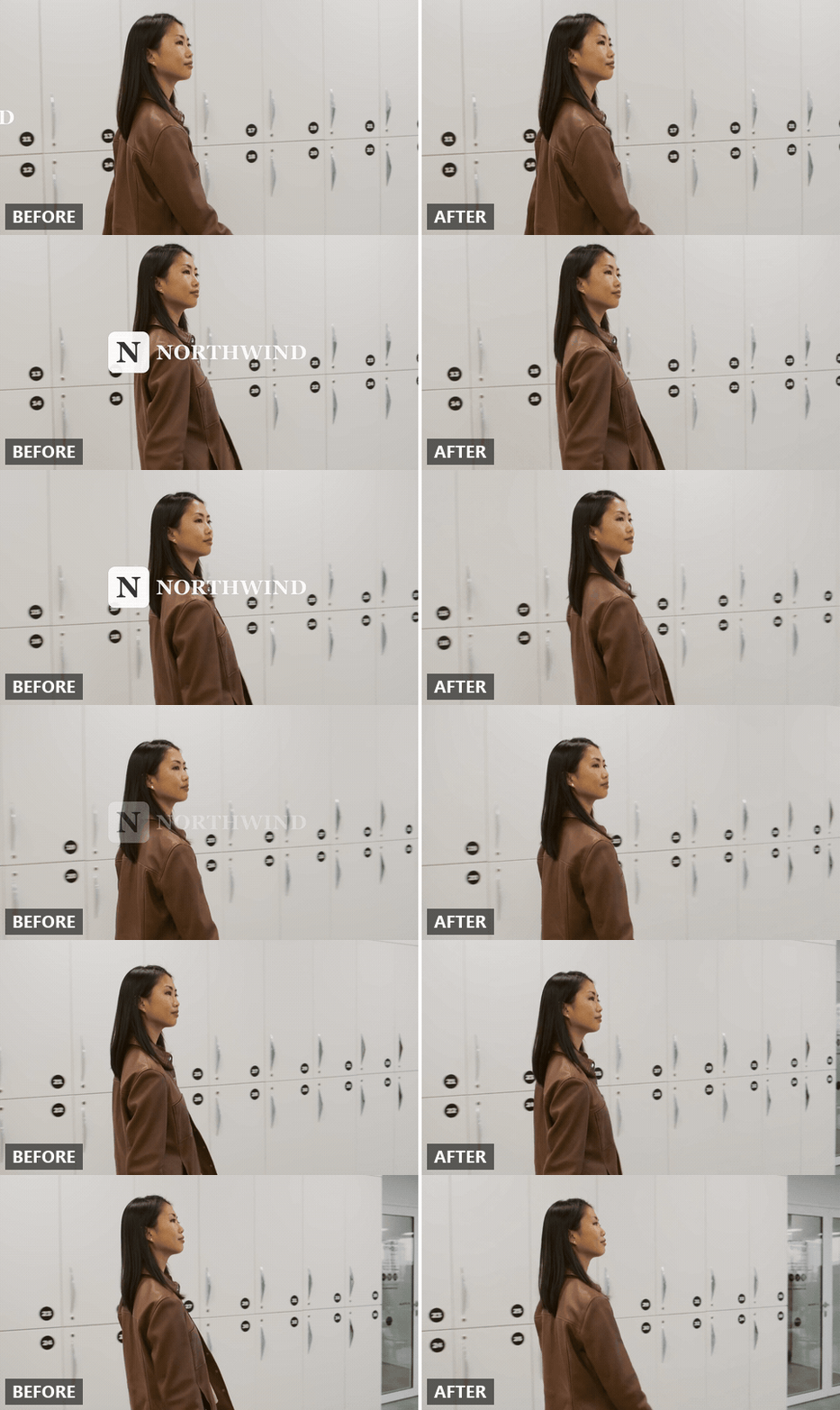
Our intro had the Northwind lockup slide across a tracking shot and pass right over the subject's hair. The result keeps her hair, the numbered locker doors and the camera move, and the logo is gone from every frame of the pass.
In each case the prompt carries the load: it names the object, the position and the replacement material. Get those three right before reaching for a different model.
How to Edit Out Watermarks on a Still vs a Video
A rebrand also leaves the old mark on product photos, thumbnails and social stills, and people searching how to edit out watermarks often mean those. The job is the same in spirit and different in mechanics.
| Still image | Video | |
|---|---|---|
| What has to be rebuilt | One patch of pixels | The same patch in every frame, consistent across motion |
| How you point at it | Brush or lasso over the mark | A sentence describing the mark and its position |
| Where it runs | Atlas Cloud's free image eraser, in the browser | The Video Edit tab or the API above |
| Typical turnaround | Seconds | Minutes per clip |
For the still images, the text removal guide for images walks through the brush-and-erase flow, and the same free tool handles a logo as readily as text. Do the stills there, the clips here, and the old mark is gone from both.
Frequently Asked Questions
What is a watermark in a video?
A watermark is any mark added on top of the picture to identify who made it: a logo, a wordmark, a semi-transparent badge in a corner. It exists in one of two ways. Either it's overlaid by the player at view time, as with YouTube's channel watermark, or it's rendered into the pixels of every frame at export. Only the second kind needs editing to remove, and it's the kind an old brand logo usually is.
Can you remove a watermark from a video?
Technically yes, and on your own footage there's nothing stopping you. On someone else's, US law treats an identifying mark as copyright management information. Under 17 U.S.C. § 1202, "No person shall, without the authority of the copyright owner or the law" intentionally "remove or alter any copyright management information," and that information includes "the name of, and other identifying information about, the copyright owner of the work."
A rebrand cleanup on your own back catalog is squarely inside that line. Stripping a stock agency's or another creator's mark is not.
Is there an app that can remove watermarks?
There are plenty, and many work the same way: you paint over the mark and the app fills the area. The Video Edit approach in this guide skips the painting step because you describe the logo in words instead, and it runs in a browser tab, so there's nothing to install and the same instruction scales to a whole folder through the API.
How do you hide a watermark on a video?
Three manual options exist, and each costs you something. Cropping the frame loses the edge of the picture and changes the aspect ratio. Covering the mark with a sticker or the new logo leaves a visible block. A blur box announces that something was there. Repainting the area with AI is the one route of the four that leaves the frame looking like it was shot without the logo, which is why it's the route this guide takes for burned-in marks.
Can Canva remove a watermark from a video?
Canva's help centre documents its Magic Eraser under the heading "Erase or retouch photos," and that page only discusses images. For a logo burned into a video you'll need a video editing model that rebuilds the area frame by frame, which is what the Video Edit tab does.
How do you remove a logo from a video for free?
It depends on which of the three cases you have. A YouTube channel watermark comes off for free in Studio. Cropping or covering a burned-in logo is free in any basic editor, at the cost of the trade-offs above. Repainting with AI on Atlas Cloud is pay per clip, priced by the output length and resolution, and the Run button shows an estimate before you commit, so a single test clip gives you a sense of what the whole batch will cost.
Conclusion
Most of the frustration around an old logo comes from treating every case the same. A YouTube overlay is a setting. A burned-in corner bug is a one-sentence edit. A logo on a mug is an object removal with a more careful prompt. Sort the clip first and the work shrinks, and for the burned-in cases you can go one step further by handing the model the new logo and letting it finish the rebrand in the same pass.
Once you've done one clip that way, you know how to remove a logo from a video for the other thirty-nine: same prompt shape, same endpoint, run overnight.





