A construction crane leans into half the shots of a real estate walkthrough. A caterer crosses behind the altar in a wedding video, right in the middle of the vows.
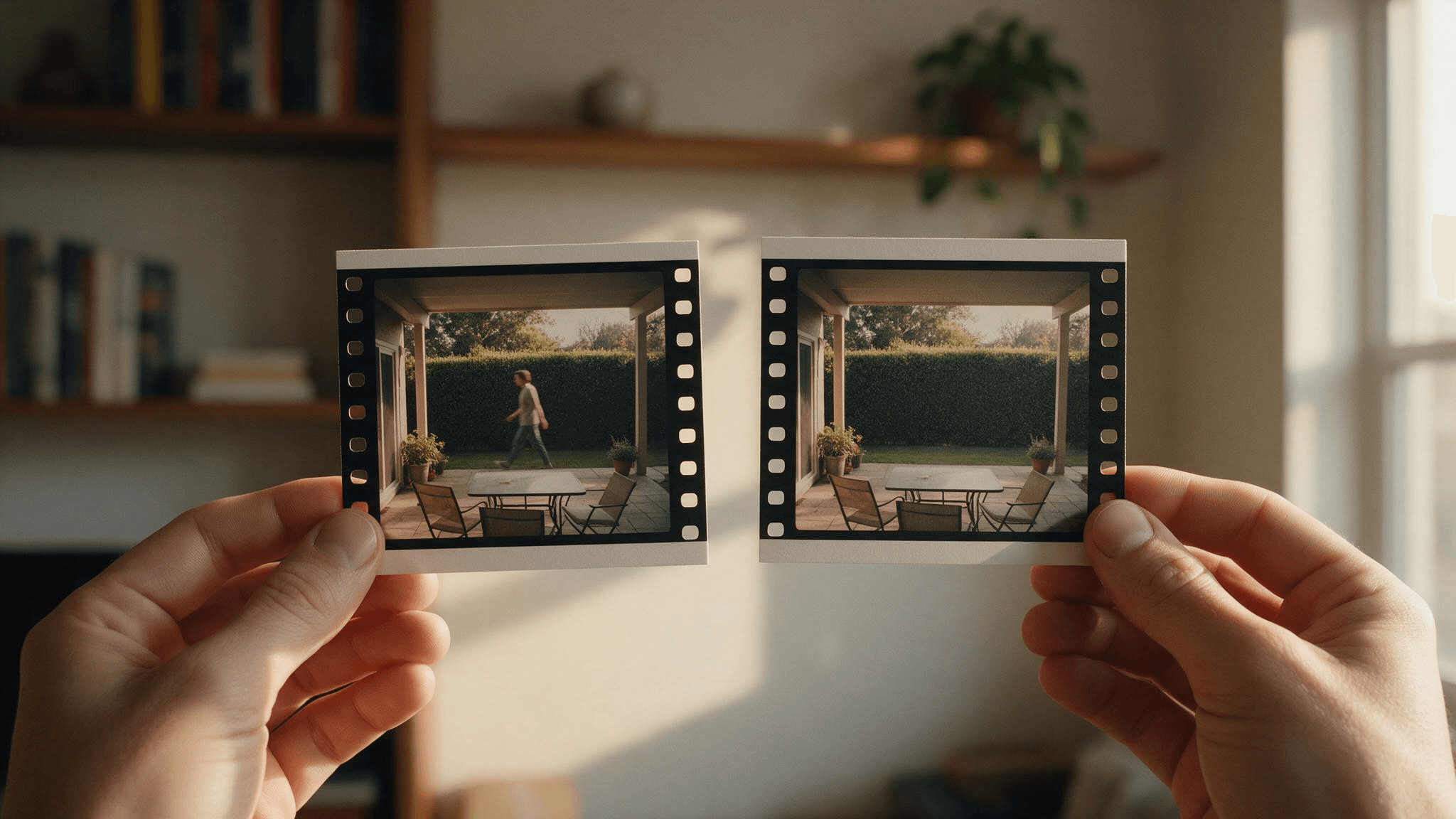
None of that is text sitting on top of the footage. It was standing in the scene. So when you remove object from video, an AI model isn't peeling off a flat layer. It's reconstructing a piece of the scene it never actually saw, and getting that wrong leaves a smear where the person used to be, or a patch that doesn't match what's around it.
We ran a passerby crossing a static shot, an object at the edge of a moving camera, and a subject against a busy background to see which seams show, and which don't.
Key Takeaways
- Removing an object or a person from video means rebuilding what's behind them in every frame, and the space behind a moving subject keeps changing.
- A mask you draw once and let a tracker follow works until the subject is briefly blocked or exits frame. That's where most tools leave a trailing smear.
- Atlas Cloud's Video Edit tab works from an uploaded clip and a written description, no mask or brush required: name exactly what has to go and run the job.
- The same Video Edit tool can swap in a whole new background too, not just erase what's standing in front of it.
- Only remove a person from footage you own or have permission to edit.
Why Removing an Object or a Person From Video Means Rebuilding Every Frame
A tool built to erase something from a photo only has to get one frame right. Patch the pixels behind the object, done.
Point that same kind of logic at a video and it has to make that call dozens of times a second, and land on an answer that agrees with the frame before it and the frame after it.
That gets harder once the subject moves. A person walking through a room passes in front of a wall, then a doorway, then a bookshelf. Whatever fills the gap behind them has to change to match, while staying steady enough that the seam never flickers.
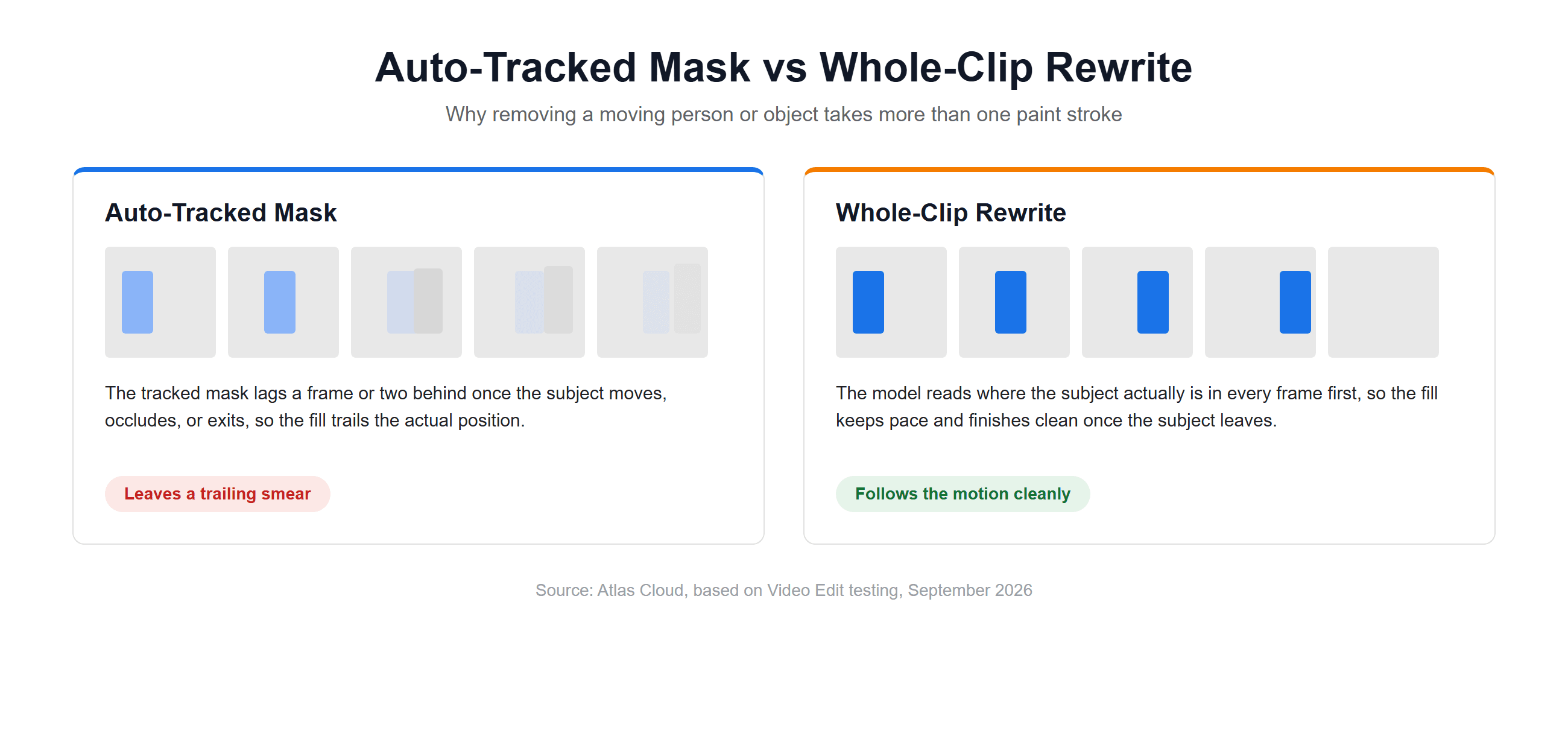
Most tools handle this with a mask you draw once, then an algorithm that tracks it forward through the rest of the clip. That works fine when the subject barely moves.
It gets shakier the moment they walk through the shot. The tracker has to keep re-finding the exact outline in every single frame, and a few pixels of drift is enough to leave a faint trailing patch behind them, the kind of ghost that's easy to miss on a first watch and obvious once you know to look for it.
A tool built for removing people from photos never runs into this, since there's only one frame to get right. Point it at a video, one exported frame at a time, and the same drift shows up, multiplied by however many frames the clip has.
What a Video Object Remover Actually Does: 3 Methods Compared
Search around and a video object remover usually falls into one of three camps, and they ask very different amounts of work from you.
| Method | How it works | What it takes from you | Where it breaks |
|---|---|---|---|
| Draw-and-track masking (After Effects Content-Aware Fill) | You mask the object; the fill engine estimates the motion of the scene behind it and pulls matching pixels from nearby frames | A mask on every frame the subject appears in, drawn or tracked by hand | Fill quality is solid once the mask is right, but keeping that mask on a moving subject through a long clip is real editing time |
| Brush-once auto-tracking (most web tools) | Paint over the subject once; the tool's own tracker carries that outline through the rest of the clip | One rough outline; the tracker does the rest | Loses the subject when it's briefly blocked, exits frame, or moves fast, and the fill trails off target for a few frames after |
| Text-instruction rewrite (Runway, Atlas Cloud) | Describe what to remove; the model reads the whole clip and repaints the region, no mask involved | A written description, nothing to draw | Depends entirely on how precisely the description is worded |
Adobe's own documentation on Content-Aware Fill explains the first route well: the panel is "temporally aware," so it "analyzes frames over time to synthesize new pixels from other frames," and its Object fill mode is built for a moving subject like "a car on a road." The catch is that you're the one drawing and tracking the mask that tells it where to look.
The third route skips masking entirely, which is also the one closest to how Atlas Cloud's Video Edit tool works.
Remove Object From Video With AI on Atlas Cloud
On Atlas Cloud, removing an object works the same way as any other Video Edit job: the clip goes in, a written instruction goes with it, and the model rewrites only the part that instruction points to.
Seedance 2.5 handles the job by default. It treats the uploaded clip as a reference rather than a starting point, so the output comes back at the same length as what went in, ready to drop into a timeline without retiming.
Method 1: Remove an Object in the Video Edit Tab
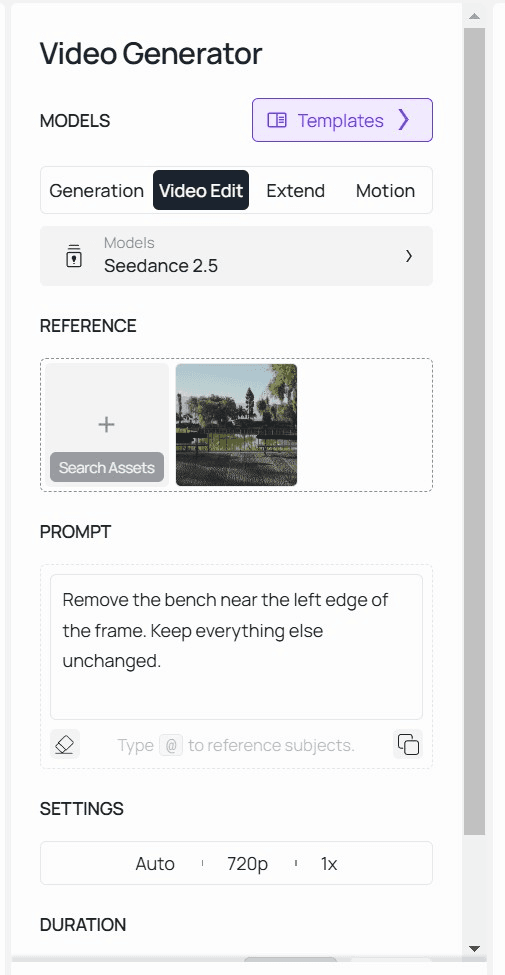
- Head to the AI video editor and click into the Video Edit tab, grouped with Generation, Extend and Motion at the top of the panel. Editing mode is what tells the model to read your upload instead of starting from an empty prompt.
- Drop in the clip with the object or person still in it.
- Point at the subject specifically, not the whole shot: "Remove the person walking through the background, from left to right. Keep everything else unchanged." The more precisely the prompt isolates the target, the less the model touches anything around it.
- Submit the job, then review the output at full size rather than the timeline thumbnail. Scrub slowly past the spot where the subject exits frame, since that's where a weak fill tends to show first.
Method 2: Remove an Object From a Video via API
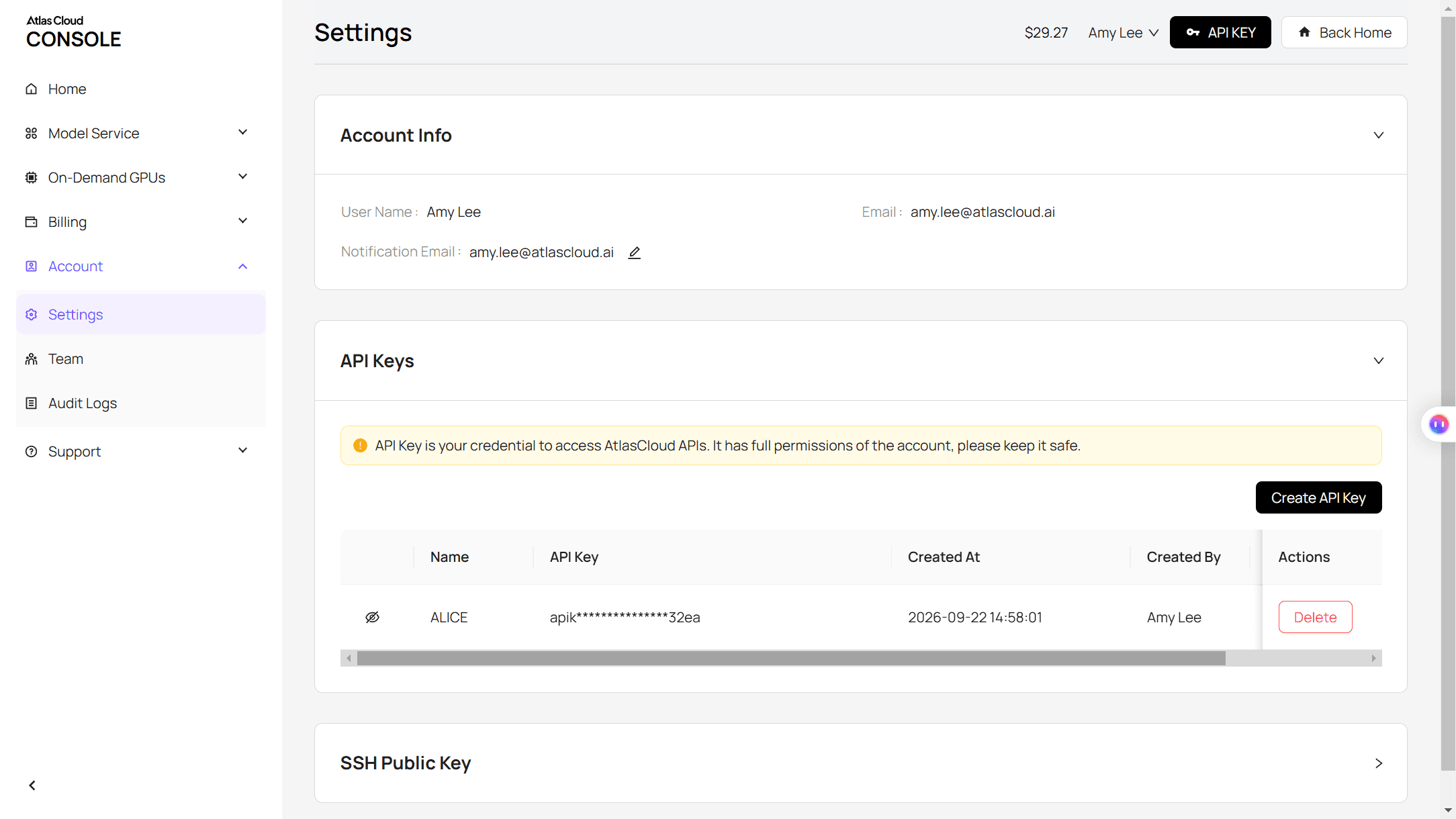
Step 1: Get your API key. Create one in the Atlas Cloud console and copy it.
Step 2: Check the API docs. Parameters, accepted formats and duration limits live in the API documentation.
Step 3: Make your first request. Submit the clip and the instruction:
plaintext1curl -X POST https://api.atlascloud.ai/api/v1/model/generateVideo \ 2 -H "Content-Type: application/json" \ 3 -H "Authorization: Bearer $ATLASCLOUD_API_KEY" \ 4 -d '{ 5 "model": "bytedance/seedance-2.5/reference-to-video", 6 "prompt": "Remove the person walking through the background, moving from left to right. Keep everything else unchanged.", 7 "reference_videos": ["<your_clip_url>"], 8 "duration": -1, 9 "resolution": "720p" 10 }'
duration has to stay at -1 for an editing prompt like this one. The model reads it as an instruction to match the source clip's length instead of generating a new one.
Poll the job until it finishes:
plaintext1curl https://api.atlascloud.ai/api/v1/model/prediction/<prediction_id> \ 2 -H "Authorization: Bearer $ATLASCLOUD_API_KEY"
The key and the submit-and-poll loop aren't specific to this one model. Atlas Cloud puts every model it hosts behind the same API, so pointing this integration at a different one later is a matter of changing the `model` string, nothing else in the code.
We Tested How to Remove a Person From Video in 3 Hard Cases
A single object standing still against a plain wall is the case every demo shows off. We picked three that aren't that.
A person walking through a static shot. Someone crosses the background of a locked-off frame, passing in front of a fence, a path, whatever's actually there.
An object near the edge of a panning shot. The camera itself is moving this time, which means the background behind the object is sliding too, not just sitting still waiting to be filled in.
A subject against a busy, textured background. Dense foliage or a patterned surface behind the subject, the kind of detail that's hardest for any model to reconstruct with confidence.
Across all three, the letters-are-gone test isn't enough. Watch the edge of the fill as the camera or the subject moves, confirm nothing else in the frame shifted, and check that the audio came through untouched.
What to Type to Remove Something From a Video
There's no brush or mask in Atlas Cloud's video editor, just a text field, so the prompt is doing almost all the work.
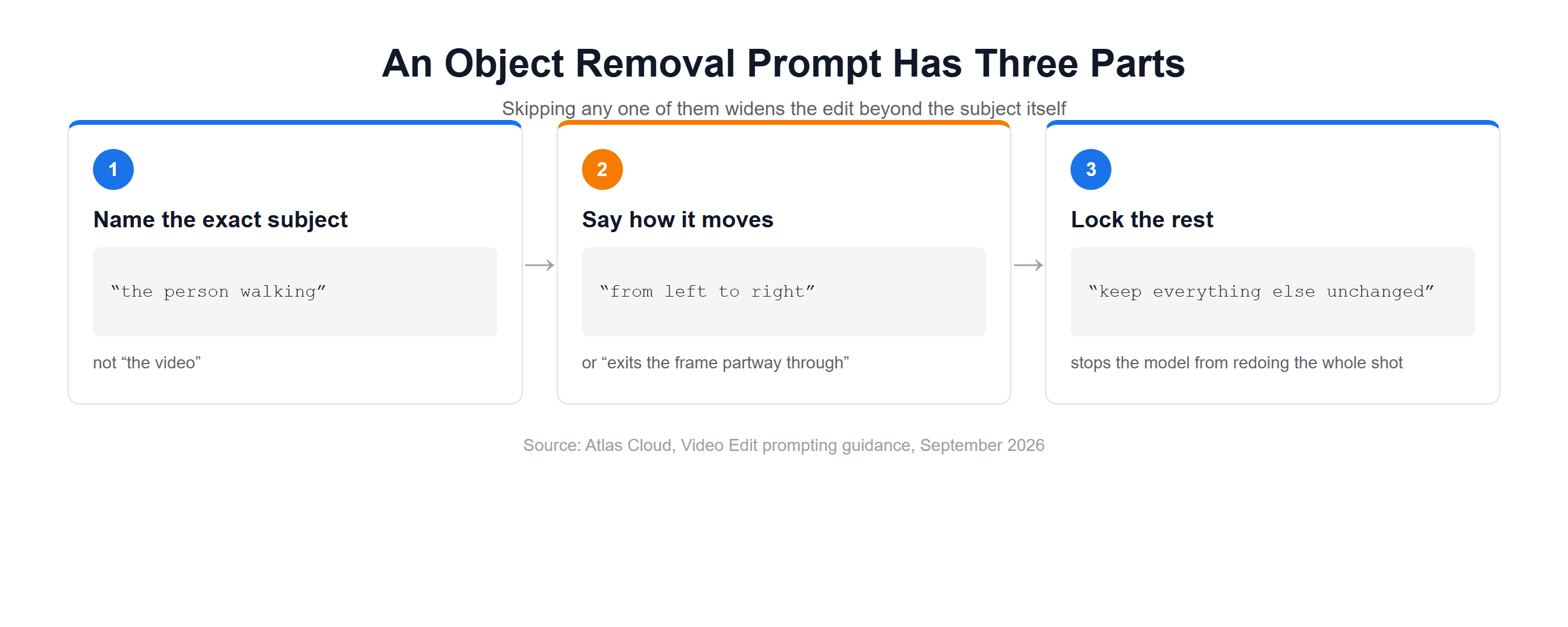
Name the exact thing to remove, not the whole scene: "the person walking," not "the video." If it moves, say how: "from left to right," or "exits the frame partway through." A static object just needs a location: "the cone in the bottom right corner."
Then close with an instruction to leave everything else untouched. Skip that part and a model can reinterpret more of the shot than you meant it to.
"Remove the person" on its own tends to produce a technically correct but overly aggressive edit, sometimes with the background reshuffled more than it needed to be. "Remove the person walking through the background from left to right, keep everything else in the shot exactly as it is" gives the model a boundary it can actually work inside.
The Same Tool Also Swaps a Video's Background
Once you're describing what to remove, describing what to put behind it instead is a short step away. The Video Edit tab handles a background swap with the same prompt-only setup: no mask, just a written instruction.
"Replace the background with a sunset over the ocean, keep the person in the foreground unchanged" runs through the same tab as an object removal prompt, and lands in the same place: a full clip, not a single frame, generated to match the length of the source.
Frequently Asked Questions
Can I remove an object from a video online for free?
Yes, for short or single clips. Atlas Cloud's Video Edit tab is browser-based with no software to install, and pricing runs per second of output rather than a flat subscription, so a short clip costs a small fraction of a full edit.
Check the current rate on the model page before a larger batch, since promotional pricing changes.
Does removing an object leave blur or ghosting behind?
Only in the area that got repainted, and only if what's behind the subject is hard to reconstruct. A plain wall or an out-of-focus background fills in cleanly.
Dense foliage, a busy pattern, or a fast-moving camera is harder for any model to hold steady, which is exactly why we tested those cases separately above instead of just the easy one. The rest of the frame keeps its original resolution either way, the same distinction that matters when sharpening a blurry clip generally.
Can AI remove a person or object that's moving, not just something standing still?
Yes, when the model reads the whole clip instead of one frame at a time. Describe the movement rather than a single instant: "the person walking from left to right," not just "the person," so the instruction applies across the frames where they're actually on screen.
Can I remove multiple objects or people from a video in one pass?
Yes, within one prompt: describe each one, in the same sentence or listed separately, and tell the model what to leave alone. A clip with several unrelated things to remove benefits from being specific about each rather than a single vague instruction covering all of them.
Is it okay to remove a person from someone else's video?
Permission is the deciding factor: your own footage, or footage you've been cleared to edit. TikTok's community guidelines state it directly, "You should only post content you created or have the right to share," and that standard doesn't change based on which platform hosted the clip or which tool did the editing. It matters more here than with a text overlay, since what disappears is a real person who was actually there.
Conclusion
Removing an object or a person from video comes down to whether the fill can keep up with motion. A mask that's drawn once and tracked forward works until the subject moves fast enough, or far enough, to slip out from under it.
A model that reads the whole clip before it repaints anything doesn't have that problem, since it knows where the subject actually is in every frame before deciding what to put in its place. Start with the easiest case in your own footage, then move on to a moving subject or a busy background once you trust the result. Whether the job is to remove object from video for a client or pull one person out of a wedding clip, the same approach works: name exactly what to remove, describe how it moves, and lock everything else in place before you run it.





