

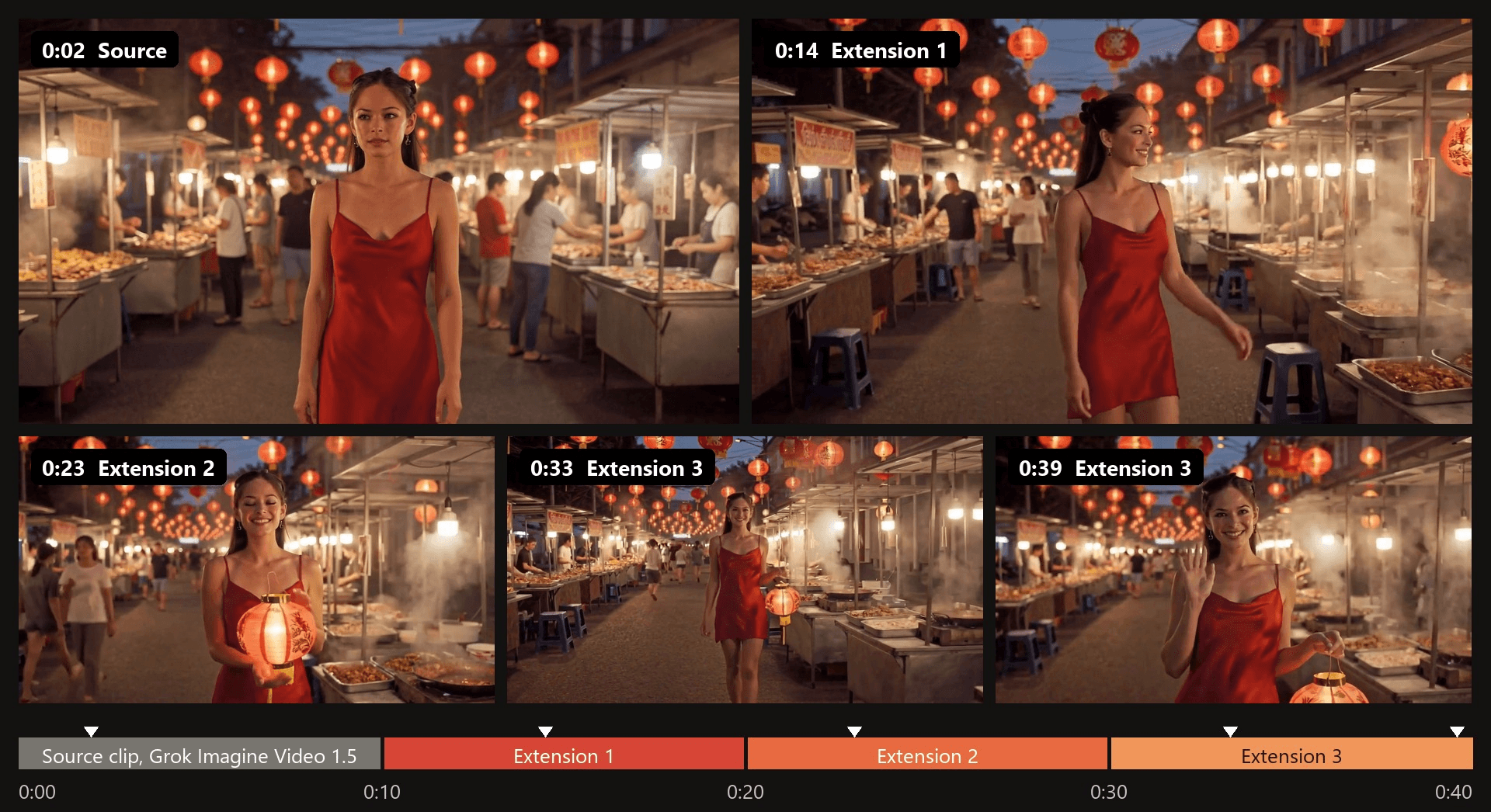
She has just lifted the lantern, the market is glowing behind her, and Grok won't extend the video any further. Extend in Grok Imagine caps a video at 30 seconds in total. That cap belongs to the app's Extend mode, though, and a trimmed clip can keep going for as long as your scene needs.
This guide covers how Grok Imagine extend video works in the app and through the API, with the real length limit for each. Then we build a 40-second clip on Atlas Cloud from a 10-second source and three extensions, and show where we cut between passes.
Key Takeaways
- One Grok Imagine generation runs up to 15 seconds, and the app's Extend stops at 30 seconds in total.
- In the Grok app, Extend lets you scrub the timeline and continue from a moment you pick.
- Each API call adds 2 to 10 seconds to a clip that runs 2 to 15 seconds.
- In the Atlas Cloud video generator, upload only the newest seconds before each pass and keep going.
- Give each pass one action and repeat the outfit, light andframingso 40 seconds reads as one shot.
How Long Can Grok Imagine Videos Be?
A single Grok Imagine generation runs up to 15 seconds. Extend in the Grok app stretches a video to 30 seconds in total. Those two numbers answer most questions about Grok Imagine video length, but the API draws its lines in different places.
| Where you work | What it does | Length limit |
|---|---|---|
| Grok app, new video | Text or image to video | Up to 15 seconds |
| Grok app, Extend | Continues an Imagine video | 30 seconds in total |
| API, generation | Text, image or reference to video | 1 to 15 seconds, default 8 |
| API, extension | Continues a clip you send | 2 to 15 second input, 2 to 10 seconds added per call |
| API, editing | Rewrites a clip from an instruction | Input up to 8.7 seconds |
The generation docs let you set a duration "from 1 to 15 seconds," and the editing limit comes from the same page. Extension counts its seconds in its own way. Per the video extension docs, the duration setting "controls the length of the extended portion only, not the total output."
So a 10-second clip extended by 5 comes back 15 seconds long.
How to Use Grok Video Extend Inside the Grok App
Extend lives inside Grok Imagine. Grok's release notes describe its controls, and the flow below uses their terms:
- Open a finished Imagine video and switch to extend mode.
- Scrub the timeline to the moment the new footage should grow from. Since April 4, 2026, that start point can't be earlier than two seconds in.
- Set how long the new part runs with the duration control.
- Describe what happens next and generate.
Grok hides the resolution and aspect ratio controls in extend mode, so choose those when you make the first clip. Then repeat until the video reaches the cap.
The February 17, 2026 entry limits an extended video to "max 30s total," and the SuperGrok Imagine page promises "HD quality, up to 30 seconds long." A popular r/grok guide calls the button Extend from Frame and chains 6 to 10 second segments to fill those 30 seconds.
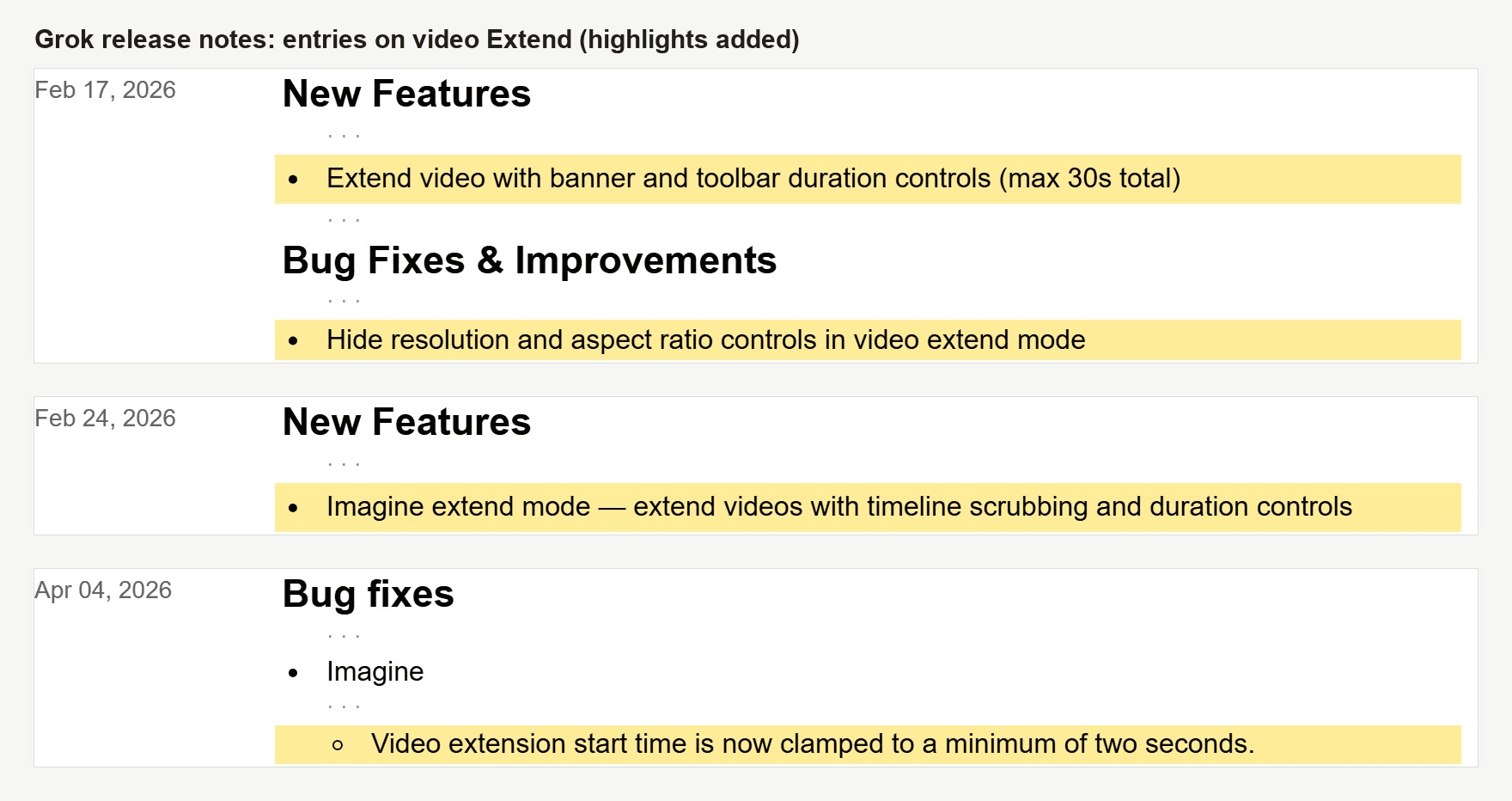
Source: Grok release notes , entries dated February 17, February 24 and April 4, 2026. Highlights added.
Thirty seconds covers a meme or a quick reveal. A product walk-around, a music cue or a scene with three beats often needs more, and the app offers no setting for it. The app keeps count across passes. The extension endpoint only sees the clip you send it.
How to Extend a Grok Imagine Video Past 30 Seconds on Atlas Cloud
On Atlas Cloud, Grok Imagine is the default model in the Video Extend tab of the video generator. You upload an mp4, describe what happens next, and choose how many seconds to add. The clip can come from Grok, a phone or another generator; our Veo 3 extension guide runs the same tab on an 8-second Veo clip.
You get back your clip followed by the new footage. Cut off the new seconds, upload them, and extend again. The clip below went through that loop three times.
We made the 10-second source with Grok Imagine Video 1.5 reference-to-video from a portrait photo, used with the subject's permission. Each extension added 10 seconds. The stitched file runs 40.04 seconds at 1280×720 and 24 fps, one continuous shot with no cut.
Method 1: Run Grok Imagine in the Video Extend Tab
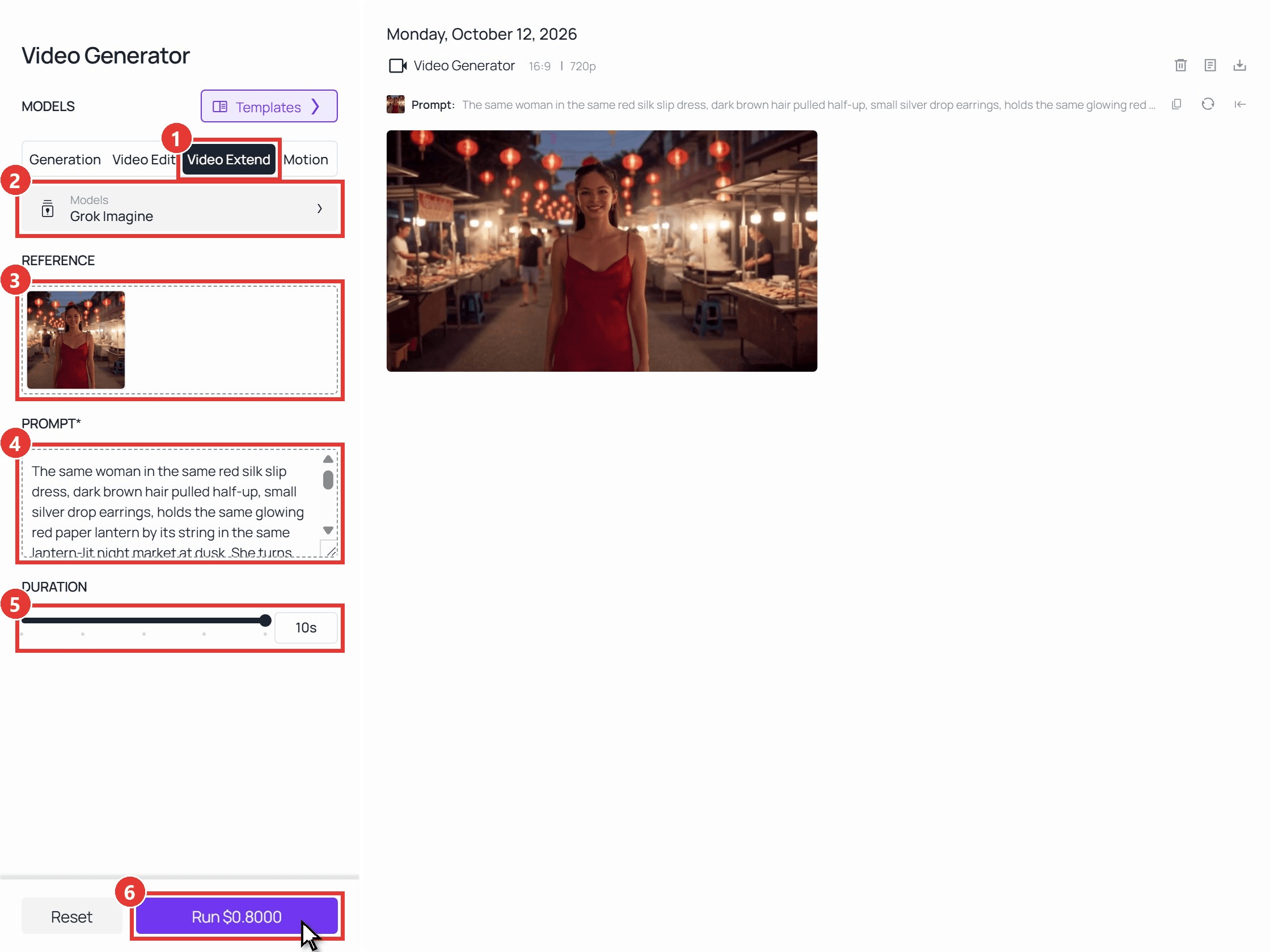
Log in, open the video generator, and follow the numbers in the screenshot.
- Click the Video Extend tab.
- Keep Grok Imagine in the Models menu. It's the tab's default.
- Drop your clip into Video to extend. On the first pass that's the source. On every later pass it's only the seconds the previous pass added, which the next section explains.
- In PROMPT, write the next action first, then restate who is in the shot, what they wear, the light and the framing.
- Drag DURATION to the number of new seconds, anywhere from 2 to 10. We used 10 on every pass.
- Click Run. The button shows what that exact run costs before you commit.
Method 2: Chain Passes With the Grok Imagine Extend Video API
Three passes by hand take a few minutes. Ten passes, or the same treatment across a batch of clips, belong in a script. The API takes the same inputs as the tab.
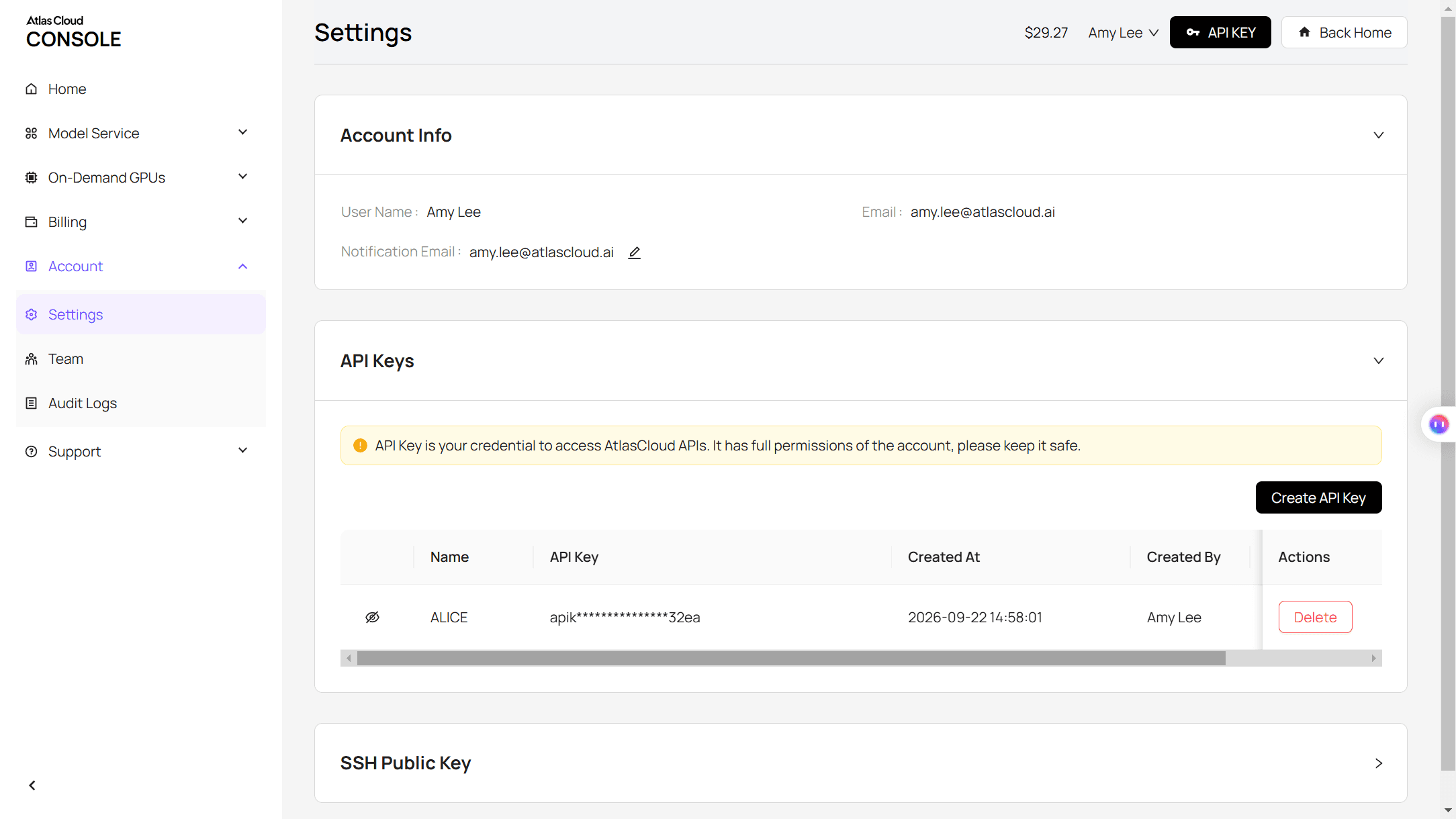
Step 1: Create an API key. Create one in the Atlas Cloud console and copy it. Keep it server-side. One key covers every model on the platform.
Step 2: Check the request shape. The Atlas Cloud API docs cover authentication and polling. The API tab on the Grok Imagine extend page lists three inputs: "video_url" for a public link to a 2 to 15 second mp4, "prompt", and "duration" from 2 to 10 seconds with a default of 6.
For a file on your disk, the Upload Media endpoint returns a temporary URL you can pass as "video_url".
Step 3: Send the request and poll. Submit one extension:
plaintext1curl -X POST https://api.atlascloud.ai/api/v1/model/generateVideo \ 2 -H "Content-Type: application/json" \ 3 -H "Authorization: Bearer $ATLASCLOUD_API_KEY" \ 4 -d '{ 5 "model": "xai/grok-imagine-video/extend-video", 6 "video_url": "<public_https_url_to_your_clip.mp4>", 7 "prompt": "The same woman in the same red silk slip dress keeps walking through the same lantern-lit night market at dusk. She stops at a stall on her right and lifts down a small red paper lantern by its string. Same warm lantern light, same medium shot. Ambient market chatter, no music.", 8 "duration": 10 9 }'
The response carries a prediction ID. Poll it until the status reads completed:
plaintext1curl https://api.atlascloud.ai/api/v1/model/prediction/<prediction_id> \ 2 -H "Authorization: Bearer $ATLASCLOUD_API_KEY"
To chain passes, wrap those two calls in a loop that uploads the newest seconds, waits for the result, and cuts the new footage off the returned file. This Python sketch runs three 10-second passes and stitches the parts with ffmpeg:
plaintext1import os, subprocess, time, requests 2 3API = "https://api.atlascloud.ai/api/v1/model" 4HEAD = {"Authorization": f"Bearer {os.environ['ATLASCLOUD_API_KEY']}"} 5PROMPTS = [ 6 "She stops at a lantern stall on her right and lifts one lantern down by its string. Same woman, same red silk slip dress, same lantern light, same medium shot.", 7 "She turns to the camera, raises the lantern beside her face and laughs, then walks on. Same woman, same red silk slip dress, same lantern light, same medium shot.", 8 "She walks toward the camera, stops close and gives a small wave. Same woman, same red silk slip dress, same lantern light, camera holds still.", 9] 10 11def seconds(path): 12 out = subprocess.run(["ffprobe", "-v", "error", "-show_entries", "format=duration", 13 "-of", "csv=p=0", path], capture_output=True, text=True).stdout 14 return float(out) 15 16def cut(src, start, dst): # re-encode so the cut lands on an exact frame 17 subprocess.run(["ffmpeg", "-y", "-ss", str(start), "-i", src, "-map", "0:v:0", "-map", "0:a:0?", 18 "-c:v", "libx264", "-crf", "17", "-pix_fmt", "yuv420p", "-c:a", "aac", dst], check=True) 19 20def extend(clip, prompt, duration=10): 21 with open(clip, "rb") as f: 22 url = requests.post(f"{API}/uploadMedia", headers=HEAD, files={"file": f}).json()["data"]["download_url"] 23 job = requests.post(f"{API}/generateVideo", headers=HEAD, json={ 24 "model": "xai/grok-imagine-video/extend-video", 25 "video_url": url, "prompt": prompt, "duration": duration}).json()["data"]["id"] 26 while True: 27 data = requests.get(f"{API}/prediction/{job}", headers=HEAD).json()["data"] 28 if data["status"] == "completed": 29 return data["outputs"][0] 30 if data["status"] == "failed": 31 raise RuntimeError(data.get("error")) 32 time.sleep(10) 33 34clip = "source.mp4" # 2 to 15 seconds 35cut(clip, 0, "part0.mp4") 36parts = ["part0.mp4"] 37for i, prompt in enumerate(PROMPTS, 1): 38 full = f"pass{i}.mp4" 39 with open(full, "wb") as f: 40 f.write(requests.get(extend(clip, prompt)).content) 41 start = seconds(clip) # the new footage begins where your upload ended 42 clip = f"new{i}.mp4" 43 cut(full, start, clip) # these new seconds become the next upload 44 parts.append(clip) 45 46with open("parts.txt", "w") as f: 47 f.writelines(f"file '{p}'\n" for p in parts) 48subprocess.run(["ffmpeg", "-y", "-f", "concat", "-safe", "0", "-i", "parts.txt", 49 "-c:v", "libx264", "-crf", "17", "-pix_fmt", "yuv420p", "-c:a", "aac", "final.mp4"], check=True)
Every video model on Atlas Cloud uses the same endpoint and the same key. Swapping Grok Imagine for another extend model later means changing the "model" string and that model's own fields, while the upload, polling and stitching stay as they are.
Where to Trim a Grok Clip Before the Next Extension
With a 10-second source and a 10-second pass, the first result runs 20 seconds, and the endpoint won't accept anything past 15. So every pass after the first starts with a cut. We cut in one place each time: the frame where the new footage begins. The upload is then the 10 seconds the previous pass added.
That clip ends on the frame you want to continue from, and it always fits under the 15-second limit. Stitching stays simple too: keep the source as it is, then append only the new seconds from each pass, so nothing overlaps and nothing plays twice.
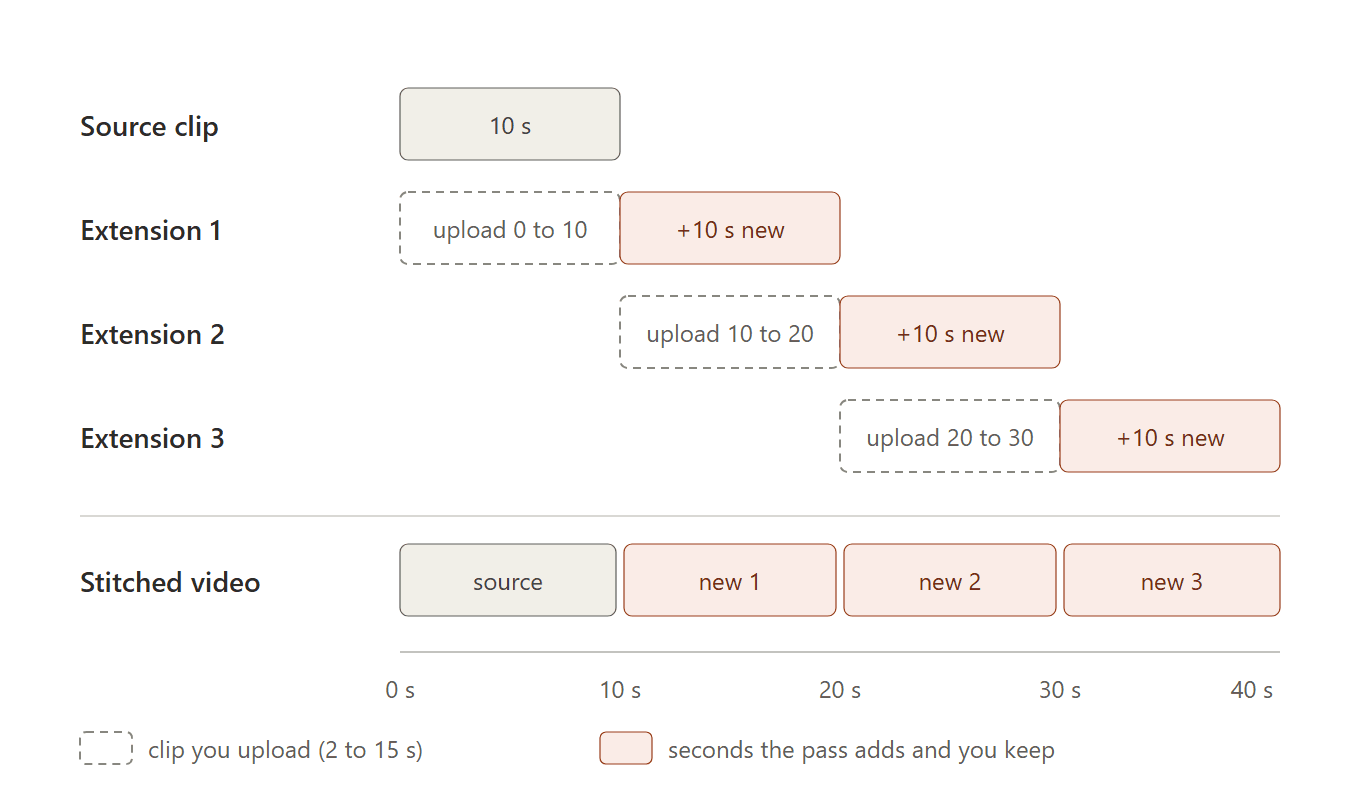
We also tested whether the tail length matters, running the second extension twice from the same moment with the same prompt, once from a 10-second tail and once from a 3-second tail. The first new frames came out nearly identical (SSIM 0.97), and both takes played the same beat: she turns, raises the lantern and laughs.
Past that point the two takes differed in the details, as any two generations do. So any tail of 2 seconds or more works, as long as it ends on the frame you want to continue from.
Make each cut with a re-encode. A stream copy starts at the nearest keyframe, which can repeat or drop a few frames right at the seam. Each file Grok Imagine returned opened with a frame-for-frame copy of our upload (46 to 48 dB PSNR against the input), so a clean cut at that boundary left no visible join in any of the three seams.
Plan a 30-Second Grok Imagine Video One Beat at a Time
A 30 or 40 second shot is three or four small events strung together. Give each pass one of them, and you decide where every beat lands on the timeline. We split the lantern scene into four beats:
| Segment | Timeline | The one action in the prompt | What came back |
|---|---|---|---|
| Source, Video 1.5 reference-to-video | 0:00 to 0:10 | Walks toward the camera through the market, glances at a stall, smiles | Walks toward the lens and ends mid-stride with a smile |
| Extension 1 | 0:10 to 0:20 | Stops at a stall and lifts down a red paper lantern | Reaches up, lifts the lantern by its string and turns it in her hands |
| Extension 2 | 0:20 to 0:30 | Turns to the camera, raises the lantern by her face and laughs, then walks on | Laughs with the lit lantern beside her cheek, then walks on as the camera pulls back |
| Extension 3 | 0:30 to 0:40 | Walks toward the camera, stops close and waves | Walks up the street toward the lens, stops close and waves with her free hand |
Every extension prompt repeated the same five anchors: the woman, the red silk slip dress, the half-up dark hair and silver earrings, the warm lantern light, and the framing. We also wrote each beat only after watching the end of the previous one. Extension 2 finished with her walking, so extension 3 opens on walking, not on a pose she never struck.
Name the camera in every pass, too, so each segment has a defined move: "the camera eases to a stop," "tracks backward as she walks," "holds still as she comes closer." The full prompt behind extension 1:
plaintext1The same woman in the same red silk slip dress, dark brown hair pulled half-up, small silver drop earrings, keeps walking through the same lantern-lit night market at dusk. She slows and stops at a stall on her right where small round red paper lanterns hang from a wire, reaches up and lifts one down by its string, then turns it slowly in her hands and smiles at it. Same warm lantern light on her face, same steam drifting from the food stalls, same medium shot; the camera eases to a stop as she does. Ambient market chatter, no music.
For more on wording those anchors, and on what to check frame by frame at a seam, see our AI video extender guide.
Frequently Asked Questions
Can Grok Imagine edit an existing video?
Yes. Its edit mode rewrites a clip from a text instruction, such as adding a necklace or changing the light, and the result keeps the original clip's length. On Atlas Cloud, Grok Imagine also sits in the Video Edit tab of the same video generator, so you can restyle a short shot first and extend it afterward.
Which Grok Imagine model handles video extension?
Extension runs on grok-imagine-video, the model the Grok API's extension docs list. Grok Imagine Video 1.5 covers text, image and reference to video.
On Atlas Cloud the extend endpoint is xai/grok-imagine-video/extend-video, and the Video 1.5 entries handle generation. That split suits a two-step workflow: make the source with Video 1.5, then extend it, which is how we built the clip in this guide.
What resolution does an extended Grok video come back at?
The extension keeps the source's aspect ratio and resolution, capped at 720p. All four files in our chain came back at 1280×720 and 24 fps, so the stitched video needed no scaling. Generate the source at 720p in the aspect ratio you plan to publish, and every pass will match it.
How much does a 40-second Grok Imagine video cost on Atlas Cloud?
Our clip cost $3.81. The 10-second source from Grok Imagine Video 1.5 reference-to-video at 720p was $1.41. Each extension was $0.80, because Grok Imagine bills $0.07 per added second plus $0.01 per second of the clip you upload. Trimming to a 3-second tail instead would bring a pass down to $0.73. Prices are from the Run buttons on October 12, 2026, with no discount showing.
Conclusion
The Grok app stops Extend at 30 seconds, and the extension model itself only asks for a 2 to 15 second clip. Cut each pass down to the seconds it added, upload that tail, append the new footage, and the running total stops mattering. Plan one beat per pass and repeat the same anchors, and the seams stay invisible.
Our lantern scene took a 10-second source and three passes to reach 40 seconds in one continuous shot. The next time Grok Imagine extend video hits its 30-second wall in the app, download the clip, upload its newest seconds to the Video Extend tab, and keep the shot going.





