She is halfway down the neon corridor, the framing is right, and the clip ends at five seconds. Maybe you stopped recording a beat too early, maybe the generator capped the length. Either way there is no second take. An AI video extender solves exactly this problem: it reads the last frame of your footage and generates the seconds that should have followed.
One thing the search results blur: extending makes a video longer in time. Making the frame wider is a different job called expanding.
Below are the four steps on Atlas Cloud, real before-and-after frames from our own runs, and the prompt habits that keep a continuation from drifting.
Key Takeaways
- An AI video extender reads the last frame of your clip and generates what happens next. It lengthens the timeline; it does not widen the frame.
- The Atlas Cloud video generator runs Grok Imagine, PixVerse v6, Wan 2.5 and LTX 2.3 from one Video Extend tab and shows the price of each run before you commit.
- Grok Imagine takes a 2 to 15 second mp4 and adds 2 to 10 seconds per pass at up to 720p. Wan 2.5 and LTX 2.3 can give the new segment its own audio.
- A continuationpromptnames what is already on screen before it describes new motion. That is what keeps faces, clothing and lighting stable.
- Drift builds with every chained pass, so extend in short segments and re-anchor the prompt each time.
What an AI Video Extender Actually Does
Extenders share one mechanism: the end of your clip becomes the starting frame of a new generation. In xAI's words, the output "picks up seamlessly from the last frame of the input and continues with the generated content," and the duration you set "controls the length of the extended portion only, not the total output," per the xAI developer docs.
Working from that last frame, the model has to re-estimate motion speed, light and camera direction from almost nothing. That is why an unguided extension can jump at the join.
Three operations get lumped together under "make my video longer," and only one of them creates footage that did not exist:
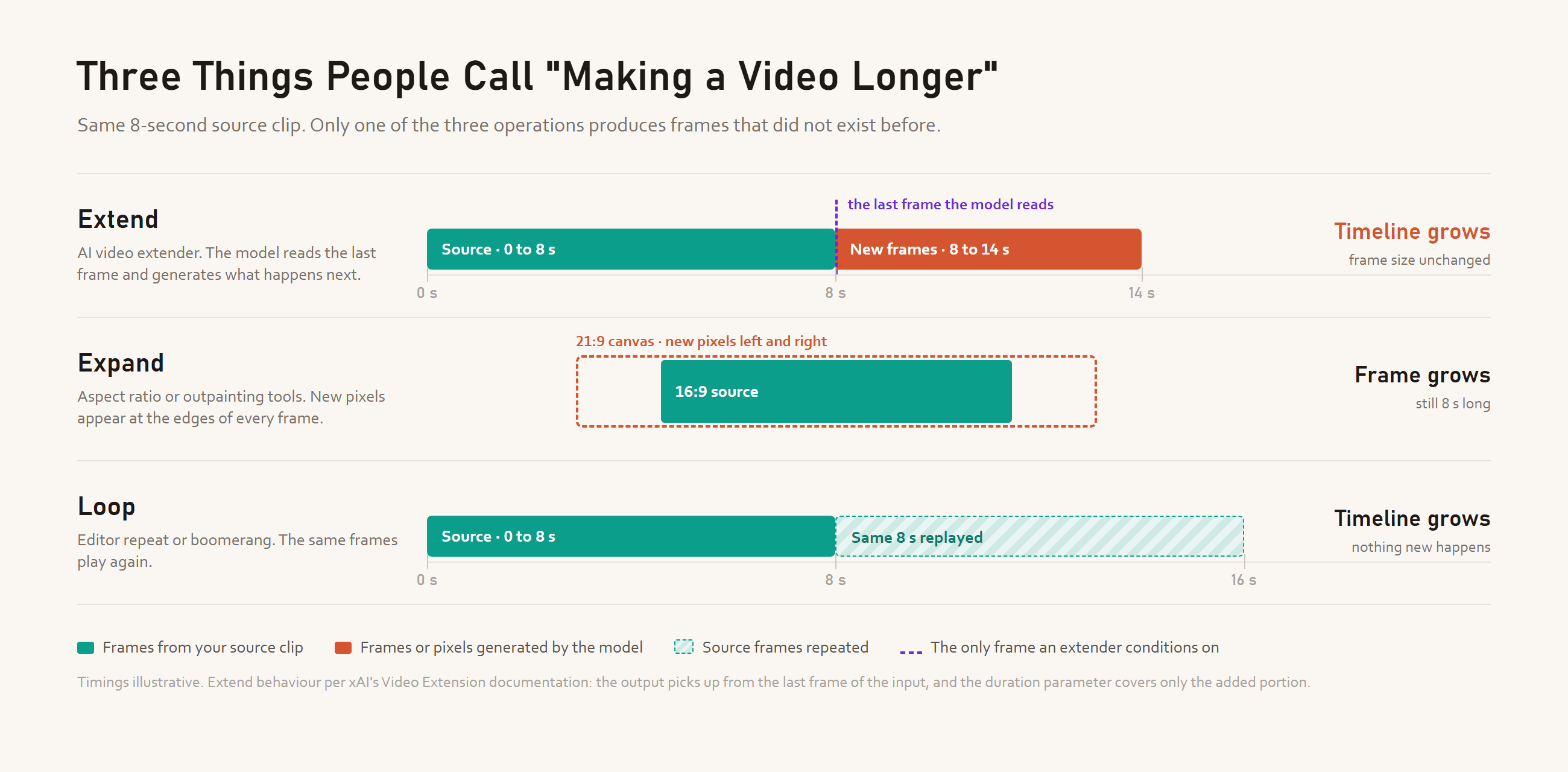
Expanding, sometimes sold as an aspect ratio extender or outpainting, paints new pixels at the edges of every frame; the clip stays the same length. Looping replays what you already shot. Only extending produces new action.
Adobe's Generative Extend in Premiere Pro adds up to 2 seconds to a shot, and we covered it in our AI video editor roundup. The model-based extenders below add 2 to 15 seconds per pass and can be chained.
How to Extend a Video With AI on Atlas Cloud
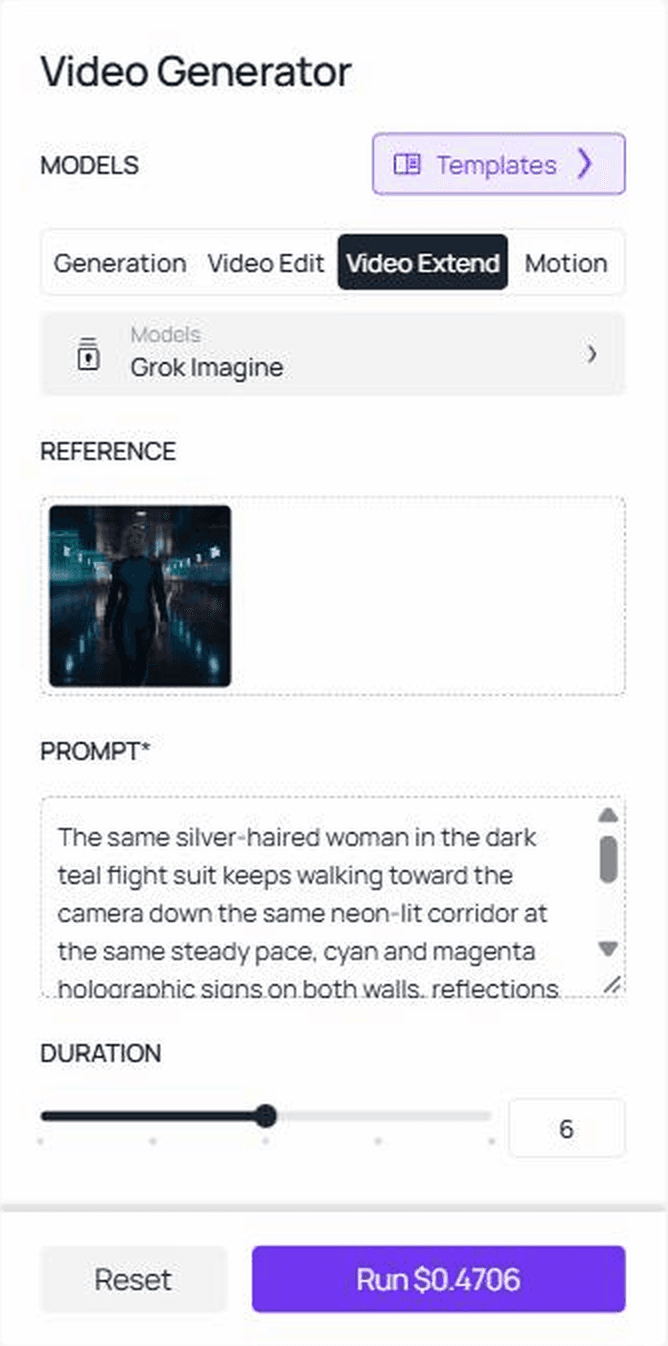
Atlas Cloud puts four extension models behind one upload box. Open the Video Extend tab in the video generator, drop a clip into the Video to extend slot, write what happens next, set the duration, and the Run button shows the price of that exact run before you commit.
Here is a 6-second Grok Imagine extension of a 5-second clip we generated with Seedance 2.5 on Atlas Cloud:
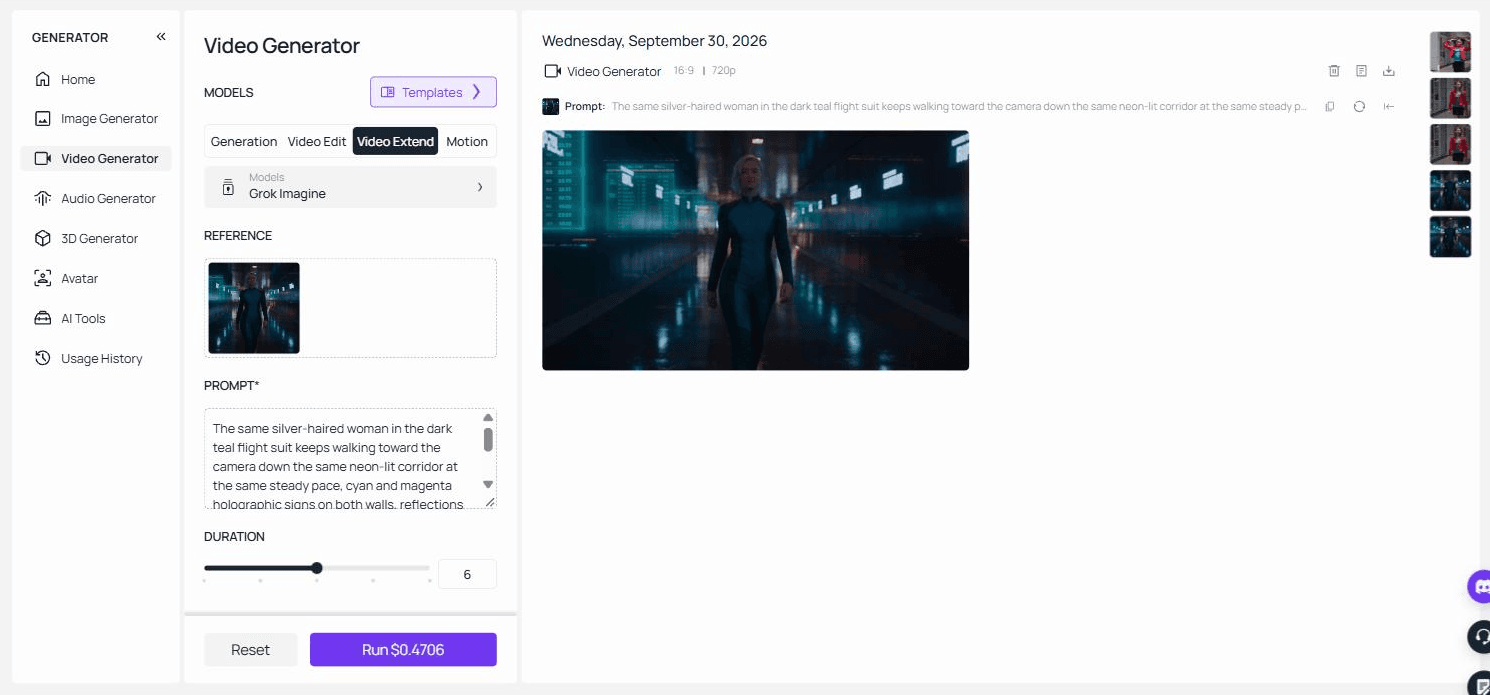
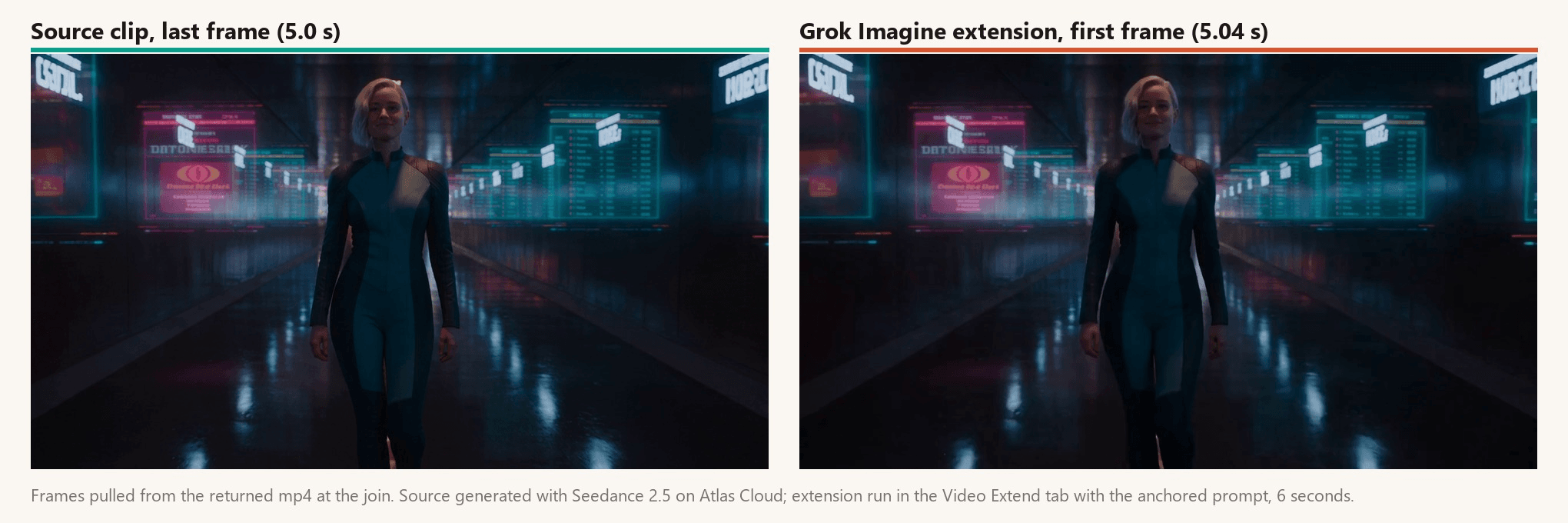
The join lands between frames 120 and 121 of the returned file, and nothing jumps: her stride, hair, the signs and the exposure carry straight through.
Grok Imagine is the default model in the tab: it accepts a 2 to 15 second mp4, adds 2 to 10 seconds per pass, and keeps the source's aspect ratio and resolution up to 720p. Atlas Cloud hosts the whole xAI model family, and the next section sorts the other three models in the dropdown.
Method 1: Run the Video Extender in the Browser
Log in, open the Video Extend tab, and work through four steps:
- Upload the source. Click the Video to extend slot and pick your mp4. For Grok Imagine it needs to be 2 to 15 seconds long; trim longer footage to the final stretch you want continued.
- Write the continuation prompt. Describe what is already on screen first, then one new action. The prompt section below has a template.
- Set the model and the duration. Leave Grok Imagine selected. The DURATION slider runs from 2 to 10 seconds; shorter additions stay closer to the source.
- Run, then scrub the join. Press Run, then drag the playhead to the frame where the source ends and step through it frame by frame. The seam checklist below says what to look for.
The same inputs exist on the dedicated Grok Imagine extend page, which also carries the API tab you will need for Method 2.
Method 2: Call the Extend Endpoint Through the API
For batches or an editing-tool integration, the API takes the same inputs as the tab.
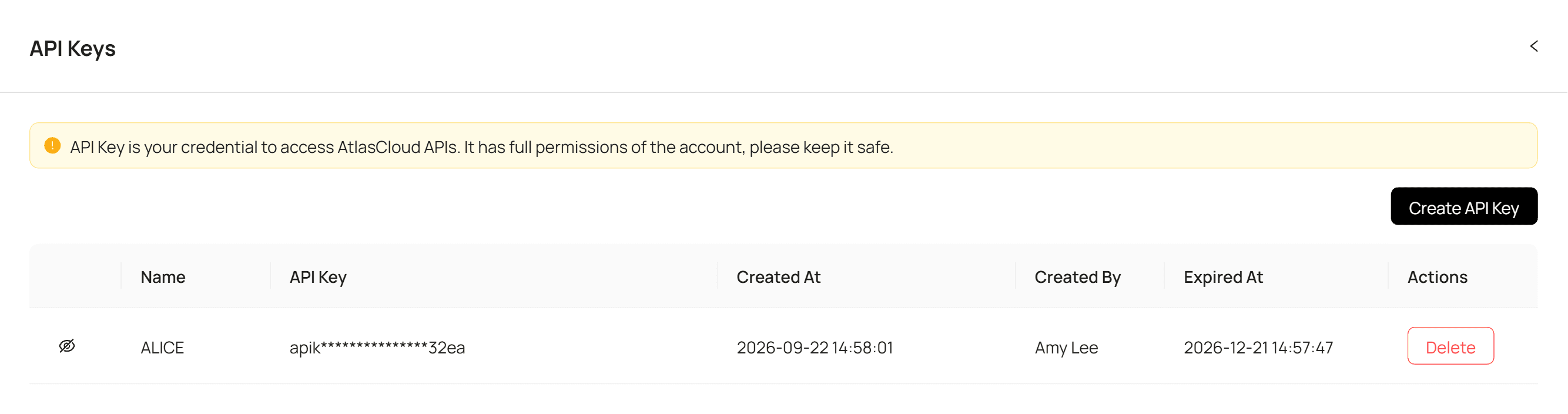
Step 1: Create an API key. Create one in the Atlas Cloud console and copy it. Keep it server-side; one key covers every model on the platform.
Step 2: Check the request shape. The Atlas Cloud API docs cover authentication and polling, and the API tab on the Grok Imagine extend page lists three fields: video_url (a public 2 to 15 second mp4), prompt, and duration (2 to 10 added seconds).
Step 3: Send the request and poll. Submit the extension:
plaintext1curl -X POST https://api.atlascloud.ai/api/v1/model/generateVideo \ 2 -H "Content-Type: application/json" \ 3 -H "Authorization: Bearer $ATLASCLOUD_API_KEY" \ 4 -d '{ 5 "model": "xai/grok-imagine-video/extend-video", 6 "video_url": "<public_https_url_to_your_clip.mp4>", 7 "prompt": "The same silver-haired woman in the dark teal flight suit keeps walking toward the camera down the same neon-lit corridor at the same steady pace, cyan and magenta holographic signs on both walls, reflections on the wet metal floor. She slows, glances up at a sign on her right, then keeps walking. The camera keeps pulling back slowly at chest height.", 8 "duration": 6 9 }'
The response carries a prediction ID. Poll it until the status reads completed:
plaintext1curl https://api.atlascloud.ai/api/v1/model/prediction/<prediction_id> \ 2 -H "Authorization: Bearer $ATLASCLOUD_API_KEY"
The completed response carries the URL of the full video, source plus extension; feed it back in as video_url to chain another pass. Because Atlas Cloud runs one API across the platform, switching to PixVerse v6 or Wan 2.5 later means changing the model string and that model's own fields, while the endpoint, auth header and polling loop stay the same.
Which Extend Video Model Fits Your Clip
The four models in the dropdown are not interchangeable. Pick by the clip you have:
| Model | Source input | Added per pass | Output resolution | Audio on the new segment | Fits best |
|---|---|---|---|---|---|
| Grok Imagine | mp4, 2 to 15 s | 2 to 10 s | Matches source, up to 720p | Returned with a generated ambience track in our runs | Phone footage and social clips headed for a vertical feed |
| PixVerse v6 | mp4, mov or webm URL | 1 to 15 s | 360p, 540p, 720p or 1080p | Not a parameter on the endpoint | Long builds: a 15-second base plus several 15-second passes |
| Wan 2.5 | Video URL | 5 to 10 s | 480p, 720p or 1080p | Generated natively; an optional audio track can guide it | Clips where the ambience or a voice has to carry through the join |
| LTX 2.3 Quality | mp4, mov, webm, m4v or gif | 9 to 481 frames, forward or backward | Six aspect presets, 16:9 default | Optional, off by default | Prequels, frame-rate-matched inserts, fast drafts |
PixVerse v6 is the one for stacking length: each pass adds up to 15 seconds, however long the source already is. Our guide to the PixVerse video length limit prices that chain end to end.
Wan 2.5 is the pick when sound matters. It generates audio with the video and accepts an optional audio URL to guide the new segment, so traffic or a voice under your source can carry through the join.
LTX 2.3 Quality counts in frames (81 by default), can extend backward to build a lead-in, and bills by generated pixels. That makes it a cheap way to draft several continuations before committing one to a higher-resolution model.
How to Write an Extend Video Prompt That Holds the Scene
The continuation prompt tells the model what a single frame cannot: what was already true. A frame shows a woman in a corridor. It does not say she was walking toward the camera, how fast, or that the camera was pulling back with her. Leave that out and the model guesses, and a guess is where the join breaks.
A prompt that holds the scene has three parts, in this order:
- Anchor. Restate what is on screen: the subject, their clothing or coat, the light direction, the camera behaviour. Use "the same" liberally: "the same woman in the grey hoodie," "the same low sun from the left."
- One new action. A single verb phrase the subject performs next. Not three. If you want three things to happen, that is three passes.
- Camera. Whether the camera holds, follows or drifts, and at what pace.
Kling's own extension guide makes the same point from the other direction: text unrelated to the original subject may cause a camera cut or transition. A prompt that introduces a new person, a new location or a new time of day is asking the model to change the shot, and it will.
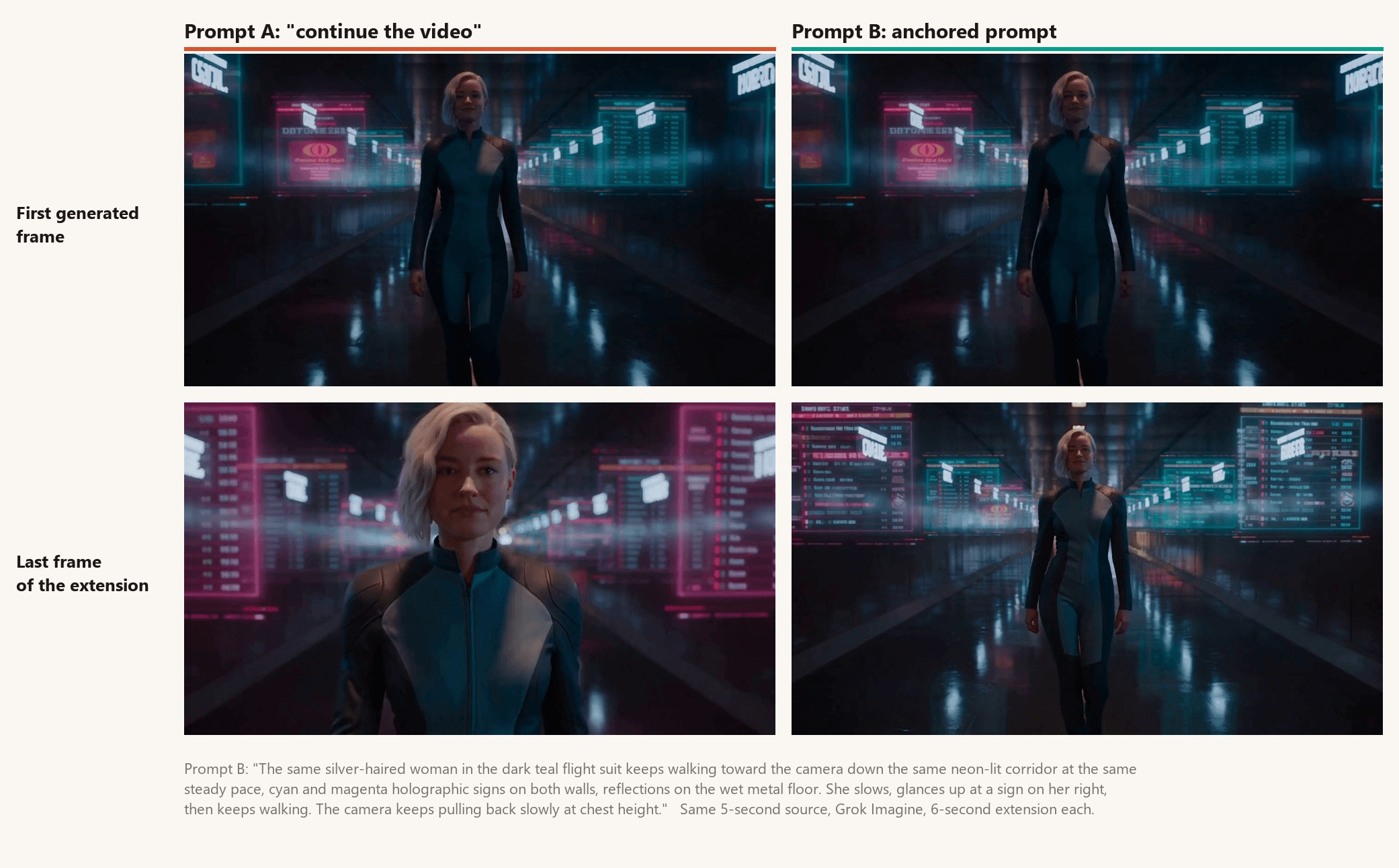
Both runs start from the same frame, so the difference shows up later. With "continue the video", Grok Imagine kept her walking for a couple of seconds, then pushed in to a head-and-shoulders close-up and let the magenta signs take over. The anchored prompt held the wide shot, her pace and the teal balance through the last frame.
On PixVerse v6, Wan 2.5 and LTX 2.3, fix the seed while you iterate on wording so two runs differ only by the prompt. Where a model has a resolution setting, match it to the source.
How to Stop Character Drift in Extended AI Video
Run one extension and the join is usually fine. Run three in a row and small things start to move: the knit of a top, the line of a jaw, the doors behind the subject. This is drift.
Research on next-frame video models describes it well. Lvmin Zhang and colleagues define drifting as "the degradation of visual quality due to error accumulation over time" and trace it to "the initial errors that occur in individual frames," which then propagate through later ones, per the FramePack paper.
In plain terms: pass one makes a small mistake in the face, and pass two treats it as ground truth and adds its own.
We ran the chain on real stock footage to show it, with the same anchored prompt on every pass:
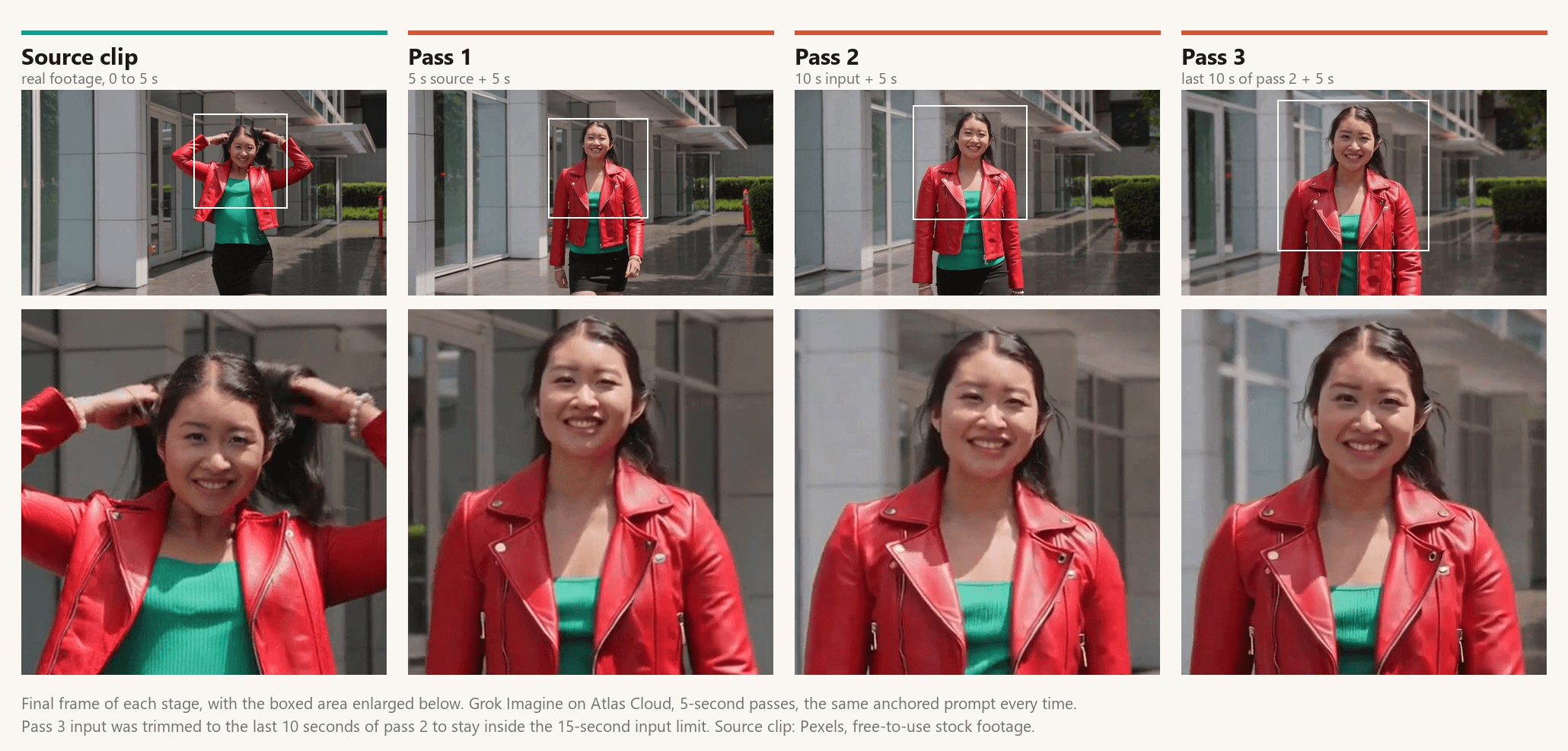
After three passes she is still clearly the same woman, which is the anchored prompt doing its job. The changes are the small kind that compound: the ribbed knit of the green top goes smooth after the first pass, her face is a little longer and the jaw a little sharper by the third, and the glass doors and planters behind her rearrange themselves between passes.
Drift comes from the generation itself, so the goal is to keep it small:
- Extend in short passes. A 4-second addition gives the model less room to wander than a 10-second one.
- Re-anchor every pass. Restate the clothing, hair, light and camera as they appear in the frame you are extending from.
- Extend from the best pass, not the last one. If pass two drifted, re-run from pass one's output with a tighter prompt.
- Know when to cut. If the action genuinely changes (she gets into a car), a cut to a new generation reads better than another extension.
How to Check the Seam Before You Export
An extension is finished when nobody can find the join. Scrub to the last source frame and run this list:
| What to check | How | If it fails |
|---|---|---|
| Position jump | Step two frames back and two forward across the join | Re-run with the camera and pace stated in the prompt |
| Exposure or colour step | Compare the last source frame and first new frame at 100% | Add the light direction to the anchor, then colour-match in your editor |
| Speed change | Play the join at normal speed and watch the background | Name the pace: "at the same walking pace" |
| Sound handoff | Listen on headphones, source half included: Grok Imagine returned our silent source with ambience across all 11 seconds | Lay the source's own audio under the timeline, or extend with Wan 2.5 |
| Identity | Zoom on the face at the join and three seconds later | Shorter pass or tighter anchor |
Before comparing, export at the source's frame rate so a 30-to-24 fps step does not pass for a motion problem, and check the join again after grading.
Frequently Asked Questions
Is there a free AI video extender on Atlas Cloud?
New accounts unlock $1 in free credit after adding a payment method. On the extender that is roughly one or two Grok Imagine passes on a short clip, about 19 seconds of Wan 2.5 at 480p, or about 40 seconds of PixVerse v6 at 360p.
How much does it cost to extend a video?
Prices checked on 2026-09-30, with no discounts active. Grok Imagine bills $0.07 per added second plus $0.01 per second of the source clip, so a 10-second clip extended by 6 seconds is $0.52.
PixVerse v6 bills per added second by tier: $0.025 at 360p, $0.035 at 540p, $0.045 at 720p and $0.09 at 1080p. Wan 2.5 bills $0.0525 per second at 480p, $0.105 at 720p and $0.1575 at 1080p, audio included. LTX 2.3 Quality bills by generated pixels; its default 81-frame 16:9 extension came to about $0.13.
Can Grok Imagine extend a video past 15 seconds?
Yes, in stages. Each pass adds 2 to 10 seconds, but the input has to be 2 to 15 seconds long. Once your working file passes 15 seconds, trim it to its last stretch before the next pass; the model only needs the run-up to the final frame, and the trimmed beginning rejoins the timeline in your editor.
Does an AI video extender change the aspect ratio?
No. An extender adds time, and Grok Imagine returns the source's aspect ratio and resolution, up to 720p. Turning a 16:9 clip into 21:9 or 9:16 is expanding, a different tool.
Can I extend real phone footage, or only AI-generated clips?
Real footage works. Grok Imagine takes any mp4 between 2 and 15 seconds, and the drift test above starts from real stock footage. Anchor the prompt on what the camera actually shows.
Conclusion
The clip that ends a beat too early does not need a reshoot. The model reads the last frame, and everything after it comes from that frame plus your prompt, so the prompt has to restate what was already true before it asks for anything new. Short passes and a fresh anchor each time keep the join invisible.
Open the Video Extend tab, drop in the clip that ended too soon, and run one 6-second pass with an anchored prompt. If the join holds at full speed and frame by frame, you have your shot. If it drifts, tighten the anchor and run again; that is most of what using an AI video extender well comes down to.





