If you have experimented with any 4k AI video generator free of charge lately, you’ve likely hit a wall. While models like Google Veo and Kling AI produce breathtaking cinematic motion, most "free tiers" cap your resolution at 720p or 1080p to save on server costs.
In the landscape of free AI video upscaler 2026 technology, the secret to professional-grade content isn't finding one "magic" button—it is about "tool stacking." To achieve a high resolution AI video free of subscriptions, you must separate the creation from the enhancement.
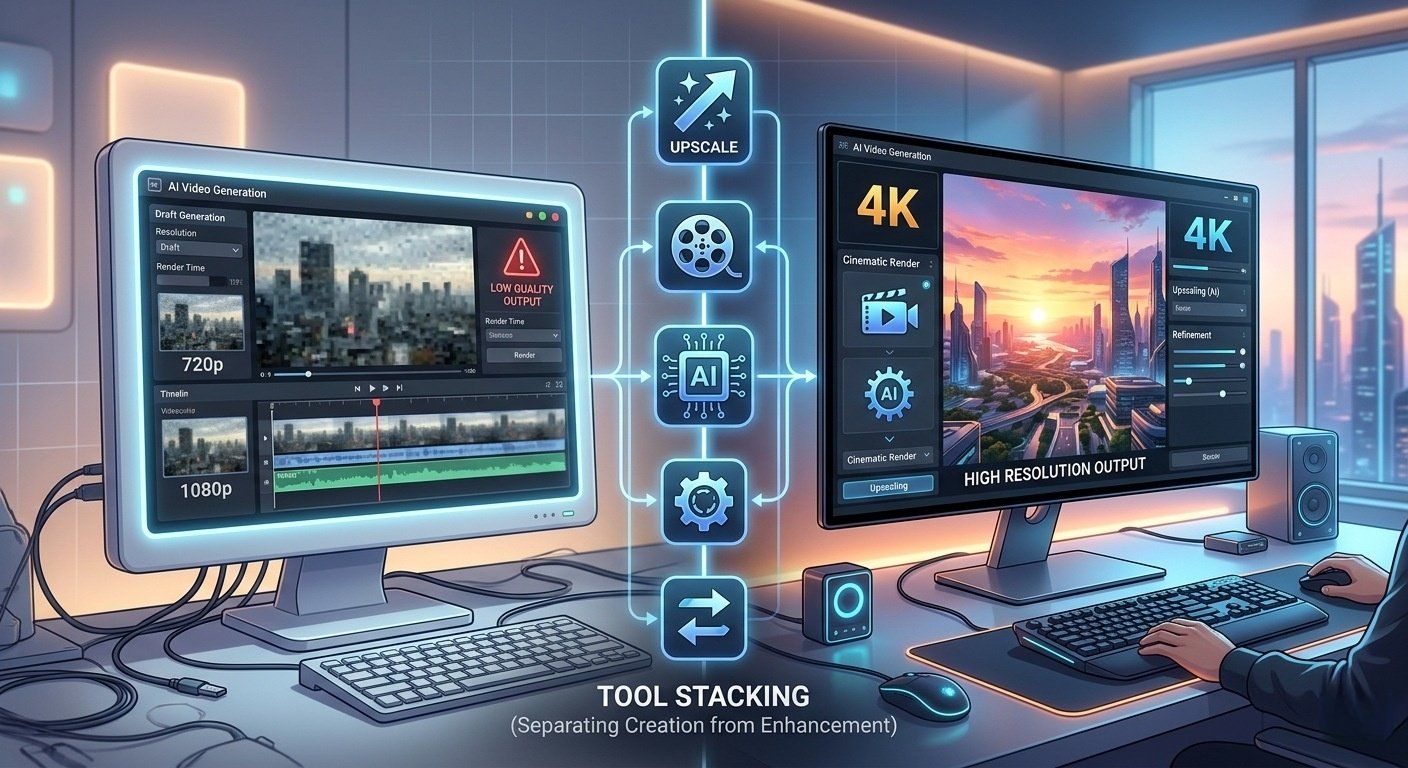
The 2026 Loophole: The Two-Step Process
Instead of rendering in 4K directly, which usually requires a paid "Pro" plan, creators are using a two-step workflow:
- Base Generation: Generate a high-quality 720p/1080p clip using Google’s VideoFX (powered by Veo) or Kling 3.0’s daily free credits.
- The Upscale: Process that file through a dedicated free AI video upscaler 4K 2026 tool to inject the missing detail.
Recommended "Free" Stack:
- Generator:Google Veo 3.1 (via AI Test Kitchen). It offers incredible consistency and adherence to complex prompts.
- Upscaler:CapCut Desktop. It features a robust AI Video Upscaler that uses deblocking and sharpening algorithms to clarify blurry footage.
| Step | Tool | Goal |
|---|---|---|
| 1. Create | Google Veo / Kling | Generate 720p/1080p Motion |
| 2. Enhance | CapCut Desktop | Upscale AI video to 4K free |
By mastering this "stack," you can bypass the $30/month subscription fees usually associated with Ultra-HD AI exports.
Step 1: Generating Your Base Video (Zero-Cost Tools)
In 2026, the secret to a high resolution AI video free of charge starts with picking the right foundation. While many platforms gatekeep Ultra-HD behind paywalls, you can leverage "daily credit" systems to generate cinematic base clips at 720p or 1080p.
- Google Veo 3.1 & VideoFX: Google has revolutionized the field with VideoFX, powered by Veo. By accessing it through the AI Test Kitchen, creators can experiment with cinematic models that understand complex physics and lighting. It is currently one of the most stable ways to get high-quality raw footage without a subscription.
- Kling AI 3.0: This is the current "gold standard" for free users. Kling AI offers 66 daily free credits, which is enough to generate roughly six high-consistency, 5–10 second clips every 24 hours. Its "Director Physics" ensures that movement—like flowing water or human walking cycles—looks natural.
- Luma Dream Machine: Luma’s "Lite" plan is perfect for creators who want realistic movement. It handles 3D space very well. This keeps your subjects looking solid and prevents weird "morphing" during camera pans.
Quick Tip: Use the Image-to-Video tool strictly. Start with a clear photo from Midjourney or DALL-E. Using an image instead of just text improves character detail and consistency by about 40%.
Step 2: The "Upscale Trick" – Turning 720p/1080p into 4K
Once you have your base clip, you need a free AI video upscaler 2026 to bridge the gap to 4K. You don't need expensive software like Topaz; instead, use these high-performance alternatives.
- CapCut Desktop’s Hidden Gem: While the mobile app is popular, the CapCut Desktop AI Video Upscaler is a powerhouse. It offers a dedicated "Image & Video Enhancer" tool that provides high-quality upscaling. Unlike many web tools, the desktop version is often cited as the best free video enhancer for AI clips because it allows 4K exports without a "Pro" watermark in many regions.
- Krea.ai Upscaler: For clips involving faces or intricate textures, Krea.ai’s "Enhance" mode is a top-tier Topaz Video AI free alternative 2026. It doesn't just stretch pixels; it uses "Generative Refinement" to actually redraw missing details, such as skin pores or fabric weaves.
Technical Breakdown: Resolution vs. Bitrate
| Setting | Recommended Value | Why? |
|---|---|---|
| Resolution | 4K (3840 x 2160) | For maximum clarity on large screens. |
| Bitrate | Higher/Custom (30-50 Mbps) | Prevents "pixel-mush" during fast motion. |
| Codec | H.264 or HEVC | Balances file size with visual fidelity. |
Not every 1080p clip works well for upscaling. If your video has bad AI glitches, like messy fingers, jumping to 4K just makes them look worse. Sharp "detail enhancement" actually highlights these ugly errors. Use this rule: Fixing a broken 1080p file is not as clever as upgrading a clean 720p file.
Step 3: From Prompt to Ultra-HD
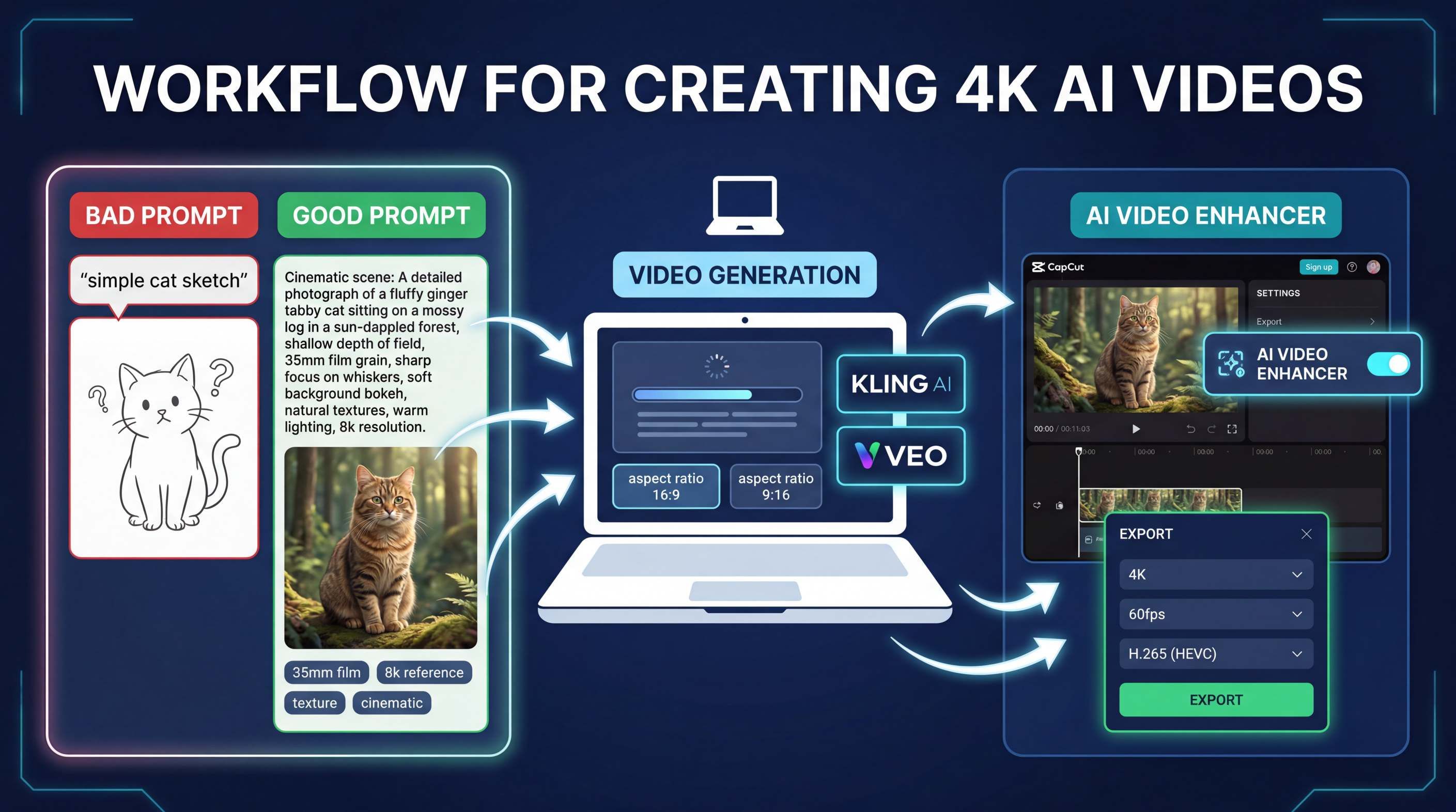
Ready to build? Follow this refined workflow for a 4k AI video generator free experience:
Phase A: The Prompt Engineering
To get the best results from a free AI video upscaler 4K 2026, your base video needs "texture."
- Bad Prompt: "A cat running."
- Good Prompt: "Cinematic 35mm film, close-up of a ginger tabby cat sprinting through a sunlit forest, hyper-realistic fur textures, 8k reference, natural motion blur, highly detailed."
Phase B: The Generation
Upload your prompt (or reference image) to Kling AI or Veo. Ensure you set your aspect ratio before hitting generate:
- 16:9 for YouTube and traditional film.
- 9:16 for TikTok, Reels, and Shorts.
Phase C: The Enhancement
Here is how to get 4K AI video for free:
- Open CapCut on your desktop and bring in your 720p or 1080p clip.
- Go to the "Video" tab, click "Basic," and find the AI Video Enhancer tool.
- Pick the "Upscale" or "Clarity" option to sharpen the details.
- Hit Export, Select 4K for the resolution and set the frame rate to 60fps to keep everything smooth.
Using this "Stacking" trick helps you make pro-level, ultra-HD videos. It looks like you paid for expensive subscriptions, but it actually costs $0.
About 4K AI Video Prompt Tips
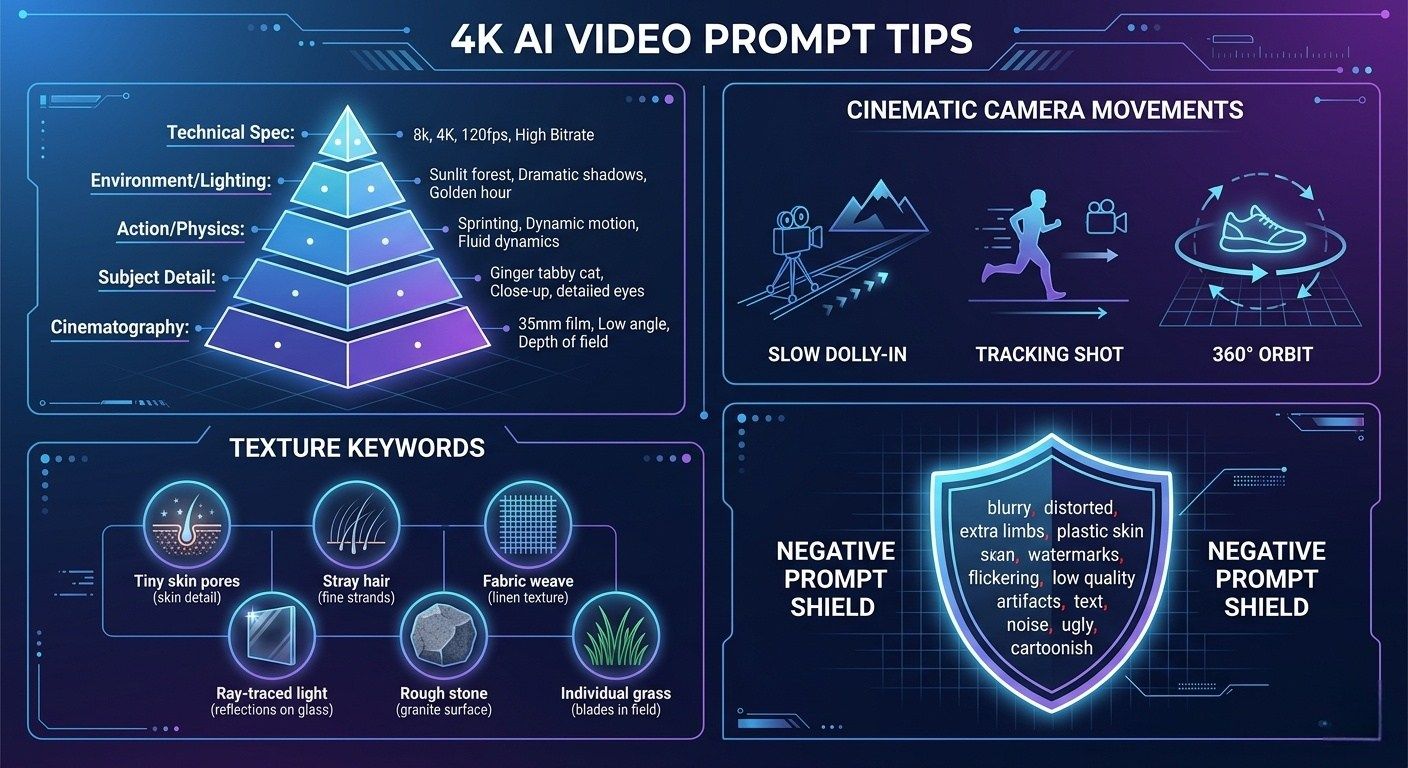
To get the most out of a 4K AI video generator free workflow, you need to write prompts that provide the "texture" necessary for an upscaler to work effectively. Here are the essential prompting techniques to ensure your high resolution AI video free projects look professional.
A vague prompt like "a man walking" will look blurry when upscaled. Instead, use this 5-layer structure to provide the high-density detail a free AI video upscaler 4K 2026 needs to reconstruct pixels.
Cinematography + Subject Detail + Action/Physics + Environment/Lighting + Technical Spec
Mastering Camera Movement
Movement is the hardest part for AI. Using specific cinematic terms helps the model maintain "temporal consistency" (preventing the video from warping).
- Slow Dolly-In: Creeps in on the subject. Use this to build up a feeling or tension.
- Tracking Shot: Keeps pace with a moving person. This works well for action or talking while walking.
- 360° Orbit: Spins all the way around an object. It shows off products or characters from every angle.
- Crane Shot: Drops down from high up. It is great for showing a huge, grand scene for the first time.
Texture-Specific Keywords
To help your free AI video upscaler 2026 tool, you must "prime" the generator with keywords that describe micro-details. This gives the AI a roadmap of where to add sharpness during the upscale.
- For People: "Tiny skin pores," "stray hair," "small facial twitches," "clear fabric patterns."
- For Environments: "Ray-traced light," "rough stone surfaces," "glowing water spots," "single blades of grass."
The "Negative Prompt" Shield
If your tool (like Kling 3.0 or Wan 2.6) supports negative prompts, use them to block the "AI Slop" look. This is the best free video enhancer for AI clips strategy because it prevents errors before you upscale.
- Negative Prompt:"Blurry, distorted, extra limbs, floating objects, plastic skin, morphing, watermarks, low resolution, shaky camera, flickering lights."
Prompt Chaining for Consistency
When creating a longer 4K project, keep your subjects consistent by using "Token Inheritance." If you generate a "Hero Shot" first, copy the specific descriptors (e.g., "matte black helmet with gold trim") and paste them into every subsequent prompt. This ensures the helmet doesn't suddenly become "glossy blue" in the next clip.
| Technique | Goal | Best Tool |
|---|---|---|
| Image-to-Video | 40% Better Consistency | Luma Dream Machine |
| Directorial Prompts | Logical Motion | Google Veo 3.1 |
| Negative Filters | Remove AI Artifacts | Kling 3.0 |
2026 Comparison Table: Best Free AI Video Models
Navigating the landscape of a 4K AI video generator free of cost requires knowing exactly where to spend your daily credits. While no single generator produces native 4K for free, "stacking" these tools with a free AI video upscaler 4K 2026 is the industry-standard workaround.
| Tool | Daily Free Limit | Max Base Res | Best For |
|---|---|---|---|
| Google Veo 3.1 | Varies (Credits) | 1080p | Cinematic Realism & Lighting |
| Kling 3.0 | 66 Credits | 720p/1080p | Complex 10s Human Motion |
| Seedance 2.0 | 30 Credits | 720p | High Character Consistency |
| CapCut (Tool) | Unlimited | 4K (Upscaled) | Final Post-Processing |
For those seeking a high resolution AI video free of watermarks, Google’s VideoFX (powered by Veo) remains the most authoritative choice for cinematic quality, while Kling 3.0 offers the most generous daily allowance for experimental creators.
Expert Insight: Avoiding the "AI Look"
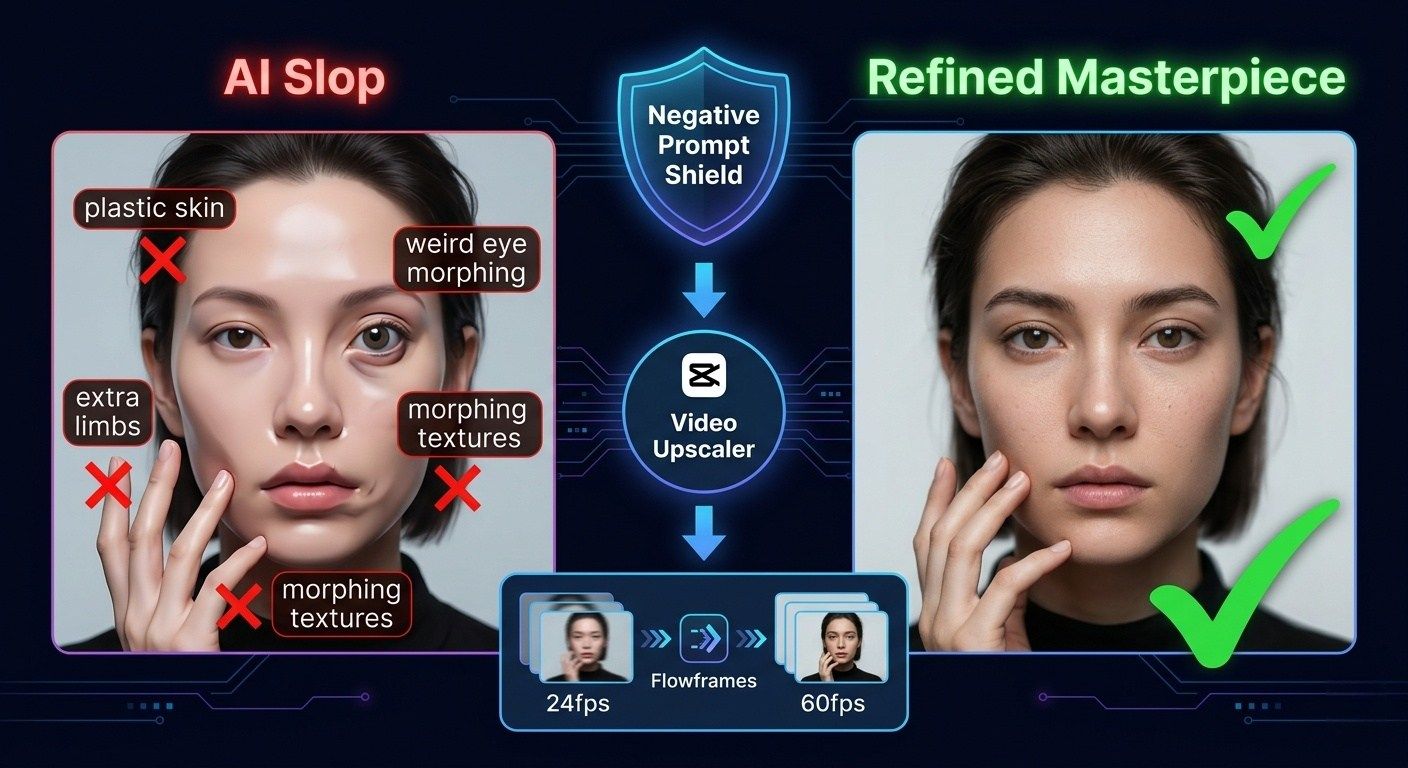
Generating the footage is only half the battle; the real "Expertise" lies in refinement. To truly compete with high-end productions, you must solve two common AI artifacts: "plastic" textures and choppy movement.
- The "Uncanny Valley" Check: To prevent the "AI slop" look, use negative prompts effectively. By excluding terms like "plastic skin," "extra limbs," and "morphing textures," you ensure the base video is clean enough for a free AI video upscaler 2026 to process without enhancing errors.
- Beyond Resolution: Frame Interpolation: Resolution isn't the only factor in quality. A 4K video at 24fps can still look "AI-generated" if the motion is stuttered. This is how to upscale AI video to 4K free like a pro: use Flowframes, a powerful Topaz Video AI free alternative 2026, to interpolate your 24fps clip into a buttery-smooth 60fps.
When you combine the CapCut Video Upscaler—the best free video enhancer for AI clips—with proper frame interpolation, the result is an ultra-high-definition masterpiece that is indistinguishable from professional studio renders.
YouTube 4K video custom export checklist example
To keep your AI video from looking blurry on YouTube, you have to use the right settings. This tells YouTube to use its best quality VP9 or AV1 codecs during the upload.
Here is a YouTube 2026 Pro Export Checklist for 4K AI Video:
| Category | Setting | Recommended Value | Why It Matters |
|---|---|---|---|
| Container | Format | MP4 (.mp4) | The most universally compatible container for AI metadata and YouTube. |
| Video | Codec | H.264 or HEVC (H.265) | H.264 is standard; HEVC/AV1 is better for preserving fine AI textures like skin/fur. |
| Resolution | 3840 x 2160 (4K) | Upscaling to 4K forces YouTube to use the superior VP9/AV1 codec. | |
| Frame Rate | Match Source (24, 30, or 60 fps) | Prevents "jitter" or dropped frames; 24fps is best for a cinematic AI film look. | |
| Aspect Ratio | 16:9 (Widescreen) | Standard for YouTube; use 9:16 for Shorts/Reels/TikTok. | |
| Bitrate | Encoding | VBR, 2-Pass | Variable Bitrate analyzes the video twice for maximum detail in complex scenes. |
| 4K (24/30 fps) | 35–55 Mbps | Provides enough data to keep AI-generated details sharp. | |
| 4K (60 fps) | 65–85 Mbps | Higher frame rates require more "fuel" to prevent pixelation during motion. | |
| Audio | Codec | AAC-LC | The standard for high-quality web audio. |
| Sample Rate | 48 kHz | Professional studio standard for crisp sound. | |
| Bitrate | 384 kbps (Stereo) | High-fidelity audio that matches 4K visual quality. | |
| Advanced | Render Depth | Maximum Depth | Ensures 10-bit color data is preserved (if your AI model supports it). |
Who is this method for?
This setup is great for solo creators and hobbyists who care more about how things look than how fast they get done. If you make videos for YouTube or TikTok and want to save money, "Stacking" gets you 4K results without a monthly bill. It works best if you have time to use your daily free credits and don't mind the extra steps of moving files from the AI tool to your computer for the final polish.
Scaling Up: When "Free" Becomes Expensive
While the "Tool Stacking" method is a game-changer for individual creators, it comes with a hidden tax: Time. Managing daily credit resets across three different platforms, navigating manual uploads, and waiting for sequential renders can take hours for just sixty seconds of finished footage. For most, this is a fair trade for $0.
But if you run an agency, make tons of videos, or build apps, these slow manual steps will hurt you. When you need fifty 4K clips every day instead of just five, "Stacking" simply won't keep up.
This is where transitioning to an all-in-one infrastructure like Atlas Cloud becomes essential. Instead of juggling multiple browser tabs and free-tier limitations, professional operations use unified API platforms to automate the entire pipeline—from base generation to 4K upscaling—within a single, high-speed environment.
| Feature | Manual "Stacking" Method | Atlas Cloud API Platform |
|---|---|---|
| Ideal For | Solo Hobbyists / Students | Agencies / Enterprise / Devs |
| Effort Level | High (Manual transfers & waits) | Low (Fully automated workflows) |
| Output Volume | Capped by daily free credits | Unlimited / Scalable on-demand |
| Resolution | 1080p + Third-party Upscale | Native Ultra-HD Support |
| Workflow | Fragmented across 3+ apps | Unified via Single API |
Conclusion
Mastering high-end content in 2026 doesn't require a Hollywood budget, just a strategic "Stacking" method. By generating cinematic base clips in Google Veo 3.1 or Kling 3.0 and processing them through the CapCut Desktop AI Video Upscaler, you can bypass the native resolution limits of free tiers. This two-step workflow—creation followed by enhancement—is currently the most effective way to produce professional 4K visuals for $0.
FAQ
Which AI generators actually offer 4K output for free?
To be honest, most top tools like Google Veo 3.1, Kling 3.0, or Runway Gen-4.5 keep 4K exports for their paid "Pro" or "Ultra" users. Even so, you can still get 4K for free by using a simple "Generate & Upscale" trick.
First, make a solid base clip in 720p or 1080p on free sites like Luma Dream Machine, Kling 3.0, or Leonardo AI. Next, use a free video upscaler such as Canva or Picwand on that file, and then you will get a complete 3840 x 2160 resolution at no cost.
Are there any "No-Watermark" options available on free plans?
It is hard to find a 4K generator that is 100% watermark-free and without a subscription. Most free tiers, including invideo AI and HeyGen, apply a small logo to the corner.
Pro Tip: If you need a clean shot, look for "Open Source" models like Wan 2.2 or Luma Ray3 hosted on Hugging Face Spaces. These often provide watermark-free clips in exchange for slightly longer waiting times in the community queue.
How long can my free AI videos be?
Free-tier clips are typically capped at 5 to 10 seconds per generation to manage server load. To create longer 4K content, creators use "stitching." You can use the "Extend Video" feature found in tools like Runway or Pika 2.5 to add 4-second increments, though this will eventually exhaust your daily free credits.
| Feature | Free Tier Average | Paid Tier (Pro) |
|---|---|---|
| Max Resolution | 1080p (Upscaling needed) | Native 4K |
| Clip Duration | 5–10 Seconds | 60+ Seconds |
| Watermark | Required | Removed |
| Commercial Rights | Personal Use Only | Full Commercial Rights |





