Kling AI's lip sync feature lets creators generate a perfectly synced talking-head video in under a minute, with no manual key-framing required. Whether you're producing multilingual content, animating characters, or dubbing footage for a global audience, Kling 3.0 makes precise mouth synchronization accessible without specialized software. This guide covers every step of the workflow, from uploading your first audio file to fixing common output problems.
Key Takeaways
- Kling AI Lip Sync works in two modes: upload an audio file or generate speech via built-in TTS
- The kling ai maximum clip length is 60 seconds, per the Kling web app interface
- Kling 3.0 supports lip sync in 5 languages: CN, EN, JP, KR, ES
- Common problems include text artifacts, distortion on non-frontal faces, and mobile navigation confusion
- Atlas Cloud provides API access to Kling 3.0 at $0.071/second Standard (Atlas Cloud Kling 3.0 model page, 2026)
What Is the Kling AI Lip Sync Feature?
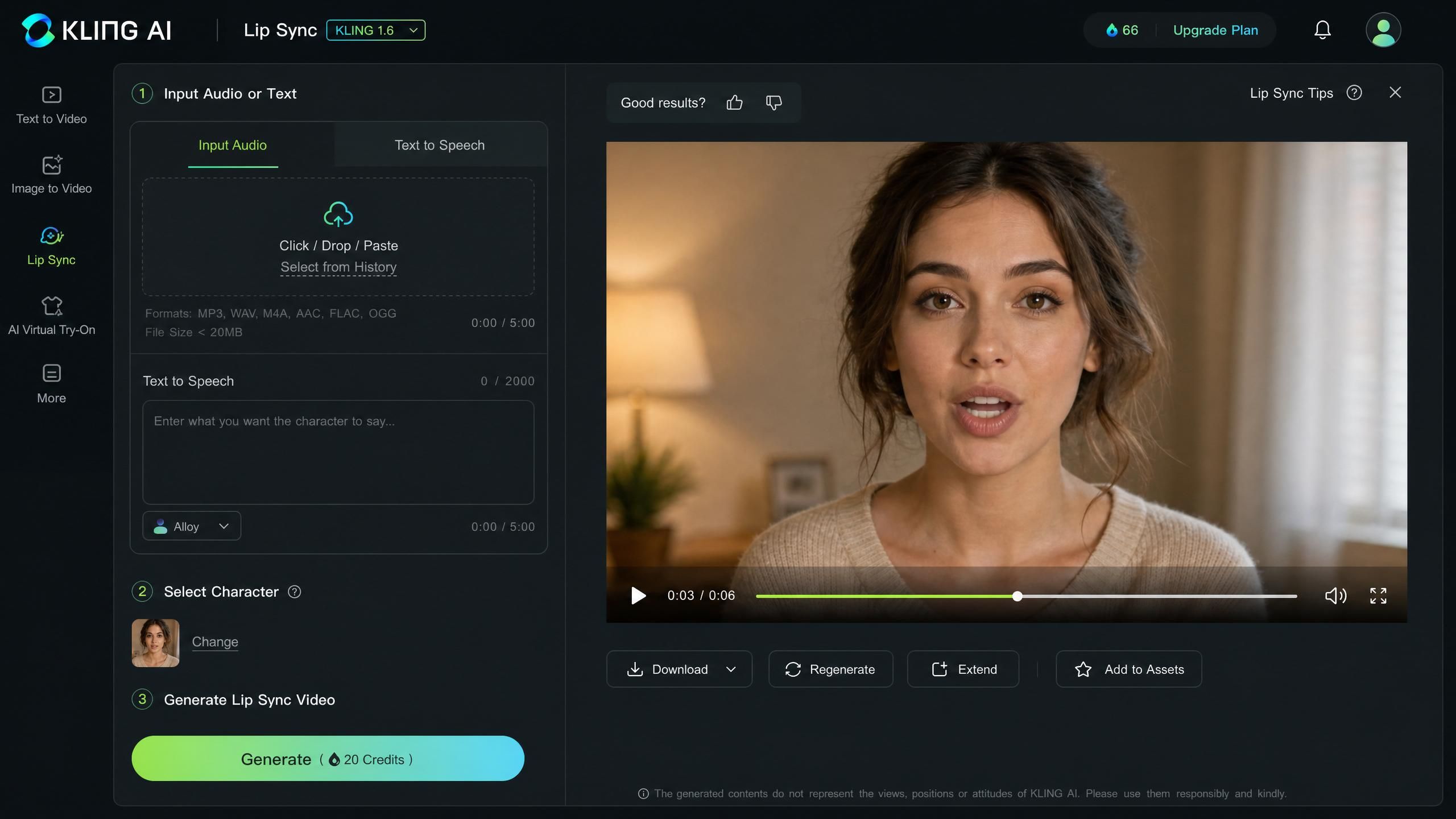
Kling AI describes its Lip Sync feature as a tool to "generate a perfectly synced talking-head video in under a minute," with no manual key-framing required (kling.ai official UI, 2026). The feature accepts a video clip and an audio source, then generates a new video where mouth movements match the spoken audio frame by frame. It's available directly inside the Kling web platform under the AI Human section.
The Lip Sync tool offers two distinct input modes. The first is a straightforward audio upload: you supply a local voiceover or singing file and the model drives the video from it. The second mode uses the built-in Text to Speech (TTS) engine, where you type a script and Kling converts it to speech before generating the synced video. Both modes produce the same final output format.
Citation Capsule: Kling AI's official Lip Sync feature generates a talking-head video in under a minute with no manual key-framing, supporting two input modes: local audio file upload and built-in Text to Speech generation (kling.ai official UI, 2026).
Kling AI Lip Sync Tutorial: Step-by-Step
The kling ai lip sync tutorial below follows the standard web UI workflow at kling.ai/app/ai-human/video/new. The process takes most creators under five minutes from upload to preview, assuming a clean source video.
Step 1: Open the Lip Sync Tool.
Navigate to the Kling AI web platform and select AI Human from the main navigation. Click New Video to open the creation interface. The Lip Sync option appears as a labeled mode in the tool panel on the left side.
Step 2: Upload your source video.
Click the video upload area and select your clip. The video must be no longer than 60 seconds. Kling will reject clips that exceed the time limit, so trim your footage before uploading if needed.
Step 3: Choose your audio input mode.
You'll see two options at this stage. Select Upload Audio to use an existing voiceover, music vocal, or recorded narration. Select Text to Speech to type your script directly. If you choose TTS, pick the language and voice style before proceeding.
Step 4: Provide the audio content.
For audio upload: drag your file into the audio panel. For TTS: type or paste your script into the text field, keeping it matched to your clip's duration. Over-long scripts will either be cut off or misaligned, so match word count to clip length carefully.
Step 5: Generate and review.
Click Generate. Processing typically completes within a minute for a standard clip. Preview the output in the player before downloading. Check mouth corners, vowel shapes, and any transitions between words for accuracy.
Step 6: Download or regenerate.
If the sync looks accurate, download the video using the export button. If you spot misalignment, common fixes include re-uploading cleaner audio, ensuring the face is front-facing in the source clip, and reducing background noise in the audio file. For scripts written to speak cleanly on the first pass, the Kling AI video prompt guide shows how to phrase dialogue and pacing so your source clips need fewer corrections.
Citation Capsule: The Kling AI Lip Sync web UI workflow at kling.ai/app/ai-human/video/new processes a synced talking-head video in under a minute using either uploaded audio or built-in TTS (kling.ai official UI, 2026).
Kling AI Maximum Clip Length and Input Requirements
The kling ai maximum clip length for the Lip Sync feature is 60 seconds, per the Kling web app interface (kling.ai, 2026). The interface also specifies 720p as the clip standard, though this may refer to the minimum output resolution rather than an input requirement. Clips that exceed 60 seconds are rejected before processing begins, so you'll need to split longer content into separate segments.
Resolution requirements.
Your source video should be at least 720p. If you're working with archival or compressed footage, upscale before importing. Higher resolutions are supported but don't guarantee proportionally better lip sync accuracy.
Audio format considerations.
Kling accepts standard audio formats for the upload mode. For best results, use clean mono or stereo recordings with minimal background noise. Heavily compressed audio, music beds underneath speech, or recordings with reverb can degrade sync accuracy because the model's speech detection loses confidence on ambiguous signals.
What happens when you exceed the limit.
Uploading a clip longer than 60 seconds returns an error immediately. Kling does not silently trim or batch your footage. If you're producing a longer piece, plan your edit around the 60-second boundary and handle segment joins in your video editor after generation. When you need talking footage from a still portrait rather than existing video, our Kling AI image to video walkthrough covers how to turn a single image into a clean source clip ready for lip sync.
Citation Capsule: The kling ai maximum clip length for Lip Sync is 60 seconds, with clips exceeding this limit rejected at upload rather than silently trimmed (kling.ai official UI, 2026).
Kling AI Lip-Sync Capabilities: Languages, Modes, and Kling 3.0 Improvements
Kling 3.0 "achieves precise lip-syncing for multiple languages and dialects (CN, EN, JP, KR, ES), delivering an immersive experience," according to the Atlas Cloud Kling 3.0 model page (Atlas Cloud, 2026). That five-language coverage distinguishes Kling from many tools that target English-only audiences. Creators producing content for Asian and Spanish-speaking markets will find the dialect handling particularly relevant.
Supported languages.
The five confirmed languages are Chinese (CN), English (EN), Japanese (JP), Korean (KR), and Spanish (ES). Each language has been specifically tuned for accurate phoneme-to-viseme mapping, meaning the mouth shapes generated match the actual sounds in each language rather than relying on a generic English-trained model.
TTS mode vs. audio upload mode.
These two modes serve different production workflows. TTS mode is faster for prototype scripts and short-form content where you don't yet have recorded audio. Audio upload mode is better for projects where vocal performance matters: nuanced narration, singing content, or professionally recorded voice work. The output quality from both modes is comparable when the audio is clean and clearly spoken.
Kling 3.0 multilingual improvements.
The Atlas Cloud platform notes that Kling 3.0 supports "multilingual lip-syncing" as a headline capability. In practice, this means creators can switch the spoken language between segments without re-training or swapping models. A single project can include CN dialogue in one clip and EN dialogue in another, processed through the same interface.
Citation Capsule: Kling 3.0's Lip Sync achieves precise syncing across five languages (CN, EN, JP, KR, ES) with dialect-level tuning, as described on the Atlas Cloud Kling 3.0 model page (Atlas Cloud, 2026).
Multi-Character Dialogue in Kling 3.0
As documented in community tutorials using third-party platform integrations with Kling 3.0, it is possible to "animate 3-4 characters in one frame with separate tracks for overlapping dialogue and full timing control" (AI Master YouTube channel, March 2026). This capability moves lip sync well beyond single-speaker talking-head use cases. Scenes with conversations, group announcements, or ensemble characters are achievable without splitting the shot.
How separate tracks work.
The multi-character mode assigns an independent audio track to each character in the frame. Timing offsets between characters are controlled individually, which means one character can finish speaking before the next begins, or both can overlap naturally. This is a significant workflow improvement over earlier versions, which required compositing separate single-character generations.
Best practices for multi-character shots.
Community tutorials note that Kling AI performs best on close-up shots of faces and humanoid characters (Tao Prompts tutorial, October 2024). For multi-character scenes, this means using wide shots where each face is still clearly visible and well-lit. Faces that are too small, obscured, or at extreme angles can cause one character's sync to fail while another succeeds in the same clip.
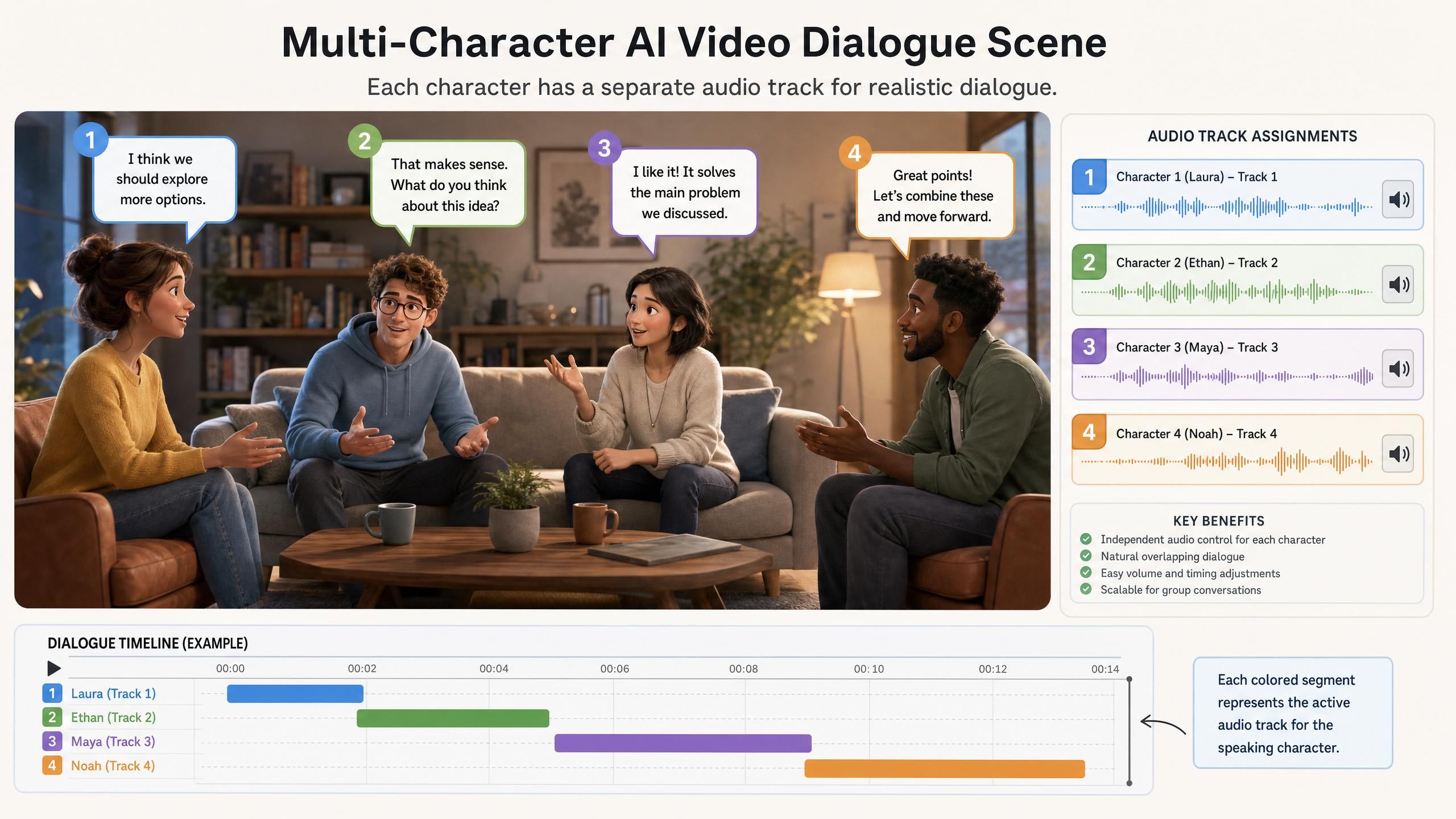
Citation Capsule: Kling 3.0 supports animating 3-4 characters in a single frame with separate audio tracks for overlapping dialogue and independent timing control, as documented by AI Master's YouTube tutorial (AI Master, March 2026).
Fixing Common Kling Lip Sync Problems
Users across multiple communities report three recurring problems with Kling AI lip sync outputs. Understanding the likely cause of each issue leads to faster fixes.
Problem 1: Text artifacts appearing in output.
Users in AI video communities report a recurring bug where unexpected text characters appear burned into output videos, particularly when using TTS mode. [UNIQUE INSIGHT] This artifact most likely originates from the TTS pipeline's subtitle rendering layer bleeding into the video output. When the TTS engine generates speech, it may also produce a subtitle track internally. If the rendering pipeline doesn't cleanly separate the subtitle layer from the visual output, text characters appear burned into the video frames. The fix is to use the audio upload mode instead of TTS when artifacts appear, since the upload path bypasses the TTS subtitle layer entirely.
Problem 2: Distortion on faces.
Users in Facebook AI Video groups ask about "lip sync distortion with Kling AI." This most commonly occurs when the source video contains faces at angles beyond roughly 30 degrees from front-facing. The lip sync model was trained primarily on frontal face data, so profile or three-quarter views receive lower-confidence pose estimates. The model then over-corrects mouth geometry, producing the distortion users see. Fix: re-shoot or re-select source footage using a more frontal camera angle.
Problem 3: Mobile navigation confusion.
A recurring question in AI video communities is: "Where do I find the Kling AI lip sync feature on mobile?" The feature is accessible via mobile browser but the navigation path differs from desktop. On mobile, the AI Human section collapses into a hamburger menu rather than appearing as a top-level navigation item. Tap the menu icon, select AI Human, then choose New Video to reach the Lip Sync tool.
Citation Capsule: The three most reported Kling AI lip sync issues are text artifacts in TTS output, face distortion from non-frontal angles, and mobile navigation confusion finding the Lip Sync panel, based on user reports across Facebook AI Video communities and AI video creator discussions (2024-2026).
Integrating with Atlas Cloud API
Atlas Cloud provides API access to Kling 3.0, including its lip sync capabilities, at two pricing tiers. Kling 3.0 Standard is priced at $0.071/second (15% off the regular rate of $0.084). Kling 3.0 Professional is priced at $0.095/second (15% off the regular rate of $0.112). Both rates are billed per second of output video generated.
When to use Standard vs. Professional.
Standard tier suits batch workflows, prototyping, and content where near-perfect sync is acceptable. Professional tier is appropriate for client deliverables, broadcast-quality projects, and content where every phoneme transition is scrutinized. The roughly 34% price difference reflects the quality gap between the two tiers.
Developer setup.
Full API documentation is available at the Atlas Cloud API docs. The platform uses an API key authentication model. Developers can submit video and audio inputs, specify the target language from the five supported options, and poll for output status. Note that these are video generation endpoints and do not follow the OpenAI chat completion structure.
Kling Video O3 and voice cloning.
Atlas Cloud also provides access to Kling Video O3, a professional variant that supports "custom subjects and voice clones derived from video or image inputs". For production teams building character-consistent content pipelines, the voice clone capability pairs directly with the lip sync feature to maintain speaker identity across sessions. To keep the same face steady while that voice stays constant, our guide on Kling 3.0 character consistency walks through the reference and Character ID workflow that anchors identity across every generation.
Citation Capsule: Atlas Cloud offers Kling 3.0 API access at $0.071/second (Standard) and $0.095/second (Professional), with Kling Video O3 adding voice clone support derived from video or image inputs (Atlas Cloud, 2026).
Frequently Asked Questions
Can Kling AI do lip sync?
Yes. Kling AI includes a dedicated Lip Sync feature under the AI Human section of its web platform. It accepts video clips up to 60 seconds and generates synced output using either an uploaded audio file or built-in TTS. Processing typically completes in under a minute (kling.ai official UI, 2026).
Is Kling AI lip sync free?
Kling AI offers a free tier with usage limits on its web platform. API access through Atlas Cloud is priced at $0.071/second for Standard and $0.095/second for Professional tier outputs. Free platform users may encounter queue limits or generation caps during high-demand periods (Atlas Cloud pricing, 2026).
What is the Kling AI maximum clip length for lip sync?
The kling ai maximum clip length is 60 seconds. Clips exceeding this duration are rejected at upload. For longer content, split your footage into 60-second or shorter segments and join them after generation (kling.ai official UI, 2026).
Which languages does Kling AI lip sync support?
Kling 3.0 lip sync supports five languages: Chinese (CN), English (EN), Japanese (JP), Korean (KR), and Spanish (ES). Each language uses dialect-specific phoneme-to-viseme mapping rather than a generic model, as described on the Atlas Cloud Kling 3.0 model page (Atlas Cloud, 2026).
Does Kling AI lip sync work on mobile?
Yes, but the navigation path is different from desktop. On mobile, the AI Human section is inside the hamburger menu rather than the top navigation bar. Tap the menu icon, select AI Human, then New Video to find the Lip Sync tool. This navigation difference is a frequently reported point of confusion in AI video creator communities.
Conclusion
Kling AI's Lip Sync feature covers the core needs of most creator and developer workflows: two audio input modes, five supported languages, a 60-second clip window, and multi-character support in Kling 3.0. The most common friction points — text artifacts, face distortion, and mobile navigation — each have documented fixes that don't require workarounds or third-party tools. If you want the full picture of everything the platform can do beyond lip sync, our complete Kling AI guide covers the models, features, and pricing in one place.





