

Upload a selfie. Tap once. Watch your shirt tighten over abs you definitely did not earn at the gym. That's the whole pitch behind PixVerse's Muscle Surge effect, and it's why TikTok spent months flooded with grandmothers, cats, and unsuspecting coworkers suddenly ripped.
The pixverse ai muscle trend is simple on the surface, one template, one photo, one video. But there's a real cost structure underneath it, a right and wrong way to feed it a photo, and an API path for anyone who wants to build on top of it instead of tapping through the app one clip at a time. This guide covers all three.
Key Takeaways
- PixVerse's Muscle Surge is an official one-click video effect, announced by PixVerse in late 2024, that adds visible muscle and a six-pack to a photo's subject.
- PixVerse bills API video generation by the second, not by the effect: V6 runs 5 credits per second at 360p, rising to 18 at 1080p without audio, per the official PixVerse V6 docs.
- For repeat generations, PixVerse V6 is also hosted on Atlas Cloud from $0.025 per second, watermark-free, with no separate per-effect fee.
What Is PixVerse's Muscle Surge Effect?
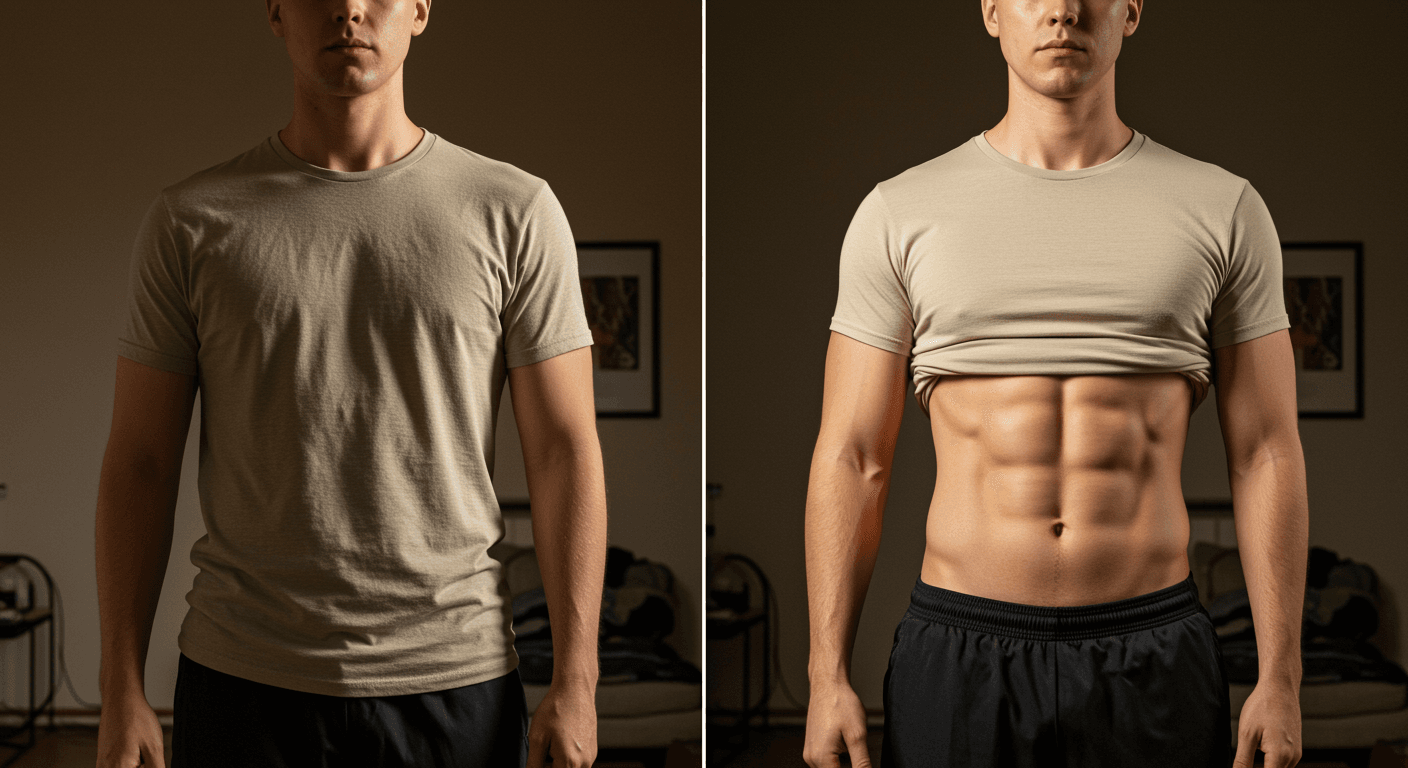
Muscle Surge is a preset video template inside PixVerse's Effect Center, not a separate app or a prompt you have to write yourself. PixVerse announced it on its own account in late November 2024, describing it as an AI effect "that instantly adds muscle and strength to your physique" (PixVerse on X, 2024). You give it a photo, it gives you a short video where the subject visibly bulks up and a six-pack appears.
That one-click packaging is exactly why it went viral. Most people trying pixverse ai muscle effects aren't editors, they're TikTok and Instagram creators who want a five-second flex clip without learning prompt syntax. The effect handles muscle definition, lighting, and the transformation motion automatically.
What's easy to miss is that Muscle Surge isn't a static filter. It's a full image-to-video generation, meaning the output is a moving clip, chest and shoulders swelling, not just a retouched still. That's a meaningfully different product than a six-pack photo editor, and it's why the results read as "AI video" rather than "Photoshop" to most viewers.
How to Make a Six Pack Video With the Muscle Surge Template
Making one is fast if the effect is still live in your version of the app. The whole flow is three steps:
Step 1: Find the template. Open PixVerse, go to the Effect Center, and search for Muscle Surge by name. If it doesn't turn up in search, check the trending effects shelf instead, where widely used templates like this one usually surface.
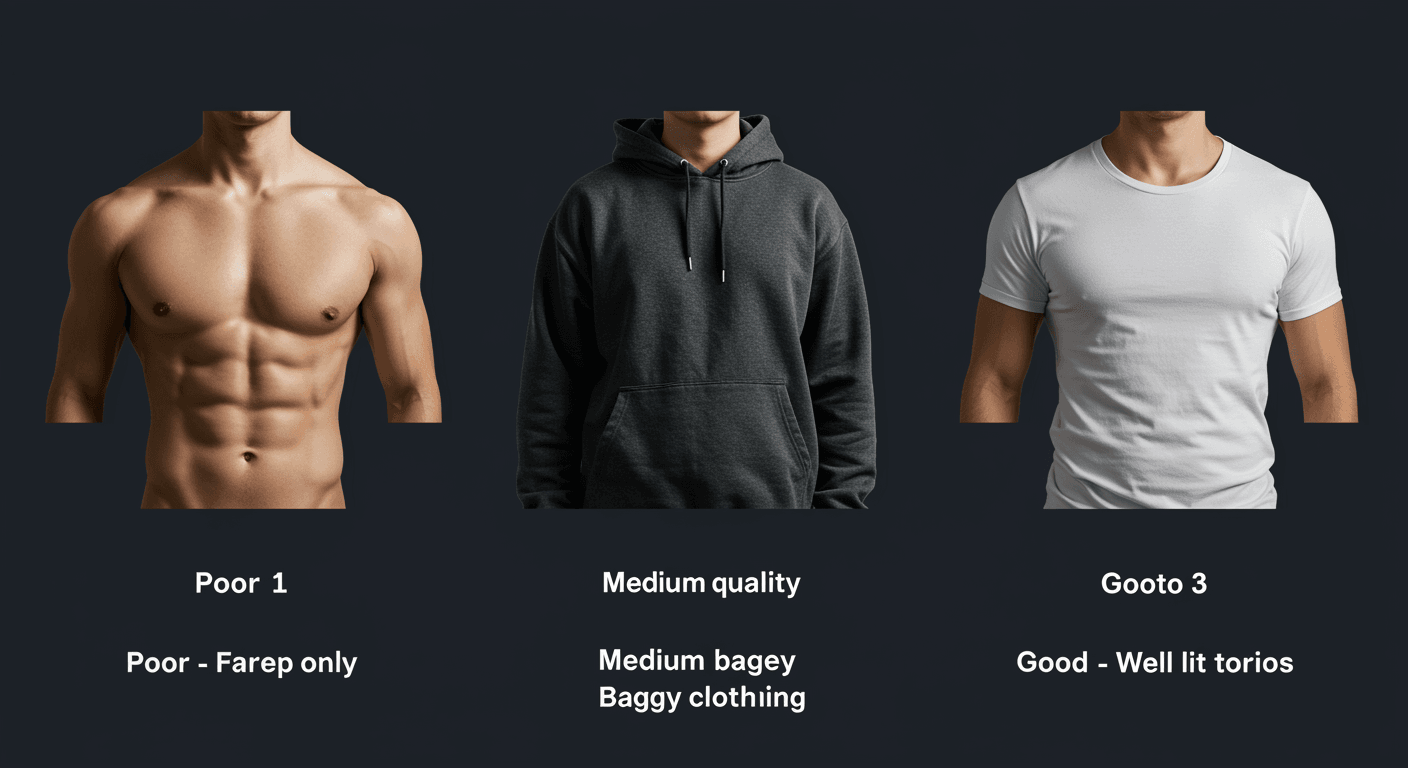
Step 2: Upload your photo. Pick one clear photo of the subject, ideally shoulders-up or a full torso shot with decent lighting. One person per photo, no group shots.
Step 3: Tap generate. The app handles the rest automatically. PixVerse's own Effects documentation describes this whole category as one-click templates: pick an effect, add a photo, done. The finished clip lands in your library, ready to download and post.
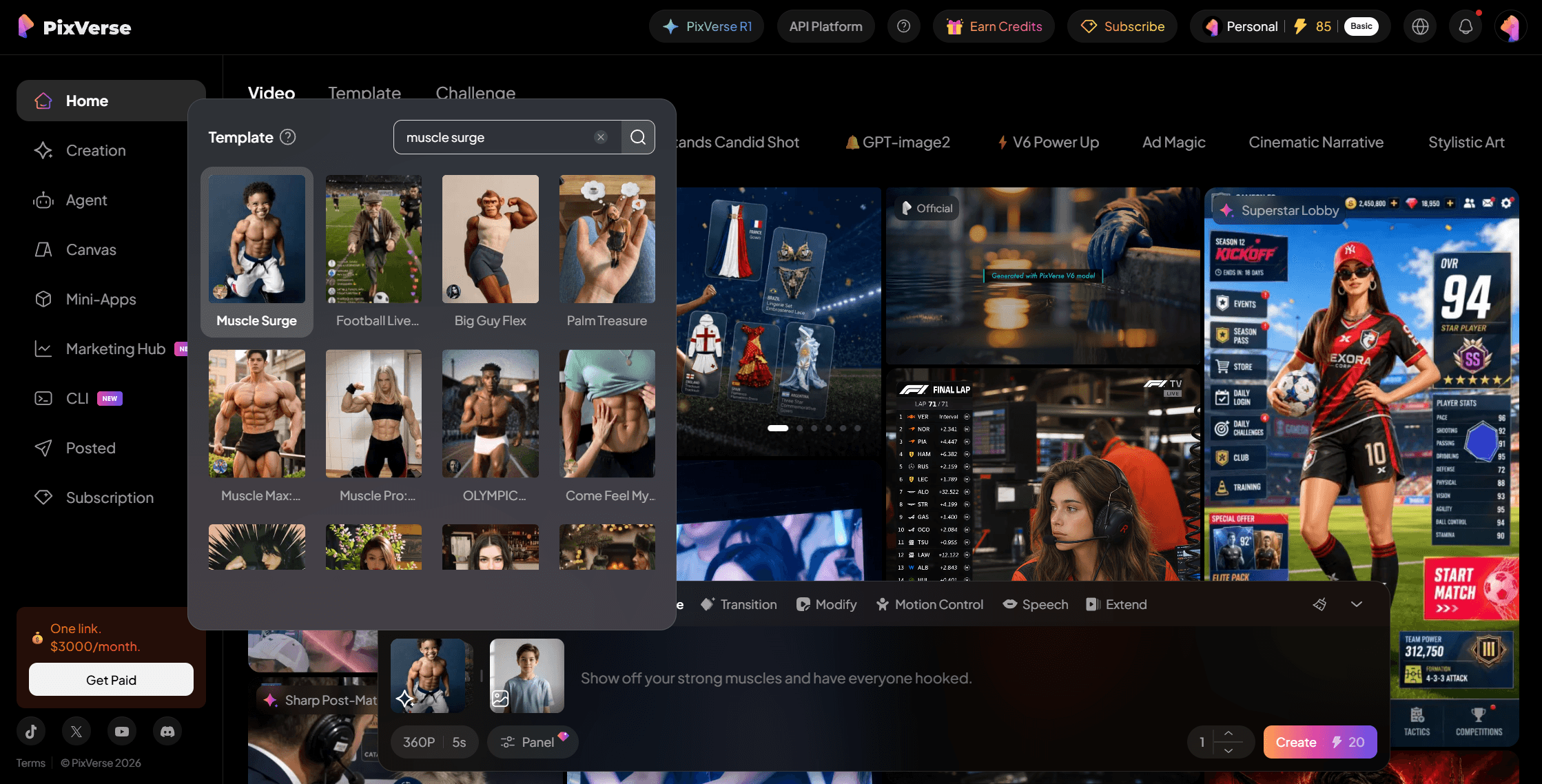
Under the hood, every one-click effect is really a template ID paired with a prompt, and PixVerse's own platform API exposes both: a typical request pairs a template_id with a text prompt naming the effect, alongside standard settings like duration and output quality. If you outgrow the tap-and-wait app flow, that's one exit. The other is skipping the preset entirely and prompting the transformation yourself on PixVerse's current V6 model through a hosted API, which the next section covers.
The one photo choice that made the biggest difference in testing was framing. Shots cropped tight to the face confuse the effect because there's no torso to add muscle to. A photo that shows shoulders and at least upper chest gives the model something to actually transform, and the six-pack placement looks far less pasted-on.
Scale Your PixVerse AI Muscle Videos With the API on Atlas Cloud
Tapping through the app works for one clip. It stops working the moment you need ten variations for a campaign, a batch for a meme page, or a feature baked into your own product. That's the gap Atlas Cloud fills: it hosts the PixVerse model family, both V6 and C1, behind one pay-as-you-go API key with no monthly minimum.
Two ways to run it, depending on how much control you want.
Method 1: use it directly in the browser. Open the PixVerse V6 image-to-video playground and generate right on the page, no code required. Upload the photo, describe the transformation in a prompt (or reference the same motion Muscle Surge uses), pick resolution and duration, and hit generate.
Method 2: call the API. Three steps get you from zero to a first clip:
- Get your API key. Create one in the console dashboard and copy it.
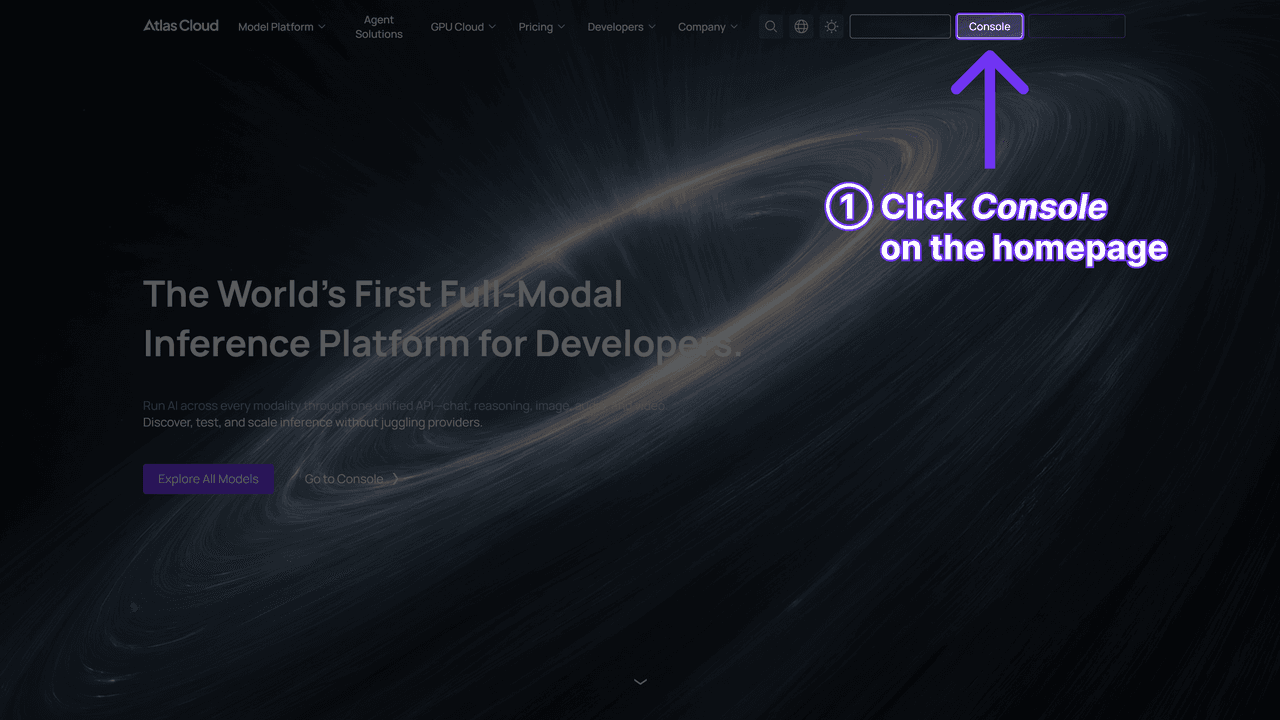
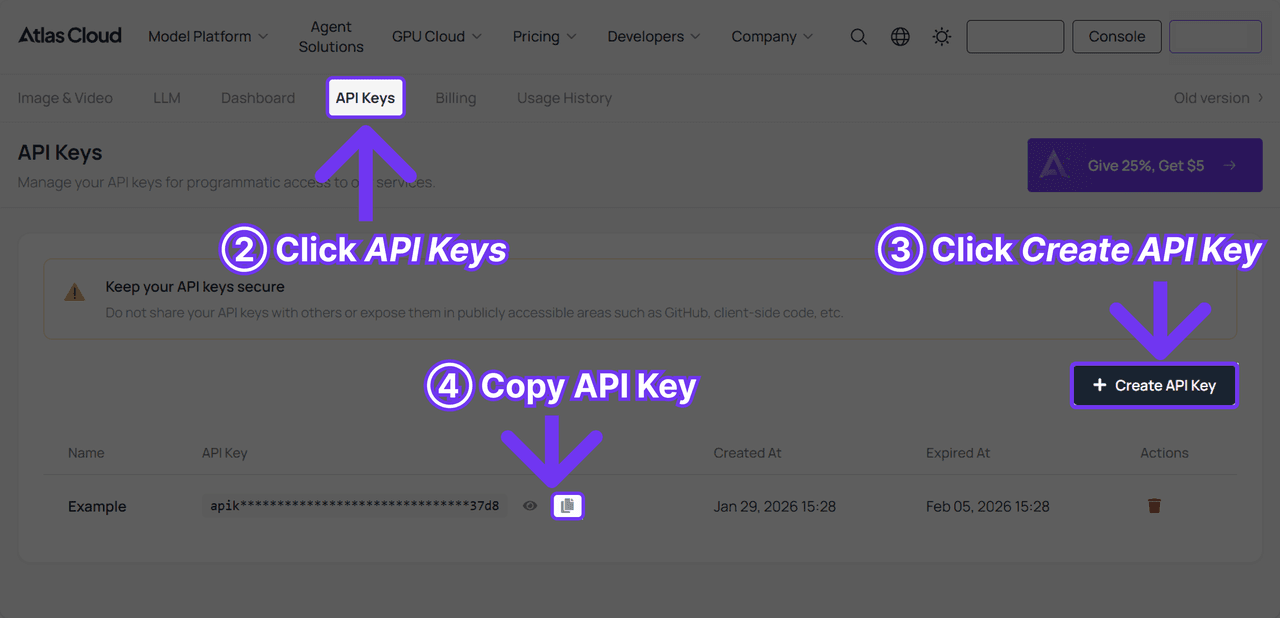
- Check the API docs. The Atlas Cloud API documentation lists the endpoint, request parameters, and authentication in one place.
- Make your first request. Call the video endpoint with pixverse/v6/image-to-video as the model, your photo, and a transformation prompt. Through Atlas Cloud's One API, a single calling convention drives every model on the platform. When a new model lands, you switch by changing the model name in the request, no re-integration required.
The API route also insulates you from template churn: nothing rotates out from under you the way trending in-app effects sometimes do.
So what does each route actually cost?
PixVerse's official V6 documentation prices generation per second of output, not per effect: 5 credits per second at 360p, 7 at 540p, 9 at 720p, and 18 at 1080p, without audio. Add audio and those numbers rise. One-click templates work differently: in the app, the Muscle Surge template lists a flat 20 credits per generation as of July 2026. Early walkthroughs like Toolify's reported 30 credits around launch, so the template price has shifted over time and isn't published in PixVerse's effects documentation; the number shown in the app when you generate is the one that counts.
Credits hide the real comparison, so convert them. In the app's subscription tiers, the $10 Standard plan buys 1,200 credits a month (about $0.008 per credit); on the developer side, PixVerse's platform pricing docs list the smallest pay-as-you-go pack at $10 for 1,000 credits (a flat $0.01 per credit). Here's what a typical 5-second clip actually costs in dollars on each route:
| Route | Rate | ≈ Cost per 5-second clip |
|---|---|---|
| PixVerse app, one-click Muscle Surge | 20 credits flat (as shown in-app, July 2026) | ≈ $0.17 on the $10 Standard plan |
| PixVerse API, V6, 360p, no audio | 5 credits/sec (25 credits) | ≈ $0.25 via the $10 credit pack |
| PixVerse API, V6, 720p, no audio | 9 credits/sec (45 credits) | ≈ $0.45 via the $10 credit pack |
| Atlas Cloud, PixVerse V6, 360p, no audio | $0.025/sec | $0.13 |
| Atlas Cloud, PixVerse V6, 720p, no audio | $0.045/sec | $0.23 |
Put in dollars, the ranking gets clearer. For a single 360p clip, Atlas Cloud is the cheapest route at about $0.13, the in-app template lands around $0.17, and PixVerse's own credit-pack API is the priciest at $0.25. The gap widens at 720p: roughly $0.23 metered versus $0.45 through prepaid credit packs, nearly double. And the metered route charges nothing until you generate, while both PixVerse routes make you prepay a credit block or subscription and manage the leftover balance yourself.
The app's free allowance is real but capped: daily credits reset each day, unused ones don't stack, and free exports carry a watermark. For a full breakdown of PixVerse's plan tiers and where the paid floor sits, see the PixVerse pricing teardown.
Why Results Look Fake, and How to Fix Them
Bad inputs are the main reason a pixverse ai muscle clip looks fake. The photo rules from Step 2 do most of the work, and one more matters: avoid baggy clothing over the chest, since the model has to guess where muscle definition should sit, and guessing is where the warping happens. Beyond that, most disappointing results trace back to a few predictable causes, not bad luck.
| Problem | Likely cause | Fix |
|---|---|---|
| Muscles look pasted on, edges blur | Photo too small or low-resolution | Upload the highest-resolution source available |
| Six-pack placement is off-center | Torso angled or partially cropped | Use a front-facing, uncropped torso shot |
| Face changes slightly during transformation | Aggressive crop with little face visible | Include more of the face and shoulders in frame |
| Clip looks like a jump cut, not a smooth build | Duration set too short for the transformation | Use a 5 to 8 second duration if calling the API directly |
| Output looks generic, not like the person | Group photo or heavily filtered source image | Crop to one subject, remove existing filters first |
If you're prompting the transformation manually through the API instead of using the preset, wording is the other half of the fix. Our PixVerse prompts guide breaks down a subject-action-camera structure that works well for physical transformations: describe the subject, then the transformation action, then a static camera instruction. Isn't it a little funny that the same three-sentence formula written for dance memes also nails a six-pack transformation? Both share the same failure mode: a drifting camera confuses the model, while a locked static shot keeps the transformation clean.
Our broader guide on PixVerse's image-to-video pipeline covers input-quality principles in more depth; the same rules apply whether you're using a one-click effect or writing the prompt yourself.
Frequently Asked Questions
Is PixVerse's Muscle Surge effect free to use?
Yes, within limits. New PixVerse accounts get 90 signup credits plus 60 daily free credits, enough for up to three 20-credit template generations a day, though free exports carry a watermark. A paid plan or the metered API removes both the watermark and the daily ceiling.
How long does a Muscle Surge video take to generate?
Generation usually finishes within a few minutes for a standard clip through the app's one-click flow, though queue times vary with demand. API-based generation timing depends on resolution and duration, with 1080p, longer clips taking longer to render than a short 360p test.
Is it safe to upload a photo for the Muscle Surge effect?
PixVerse operates as a mainstream, publicly listed app on both the App Store and Google Play, with a published privacy policy covering how uploaded photos are processed. As with any cloud-based image tool, avoid uploading photos of minors or anyone who hasn't consented to an AI transformation, and review the app's data-retention terms if you're uploading identifiable faces at volume.
Do I need a shirtless photo for the effect to work?
No. A clear photo showing shoulders and torso, clothed or not, gives the model enough to work with. Tight face-only crops are the actual problem, since there's no torso for the transformation to apply to.
Does the Atlas Cloud API give more control than the in-app template?
Yes. The app's one-click version has no exposed settings beyond the source photo. Calling PixVerse V6 through the API lets you set duration, resolution, aspect ratio, and audio independently, and write your own transformation prompt instead of relying on the preset.
Can brands use six pack template videos commercially?
The generated video itself follows your plan's usage terms. Since Muscle Surge output has no third-party music or likeness restriction built in, watermark-free API generation is the cleaner route for any commercial or brand-account use compared to consumer app exports.
Conclusion
Muscle Surge is a good example of how far a single well-packaged effect can travel: one template, one tap, and a physique nobody actually has. That's plenty for a meme. It's not enough once you need consistent output at volume, custom control over duration and framing, or a clean watermark-free export for a brand account, which is where the PixVerse V6 model and its API access matter more than the trending template wrapper around it.
Try the one-tap version first. When you outgrow it, the same model is one API call away.





