A closed jewelry box in the first image. The same box open, glowing, in the second. Hit generate, and PixVerse fills in every frame between them. That is the whole trick behind a PixVerse AI transition: you pin down where the video starts, you pin down where it ends, and the model builds the motion that connects them.
It sounds like a gimmick until you realize what pinning the last frame buys you. Regular image-to-video takes your photo and drifts wherever the model decides to go. Transition generation cannot drift. It has to arrive at your second image, which makes it the most controllable way to get outfit swaps, scene changes, product reveals, and the photo-to-anime morphs that keep flooding short-form feeds.
Key Takeaways
- PixVerse AI transition (the first-and-last-frame feature) generates a video between two uploaded images, guided by a text prompt. Every model from v3.5 through V6 and C1 supports it (PixVerse Platform Docs).
- On V6 and C1 a transition clip runs any length from 1 to 15 seconds, 1080p included. Older versions are locked to 5, 8, or 10 seconds.
- The same endpoint is hosted on Atlas Cloud as Start-End-to-Video, billed per second from $0.025 for V6 and $0.03 for C1, watermark-free, at standard list price with no active discount as of July 2026.
- PixVerse positions C1 for anime production in its own words, which makes transition plus an anime-styled end frame a reliable pixverse ai anime workflow.
What Is PixVerse AI Transition?
PixVerse calls it the Transition, or first-last frame, feature. You supply two images. The first becomes frame one of your video, the second becomes the final frame, and a text prompt describes what happens in between (Transition docs). In the PixVerse app it lives as its own first-and-last-frame mode in the create panel.
The API reference shows how broad the support is. Every generation of the model accepts transition jobs, but the ceiling moved a lot between versions:
| Model version | Transition duration options | Audio |
|---|---|---|
| v3.5, v4, v4.5, v5 | 5 or 8 seconds | Sound effects add-on only |
| v5.5, v5.6 | 5, 8, or 10 seconds (no 10s at 1080p) | Native audio switch |
| V6, C1 | Any length, 1 to 15 seconds | Native audio switch |
Duration and audio support per model version, from the PixVerse transition generation API reference, retrieved 2026-07-24.
Two constraints matter before you plan a shot. Resolution runs from 360p to 1080p on every version. And there is no aspect ratio setting on transition jobs; the output follows your input images, so crop both stills to the final ratio before you upload anything. Mismatched frames are the fastest way to a warped result.
One more quirk of the native platform: PixVerse's own API only accepts images through its upload endpoint, in form-data format. The docs state that "URL-based image uploads are currently not supported." Keep that in mind if you wire it up directly, because it adds an upload round-trip for every frame pair.
Run PixVerse Transition on Atlas Cloud
The app is the easiest place to try transition, but it meters you through credits and watermarks free exports. Atlas Cloud hosts the same capability from the PixVerse family as a metered API endpoint called Start-End-to-Video, in both V6 and C1 flavors, with no subscription and no watermark. Two ways in:
Method 1: PixVerse Transition in the Playground
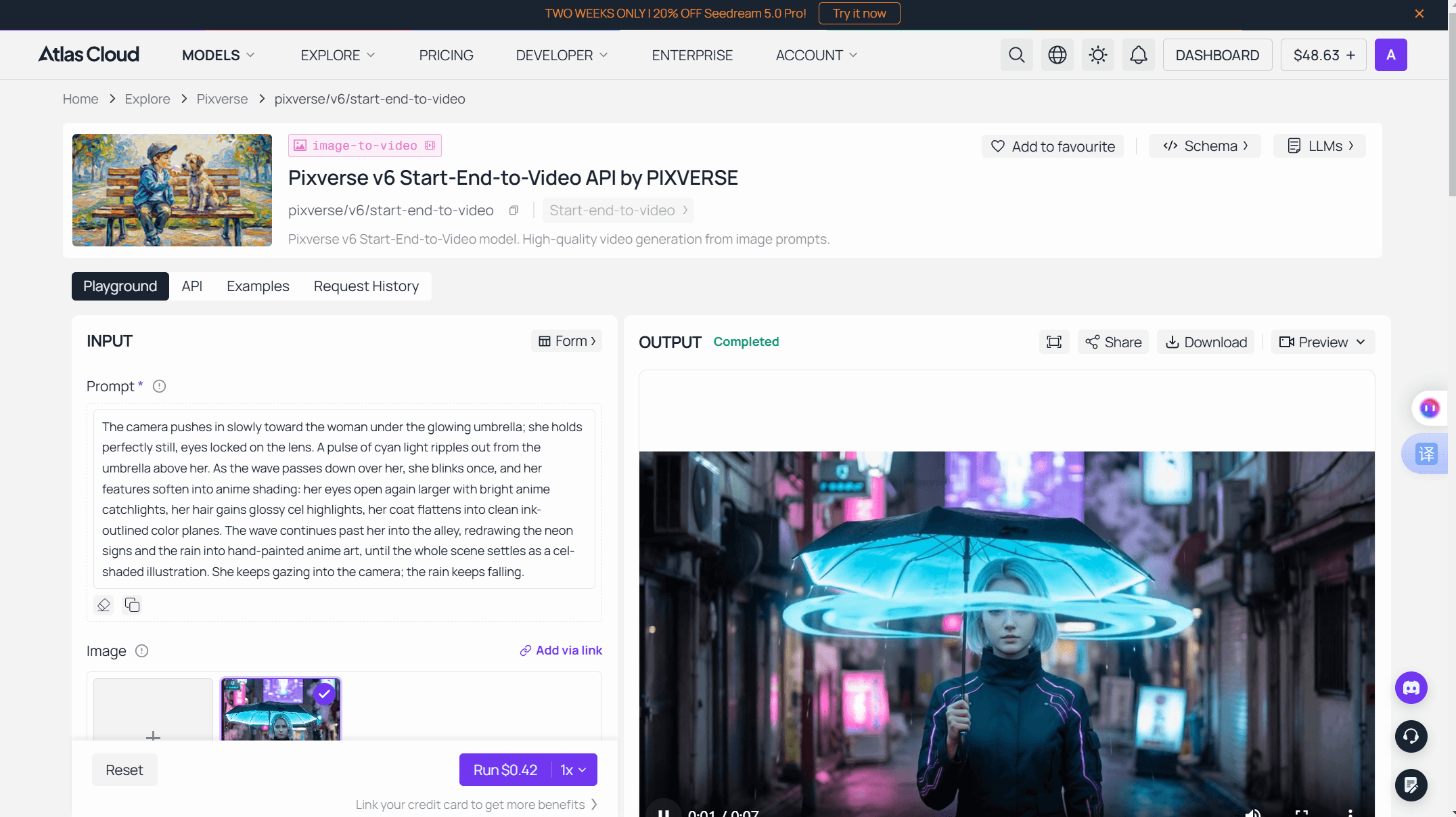
Open the V6 Start-End-to-Video playground and run it in the browser. Add your start image, add your end image (both accept plain URLs here, no upload API dance), write the prompt, pick quality and duration, and hit run. The default configuration, 5 seconds at 720p with audio on, costs $0.30 per run.
Method 2: PixVerse Transition Through the API
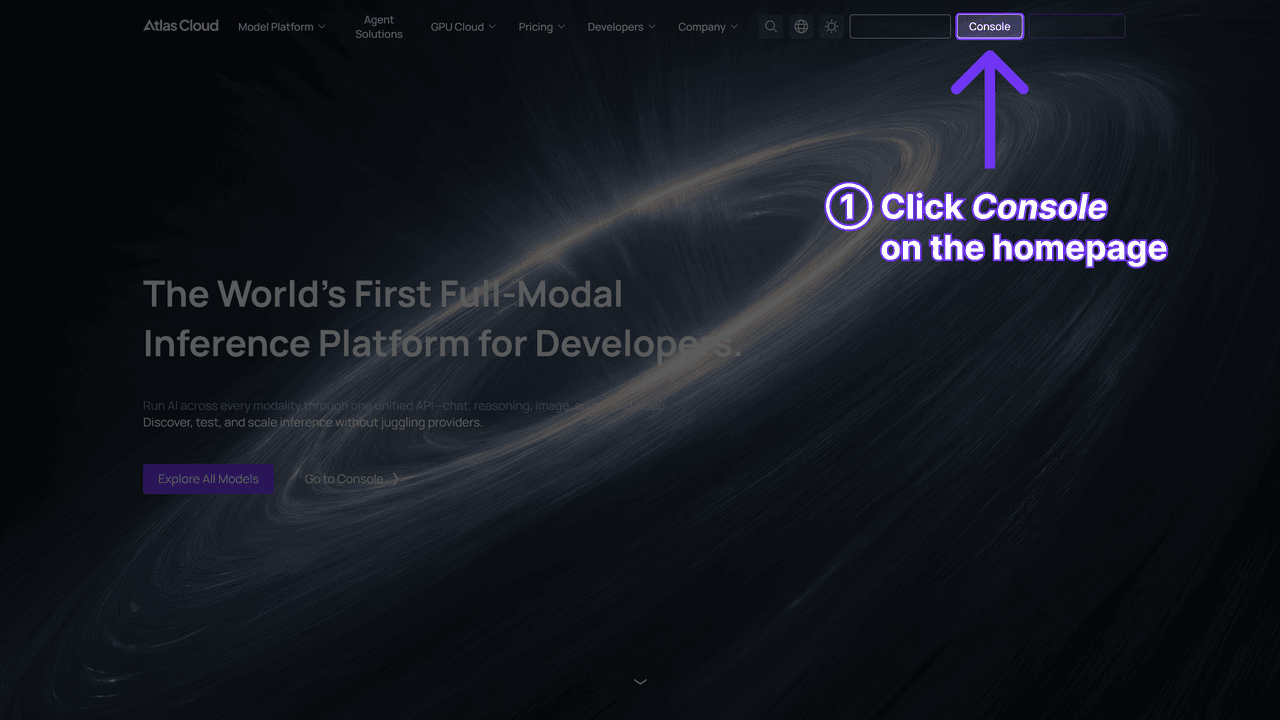
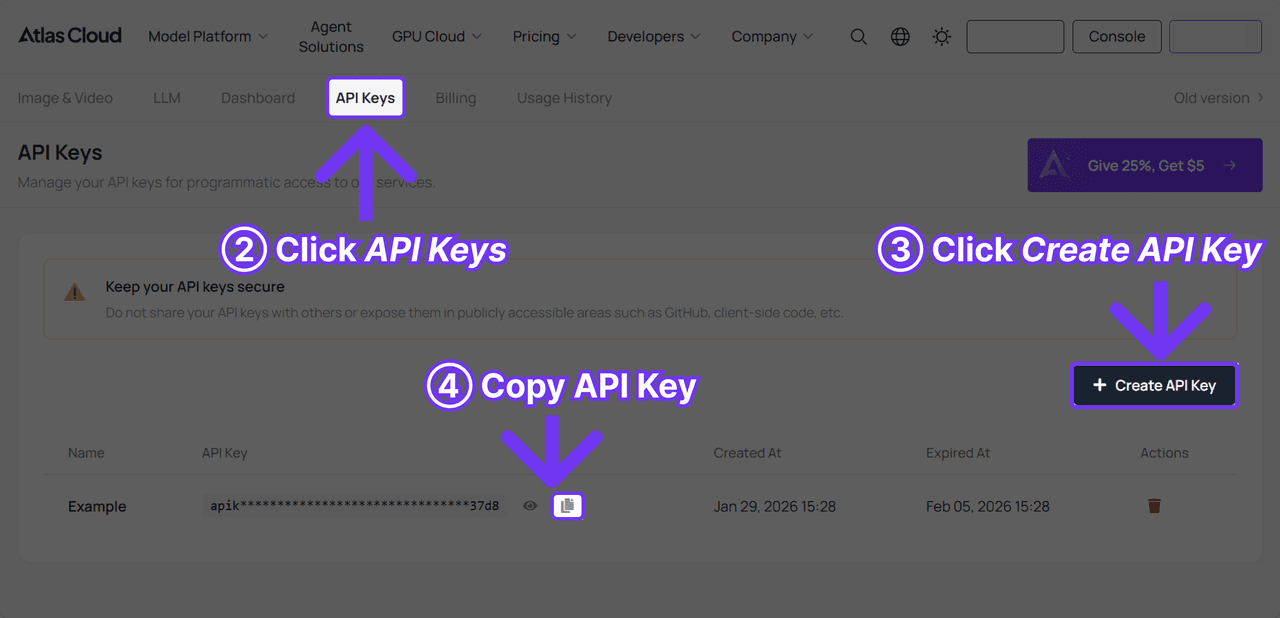
1.Get your API key. Create one in the console dashboard and copy it.
2.Check the API docs. The Atlas Cloud API documentation covers endpoints, parameters, and auth in one place.
3.Make your first request. Submit the job with both frames:
plaintext1curl -X POST https://api.atlascloud.ai/api/v1/model/generateVideo \ 2 -H "Content-Type: application/json" \ 3 -H "Authorization: Bearer $ATLASCLOUD_API_KEY" \ 4 -d '{ 5 "model": "pixverse/v6/start-end-to-video", 6 "prompt": "The box lid lifts slowly, warm light spills out, the camera pushes in as sparkles rise", 7 "image": "https://example.com/box-closed.jpg", 8 "end_image": "https://example.com/box-open.jpg", 9 "duration": 5, 10 "quality": "720p", 11 "sound": true 12 }'
Poll the returned prediction ID until it completes:
plaintext1curl https://api.atlascloud.ai/api/v1/model/prediction/<prediction_id> \ 2 -H "Authorization: Bearer $ATLASCLOUD_API_KEY"
Atlas Cloud runs one API across every hosted model. Same key, same header, same submit-and-poll loop. Swapping to C1, or to whatever ships next, means changing the model string and nothing else.
Billing is per second of output. Both endpoints sit at standard list price with no active discount as of July 2026:
| Quality | V6 no audio | V6 with audio | C1 no audio | C1 with audio |
|---|---|---|---|---|
| 360p | $0.025/s | $0.035/s | $0.030/s | $0.040/s |
| 540p | $0.035/s | $0.045/s | $0.040/s | $0.050/s |
| 720p | $0.045/s | $0.060/s | $0.050/s | $0.065/s |
| 1080p | $0.090/s | $0.115/s | $0.095/s | $0.120/s |
Atlas Cloud Start-End-to-Video pricing, verified on the V6 and C1 model pages 2026-07-24. C1 costs slightly more than V6 at every tier.
So a 5-second 720p morph without audio runs $0.225 on V6 and $0.25 on C1. A maxed-out 15-second 1080p clip with audio costs $1.725 on V6. Note the audio default: Atlas enables sound unless you turn it off, while PixVerse's native API defaults it to off. If your cost estimates keep coming in high, that toggle is usually why.
PixVerse Transition Prompts That Steer the In-Between
With both endpoints fixed, the only thing left to direct is the journey, and the prompt owns it. Atlas Cloud's own guidance for the endpoint says to describe intermediate motion explicitly, and that advice holds up: a vague prompt gets you a crossfade, a specific one gets you a shot.
PixVerse caps the prompt at 5,000 characters, which nobody needs. What works is one or two sentences covering three things: what moves, how the camera behaves, and the pace.
| Goal | Prompt skeleton | The detail that matters |
|---|---|---|
| Outfit swap | "She spins once, her dress flowing into a red evening gown as she turns" | Name the physical action that hides the change |
| Day to night | "Clouds race across the sky, shadows stretch, windows light up one by one" | Give the model time markers to animate |
| Product reveal | "The lid lifts, the camera pushes in, light spills from inside" | Pair object motion with a camera move |
| Photo to anime | "Her features soften into anime shading, hair gains cel-style highlights, background flattens into painted tones" | Describe the style shift as visible change |
| Location jump | "The camera whips right into a motion blur, then settles on the new street" | Ask for a blur or whip to bridge unrelated scenes |
Prompt patterns for PixVerse transition jobs. Each one names the mechanism of change, so the model animates it instead of dissolving between frames.
Frame prep does half the work. Keep the subject in a similar position in both images, match the lighting, and the morph reads as one continuous take. Feed it two frames with clashing light and composition, and you get a jarring dissolve instead.
Reuse the seed when you are close. The endpoint accepts a fixed seed, so you can lock the motion you liked and iterate only on the wording.
PixVerse AI Anime Video Generator: The Photo-to-Anime Morph
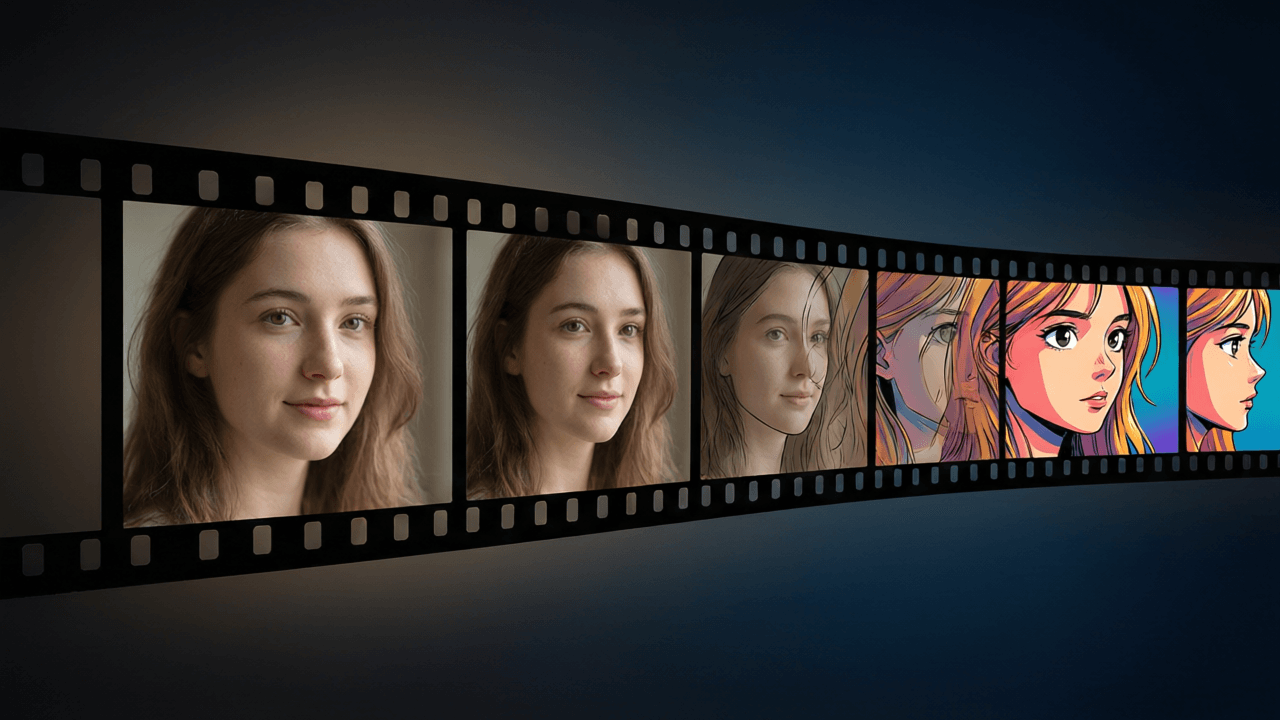
This is the use case where pinning the last frame pays off most. The morph from a real photo into an anime version of the same shot is a transition job by definition: real frame in, stylized frame out.
PixVerse makes its anime positioning explicit. Its own C1 review says it plainly: "If you are an anime director, a manhua studio, a short drama team, or anyone producing content that involves characters hitting each other, casting spells, or moving fast, PixVerse C1 is built for you" (PixVerse blog, April 2026). The same page confirms C1 accepts transition input as prompt plus first and last frame. The app tells the same story from the template side, running licensed anime IP like the Captain Tsubasa collection through July 26, 2026.
The workflow that makes a clean pixverse anime video takes three assets:
- Your source photo, cropped to the final aspect ratio.
- An anime-styled version of that exact photo. Generate it with any image model, keeping pose, framing, and layout as close to the original as you can.
- A prompt describing the style change as motion, like the photo-to-anime skeleton in the table above.
Run it through the transition endpoint and the model animates the stylization sweeping across the frame. The tighter your two compositions match, the more it looks like the world itself is being redrawn.
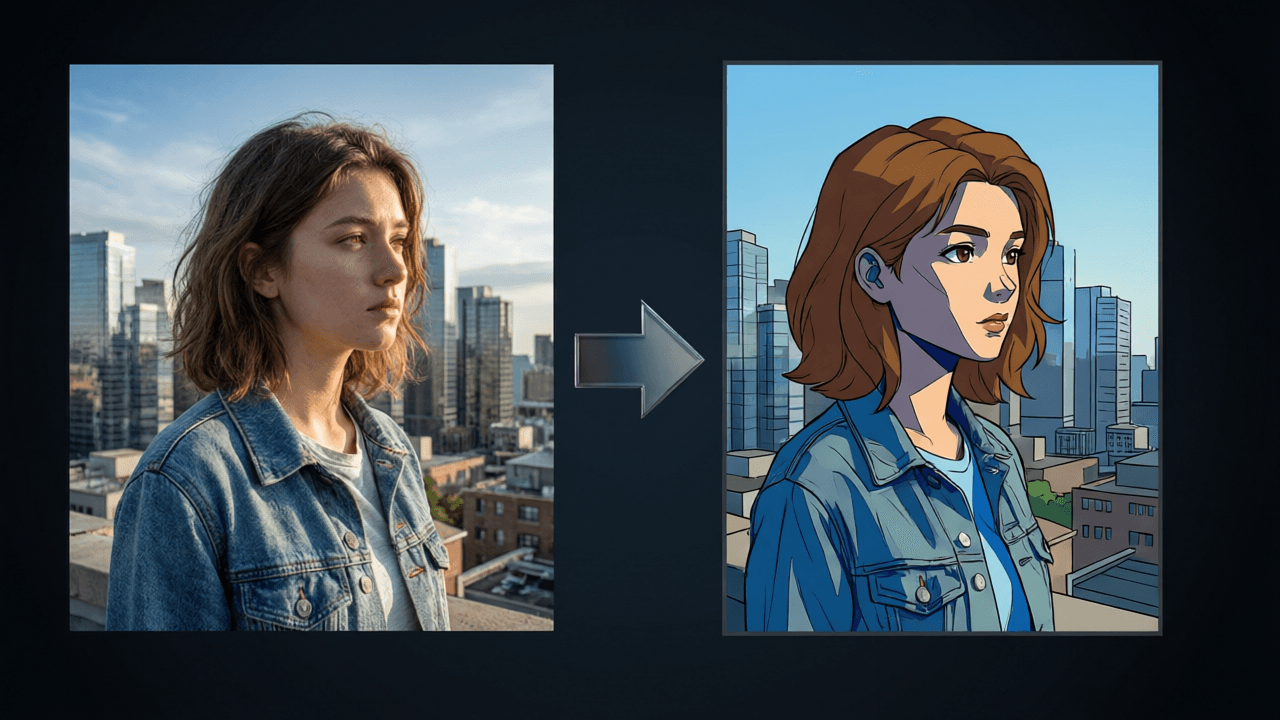
A real-photo-to-anime PixVerse transition generated on the Atlas Cloud V6 Start-End-to-Video endpoint: 7 seconds, 720p, audio on, $0.42 per run. The prompt follows the photo-to-anime skeleton from the table above.
One accuracy note, because tutorials get this wrong constantly. The current V6 API has no style parameter. There is no anime toggle to flip on a generation call. The style lives entirely in your end frame and your prompt, which is precisely why the transition route beats plain image-to-video for this: image-to-video can only be nudged toward anime with words, while a pixverse ai anime video generator workflow built on transition hands the model a literal picture of the target style. Pick C1 over V6 when the clip involves combat, spell effects, or fast character motion, since that is the exact ground PixVerse built it for.
PixVerse Multi-Transition Chains Up to Seven Keyframes
Two frames make a moment. Sequences need more, and PixVerse ships a separate Multi-transition feature for exactly that: a chain of 2 to 7 keyframes rendered as one continuous video of up to 30 seconds, keeping style and characters coherent across the whole run.
Each keyframe in the chain carries its own duration and its own optional prompt, so you storyboard the video image by image:
| Multi-transition spec | Value |
|---|---|
| Keyframes per job | 2 to 7 |
| Total video length | 1 to 30 seconds |
| Per-segment duration | 1 to 8 seconds (1 to 5 with three or more keyframes) |
| Per-keyframe prompt | Optional, one per segment |
| Quality | 360p to 1080p |
| Supported models | v3.5, v4, v4.5, v5 |
Multi-transition limits from the PixVerse platform docs and generation API reference, retrieved 2026-07-24.
Read that last row again. Multi-transition tops out at v5. The newest models, V6 and C1, handle single first-to-last transitions only, and the V6 docs confirm transition jobs cannot use the multi-clip switch either. So the current trade is real: chain seven keyframes on an older model, or get V6 quality two frames at a time and stitch clips in an editor. For a storyboarded anime sequence you can combine both, drafting the full run with multi-transition and regenerating the key shots on C1.
Frequently Asked Questions
Which PixVerse models support transition generation?
All of them. The transition API accepts v3.5, v4, v4.5, v5, v5.5, v5.6, V6, and C1, at 360p through 1080p on every version. What separates them is duration range and audio support, where V6 and C1 lead by a wide margin.
How long can a PixVerse transition video run?
Up to 15 seconds on V6 or C1, at any resolution including 1080p. If you need more in a single generation, multi-transition reaches 30 seconds across up to 7 keyframes, but only on v5-generation models and older.
Can PixVerse turn a regular photo into an anime video?
Yes, and transition is the cleanest way to do it. Prepare an anime-styled copy of your photo with matching composition, set the original as the first frame and the stylized copy as the last, then describe the transformation in the prompt. PixVerse markets C1 specifically at anime and manhua production.
Does the PixVerse transition AI generate audio?
On v5.5 and newer, yes, through a native audio switch. Older versions only offer a sound effects add-on. On Atlas Cloud, enabling audio adds $0.010 to $0.025 per second depending on resolution.
Do transition videos cost more than text-to-video on Atlas Cloud?
No. Start-End-to-Video bills the exact same per-second matrix as V6 text-to-video and image-to-video, from $0.025 per second without audio. There is no surcharge for supplying two frames instead of a prompt alone.
What are the image requirements for a PixVerse transition?
On Atlas Cloud: PNG, JPEG, JPG, or WebP, up to 10MB per image, with both frames required. PixVerse's native API additionally requires each image to go through its upload endpoint first. Whichever route you take, match the two frames' aspect ratio before generating.
Conclusion
PixVerse AI transition removes the biggest uncertainty in video generation. You decide the final frame yourself, and the model only has to figure out how to get there. That makes it the right tool whenever the end state is non-negotiable: the product must open, the outfit must change, the photo must end up anime.
Start in the playground with one frame pair and the default 5-second run. When a format clicks, the API turns it into a pipeline at $0.225 per 5-second 720p clip with audio off. Two images and one sentence is a small price for a shot that ends exactly where you said it would.





