You know the Gatsby toast. Leo, tuxedo, champagne coupe raised, that smug little grin as fireworks pop behind him. It has been the internet's way of saying "well done, I salute you" for over a decade.
Now imagine that face is yours.
That is the whole appeal of a good AI face swap. Not a robotic paste job, but a clean fusion where your face slides into a meme so smoothly it looks like the meme always had you in it. YouCam is one of the most searched tools for exactly this, and for good reason. But there is a catch nobody mentions until you have already tapped the button.
This guide walks the full YouCam AI face swap flow for photos, video, and mobile, shows you where it stops being free, and hands you a faster, cheaper route that fuses your face into any meme in one browser tab.
Key Takeaways
- YouCam AI face swap is genuinely good for quick photo and video swaps, with 5 free credits on signup for the web tool.
- The editing quality is fine. The business model is where people bail: a 4.8/5 App Store score sits next to a 2.6/5 "Poor" rating on Trustpilot, almost entirely over billing and subscriptions.
- The reliable meme workflow is: fuse the face into a still image first, then animate the still into a short clip.
- Atlas Cloud runs that same chain (Nano Banana 2 edit, then Seedance video) in one browser tab, pay-per-run, with no subscription and no watermark.
- For the face swap step by itself, Atlas Cloud's free AI face swap tool charges nothing, with no usage cap and no watermark per its own FAQ.
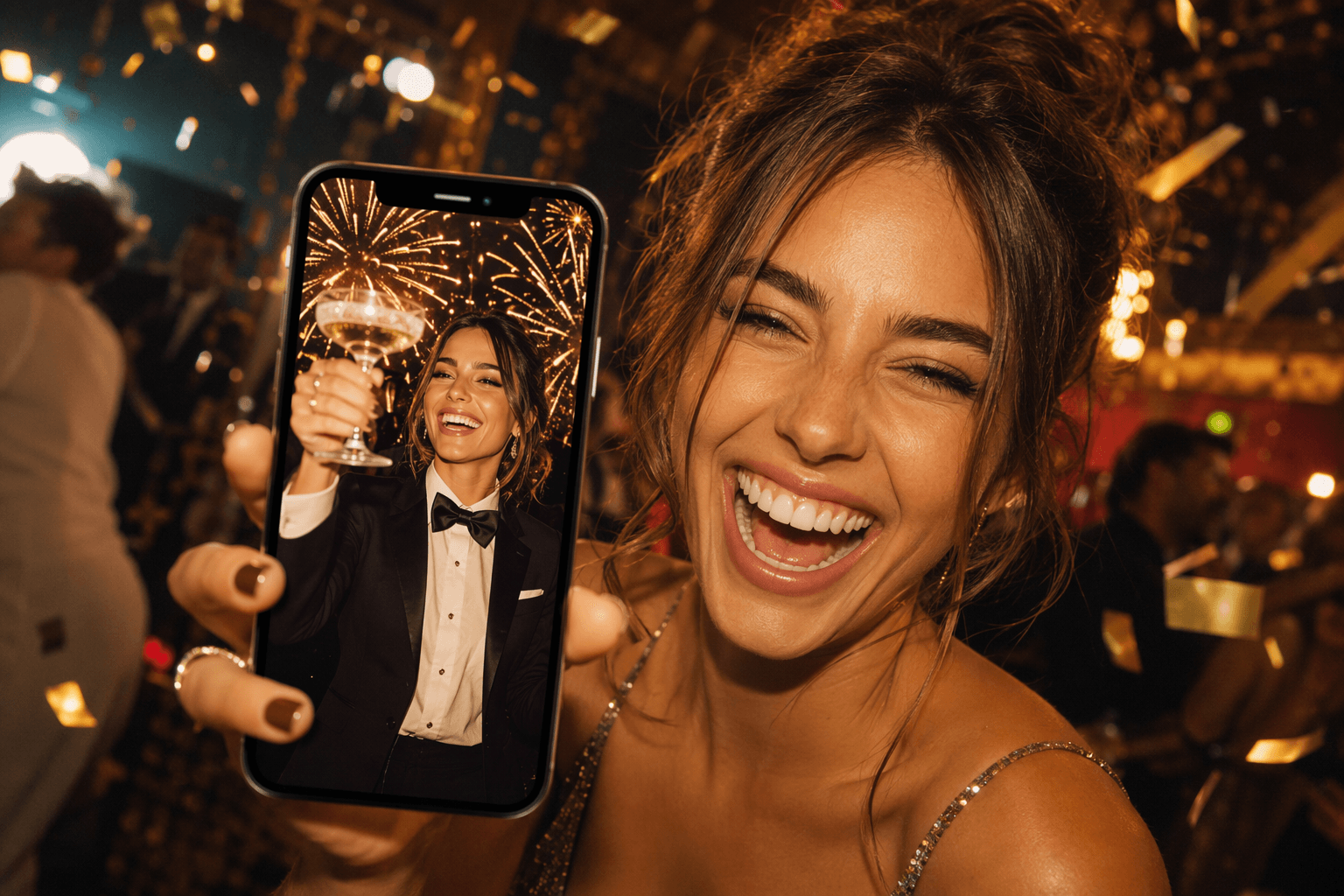
A vibrant hero image showing a classic meme reaction photo being transformed with a new face fused in, playful social-media energy
The payoff first, so you know exactly what "good" looks like. On the left is the original Great Gatsby toast meme. On the right is the same frame with a brand new face fused in: same tuxedo, same raised glass, same fireworks, just a different person doing the toasting. This guide covers the YouCam way to get there, and a sharper route when YouCam gets in your way.
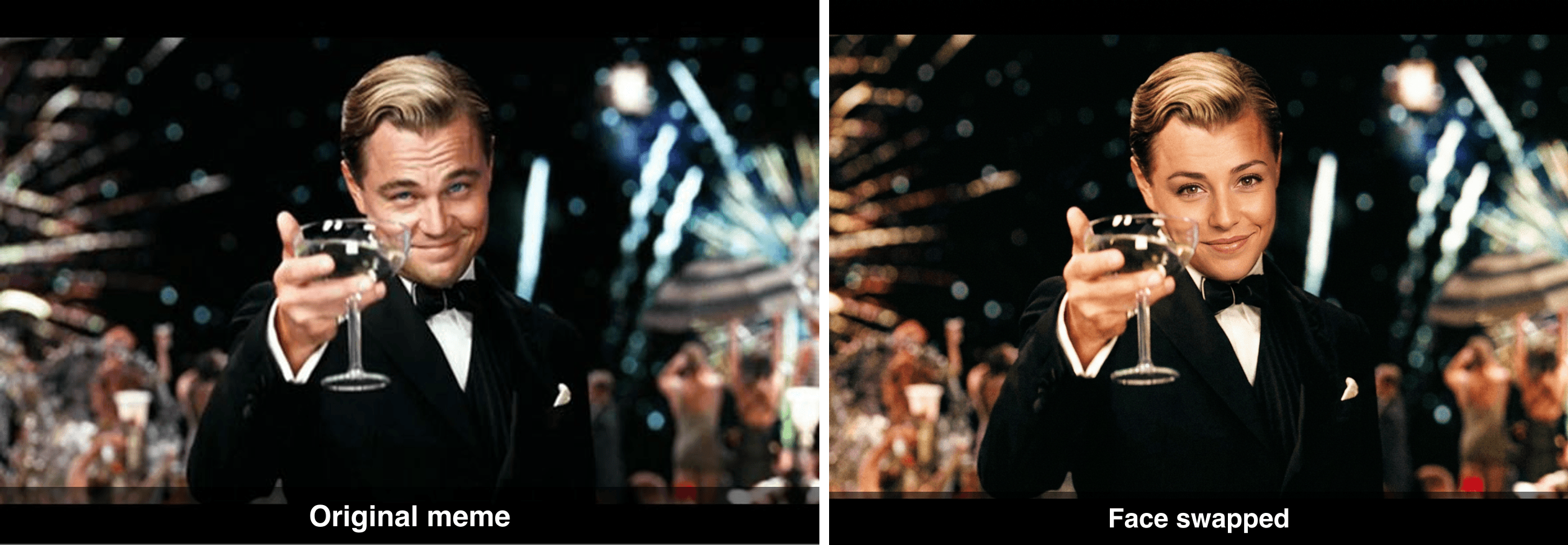
Before and after: the original Leonardo DiCaprio Great Gatsby toast meme on the left, and the same meme with a different human face cleanly fused in on the right
Why YouCam AI Face Swap Is Suddenly Everywhere in 2026
Face swapping is not new. It went mainstream years ago with the "Nic Cage as everyone" edits, where people photoshopped Nicolas Cage's face onto every character in a movie until it stopped being creepy and started being funny.
What changed is the effort. What used to take an afternoon in Photoshop now takes a few taps, and YouCam AI face swap is riding that wave hard. The parent apps have crossed 1.1 billion downloads, and users generated close to 200 million AI visuals in 2025 alone (per a Yahoo Finance year-end recap).
The meme material is timeless too. The Gatsby toast came from the 2013 film, and interest spiked again when Fitzgerald's novel hit its 100-year mark in 2025, sending the clip back around every feed (as Gold Derby documented).
Here is why most swaps still flop, though. People pick a chaotic photo with three faces, harsh side lighting, and sunglasses, then wonder why the result looks melted. A clean YouCam face swap needs a clear, front-facing source face. Get that right and the tool does the rest.
The YouCam AI Face Swap Workflow (and a One-Tab Shortcut)
The YouCam AI face swap workflow is built around uploads, not prompts. You bring a "target" image (the scene where a face should appear) and one or more "face" images (the faces to drop in), and the AI handles the blending. It is fast and beginner-friendly, and for a single quick swap it is hard to beat.
Where it gets clunky is the meme workflow specifically. To put your face in a meme and then animate it, you bounce between the photo tool, the video tool, and eventually a paywall. Every step is a separate job with separate limits.
A one-tab alternative is to run the whole chain on a single AI platform. Atlas Cloud hosts the exact models you would want for this, so you fuse the face, then animate it, without switching apps. Here is how the pieces compare.
| Job in the chain | Model on Atlas Cloud | Best for | Price (as of August 2026) |
|---|---|---|---|
| Design a base scene from text | openai/gpt-image-2 (text-to-image) | Building a scene when you do not have a base image | ~$0.17 per image (high quality) |
| Generate a base from text, fast | google/nano-banana-2 (text-to-image) | Quick, high-quality bases | ~$0.12 per image (2k) |
| Fuse a face into a meme | google/nano-banana-2 (edit) | Meme-accurate face swaps that keep the grain | ~$0.08 per image (1k) |
| High-volume face editing | bytedance/seedream-v5.0-pro (edit) | Identity-preserving edits, up to 10 references | ~$0.045 per image (20% off, promo) |
| Animate the swapped still | bytedance/seedance-2.0-mini (image-to-video) | Turning the swap into a short clip | ~$0.43 per clip (20% off, promo) |
Prices reflect the market, resolution, and aspect ratio referenced above, pulled from each model's Atlas Cloud detail page in August 2026. The summer's 20% promos have ended, and Seedream 5.0 Pro edit is back to a flat $0.045 for a 1.5K frame; Seedance 2.0 Mini currently runs a 30% discount instead, so read the live figure off the Run button before you budget a big batch.
How to Face Swap on YouCam Perfect: The Photo Tutorial
Start with a still. This is the most reliable YouCam Perfect face swap, and it is the base for everything else. Head to the web tool at yce.perfectcorp.com/face-swap. New accounts get 5 free credits, which is enough to test the waters.
The exact steps, straight from the tool:
- Upload a Target Photo. This is the image where you want a face to appear. For our demo, that is the Gatsby toast frame.
- Upload Face Photo(s). Add the photo that supplies the new face. Use a clear, front-facing shot with even lighting and no sunglasses.
- Choose the faces to swap. YouCam supports multiple face swap in a single image, so if the target has more than one face, you pick which ones to replace.
- Start AI Photo Face Swap. Click the button and wait a few seconds.
- Preview and download the result.
Settings to pick: keep the highest available output resolution, and if the tool offers a "natural blend" or similar toggle, leave it on. That is what keeps edges soft instead of pasted.
Here is the kind of clean result the photo tool produces on a well-lit source, straight from YouCam's own gallery.
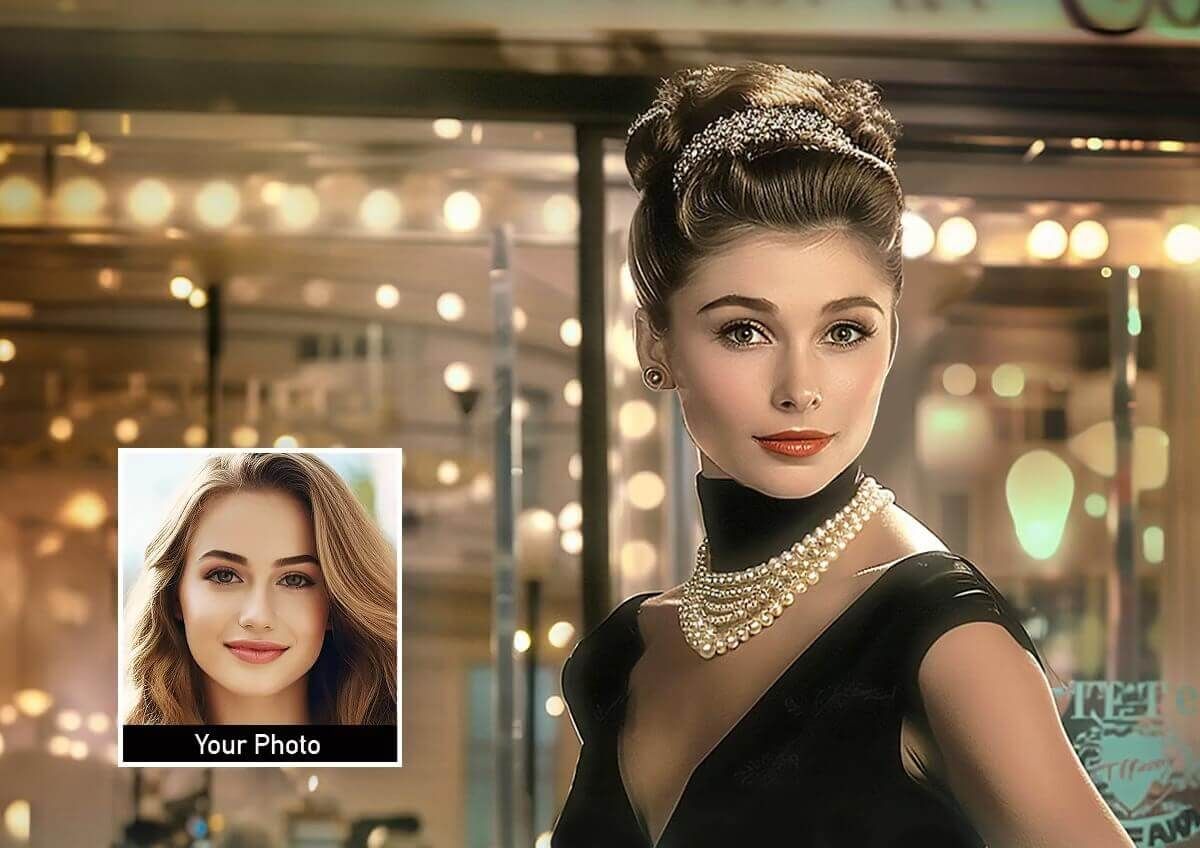
A YouCam AI face swap example showing a source face cleanly swapped into a portrait, from the tool's gallery
One honest note on quality: how to swap face in YouCam Perfect is genuinely easy, and for a single portrait the output is good. The friction shows up the moment you want to do this at scale, or turn it into a video.
YouCam AI Video Face Swap and the Mobile App
The YouCam AI video face swap tool lives at yce.perfectcorp.com/video-face-swap, and it is the same simple idea in motion.
- Upload your video, or pick one of the ready-made templates. The template count is a little inconsistent across their pages (the tool page lists around 18 while marketing pages claim more), so think "a couple dozen" rather than a hard number.
- Upload a clear, front-facing photo of the person to swap in.
- Generate. The AI analyzes and replaces faces, usually in under a minute.
- Preview and download your clip.
The YouCam video face swap templates lean into occasions: Party Queen, Wedding Bride, Halloween Costume, Santa Claus, that sort of thing. Fun, but you are working inside their scenes, not your own meme.

The YouCam AI video face swap template gallery, showing themed video templates you swap a face into
On mobile, the flow (how to face swap on YouCam Perfect from your phone) runs through the YouCam Video app: open it, tap Face Swap, load a video or pick a template, tap Add Face to upload your face, then tap Face Swap again. And this is where it gets interesting, because tapping that final button is often where the paywall appears. More on that next.
Where YouCam AI Face Swap Hits a Wall
Here is the part the tutorials skip. The YouCam AI face swap editing is fine. The commercial experience is where a lot of people get burned.
Look at the rating split. On the US App Store, YouCam Perfect sits at a glowing 4.8 out of 5 across roughly 118,000 ratings (per the App Store listing). On Trustpilot, the same company's web property scores a "Poor" 2.6 out of 5 (per Trustpilot).
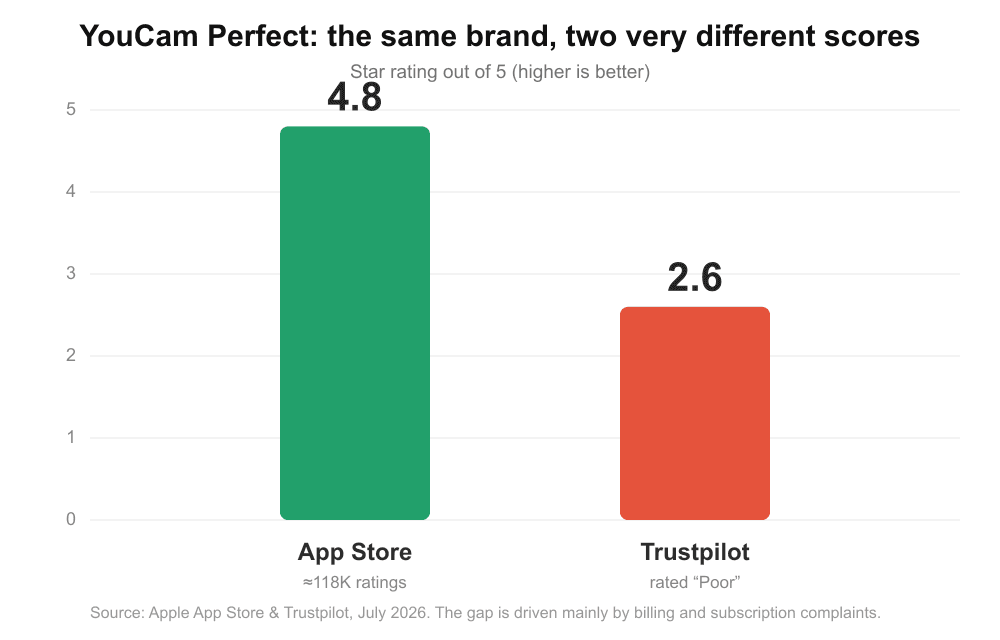
Bar chart comparing YouCam Perfect ratings: 4.8 out of 5 on the App Store versus 2.6 out of 5 on Trustpilot
That gap is not about photo quality. It is almost entirely billing: users report free trials that charged early, full-year fees taken after a short trial, and refund requests that went nowhere. On mobile, the pattern is the tap-then-pay wall, where the "Face Swap" button leads to a credits purchase or a Premium plan (around 15 credits a month) before you see a finished result.
The subscription itself is a moving target. Third-party listings disagree on the exact number, landing somewhere between roughly $36 and $80 a year depending on region and plan, and a paid tier is what removes the watermark and lifts limits. Treat those figures as a ballpark and check the live paywall before you commit, because the free web credits (5 on signup) run out fast once you start iterating on memes.
A Sharper YouCam AI Face Swap Alternative: The Atlas Cloud Chain
If you want to actually make memes, the smarter YouCam AI face swap alternative is to run the chain yourself on Atlas Cloud. The model playgrounds are the metered lane, where the face fusion and the animation live in the same tab and cost cents, not a subscription. Alongside them, the platform keeps an AI tools hub of free-to-run tools, including a free face swap this section ends on.
Here is the full demo, start to finish, using the original Gatsby toast meme as the base.
Step 1: Fuse the face into the meme. Download the real meme as your base image (the actual template, not an AI lookalike, so it stays recognizable), then open the Nano Banana 2 edit playground. Load the meme as the first image and the new face as the second. Set Aspect Ratio to match the meme and Resolution to 1k. Paste this exact prompt:
plaintext1Replace Leonardo DiCaprio's face in Image 1 with the person's face from Image 2, 2fully fused into the meme. The face must stay recognizably HUMAN and look like the 3same person: keep their own human eyes, eyebrows, nose and mouth. Give them the 4meme's expression in human form: a confident, celebratory closed-mouth smirk with 5slightly raised eyebrows and eyes crinkled in self-satisfied delight. Blend the 6edges of the face softly into the hair and tuxedo collar, and match the meme's warm 7party lighting, film-grain photo texture, colors and composition exactly. Keep the 8raised champagne coupe, the tuxedo, the golden fireworks background and the pose 9unchanged. It must look like the original Great Gatsby toast meme that always had 10this human face. No hard edges, no sticker look, no distorted or oversized features.
Nano Banana 2 keeps the meme's grain and lighting instead of "beautifying" it into a clean HD photo, which is exactly why the result still reads as the meme. At roughly $0.12 an image, you can iterate until it lands.
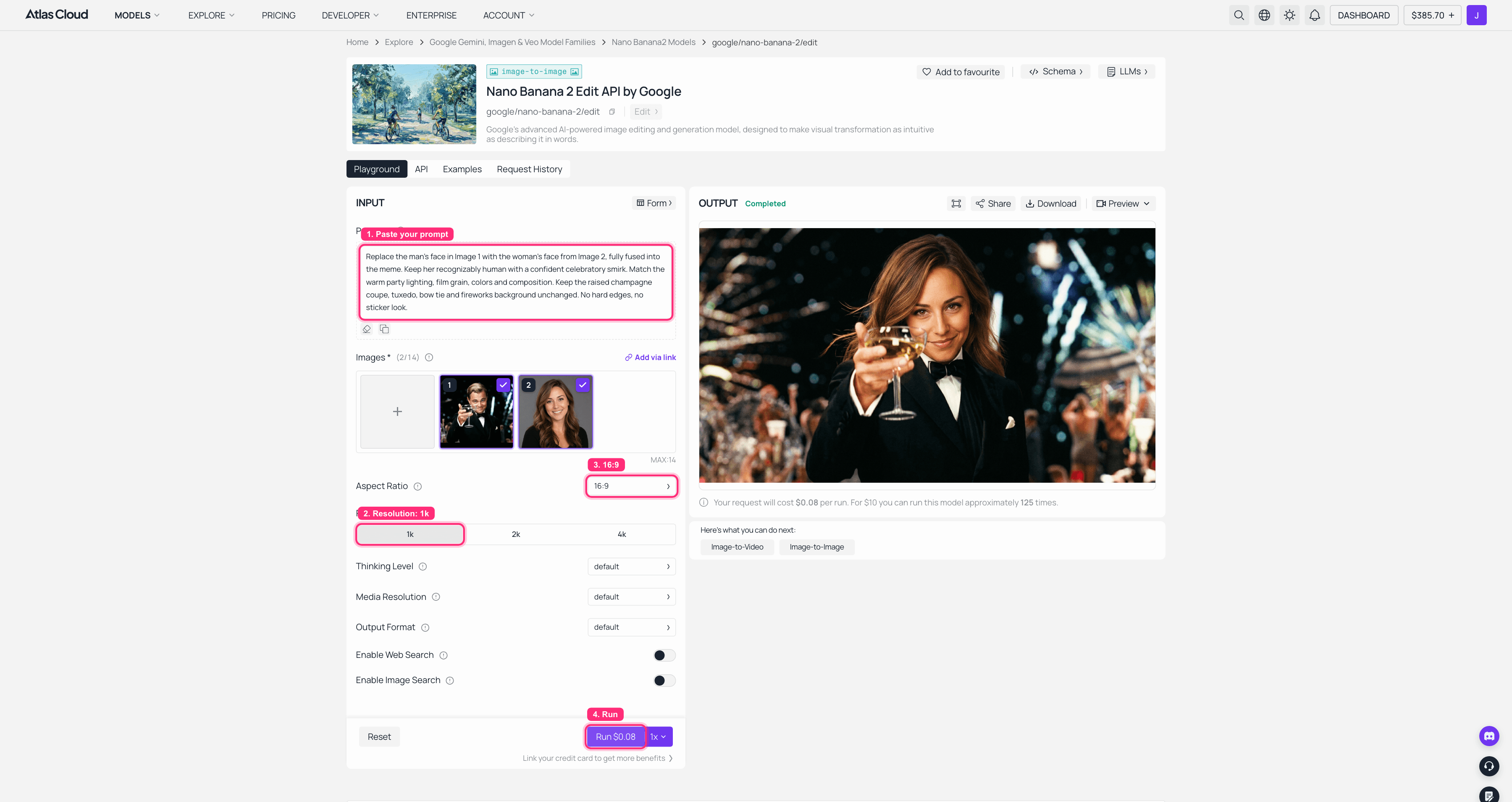
Nano Banana 2 Edit on Atlas Cloud: the meme and the face image loaded on the left, the fused Gatsby result rendered on the right
Or run the fusion on Seedream 5.0 Pro Edit. The two edit models pull in opposite directions, so pick by the meme. Nano Banana 2 preserves grain, which is what keeps this Gatsby frame reading like a meme. Seedream 5.0 Pro Edit leans cleaner: it tends to sharpen and lightly retouch, so the swap comes out more polished than grainy. Where it wins is content freedom and price. It is the least restrictive of the two, so it rarely refuses a legitimate face edit that stricter tools block, it takes up to ten reference images, and a 16:9 fused frame like the one below now prices at a flat $0.045, slightly cheaper than the July promo figure captured in the screenshot. Load the same two images, paste the same prompt, and read the size and Run price straight off the INPUT panel:
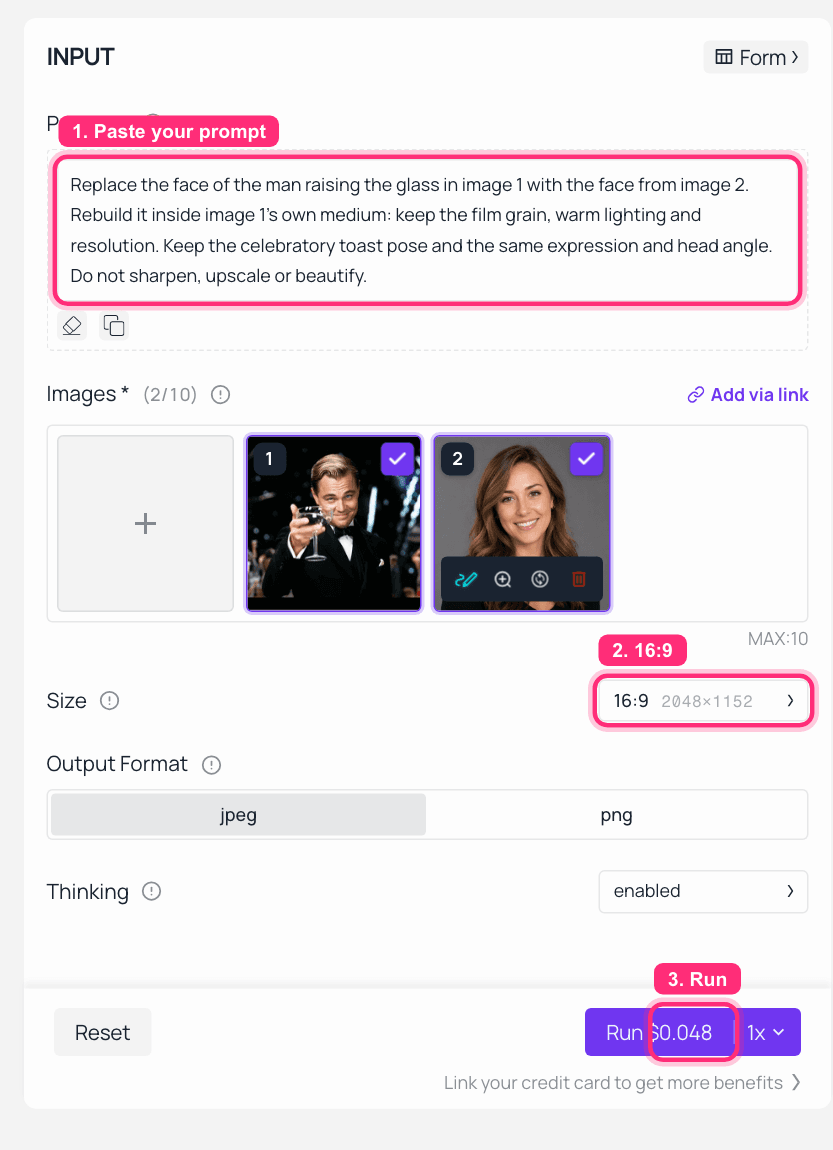
Seedream 5.0 Pro Edit on Atlas Cloud: the Gatsby toast frame and a source face loaded as the two references, the fusion prompt filled in, with the size and Run price marked in red
Step 2: Animate the swap into a clip. Take that fused still into the Seedance 2.0 image-to-video playground. Load the swapped image, set resolution to 720p, keep the clip short (about 5 seconds), and paste:
plaintext1The man slowly raises his champagne glass toward the camera in a celebratory toast, 2a subtle confident smile, eyes twinkling, golden fireworks sparkling softly behind 3him, gentle cinematic camera push-in, warm party lighting, film grain, seamless 4short loop.
A short clip lands near $0.48 while the promo is on. Give it a couple of minutes to render.
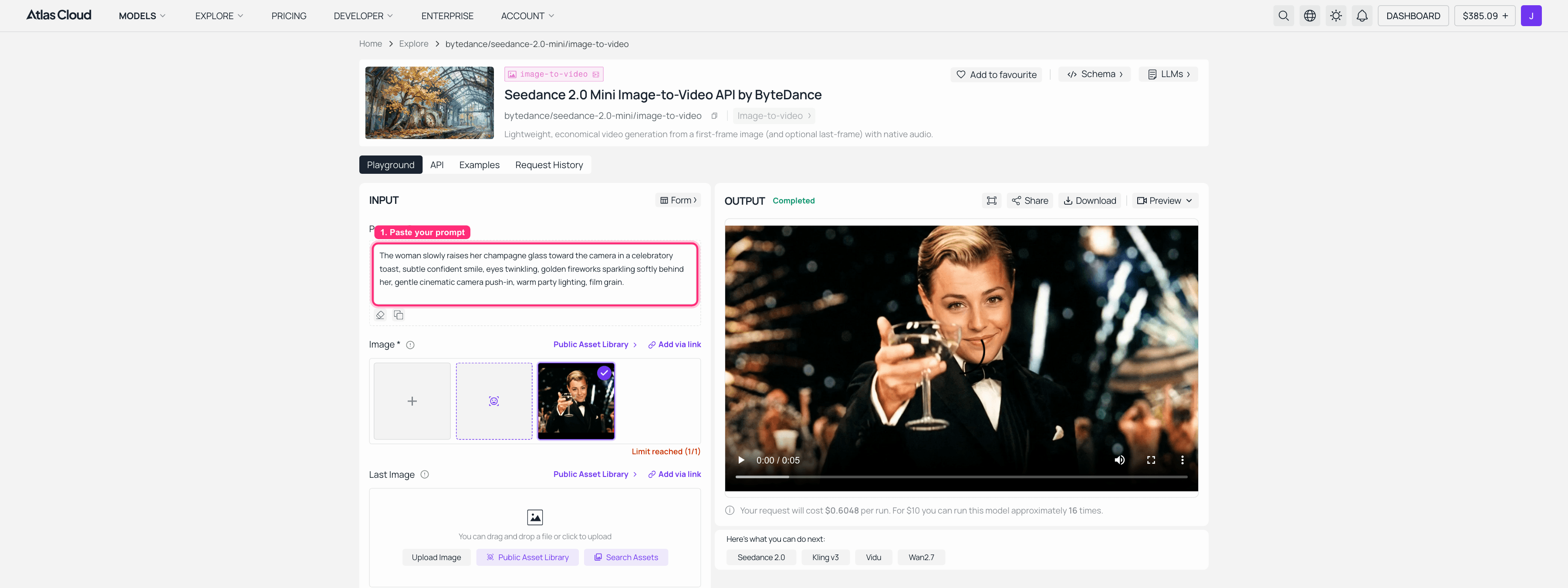
Seedance 2.0 on Atlas Cloud: the swapped Gatsby still loaded on the left, the finished animated toast clip playing on the right
Step 3: Turn the clip into a shareable GIF. Atlas Cloud outputs a video, not a GIF, and most chat apps love a GIF. You do not need a separate app for the last mile. Hand the clip to an LLM with a code tool (Claude, ChatGPT, or an Atlas Cloud LLM API call all work) using this prompt:
plaintext1You are a media pipeline assistant. I have an MP4 clip at this path. Convert it into 2a lightweight, looping GIF for chat and social: downscale to 480px wide, 12 fps, 3optimize the color palette to keep it under 5 MB, and trim to the cleanest ~3 second 4loop. Run it, then return the exact ffmpeg command you used and the output file.
That is the whole meme: your face, in the Gatsby toast, moving, as a GIF, for well under a dollar and without a single subscription screen.
Step 1 Without Any Credits: The Free Atlas Face Swap
YouCam's free tier is a countdown: five credits, then the paywall. Atlas Cloud's free AI face swap tool is the opposite of a countdown, and it can run this article's Step 1 on its own. The tool's own FAQ answers the money question with a plain yes: free, no usage cap, and no watermark on the output.
The flow is the fusion step reduced to its two essential inputs. Upload the Gatsby toast frame as the target photo, upload the new face as the face photo, and swap. The tool maps 468 facial points and lands the result in about eight seconds. Instead of a prompt you get two sliders, Blend and Feather: Blend sets how strongly the new face takes, Feather how softly its edges melt into the surrounding photo, and it is worth nudging up on a film-grained frame like this one.
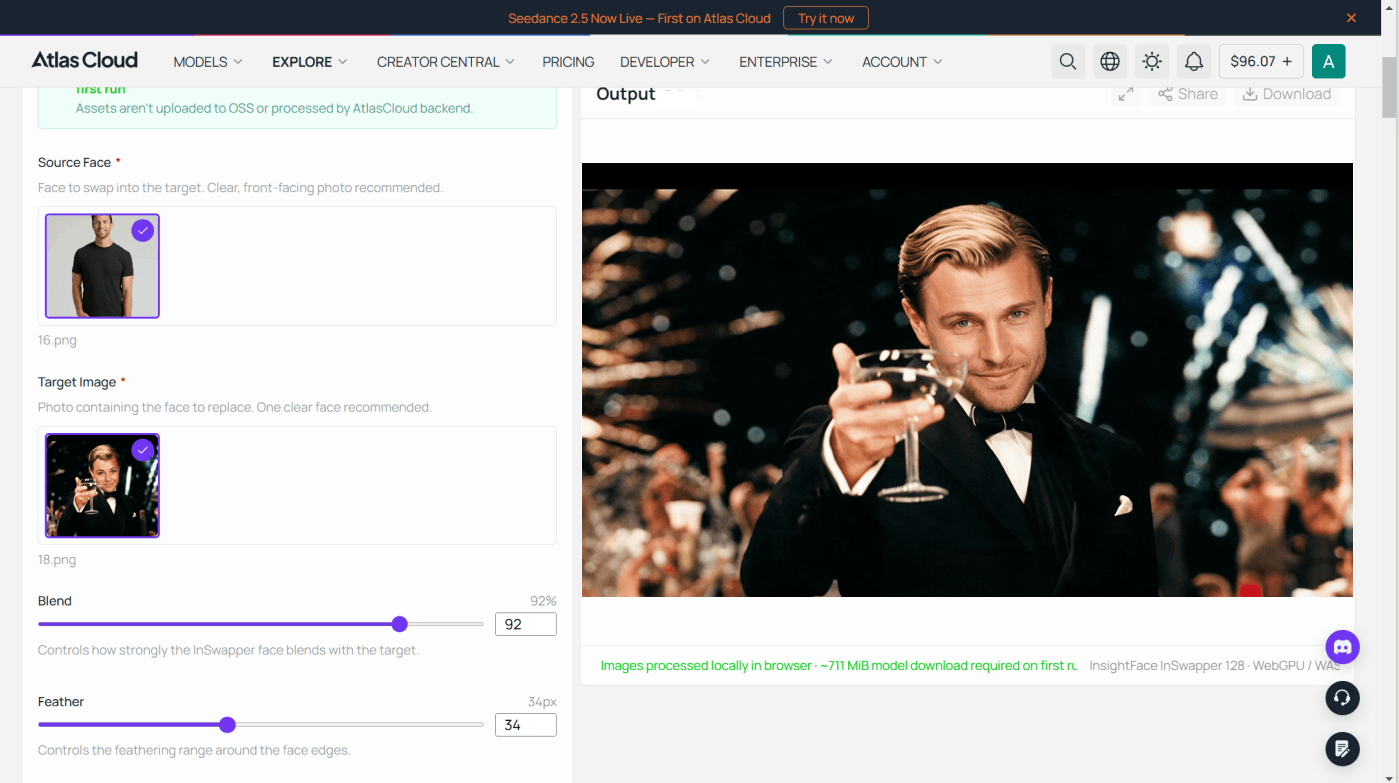
It is a different kind of swap than the fusion above, and the difference is worth knowing. Nano Banana 2 re-renders the whole frame so the new face inherits the meme's warm grain; the free tool replaces the face region and leaves every other pixel of the still untouched. The boundaries, stated plainly: results download as PNG at the size of your target photo up to 1280 pixels on the longest side (the metered edit models go higher), swaps run one photo at a time with no batch upload, and the first visit downloads about 711 MiB of model files before the first swap. It also stops at stills, so when the toast needs to move, hand its output to Step 2's Seedance flow like any other frame.
What YouCam AI Face Swap Really Costs (vs Atlas Cloud)
The YouCam AI face swap price question is really a question about how often you plan to use it. For one photo, the 5 free web credits are plenty. For a habit, the math changes fast.
| YouCam (Premium) | Atlas Cloud chain | |
|---|---|---|
| Model | Subscription | Pay per generation |
| Rough cost | ~$36 to $80 per year | ~$0.08 face swap, ~$0.43 short clip |
| Watermark | Removed only on paid tier | None |
| Face swap + video + GIF | Separate tools, separate limits | One tab, full chain |
| Best for | A casual one-off swap | Making memes regularly and cheaply |
A subscription makes sense if you edit constantly inside one app and never touch an API. If you mostly want a few killer swaps a month, paying cents per image on a pay-as-you-go platform is the cheaper, watermark-free path, and you keep the full image-to-video-to-GIF chain in one place.
Frequently Asked Questions
Is YouCam AI face swap free?
Partly. The web face swap tool gives new accounts 5 free credits, which covers a few photos. Beyond that, and to remove the watermark or use the mobile app fully, you need a paid Premium subscription. On mobile especially, the final "Face Swap" tap often leads straight to a purchase screen.
How do I face swap on YouCam Perfect for photos?
Go to the web face swap tool, upload a target photo (the scene), upload a clear front-facing face photo, choose which face to replace, then click Start AI Photo Face Swap. It supports multiple face swap in one image, and results appear in a few seconds. Download at the highest resolution offered.
Does YouCam AI video face swap work well?
Yes, for its templates. The YouCam AI video face swap tool renders a clip in under a minute from either your own video or one of its themed templates. The limitation is creative: you swap into their scenes rather than your own meme, and the watermark and paywall apply.
What is a good YouCam AI face swap alternative for memes?
For meme-making specifically, running the chain on Atlas Cloud is more flexible and cheaper. You fuse the face with Nano Banana 2 edit (about $0.08), animate it with Seedance (about $0.43 for a short clip), and convert to GIF via an LLM, all in one tab with no subscription and no watermark.
Why does my YouCam face swap look pasted or melted?
Almost always the source face. Use a sharp, front-facing photo with even lighting, no sunglasses, and no extreme angle. Blurry, side-lit, or multi-face source photos are the number one reason a swap looks like a sticker instead of a fusion.
Can I make a face swap GIF directly?
Not in one click on most tools, including Atlas Cloud, which outputs video. The reliable route is to swap the still, animate it into a short clip, then convert that clip to a GIF using an LLM with a code tool or a simple ffmpeg command. It takes seconds and keeps the file small enough to share.





