You upload a product photo, add one line of instruction, and thirty seconds later you're staring at a version that looks nothing like what you asked for. Wrong lighting. A face that drifted into someone else's. Colors that ignored your reference completely. That's the gap between a text-to-image tool wearing an image-to-image label and one actually built for the job.
We spent September 2026 running 10 tools that claim to turn a photo plus a prompt into a new image, the core promise behind image-to-image AI. Six of them also handle straight text-to-image well enough to matter if that's closer to what you need.
We ranked all 10 on three things: does the output respect the photo you uploaded, is the free tier honest about what it actually includes, and what does one finished image cost once that free run ends.
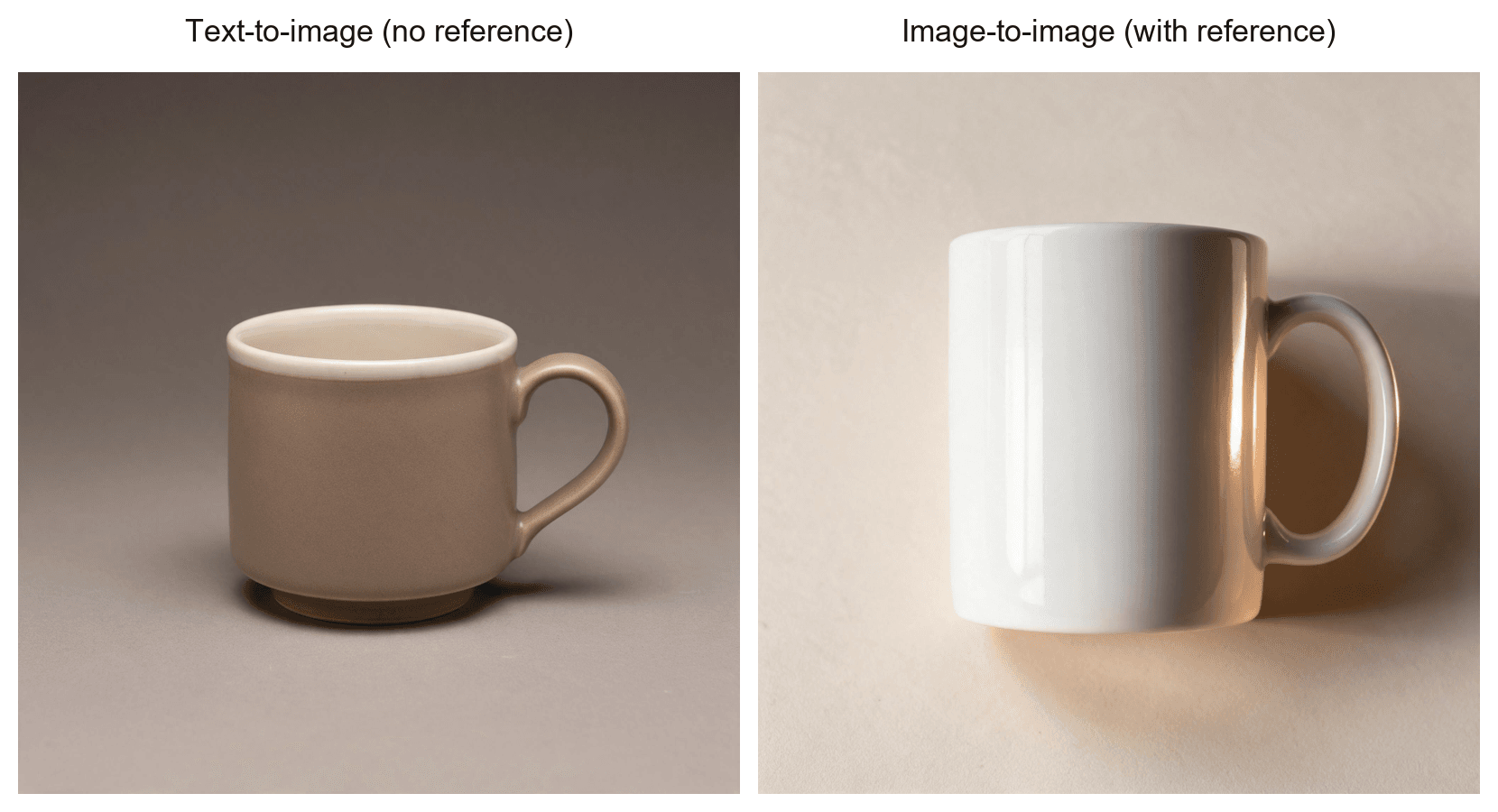
Key Takeaways
- Atlas Cloud's Image Generation tool covers both paths in one interface: type a prompt for text-to-image, or add a photo in the same box for image-to-image, currently running on Seedream v5.0 Pro.
- Input type is the real fork in the road. Canva's Magic Media, for one, only takes text; actual photo editing lives in a separate Canva tool entirely.
- Midjourney has no free tier left at all, and Leonardo AI locks its image-to-image mode behind a paid plan. Free doesn't always cover this specific job.
- The setting most beginners get wrong is denoising strength, how far the AI is allowed to drift from your source photo, not which model they picked.
- Developer forums built around open-source image-to-image pipelines report artifact-heavy output when strength is set too low, not just too high, the opposite of what most quick-start guides warn about.
Image to Image AI Comparison Table
Nine of the 10 tools below accept some form of image input alongside text. Canva's Magic Media is the outlier: it's text-only by design, with actual photo editing living in a separate tool on the same platform.
One tool, Midjourney, has no free tier at all, and Leonardo AI makes you pay before you can touch its image-to-image mode specifically. Entry paid plans range from about $9 a month on an annual Krea plan to $20 a month for ChatGPT Plus or Google AI Pro, more than a 2x spread for roughly the same job.
| Tool | Best for | Free Tier | Entry paid plan | Input Type | Card Required for Free Tier |
|---|---|---|---|---|---|
| Atlas Cloud | Both paths in one tool | Free credits on sign-up | Pay-per-image, from $0.032/image | Text only or Text + Image | Varies by promotion |
| Google Gemini (Nano Banana) | Multi-photo edits in plain language | Free in-app use, daily cap unpublished | Google AI Pro, ~$20/mo | Text + Image | No |
| Adobe Firefly | Commercially safe output | Free tier, exact credits vary by source | Firefly Standard, $9.99/mo | Text + Image | No |
| ChatGPT (GPT Image 2.5) | Iterative conversational edits | Free tier, limited generations/24h | ChatGPT Plus, $20/mo | Text + Image | No |
| Krea AI | Real-time restyling | 100 units/day, no commercial license | Basic, from $9/mo (annual) | Text + Image | No |
| Midjourney | Painterly reinterpretation | None | Basic, $10/mo | Text + Image | N/A, no free tier |
| Leonardo AI | Consistent character/game assets | 150 Fast Tokens/day (image-to-image needs paid plan) | Essential, $12/mo | Text + Image (paid only) | No |
| Stable Diffusion (DreamStudio) | Manual mask and strength control | None, pay-as-you-go only | ~$10 = 1,000 credits | Text + Image | Yes, no free credits |
| Canva Magic Media | Teams already in Canva | 50 credits, shared with other AI tools | Canva Pro, price varies by source | Text only | No |
| Runway | Pairing image-to-image with video | 125 credits, one-time | Standard, $12/mo (annual) | Text + Image | No |
How We Tested Every Image to Image AI Tool on This List
We read each tool's own pricing and product pages in September 2026, checked at least one independent rating source (Trustpilot, G2, the App Store, or Google Play) per tool, and cross-checked Atlas Cloud's own model catalog directly in the live Image Generator interface rather than trusting older marketing copy.
Four criteria decided the ranking: whether the tool produces a usable result starting from an uploaded reference photo and not just a prompt, how flexible the input is between text-only and text-plus-image, how honest the free tier is about what it actually includes, and what one finished, download-ready image costs once that free tier runs out.
The first criterion carried the most weight. A tool can have a generous free plan and a clean interface, but if it can't hold onto the composition, face, or product shape from an uploaded photo, it isn't really an image-to-image tool, whatever the label says.
Disclosure: Atlas Cloud publishes this article and operates the Atlas Cloud tool ranked first below. The other nine tools didn't pay for inclusion and are described using their own published pricing pages and public reviews.
1. Atlas Cloud: Best Image to Image AI Overall
Upload a reference photo, describe the change in one line, and Atlas Cloud's Image Generation tool applies it while holding onto the photo's composition, using Seedream v5.0 Pro by default. Switch to a blank prompt instead and the same tool runs a standard text-to-image generation, no separate product to learn.
Try it yourself on the image-to-image generator.
Why it stands out: Atlas Cloud runs text-to-image and image-to-image generation from the same panel, currently on Seedream v5.0 Pro, ByteDance's current flagship image model, which supports blending elements across multiple reference photos in a single call. The free credits that come with sign-up cover both modes, not just text prompts.
Best for: anyone who wants one interface for both text-to-image and image-to-image instead of switching tools depending on whether they're starting from scratch or from a photo.
Pricing: new accounts get free credits to test the tool before any billing starts. One heads-up if you're uploading a reference photo for the first time: the upload box is labeled "Add an image to edit," but it's part of the Image Generation tab, not a separate Image Edit tool. You're in the right place.
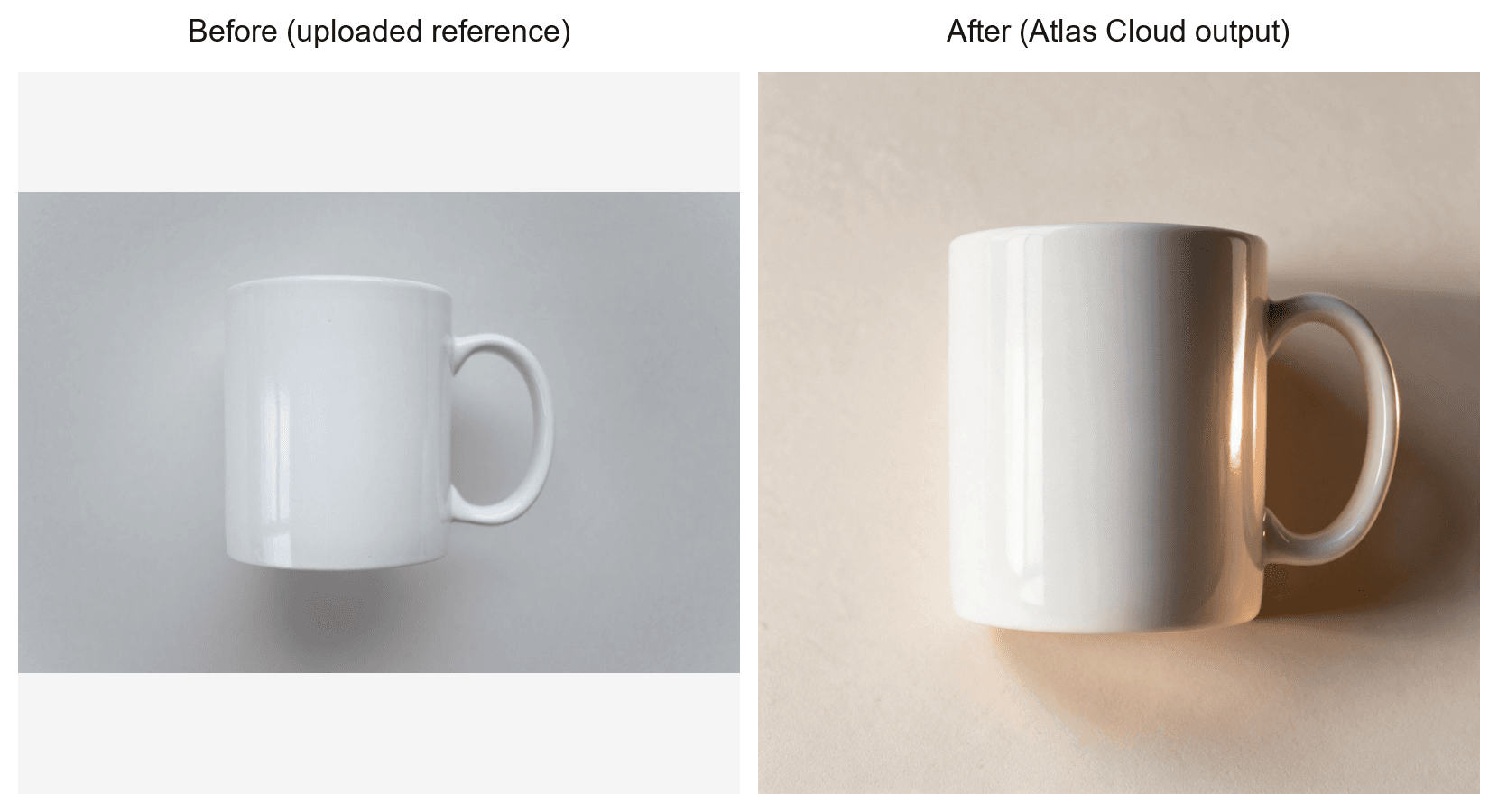
Combining Two Images with Atlas Cloud
Seedream v5.0 Pro's editing mode is built to take more than one reference image in a single call, up to 10, and merge elements from each into one output rather than just editing one photo at a time.
That's what makes Atlas Cloud a real option any time the search is for an AI image blender or a way to combine two images with AI instead of manually compositing them in an editor.
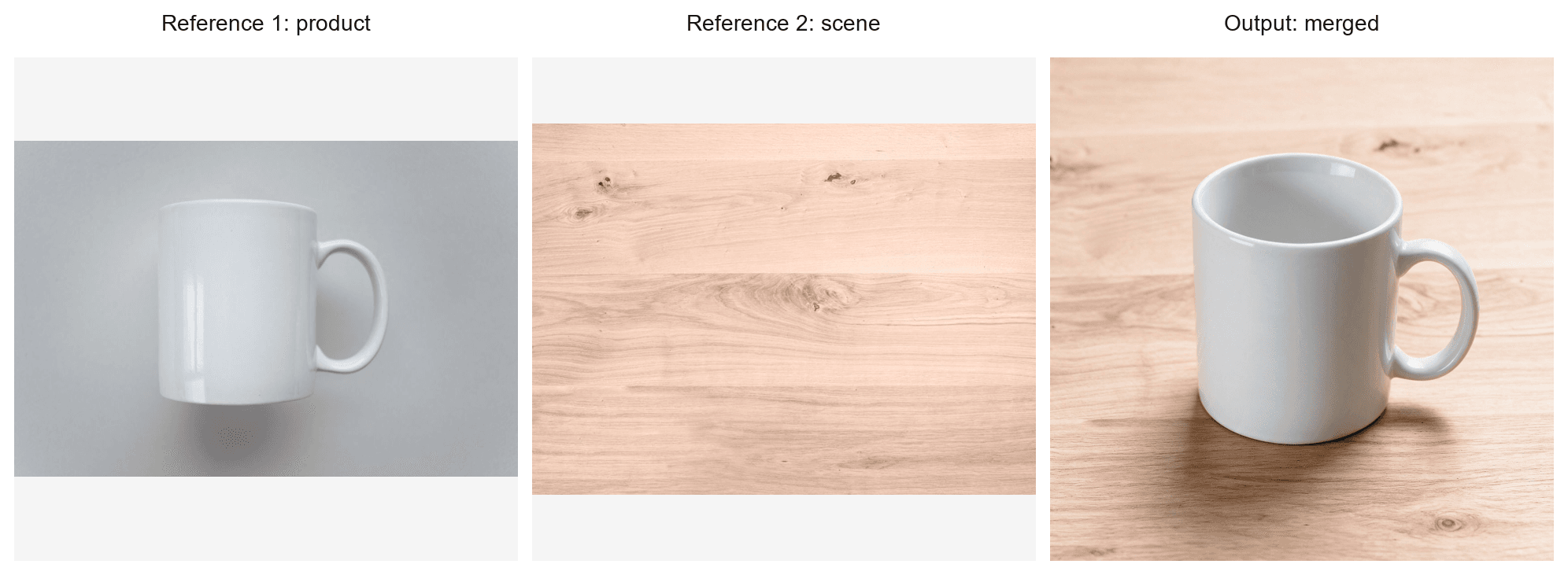
2. Google Gemini: Best Image to Image AI for Multi-Photo Edits in Plain Language
Gemini, running on Google's Nano Banana model, reads a plain-language instruction and applies it directly to an uploaded photo, or several uploaded photos at once. That makes it the strongest pick here for anyone who'd rather describe an edit in a sentence than learn sliders.
Where the free tier stops you: Google hasn't published an exact daily cap for image editing inside the free Gemini app. Independent trackers estimate somewhere around 100 edits a day, but that number isn't confirmed on Google's own pricing pages.
What one usable image actually costs: Google AI Pro runs about $20 a month and multiplies the usable quota roughly tenfold according to third-party comparisons, still without an official per-image price published by Google.
What users report: the Gemini app holds a 4.7 out of 5 rating across more than 38 million ratings on Google Play.
Where it falls short for image-to-image: every image Gemini generates carries an invisible SynthID watermark that can't be turned off, which matters if the output needs to be a clean file for commercial reuse.
Fits: anyone who wants to describe an edit in a sentence and combine several photos without learning a dedicated tool. Not for you if : you need a watermark-free file straight out of the generator.
Image from Google's official Nano Banana Pro announcement, September 2026.
3. Adobe Firefly: Best Image to Image AI for Commercially Safe Output
Firefly's entire training story is built around Adobe Stock and licensed content, which is why creative teams reach for it specifically when the output has to clear a commercial-use review before it ships.
Where the free tier stops you: reported free credit counts vary across sources, and Adobe hasn't published one consistent figure across its own pages.
What one usable image actually costs: Firefly Standard starts at $9.99 a month, just above Krea's $9-a-month annual rate and near the bottom of the subscription plans tested here.
What users report: Firefly holds a 4.4 out of 5 rating on G2 across 283 reviews.
Where it falls short for image-to-image: Adobe's own community forum has a running thread of bug reports about distorted or warped faces, a known weak spot in portrait-heavy image-to-image work.
Fits: teams that need generated or edited images cleared for commercial use without a separate licensing check. Not for you if: your reference photos are mostly portraits, where face fidelity is the weakest link.
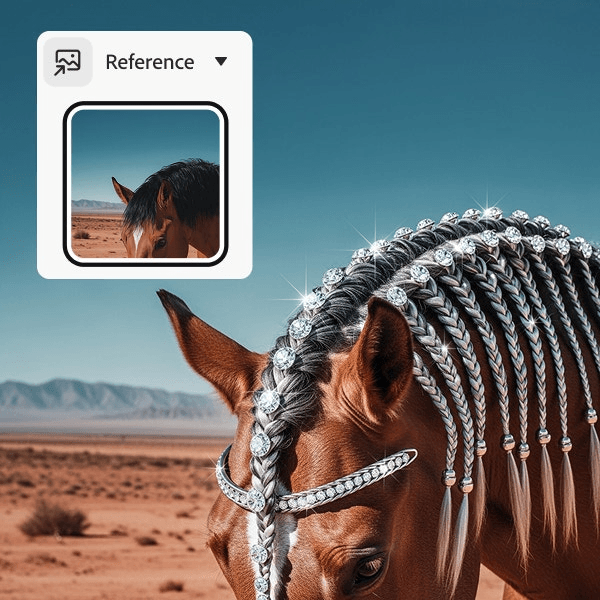
Image from Adobe's official Firefly product page, September 2026.
4. ChatGPT (GPT Image 2.5): Best Image to Image AI for Iterative Conversational Edits
ChatGPT treats an uploaded image like part of the conversation. Ask for a change, look at the result, ask for another change, all without starting over, which makes it the strongest pick here for back-and-forth editing.
Where the free tier stops you: free ChatGPT accounts are commonly limited to a handful of image generations in a rolling 24-hour window, by third-party estimates rather than an official OpenAI figure.
What one usable image actually costs: ChatGPT Plus runs $20 a month.
What users report: a review analysis built on a public Kaggle dataset of Google Play reviews puts ChatGPT's average rating at 4.6 out of 5, with about 89% of reviews positive. That's a review-dataset analysis, not Google Play's own published star rating, so treat it as directional.
Where it falls short for image-to-image: running at the highest quality setting pushes the GPT Image family through four separate internal passes, and independent testing on GPT Image 2 clocked a single high-quality 1024x1024 image at a median of roughly 195 seconds, far slower than a quick edit.
Fits: anyone who wants to refine an image through conversation instead of re-prompting from zero each time. Not for you if: you need a fast turnaround and don't need the highest quality setting.
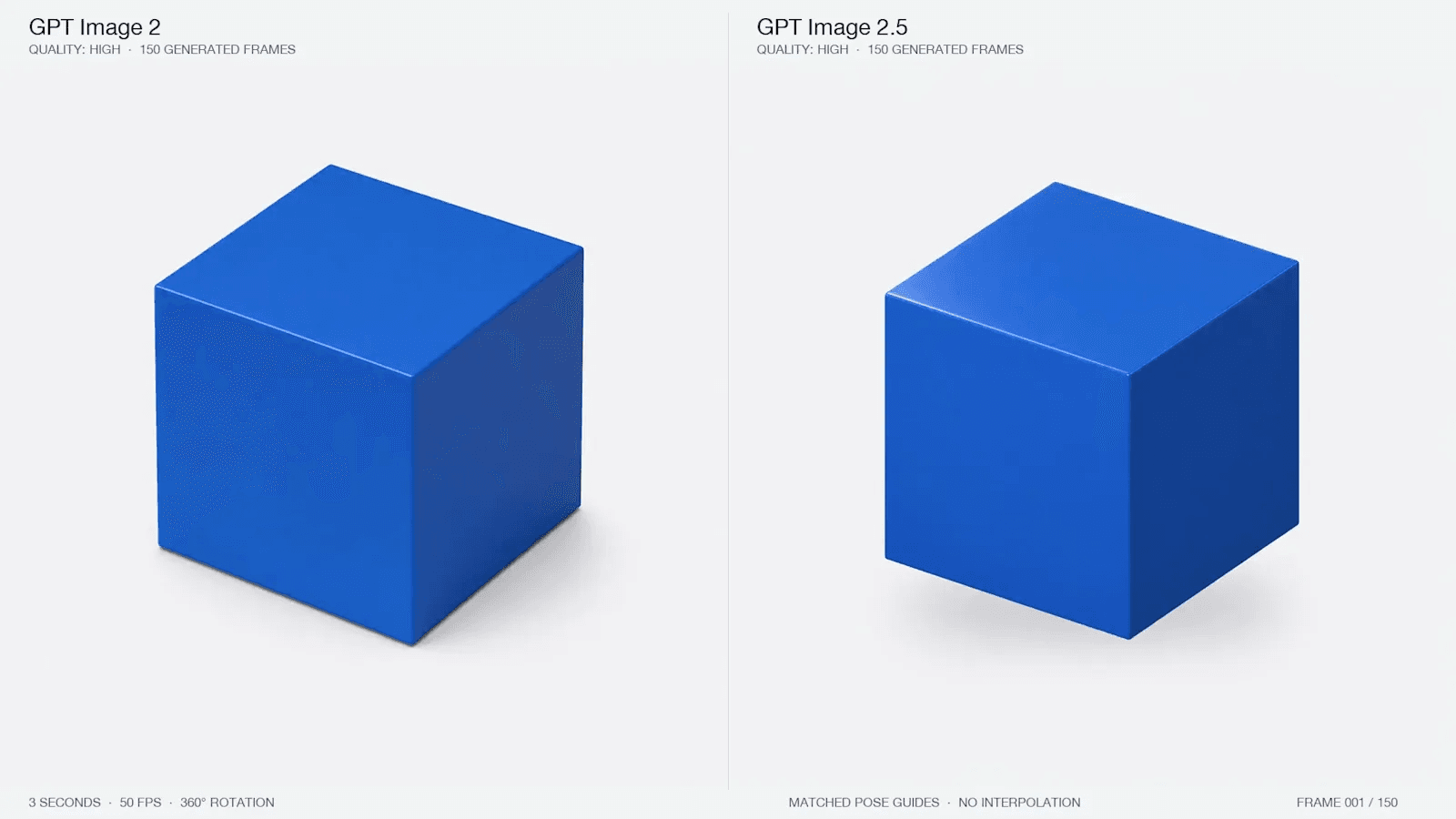
Image from OpenAI's official ChatGPT Images 2.5 announcement, September 2026.
5. Krea AI: Best Image to Image AI for Real-Time Restyling
Krea's Realtime Canvas repaints a rough sketch or photo as you work, with results updating in under 50 milliseconds. That's a different way of working than uploading a file and waiting for a render to finish.
Where the free tier stops you: the free plan includes 100 units a day, roughly enough for one generation on a model like Nano Banana 2, and it comes without a commercial license.
What one usable image actually costs: the Basic plan runs from $9 a month if billed annually, higher month-to-month.
What users report: Krea holds a 2.7 out of 5 on Trustpilot across 81 reviews, with a majority negative.
Where it falls short for image-to-image: the missing commercial license on the free plan is the detail creators miss most often, since it rules out client work even when the output looks ready to ship.
Fits: anyone iterating on a style in real time while sketching or painting. Not for you if : you need the output cleared for commercial or client use on the free plan.
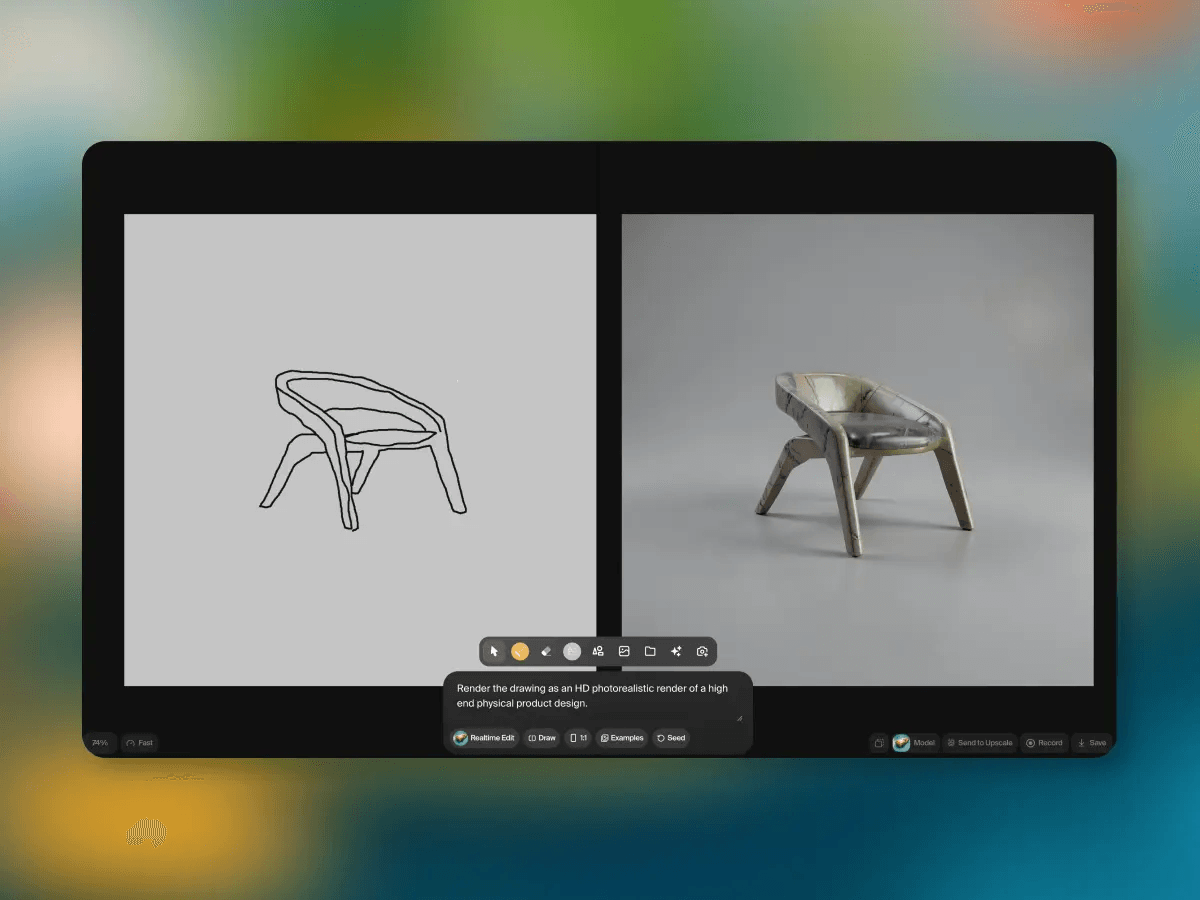
Image from Krea 's official blog post on Realtime Edit, September 2026.
The Other Five Image to Image AI Tools Worth Knowing
These five all get mentioned in image-to-image roundups, but each has a specific catch: a missing free tier, a locked feature, confusing pricing, or in Canva's case, a text-only tool doing the marketing work of an image-to-image one.
| Tool | Best for | Free Tier |
|---|---|---|
| Midjourney | Painterly reinterpretation of a photo | None since March 2023 |
| Leonardo AI | Consistent character or game assets | 150 Fast Tokens/day |
| Stable Diffusion (DreamStudio) | Manual control over masking and strength | None, pay-as-you-go only |
| Canva Magic Media | Teams already living in Canva | 50 credits, shared pool |
| Runway | Pairing image-to-image with video | 125 credits, one-time |
6. Midjourney
Midjourney's Image Prompts feature and --iw (image weight) parameter let you anchor a generation to a reference photo, and the output still reads as unmistakably Midjourney. There's no free tier to test it on, and plans start at $10 a month.
Trustpilot reviewers rate it around 1.5 out of 5 across roughly 320 reviews, the weakest score of any competitor rated in this article, even though the style itself gets consistent praise in the same reviews.
7. Leonardo AI
Leonardo's free plan gives 150 Fast Tokens a day, generous for text-to-image experimentation. The catch is that image-to-image, the exact feature this article is about, sits behind the paid Essential plan at $12 a month. Worth knowing before you sign up expecting to test it for free.
8. Stable Diffusion (DreamStudio)
Stability AI's own web client skips subscriptions entirely and runs on pay-as-you-go credits, roughly $10 for 1,000 credits, which works out to about $0.02 to $0.065 per image depending on settings.
It exposes masking and strength sliders directly, the kind of manual controls that Gemini, ChatGPT, and Canva's Magic Media all tuck behind a single prompt box instead. There are no free credits, though, and third-party risk-scoring services have flagged unresolved billing complaints.
9. Canva Magic Media
Magic Media is Canva's text-to-image tool, and it's genuinely text-only. Feeding it a reference photo means switching to Canva's separate Magic Edit or Magic Expand tools instead, a detail that's easy to miss if you're expecting one unified AI panel. The free tier's 50 credits are shared across all of Canva's AI features, not reserved for image generation alone.
10. Runway
Runway's Gen-4 Image Turbo accepts reference images for image-to-image work, and the platform is worth a look if you also need video in the same account. The free 125 credits are handed out once and don't renew monthly, and Runway's flagship Gen-4.5 model isn't available on the free tier at all.
What Does img2img Actually Mean (and Where It Breaks)?
img2img is the technical name for exactly what this article has been calling image-to-image: you hand the model a starting photo instead of a blank canvas, and a single number, usually called denoising strength or just strength, decides how much of that starting photo survives.
Hugging Face's own documentation for the Diffusers library puts it plainly: strength "indicates the extent to transform the reference image," running from 0 to 1, "with more noise added the higher the strength." (Hugging Face Diffusers documentation)
At 0, the model barely touches your photo. At 1, it treats the photo as little more than a rough starting point, and the result can end up barely resembling the original.
Most beginners assume the failure only runs one direction: push strength too high and lose the photo. A developer on Hugging Face's own forum ran into the opposite problem instead.
Dropping strength below 0.4 in a standard Diffusers pipeline filled the image with artifacts rather than preserving it cleanly, even though the same low setting worked fine in a different interface. (Hugging Face forum thread)
What to do instead: treat strength as a range to test, not a number to guess once. Start around the middle of the scale, generate a couple of variations, and nudge it up if the result looks like an untouched copy of your original, or down if the composition has drifted too far from what you uploaded.
Not every tool exposes this as a number you can drag. Atlas Cloud's Image Generation tool, for one, doesn't show a strength slider in its simple interface, so the same effect comes from how the prompt is worded instead.
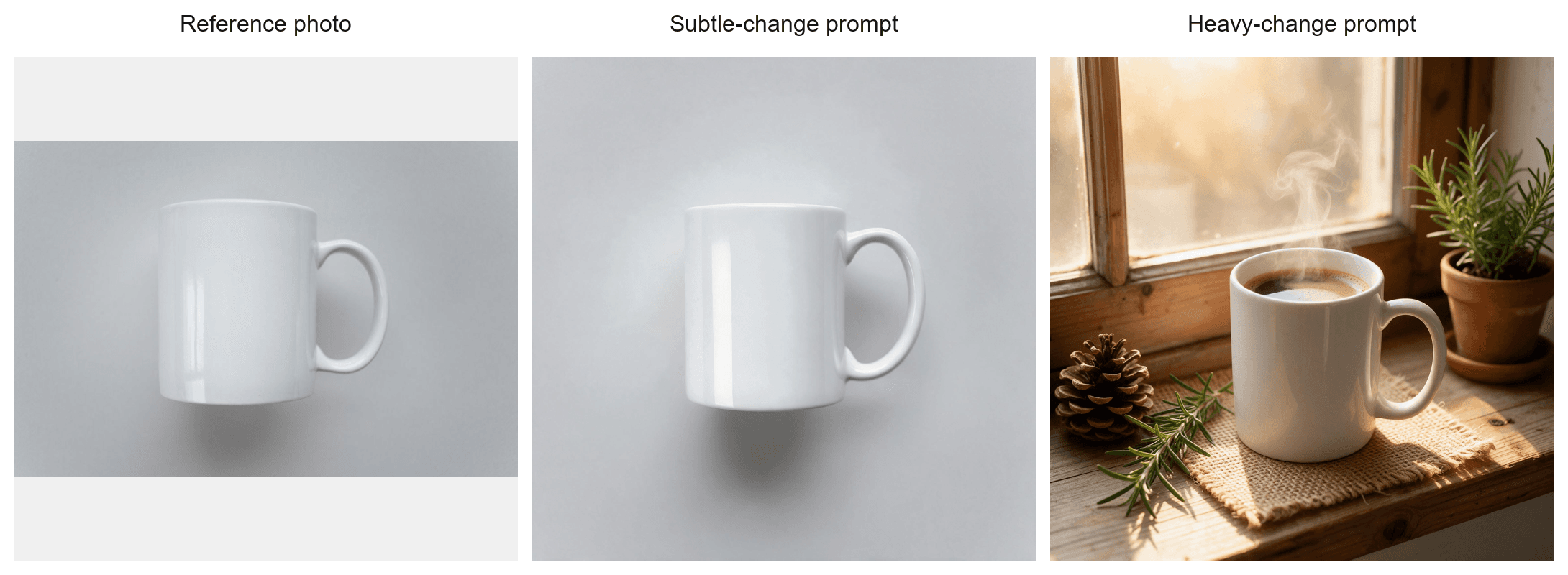
Asking for a small, specific change keeps the output close to the reference; asking for a full reinterpretation lets the model drift much further, even when the reference photo and settings are otherwise identical.
What Do Real Users Say About Image to Image AI Tools?
Independent review platforms tell a more consistent story than any single vendor's marketing page. Krea AI and Midjourney, the two tools built most heavily around a distinctive visual style, also carry the lowest Trustpilot scores among the competitors rated here, 2.7 out of 5 and roughly 1.5 out of 5.
Both still get credit for output quality in the same reviews that complain about billing and refund handling. That split suggests the frustration is less about what the AI produces and more about what happens after payment.
On the technical side, developer forums built around the open-source pipelines several of these tools rely on keep circling back to the same theme: denoising strength behaves inconsistently across different interfaces built on the same underlying code.
A setting that works at 0.3 in one tool can fill an image with artifacts in another, a strong argument for testing a tool's own defaults on your own reference photo rather than trusting a tutorial written for a different interface.
FAQ
What does img2img mean?
img2img is the developer shorthand for image-to-image generation. It's controlled by one key number, usually labeled strength or denoising strength, that sets how much of your uploaded photo the model is allowed to overwrite.
Set it low and the output stays close to your original; set it high and the model can rebuild the composition almost from scratch. Getting that one number wrong is a common reason a result looks nothing like what you uploaded.
What's the difference between text to image AI and image to image AI?
A text-to-image AI generates an image purely from a written description, with nothing to anchor the composition, face, or product shape. An image-to-image AI applies that same description on top of a photo you upload, which is why it's the better choice any time the output needs to actually look like your reference instead of a fresh interpretation of it.
How do I get a slight AI image variation instead of a completely different image?
Keep the denoising strength low, generally in the 0.2 to 0.4 range, and describe only the specific change you want rather than re-describing the whole scene. A slight-variation request that also rewrites the lighting, background, and subject in the prompt tends to override the low strength setting and produce a bigger change than intended.
What are AI image variations, and which tools make them?
AI image variations are multiple different outputs generated from the same starting photo or prompt in one run, useful for picking a favorite without re-uploading anything. Atlas Cloud's Image Generation tool includes an output-count setting in the same panel for exactly this, so you don't need a separate tool just to compare a few options.
Conclusion
If your reference photo needs to survive the edit, the exact face, composition, or product shape, an image-to-image AI beats a pure text-to-image generator almost every time. The whole point of the category is starting from your pixels instead of a blank prompt.
The 10 tools tested here split roughly into two groups: general-purpose editors like Gemini, Firefly, and ChatGPT that treat an uploaded photo as one more instruction to follow, and specialists like Krea built around a single fast workflow.
Atlas Cloud took the top spot because it doesn't force that choice. The same interface runs a straight text-to-image prompt or holds onto a reference photo's composition, currently through Seedream v5.0 Pro.
Whichever tool you land on, test it with your own reference photo before trusting a review, including this one. The gap between a good image to image AI and a good-looking demo image is usually one denoising slider away.





