Transforming a real-world photo into Studio Ghibli art is a balancing act between instant convenience and structural likeness. Quick web and mobile filters run in seconds with zero typing, but simpler models often erase glasses, flatten facial bone structure, or drop distinctive pet coat markings.
To help you choose the right tool, I tested 5 free ghibli ai generators using the same photo.
Quick Comparison of Free Ghibli Filter Tools
Your starting photo determines which tool you need. Preserving a specific person's likeness and pet breed requires tight feature lock, whereas stylizing an open landscape allows for looser, more creative AI models.
| Tool | Score | Likeness & Pet Lock | Scenery Quality | Free Access / Watermark | Best For |
| YouCam | 8.9 | High: Keeps glasses & dog breed; mild de-aging | Authentic gouache skies & crisp cottage | 1 free image (5 credits) / No mark | Top portrait & pet fidelity |
| OpenArt | 8.8 | High: Exact facial structure & layered fur | Crisp perspective & lush flora | Free credits / Large watermark | High fidelity (if cropping/pro) |
| Picsman | 8.7 | High: Zero anime drift; locks glasses & anatomy | Solid tree volume & clean bench lines | 1 free without login / No mark | Instant, login-free one-clicks |
| Fotor | 6.5 | Low: Erases glasses; generic face; flat fur | Authentic cel-shaded scenery | Free access / Watermarked | Landscapes without people |
| Colorify AI | 4.5 | Fail: Face reset; alters dog coat & collar | Hallucinates pond & dock | 2 free images / No mark | Loose artistic sketches only |
Note: The scores above are based on hands-on testing with the sample benchmark photo and reflect my personal evaluation only.
Start with Picsman for quick, login-free generation, or YouCam for the highest likeness accuracy. Avoid Colorify AI if facial or pet preservation matters. If using OpenArt or Fotor, be prepared to crop or subscribe to remove watermarks.
How I Evaluated Each Tool Across Three Subject Benchmarks
I tested each tool across three subject types to assess how well it handles different images:
- Likeness & Feature Lock (Portraits & Group Shots): Does the tool keep bone structure, glasses, beard stubble, ethnicity, and exact headcount, or replace everyone with a default anime teenager?
- Breed Silhouette & Coat Markings (Pets): Does it keep a dog's floppy ear shape, brindle patches, and collar, or morph the animal into a generic mascot?
- Gouache Foliage & Architectural Linework (Landscapes): Does it render matte watercolor skies, cumulus cloud volume, and hand-inked utility poles without turning buildings into blurry oil smears?
Best Free Ghibli Filter Tools Reviewed
Next, I will use this photo for testing:
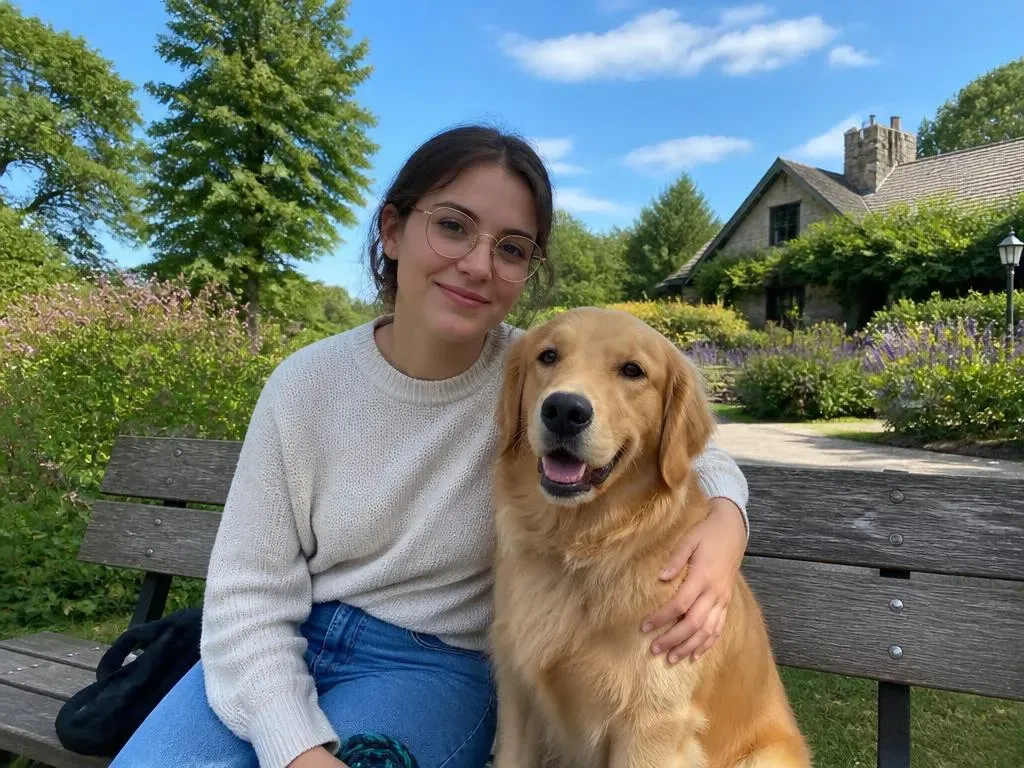
Picsman (Score: 8.7) – Instant Transformation with Zero Anime Drift
Navigate to the Ghibli filter interface on Picsman; no login is required, simply upload the photo you wish to transform.
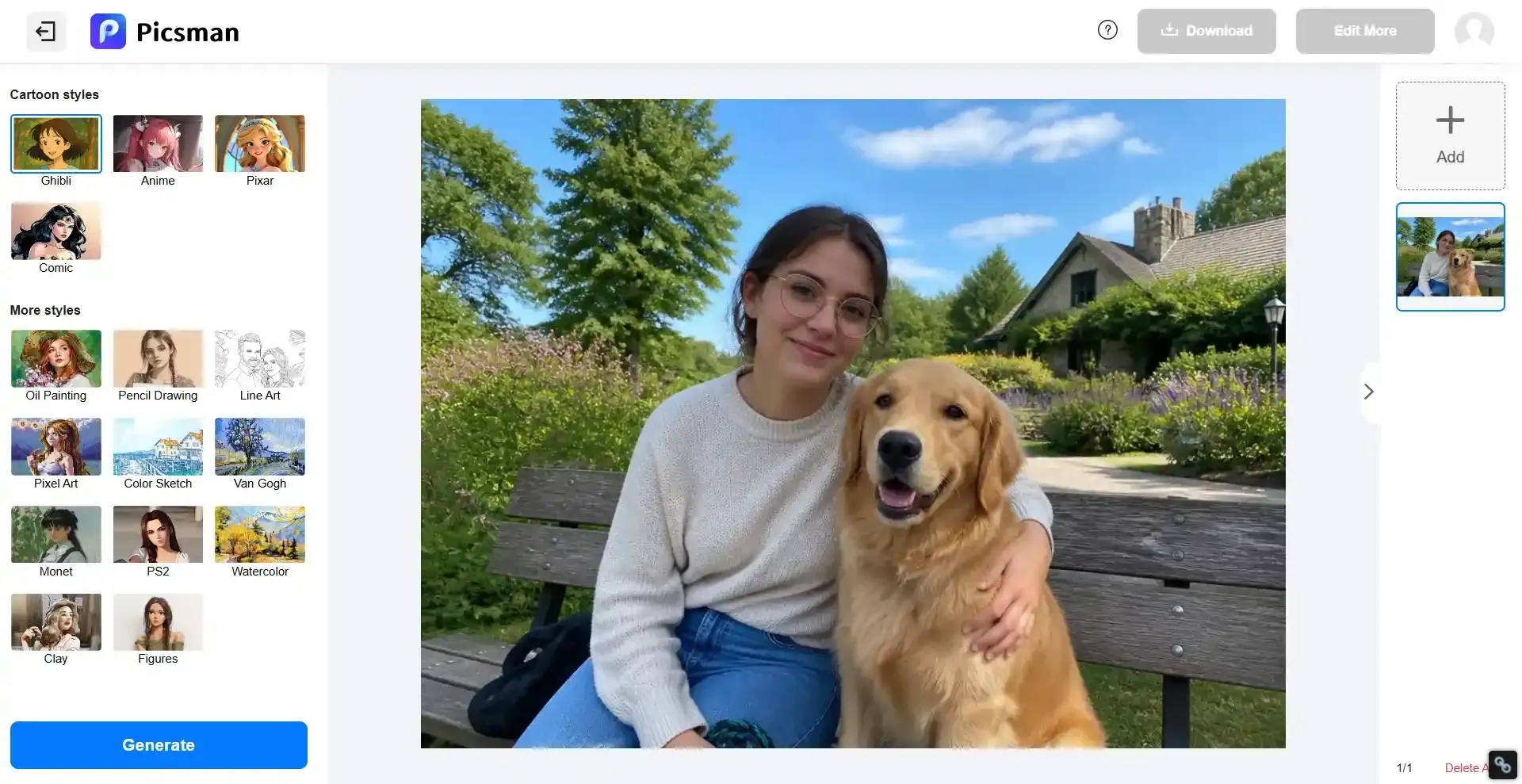
Let's take a look at the result:
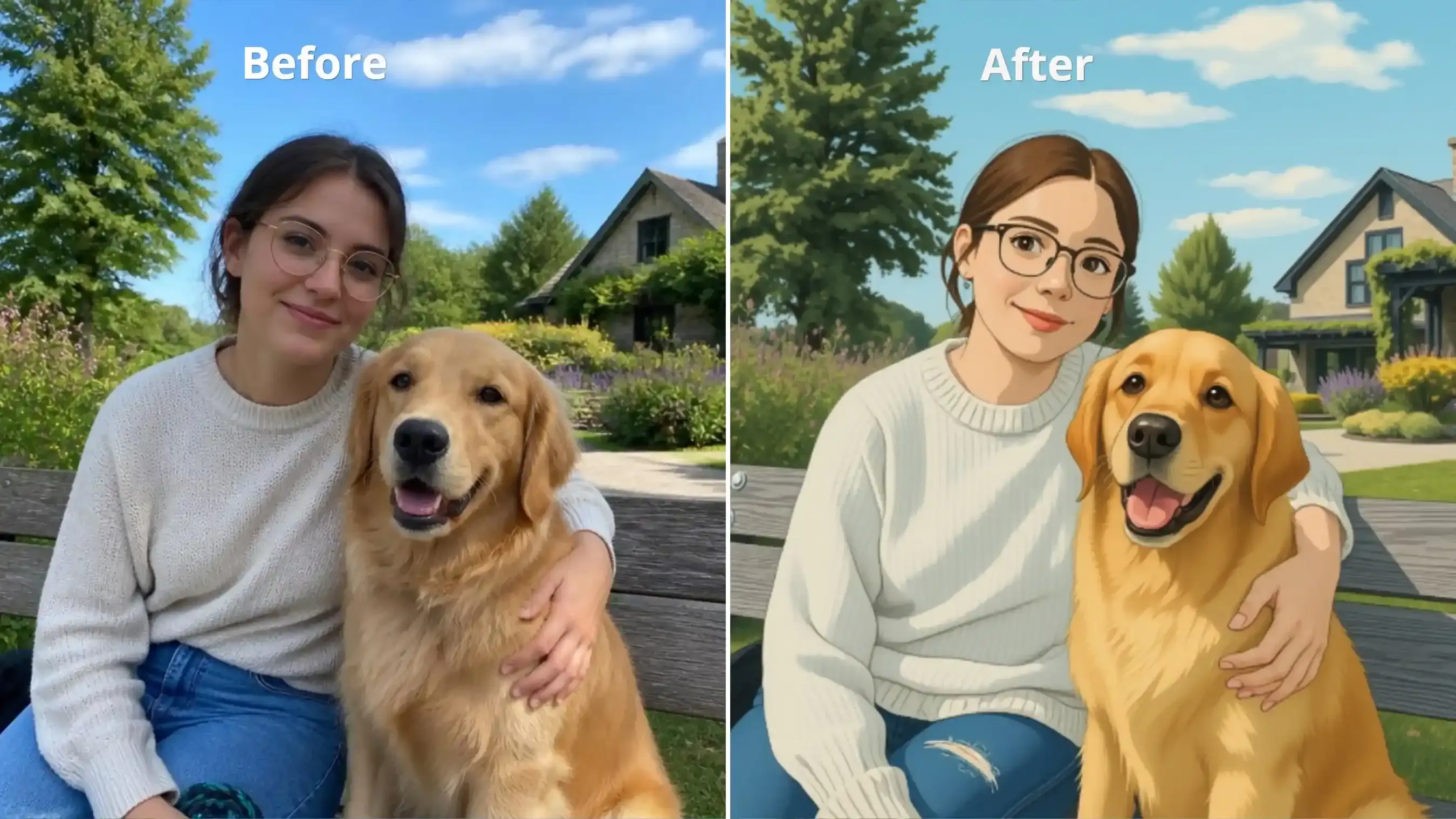
Score: 8.7 / 10
- Likeness & Anatomy: Preserves round glasses, natural facial structure, and hand placement cleanly with zero anime drift or fused fingers.
- Pet Fidelity: Locks Golden Retriever skull shape, ear drop, and open-mouth panting using layered gouache fur.
- Scenery & Linework: Delivers classic Ghibli cloud volume, crisp cottage perspective lines, and matte foliage.
- Flaws: Adds an unprompted rip to the right knee and removes distant background details.
Note: You can generate one image for free without logging in. Logging in grants you 4 credits, and each image generation costs 2 credits.
Colorify AI (Score: 4.5) – Severe Identity Loss & Hallucinations
Colorifyai requires login to generate, but the first generation is free; subsequent generation costs 3 credits. Login to receive 3 credits, which means you can generate 2 images for free.
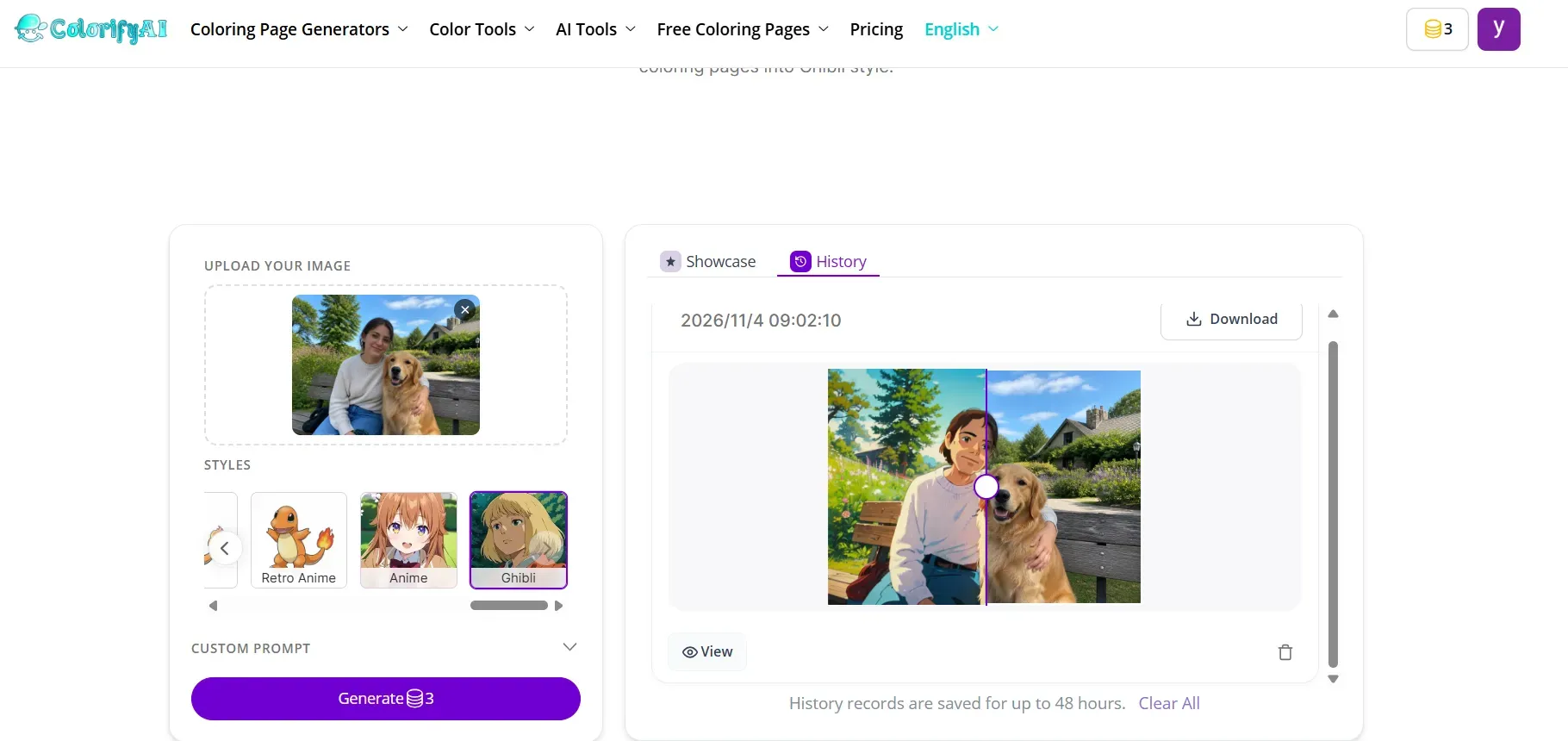
Let's take a look at the result:
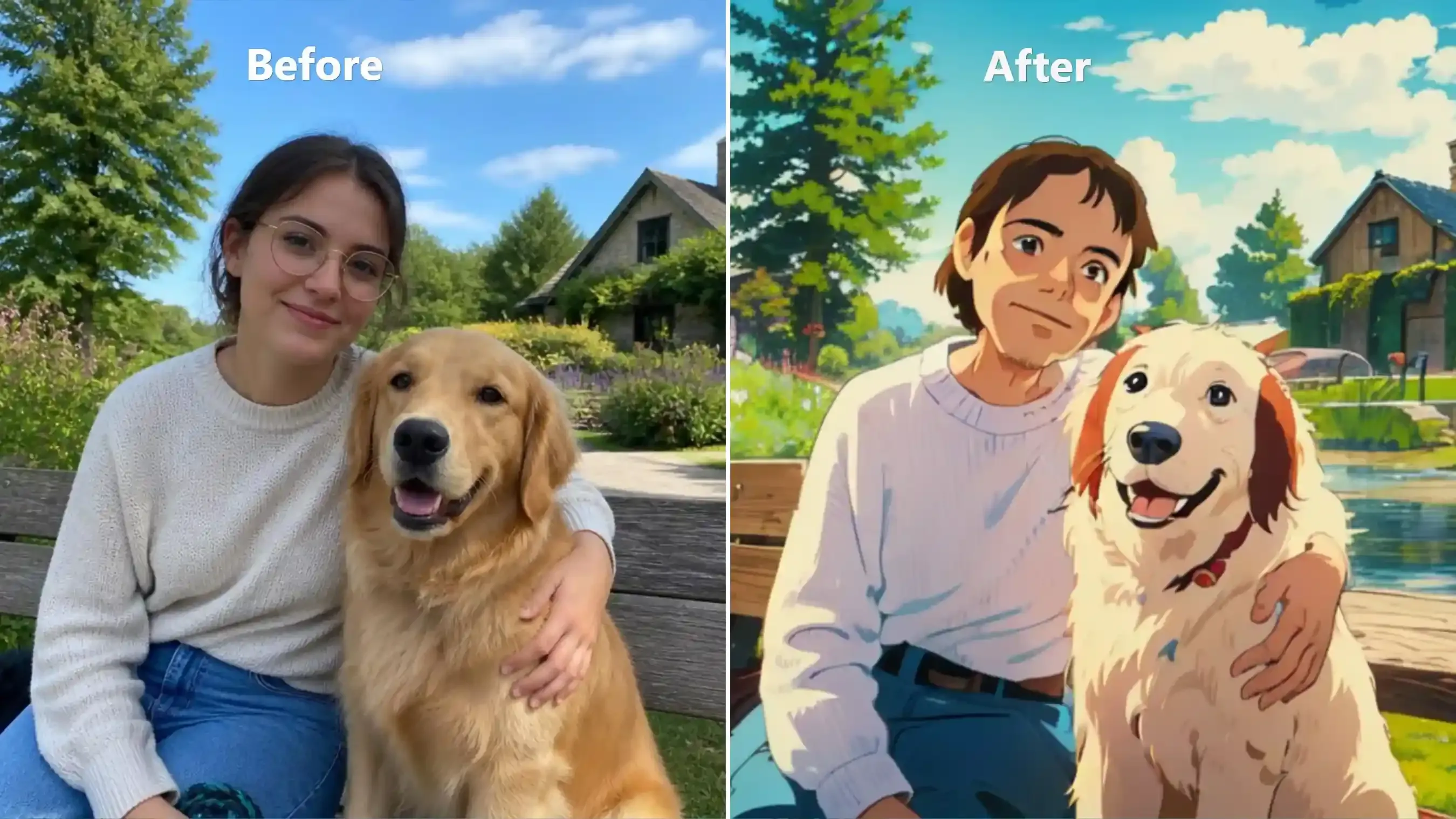
Score: 4.5 / 10
- Likeness & Anatomy: Total identity loss; completely reconstructs the female subject's original facial features into a generic anime face and erases her round glasses.
- Pet Fidelity: Corrupts the breed markings by turning a solid Golden Retriever into a bicolored dog with reddish-brown ears, cartoon eyes, and an unprompted red collar.
- Scenery & Linework: Captures authentic Ghibli matte skies and gouache foliage, but hallucinates a pond and wooden dock over the original park setting.
- Flaws: Severe hallucinations across all benchmarks, including total facial reconstruction, lost eyewear, altered pet coat, and a fabricated water environment.
Fotor (Score: 6.5) – Flat Cel-Shading with Erased Glasses
Searching for "Ghibli" in AI Art Effects will bring up three different styles; select the one you like and click to generate. You need a subscription to remove the watermark.
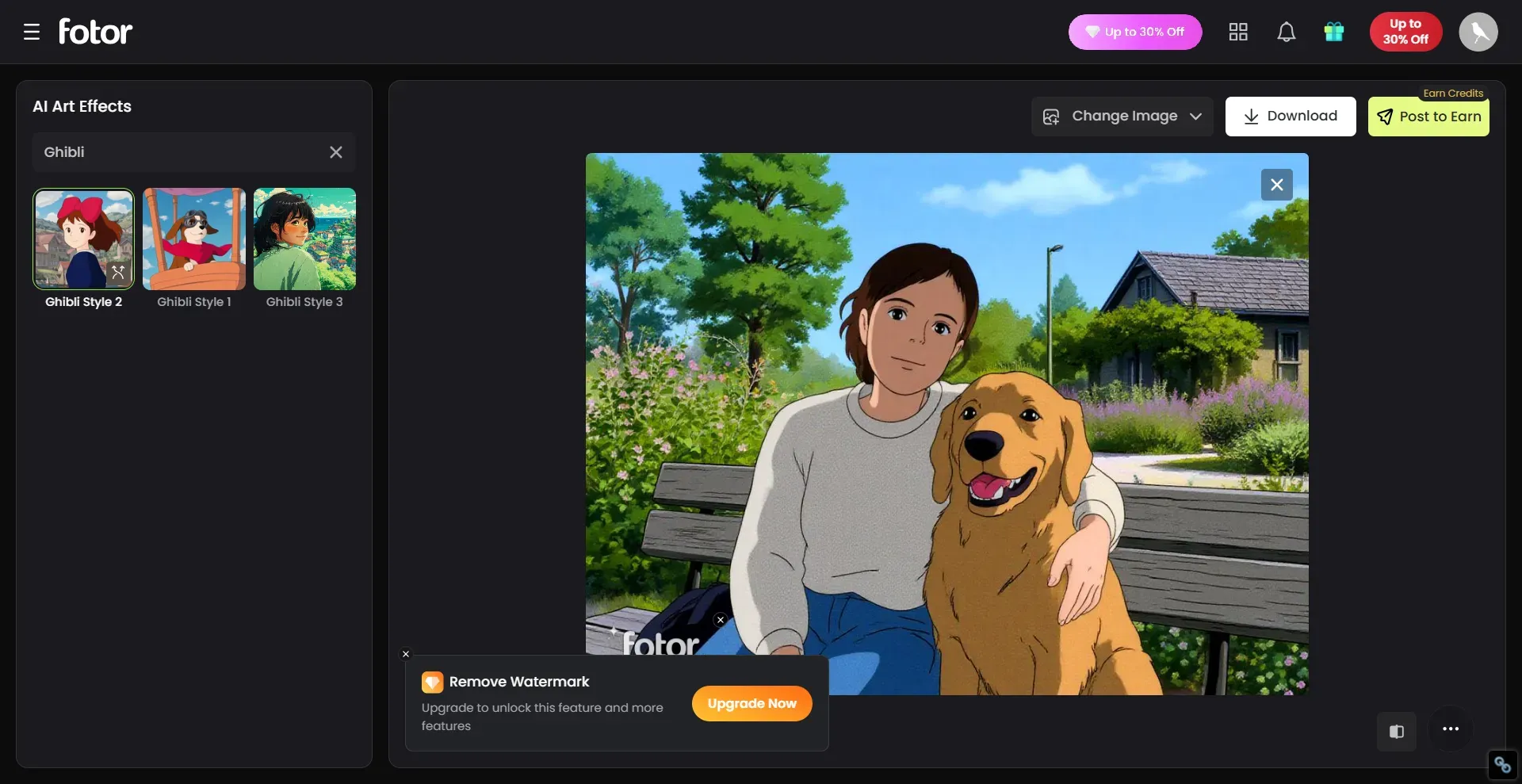
Let's take a look at the result:
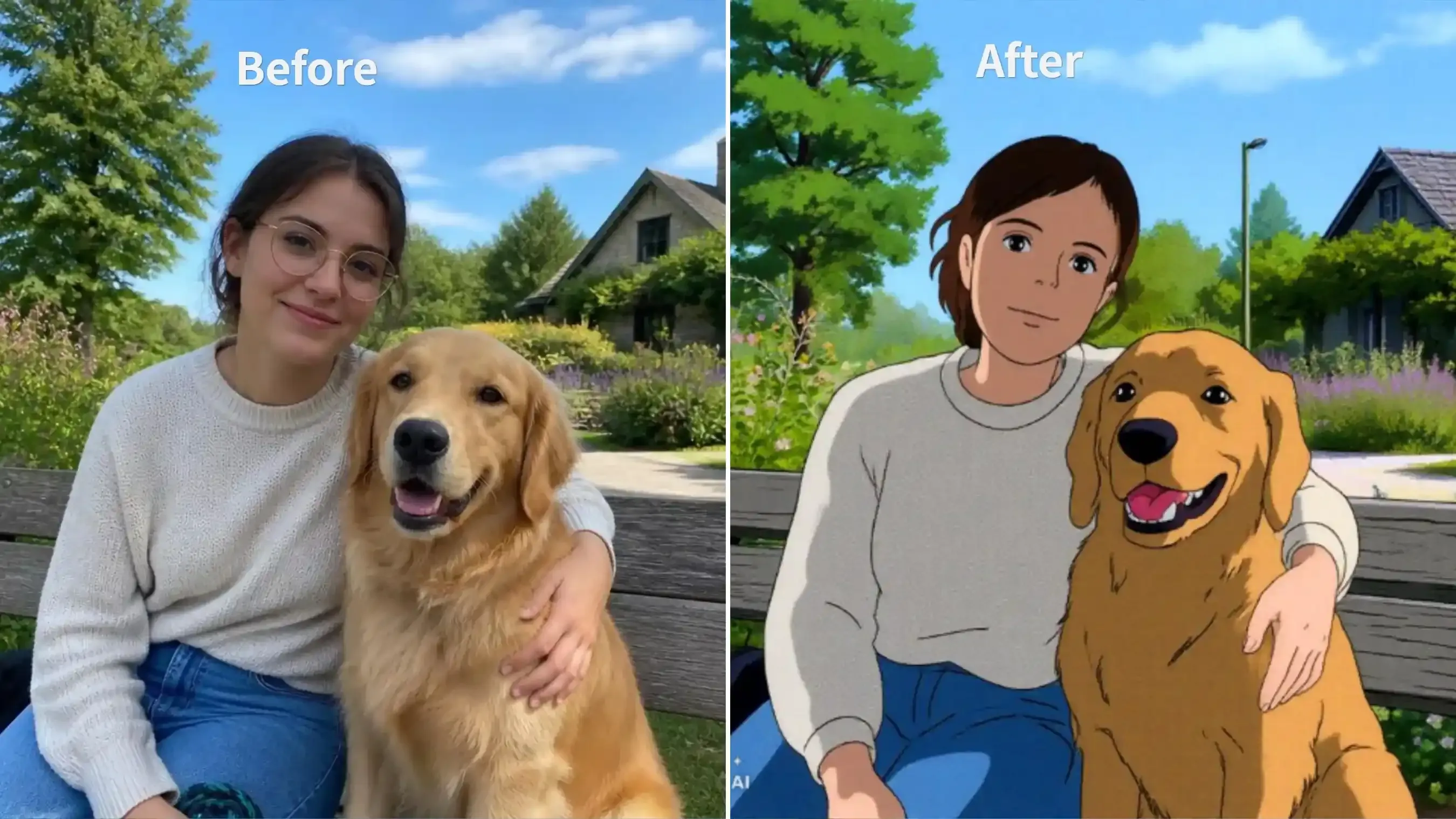
Score: 6.5 / 10
- Likeness & Anatomy: Completely reconstructs the female subject's face into a generic vintage Ghibli template and erases her round glasses, though hand anatomy and pose remain intact.
- Pet Fidelity: Locks the Golden Retriever silhouette, ear shape, and open-mouth pant, but flattens the fur texture into basic cel-shading.
- Scenery & Linework: Delivers authentic hand-drawn anime scenery, preserving the stone cottage, bench slats, and the slender garden lamppost.
- Flaws: Total loss of facial likeness, erased eyewear, and oversimplified flat textures across the sweater and dog coat.
YouCam (Score: 8.9) – Top Likeness & Fur Retention
The YouCam Ghibli-style filter uses the "GPT-Image-2.5 Flare" model. You can also choose a different model if you prefer; simply select "Manga Mood" under the style options and click "Generate." Each generation using GPT-Image-2.5 Flare costs 3 credits. You receive 5 credits upon your first login to YouCam, which means you can generate one image for free.
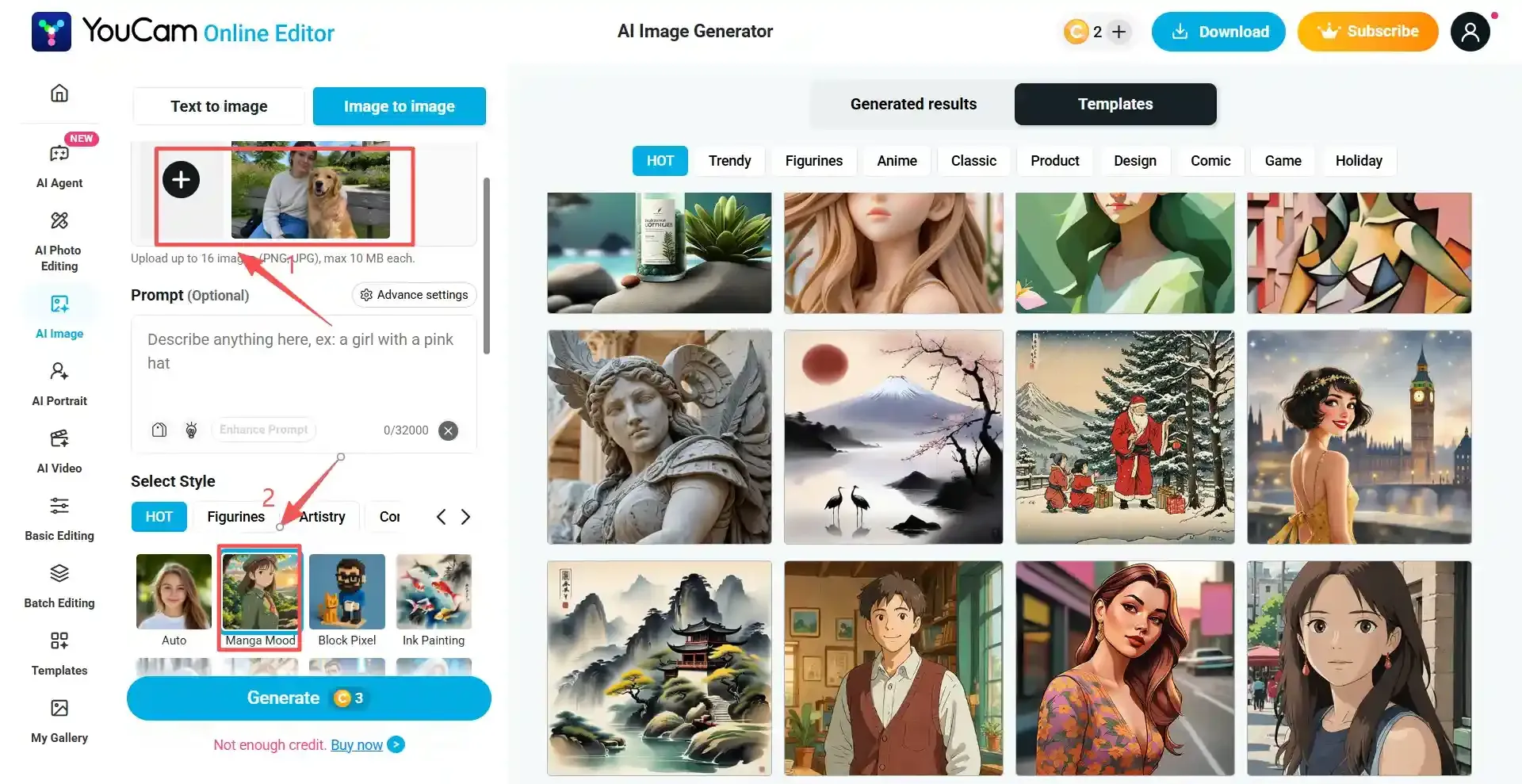
Let's take a look at the result (I chose GPT-Image-2.5 Flare):
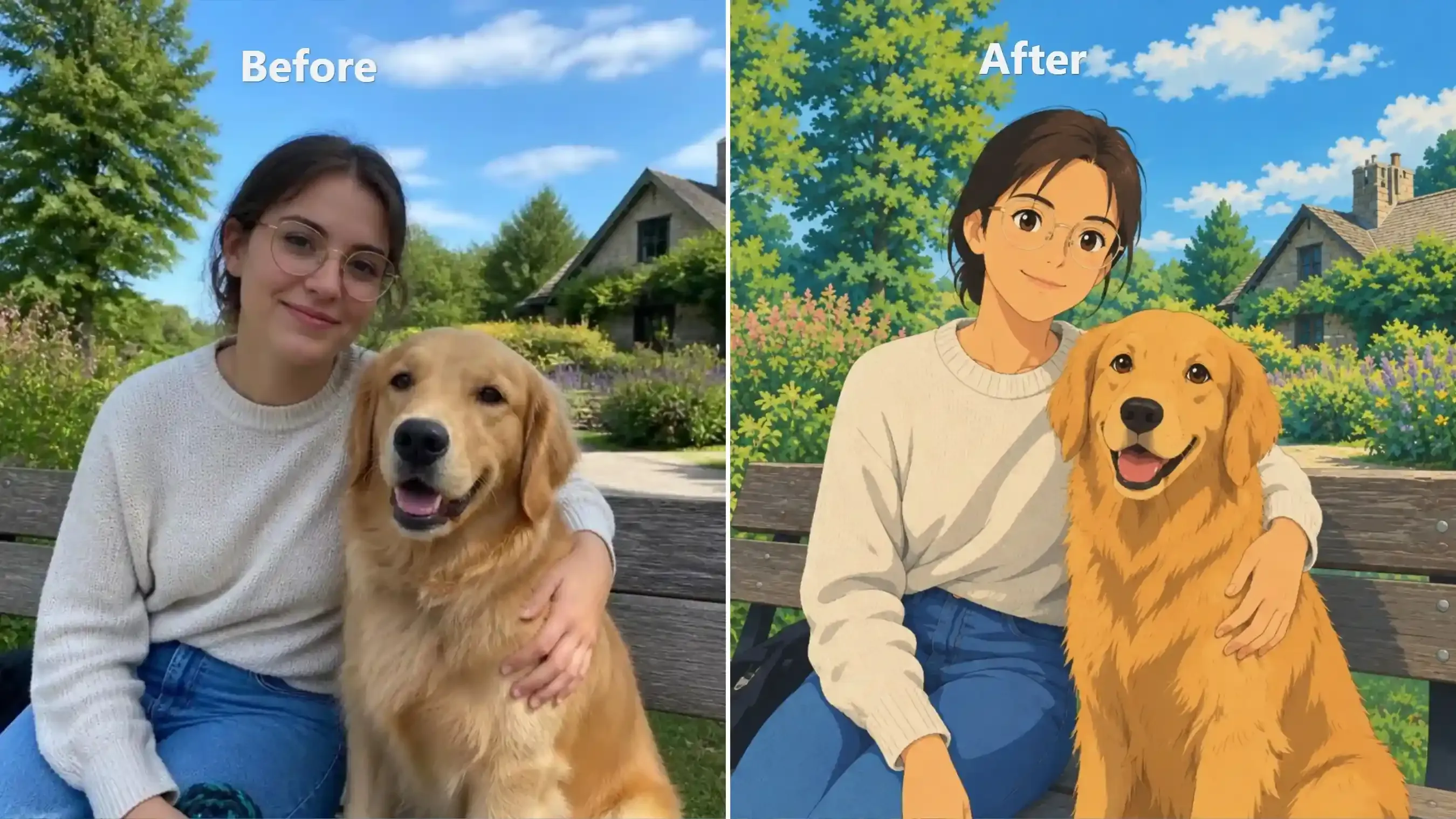
Score: 8.9 / 10
- Likeness & Anatomy: Preserves the wireframe round glasses, center-parted hairstyle, and seated embrace, though facial features soften slightly into a youthful anime aesthetic.
- Pet Fidelity: Flawlessly locks the Golden Retriever's skull shape, floppy ears, and panting expression with richly layered gouache fur.
- Scenery & Linework: Delivers authentic Ghibli matte background art, faithfully preserving the stone cottage, volumetric clouds, bench slats, and the slender garden lamppost.
- Flaws: Mild facial de-aging and slightly elongated, stylized fingers resting on the dog's chest.
OpenArt (Score: 8.8) – High Gouache Detail with Watermark
Both OpenArt and YouCam use AI models to generate a "Ghibli filter." However, OpenArt does not offer a specific style selection menu; instead, you must include the phrase "change to Ghibli Style" in your image prompt.
Additionally, you receive 40 complimentary credits upon logging into OpenArt. The number of images you can generate with these depends on the specific model you choose and the quality settings you select for the output.
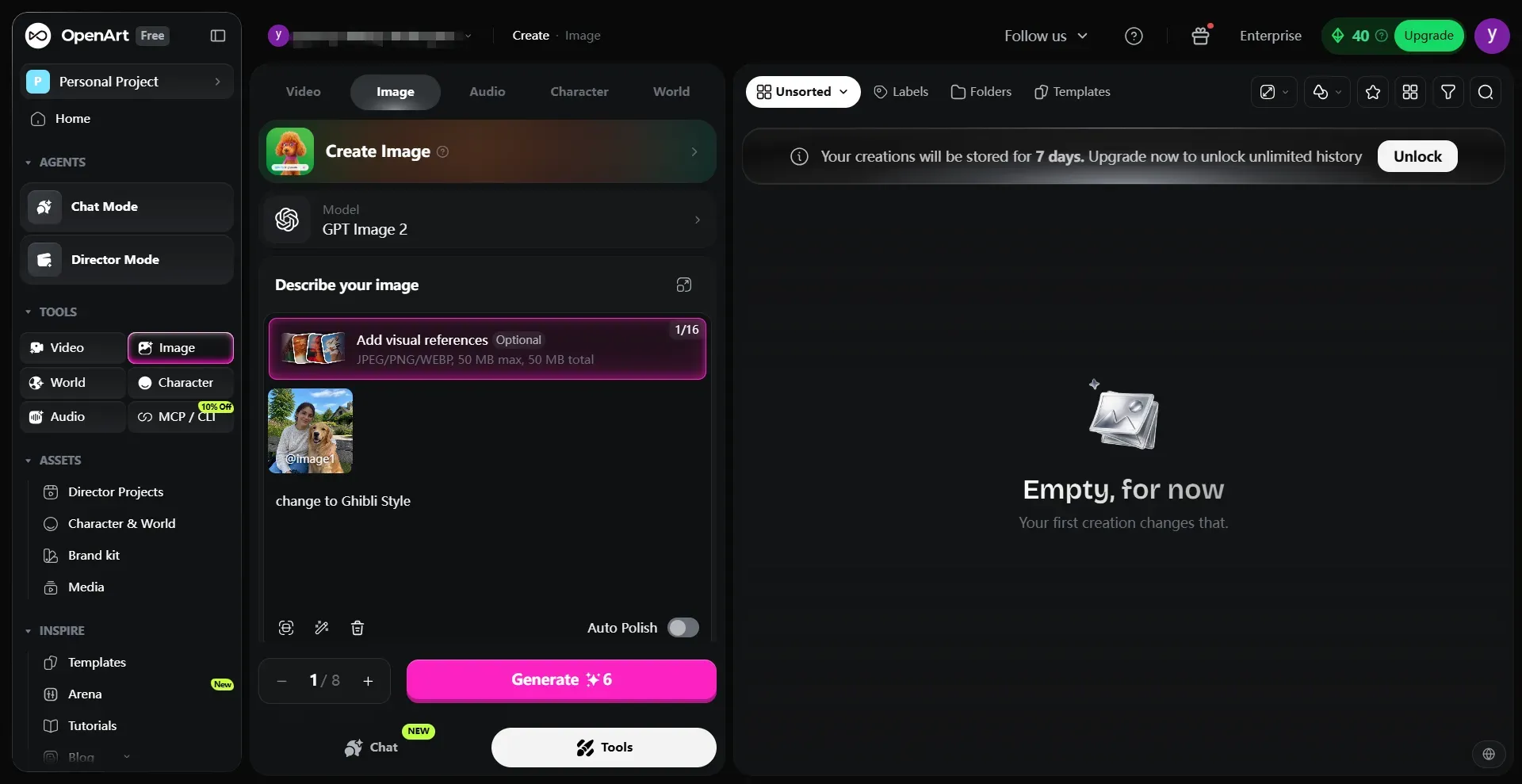
Let's take a look at the result (I chose GPT-Image-2 and low quality):
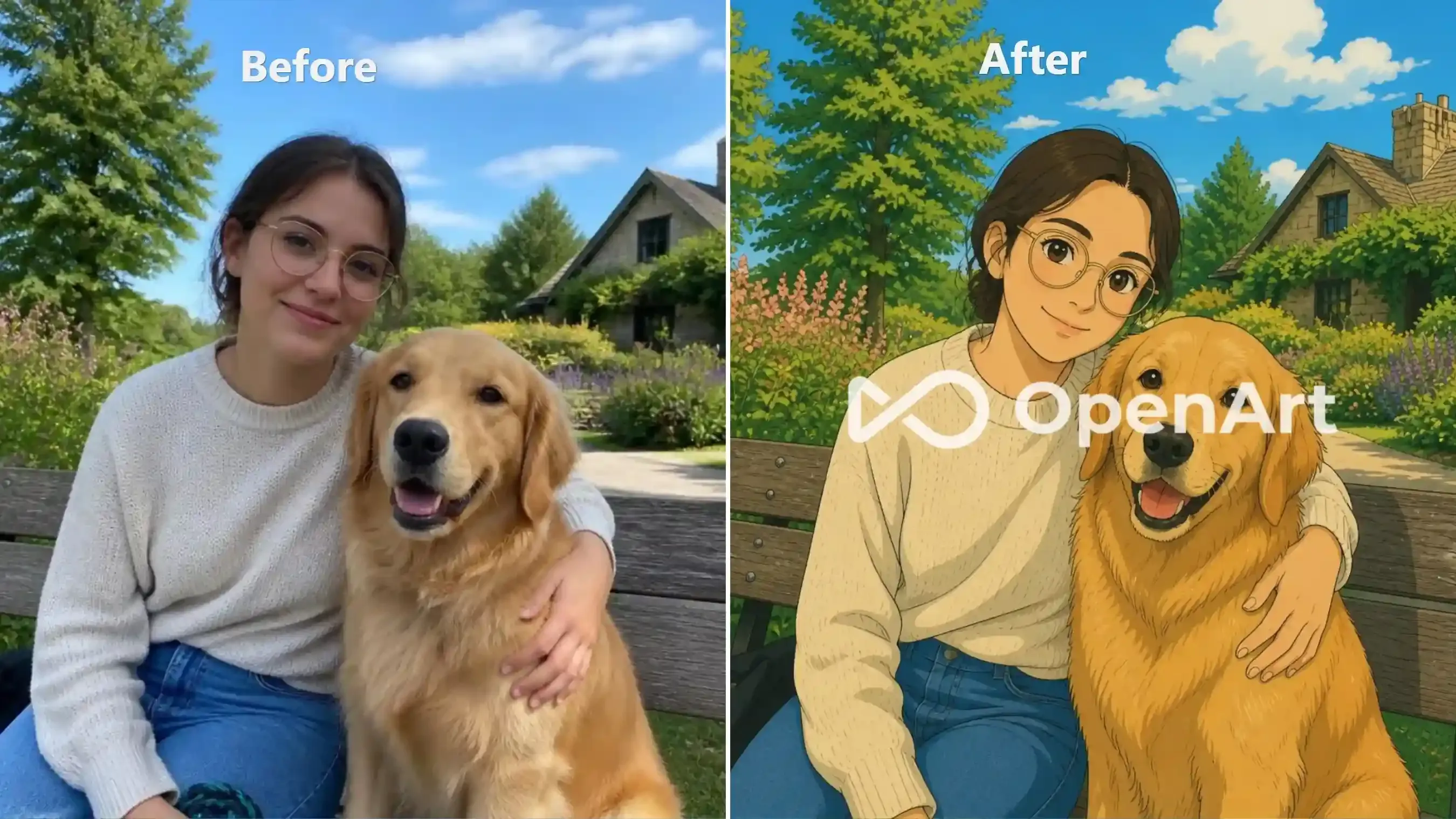
You need a subscription to remove the watermark.
Score: 8.8 / 10
- Likeness & Anatomy: Preserves the wireframe round glasses, center-parted hair, and authentic facial proportions without anime drift; hand anatomy and embrace remain completely intact.
- Pet Fidelity: Locks the Golden Retriever's skull shape, floppy ears, and open-mouth pant, rendering the coat with rich gouache depth.
- Scenery & Linework: Retains the stone cottage, floral borders, bench perspective, and the slender garden lamppost beneath authentic Ghibli cloud volume.
- Flaws: Overlays a large central platform watermark and flattens the sweater's knit texture.
How to Create Ghibli-Style Images with AI Prompts
One-click Ghibli filters are convenient for quick photo transformations, but they offer limited control over the final result. If you want to preserve specific architectural details, customize the background, or create a more consistent hand-painted look, prompt-based AI image generators offer greater flexibility. You can describe the visual style, adjust individual elements, and guide the model using one or more reference images.
Creating Ghibli-Style Landscapes with AI Prompts
Dedicated diffusion models and style-reference workflows rebuild the surface texture from the ground up:
- Midjourney V8.2: Midjourney struggles to keep a human face identical, which makes it risky for selfies. On empty streets and landscapes, that looseness is an asset. Upload an authentic Ghibli anime still under Style Reference, lower Stylize to 50–100 to curb default HDR gloss, and add --no photorealistic, 3d render to strip camera reflections and force a matte gouache finish.
Prompt example:
plaintext1Studio Ghibli style background plate, hand-painted 2D anime landscape, matte gouache painting, flat cel shading, soft watercolor sky with towering cumulus clouds, red-brick and yellow houses, blue shutters, climbing ivy, street perspective --no photorealistic, 3d render, realistic photography, hdr, reflections, blurry
- FLUX 3: Excels at complex architectural geometry and sharp perspective without melting straight rooflines. Set Safety Tolerance to 2 or 3 to keep gritty, weathered background textures from triggering false-positive filters.
Prompt example:
plaintext1Restyle this photo as a vibrant Studio Ghibli 2D anime background plate, rich matte gouache painting, clean ink linework. 2Preserve exact street perspective, red-brick and yellow houses, blue shutters, climbing ivy, white fences, and tree layout. 3Vibrant cobalt blue summer sky with towering white cumulus clouds, rich emerald green foliage, warm golden daylight, crisp cel shadows, deep color saturation and rich natural contrast. 4Negative: photorealistic, 3d render, washed out, overexposed, pale, hazy, milky white tint, desaturated, faded colors, low contrast.
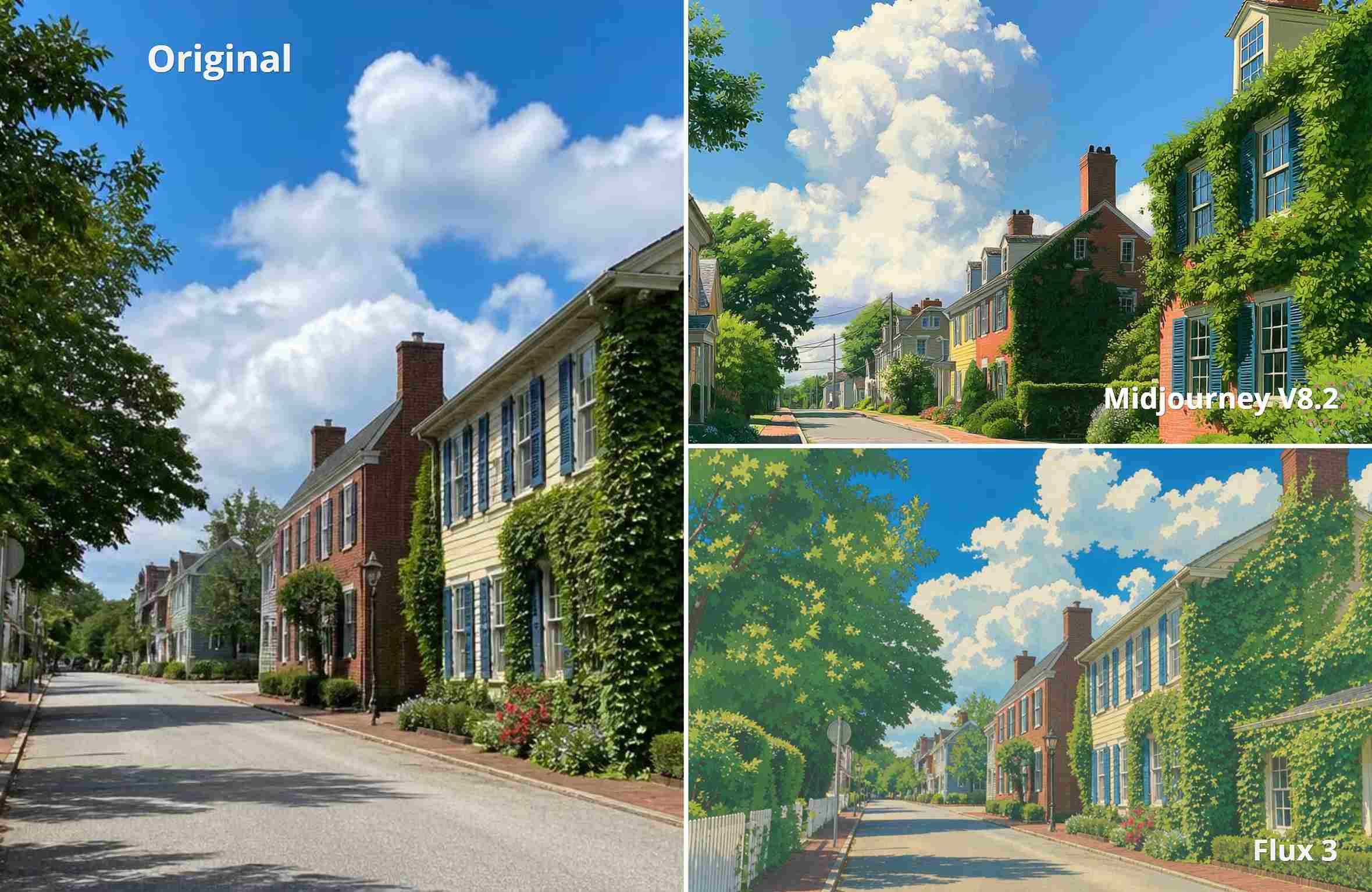
Choose FLUX 3 for strict 1:1 architectural perspective and clean matte gouache textures, or Midjourney V8.2 for dramatic painterly skies and artistic reimagining at the expense of geometric accuracy.
Combining a Portrait and a Landscape Reference Into One Scene
To merge a portrait (@Image1) and scenic photo (@Image2) seamlessly inside an instruction-based editor like GPT Image 2.5 or Seedream v5.0 Pro Edit:
- Split Reference Roles: Pull facial geometry, glasses, and clothing strictly from
@Image1; take architecture, foliage, and horizon solely from@Image2. - Anchor Physical Contact: If
@Image1is a tight crop, specify a surface interaction, e.g., "seated on the stone dock edge", to guide natural body extrapolation without floating cutouts. - Separate Line Weights: Command crisp ink outlines and flat cel shading for the character, paired with unlined matte gouache for the background scenery.
- Unify Light & Contact Shadows: Match daylight direction across both inputs and enforce a soft ground drop shadow to anchor the subject into the scene.
Let’s put this into practice:
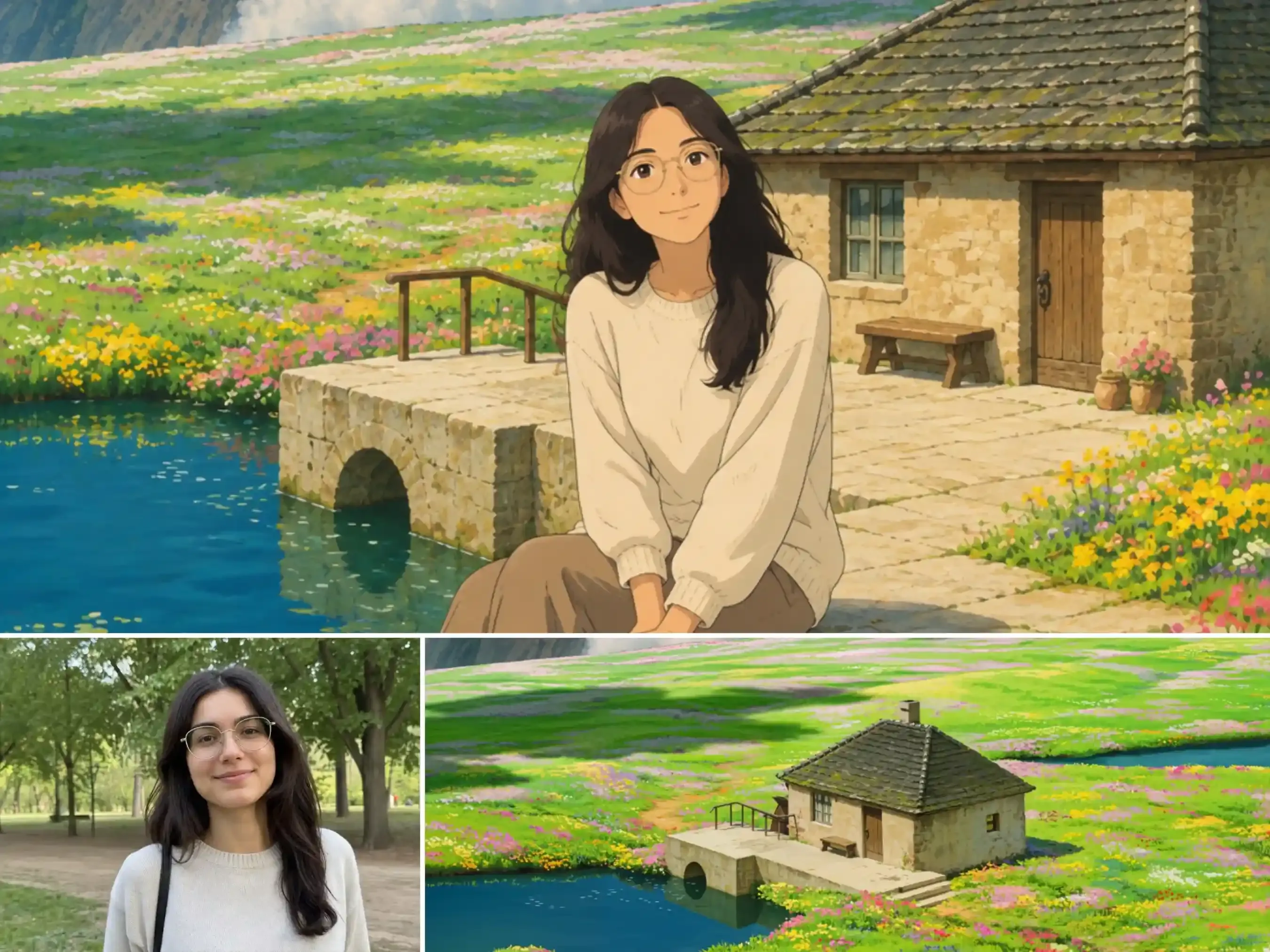
Two input reference images (portrait and landscape) at the bottom and the final merged Studio Ghibli anime scene on top.
How to Animate Your Ghibli Image Into a Video Clip
Hand-drawn animation is a cadence problem, not a color problem. Traditional 2D studio shots animate "on twos," holding each drawing for two frames inside a 24fps timeline while keeping background paper grain locked still. Default AI video models do the opposite: they force 60fps silky interpolation and add synthetic camera blur.
To animate a Ghibli-restyled visual without melting the 2D paint, run a structured pipeline:
-
Bake the paper texture into a high-resolution keyframe first. Video models cannot invent hand-inked line weight or watercolor grain mid-shot. If you are animating a static artwork, export your painted PNG at full resolution, e.g., 2048x1152 for 16:9, or cropped to 9:16 for vertical reels, to lock edge quality before uploading.
-
Choose your workflow: Subtle Ambient Loop vs. Story-Driven Morph.
- For subtle environmental loops: Load your static painted PNG into a video model to animate light breeze in hair, pond ripples, and drifting clouds.
- For dynamic narrative reveals: Upload your real-world portrait as the initial frame. Command an instant 2D style transformation, followed by a wide camera pull-out that expands a close-up into a living fantasy landscape.
-
Control camera momentum and give actions a clear anchor. Rather than arbitrary movement, tie character action to an environmental focus. If pulling out from a portrait, guide the character into motion, e.g., chasing a glowing spirit into a meadow, so the AI extrapolates the full body cleanly without floating limbs.
Motion Prompt example:
plaintext1Subject: The woman transforms from a realistic photo into a Studio Ghibli 2D anime character with round glasses and cream knit sweater. 2Action & Story: She smiles, stands up, and happily runs into a vibrant rolling flower meadow, playfully chasing a glowing spirit. 3Camera: Fast dynamic pull-out from close-up portrait to a wide cinematic landscape with fluffy summer clouds and a small cottage. 4Style: Hand-drawn 2D animation, matte gouache landscape, flat cel shading, natural character movement. 5Negative: 3D render, photorealism, distorted limbs, jerky frames, morphing face.
Let's take a look at the result:
Troubleshooting Common Ghibli Filter Failures
Most ruined outputs trace back to four causes: poor pixel contrast in the source photo, aggressive nostalgia color grading, washed-out chalky exposure from vague watercolor terms, or unanchored character motion in video models.
When the generated image or video still misses the mark, use this diagnostic table to fix the exact parameter or prompt layer:
| What You See | Root Cause | Quick Fix |
| Washed-out, milky frame | Vague "watercolor wash" terms dilute contrast | Use "rich matte gouache, vibrant daylight"; add "washed out, pale" to negative. |
| Heavy yellow / amber cast | Over-weighted nostalgic grading | Add "balanced daylight white balance, cobalt blue sky, no sepia tint". |
| Glossy 3D / plastic skin | Default specular shaders and depth maps | Specify "flat cel shading, matte gouache"; add "no 3D render, no glossy" to negative. |
| Glasses vanish / face drifts | Excessive stylization overrides face structure | Enforce slot assignment: "Preserve facial geometry and glasses strictly from @Image1". |
| Floating cutout / sticker look | Lack of environmental contact and shadows | Add physical grounding: "seated on edge, casting a soft cel ground drop shadow". |
| Melting faces / limb glitches in video | Unanchored motion vectors | Give a direct action goal ("running forward chasing a spirit"); add "morphing faces, distorted limbs" to negative. |
The best Ghibli filter depends on how much control you want over the final image. For quick transformations, tools like Picsman and YouCam offer convenient ways to turn everyday photos into anime-style artwork. If you want more control over architectural details, colors, and background textures, prompt-based tools like Midjourney and FLUX give you greater creative flexibility.
You can also take your Ghibli-style creations a step further by combining portrait and landscape references or turning a finished image into a short animated clip.
Try one of these approaches with your own photos and see which style works best for you!


