Your image is almost finished. The bottle needs a different color, or one word on a card needs replacing. Starting again would throw away the parts you already like.
GPT Image 2.5 image comments let you attach an editing request to a location in an image. Name what should change and what should stay, then inspect the whole result. A local request still needs a check for changes elsewhere. ChatGPT's comment interface and Atlas Cloud's model-editing playground offer different ways to submit an editing brief.
Key Takeaways
- Point to one target and request one specific change.
- Protect important text, object shapes, lighting, and earlier edits explicitly.
- Compare the result with both its immediate input and the original.
- Continue only from an approved version; restart from the original when accumulated changes matter.
What Are GPT Image 2.5 Image Comments?
An image comment combines a position with a written instruction. The position helps identify the subject; the instruction explains the desired change. Adding a preservation list gives you something concrete to check afterward.
OpenAI introduced direct image comments with ChatGPT Images 2.5 on September 8, 2026. The release also introduced Flare and Sunburst as separate API models. The product interface and the model names describe different parts of the experience. A comment button alone does not identify which API model handled a particular ChatGPT image. (OpenAI release announcement, September 2026)
Here, “comments” means image-editing instructions. It does not mean public reactions beneath a social post. Nor does the feature, by itself, establish a team approval system with assigned reviewers or a formal sign-off history.
| Method | What you provide | Useful when | Limit to remember |
|---|---|---|---|
| Image comment | A location and a written request | You can point to a particular object or detail | A location is not a pixel lock |
| Text-only edit | An image and a description | The target has an unambiguous name or position | Similar objects can make the request ambiguous |
| Selection | A highlighted region and instructions | You need to identify an area visually | Changes can extend beyond the selection |
| Mask | A separate region mask and a prompt | The chosen editing route accepts a mask | File format, dimensions, and mask interpretation depend on that route |
These methods express intent in different ways. Do not assume a comment creates the same input as a mask, or that a selection gives a guarantee about every pixel outside it.
For an everyday edit, start with the least complicated method that identifies the target clearly. A lone red bottle is easy to describe. Three matching bottles need positions, distinguishing features, or a more explicit region. Decide how you will judge the result before submitting it.
How to Use GPT Image 2.5 Image Comments
The official mobile instructions provide a useful starting point: select an image generated by ChatGPT Images to open it full-screen, where you can edit it or add comments. The same help page documents selection-based edits and direct written edits, and warns that changes may extend beyond highlighted areas. (Images in ChatGPT, September 2026)
1. Open the image you actually want to edit. Start from the generated image in your conversation and open it full-screen. If you have already made changes, confirm you are viewing the latest approved result. Similar thumbnails are an easy way to choose the wrong input.
Save the original before you begin. Give later downloads names that identify the change, such as bottle-v1-blue.png. A chat history is useful context, but a named source file makes your next input easier to verify.
2. Use the comment control your client actually displays. Identify the target and add a specific instruction. Follow the interface shown on your device; this guide does not assume that the button label or toolbar position is identical across mobile and web clients.
For a bottle-color edit, the bottle body is the target. The cap is a protected neighboring object. Pointing near their boundary can leave your intention unclear, so include both names in the text even when the position seems obvious.
3. Submit one clear change. Avoid combining a recolor, new wording, a background replacement, and a lighting adjustment in the same first attempt. A single task makes it easier to see whether the request worked and which part needs correction.
4. Compare, then continue or save. Inspect the target at full size. Next, check the objects and text you asked to preserve. If the result passes, download it as a new version. If it fails, keep the last approved input and revise the request there.
If you cannot see a comment option, check that the image is open full-screen and inspect the editing controls available in that client. You can use the documented selection tool or describe the change directly. A missing button alone does not establish that you need a paid upgrade.
Write Better GPT Image 2.5 Image Comments
Use a short editing brief that separates the target, the change, and the preservation requirements. This is a practical writing template, not an official command syntax:
plaintext1Target: [object and location]. 2Change only: [one specific change]. 3Keep unchanged: [protected objects, text, framing, lighting, and prior edits].
Replace “Make it blue” with a named surface. Write: “Change only the red metal bottle body in the left third to matte cobalt blue. Keep the black cap, paper card, desk, and wall unchanged.” That gives “it” a clear referent and separates the surface from its neighboring parts.
Color words remain descriptions, not a color-management specification. If an approved brand color matters, check the downloaded file in your actual production workflow. A plausible blue bottle and an exact brand-color match are different acceptance criteria.
Replace “Fix the text” with an exact substitution. Write: “On the upright card at right, replace REFILL with REUSE. Keep black uppercase lettering, approximate letter height, centered alignment, and the card's position.” Quotation marks around the old and new wording can make your intention easier to read.
Do not ask for identical spacing when the replacement has a different number of letters. Decide whether the priority is letter height, centering, or fitting a fixed box. Give the editor a coherent target rather than incompatible instructions.
Replace “Clean this up” with one removal. Write: “Remove the silver paper clip near the lower-right corner. Fill only its former location with matching oak grain.” General cleanup language leaves room for a broader redesign, including changes you did not intend.
Keep the preservation list selective but meaningful. Name the details that would make the result unusable if they changed. In a sequence, explicitly include the previous approved change, such as the cobalt-blue bottle or the word REUSE.
Finally, treat “keep unchanged” as a request you must verify. Repeating it more forcefully does not turn generated editing into deterministic layer editing. Your acceptance check is what turns a plausible result into an approved asset.
5 GPT Image 2.5 Image Comments to Try
The following 5 tasks use product-image examples to make the target, preservation list, and review checks concrete. The first 3 tasks form a sequence. The material and background tasks explore different editing boundaries. The prompts are complete briefs that you can adapt to an image you own.
For a reproducible bottle input, create one baseline and save it as bottle-v0.png:
plaintext1Create a realistic editorial still-life photograph for an image-editing demonstration, landscape 16:9. 2 3On a pale oak desk, place one unbranded matte red reusable metal water bottle in the left third, with a black screw cap. Place one small upright off-white paper card in the right third. The card must show exactly one word: "REFILL", in large black uppercase sans-serif letters. Place one silver paper clip flat on the desk near the lower-right corner, separate from the card. 4 5Use a plain warm-gray wall, soft daylight from the upper left, believable contact shadows, and a fixed eye-level camera. Show the entire bottle, card, and paper clip clearly. 6 7No people, no logos, no additional text, no extra objects, no watermark.
Check the baseline before editing. You need 1 bottle, 1 card, 1 paper clip, and the exact word REFILL. An incorrect input cannot establish whether a later edit preserved the requested scene.
1. Change a product color. This task suits a marketer exploring a color variant while keeping an existing composition. The target is the metal body, with the black cap excluded. Use bottle-v0.png and save an approved result as bottle-v1-blue.png.
plaintext1Edit the supplied image. 2 3Target: the red metal body of the water bottle in the left third. 4Change only the bottle body from matte red to matte cobalt blue. 5Keep the black cap unchanged. Preserve the bottle's shape, size, position, surface finish, highlights, and contact shadow. 6Keep the paper card, the exact word "REFILL", the silver paper clip, the oak desk, the gray wall, the lighting, and the framing unchanged. 7Do not add objects or text.
Look first at the cap-to-body boundary. Then follow the outer silhouette and the shadow where the bottle meets the desk. A changed outline or a new highlight can alter how the product reads even when the requested color is present.
Read REFILL again and count the objects. Approve the image only if the recolor and the protected details both meet your brief. For a real product listing, compare against an approved product reference before treating an imagined color variant as saleable merchandise.
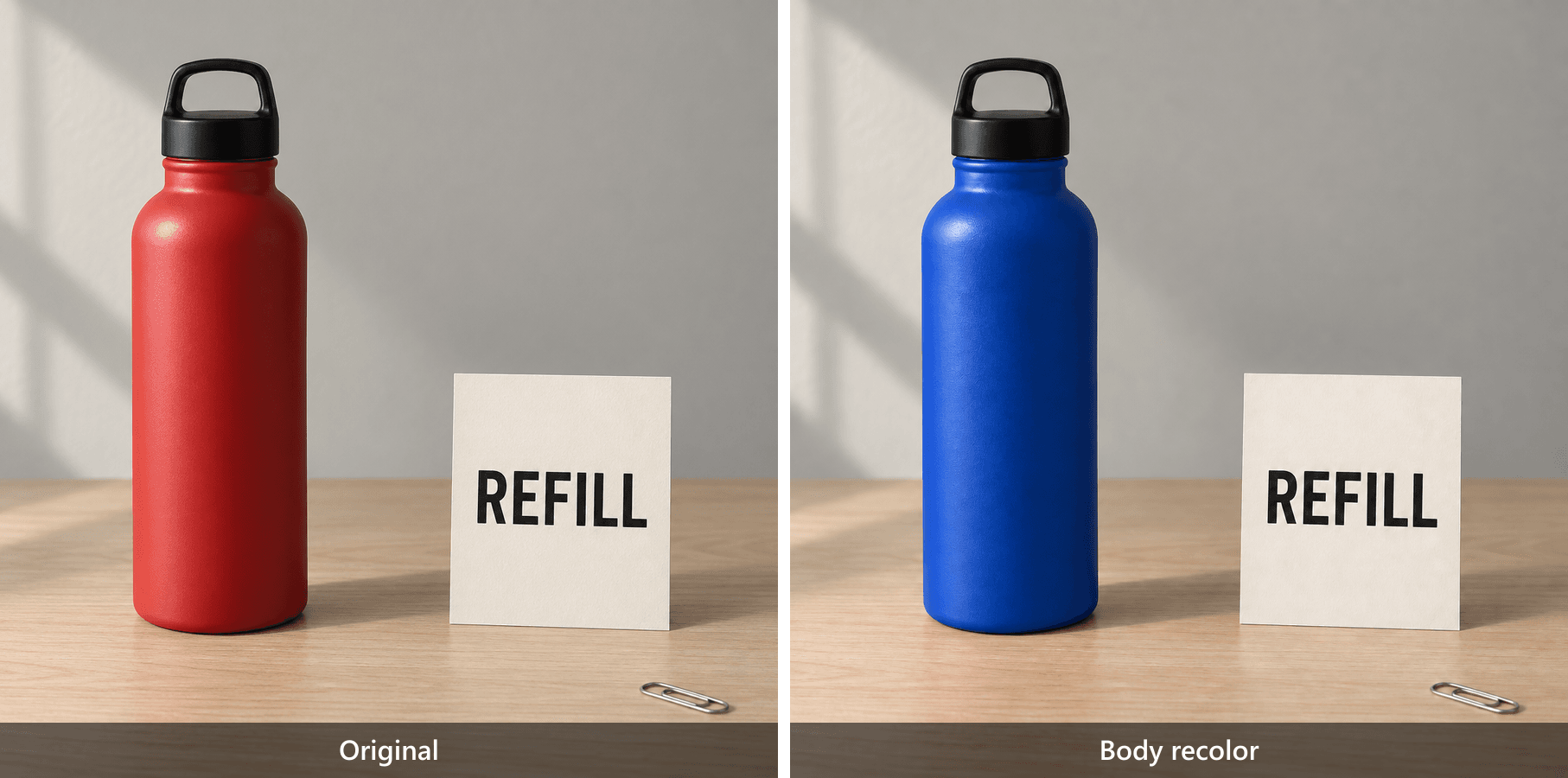 Red bottle and cobalt-blue bottle shown side by side, both with the REFILL card and paper clip
The paired output shows the requested body recolor. Check that the black cap, REFILL card, paper clip, desk, wall, and framing remain intact.
2. Replace text without redesigning the image. This task models a copy correction after the layout is already approved. Use the approved blue-bottle result, not the original red-bottle image. Save the next approved file as bottle-v2-text.png.
plaintext1Edit the supplied image. 2 3Target: the word on the upright paper card in the right third. 4Replace "REFILL" with exactly "REUSE". 5Preserve the existing type style, letter color, approximate letter height, centered alignment, card dimensions, card angle, and paper texture. 6Keep the cobalt-blue bottle, black cap, silver paper clip, desk, wall, lighting, shadows, and framing unchanged. 7Do not add any other text.
Read the 5 letters individually: R, E, U, S, E. Then check the word at the size readers will actually see. A close-up can reveal malformed characters; a normal-size view reveals whether the text fits the composition.
The shorter replacement need not occupy exactly the same horizontal span. Preserve the intended type treatment and alignment rather than forcing the original word's width. Finally, check the bottle remains blue. Correct wording on a reverted red bottle fails this sequence, even if the card itself looks acceptable.
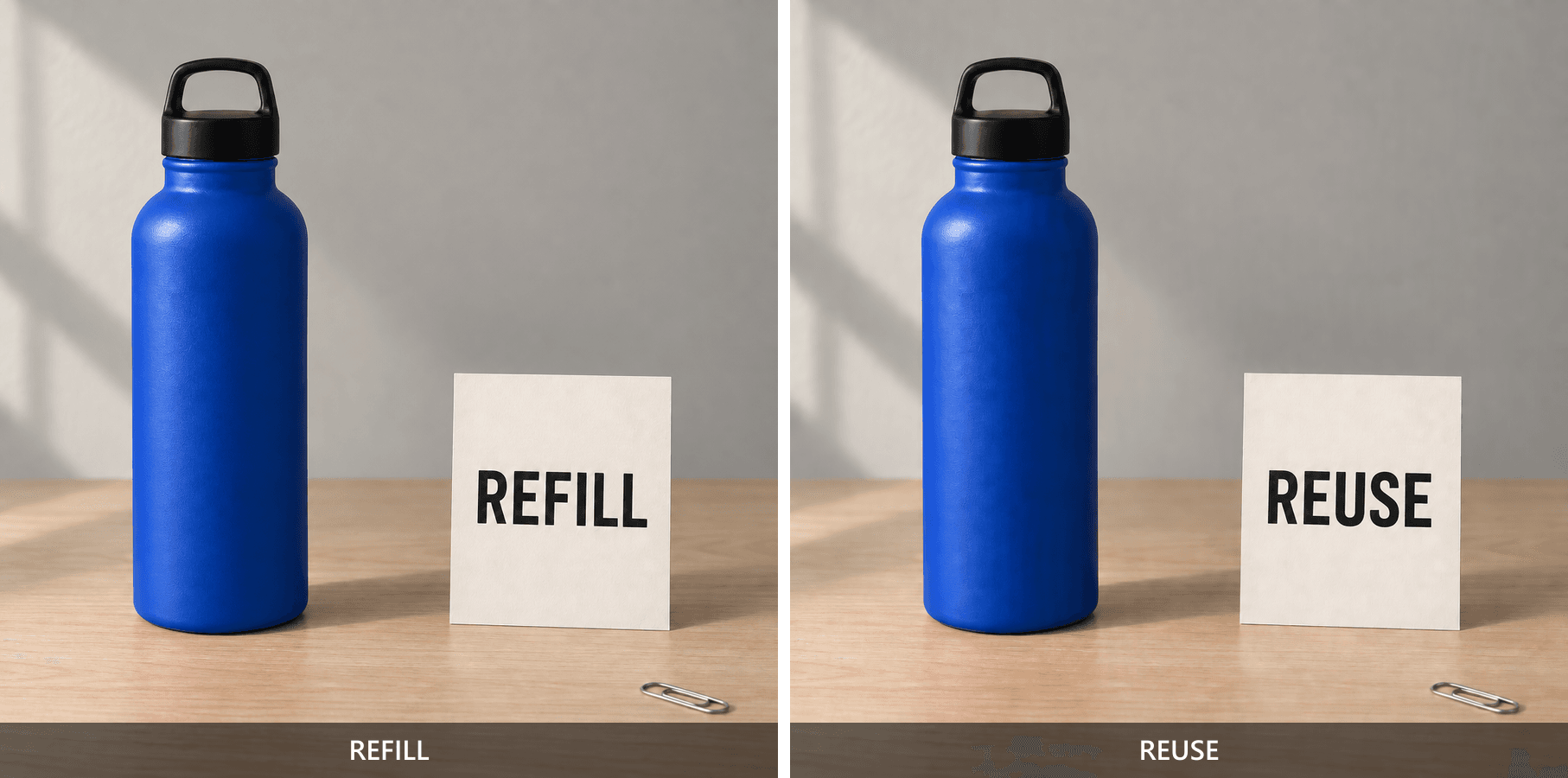
Blue bottle shown side by side with REFILL on the card before the edit and REUSE after the edit
The paired output isolates the card-word replacement. Check all five letters in REUSE, then verify that the blue bottle and paper clip remain in place.
3. Remove one distracting object. A small unwanted prop can pull attention away from a product. Here, remove only the paper clip using bottle-v2-text.png, then save an approved result as bottle-v3-clean.png.
plaintext1Edit the supplied image. 2 3Remove only the silver paper clip near the lower-right corner of the desk. 4Reconstruct the small area beneath it with continuous pale oak grain that matches the surrounding desk. 5Keep the cobalt-blue bottle, black cap, paper card, exact word "REUSE", wall, lighting, all other shadows, and framing unchanged. 6Do not move, resize, recolor, or add any other object.
Inspect the former paper-clip location at full size. Look for a remaining metal fragment, an isolated shadow, a blurred patch, or grain that stops abruptly. The model must invent the formerly hidden desk surface, so assess whether that reconstruction fits its surroundings.
Then compare the card position and the desk's visible edges. Removal should not become a quiet rearrangement of the whole still life. Finish by checking both previous approvals: the blue body and REUSE. This final sequence result is useful only if all 3 intended changes survive together.
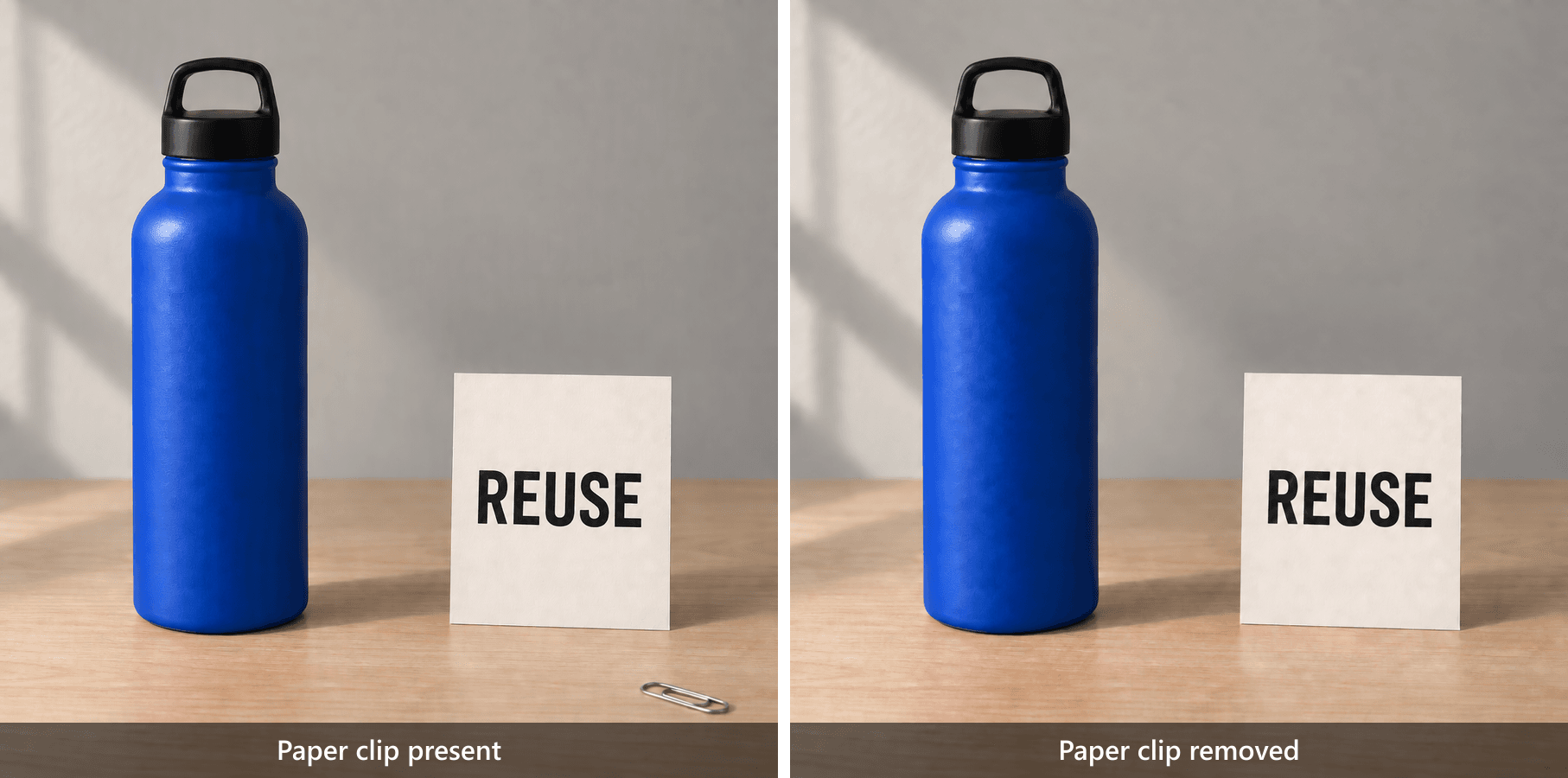
Blue bottle and REUSE card before and after the paper clip is removed from the lower-right desk area
The paired output shows the paper clip before removal and the reconstructed desk after removal. Inspect the oak grain, card, bottle, and shadows at full size.
4. Change a material, not the whole room. An interior concept may need a fabric change without a new furniture arrangement. Create this independent baseline and save it as chair-v0.png:
plaintext1Create a realistic interior photograph for a material-editing demonstration, landscape 16:9. 2 3Show one light-gray fabric armchair with exactly one plain mustard-yellow cotton cushion centered against its backrest. The chair stands on an oak floor. A small round walnut side table is on the right, holding one closed book with no visible text. A white wall forms the background. 4 5Use soft window light from the left, a fixed three-quarter camera view, realistic fabric texture, and believable shadows. 6No people, no logos, no additional cushions, no decorative objects, no text.
Once the input matches that description, request the material change and save an approved output as chair-v1-linen.png:
plaintext1Edit the supplied image. 2 3Target: the single mustard-yellow cushion on the armchair. 4Change only its fabric from smooth cotton to visibly woven linen. 5Keep the cushion's mustard-yellow color, dimensions, silhouette, seams, position, and folds as close to the source as possible. 6Preserve the armchair, side table, closed book, floor, wall, lighting direction, shadows, and camera framing. 7Do not add or remove any objects.
Compare texture and shape separately. Visible weave may satisfy the requested appearance while a changed cushion silhouette still fails the preservation requirement. Inspect the seams, corners, folds, and contact with the backrest.
A rendered texture cannot authenticate a textile's fiber composition. This is an appearance-editing exercise; sourcing real linen requires actual material information. Check the chair, table, and book too, since a believable room can still differ from the approved input.
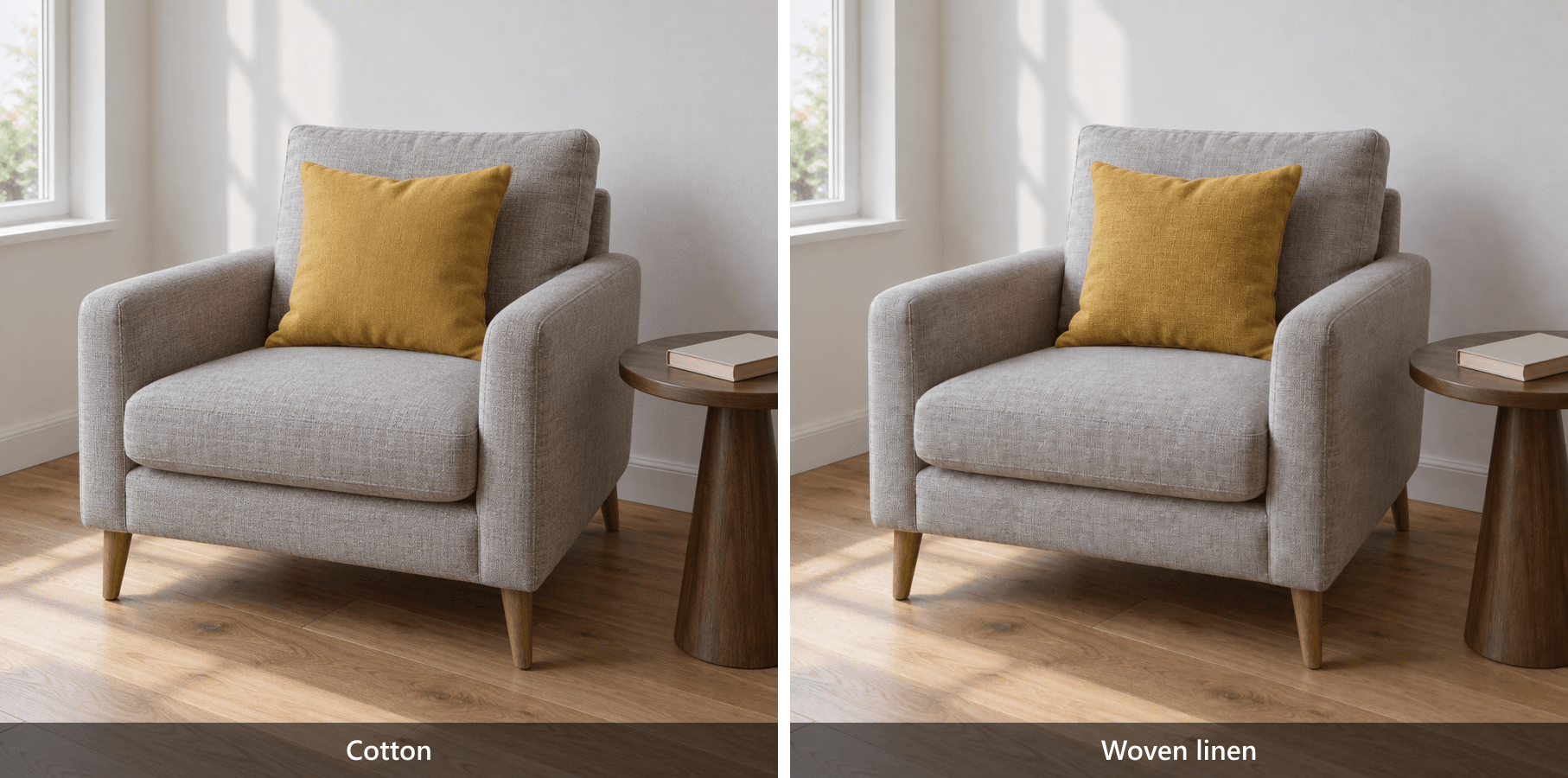 Mustard-yellow chair cushion shown before as cotton and after as visibly woven linen
The paired output makes the weave visible while keeping the chair, side table, book, room, cushion color, and overall silhouette available for comparison.
5. Replace a background while protecting the subject. A wall-color change lets you explore a different setting around an existing composition. Start again from bottle-v0.png. This independent branch should retain the red bottle and REFILL, not the blue-bottle sequence.
plaintext1Edit the supplied image. 2 3Replace only the warm-gray wall behind the desk with a clean medium cobalt-blue painted wall. 4Preserve the red bottle, black cap, paper card, exact word "REFILL", silver paper clip, oak desk, object positions, camera framing, and foreground lighting. 5Keep the wall plain, evenly painted, and free of decorations, patterns, gradients, or added objects. 6Do not recolor the bottle or desk.
Save an approved result as bottle-background-blue.png. Check the wall-to-desk boundary and the edges of the bottle and card. A blue fringe on a foreground object, altered tabletop color, or a moved horizon can matter as much as the new wall.
This request affects a large portion of the image. Apply broader checks than you would for a small text correction, especially around subject boundaries and perceived lighting. “Medium cobalt-blue” describes the intended appearance; it does not establish a measured color value or a guarantee of foreground pixel identity.
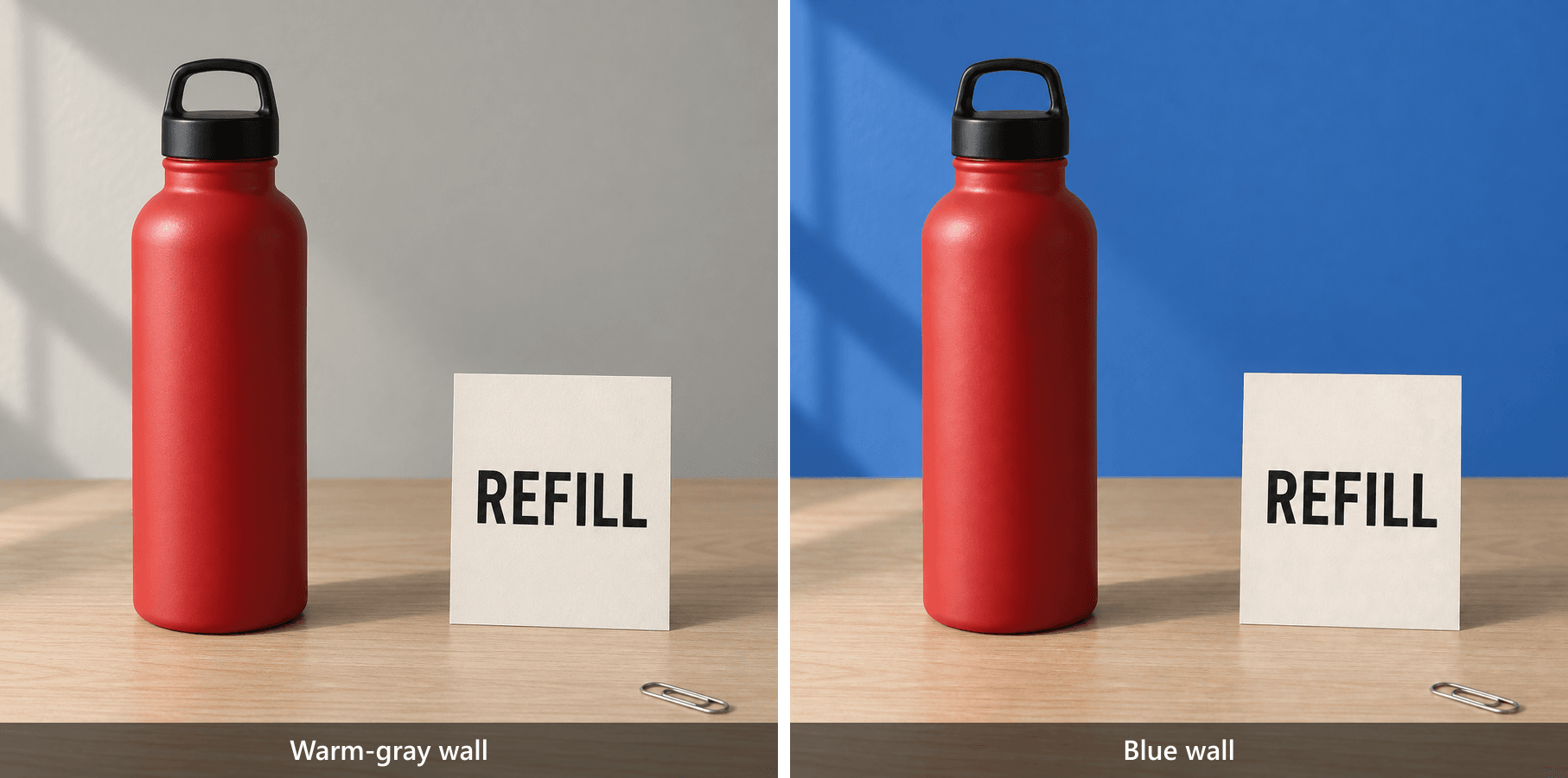
Red bottle, REFILL card, and paper clip shown with a warm-gray wall before and a cobalt-blue wall after the edit
The paired output shows the background replacement. Check the bottle edge, card edge, desk color, paper clip, and foreground shadows for unintended blue spill or movement.
Use this acceptance sheet for the 5 tasks. A successful target change and preserved surroundings are separate decisions. Unverified rows must stay unverified until the actual downloaded output has been inspected.
| Task | Target completed? | Protected details to check | Approval status | Retries |
|---|---|---|---|---|
| Bottle color | Red body changed to blue | Black cap, silhouette, REFILL, paper clip, shadow | Review required | 1 shown |
| Card wording | REFILL changed to REUSE | Exact REUSE, blue body, paper clip, card angle | Review required | 1 shown |
| Paper-clip removal | Paper clip absent in result | Continuous grain, blue body, REUSE | Review required | 1 shown |
| Cushion material | Cotton appearance changed to woven linen | Yellow color, seams, silhouette, room | Review required | 1 shown |
| Wall replacement | Warm-gray wall changed to cobalt blue | Red body, REFILL, desk, paper clip, foreground edges | Review required | 1 shown |
When GPT Image 2.5 Image Comments Go Wrong
Start by comparing the output with the exact input used for that attempt. Then compare it with the original baseline. The first comparison isolates the latest change; the second reveals whether several individually acceptable edits have gradually altered the scene.
If the wrong object changed, improve identification. Check whether the image contains similar objects. Add a location and a distinguishing feature, such as “the upright card on the right.” A longer aesthetic description will not resolve which object you meant.
If protected lettering changed, reduce the task. State the exact wording that must survive. Retry from the last approved version, then reread every visible word. Inspecting only the requested replacement can miss an unrelated text error.
If an earlier edit disappeared, verify the input version. A red bottle after a text edit may mean you supplied the original instead of the approved blue version. Correct that mistake before attributing the regression to the model.
If shapes or textures drift across rounds, return to the baseline. Submit a fresh cumulative brief listing the already-approved changes and the new request. This is a recovery experiment, not a guarantee. Recheck the combined result against every acceptance criterion.
If the original was wrong, repair the input. An extra object, incorrect card word, or clipped bottle in the baseline was already present before editing. Record the input defect and regenerate or correct it before evaluating a preservation task.
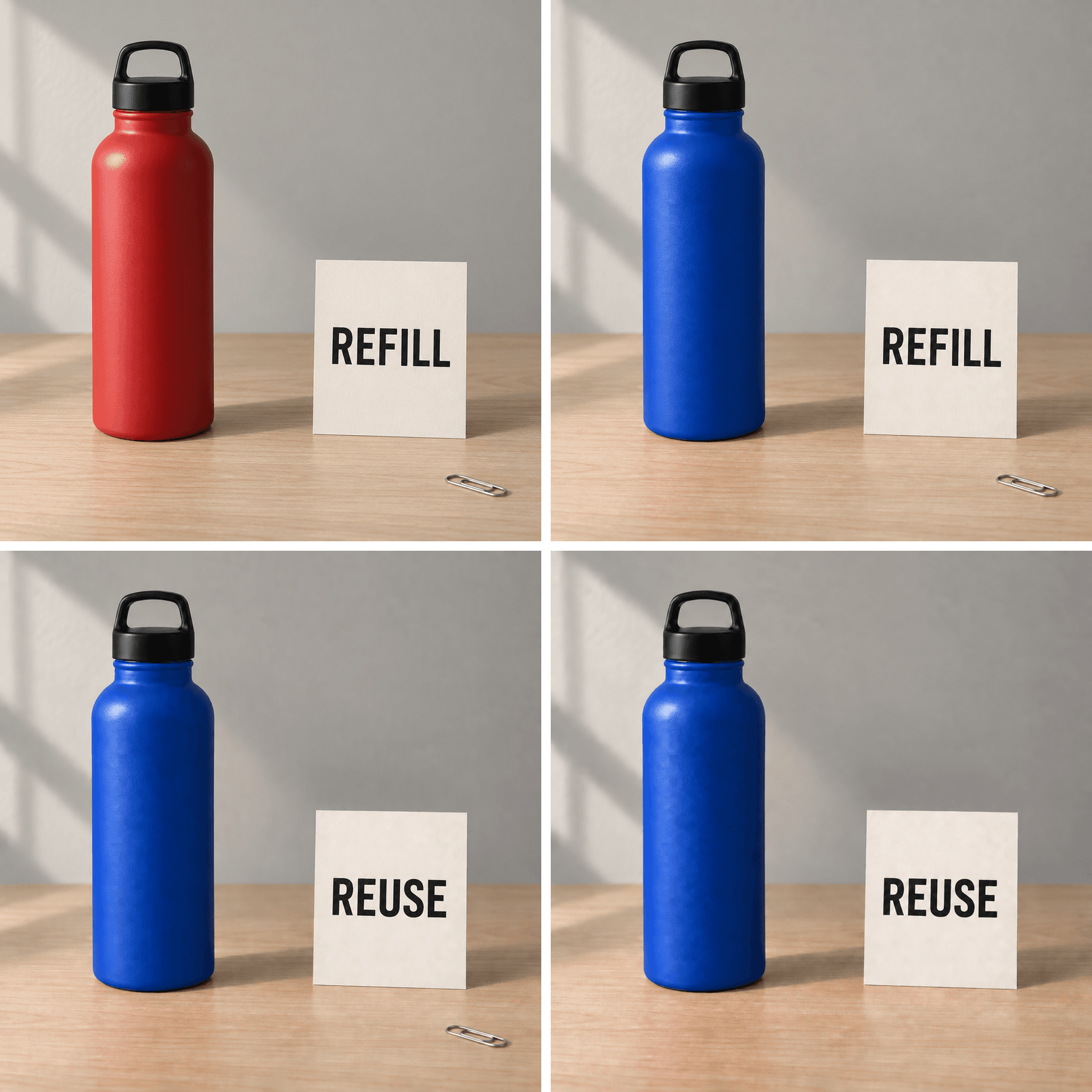 Four-step bottle sequence: red REFILL baseline, blue REFILL bottle, blue REUSE bottle, and blue REUSE bottle with the paper clip removed
Compare the cap, card lettering, bottle edge, paper-clip area, and desk grain across all four saved versions. Establish changes by inspection rather than assuming drift.
“Looks preserved” and “pixel-identical” describe different standards. A familiar silhouette can conceal small edge changes. Conversely, a numerical difference between files does not automatically mean the asset is unusable at its intended display size.
Use aligned, equal-scale images for a close comparison. Avoid assessing a resized preview against a full-resolution original. For legal text, a logo, or another element that must remain exactly unchanged, preserve that element with deterministic layers in a conventional image editor during final production.
Stop a branch when the new result introduces a protected-detail failure you cannot accept. Keep it as a rejected attempt for your record, but continue from the last approved input. This prevents an attractive local correction from becoming the new source of several hidden problems.
Use the Same Edit Brief on Atlas Cloud
When a team needs to save an editing brief and choose a named model for later runs, Atlas Cloud offers another route for the same task. Keep the source image, prompt, parameters, and approval notes together so a colleague can understand what was requested.
Sunburst is the only model family specified for this demonstration. OpenAI positions it for detailed generation and editing; the official model documentation identifies gpt-image-2.5-sunburst as an image-input and image-output model. (Sunburst model documentation, September 2026)
Flare is the speed-oriented option in OpenAI's release announcement. That positioning can guide a future trial, but it does not establish which model will preserve your particular image better. This article does not present a Flare-versus-Sunburst benchmark.
Create a baseline only if you need one. For the author-designed scenes above, open Sunburst Text-to-Image and paste the complete bottle or chair baseline prompt. If you already have a suitable original, begin with that image instead.
Set Quality to max, Size to 2560x1440, Output Format to png, Background to opaque, and Number to 1. The public detail pages mark resolutions above 2560×1440 as experimental upstream. This demonstration does not need that larger range.
Run the edit brief on the approved source. In Sunburst Edit, upload 1 original PNG or the last approved output. Paste the corresponding full edit prompt. Apply the same quality, size, format, background, and image-count settings. Leave Mask empty for this natural-language demonstration.
The public edit page was checked on September 16, 2026 and includes image upload, Prompt, Mask, Quality, and Size controls. A native comment pin or a ChatGPT comment-history import was not verified. Reusing the written brief does not transfer the ChatGPT interaction itself.
Before running, read back the settings shown by the form. After completion, download the original file and inspect it against the acceptance sheet. Choosing the same model and parameters makes the procedure easier to reproduce; it does not promise identical output files on repeated attempts.
GPT Image 2.5 Image Comments: Cost and Checks
ChatGPT usage allowances and Atlas model charges belong to separate systems. A ChatGPT subscription does not establish the price of an Atlas run, and an Atlas catalog price does not describe how many image edits your ChatGPT account can perform.
At the September 16, 2026 check, the Atlas model catalog displayed rounded starting prices with a 20% promotion for both Sunburst routes. Those catalog figures cannot price this guide's max, 2560×1440 workflow with reference-image inputs.
The detail pages explain token-based billing for text input, reference images, and generated output. They also distinguish a submission hold from final usage settlement. Record the quote before submitting and the settled charge afterward, if available. Mark unavailable billing evidence explicitly.
Count all attempts that contribute to production, including rejected outputs and baseline retries. Keep test-environment amounts separate from production invoices. A result generated in a test environment does not establish a paid customer's actual bill.
plaintext1Cost per approved asset = 2Total actual charges for all attempts / Number of approved assets
Define “approved asset” before calculating. If you ship only the final cleaned bottle image, intermediate blue and text-edit files are production steps, not 3 additional deliverables. If no asset passes, the ratio is undefined; report the attempts and charges without inventing a cost per success.
Use submission-to-completion time consistently. Add manual review time separately if you are estimating production effort. These 5 task types can reveal practical failure modes; they cannot establish a general success rate across products, interiors, and marketing images.
Frequently Asked Questions
What are GPT Image 2.5 image comments?
They are editing instructions attached to a location on an image in ChatGPT. Identify the target, state the requested change, and name the details to preserve. They are distinct from public image comments and should not be treated as automatic approval records.
Why can't I see the Comment option in ChatGPT?
Open the generated image full-screen and inspect the editing controls your client provides. Official help describes comments on mobile, plus selection-based and direct text editing. This guide has not established the cause of a missing button on your account. Its absence alone is insufficient evidence that a paid upgrade is required.
Can I change one object without changing the background?
You can request it by naming the object, its location, and the background details to preserve. Treat the output as a candidate and compare the entire scene. A successful-looking target change is only half of the check; altered surroundings may still make the result unsuitable.
Why does the image change outside my selected area?
OpenAI warns that selections can be imprecise and edits can extend beyond them. Narrow the request, make the protected details explicit, and retry from a clean approved source. If exact preservation is essential, finish the protected parts with deterministic layers rather than relying on repeated generative requests.
Should I use Flare or Sunburst for precise edits?
Sunburst is the precision-oriented choice in OpenAI's positioning, while Flare emphasizes speed. This guide specifies Sunburst for its controlled editing procedure. There is no matched Flare test here, so it offers no measured ranking or claim that Sunburst always preserves every detail better.
Can I use the same editing instructions on Atlas Cloud?
Yes: upload the relevant source to its image-edit route and reuse the written brief. Verify the displayed parameters and review the downloaded output. Native ChatGPT comment pins, conversation context, and comment-history import are not established by that process. Keep the source version with the prompt so the next operator knows what the instructions refer to.
To try the same brief beyond GPT Image 2.5 image comments, choose one existing image, run one edit in Sunburst Edit, and check the result before making the next change.





