A character waves in your preview, yet the loop jolts when it repeats. Or you download a moving image and discover that your sticker destination rejects it. A GPT Image 2.6 animated sticker starts with a native GIF request, a prompt that brings the character back to its opening pose, and an export decision made for the place it will be published. GPT Image 2.6 can generate a GIF directly. That file can work as a sticker-style reaction on a page or in a post, while an app's sticker library may require transparency, a different format, and size limits. This guide gives you an otter prompt, studies three published motion references, and examines a submitted otter still and animation before choosing a GIPHY or WhatsApp export.
Key takeaways
- Generate motion with the text-to-image GIF option and describe both the action and its return pose.
- Study real moving examples, then check your own GIF's first and last frames and its readability at sticker size.
- A solid-background GIF is ready for some posts, while GIPHY and WhatsApp sticker formats need more work.
- Treat a model catalog's starting price as a floor, then check the completed job's charge.
What GPT Image 2.6 Can Actually Export
OpenAI's image generation documentation describes animated GIF output for image generation. Set the output format to GIF, then choose a frame count and the duration of each frame. The documented range is 2 to 64 frames and 20 to 2,000 milliseconds per frame. Those are controls, not a promise that every combination of frame size and count will fit the request's pixel budget.
The current image edit reference also lists GIF output when the selected model has GIF preview access, with 2 to 16 frames. Check whether the live edit interface exposes that option before planning an image-to-GIF run. Uploading a still does not by itself guarantee exact character identity across the motion. The separate otter example below began with a PNG and a supplied MP4, which we converted locally into a GIF; it is not evidence of a native GIF edit result.
For this article, "animated sticker" means a compact, expressive loop with one recognizable subject. It does not claim that the first downloaded GIF is a native sticker package for every messaging app. In particular, Atlas Cloud's GIF parameter guidance says its GIF option cannot be combined with the transparent-background parameter. We therefore ask for a uniform pale background, inspect the result, and reserve transparency work for a separate local processing step.
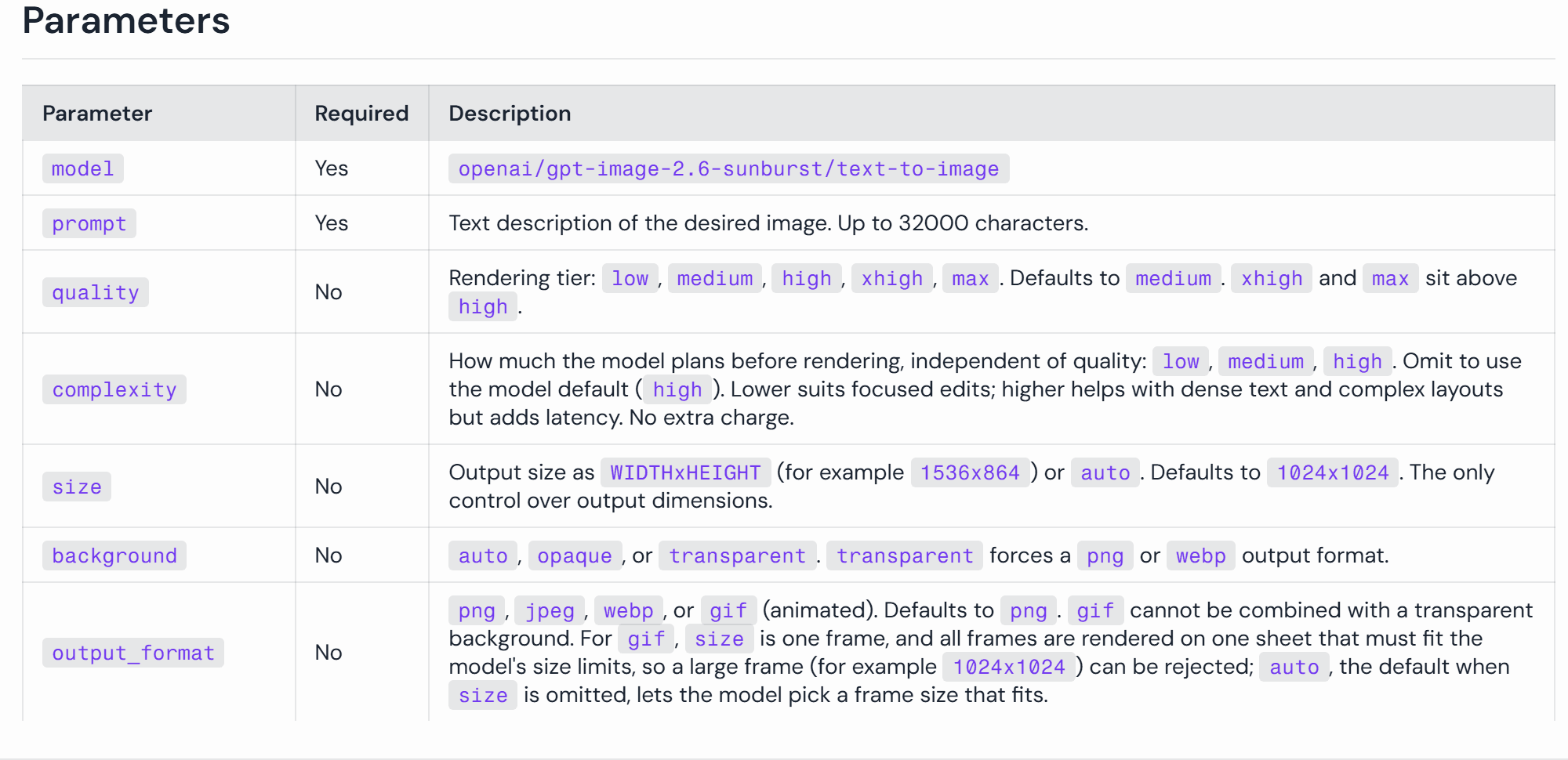
The model-page parameter guidance is the checkpoint for the GIF and background settings before a run.
A clean prompt can ask for consistent fur, scarf, and outline, but the saved frames decide whether those details actually stay stable. The same applies to the loop. A return-pose instruction improves the brief; it is not proof of a seamless result.
Make an Animated Sticker GIF with One Prompt
Write the Character, Action, and Return Pose
Choose one reaction that reads without sound. The working prompt below describes a cheerful sea otter that turns, waves twice, blinks, and returns to a three-quarter pose. The otter has only a few identity markers: warm brown fur, a cream muzzle, dark eyes, and a teal scarf. These details are easy to inspect frame by frame and remain legible when the GIF is displayed small.
Copy the full prompt below. Its first sentence defines the file's visual setting. The middle fixes the character and camera. The final sentences specify visible movement and the closing pose. A fixed square view is useful here because a camera move can hide weak character animation and make the loop jump when the view resets.
plaintext1Create one original animated reaction sticker-style GIF on a uniform solid pale cream background (#F6F1E8). Subject: a small round sea otter with warm brown fur, a cream muzzle, dark round eyes, and one tiny teal scarf; keep these features identical in every frame. Fixed square composition, full body centered with generous safe space, no text, logo, border, other characters, or scenery. In one smooth looping action, the otter starts in a cheerful three-quarter pose, turns toward the viewer while clearly waving one paw twice, blinks once, gives a small buoyant bounce, then turns back to the exact starting three-quarter pose. Make the head, paw, and body positions change progressively between frames, with no still-image hold, slideshow cut, camera zoom, or sudden jump. The last frame must lead naturally into the first. Keep the outline and expression readable at 128 pixels wide.
"Wave twice" gives the paw a measurable job. "Turns back to the exact starting three-quarter pose" defines the seam between the final frame and the first. The instruction to avoid a still-image hold addresses another failure: a file may contain many frames while showing little change. The plain background makes later edge removal easier to inspect, although it does not itself create transparency.
Do not add another character, confetti, a sign, or a scene to make the result look busy. At 128 pixels wide, those elements compete with the paw and face. A reaction sticker needs an identifiable emotion and a visible action; extra detail only earns its place if the intended destination requires it.
Published Animated Sticker Cases: Fox, Cat, and Robot
OpenAI's GPT Image 2.6 launch article pairs action sequences with moving examples, including two six-frame office-worker reactions. The same presentation works here: show the motion, show the frames that explain it, then examine what a small sticker viewer will actually see. The following are external reference cases, not GPT Image 2.6 or Atlas Cloud test results.
Case 1: One Fox, Three Readable Reactions
The public Motion Sticker Pack gallery publishes three reactions from one fox character: embarrassed, sarcastic, and eating watermelon. We combined its three original 240 × 240, 24-frame, three-second GIFs into a single synchronized strip. Left to right, the fox moves from a startled face to a blush, shifts its gaze with crossed arms, and brings a watermelon slice toward its mouth. The scarf, hoodie, star badge, and tail make identity drift easy to spot across the three ideas.
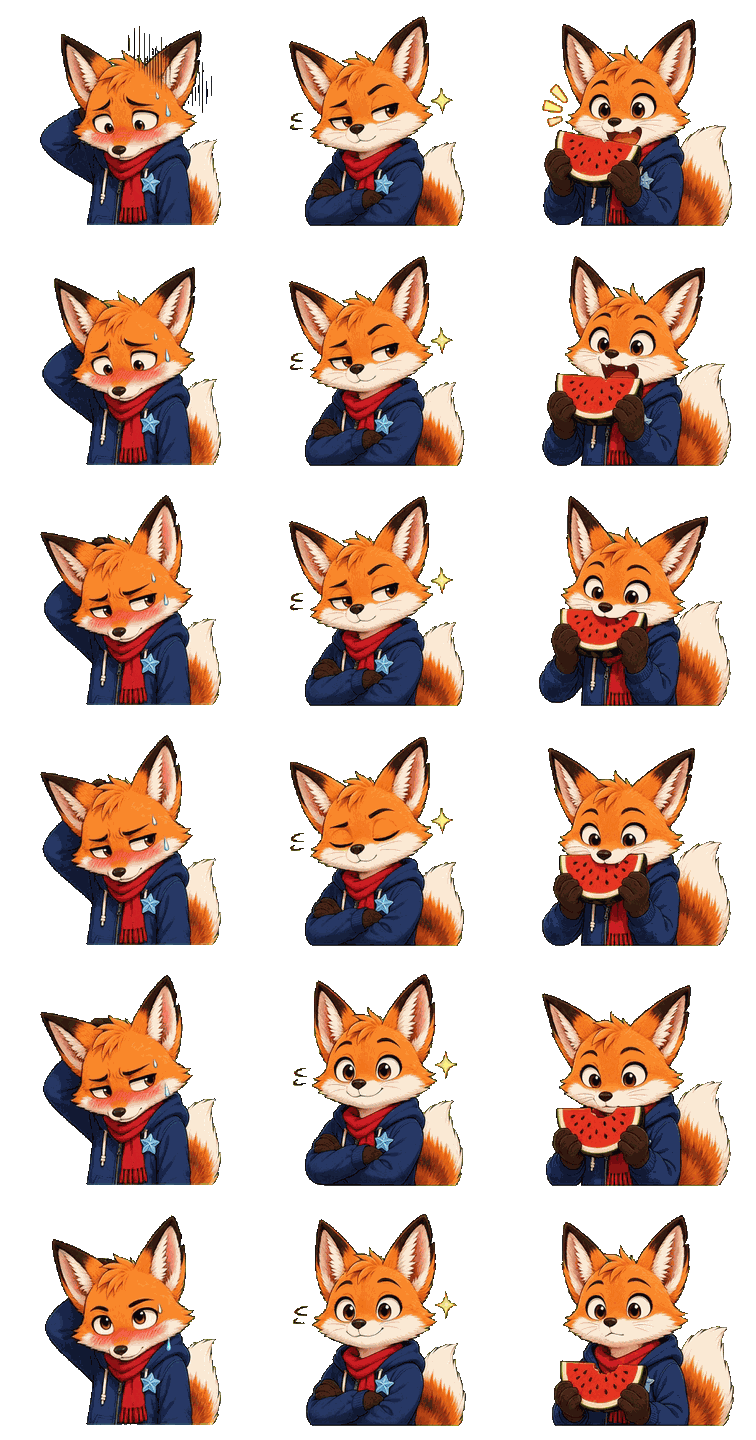
One GIF assembled from the gallery's embarrassed, sarcastic, and eating-melon files, shown left to right. These are reference animations from another workflow.
The first reaction changes the face while the body stays mostly in place. The second depends on a much smaller eye movement, so its meaning can disappear when reduced. The third gives the prop a job, but the watermelon must stay consistent through the bite. These are three different prompt constraints, not three reasons to add extra props to the otter. At sticker size, pick one clear action first.
The still comparison below makes the loop seam inspectable. In the embarrassed GIF, the final head angle and expression differ from the opening frame. That does not automatically ruin a reaction, but it is a reason to replay the file at its intended size before calling the loop finished.
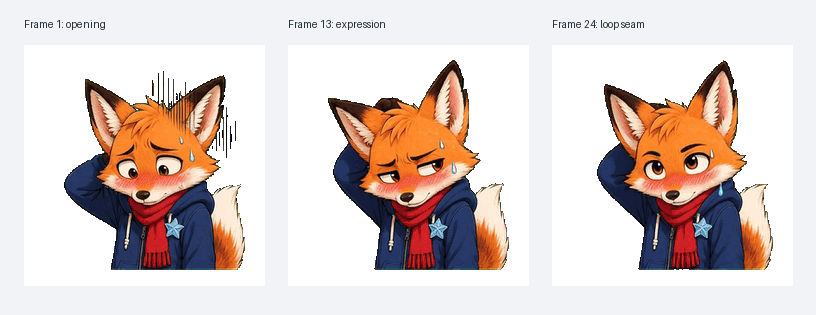 Frames 1, 13, and 24 from the published embarrassed fox GIF. The image is a frame comparison; the moving strip above is the playback test.
Case 2: A White Cat Loop Built from 25 Frames
A separate published white-cat sticker case starts with a prompt for a fluffy, blue-eyed cat and a blue yarn ball. Its repository says the case uses an earlier image model, a 5 × 5 sprite sheet, local frame splitting, and GIF assembly. This external case follows a different generation route from the native GPT Image 2.6 GIF workflow in this guide. Its output still gives a useful motion test: the cat approaches the ball, rolls, returns upright, and ends near its opening pose.
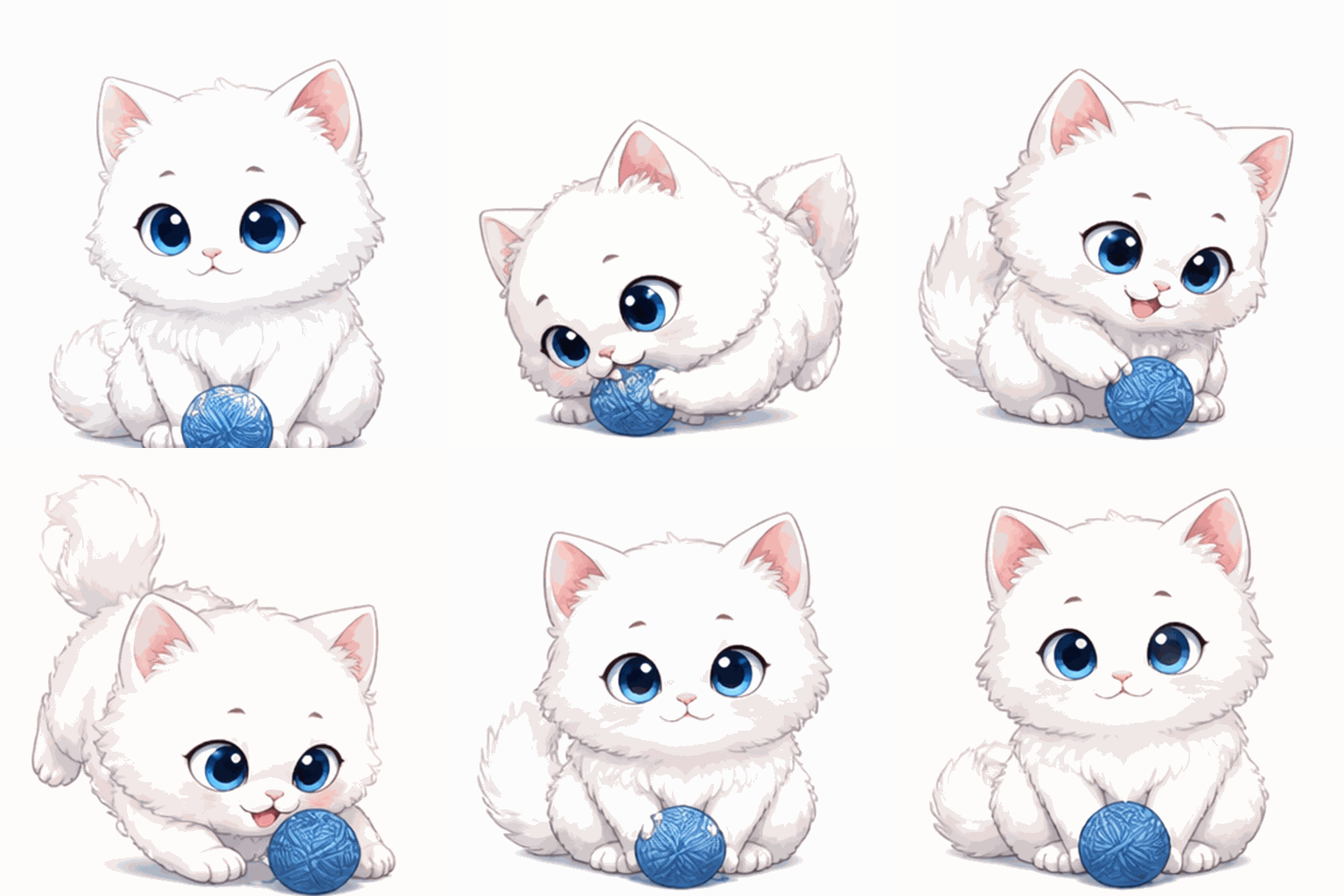
The source case's animated GIF is shown as an external motion reference, not as a GPT Image 2.6 result.
The numbered contact sheet shows why this reads differently from the fox reactions. The cat changes its whole body position across the sequence, and the ball anchors the action. Frames 1 and 25 are close enough in pose to suggest a planned return, while the moving GIF is still needed to judge timing and any visible jump.
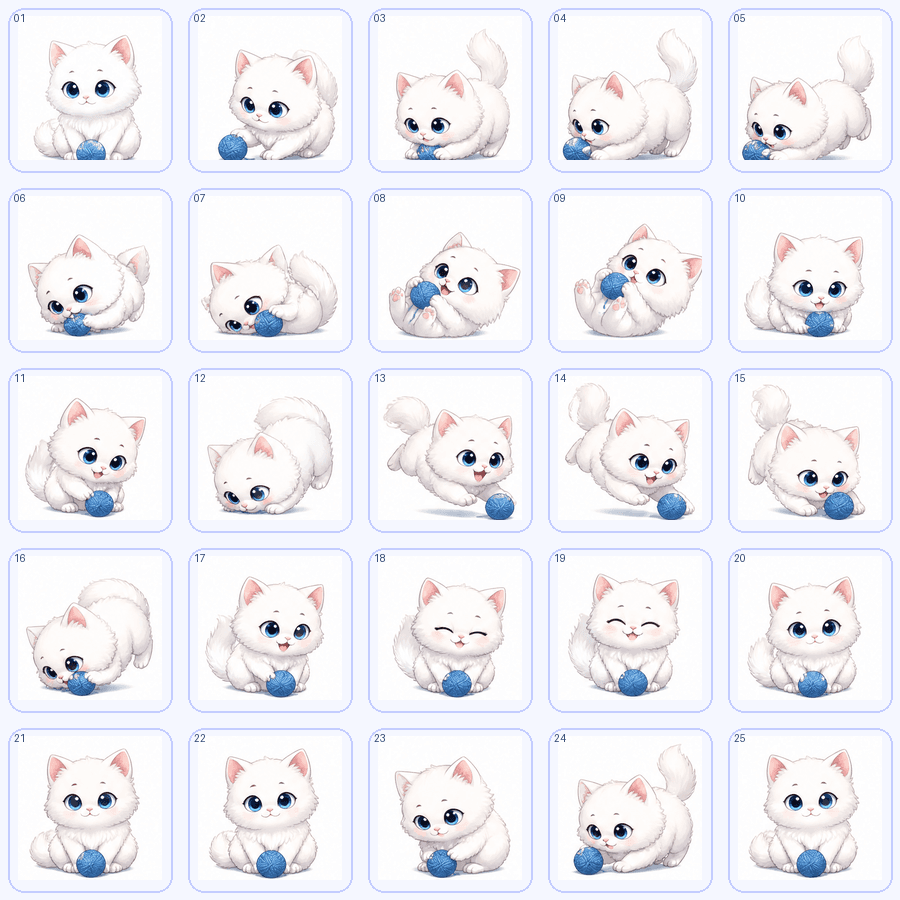 The source case's frame contact sheet shows the progression behind the animated GIF.
Case 3: A Robot Wave Tests Character Identity
The published robot animation case begins with one white-and-purple character image, then shows the robot waving and blinking in a short loop. Its author reports that a first sprite-sheet attempt changed the robot's size and legs, so the final example generated poses from a fixed character base and assembled them locally. The visible lesson still applies to a sticker prompt: a recognizable character needs stable body proportions while one limb carries the action.
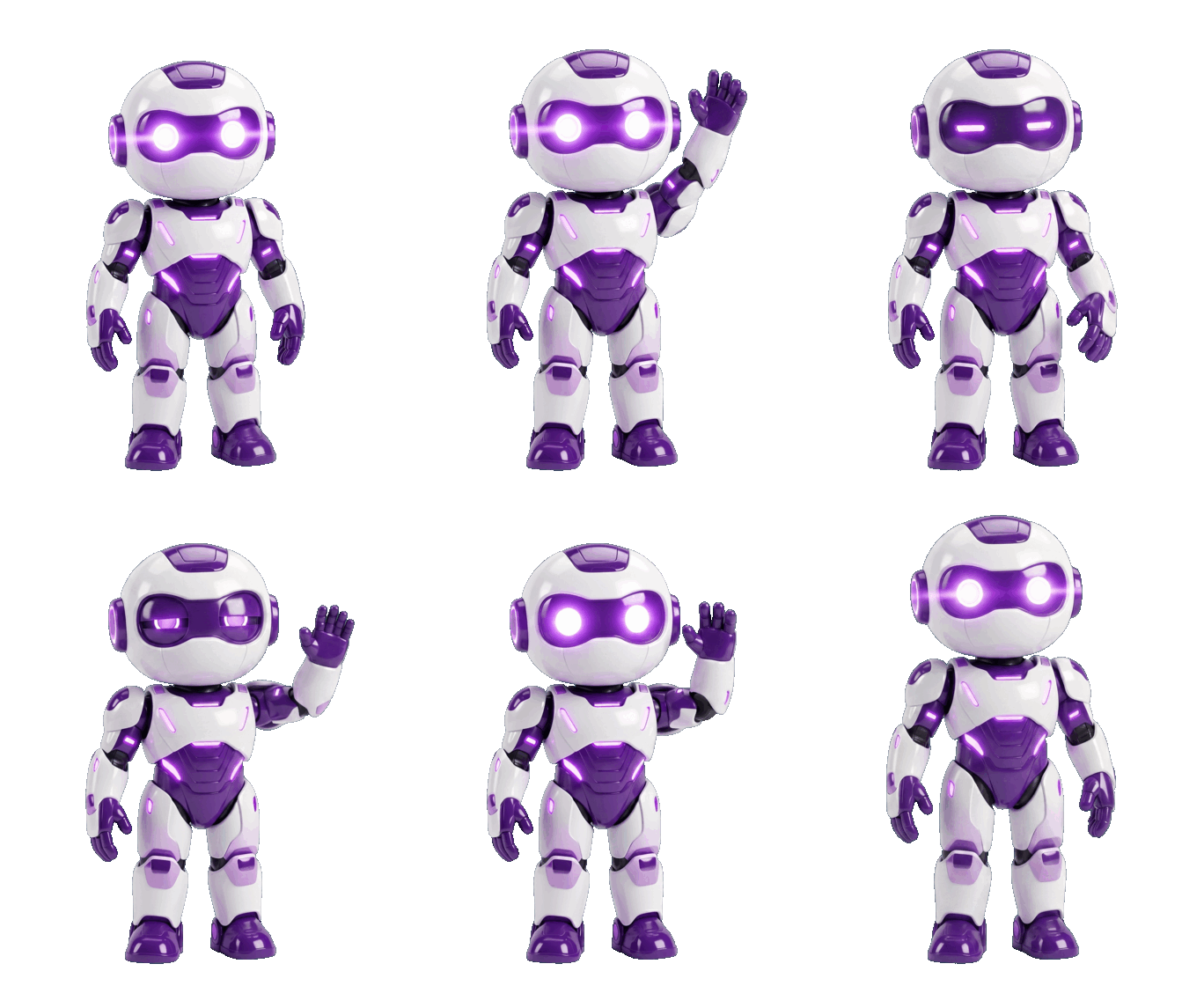
The source case's wave GIF contains 24 frames over about 1.85 seconds. Watch the raised hand, blink, and return toward the starting stance.
The animation is more than a zoom: the hand rises, the visor closes for a blink, and the feet remain planted. Compare it with the original character below. The purple visor, shoulder panels, chest shape, and leg proportions are concrete details to check frame by frame. Some visor and hand shapes still shift, so the input image and GIF should be viewed together rather than assuming perfect identity from the prompt.
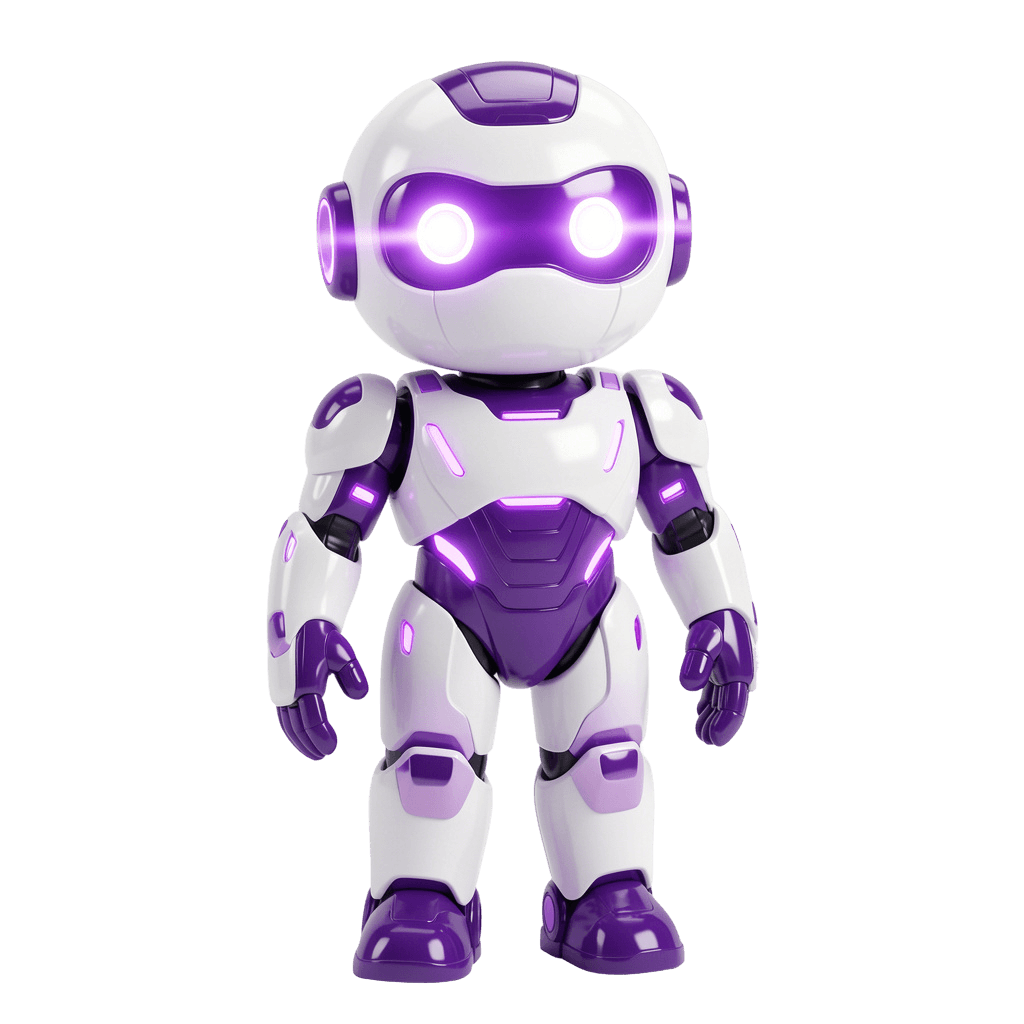
The published source image is the fixed character reference for this external case. It lets you compare the moving result with the intended design.
For the otter prompt in this guide, the equivalent check is whether the teal scarf, muzzle, and body scale survive the wave and turn. Keep the camera and starting pose fixed, then judge the downloaded animation rather than treating a return-pose sentence as proof of a seamless loop.
Run GPT Image 2.6 Sunburst on Atlas Cloud
For the reproducible route, open Atlas Cloud and navigate to the GPT Image 2.6 Sunburst text-to-image playground. This is the image-generation path; the similarly named edit path is a different operation. Paste the prompt exactly as written before changing any wording.
Select high quality, medium complexity, GIF output, 24 frames, and 100 milliseconds per frame if those controls appear in the live form. Ask for a 512 × 512 square frame and leave transparent background off. The requested timing is 24 × 100 ms, or 2.4 seconds for one loop. If the form rejects that frame size because the total pixel budget is too large, reduce the size or frame count according to the displayed error and record the values that actually ran. Do not label a 512 × 512 result until the completed job confirms it.
Run once and wait for a completed result, then download the GIF itself. A preview still or the model page's sample art is not the output of this prompt. Check the saved file's format, dimensions, frame count, and timing before you use it in a post. An asynchronous job may show a queued or running state for a while; only a completed output and a real downloaded file count as a finished example.
The otter prompt is a reproducible starting point. The completed Atlas still and separate animation below do not document a native GIF run with the 24-frame settings above. Judge each downloaded file by its actual format and frames rather than assuming the prompt guarantees a clean loop.
Our Otter: A Still Image and a Transparent Motion Cutout
We removed the pale cream backdrop from the downloaded still. The transparent PNG below isolates the original otter, so its face, whiskers, teal scarf, and outline can be compared directly with the moving version.

We removed the animation's cream background frame by frame, sampled the motion at 15 frames per second, cropped it to a 512 × 512 square, and encoded a 76-frame transparent GIF.
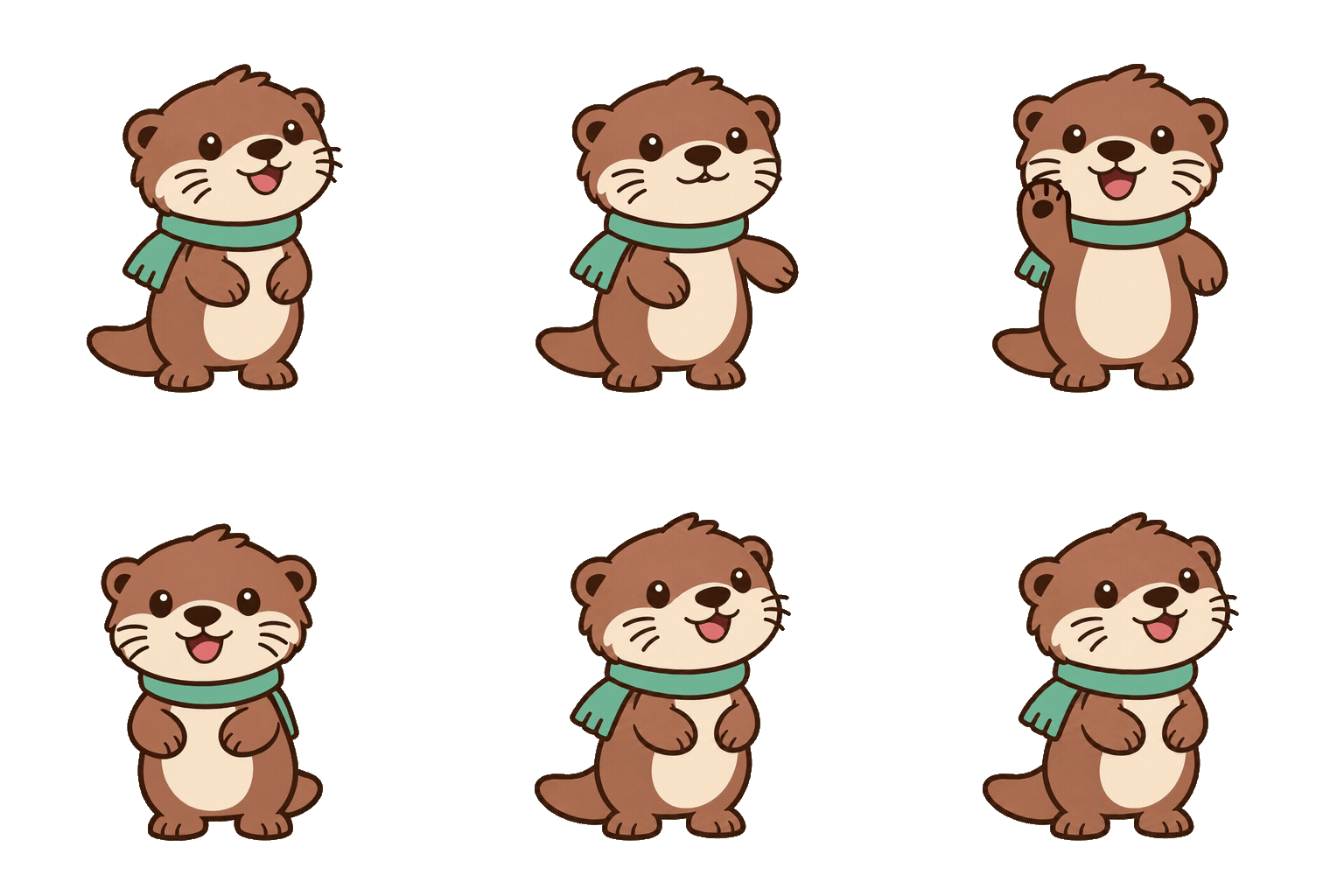
The transparent GIF retains the moving paw and head turn. The corner pixels are transparent, so the cream rectangle no longer appears around the character.
The Atlas playground screenshot records the still-image step: a completed PNG of the sea otter. The visible controls show high quality, medium complexity, a 16:9 frame at 2048 × 1152, and PNG output. The screenshot does not show the generation settings for the later animation.
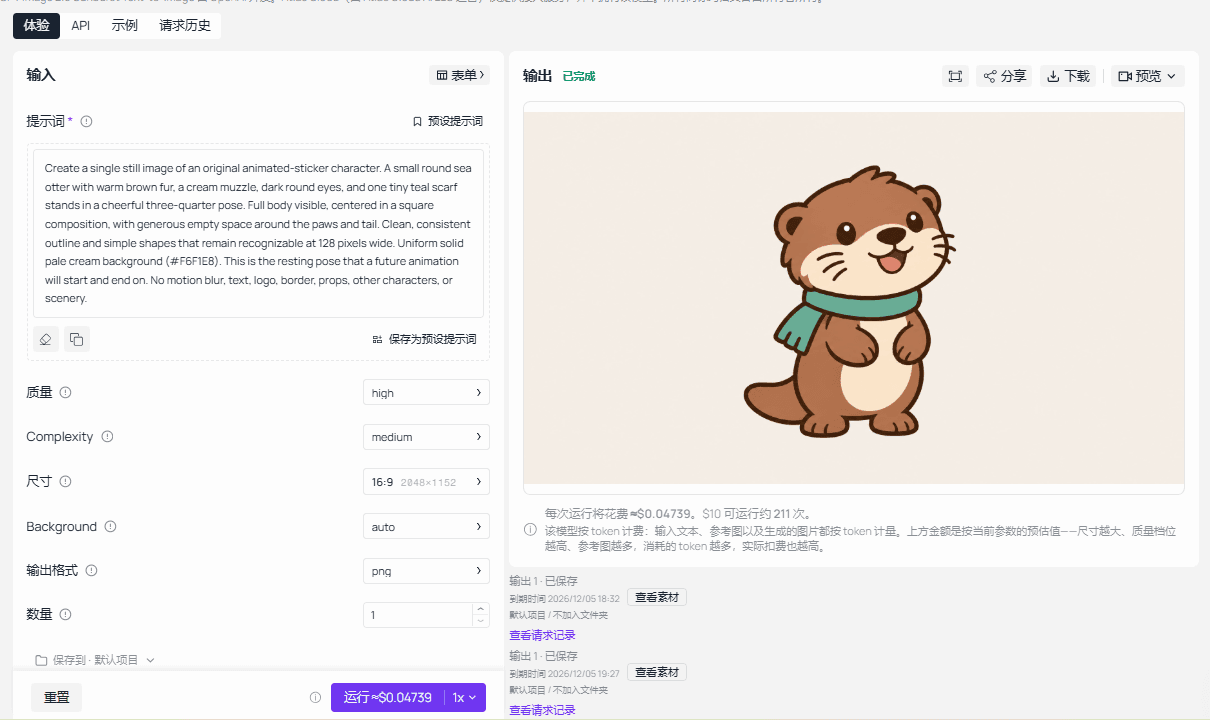
The Atlas playground screenshot shows the still-image prompt, settings, and completed PNG output.
The animated otter keeps the brown fur, cream muzzle, dark eyes, and teal scarf, but its face shape, whisker placement, and scarf arrangement differ from the original PNG. The animation therefore shows a related character design rather than a pixel-faithful animation of the still. Replay the GIF at sticker size and check the last-to-first transition before publishing it.
Check Whether the Loop Works at Sticker Size
Inspect the First and Last Frames
Play the downloaded file through several cycles, then pause on the first and last frames. Compare the otter's body angle, scarf position, paw height, and placement inside the square. A small difference is fine if the movement continues naturally. A jump in position, a sudden change of face, or a disappearing scarf makes the seam obvious.
Next, shrink the display to about 128 pixels wide. The face and waving paw should still read without zooming in. If the action only appears at full resolution, it will be weak in a chat picker or a small social post. Check that the full body stays within the safe space throughout the loop so the hand and tail do not clip at the edge.
Inspect frame progression as well as the endpoints. Do the two waves have clear outward and inward phases? Does the blink happen while the rest of the character remains consistent? Does a long stretch of nearly identical frames make the GIF feel like a still image? A useful acceptance check is observable: recognizable subject, visible wave, stable features, no cut, and a last-to-first transition that does not call attention to itself.
Some players optimize or skip frames in their previews. If motion looks odd, open the downloaded GIF in a second viewer or extract its frames locally before blaming the model. A screenshot of the first frame alone cannot verify timing or looping. The actual GIF is the artifact to judge.
Fix Motion That Looks Like a Slideshow
If the generated otter barely moves, revise only the motion sentence and keep the character, background, and frame settings unchanged. Replace the existing wave-and-turn instruction with: "Make the paw wave large and unmistakable, and rotate the head visibly from three-quarter view to front view and back." Then run it again and compare the new file against the same acceptance check.
This single-change method tells you whether stronger motion wording helped. Rewriting the whole prompt at the same time could change the otter's design, scene, and timing, making the result harder to interpret. If the seam is the main problem instead, keep the action and strengthen the closing-pose instruction. Ask for the same head angle, paw position, and body height at the end as at the beginning.
A successful rerun should earn its place because it improves the animation, not because a prompt sounds more forceful. Save the version whose motion is obvious at small size and whose cycle closes cleanly. If neither version passes, the honest outcome is an unfinished example; adjust the animation concept or frame budget before calling it a ready sticker.
A GIF Is Not Always an App Sticker
The destination determines what "finished" means. A GIF with an opaque cream rectangle may be usable in a web article or a social post that accepts GIF uploads. A sticker library overlays the art on other content, so its rules often require transparent pixels around the subject. Renaming the file cannot add transparency or change its encoding.
| Destination | What the file needs | What to do after generating the otter GIF |
|---|---|---|
| Web article or social post that accepts GIF | Animated GIF; platform upload limits vary | Upload only after verifying the loop; test playback on the destination |
| GIPHY Sticker | A GIF with transparency around its edges; at least 20% of pixels transparent in frame 1 | After generating, remove the cream background frame by frame, inspect edges and the first frame, then submit through the sticker workflow |
| WhatsApp animated sticker pack | Transparent animated WebP, exactly 512 × 512, at most 500 KB per sticker, and no more than 10 seconds | After generating, remove the background across all frames, encode animated WebP, validate size and timing, then test a pack in WhatsApp |
GIPHY's sticker definition gives the first-frame transparency threshold. WhatsApp's official sticker requirements specify the WebP format, dimensions, file limit, duration, and pack rules. These are destination requirements, not settings that GPT Image 2.6 Sunburst automatically applies to a native GIF.
For this otter, a local conversion workflow would identify the uniform cream background in every frame, remove it while preserving fur edges, check each frame over both light and dark surfaces, and encode the resulting animation for the destination. Check the loop again after conversion: palette reduction, edge cleanup, and frame timing changes can make a good GIF look rough in the final file.
WhatsApp also requires animated stickers to be delivered as an animated pack, with 3 to 30 stickers per pack in its documented app workflow. One otter file is enough to test motion, but it is not by itself a complete WhatsApp pack. If you need one quick reaction for a web page today, stop at the verified GIF. If you need a sticker library asset, budget for conversion, validation, and an actual import test.
GPT Image 2.6 Sunburst or GPT Image 2.6 Flare, and What Will a GIF Cost?
GPT Image 2.6 Sunburst is a sensible first choice for this tightly specified character because the request asks for consistent features and a precise return pose. GPT Image 2.6 Flare is the alternative when iteration speed matters and you want to test several motion wordings. The model names describe positioning, not a measured quality ranking for this otter. A fair comparison would run the same prompt, size, frame count, timing, and quality setting on both, then inspect both downloaded files.
| Choice | When to try it | What still needs checking |
|---|---|---|
| GPT Image 2.6 Sunburst | The character has specific details and the loop has several coordinated actions | Confirm the GIF controls, saved frames, and completed-job charge |
| GPT Image 2.6 Flare | You expect to revise the action wording through multiple drafts | Confirm the same controls and inspect motion before using it as the final export |
The GPT Image 2.6 Flare model page is useful for that choice, but a catalog's "From" amount describes an entry price, not the invoice for a 24-frame high-quality GIF. GIF work can consume more output than a single still image. Look at the live model page before running, then check the completed task's quoted or settled charge in the job history. Record the actual model, quality, frame count, size, and charge together if you need to estimate a larger sticker batch.
The simplest next action for a GPT Image 2.6 animated sticker is to make one loop, inspect it at its intended display size, and decide its destination before doing conversion work. That gives you a usable GIF when GIF is sufficient and a clear list of extra steps when an app requires a real sticker format.
Frequently Asked Questions
Can I edit an existing GIF with GPT Image 2.6?
The current image edit reference lists GIF output with 2 to 16 frames when the selected model has GIF preview access. That does not establish that every playground exposes the option or that uploading a moving GIF preserves its original motion. Check the live controls and inspect the downloaded result. The otter GIF in this article was converted locally from a supplied MP4.
Why was my requested 512 × 512 GIF rejected?
The frame count, frame dimensions, and number of outputs must fit the total request pixel budget. Try fewer frames or a smaller supported frame size, and use the actual accepted dimensions in your article or upload specification. The 24-frame setting in this guide is a request to test, not a guarantee that every interface accepts it.
Can I upload the GIF as a WhatsApp animated sticker?
WhatsApp's documented animated sticker format is WebP, with transparent art and strict size and duration limits. Convert and validate the finished animation, then test it through a sticker-pack workflow. Changing the GIF suffix to WebP does not convert the file.


